Readers like you help support this site. When you make a purchase using links on our site, we may earn an affiliate commission. All opinions remain our own.
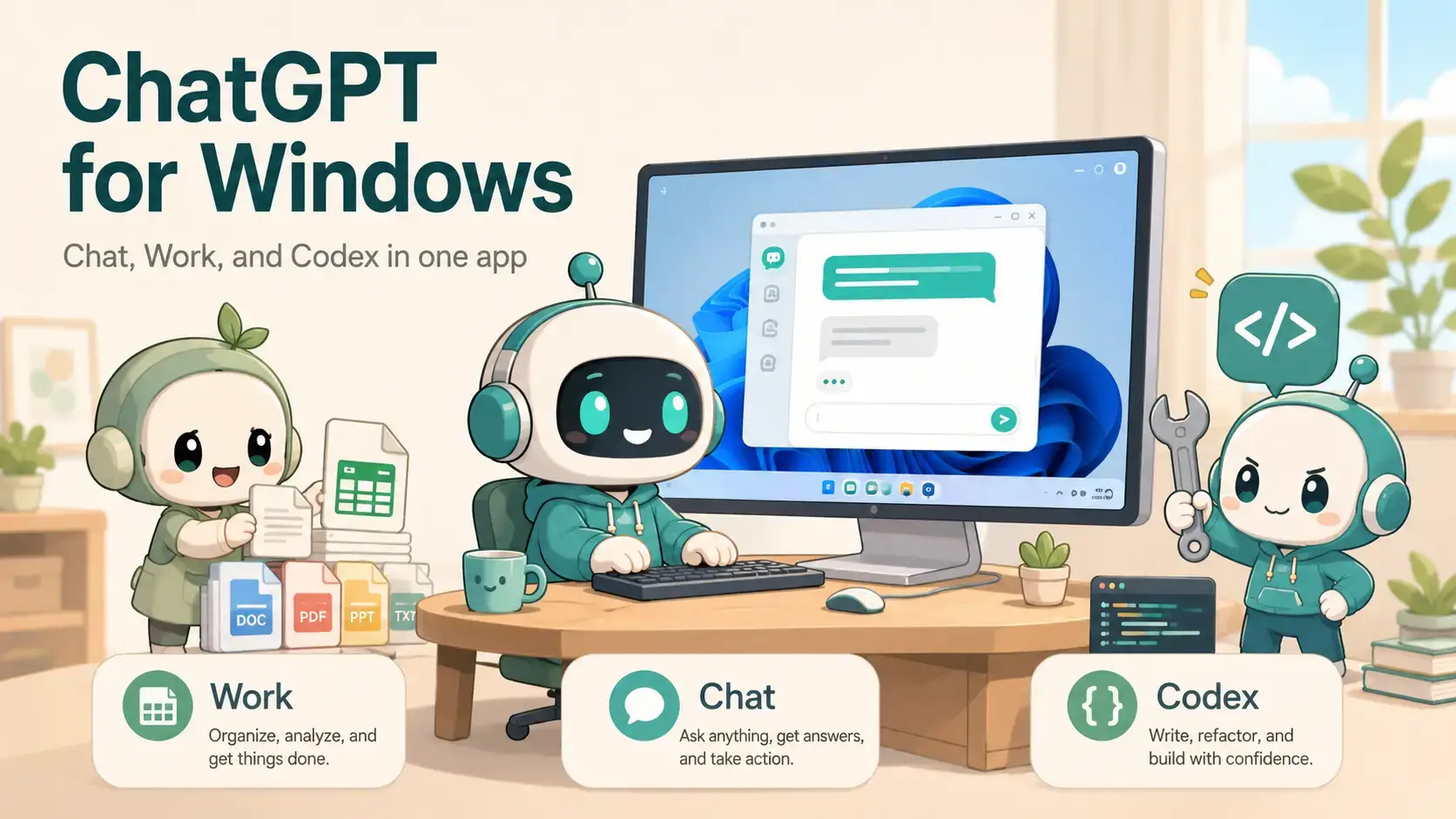
The ChatGPT app for Windows puts Chat, Work and Codex in one window.
ChatGPT for Windows is OpenAI’s official free desktop app, available from the Microsoft Store. It has three modes in one window: Chat for everyday questions, ChatGPT Work for handing off whole projects, and Codex for coding.
The newest change is in Chat itself. Since October 2026, GPT-6 can answer with interactive charts, maps, forms and small tools built right into the reply, on every plan including Free. OpenAI calls this Intelligent UI.
The app runs on Windows 10 and Windows 11, on regular and Arm PCs. All three modes work on the Free plan with lower limits, and paid plans from $5 a month raise them.
This guide covers the install, what each mode does, what is new, the plans, Codex shortcuts, and how ChatGPT compares with Copilot and Claude. Questions? Reach out to us directly.
Who Should Use ChatGPT for Windows?
You want one app for everything
Quick questions, longer document or spreadsheet projects, and coding tasks, without switching between three separate tools.
You only want code suggestions as you type
A plugin like GitHub Copilot inside your editor feels faster for that one job than opening a separate app.
How to Get ChatGPT on Windows
OpenAI has two apps on the Microsoft Store. Install the one called ChatGPT. The one called ChatGPT Classic is the original 2024 app, without Work or Codex.
1 Open the ChatGPT listing on the Microsoft Store, published by OpenAI.
2 Click Get or Install and wait for it to finish.
3 Open ChatGPT from the Start menu and sign in, or create a free account.
4 Pick a mode. Chat sits in the sidebar. Use the menu in the top-left corner, or Alt + 1, 2 or 3, to switch between Chat, Work and Codex.
Installing for a team? IT admins can install the same Store app from a terminal with winget (Windows’ built-in package tool):
winget install –id=9PLM9XGG6VKS –source=msstore –accept-package-agreements –accept-source-agreements
Chat, Work and Codex Explained
Each mode is built for a different kind of job. All three share the same account, history and settings.
Answers in seconds
Ask a question, upload a PDF or photo, keep the conversation going. With GPT-6, answers can include interactive charts, maps and mini tools when that explains things better than text.
Hand off a whole project
Give Work a goal, like turning meeting notes into a client report. It gathers context from your files and connected apps, plans the steps and builds the document, sheet, deck or website while you do something else.
A coding agent inside ChatGPT
Codex used to be its own app. OpenAI merged it into ChatGPT on July 9, 2026, and existing installs updated on their own.
Codex reads your project, writes the code, runs tests and shows a full diff before anything is saved. Pull requests get their own spot in the sidebar, and one project can span more than one repository.
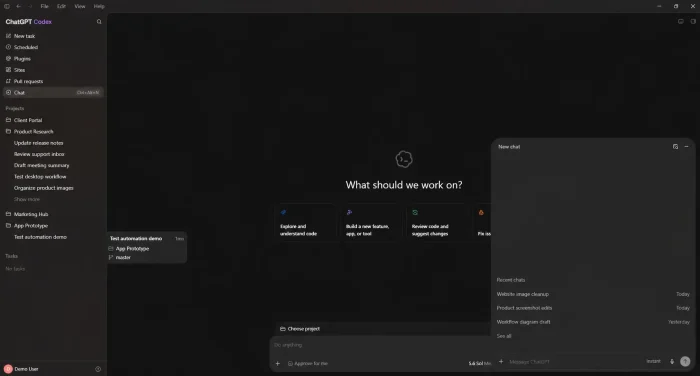
Start a project from four shortcuts
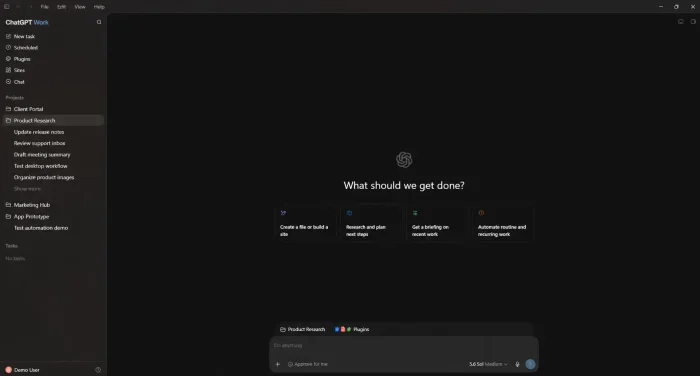
Work opens with “What should we get done?” and four starting points: create a file or site, research and plan, get a briefing on recent work, or automate recurring work.
It can keep a task going for hours, and you can check progress or approve important steps from your phone.
What Is New in ChatGPT
The latest changes, taken from OpenAI’s own announcements.
GPT-6 and Intelligent UI for everyone
GPT-6 now powers Chat on every plan. Paid plans get GPT-6 Sol and Free and Go get GPT-6 Luna. It can start answering while it is still thinking, and it builds interactive answers such as a cooking timeline, a road-trip map or a bill splitter.
GPT-6 Astra
OpenAI’s strongest reasoning model, released in September 2026, powers Pro reasoning. It is aimed at hard, multi-step problems rather than everyday chat.
GPT-Live voice
Voice now runs on GPT-Live. You can cut in mid-answer, pause to think without it jumping in, and ask it to slow down. Paid plans get GPT-Live-1 and Free gets GPT-Live-1 mini.
Ads are being tested
OpenAI is testing labeled visual ads during image creation for Free and Go users. OpenAI says ads do not change ChatGPT’s answers. Plus and higher plans are not part of the test.
Read OpenAI’s GPT-6 for everyone announcement for examples of Intelligent UI. Work accounts also get a Data agent that answers questions about a company database, which an admin has to switch on.
Key Features
Built-in browser
ChatGPT can browse the web inside the app, with multiple tabs, to research, compare sources and pull in live information.
Works on your PC
On desktop, ChatGPT can click, type and move files to finish a task in the background, as a one-time job or a scheduled one.
Run work on a schedule
Ask ChatGPT to run something once, on a repeat schedule, or when something changes, with ready-made ideas like a daily brief or a weekly review.
Turn work into a website
A beta feature that turns your work into an interactive website or web app you can share with a link, handy for dashboards and trackers.
Connect your apps
Connect GitHub, Notion, Google Calendar and more. Type @ and an app name to pull in context from a specific tool, only when you approve it.
Save repeat tasks
Save instructions you use often as a Skill, then run them again with one command instead of retyping them.
How ChatGPT Desktop Works
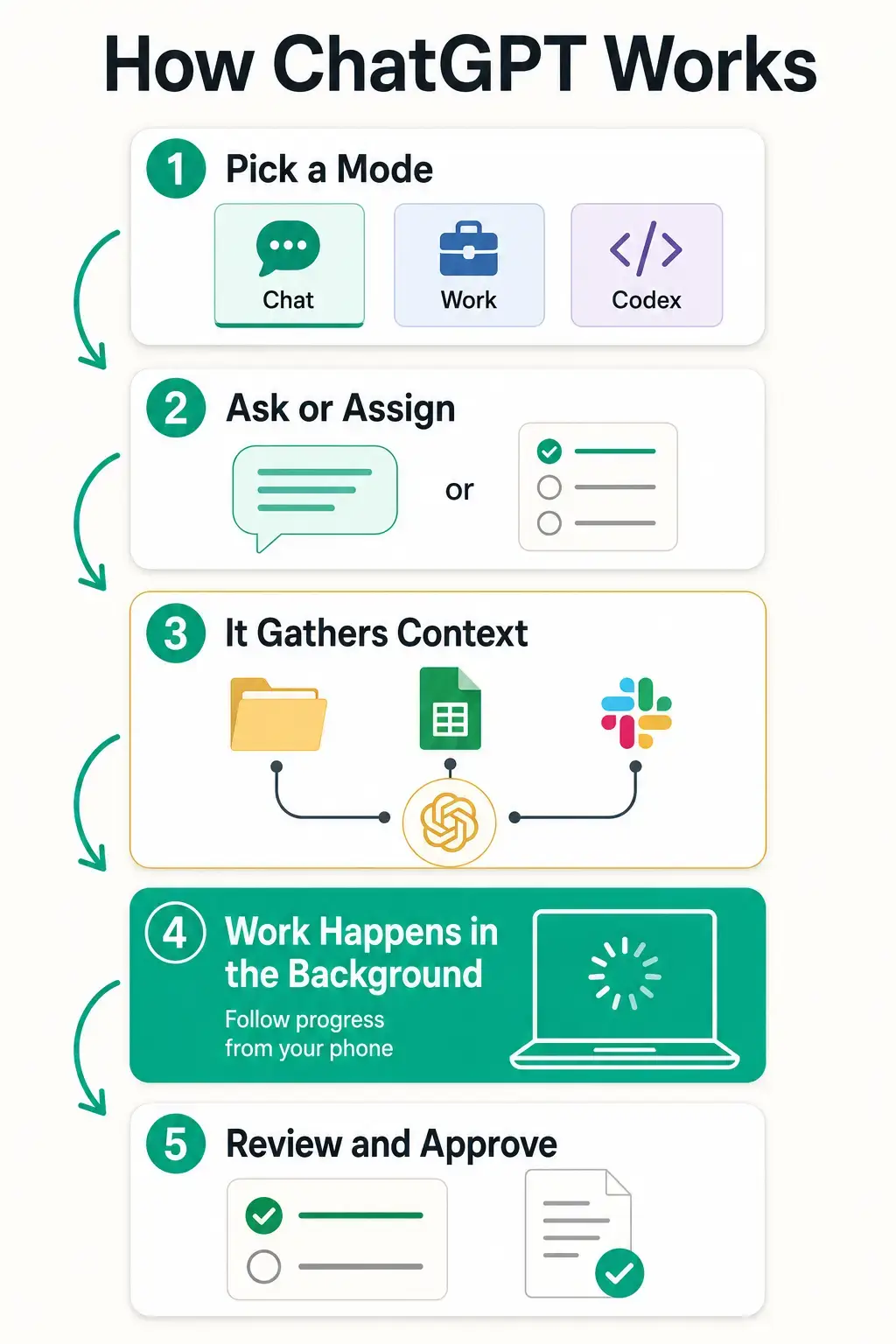
See how a task moves from picking a mode to finished, reviewed work, in the infographic below.
ChatGPT Plans and Prices
Chat, Work and Codex are on every plan, including Free. Paid plans raise the limits and unlock stronger models and longer Work and Codex sessions. Prices change, so check chatgpt.com/pricing before you subscribe.
Codex and App Shortcuts
These are the Windows shortcuts from OpenAI’s own docs. Press Ctrl + / in the app to see the full list, and change any of them in Settings, Keyboard Shortcuts.
ChatGPT vs the Alternatives
Pick ChatGPT for one app that covers chat, documents and code. Pick another tool for its specific strength. All of these have a free tier.
Want an AI that answers only from your own files? Copilot Notebooks in Microsoft OneNote work from the Word files, PDFs and notes you add to a project, instead of the open web.
Video Walkthrough
Watch real use cases of the merged app, with Chat, Work and Codex side by side, including how a Work task hands off to your phone.
Tips for Getting Started
1 Move real projects from Chat to Work. If a task needs more than a quick answer, like turning research into a report, Work plans and builds it instead of one long chat.
2 Plan before big jobs. Type /plan first. ChatGPT asks questions and shows the steps, and you approve them before it starts building.
3 Keep Codex tasks small at first. “Write a function that checks a phone number” works better than “clean up the codebase” while you learn how Codex works.
4 Review before you approve. Read the Codex diff or the Work document before you accept it. The agent only knows the context you gave it.
5 Save repeat instructions as Skills. If you keep typing the same request, save it as a Skill and run it with one command.
Quick Poll
Screenshots
These screenshots show the ChatGPT app on Windows, including Work and Codex. Click any image to see it full size.
-
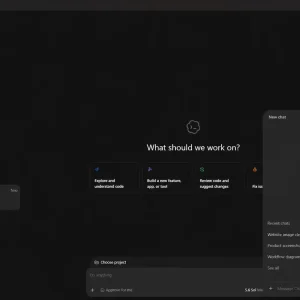
- Chatgpt codex chat panel windows from ChatGPT for Windows PC: Download Guide, Tips & Features
-
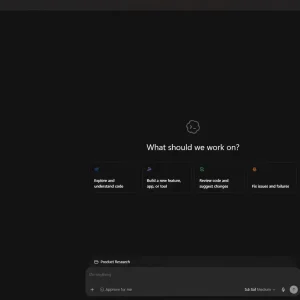
- Chatgpt codex home screen windows from ChatGPT for Windows PC: Download Guide, Tips & Features
-
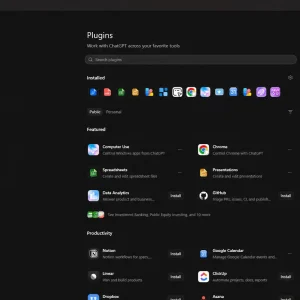
- Chatgpt plugins page windows from ChatGPT for Windows PC: Download Guide, Tips & Features
-
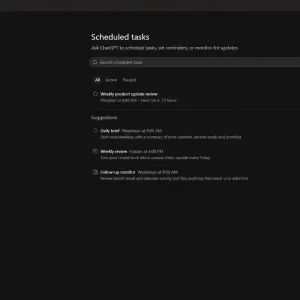
- Chatgpt scheduled tasks windows from ChatGPT for Windows PC: Download Guide, Tips & Features
-
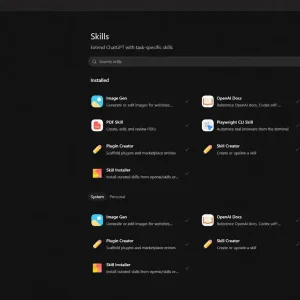
- Chatgpt skills page windows from ChatGPT for Windows PC: Download Guide, Tips & Features
-
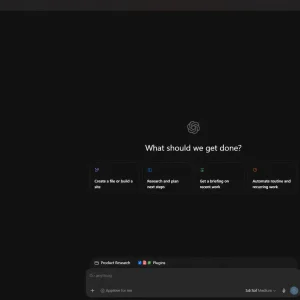
- Chatgpt work home screen windows from ChatGPT for Windows PC: Download Guide, Tips & Features
-
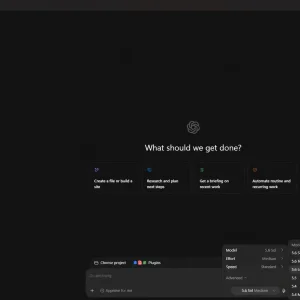
- Chatgpt work model selector windows from ChatGPT for Windows PC: Download Guide, Tips & Features
-
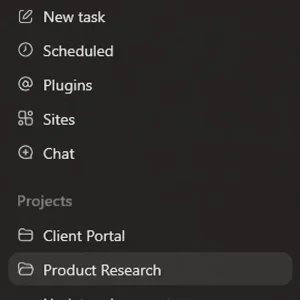
- Chatgpt work project sidebar windows from ChatGPT for Windows PC: Download Guide, Tips & Features
Frequently Asked Questions
Is ChatGPT free on Windows?
What is the difference between ChatGPT and ChatGPT Classic?
What happened to the Codex app?
What is ChatGPT Work and how is it different from Chat?
What are the system requirements for the ChatGPT Windows app?
Does ChatGPT show ads?
What is Intelligent UI in ChatGPT?
Support and Community
These places answer most ChatGPT questions.
- ChatGPT, OpenAI’s own product page.
- ChatGPT app shortcuts and commands, OpenAI’s official reference.
- OpenAI Developer Community, OpenAI’s official forum.
- Codex on GitHub, the open-source repo, issues and release notes.
- r/ChatGPT on Reddit, the largest ChatGPT community.
More Windows software guides: Claude for Windows · Cursor for Windows · Microsoft Copilot for Windows · Gemini for Windows · Best Free Windows AI Software
Discover more from Windows Mode
Subscribe to get the latest posts sent to your email.

















The distinction between free access and lower Codex usage limits matters, because “available” still leaves users guessing when capacity returns. A visible reset timestamp or public history would make those limits much easier to plan around, hopefully OpenAI think about this soon.
Great guide! I’ve been using ChatGPT on my PC for a few months now and it genuinely changed how I draft emails and brainstorm ideas. Anyway, solid beginner-friendly breakdown here, bookmarking this page!
O ChatGPT é a melhor coisa inventada desde a eletricidade.