Readers like you help support this site. When you make a purchase using links on our site, we may earn an affiliate commission. All opinions remain our own.
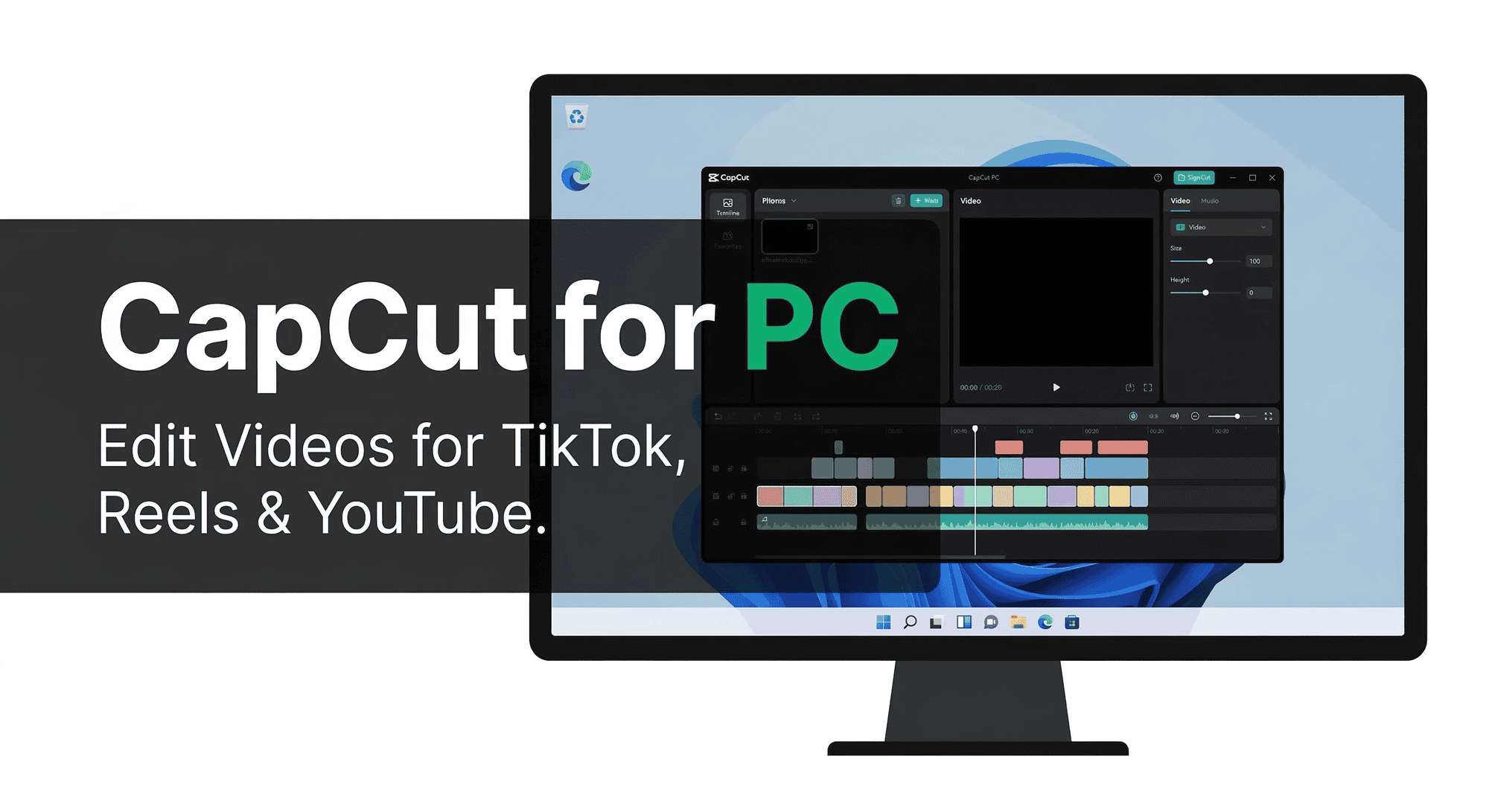
CapCut is a free AI video editor for Windows 11 and 10, built for creators who make content for TikTok, YouTube Shorts, Facebook Reels and Instagram Reels. It has a full multi-track timeline, auto captions, background removal, and hundreds of templates ready to use. You do not need any editing experience to make something that looks polished.
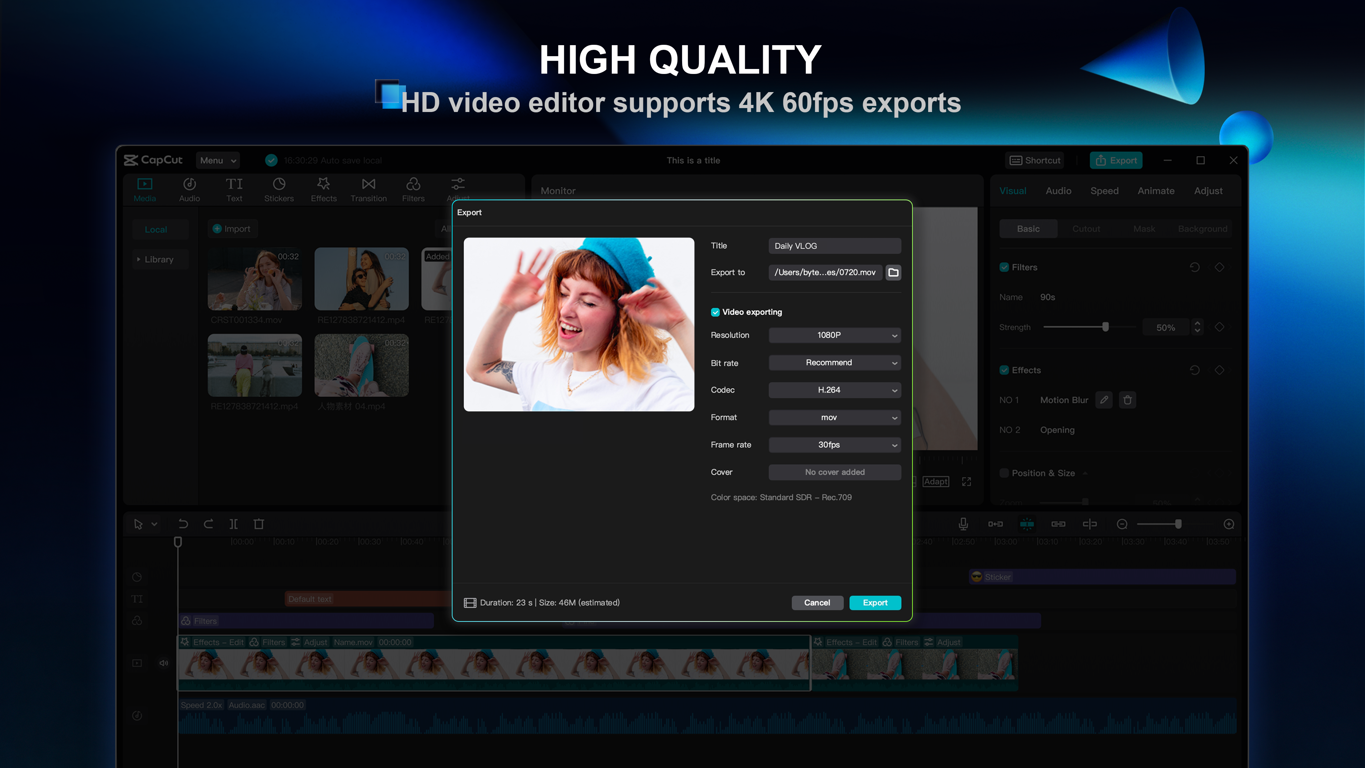
The free version covers most of what everyday creators need. A Pro plan unlocks 4K export, advanced AI tools, and 1TB of cloud storage. There is also a 7-day free Pro trial for new desktop users, so you can test everything before deciding.
This page covers how to get CapCut on Windows, what each plan includes, key features, keyboard shortcuts, and tips to get the most out of it from day one. Questions? Drop them in the comments or reach out directly.
What You Need to Know
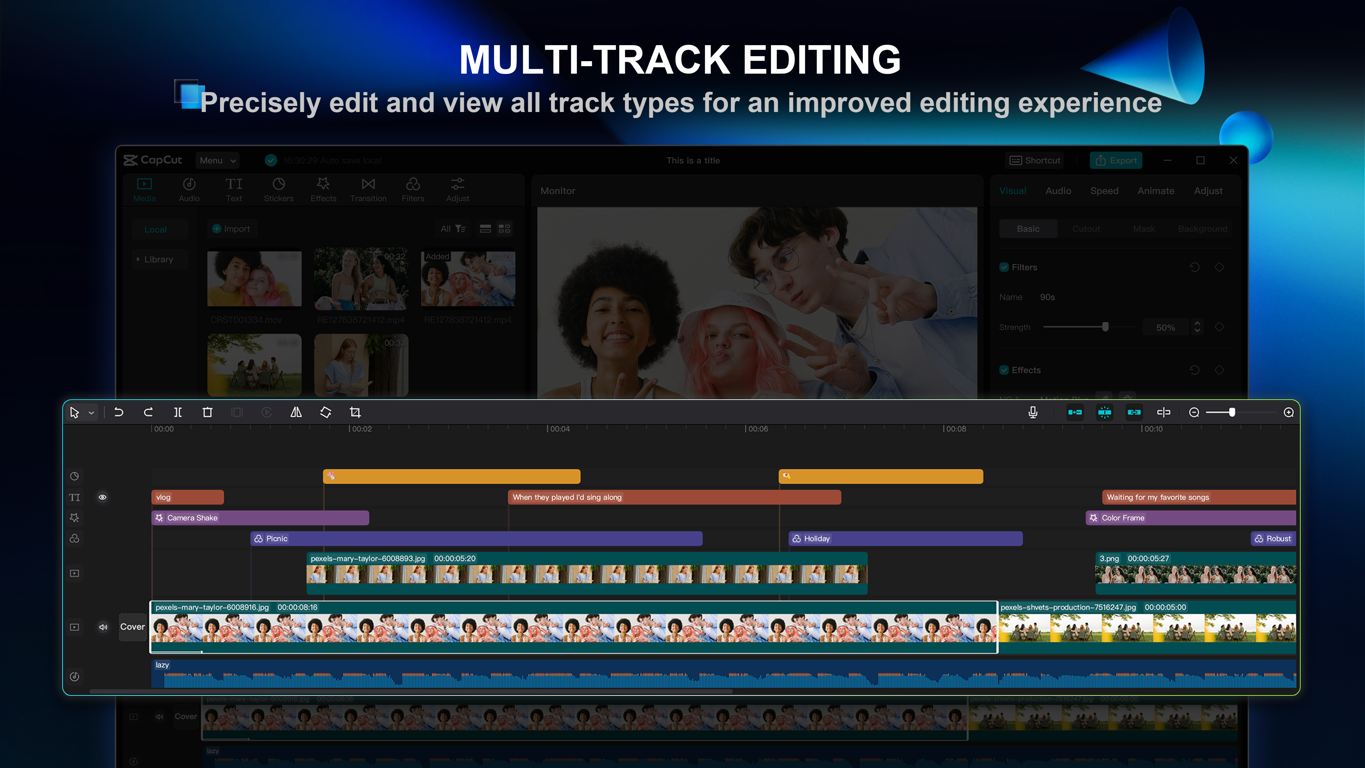
- Free to download and use. No credit card needed. The free plan covers multi-track editing, transitions, effects, and basic AI tools.
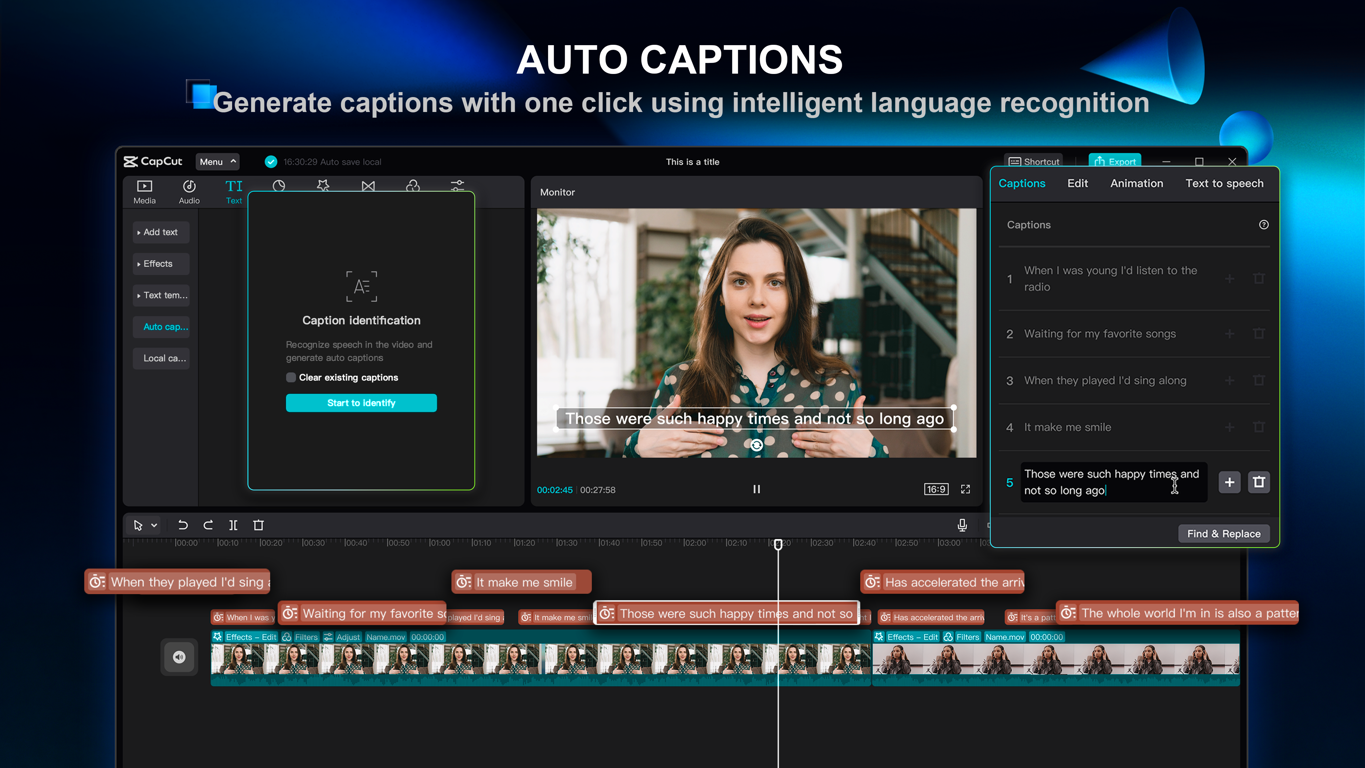
- AI tools built in. Auto captions, background removal, motion tracking, noise reduction, and text-to-speech are all inside the app.
- Works on web too. If you do not want to install anything, CapCut runs in your browser at capcut.com with most of the same tools.
- New desktop users get 7 days of Pro free. Try every feature before you commit to a plan.
How to Get CapCut on Windows
Two ways to install it. Both are free and take under two minutes.
Option 1: Download from the CapCut Website
- Step 1. Go to capcut.com and click Download for free.
- Step 2. Run the installer that downloads. Follow the on-screen steps.
- Step 3. Open CapCut. Create a free account or skip it. You can start editing without one.
- Step 4. New desktop users get a 7-day Pro trial automatically. No credit card required.
Option 2: Microsoft Store
Open the Microsoft Store on your PC, search for CapCut, and click Install. Same app, easier updates through Windows.
Option 3: Use It on the Web
No install needed. Go to capcut.com and click Try online. Most editing tools work in your browser. Good if you are on a shared or work PC.
What Is CapCut?
CapCut is a free video editor made specifically for social media creators. It started as a mobile app but now has a full desktop version for Windows and Mac. The focus is on speed: templates, auto captions, and one-tap effects let you go from raw footage to a finished video in minutes rather than hours.
It is especially strong for short-form content. Every template, aspect ratio preset, and AI tool in the app is built around TikTok, Reels, and Shorts formats. If you make longer YouTube videos or professional commercial content, it can handle that too, but that is not where it is strongest.
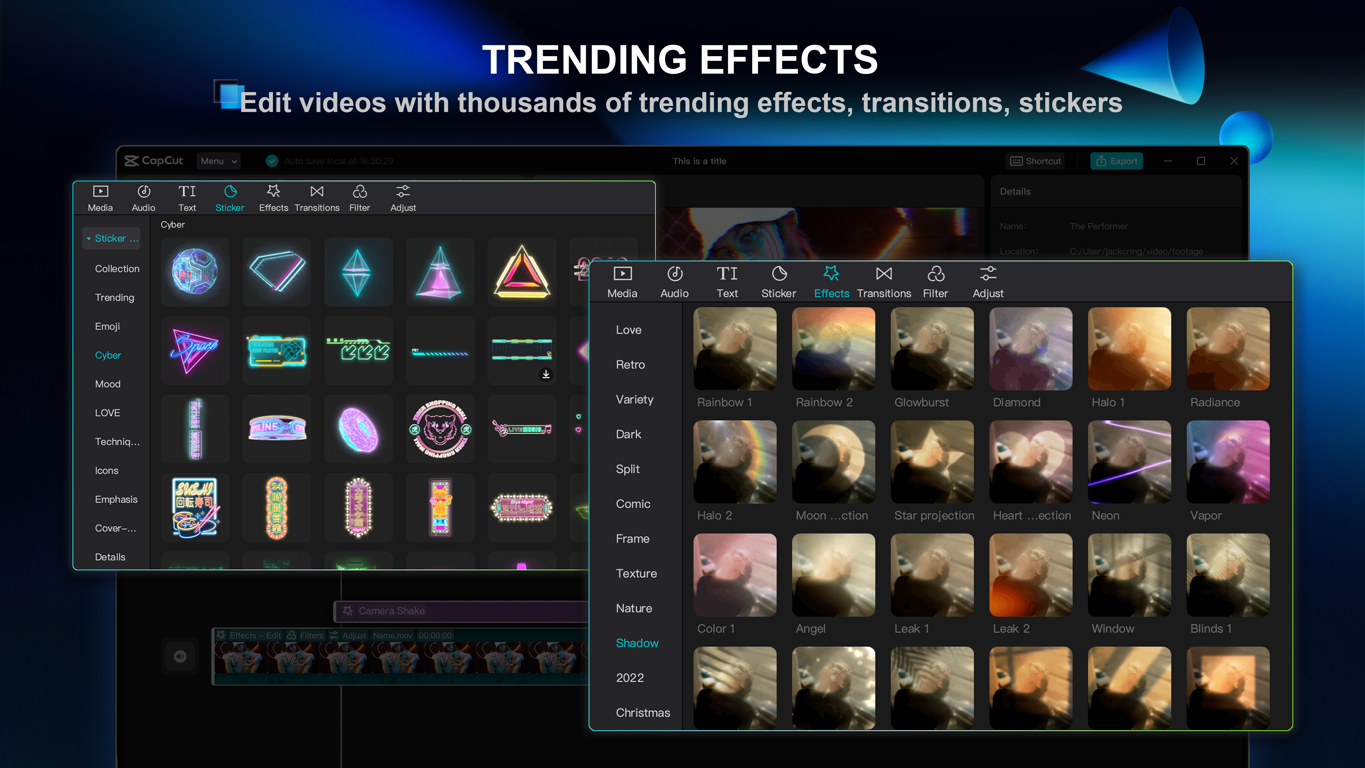
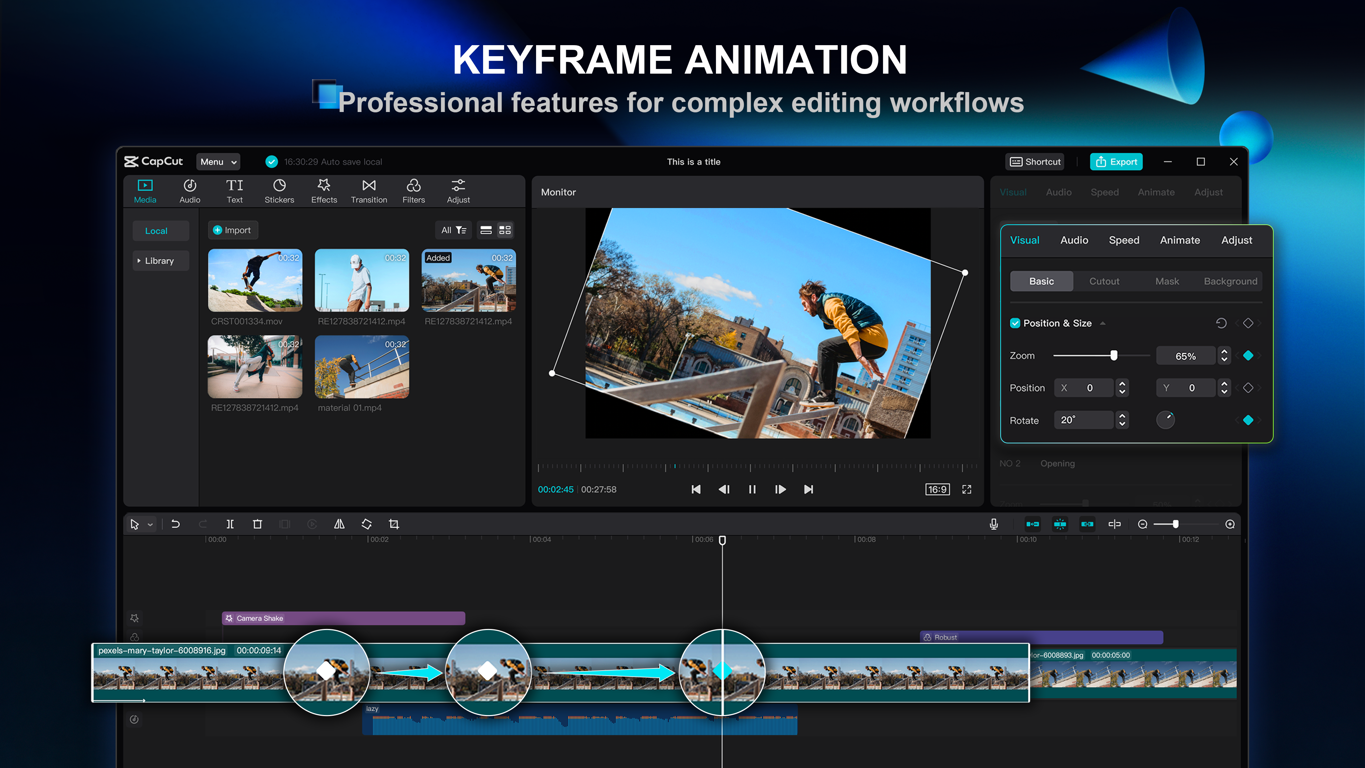
The free version is genuinely usable, not a stripped-down demo. You get multi-track editing, keyframe animation, chroma key (green screen), basic AI tools, and a large library of free music, effects, and templates. The main limits are a watermark on exports and a 1080p resolution cap.
Key Features
System Requirements
CapCut runs on most modern Windows PCs. AI features need an internet connection.
| Component | Minimum | Recommended |
|---|---|---|
| OS | Windows 10 (64-bit) | Windows 11 |
| CPU | Intel i3 or equivalent | Intel i5 / Ryzen 5 or better |
| RAM | 4 GB | 8 GB or more |
| Storage | 2 GB free space | 10 GB+ for project files |
| Internet | Required for AI features | Stable broadband for cloud sync |
Plans and Pricing
All plans give you access to the same core editor. The differences are in export quality, AI tools, and cloud storage.
| Plan | Price | Export | Watermark | AI Tools | Cloud |
|---|---|---|---|---|---|
| Free | $0 | Up to 1080p | Yes | Basic | Minimal |
| Standard | $9.99/mo | Up to 1080p | No | Select tools | 10-20 GB |
| Pro | from $19.99/mo | Up to 4K HDR | No | Full toolkit | 1 TB |
Tip: The annual Pro plan works out to $179.99/year (about $15/month), saving roughly $60 compared to paying monthly. New desktop users also get a free 7-day Pro trial with no credit card needed.
Keyboard Shortcuts
These shortcuts work in the CapCut desktop app on Windows. They will save you a lot of time once you know them.
| Shortcut | What It Does |
|---|---|
| Space | Play or pause the timeline |
| Ctrl+Z | Undo last action |
| Ctrl+Y | Redo last action |
| Ctrl+B | Split clip at the playhead |
| Ctrl+C | Copy selected clip |
| Ctrl+V | Paste copied clip |
| Delete | Delete selected clip from timeline |
| Ctrl+S | Save your project |
| Ctrl+E | Open the export panel |
| I | Set clip in point (start of selection) |
| O | Set clip out point (end of selection) |
CapCut vs the Alternatives
How CapCut stacks up against the other editors most Windows users consider.
| Editor | Price | Best For | AI Tools | 4K Export |
|---|---|---|---|---|
| CapCut | Free / from $19.99/mo | Short-form social content | Yes (Pro) | Yes (Pro) |
| DaVinci Resolve | Free / $295 one-time | Professional color grading | Limited | Yes (free) |
| Adobe Premiere Pro | from $22.99/mo | Professional long-form editing | Yes | Yes |
| Clipchamp | Free (built into Windows) | Quick edits, no install needed | Basic | No |
How CapCut Works
5 Tips for Getting Started
Video
Watch a quick walkthrough of CapCut for Windows before you download it.
Quick Poll
Quick question while you are here.
Screenshots
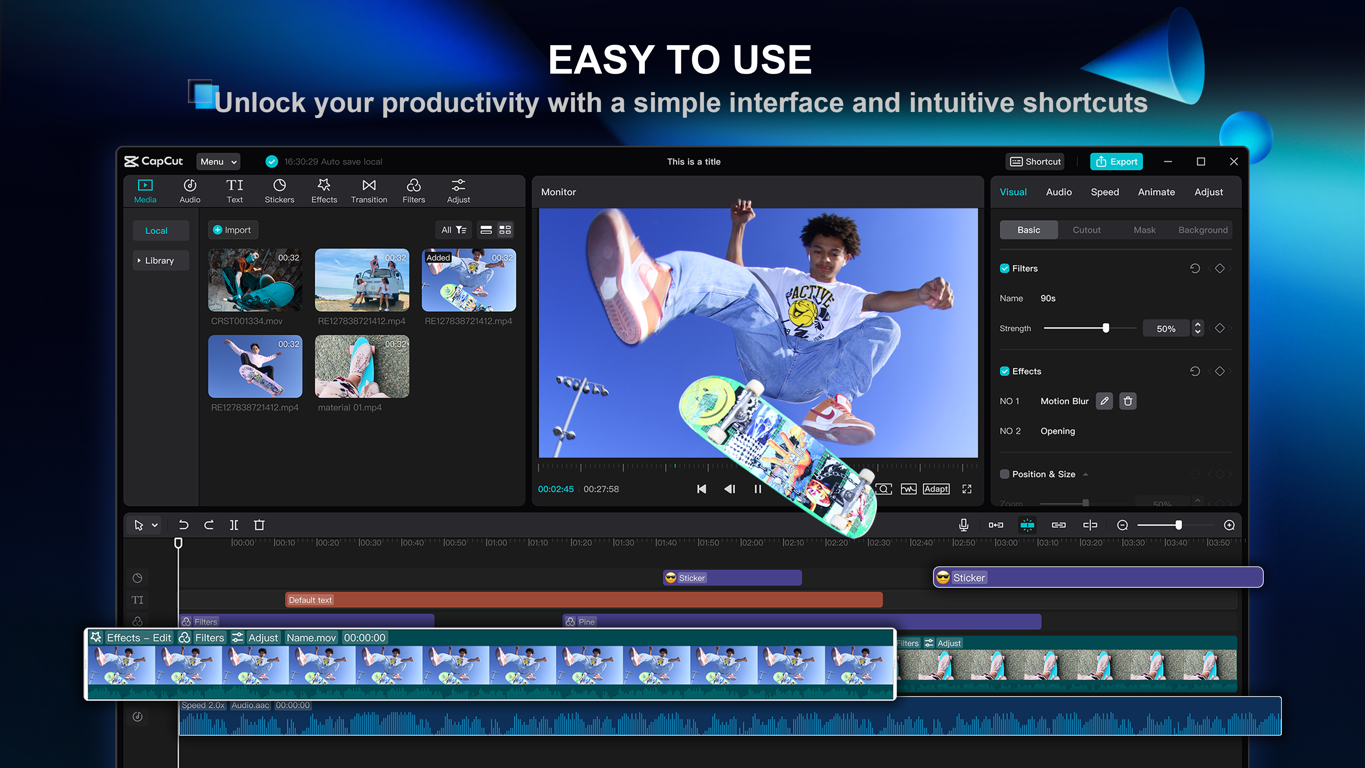
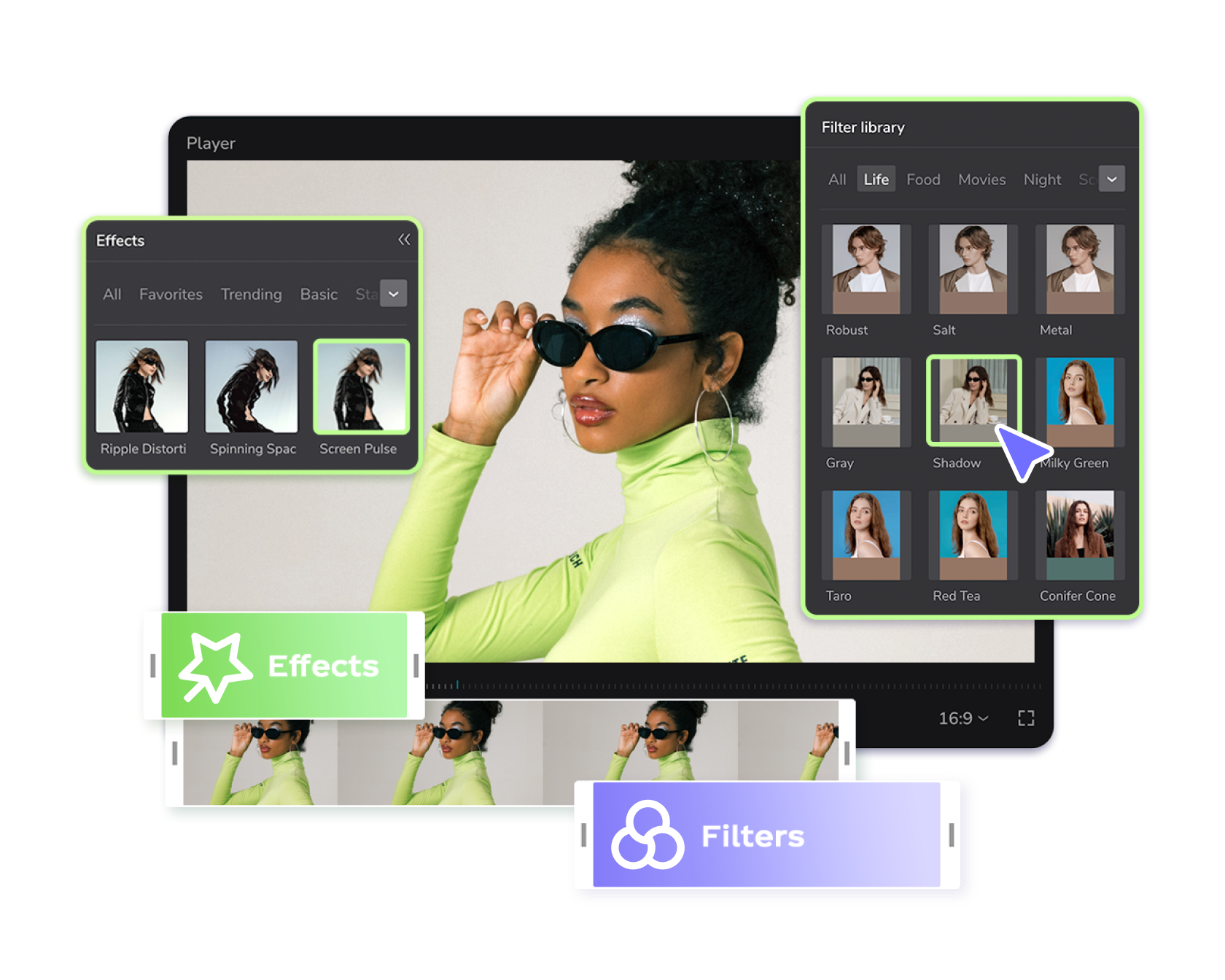
Here is what CapCut looks like running on Windows 11.
Frequently Asked Questions
Is CapCut free on Windows?
Yes. CapCut is free to download and use on Windows 10/11. The free version includes multi-track editing, transitions, effects, templates, and basic AI tools. A Pro plan at $19.99/month unlocks 4K export, auto captions, background removal, and 1TB of cloud storage.
Where do I download CapCut for Windows?
Download it from the official CapCut website at capcut.com or from the Microsoft Store. Avoid third-party download sites.
What is the difference between CapCut Free and Pro?
The free plan covers most everyday editing needs but adds a watermark to exports and caps resolution at 1080p. Pro costs $19.99/month (or $179.99/year) and adds 4K export, watermark removal, full AI tools like auto captions and background removal, and 1TB of cloud storage.
Can I use CapCut offline on Windows?
Basic editing works offline. AI features like auto captions, background removal, and cloud sync require an internet connection.
Does CapCut work on Windows 10?
Yes. CapCut runs on Windows 10 and Windows 11. You need at least 4GB of RAM and an Intel i3 or equivalent processor.
Support and Community
Need help with CapCut or want to see how other creators use it?
- CapCut Help Center – official support docs and how-to guides
- r/CapCut on Reddit – community tips, templates, and troubleshooting
- Best Video Editors for Windows – compare all your options
More Windows software guides: DaVinci Resolve for Windows · Adobe Premiere Pro for Windows · Best Online Video Editors
Discover more from Windows Mode
Subscribe to get the latest posts sent to your email.















favorite app now