Readers like you help support this site. When you make a purchase using links on our site, we may earn an affiliate commission. All opinions remain our own.

Cursor IDE is one of the most popular AI-powered code editors available right now, and for good reason. It takes the familiar VS Code interface that millions of developers already know and adds a powerful AI layer on top that can write code, fix bugs, and even build entire features for you.
If you have ever wished your code editor could just “understand” what you are trying to do and help you get there faster, that is exactly what Cursor does. You can chat with the AI about your project, ask it to make changes across multiple files at once, or let it run on its own in Agent mode to complete complex tasks while you focus on the bigger picture.
This guide covers everything you need to know: the key features, shortcuts, screenshots, how much it costs, how to install it on Windows 10/11, and how it compares to alternatives like Google Antigravity and Visual Studio 2026.
Key Takeaways
- AI That Understands Your Project: Cursor reads your entire codebase so it gives you suggestions that actually make sense in context, not just generic guesses.
- Agent Mode: Let the AI work on its own. It can edit multiple files, run terminal commands, and fix errors without you clicking a thing.
- Free Tier Available: You can use Cursor for free with the Hobby plan. The Pro plan at $20/month unlocks unlimited completions and more AI power.
What Is Cursor IDE?
Cursor is an AI-first code editor built on top of VS Code. It looks and feels almost identical to VS Code, which means all your favorite extensions, themes, and keyboard shortcuts work right out of the box. The big difference is that Cursor adds deep AI features that go way beyond simple autocomplete.
The standout feature is Composer, which lets you describe a change in plain English and the AI edits multiple files at once to make it happen. On top of that, Agent mode takes things even further by letting the AI work completely on its own. It can plan, write code, run terminal commands, browse the web, and fix its own mistakes without you doing anything.
Unlike Google Antigravity, which is built entirely around managing autonomous agents, Cursor takes a more balanced approach. You can use it as a traditional code editor when you want full control, or hand the reins to the AI when you want to move fast.
Key Features
Here is what makes Cursor stand out from a regular code editor or basic AI autocomplete tool.
Composer (Multi-File Editing)
Describe what you want changed in plain English and Cursor edits multiple files at once. Need to rename a function everywhere it is used? Just tell the AI and it handles all the files in one go.
Agent Mode
Let the AI run on its own. It can plan out tasks, write code, run commands in the terminal, browse the web for documentation, and fix its own errors automatically. You just watch it work.
Smart Tab Completions
The AI does not just autocomplete single words. It predicts what you are about to type next based on the full context of your project and suggests entire blocks of code. Just hit Tab to accept.
Codebase Chat
Ask the AI questions about your project in plain English. “Where is the login logic?” or “What does this function do?” and it searches your entire codebase to give you an accurate answer.
Cursor IDE Pricing (2026)
Cursor uses a credit-based system. More powerful AI models use credits faster, but you always have the free tier to fall back on.
Hobby
Free Forever
Limited AI agent requests and tab completions each month. Great for learning or side projects.
Pro
$20 / month
Unlimited tab completions, extended agent limits, and a monthly budget for premium AI models like GPT-4 and Claude.
Pro+
$60 / month
Three times the usage of Pro. Built for developers who lean heavily on AI agents every single day.
Ultra
$200 / month
20x the Pro usage and priority access to the newest AI model releases. For power users and agencies.
How to Download and Install Cursor on Windows
Getting Cursor running on Windows takes just a few minutes.
- Step 1: Head to the official Cursor downloads page and grab the Windows installer.
- Step 2: Run the downloaded file (
CursorUserSetup-x64.exe). - Step 3: Follow the setup wizard. Choose your install location and optionally create a desktop shortcut.
- Step 4: Sign in with your account to unlock the AI features. You can sign up for free right inside the app.
- Step 5: When prompted, you can import all your settings, extensions, and keybindings from VS Code so everything feels like home.
Coming from VS Code?
The transition is nearly seamless. All your extensions, themes, and keyboard shortcuts carry over automatically. You can even run Cursor side-by-side with VS Code if you want to test it without committing.
Cursor vs The Competition
How does Cursor stack up against the other big AI coding tools in 2026? Here is a quick side-by-side comparison.
| IDE | Approach | AI Models | Price | Best For |
|---|---|---|---|---|
| Cursor | Editor + Agent | GPT-5 / Claude | Free / $20+ | All-rounders |
| Google Antigravity | Fully Autonomous Agents | Gemini Pro | Free / Paid | Hands-off AI coding |
| Visual Studio 2026 | Traditional + Copilot | GitHub Copilot | Free / Paid | .NET / Enterprise |
| Kiro IDE | Cloud-Native | AWS Bedrock | Usage Based | AWS developers |
Quick Start Guide
Here is how to get started with Cursor after you install it:
- Open a Project: Open any folder on your computer just like you would in VS Code.
- Try the Chat: Press
Ctrl + Lto open the AI Chat panel. Ask it something about your project like “explain what this file does.” - Use Composer: Press
Ctrl + Ito open Composer. Describe a change you want across multiple files and let the AI handle it. - Enable Agent Mode: In Composer, toggle on “Agent” mode. Now the AI can run terminal commands, install packages, and fix errors on its own.
- Switch Models: Click the model dropdown at the top of the chat panel. Try different AI models to see which one works best for your project.
Watch: Cursor IDE in Action
New to Cursor? This video walks you through the interface, Agent mode, and Composer so you can see exactly what the workflow looks like before you download.
Screenshots: What Does Cursor Look Like?
-
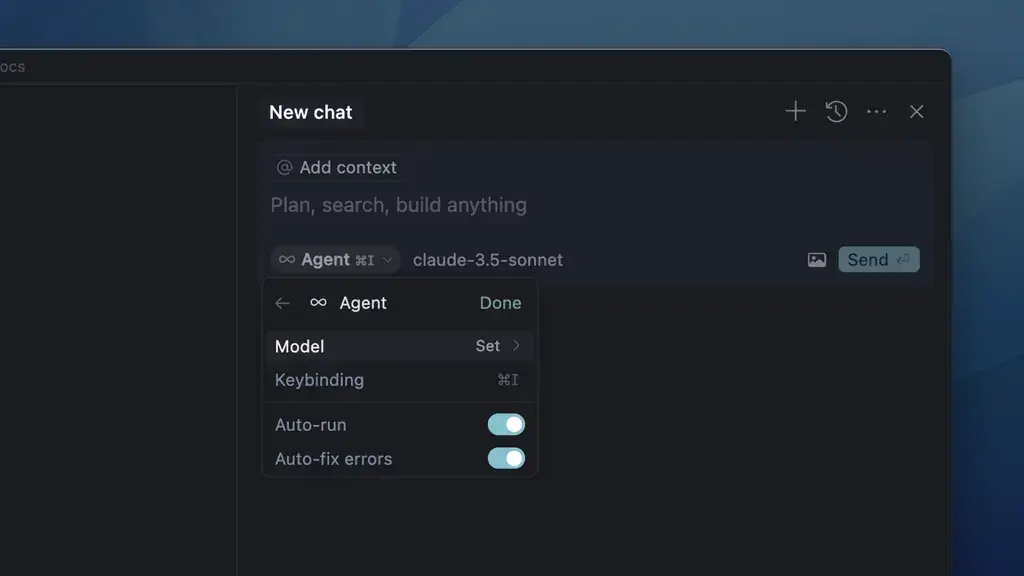
- Agent from Cursor IDE on Windows: The Complete 2026 Guide & Download
-
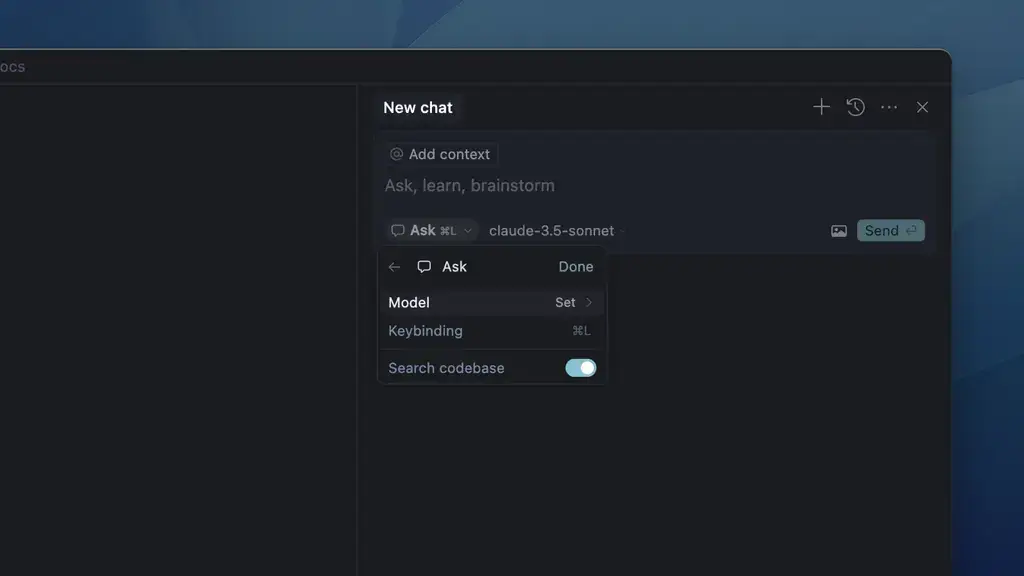
- Ask from Cursor IDE on Windows: The Complete 2026 Guide & Download
-
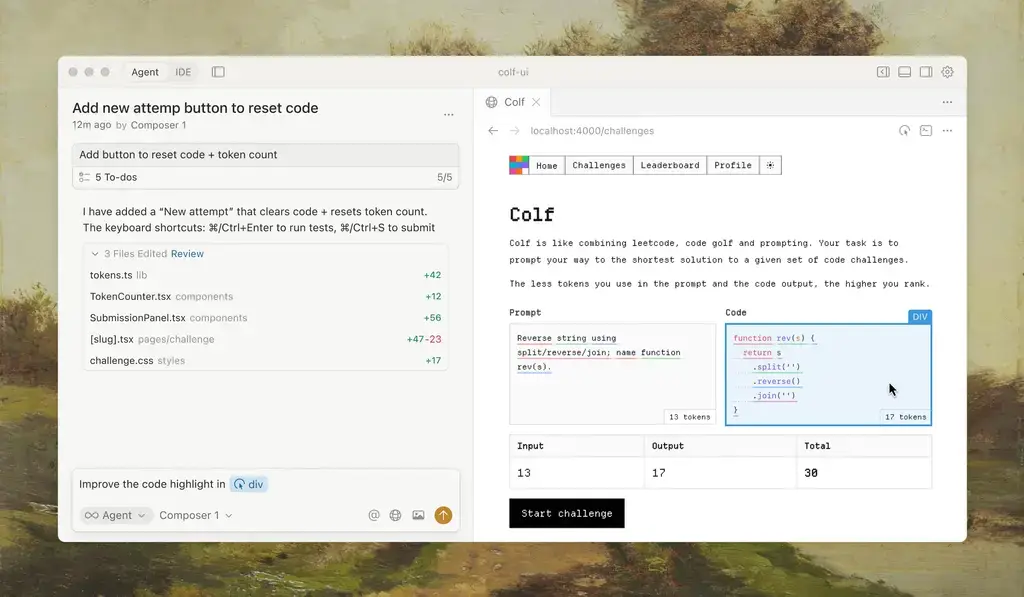
- Browser from Cursor IDE on Windows: The Complete 2026 Guide & Download
-
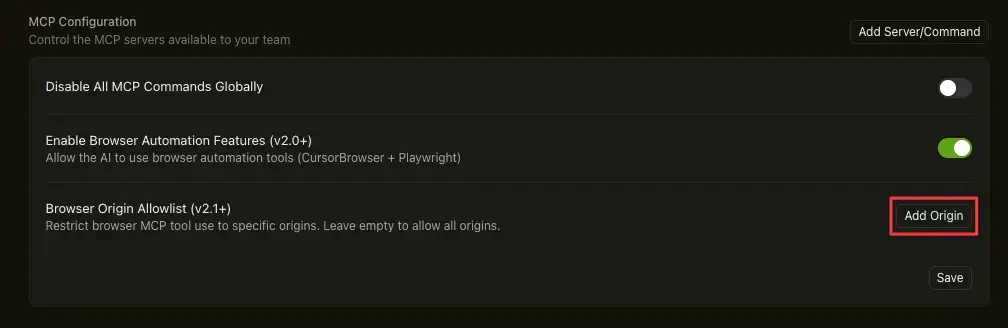
- Browser origin allowlist from Cursor IDE on Windows: The Complete 2026 Guide & Download
-
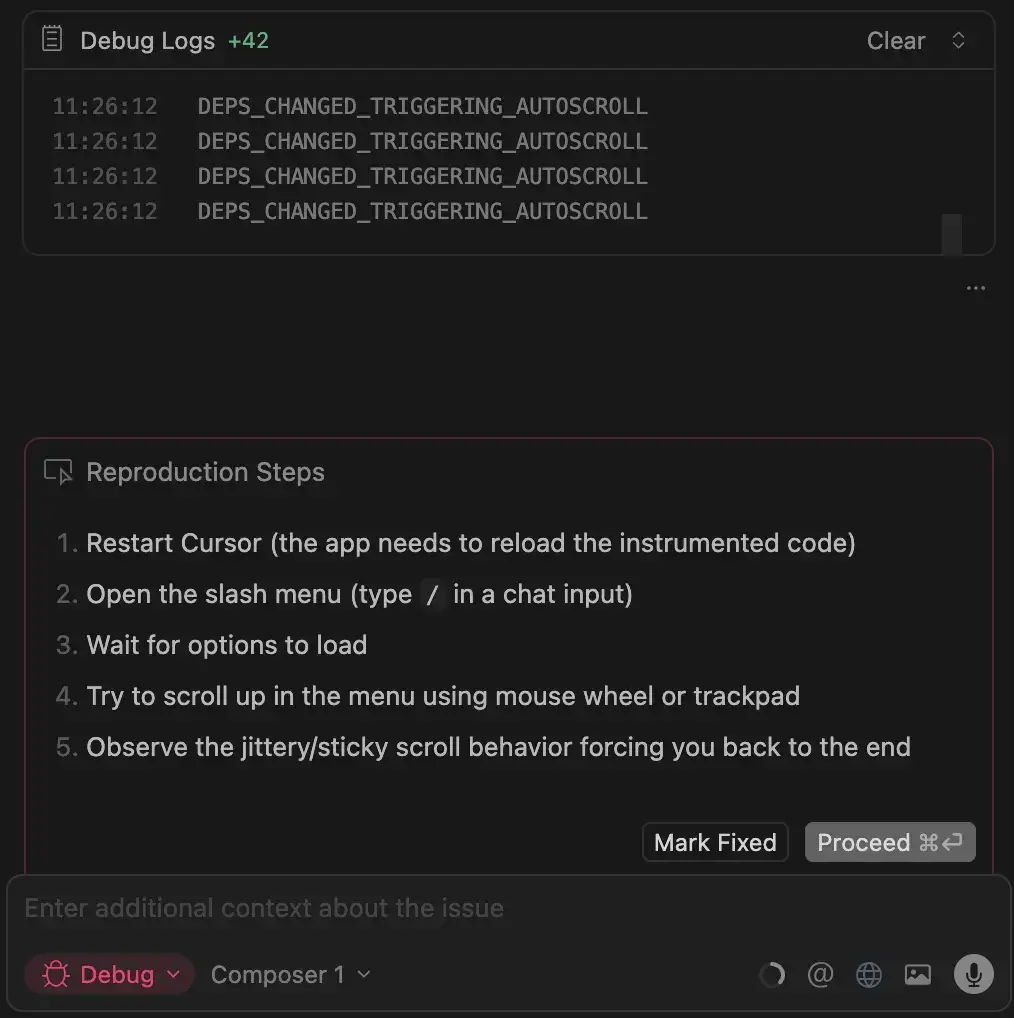
- Debug mode steps from Cursor IDE on Windows: The Complete 2026 Guide & Download
-
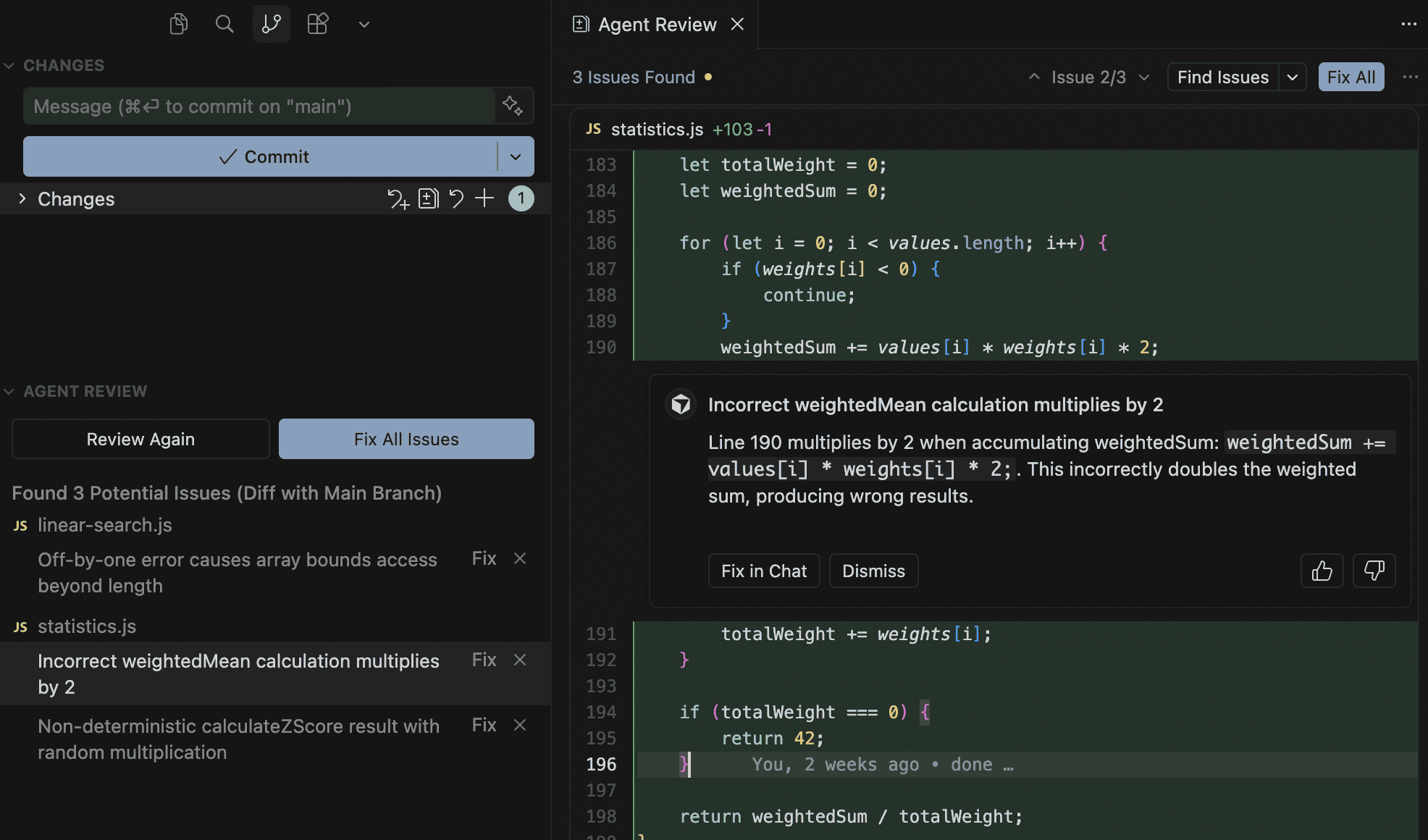
- Differences reviewed from Cursor IDE on Windows: The Complete 2026 Guide & Download
-
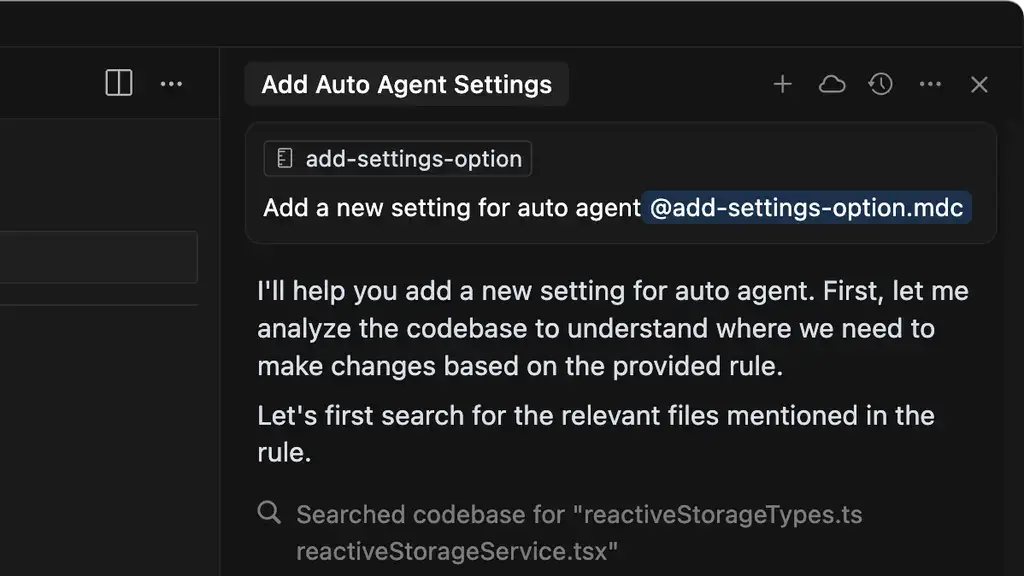
- Rules applied from Cursor IDE on Windows: The Complete 2026 Guide & Download
-
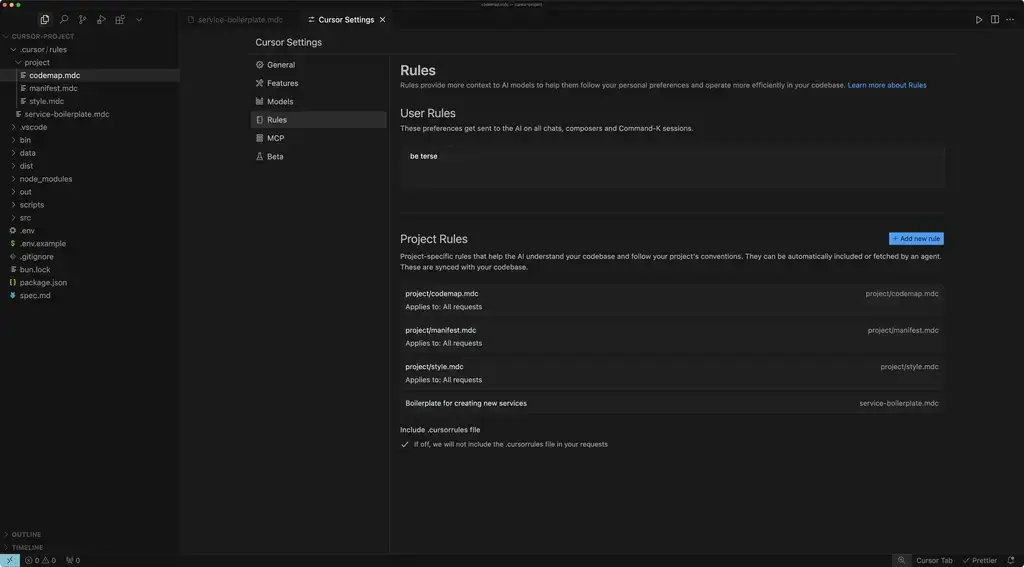
- Rule settings from Cursor IDE on Windows: The Complete 2026 Guide & Download
Essential Keyboard Shortcuts
Here are the most important shortcuts to get productive in Cursor fast. These work on Windows and Linux. You can also download our free VS Code Shortcuts guide.
| Shortcut | What It Does |
|---|---|
Ctrl + L |
Open AI Chat panel |
Ctrl + I |
Open Composer (multi-file editing) |
Ctrl + K |
Inline AI edit (edit selected code) |
Tab |
Accept AI autocomplete suggestion |
Ctrl + Shift + P |
Open Command Palette |
Ctrl + , |
Open Settings (AI models, privacy, etc.) |
@ + filename |
Reference a specific file in AI Chat |
Ctrl + / |
Toggle line comment |
Ready to Code Smarter?
Download Cursor for free and see why developers are switching from plain VS Code.
Frequently Asked Questions
Is Cursor IDE free?
Yes. The Hobby tier is completely free and includes limited AI agent requests and tab completions. The Pro plan costs $20 per month for unlimited completions and extended agent usage.
Does Cursor replace VS Code?
Cursor is built on top of VS Code, so it supports the same extensions, themes, and keyboard shortcuts. Think of it as VS Code with a powerful AI brain added on top.
What AI models does Cursor use?
Cursor supports multiple AI models including GPT-4, Claude Sonnet, and Claude Opus. The model used depends on your plan tier and credit balance. You can switch between them anytime.
Is Cursor better than GitHub Copilot?
They serve different purposes. GitHub Copilot focuses on inline code suggestions as you type. Cursor goes further with full Agent mode, multi-file editing via Composer, and the ability to understand your entire codebase at once. If you want more control and deeper AI features, Cursor is the stronger choice.
Can I use Cursor for free forever?
Yes. The free Hobby plan has no time limit. You get a set number of AI requests per month. If you need more, you can upgrade to Pro ($20/month), Pro+ ($60/month), or Ultra ($200/month).
Related Guides
Read Next: If you are exploring AI coding tools, check out our guide to Google Antigravity (the fully autonomous agent IDE from Google), Kiro IDE by Amazon and our complete Visual Studio 2026 review for enterprise .NET developers.
Discover more from Windows Mode
Subscribe to get the latest posts sent to your email.