Readers like you help support this site. When you make a purchase using links on our site, we may earn an affiliate commission. All opinions remain our own.
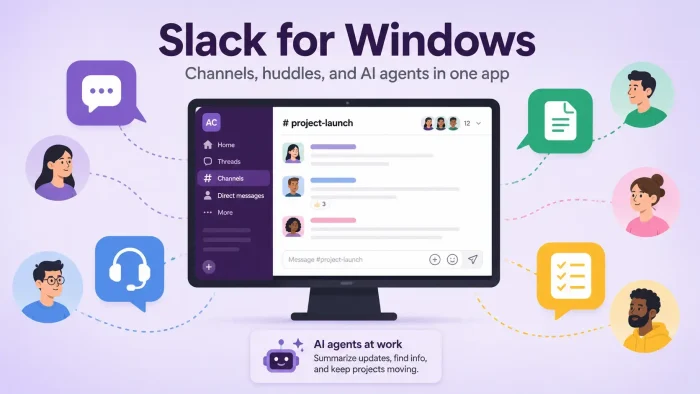
Slack is a team chat app for Windows, available from the Microsoft Store and slack.com.
It organizes conversations into channels instead of one crowded inbox, and adds huddles, file sharing, canvases, and AI search on top. Whether you run a small team or a large org connected to dozens of other tools, Slack keeps the conversation searchable and out of your email.
What sets Slack apart from a normal group chat is how much work happens inside it without leaving the app. Channels can hold shared files, pinned canvases, and connected apps like Google Drive or Salesforce right alongside the conversation. You can start an audio or video huddle from any channel in one click, no calendar invite required.
This guide covers how to download Slack, what each plan includes, keyboard shortcuts, and tips to get the most out of it. Got questions? Reach out to us directly.
What You Need to Know
- Slack Free plan: 90 days of message history, up to 10 apps, 1:1 huddles, and 1:1 external messages through Slack Connect.
- Slack now officially requires Windows 11 version 23H2 or later. Windows 10 is no longer listed as supported.
- Paid plans, Pro, Business+, and Enterprise+, unlock unlimited history, AI features, and more admin controls as you move up.
- Works on Windows, Mac, iOS, Android, Linux, and the web, all synced in real time.
Price
Free (Pro, Business+, Enterprise+ available)
Developer
Slack Technologies (Salesforce)
Windows
11 (23H2 or later)
Also On
Mac, iOS, Android, Linux, Web
Best For
Channel-based team chat and huddles
Who Should Use Slack?
- Use it if: you want channel-based team chat instead of one crowded inbox, especially if your team relies on tools like Google Drive, Salesforce, or GitHub.
- Skip it if: your team already runs on Microsoft 365. Microsoft Teams may be simpler since it is already included.
- Be careful if: you are still running Windows 10. Slack’s official system requirements now start at Windows 11 version 23H2, so older PCs may need an upgrade first.
How to Get Slack on Windows
- Step 1. Open the Microsoft Store and search for “Slack,” or go to slack.com/downloads/windows.
- Step 2. Click Get (Store) or Download (64-bit) on the website, then run the installer.
- Step 3. Open Slack and sign in with your email, or create a free workspace if you are starting fresh.
- Step 4. Join your team’s workspace using an invite link, or create your first channel to get started.
What Is Slack?
Slack launched in 2013 and has grown into one of the most widely used team chat apps in the world. Salesforce acquired the company in 2021, and Slack now sits at the center of its broader work platform. Millions of people use it daily to replace scattered email threads with organized, searchable conversations.
Everything in Slack happens inside channels instead of one shared inbox. You can organize channels by project, team, or topic, and pin files, canvases, or links directly inside them. Slack Connect lets you securely message people outside your company, so agencies, vendors, and partners can collaborate in the same channels as your own team.
Slack has added a growing set of AI tools on top of the core chat experience. Slack AI can summarize threads and channels, answer questions from your workspace’s history, and generate huddle notes automatically. Slackbot, available on paid plans, acts as a personal AI agent that understands your conversations and files.
Key Features
Channels and Threads
Organize conversations by project or team instead of one long inbox. Threads keep side discussions from cluttering the main channel, and you can pin important messages so they do not get lost.
Huddles
Start an audio or video call from any channel or DM with one click, no scheduling needed. Share your screen or system audio, and let Slack AI generate notes automatically when the huddle ends.
Canvas and Lists
Canvas turns a channel into a shared document with text, files, and images. Lists let you track tasks and projects with statuses and assignees, without leaving the conversation.
Slack Connect
Work directly with people outside your company through shared channels or direct messages. Vendors, clients, and partners collaborate in the same space as your team, without swapping emails.
Slack AI and Slackbot
Get instant summaries of long threads and channels, ask questions about past conversations, and let Slackbot, your personal AI agent, keep track of what matters across your workspace.
Apps and Workflow Builder
Connect over 2,600 apps from the Slack App Directory, including Google Drive, Salesforce, and GitHub. Workflow Builder automates repetitive steps like approvals and onboarding without writing code.
AI Agents You Can Tag in Slack
Slack is turning into a place where you work alongside AI agents, not just AI features. You can tag an agent in a channel or thread the same way you would tag a teammate, hand off a task, and keep working while it runs in the background. This is one of the fastest-moving parts of Slack right now, so expect more agents to show up here over time.
Claude Tag
Anthropic’s Claude can join a channel as a teammate. Tag @Claude to delegate a task, and it builds context from the channels it is added to and the tools you connect. Available for Claude Enterprise and Team customers.
ChatGPT and Codex Agents
OpenAI’s ChatGPT app brings AI answers into Slack conversations, and its Codex-powered workspace agents can handle multi-step coding, research, and writing tasks with access to your files.
Slack Marketplace Agents
Salesforce’s Agentforce platform and partner agents from companies like Google, Perplexity, and Writer are listed in the Slack Marketplace, covering tasks from engineering to legal to marketing.
Keyboard Shortcuts
| Action | Shortcut |
|---|---|
| Jump to a conversation (Quick Switcher) | Ctrl + K |
| Compose a new message | Ctrl + N |
| Start a search | Ctrl + G |
| Search in the current conversation | Ctrl + F |
| Start, join, or end a huddle | Ctrl + Shift + H |
| Mark current conversation as read | Esc |
| Mark all messages as read | Shift + Esc |
| Open the All Unreads view | Ctrl + Shift + A |
| Set your status | Ctrl + Shift + Y |
| Browse channels | Ctrl + Shift + L |
| Open the Threads view | Ctrl + Shift + T |
| Bold selected text | Ctrl + B |
Plans and Pricing
| Plan | Starting Price | Message History | Apps | AI Features | Support |
|---|---|---|---|---|---|
| Free | Free | 90 days | Up to 10 | Basic (huddles, Slack Connect 1:1) | Standard |
| Pro | $ per user/mo | Unlimited | Unlimited | Thread and channel summaries | 24/7 |
| Business+ | $$ per user/mo | Unlimited | Unlimited | Slackbot, AI search, translations | 24/7, 4-hr response |
| Enterprise+ | Contact sales | Unlimited | Unlimited | Enterprise search, Agentforce | 24/7 priority, 4-hr response |
Slack vs the Alternatives
| App | Price | Best For | Max Participants (Free) | Meeting Length (Free) | AI Tools |
|---|---|---|---|---|---|
| Slack | Free / $ | Channel-based team chat | 1:1 only | No time limit | Yes (Slack AI) |
| Microsoft Teams | Free / $ | Workplaces using Microsoft 365 | 100 | 60 min | Yes (Copilot) |
| Zoom Workplace | Free / $$ | Video-first meetings | 100 | 40 min | Yes (AI Companion) |
| Google Meet | Free / $ | Google Workspace users | 100 | 60 min | Yes (Gemini) |
| Discord | Free | Gaming and communities | 25 (video) | No time limit | Limited |
Price shown is relative starting cost for the lowest paid tier: $ is roughly under $10 per user a month, $$ is above that. Check each provider’s site for exact current rates.
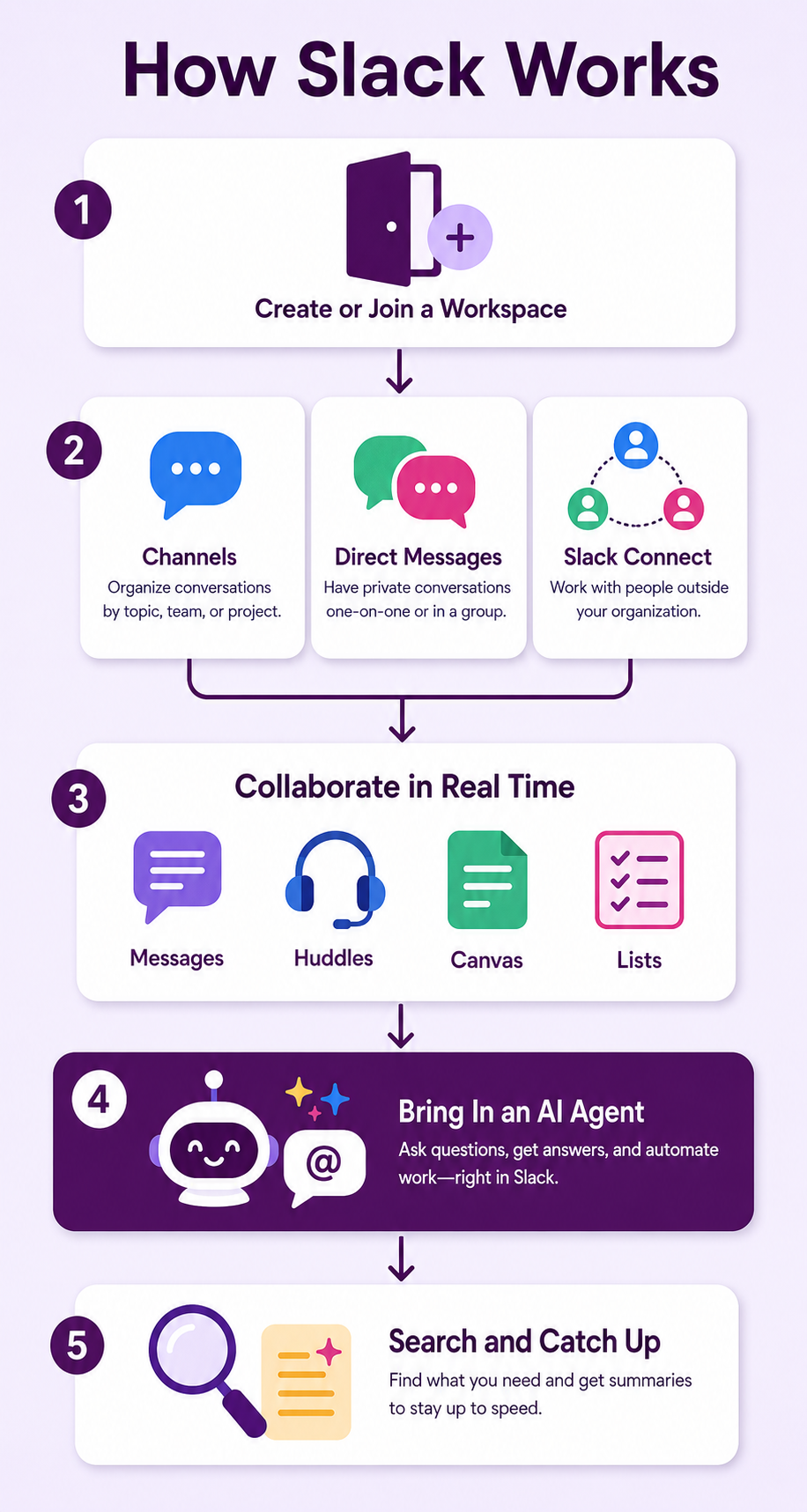
How Slack Works
A detailed and yet simple infographic explaining and showing you how Slack works these days, with Ai and agentic features now integrated.
Tips for Getting Started
Tip 1. Use the Quick Switcher
Press Ctrl + K to jump to any channel or DM by typing part of its name. It is faster than scrolling the sidebar.
Tip 2. Set your status
Let teammates know when you are in a meeting, focused, or away. Select your profile photo, then Update your status.
Tip 3. Organize channels into sections
Group related channels together in the sidebar so it does not turn into a wall of unread names.
Tip 4. Turn on Do Not Disturb hours
Go to Settings, then Notifications, and set quiet hours so Slack does not interrupt you outside of work.
Tip 5. Try a huddle before scheduling a meeting
For quick questions, a huddle beats a calendar invite. Click the headphone icon at the top of any channel to start one.
System Requirements
| Component | Requirement |
|---|---|
| OS (Desktop) | Windows 11 version 23H2 or later, or Windows Server 2016 |
| Desktop App Version | 4.44 or later |
| Browser (Web Version) | Chrome 137+, Firefox 139+, Edge 136+, or Safari 26+ |
| Huddles in a Browser | Only supported in Chrome and Firefox |
| Internet | Required for all features |
| Update Schedule | Slack revises these requirements twice a year, in May and November |
Watch: A Beginner’s Guide to Slack (2026)
Watch this 2026 beginner’s guide to see how to set up channels, send messages, start a huddle, and use Slack’s basic features on Windows.
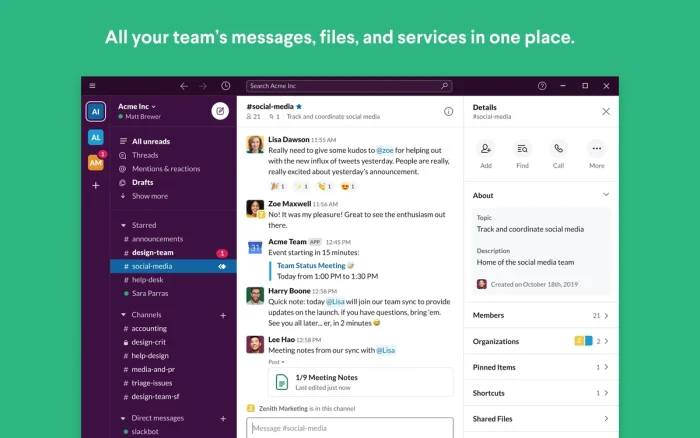
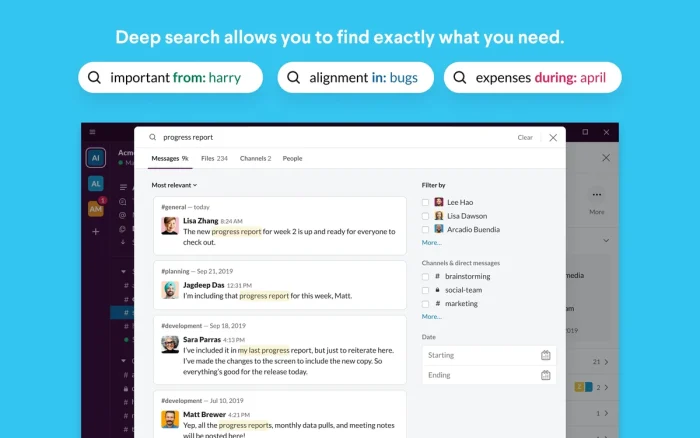
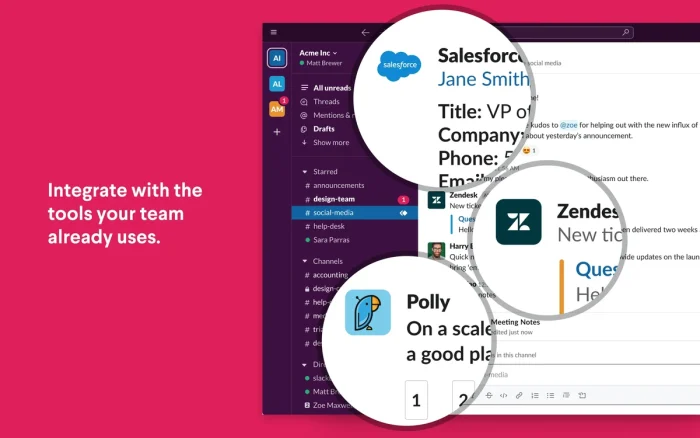
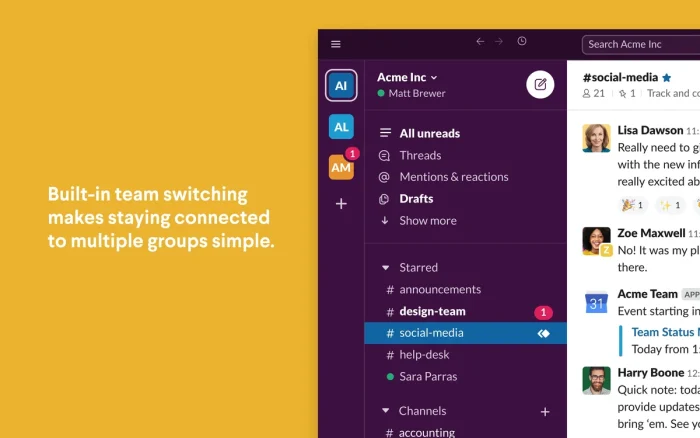
Screenshots
Here is what Slack looks like on Windows.
Frequently Asked Questions
Is Slack free to use?
Yes. The Free plan includes channels, 1:1 huddles, 1:1 direct messages with people outside your company through Slack Connect, and access to up to 10 apps. Message history is limited to the last 90 days. Paid plans, Pro, Business+, and Enterprise+, add unlimited history and AI features. Check Slack’s official pricing page for current rates, since plans and prices change from time to time.
Does Slack still work on Windows 10?
Slack’s official system requirements now list Windows 11 version 23H2 or later as the minimum supported OS. The app may still open on some Windows 10 builds, but Slack does not guarantee support or provide updates for it. If you are still on Windows 10, plan for an upgrade before relying on Slack for daily work.
What is the difference between Slack’s paid plans?
Pro adds unlimited message history and unlimited app integrations. Business+ adds Slackbot, AI search, and message translations, plus faster support response times. Enterprise+ adds enterprise search, Agentforce, and enterprise-grade security and compliance tools. Each tier is billed per user, and annual billing costs less than paying month to month.
What are Slack Huddles?
Huddles are quick audio or video calls you start from inside a channel or DM, with no scheduling needed. Free accounts get 1:1 huddles. Paid plans support group huddles with up to 50 people, and Slack AI can generate huddle notes automatically when a huddle ends.
What is Slackbot and Slack AI?
Slack AI includes thread and channel summaries, search, and file summaries, available starting on the Pro plan. Slackbot is a personal AI agent that understands your conversations and files, available on the Business+ plan and higher.
Can I use Slack without a company workspace?
Yes. Anyone can create a free workspace for a personal project, a community, or a small team, no company email required. You can also join other workspaces you are invited to.
Can I use Slack on my phone and PC at the same time?
Yes. Slack syncs messages, files, and huddle history across Windows, Mac, iOS, Android, and the web in real time.
Support and Community
- Slack Help Center (official help and troubleshooting)
- Slack Community (official user forums and discussions)
More Windows software guides: Microsoft Teams for Windows · Discord for Windows · Zoom for Windows
Discover more from Windows Mode
Subscribe to get the latest posts sent to your email.














Add your first comment to this post