Visual Studio Code (VS Code) is the most popular code editor in the world, and it is completely free. Built by Microsoft, it is lightweight, opens instantly, and supports almost every programming language through a massive extensions marketplace.
Unlike the larger “Visual Studio” IDE, VS Code is designed to be fast and flexible. It has become the standard tool for web development, Python scripting, game modding, and everything in between.
In this guide, we cover both official download methods, system requirements, keyboard shortcuts, and the AI tools you should add to it.
If you are confused about which extensions to install or how to set up your environment, leave a comment below or contact us for help.
Download Visual Studio Code
Two official ways to install. We recommend the website installer for most users.
Most developers prefer the website installer (User Setup) because it offers more control over updates and lets you add the right-click “Open with Code” context menu option during installation.
How to Install VS Code on PC
- Download the installer from the link above and run it.
- Accept the license agreement and click Next.
- Important: On the “Select Additional Tasks” screen, check these two boxes:
- “Add ‘Open with Code’ action to Windows Explorer file context menu”
- “Add ‘Open with Code’ action to Windows Explorer directory context menu”
- Click Install and launch VS Code when finished.
Why check the context menu boxes?
These let you right-click any file or folder on your PC and select “Open with Code”. It is the fastest way to start working and saves you from navigating through menus every time.
Core Features
Extensions Marketplace
One-click install support for Python, C++, Java, Prettier, and thousands of other tools. The sidebar makes finding and managing extensions simple.
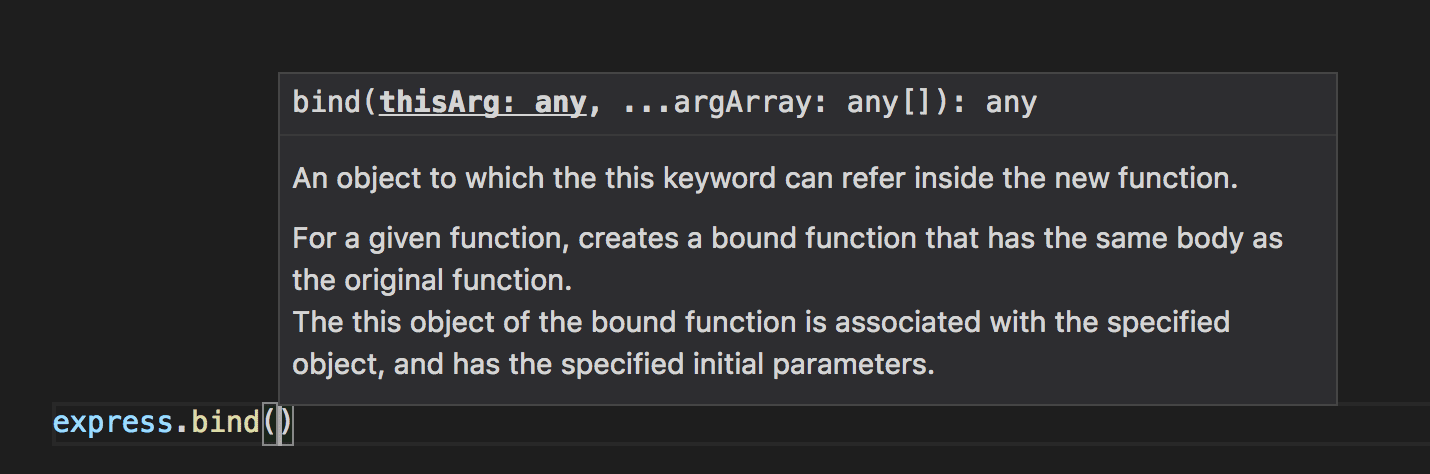
IntelliSense
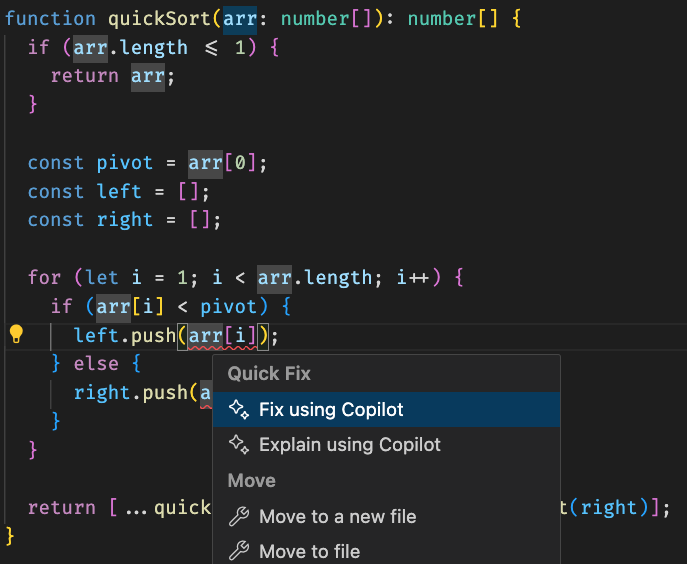
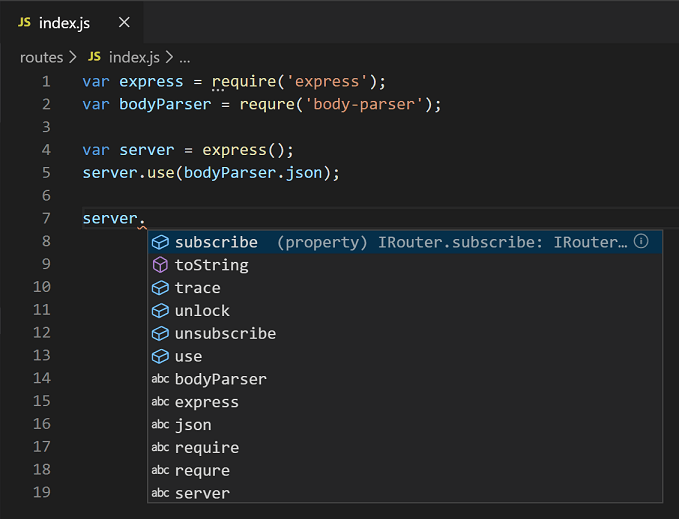
Smart code completion that highlights syntax errors and suggests fixes as you type. Works across all installed language extensions.
Integrated Terminal
Opens PowerShell or Command Prompt directly inside the editor. No need to switch windows to run scripts, install packages, or manage Git.
Git Integration
Built-in source control lets you commit, push, and pull code changes to GitHub without touching the command line.
Best AI Coding Extensions for VS Code
VS Code is built to work with AI assistants. Here are the three best options you can install right now:
GitHub Copilot
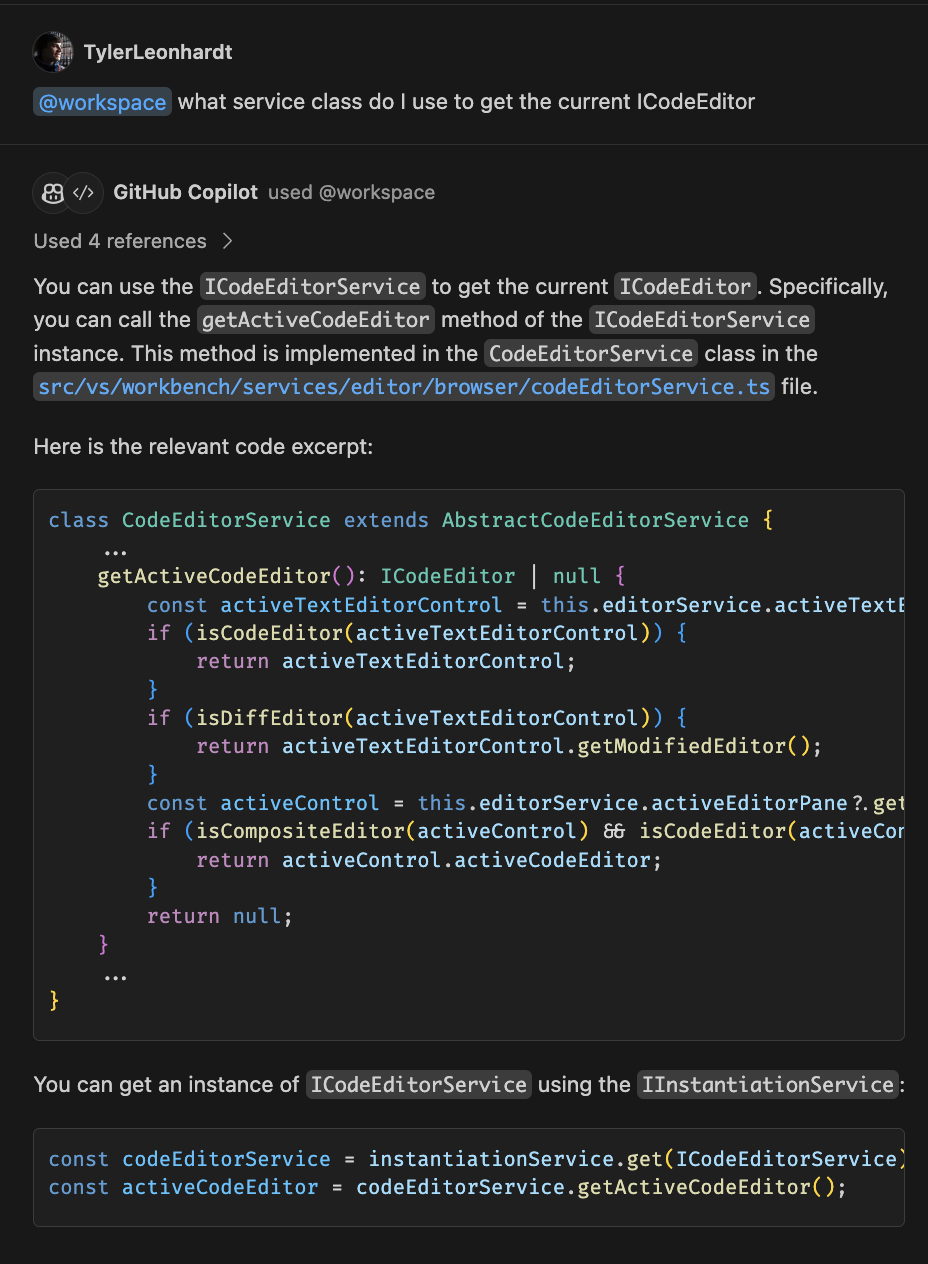
Microsoft’s official AI assistant. Generates code suggestions, explains errors, and writes entire functions from comments. Free tier available for students and open-source contributors.
Gemini Code Assist
Google’s official extension for smart code completion and chat. Handles large codebases well and integrates with Google Cloud services.
Claude Code
Handles complex reasoning tasks and can work with multiple files at once. Good for refactoring, debugging tricky logic, and understanding unfamiliar codebases.
5 Pro Tips to Get Started Fast
System Requirements
| Spec | Minimum | Recommended |
|---|---|---|
| OS | Windows 10 / 11 | Windows 10 / 11 (64-bit) |
| Processor | 1.6 GHz or faster | Multi-core processor |
| RAM | 1 GB | 4 GB+ |
| Storage | 500 MB free | 1 GB+ (with extensions) |
Essential Keyboard Shortcuts
These are the shortcuts that save the most time. We also have a full VS Code keyboard shortcuts cheat sheet (PDF) you can download and print.
| Shortcut | What It Does |
|---|---|
Ctrl + Shift + P |
Open Command Palette (search for any action) |
Ctrl + P |
Quick file search (jump to any file instantly) |
Ctrl + ` |
Toggle integrated terminal |
Ctrl + B |
Toggle sidebar (more screen space) |
Ctrl + D |
Select next occurrence of current word |
Alt + Up/Down |
Move current line up or down |
Ctrl + / |
Toggle comment on selected lines |
Ctrl + Shift + K |
Delete entire line |
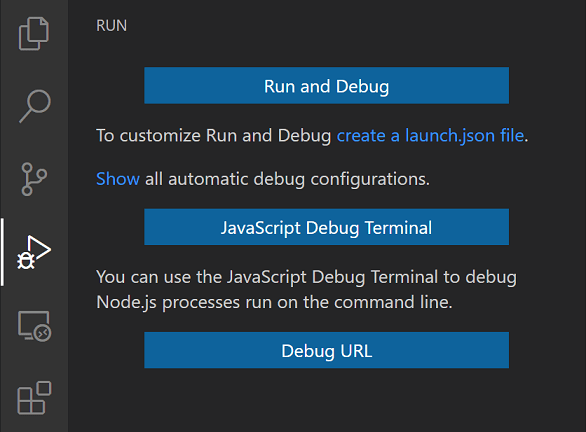
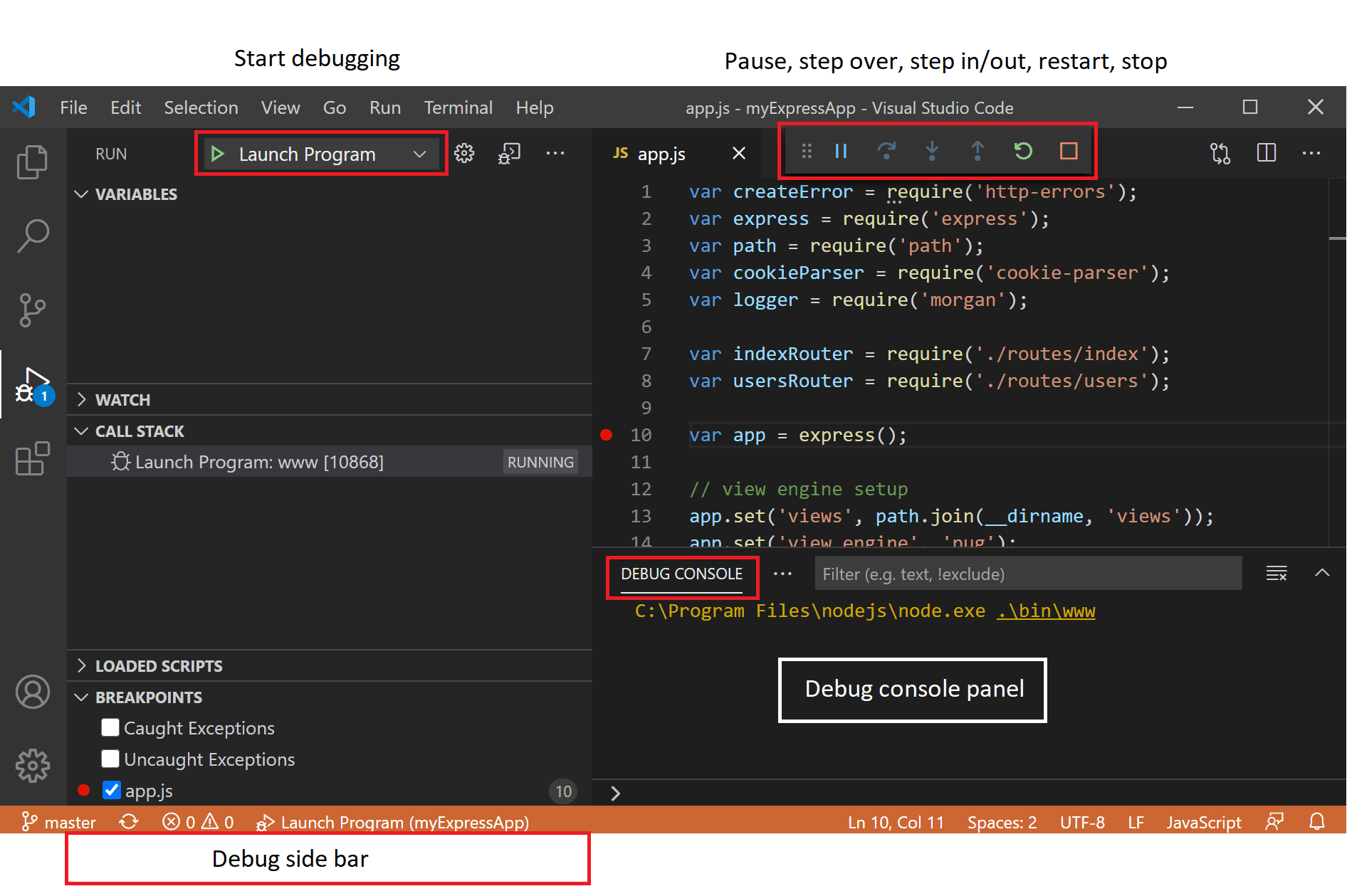
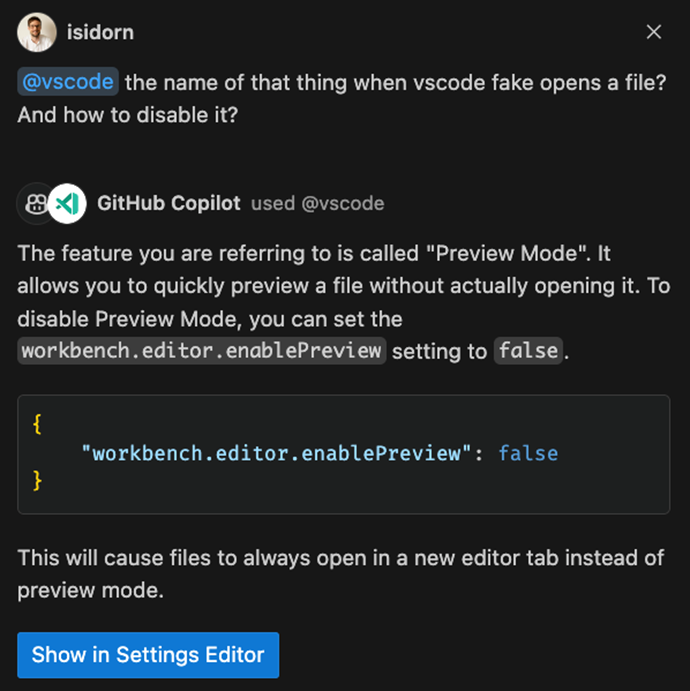
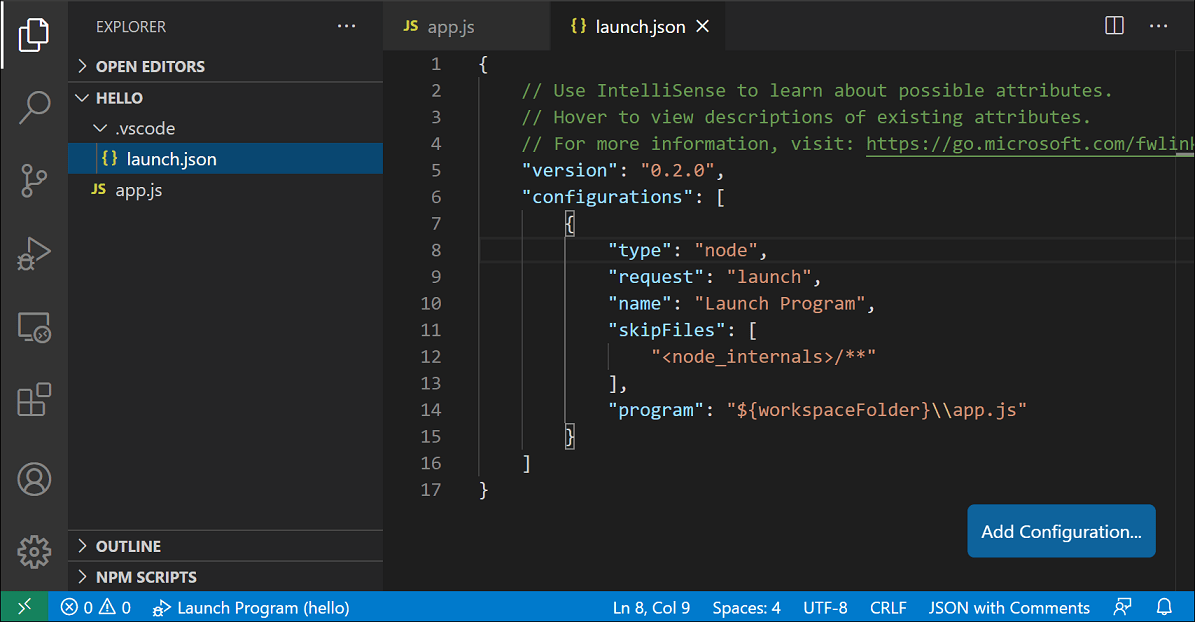
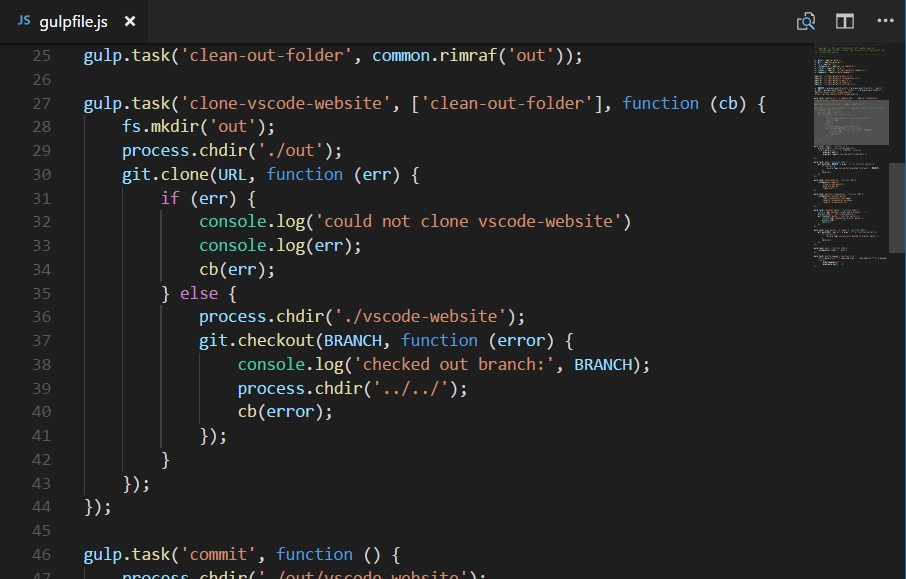
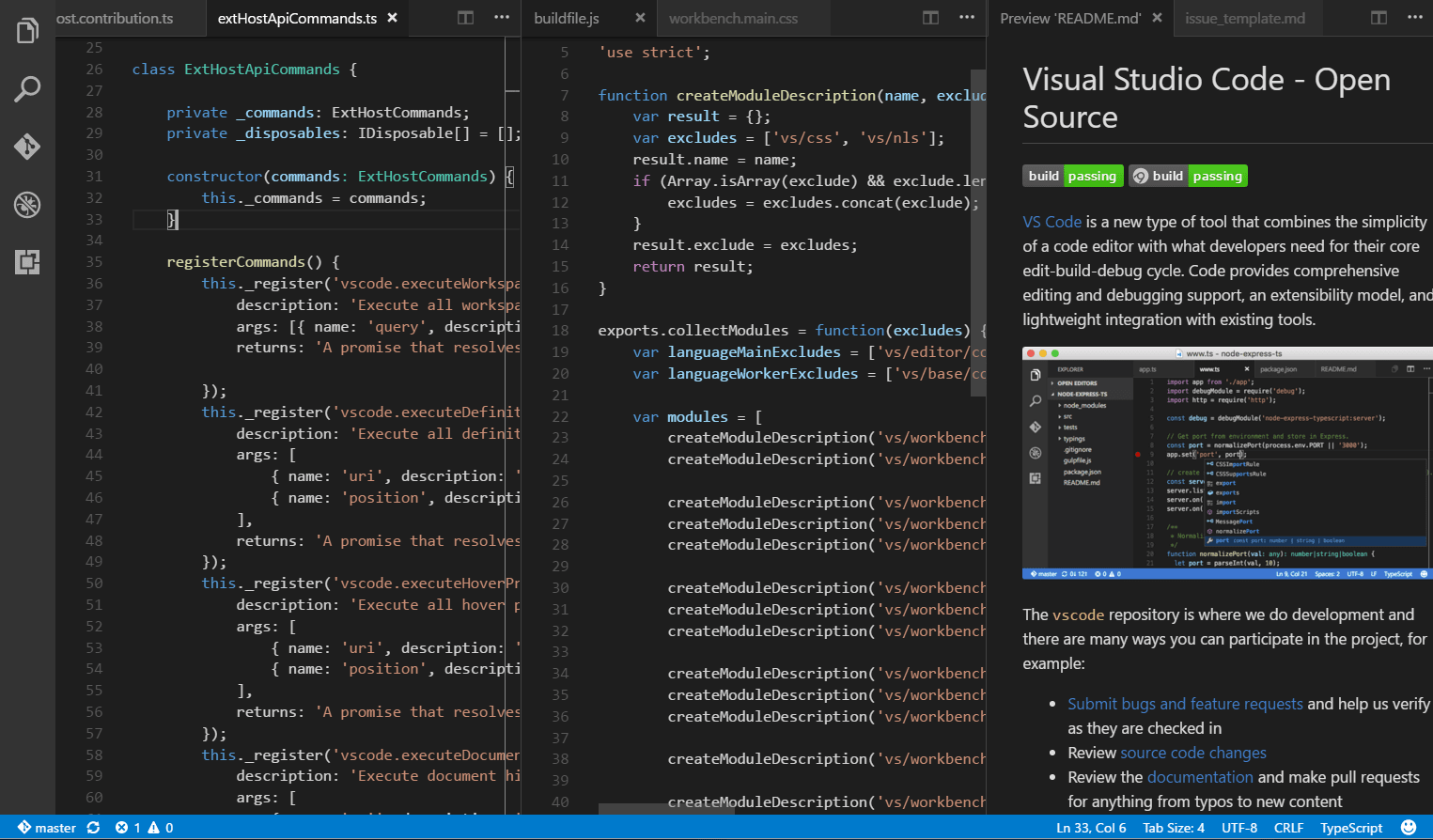
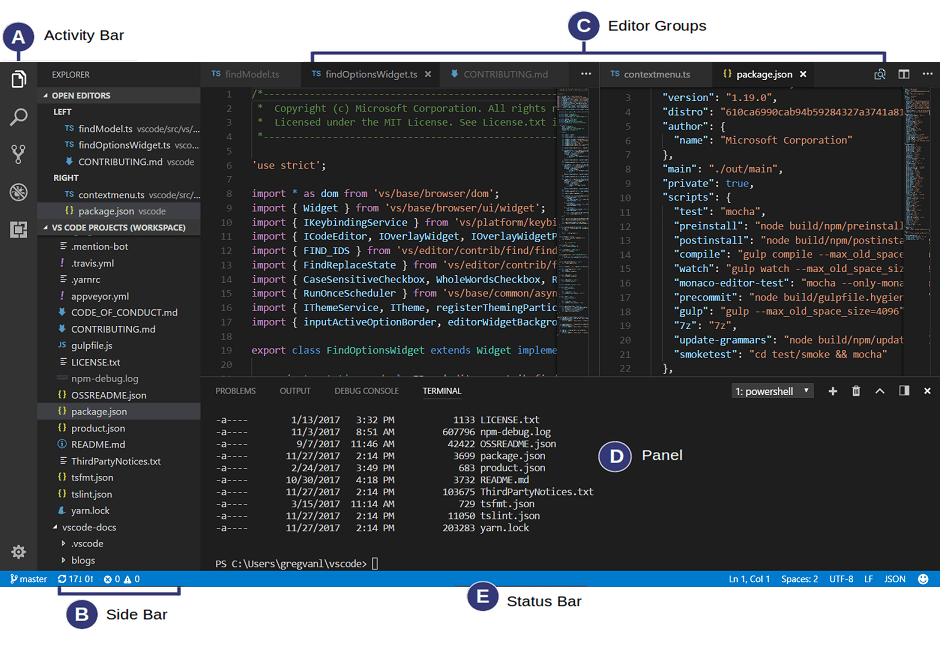
Visual Studio Code Screenshots
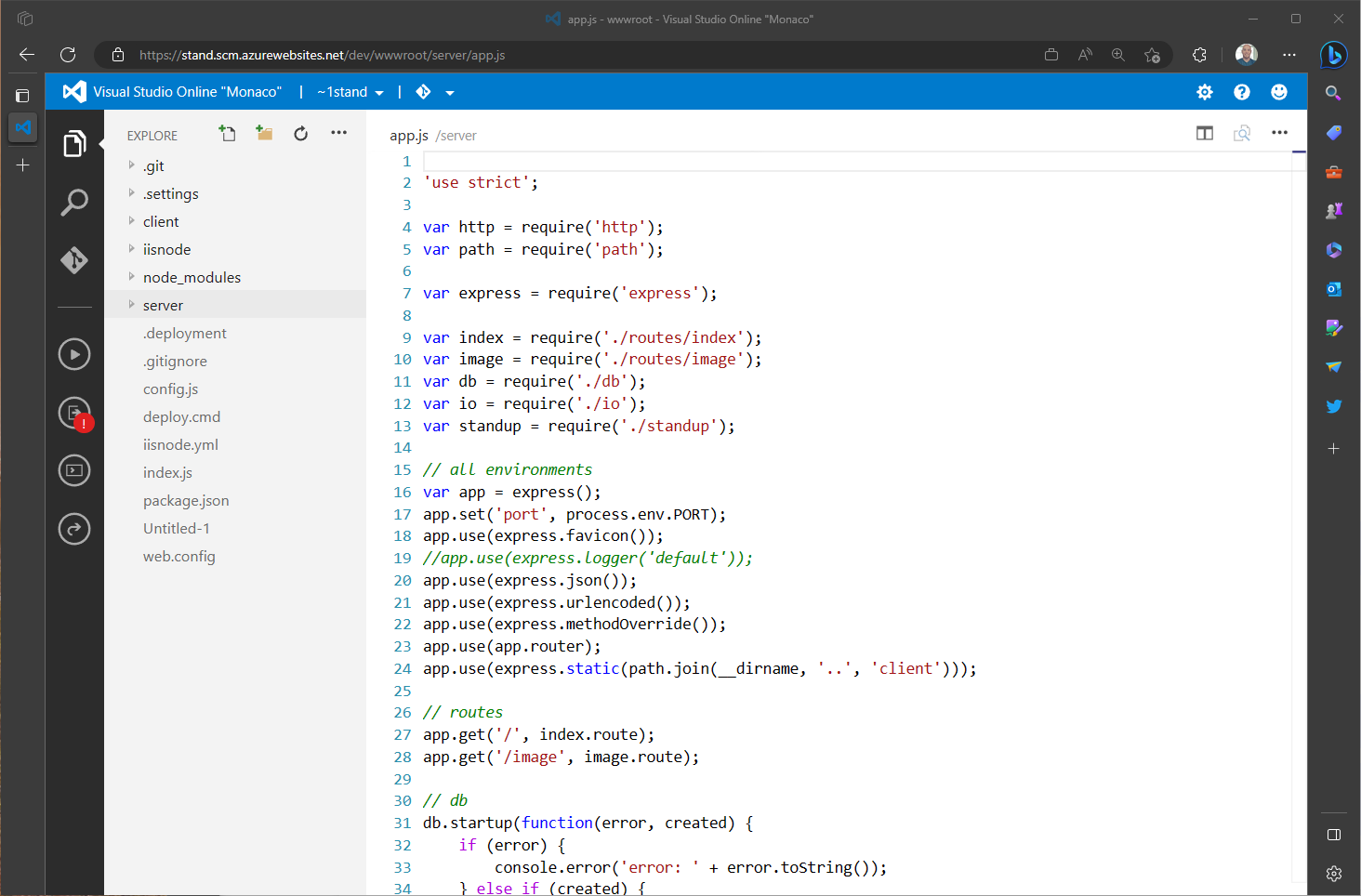
Video of Setting up VS Code
This video covers the installation process and how to set up the basic extensions for web development.
Frequently Asked Questions
Is Visual Studio Code really free?
Yes. VS Code is completely free and open-source. There are no paid tiers, no trial period, and no feature restrictions. Microsoft makes money from related services like GitHub Copilot, but the editor itself costs nothing.
What is the difference between VS Code and Visual Studio?
Visual Studio Code is a lightweight code editor that starts fast and supports any language through extensions. Visual Studio (without “Code”) is a full IDE designed mainly for .NET and C++ development. VS Code is better for web development, scripting, and general-purpose coding. Visual Studio is better for large enterprise .NET projects.
Should I install from the website or the Microsoft Store?
Most developers prefer the website installer because it gives you more control over updates and adds the right-click “Open with Code” context menu option automatically. The Microsoft Store version updates in the background but does not always include the context menu integration.
What are the best AI extensions for VS Code?
GitHub Copilot is the most popular AI assistant and works natively in VS Code. Google’s Gemini Code Assist is a strong alternative for code completion and chat. Claude Dev handles complex reasoning tasks. All three are available as official extensions in the VS Code Marketplace.
Can I use VS Code for Python?
Yes. Install the official Python extension from the Marketplace and VS Code becomes a full Python development environment with IntelliSense, debugging, Jupyter notebook support, and virtual environment management.
Does VS Code work on Windows 10?
Yes. VS Code runs on both Windows 10 and Windows 11 (64-bit). It also works on macOS and Linux, so your settings and extensions carry over if you switch platforms.
Helpful Resources
Ready to code?
VS Code is free, fast, and works with every language. Download it and start building.
Related Guides: Getting Started with VS Code, 20 Best VS Code Themes, Best AI Coding Extensions, VS Code Keyboard Shortcuts (PDF), Best Extensions for Frontend Devs
Discover more from Windows Mode
Subscribe to get the latest posts sent to your email.
















Love VS Code and will use it for ever, but jetbrains is good too but VS code #1!