Readers like you help support this site. When you make a purchase using links on our site, we may earn an affiliate commission. All opinions remain our own.
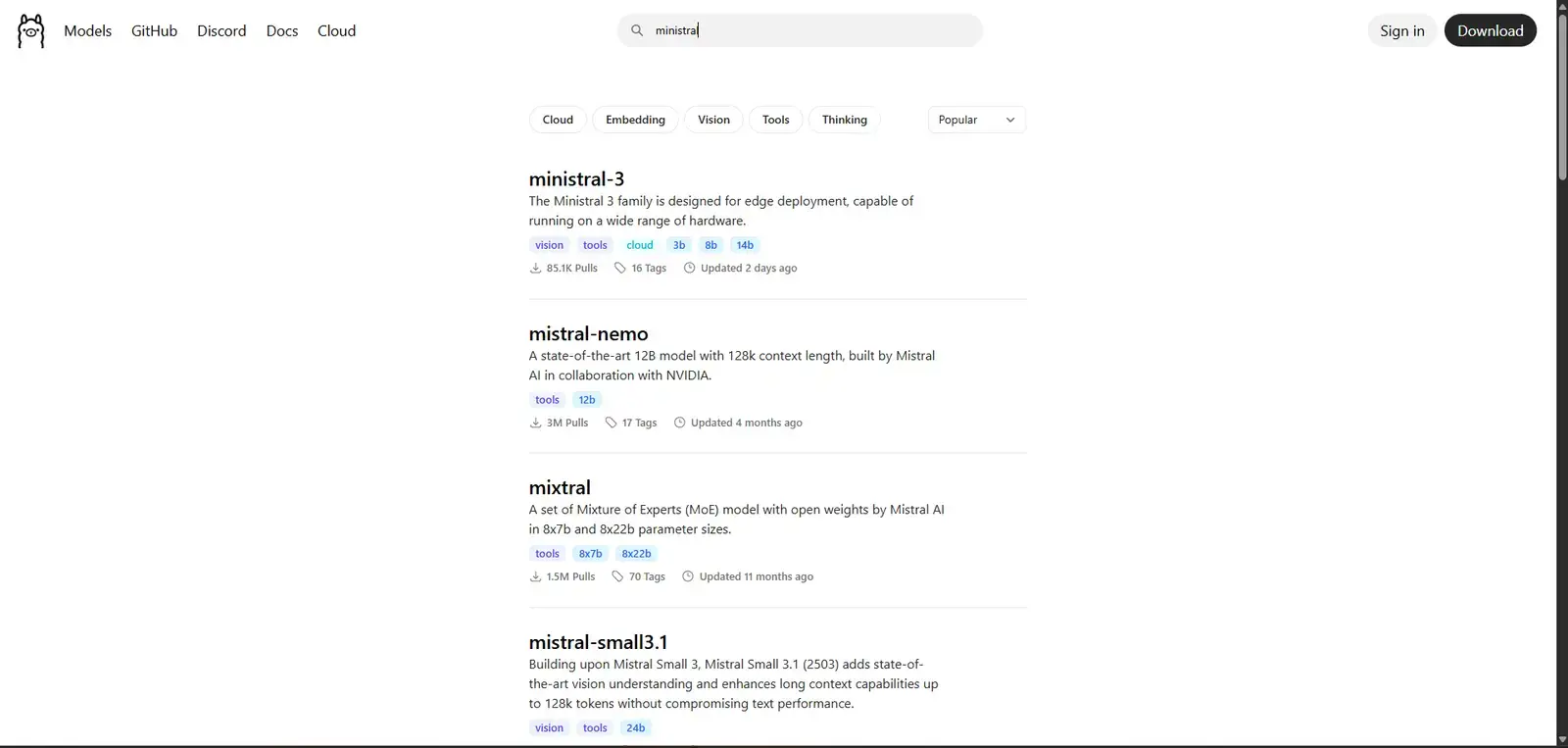
 To run Ministral 3 locally on Windows, we use the industry-standard engine: Ollama.
Released in late 2025, Ministral 3 is Mistral AI’s dedicated “Edge” model. Unlike their larger server-class models, Ministral is optimized specifically for low-latency tasks on consumer hardware. It is designed to run efficiently on standard laptops without draining battery life or requiring massive amounts of RAM.
This guide covers the installation of the 8B (Standard) and 3B (Mobile) versions.
Compare this with the vision of Qwen 3 VL, the agency of GPT-OSS, the power of Llama 4, the reasoning of DeepSeek-R1, the native Phi-4, or the speed of Gemma 3.
System Requirements
Important Distinction: Do not confuse “Ministral 3” with “Mistral Small 3.”
- Ministral 3 (3B/8B): The lightweight “Edge” model covered in this guide.
- Mistral Small 3 (24B): A much heavier desktop-class model.
| Component | Minimum (3B Version) | Recommended (8B Version) |
|---|---|---|
| Operating System | Windows 10 / 11 | Windows 10 / 11 |
| RAM | 4 GB | 8 GB – 16 GB |
| GPU (Graphics) | Any (CPU works fine) | NVIDIA GTX 1650 or better |
Step 1: Install Ollama for Windows
If you already installed Ollama for our other guides, skip to Step 2.
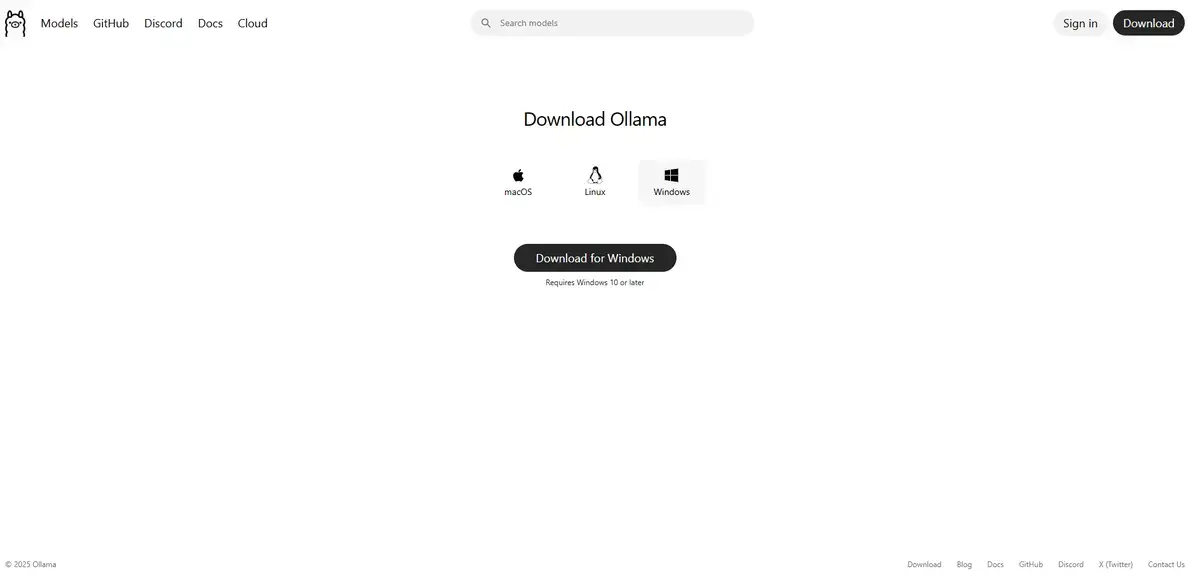
- Navigate to the official Ollama website.
- Click Download for Windows.
- Run the
OllamaSetup.exeinstaller. - Follow the on-screen prompts to complete the installation.
Step 2: Download and Run Ministral 3
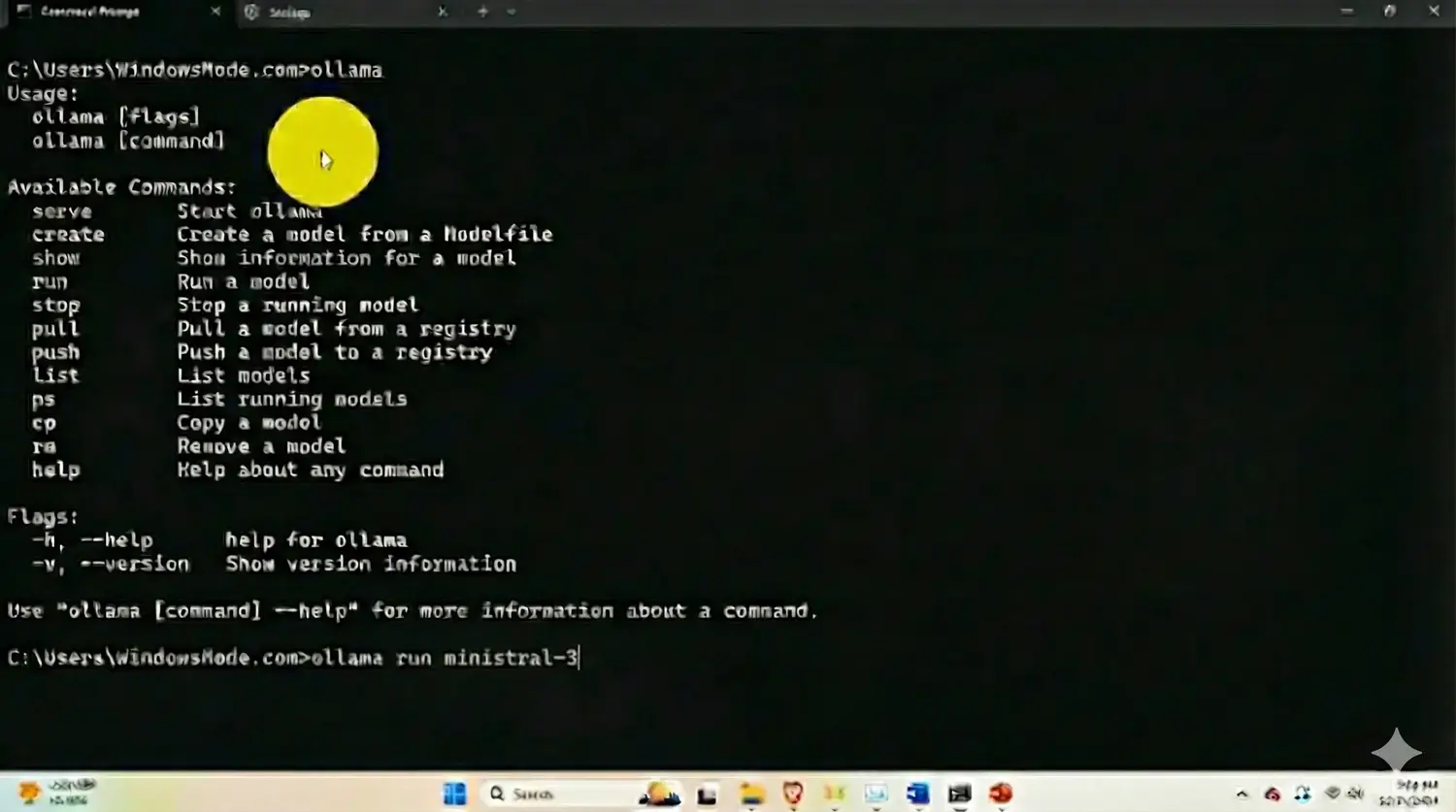
Open your Command Prompt. You have two options depending on your available hardware.
Option A: The Standard (Recommended)
The 8B model provides the most balanced performance. It includes a small “vision encoder,” meaning it can technically process images if needed, though its primary strength is fast text generation.
ollama run ministral-3
Option B: The Ultra-Light (Old Laptops)
If you have an older machine with 4GB-8GB of RAM, use the 3B version. It consumes minimal system resources.
ollama run ministral-3:3b
Once the download finishes, you can start chatting immediately.
Step 3: What Can Ministral 3 Do? (First Run Examples)
Ministral is known for following instructions precisely.
1. The Logic Puzzle
Despite its small size, it performs well on basic logic tasks.
I have 3 apples. I eat one, then buy two more. Then I drop one in a river. How many do I have left? Think step by step.
2. The Summary
Paste a long email or article and ask for a summary. Ministral supports a large context window (128k), allowing it to process long documents.
[Paste long text here]
Summarize the key points of this text in 3 bullet points.
Why Run Ministral 3 Locally?
Efficiency. This model is designed for “Edge” computing. On a laptop running on battery power, Ministral 3 will consume significantly less power than larger models like Llama 4 or GPT-OSS, while providing comparable performance for daily tasks.
Troubleshooting Common Errors
“Error: Pulling manifest”
This usually means your internet connection interrupted the download. Run the ollama run ministral-3 command again to resume.
“Model responds in French”
Mistral AI is a French company. While Ministral 3 is fluent in English, it may default to French if the prompt is ambiguous. Type “Please answer in English” to switch languages.
Reader Poll
Discover more from Windows Mode
Subscribe to get the latest posts sent to your email.