Readers like you help support this site. When you make a purchase using links on our site, we may earn an affiliate commission. All opinions remain our own.
PC Health Check is Microsoft’s free app for testing whether a PC can run Windows 11.
PC Health Check is a free app from Microsoft that tells you whether your PC can run Windows 11, available as a direct download from Microsoft. You press one button and get a pass or fail. If your PC fails, it names the part that is holding it back.
Most people open it once, when they are deciding whether to upgrade. A fail is often a setting, not old hardware: TPM or Secure Boot is simply switched off. This guide shows how to spot that and fix it.
The app also shows battery health, free space, startup time and Windows Update status. It runs on Windows 10 and Windows 11, and many Windows 10 PCs already have it, because Microsoft pushed it out through Windows Update.
Stuck on a result this guide does not cover? Reach out to us directly.
Download PC Health Check from Microsoft →
Direct download from Microsoft: WindowsPCHealthCheckSetup.msi, about 14 MB.
What Is the PC Health Check App?
PC Health Check is Microsoft’s own test for Windows 11 readiness. It compares your PC against the Windows 11 minimum requirements and tells you, in plain words, whether it passes.
Around that check, the app shows a short health summary of your PC: whether Windows Update needs attention, how full your main drive is, how worn your laptop battery is and how long startup takes. Each section links to the Windows setting that fixes it.
It does not clean, repair or speed up anything on its own. For a cleanup tool, Microsoft makes a separate app called Microsoft PC Manager.
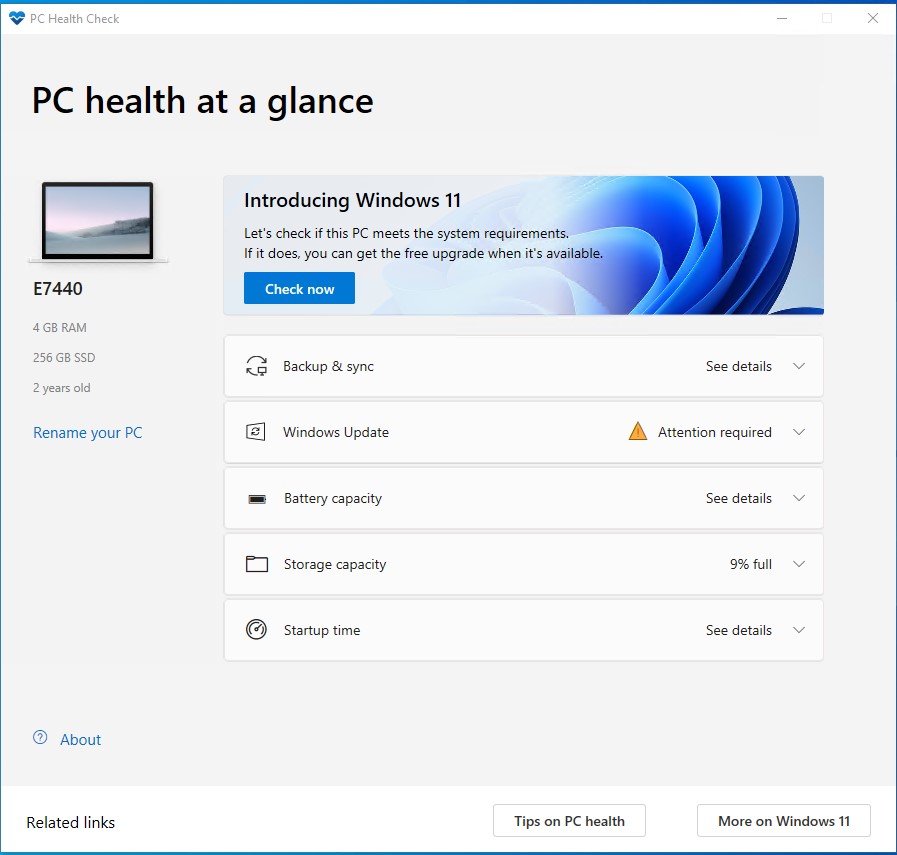
The main screen. The Windows 11 banner and its Check now button only appear on Windows 10 PCs.
How to Download and Install PC Health Check
Check whether you already have it first. Type PC Health Check into the search box on the taskbar. If it shows up, open it and skip to the next section.
1 Download the installer from Microsoft. The file is WindowsPCHealthCheckSetup.msi.
2 Open the downloaded file. Windows may ask for permission to make changes. Click Yes.
3 Accept the license terms and click Install.
4 Click Finish with Open Windows PC Health Check ticked, and the app opens.
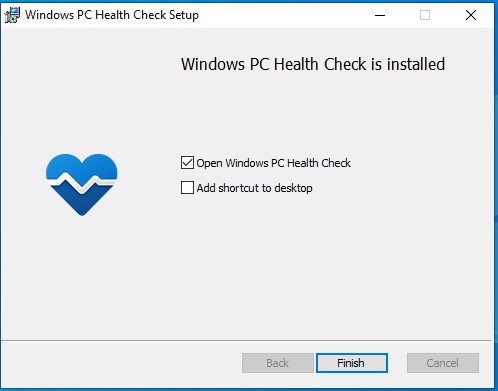
The last screen of the installer.
Only download it from Microsoft. The aka.ms link above points straight to download.microsoft.com. Copies on download sites cannot be checked, and the real app is free, so there is no reason to use them.
Get the PC Health Check installer →
Direct download from Microsoft: WindowsPCHealthCheckSetup.msi, about 14 MB.
How to Check If Your PC Can Run Windows 11
On a Windows 10 PC, the check takes a few seconds.
1 Open PC Health Check from the Start menu.
2 Click Check now in the Introducing Windows 11 banner at the top.
3 Read the result. A pass says the PC meets the Windows 11 requirements. A fail says it does not, and names the reason.
4 Click See all results to see every requirement with a tick or a cross beside it.
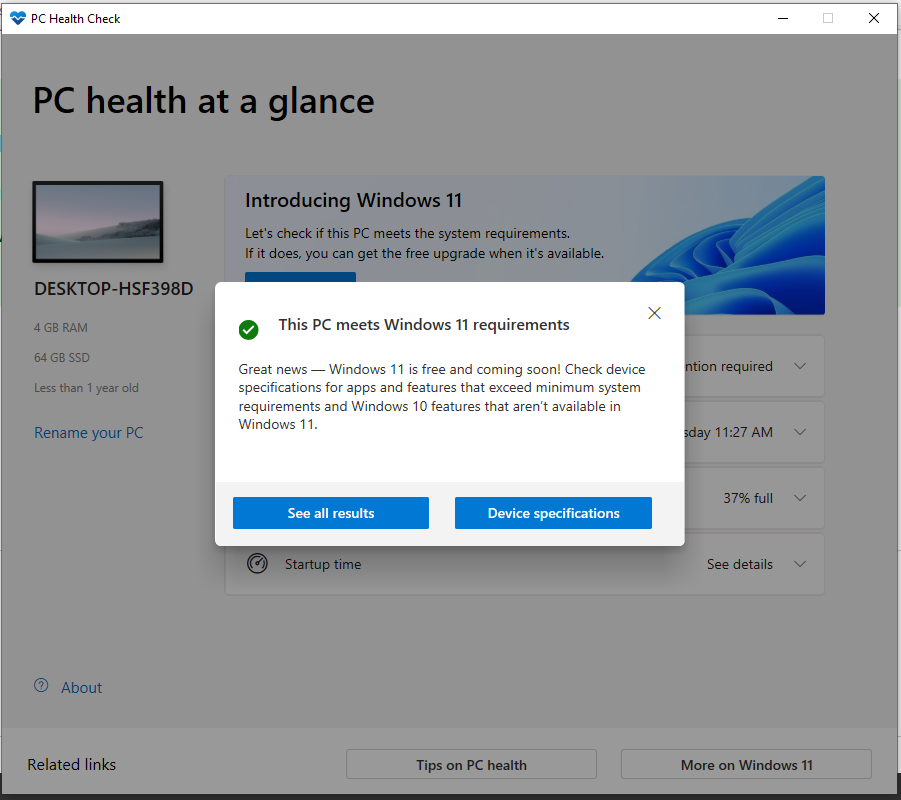
A passing result. The wording in the window has changed since Windows 11 launched, but the buttons are the same.
Passed, but Windows Update has not offered Windows 11?
Microsoft sometimes holds the upgrade back on PCs with a known problem, such as a driver that does not work with Windows 11 yet. It calls this a safeguard hold. You can wait for the offer, or install it yourself with the Windows 11 Installation Assistant.
Why Your PC Failed, and How to Fix It
Click See all results to find which requirement failed. These are the four that come up, from the most fixable to the least.
TPM 2.0 must be supported and enabled
TPM is a small security chip, or a feature built into the processor. Most PCs from the last several years have one, but it often ships switched off.
Press Windows key + R, type tpm.msc and press Enter. “Compatible TPM cannot be found” usually means it is turned off. Switch it on in your PC’s UEFI settings, where it may be called Intel PTT, AMD fTPM or Security Device. Microsoft’s TPM guide has the full steps.
The PC must support Secure Boot
Secure Boot blocks untrusted software from loading while the PC starts. Windows 11 needs the PC to be able to use it, which means the firmware has to run in UEFI mode rather than the older Legacy (CSM) mode.
Press Windows key + R, type msinfo32 and look at BIOS Mode. If it says Legacy, read the warning below before you change anything. Microsoft’s Secure Boot page explains the setting.
Not enough RAM or storage
Windows 11 needs at least 4 GB of memory and 64 GB of storage.
On many desktops and some laptops you can add a memory stick or swap in a larger drive for a modest price. On thin laptops the memory is often soldered to the board, so check your model’s manual first.
The processor is not supported
Windows 11 needs a 64-bit processor with two or more cores, and it has to be on Microsoft’s supported processor list.
No setting changes this. Many processors from before about 2018 fail here even when everything else passes.
Do not flip Legacy to UEFI on its own. If Windows was installed in Legacy mode, switching the firmware to UEFI can leave the PC unable to start. Microsoft’s MBR2GPT tool converts the drive first. Back up your files before trying it, or ask your PC maker’s support for help.
To reach the UEFI settings, open Settings and go to Recovery (under System on Windows 11, or Update & Security on Windows 10), click Restart now next to Advanced startup, then choose Troubleshoot, Advanced options, UEFI Firmware Settings. After changing a setting, run PC Health Check again to confirm it now passes.
Windows 11 Minimum Requirements
These are the requirements PC Health Check tests against, taken from Microsoft’s Windows 11 specifications page.
What Else PC Health Check Shows
Below the Windows 11 banner sit five sections you can expand. Each one gives a short status and a button that opens the matching Windows setting.
Backup and sync
Asks you to sign in with a Microsoft account so your passwords, Edge favorites and themes sync, and so your files can back up to OneDrive. You can ignore it.
Button: Sign in or See details
Windows Update
Shows whether your PC is up to date, and warns you if an update needs attention.
Button: Open Windows Update
Battery capacity
On laptops older than three years, compares how much charge the battery holds now with what it held when new.
Button: See battery saving tips
Storage capacity
Shows how full your main drive is. Expand it to see the free space left.
Button: Manage storage settings
Startup time
Shows how long your PC takes to start and what slows it down.
Button: Manage your startup programs
Device details
The panel on the left shows your PC’s name, memory, storage and age.
Button: Rename your PC
What to Do After the Check
Already on Windows 11? See what changed in the latest feature update in our Windows 11 26H2 guide.
PC Health Check vs Microsoft PC Manager
Both apps come from Microsoft and both have “PC” and “health” somewhere in the pitch, so they get mixed up. PC Health Check answers one question, can this PC run Windows 11, while PC Manager is a cleanup tool you keep around.
Tips for Getting Started
1 Run it again after any change. The result is not saved. Changing a UEFI setting or adding memory only counts once you click Check now again.
2 Screenshot the full results. If you plan to ask your PC maker or a repair shop for help, See all results gives them exactly what failed.
3 Check the battery before buying a used laptop. On a laptop over three years old, Battery capacity shows how much of the original charge is left.
4 Look up your exact model for UEFI steps. The menu names for TPM and Secure Boot differ between Dell, HP, Lenovo, ASUS and others. Your maker’s support page shows where yours are.
PC Health Check Walkthrough Video
This walkthrough from Srikant Sahu shows the PC Health Check app in use, from the Windows 11 check to the battery, storage and startup sections.
Frequently Asked Questions
Why doesn’t PC Health Check show the Windows 11 check?
Is PC Health Check safe?
How do I uninstall PC Health Check?
Do I need a Microsoft account to use PC Health Check?
Is PC Health Check the same as the Windows 11 Installation Assistant?
Can I upgrade to Windows 11 if my PC fails the check?
Support and Community
These places cover most questions about the check and the upgrade.
- How to use the PC Health Check app, Microsoft’s own guide to each section of the app.
- Windows 11 on microsoft.com, Microsoft’s official Windows 11 site.
- Microsoft Windows Support, for problems with the upgrade or with Windows itself.
- r/Windows11 on Reddit, for help from other Windows users with a failed check or a stuck upgrade.
More Windows software guides: Microsoft PC Manager · Windows 11 Installation Assistant · Windows 11 Media Creation Tool · Windows 10 Update Assistant · Windows 10 Installation Media
Discover more from Windows Mode
Subscribe to get the latest posts sent to your email.
















Add your first comment to this post