Readers like you help support this site. When you make a purchase using links on our site, we may earn an affiliate commission. All opinions remain our own.
The best free Microsoft Office alternatives are Google Docs for online collaboration, LibreOffice for a powerful desktop app, and WPS Office if you want an interface that looks like Microsoft Office.
All three options let you create documents, spreadsheets, and presentations, and they can open and save files in Microsoft Office formats. We tested 7 alternatives and compared them for ease of use, compatibility, cloud features, and AI tools.
Microsoft Office still dominates at work, but for students, freelancers, and home users, these free alternatives are more than good enough to replace it.
Google Docs
LibreOffice
WPS Office
7 Suites
🔍 What We Looked For
Compatibility
Can you open and save Word, Excel, and PowerPoint files?
Ease of Use
How easy is it to learn and start using?
Cloud Features
Can you access files from anywhere and collaborate?
AI Tools
Does it include writing assistance or AI features?
Quick Comparison: Top Office Alternatives
| Software | Best For | Type | Rating |
|---|---|---|---|
| 1. Google Docs | Collaboration & Cloud Access | Online | ⭐⭐⭐⭐⭐ |
| 2. LibreOffice | Powerful Desktop App (Free) | Desktop | ⭐⭐⭐⭐½ |
| 3. WPS Office | Microsoft Office Look-Alike | Desktop | ⭐⭐⭐⭐ |
| 4. ONLYOFFICE | AI Features + Open Source | Desktop | ⭐⭐⭐⭐ |
| 5. FreeOffice | Speed & Simplicity | Desktop | ⭐⭐⭐⭐ |
Feature Comparison
| Suite | Opens Office Files | Cloud Sync | AI Writing Help | Open Source |
|---|---|---|---|---|
| Google Docs | Export Only | ✅ Built-in | ✅ Gemini AI | ❌ |
| LibreOffice | ✅ Excellent | ❌ | ❌ | ✅ |
| WPS Office | ✅ Excellent | ✅ | ✅ WPS AI | ❌ |
| ONLYOFFICE | ✅ Good | ✅ | ✅ ChatGPT | ✅ |
| FreeOffice | ✅ Excellent | ❌ | ❌ | ❌ |
Detailed Reviews
1. Google Docs (Workspace)
🏆 Best for Working Together Online
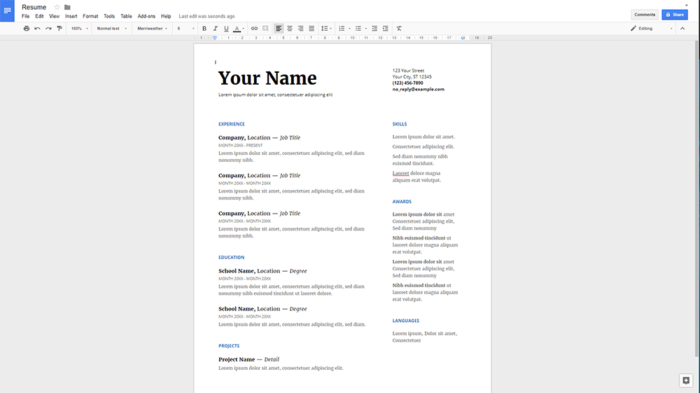
Google Docs is the best choice for most people who want a free alternative to Microsoft Office. It works entirely in your web browser, so there is no software to install. Your documents save automatically to the cloud, and you can invite others to edit the same document at the same time without anyone’s work getting overwritten.
✅ The Good
- Nothing to download or install
- Best collaboration tools available
- Works with Google Drive and Gmail
- AI writing assistant (Gemini) included
❌ The Bad
- Needs internet (offline mode requires simple setup)
- Some formatting may change when saving as Word files
- Not ideal for very complex documents
2. LibreOffice
🏆 Best Free Desktop App (Open Source)
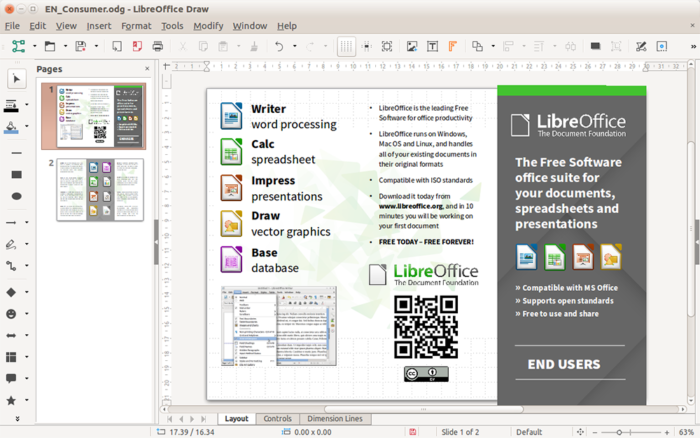
LibreOffice is the most powerful free office suite you can install on your computer. It includes Writer (like Word), Calc (like Excel), and Impress (like PowerPoint). It can open many document formats, including older files that Microsoft Office sometimes struggles with.
✅ The Good
- Completely free, no strings attached
- Works offline, no internet required
- Opens a wide range of file formats
- Powerful features for advanced users
❌ The Bad
- Interface looks a bit dated
- No built-in cloud sync
- No built-in AI writing features
3. WPS Office
Looks Almost Identical to Microsoft Office
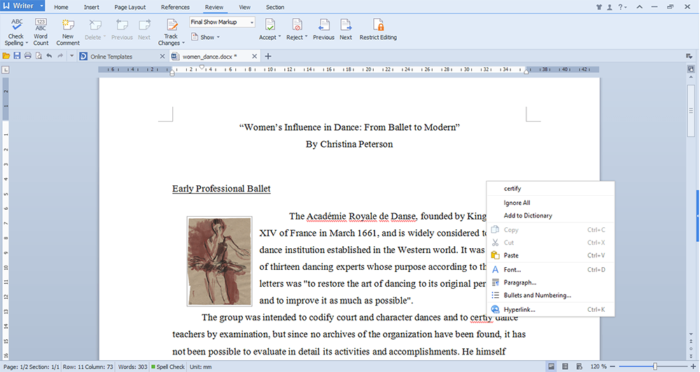
If you’ve used Microsoft Office and do not want to learn a new interface, WPS Office is a strong pick. It looks and works similarly to Office, including a ribbon-style menu. It also includes a built-in PDF editor.
✅ The Good
- Familiar Microsoft-style interface
- Good compatibility with Word, Excel, and PowerPoint files
- Built-in PDF tools
- AI writing assistant available
❌ The Bad
- Free version shows some ads
- Best AI features require a paid plan
- Not open source
4. ONLYOFFICE
AI-Powered & Open Source
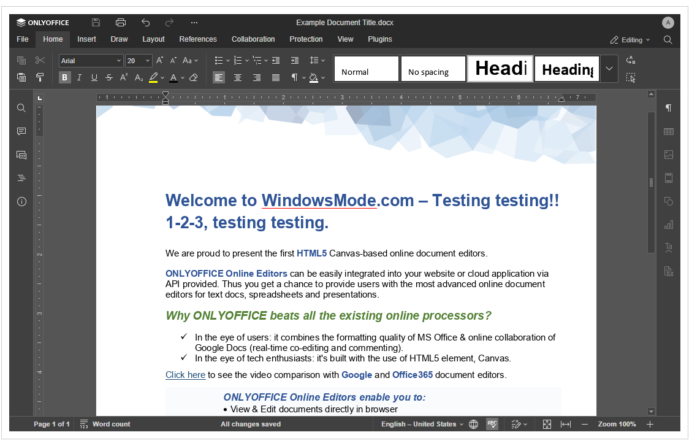
🤖 Why This Stands Out:
ONLYOFFICE can be used with AI integrations, including ChatGPT connectors and plugins, so you can draft text, summarize, fix grammar, or translate without switching tabs.
ONLYOFFICE uses the same file formats as Microsoft Office, so documents often keep their layout when you move between Word and ONLYOFFICE. It’s also open source, meaning the code is public and can be audited.
✅ The Good
- Strong Microsoft file compatibility
- Open source options available
- Cloud collaboration features
- Good fit for teams who share Office files
❌ The Bad
- Less well-known than the big three
- Some features depend on which edition you install
- Desktop installer is larger than minimal suites
Other Good Options
5. FreeOffice
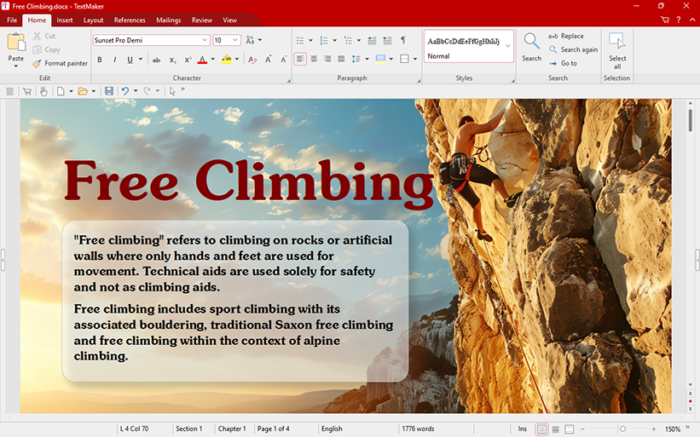
Fast and lightweight. A professional-quality office suite that will not slow down your computer. Made by the same company that makes the paid SoftMaker Office.
6. Apache OpenOffice
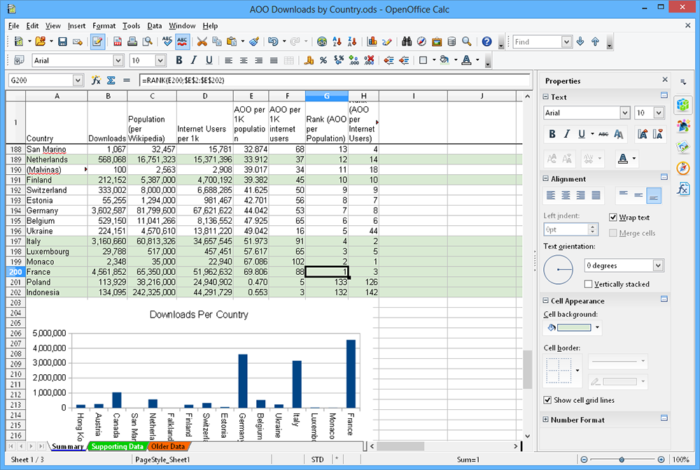
The original free office suite that started it all. Updates are slower than LibreOffice, but it’s stable and reliable. Good if you want something simple and proven.
7. Calligra Suite
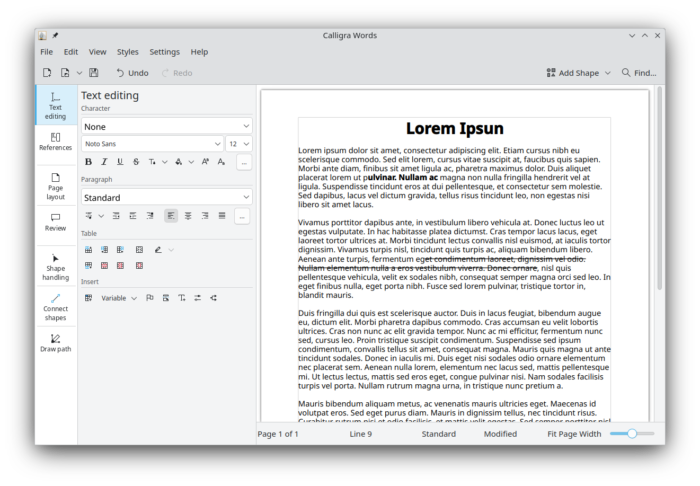
Unique because it includes drawing and diagramming tools alongside the standard office apps. Great for projects that mix documents with graphics.
Common Questions
Can these open my Word and Excel files?
Yes. These alternatives can open, edit, and save Microsoft Office files (.docx, .xlsx, .pptx). LibreOffice and WPS Office tend to have the strongest compatibility, and files usually keep the same layout.
Which one is best for students?
Google Docs is often the best choice for students. It’s free, works on any device, makes group projects easy, and teachers can leave comments directly in documents.
Do I need internet to use these?
It depends. LibreOffice, WPS Office, ONLYOFFICE, and FreeOffice work offline after installation. Google Docs mainly works online, but you can enable offline mode if needed.
Are these really free? What’s the catch?
LibreOffice and Apache OpenOffice are free and open source. Google Docs is free for personal use but is tied to a Google account and cloud storage. WPS Office is free but can show ads and includes optional paid upgrades.
Which has the best AI writing features?
Google Docs (Gemini) and ONLYOFFICE (AI plugins/connectors) are typically the strongest options. WPS Office also offers AI features, but some require a paid subscription.
Will my boss or teacher accept files from these programs?
Yes. These suites can save to standard Microsoft Office formats. Before sending, confirm you exported to .docx, .xlsx, or .pptx, depending on the file.
Which Should You Choose?
For most people: Start with Google Docs. It’s easy to use, requires no installation, and works well for everyday documents.
If you need a desktop app: Choose LibreOffice if you want something free and powerful, or WPS Office if you want it to look like Microsoft Office.
If you want AI help: Try ONLYOFFICE for AI plugins, or Google Docs for Gemini integration.
Our Top Recommendation
For most users, Google Docs offers the best balance of ease of use and powerful features, and it’s free.
Related Guides:
What Copilot Can Do in Office, Best Antivirus Software, iTunes Alternatives & Remote Desktop Apps.
Discover more from Windows Mode
Subscribe to get the latest posts sent to your email.
















I love google docs honestly because I can access my stuff on multiple devices, saves a lot of headaches.
It is a great choice, especially with everything being hosted in the cloud.
Google Docs get’s the job done people, if you haven’t tried it, why not? just ask yourself that.
Nevron is the best in my opinion
Honestly LibreOffice is the best alternative by far unless you want to be online all the time and use Google Docs but Google docs is not good if you live in countries where Internet is pricey, like most African countries so I’ll stick to LibreOffice until things get cheaper here, too many damn thieves in the telecommunication business.
i was thinkin the same thing bruv. I live here in Tazania, but sometimes when the lights go out or internet is down the offline option Docs might not work too etc so a downloadable version that is ready at all times is better, I thihnk