Readers like you help support this site. When you make a purchase using links on our site, we may earn an affiliate commission. All opinions remain our own.
WinUI Gallery is a free developer tool from Microsoft, available on the Microsoft Store. It shows every WinUI 3 control in action inside a working Windows app. You click on any control, see how it behaves, and copy the XAML or C# code straight into your project.
It is built on top of the Windows App SDK and Fluent Design. Every sample is live and interactive, not just a screenshot. You toggle options, change themes, and watch the code update in real time.
It runs on Windows 10 and Windows 11. The source code is on GitHub under the MIT license.
Already using it in your project? Let us know in the poll below. Got questions? Reach out to us directly.
What You Need to Know
- WinUI Gallery is free and open source. No account, no license, no cost.
- Every control sample includes live XAML and C# code you can copy instantly.
- The app itself is built with WinUI 3, so you are learning from a real production codebase.
Price
Free
Developer
Microsoft
Windows
10 / 11
License
Open Source (MIT)
Also On
GitHub
Get WinUI Gallery on Microsoft Store
How to Get WinUI Gallery on Windows
There are two ways to get it. The Microsoft Store is the fastest option for most people.
Method 1: Microsoft Store (Recommended)
This gives you automatic updates and takes about 30 seconds to install.
- Step 1. Open the Microsoft Store on your PC (Windows key, then type “Store”).
- Step 2. Search for WinUI Gallery or click the button above to open the Store page directly.
- Step 3. Click Get. No sign-in is required for a free app.
- Step 4. Once installed, open it from the Start menu. It launches in seconds.
Method 2: GitHub (For Source Builds)
If you want to dig into the source code or contribute, clone the repo from github.com/microsoft/WinUI-Gallery. You will need Visual Studio 2026/2022 with the Windows App SDK workload (the component you install inside Visual Studio to build WinUI apps). Build instructions are in the README.
What Is WinUI Gallery?
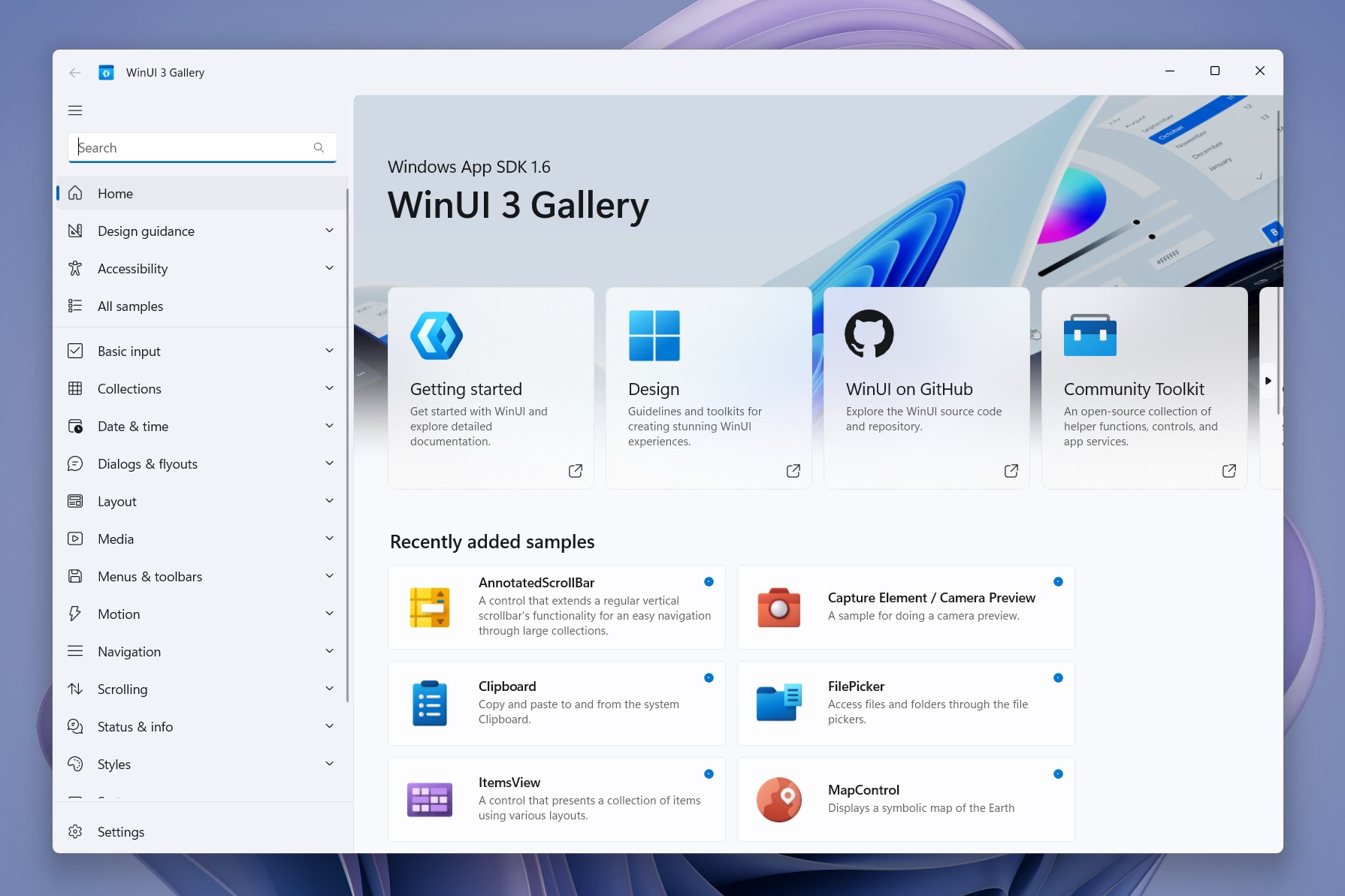
WinUI Gallery is the official companion app for WinUI 3, Microsoft’s modern toolkit for building native Windows apps. It is maintained by the Windows App SDK team at Microsoft and updated alongside each new SDK release.
The app has been around since the UWP era (Microsoft’s older Windows app platform), when it was called the XAML Controls Gallery. Microsoft renamed it when they moved to the Windows App SDK, their newer development platform. Now it simply goes by WinUI Gallery.
Think of it as a live reference manual. Every control in WinUI 3 has its own page in the app. You see it rendered correctly with the right fonts, spacing, and Fluent Design behavior. You can toggle between light and dark mode, resize the window to test responsive layouts, and flip into high-contrast mode to check accessibility.
The app itself is open source and built entirely with WinUI 3. That means the codebase you are browsing is the same pattern you should follow in your own projects.
Key Features
Interactive Control Samples
Every WinUI 3 control has a live demo. Click buttons, fill in fields, toggle switches. You see exactly how the control behaves before writing a single line of code.
Copy-Ready Code
Each sample shows the XAML and C# side by side. Hit the copy button and paste it straight into Visual Studio. No retyping, no guessing at the right namespace.
Fluent Design Guidance
Dedicated sections cover colors, brushes, typography, iconography, and spacing. This is the same guidance Microsoft uses to design Windows 11 itself.
Accessibility Testing
Switch to high-contrast mode or pump up text scaling to 200% and watch controls respond. It is a fast way to check your planned UI before writing the accessibility code.
Favorites and Recent History
Save your most-used controls to Favorites. The Recent tab tracks where you left off so you do not have to re-navigate every time you open the app.
Jump List Support
Right-click the app icon in your taskbar and jump directly to a favorited or recently viewed sample. Saves navigation time when you are deep in a build cycle.
System Requirements
| Requirement | Minimum |
|---|---|
| Operating System | Windows 10 version 1809 or later |
| Architecture | x64, x86, ARM64 |
| Storage | ~150 MB installed |
| For Source Builds | Visual Studio 2026/2022, Windows App SDK workload, .NET 9 |
| Internet | Not required after install |
How WinUI Gallery Works
Open WinUI Gallery
Launch from Start menu or taskbar jump list
Browse by Category
Layout, Text, Collections, Navigation, Design Guidance
Interact with the Control
Toggle options, switch themes, test at different window sizes
Copy the Code
Hit copy on the XAML or C# tab, paste into Visual Studio
Build and Test
Run your project in Visual Studio, iterate until it looks right
WinUI Gallery vs. the Alternatives
| Tool | What It Does | Best For |
|---|---|---|
| WinUI Gallery | Live WinUI 3 control demos with copy-ready code | WinUI 3 / Windows App SDK developers |
| Microsoft Docs | Written reference docs with API tables | Reading API details and parameter lists |
| Windows Community Toolkit | Extra controls beyond the core WinUI set | Devs who need controls not in WinUI 3 core |
| MAUI Controls Gallery | Cross-platform control samples for .NET MAUI | Developers targeting Android, iOS, and Windows from one codebase |
| Fluent 2 Website | Design system tokens, components, and guidelines | Designers working alongside devs on Windows apps |
Tips for Getting Started
Tip 1. Start with the controls you plan to use first
Do not browse randomly. If your app needs a NavigationView and a ListView, go straight to those pages. Get the code, paste it in, and build from there. You can explore the rest later.
Tip 2. Check the Fluent Design sections before you pick colors
The Colors and Brushes pages show you the system-defined color tokens Windows uses. Using those tokens instead of hardcoded hex values means your app automatically looks correct in both light and dark mode.
Tip 3. Resize the window while on a control page
Many controls behave differently at narrow widths. NavigationView collapses into a hamburger menu. Grids reflow. Testing this inside the Gallery saves you from surprise layout bugs when your users resize your app.
Tip 4. Star your most-used controls
The Favorites tab saves controls you use frequently. If you are always looking up Button, TextBox, and ListView, star them once and jump straight there every session. The taskbar jump list takes this one step further.
Tip 5. Clone the repo to see how the Gallery itself is built
The WinUI Gallery is a full production app. It uses NavigationView for the sidebar, theming, adaptive layout, and accessibility features throughout. If you want to see a real-world WinUI 3 project structured correctly, the source code is one of the most useful examples Microsoft has published.
Video
A quick look at WinUI Gallery in action, showing the control browser, code viewer, and Fluent Design sections.
Screenshots
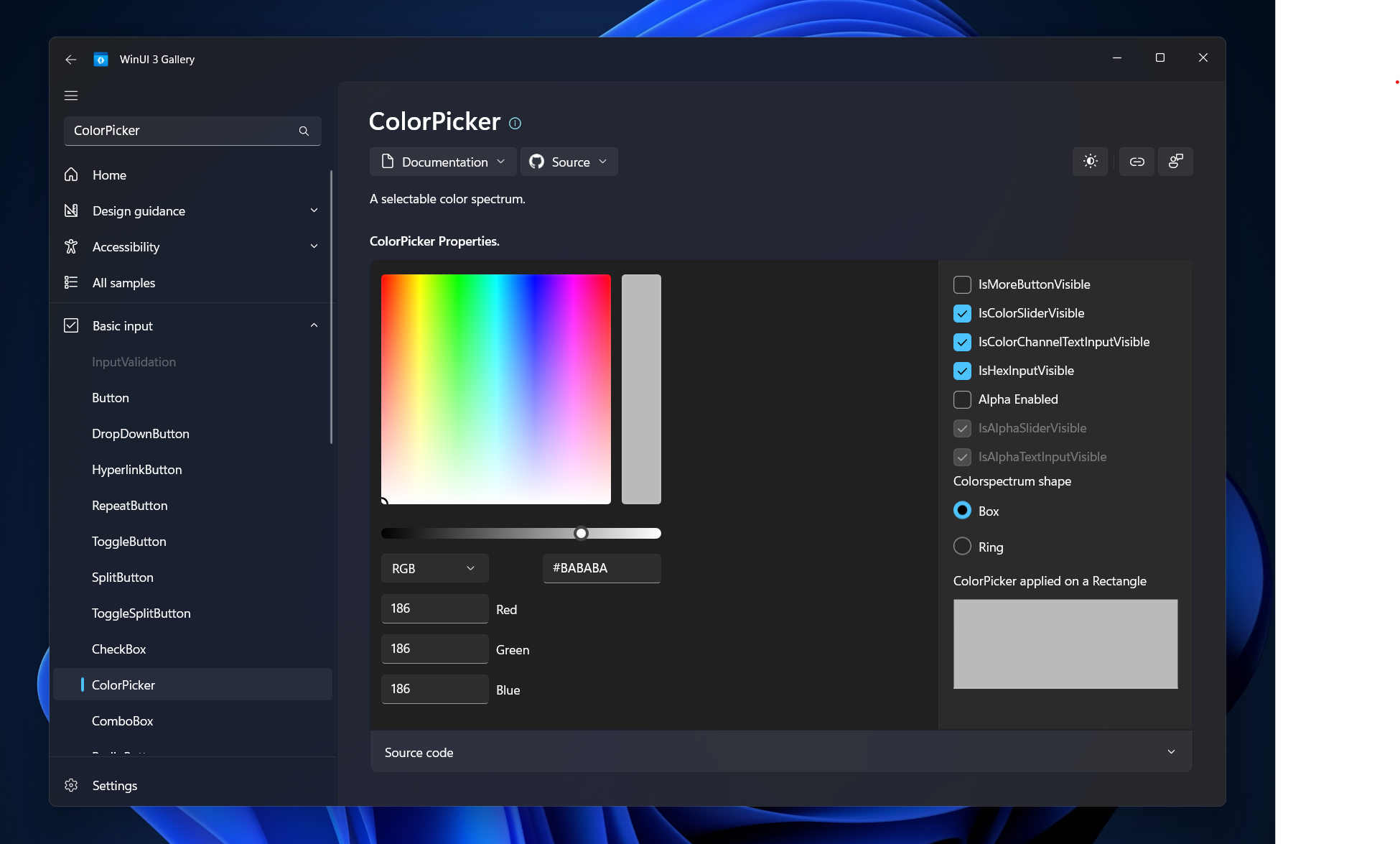
WinUI Gallery running on Windows 11, showing controls, design guidance pages, and the icon browser.
-
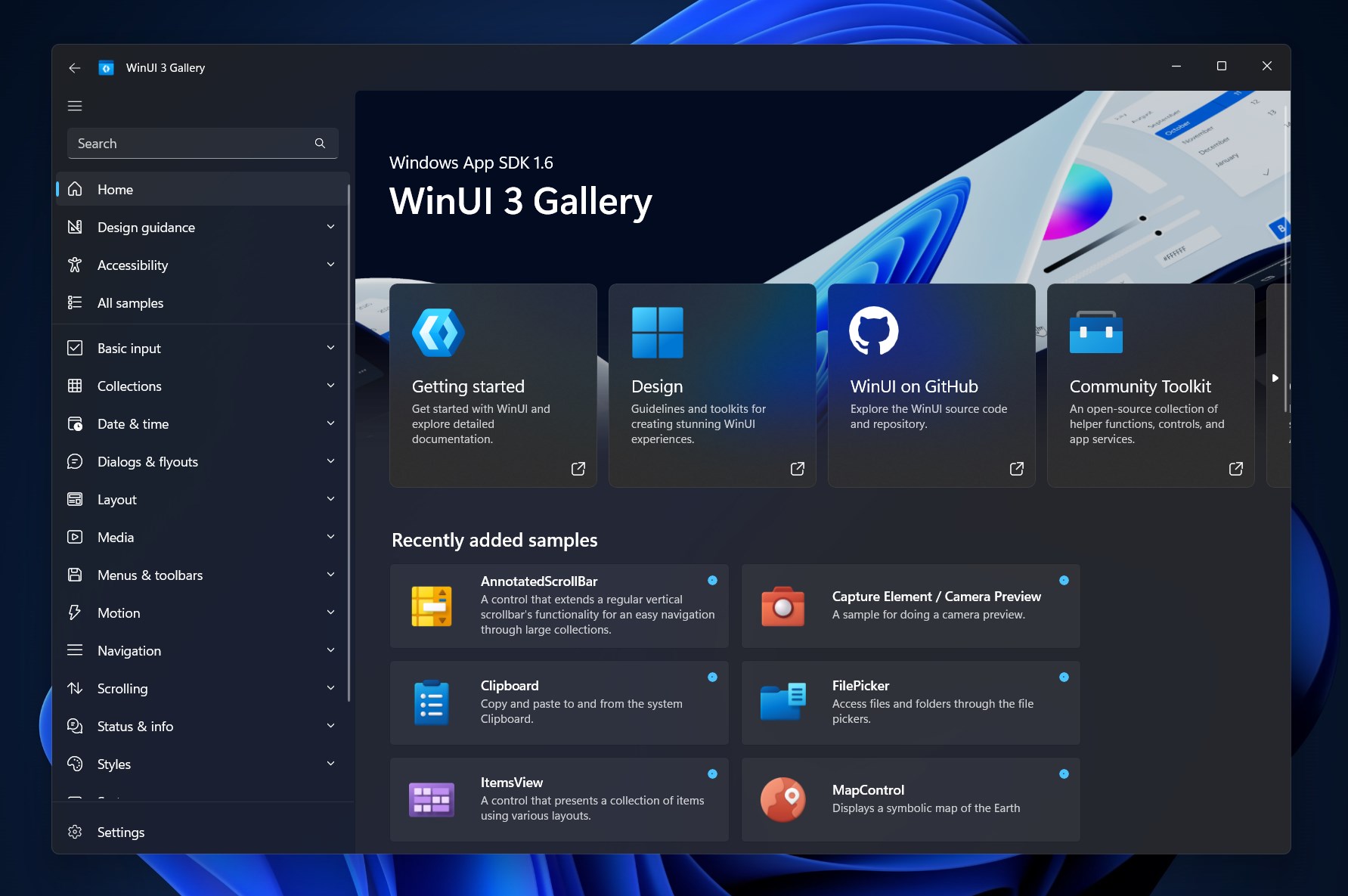
- Dark theme
-
- Homepage
-
- Color picker
FAQ
What is WinUI Gallery?
WinUI Gallery is a free app from Microsoft that shows every WinUI 3 control in action. You can interact with each one and copy the XAML or C# code directly into your project.
Is WinUI Gallery free?
Yes. It is completely free and open source. You can download it from the Microsoft Store or build it from source on GitHub.
What Windows version does WinUI Gallery require?
WinUI Gallery runs on Windows 10 and Windows 11. You do not need to be on the latest build.
How is WinUI Gallery different from the old XAML Controls Gallery?
They are the same app. Microsoft renamed it from XAML Controls Gallery to WinUI 3 Gallery when it moved fully to the Windows App SDK. The new name reflects the shift from UWP to WinUI 3.
Can I use WinUI Gallery without Visual Studio?
Yes. You can browse and interact with all controls inside the Gallery app without Visual Studio. You only need Visual Studio if you want to build the app from source or compile your own projects.
Support and Community
Official links for help and discussion.
- Report a bug or request a feature on GitHub
- GitHub Discussions for WinUI Gallery
- WinUI 3 documentation on Microsoft Learn
- r/WinUI on Reddit
More Windows developer tools: Visual Studio 2026 · Visual Studio Code · Winslop · Visual Studio 2022
Discover more from Windows Mode
Subscribe to get the latest posts sent to your email.