Readers like you help support this site. When you make a purchase using links on our site, we may earn an affiliate commission. All opinions remain our own.
Game Bar (often still called Xbox Game Bar) is a built-in Windows overlay for capture, performance stats, audio controls, and quick widgets.
Record: Win + Alt + R
Last clip: Win + Alt + G
If Win + G does nothing, jump to Fixes (missing / not working).
This guide shows how to open/enable Game Bar, update or reinstall it, the shortcuts that matter, and the most common fixes when it will not launch or will not record.
How to open, enable, install, or update Game Bar
Open it (fast)
Press Win + G. This works inside most games and many apps.
Recording shortcut: Win + Alt + R
Enable it (Windows settings)
- Press Win + I (Settings)
- Go to Gaming → Game Bar
- Turn on the toggle for opening Game Bar
Install / update it (Microsoft Store)
On Windows 10/11 it is commonly preinstalled. If it is missing or outdated, use the Store listing:
Open Game Bar in Microsoft Store
If you prefer manual access: Start Menu → search Game Bar.
Quick tip: Open Game Bar, pin the widgets you actually use (Capture, Performance, Audio), then close it. Next time, your layout is ready.
How to disable Game Bar in Windows 11
Disable the toggle
- Open Settings (Win + I).
- Select Gaming → Xbox Game Bar.
- Toggle “Open Xbox Game Bar” to Off.
Complete shutdown
- Go to Settings → System → System Components.
- Find “Game Bar” in the list.
- Click the 3 dots (…) → Advanced options.
- Set Background permissions to “Never” and click Terminate.
Disabling these components can prevent accidental opening during gameplay and may free up a small amount of CPU/RAM for competitive gaming.
Most useful Game Bar shortcuts
These cover what most people want: open overlay, start/stop recording, capture the last moment, and find your captures.
| Action | Shortcut | Notes |
|---|---|---|
| Open Game Bar | Win + G | Works in many apps, best in games |
| Start/stop recording | Win + Alt + R | Records the active app/game |
| Capture last moment | Win + Alt + G | Requires background recording enabled |
| Take screenshot | Win + Alt + PrtScn | Saved to Captures |
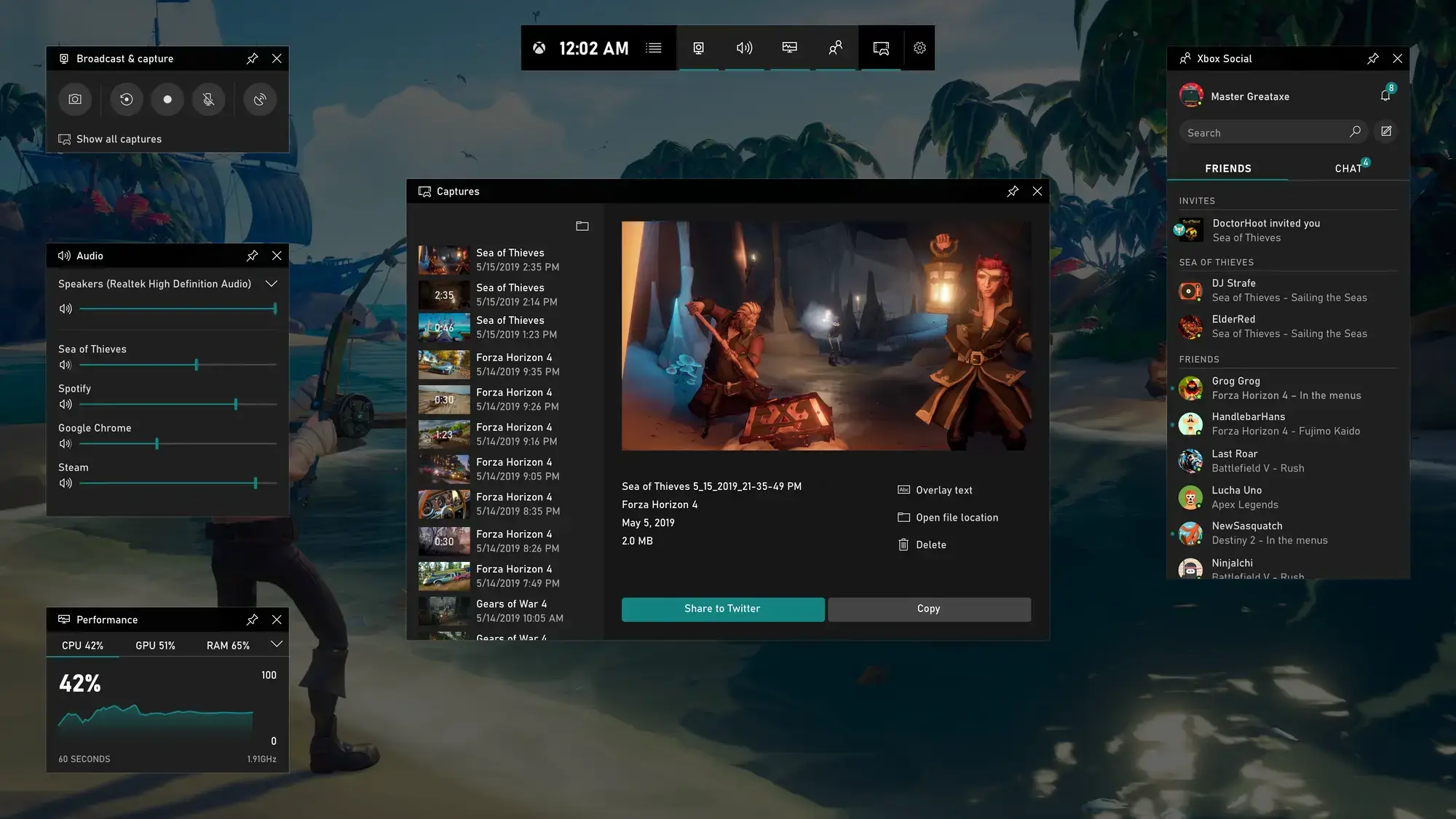
| Open Captures | Win + G → Capture widget | Use “See my captures” |
If recording is greyed out or nothing happens, go to Fixes.
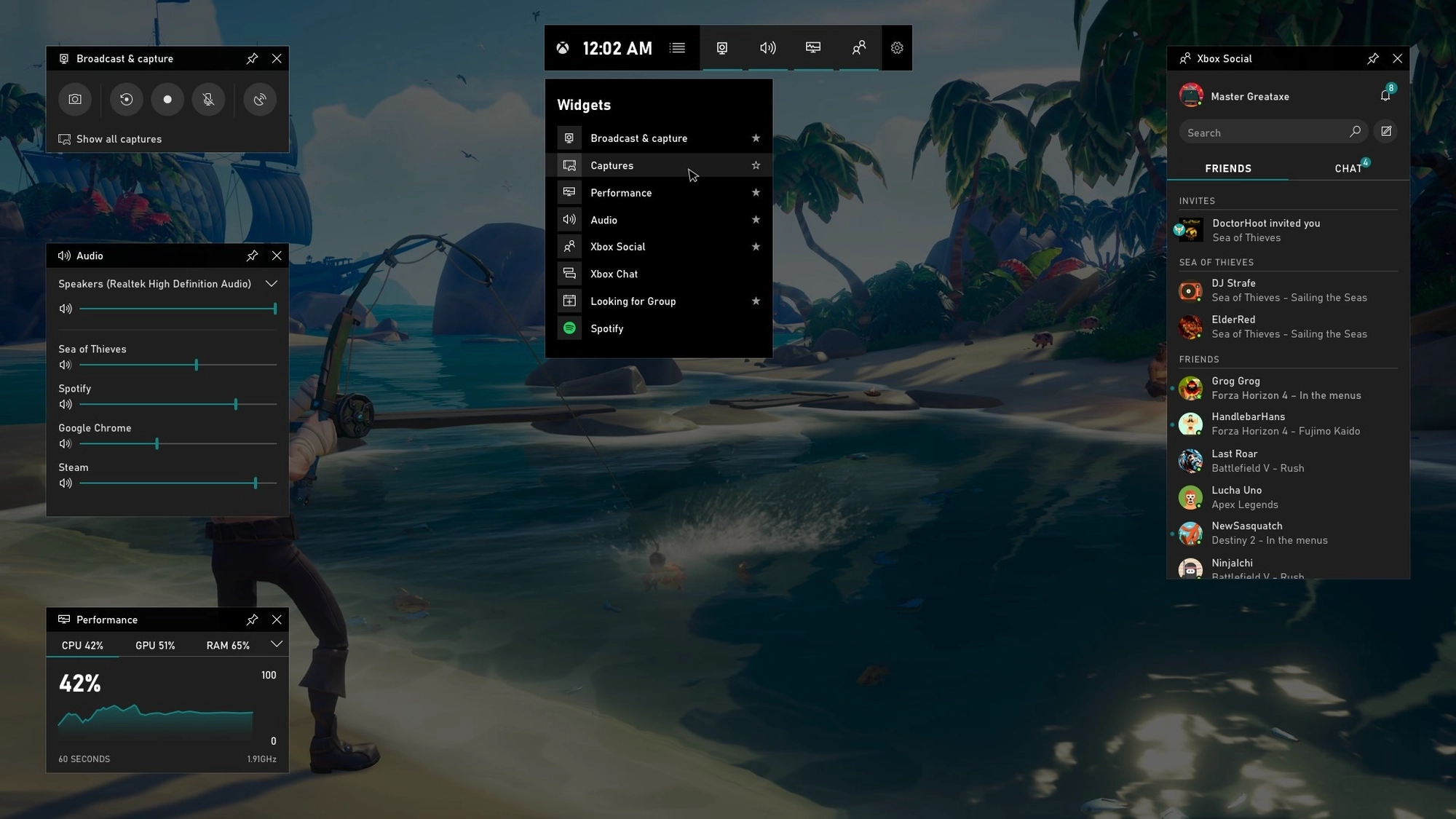
What Game Bar can do
🎥 Capture
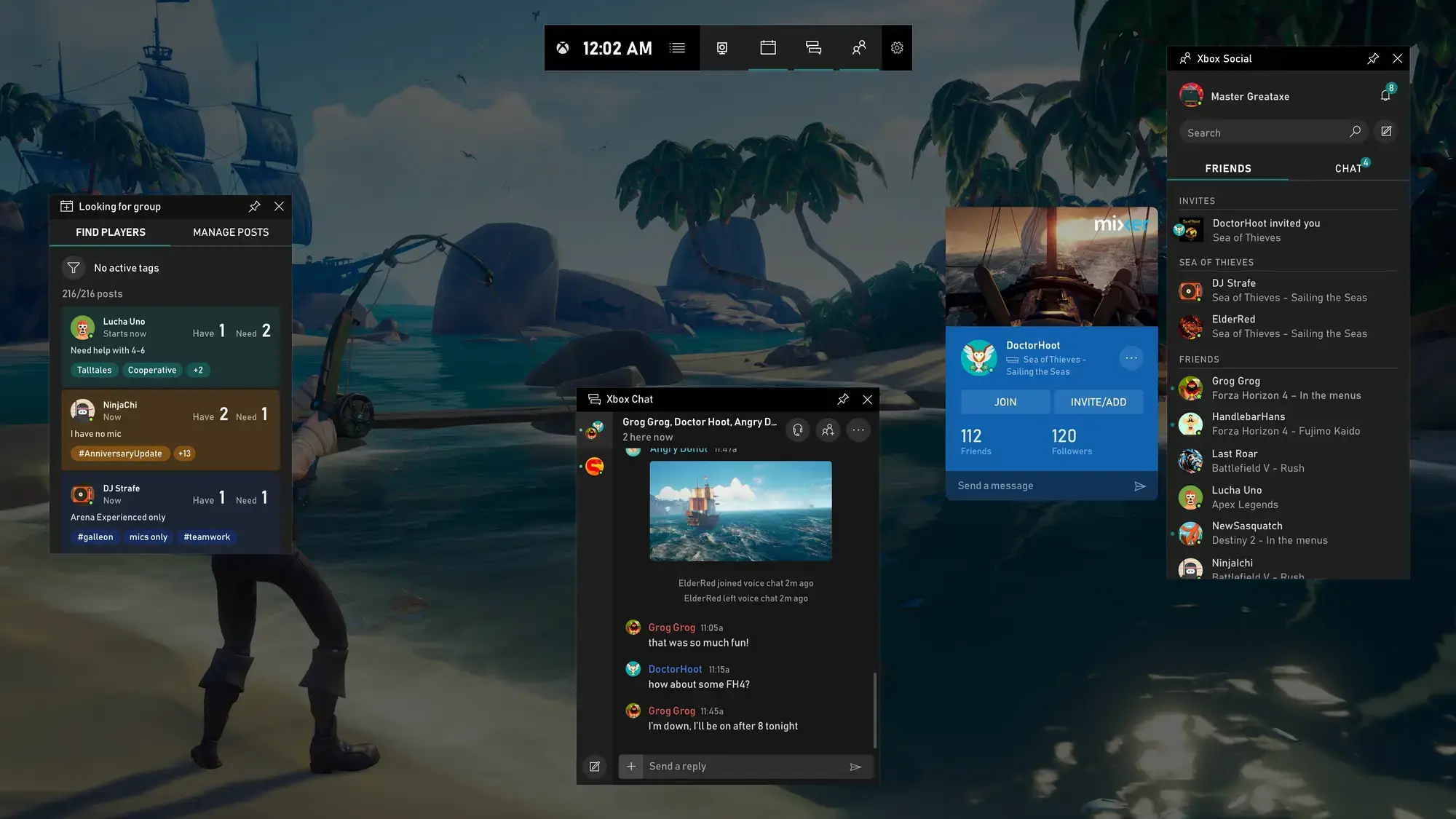
Record gameplay or an app window, plus quick screenshots. Great for bug reports and clips.
Tip: Use Win + Alt + R for fast start/stop.
📊 Performance
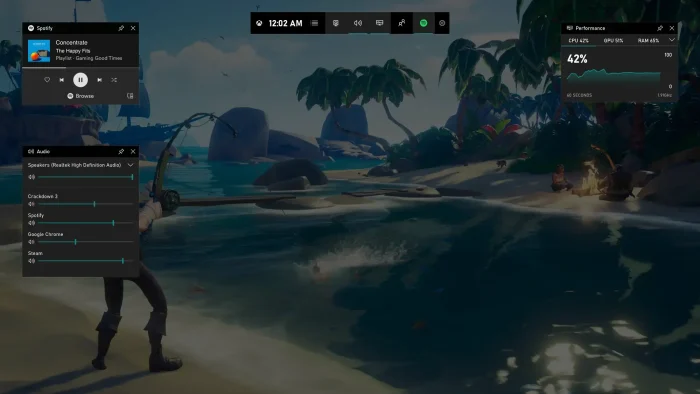
See FPS, CPU, GPU, VRAM, and RAM while you play. Pin it so it stays visible.
Useful for spotting stutters and thermal throttling.
🔊 Audio mixer
Control volumes per app (game, voice chat, music) without alt-tabbing.
Fix “music too loud” in seconds.
💬 Social + widgets
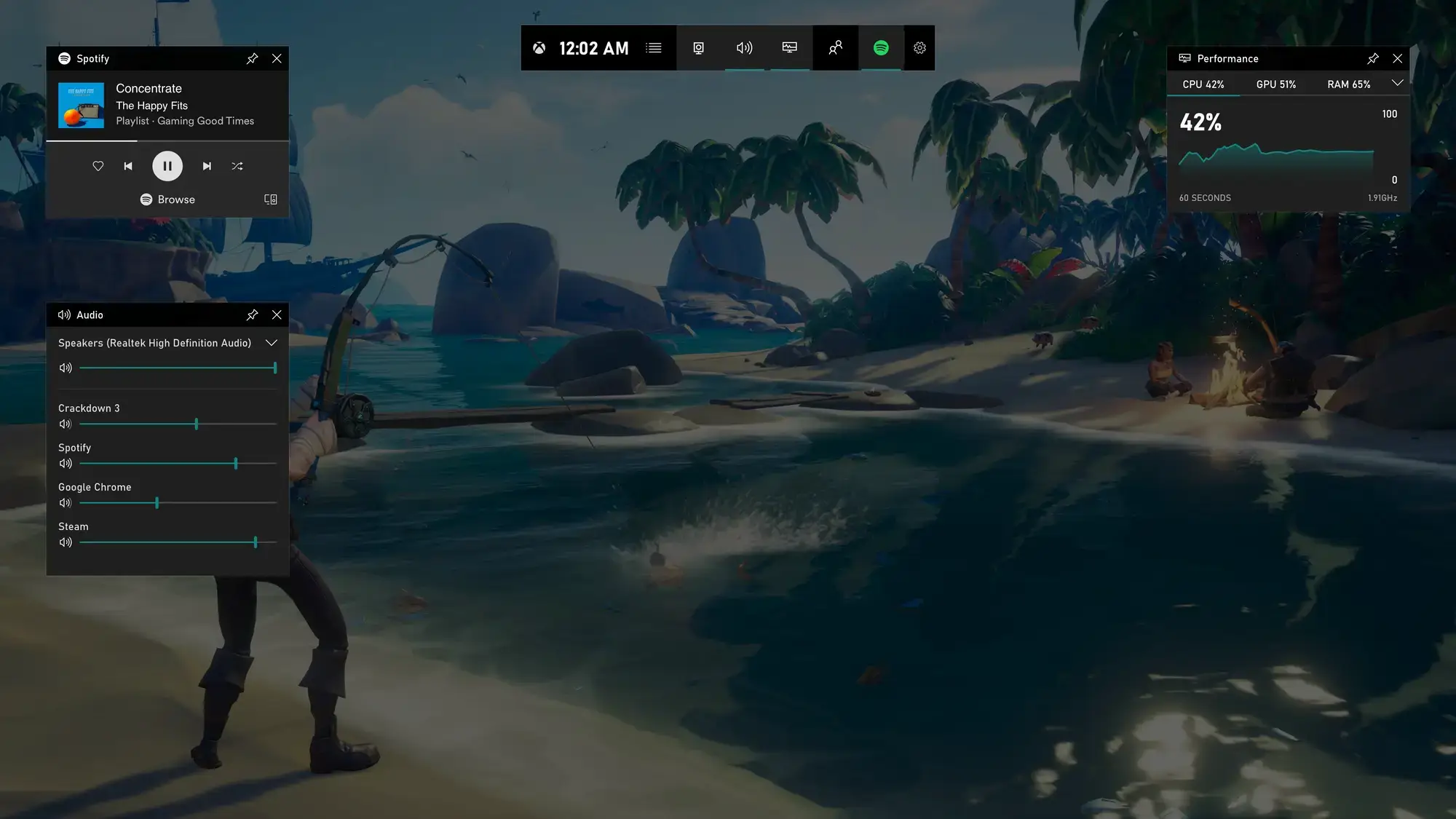
Chat, parties, and widgets like Spotify. Pin only what you use to keep it clean.
Less clutter = faster access mid-game.
Gameplay Video
A nice intro/beginner’s video on how to use the updated Xbox Game Bar.
Screenshots Gallery
Fixes: Game Bar not showing, not opening, or missing
1) Win + G does nothing
- Confirm it is enabled in Settings → Gaming → Game Bar.
- Restart the game/app and try again.
- If it still fails, update/reinstall from the Microsoft Store (see install section above).
2) “You will need a new app to open this ms-gamingoverlay”
This usually means Game Bar is missing or broken. Reinstall it from the Store:
3) Recording is greyed out
- Game Bar typically records the active app/game, not File Explorer or the desktop.
- Switch to the game window and try Win + Alt + R.
- Check Settings → Gaming → Captures for capture options.
4) Background recording (clip the last moment)
- Open Settings → Gaming → Captures
- Enable Record what happened / background recording
- Use Win + Alt + G to save the last moment
PowerShell: reinstall or remove Game Bar (advanced)
Run PowerShell as Administrator. If you are not sure, use the Microsoft Store method instead.
Check if it is installed
Get-AppxPackage -AllUsers Microsoft.XboxGamingOverlayRe-register (repair) if it exists
Get-AppxPackage -AllUsers Microsoft.XboxGamingOverlay | ForEach { Add-AppxPackage -DisableDevelopmentMode -Register "$$($_.InstallLocation)\AppXManifest.xml" }Uninstall (then reinstall from Store)
Get-AppxPackage Microsoft.XboxGamingOverlay | Remove-AppxPackageAfter uninstalling, reinstall from the Microsoft Store listing to get a clean copy.
PC requirements
Game Bar is lightweight. If your PC can run Windows 10/11 smoothly, it will usually run Game Bar. Capture quality depends mostly on your GPU encoder and available storage.
| Requirement | Minimum | Recommended for smooth capture |
|---|---|---|
| OS | Windows 10 or Windows 11 (64-bit) | Windows 11 (latest updates) |
| CPU | Modern dual-core (Intel/AMD equivalent) | 4+ cores (helps when recording + gaming) |
| RAM | 4 GB | 8 GB or more |
| GPU | DirectX-compatible GPU | Modern GPU with hardware encoding (better FPS while recording) |
| DirectX | DirectX 11 | DirectX 12 (common on Windows 11-era GPUs) |
| Storage | Free space for clips (varies by resolution) | SSD recommended (smoother writes for longer recordings) |
| Internet | Optional (needed for updates/social) | Recommended for updates and Xbox social features |
Practical note
For clean recordings, the two real bottlenecks are storage (clips are large) and GPU encoding (older iGPUs may stutter at higher resolutions).
Game Bar FAQ
Is Game Bar free?
Yes. It is a Microsoft app that commonly ships with Windows 10 and Windows 11. Updates come through the Microsoft Store.
Why is it called “Game Bar” and not “Xbox Game Bar”?
Microsoft often uses the shorter name Game Bar in the Store and support docs. Many people still call it Xbox Game Bar because it is tied to Xbox services and the Windows gaming stack.
What if Win + G does not work?
Start with Enable it in Settings, then reinstall/update it from the Store. If it is still broken, use the repair steps in Fixes.
Why does my PC not have Game Bar?
It may have been removed, disabled, or corrupted. The fastest fix is reinstalling from the Microsoft Store. If you see the “ms-gamingoverlay” message, use the reinstall button in the Fixes section.
Can I use it offline?
Usually yes for capture and performance widgets. Social features and some widgets may require internet.
Where do recordings and screenshots go?
Open Game Bar → Capture widget → See my captures. You can also adjust the save location in Windows capture settings.
Support & related apps
- Xbox Support: Game Bar on Windows
- Microsoft Store: Game Bar
- Xbox PC App (our guide)
- Community: r/XboxGameBar
- Xbox app on mobile
Explore more: Minecraft, Forza Horizon 5, Sea of Thieves
If you want help tailoring Game Bar settings for your GPU/monitor or fixing a specific error message, contact us and include your Windows version and GPU model.
Discover more from Windows Mode
Subscribe to get the latest posts sent to your email.













Add your first comment to this post