Readers like you help support this site. When you make a purchase using links on our site, we may earn an affiliate commission. All opinions remain our own.
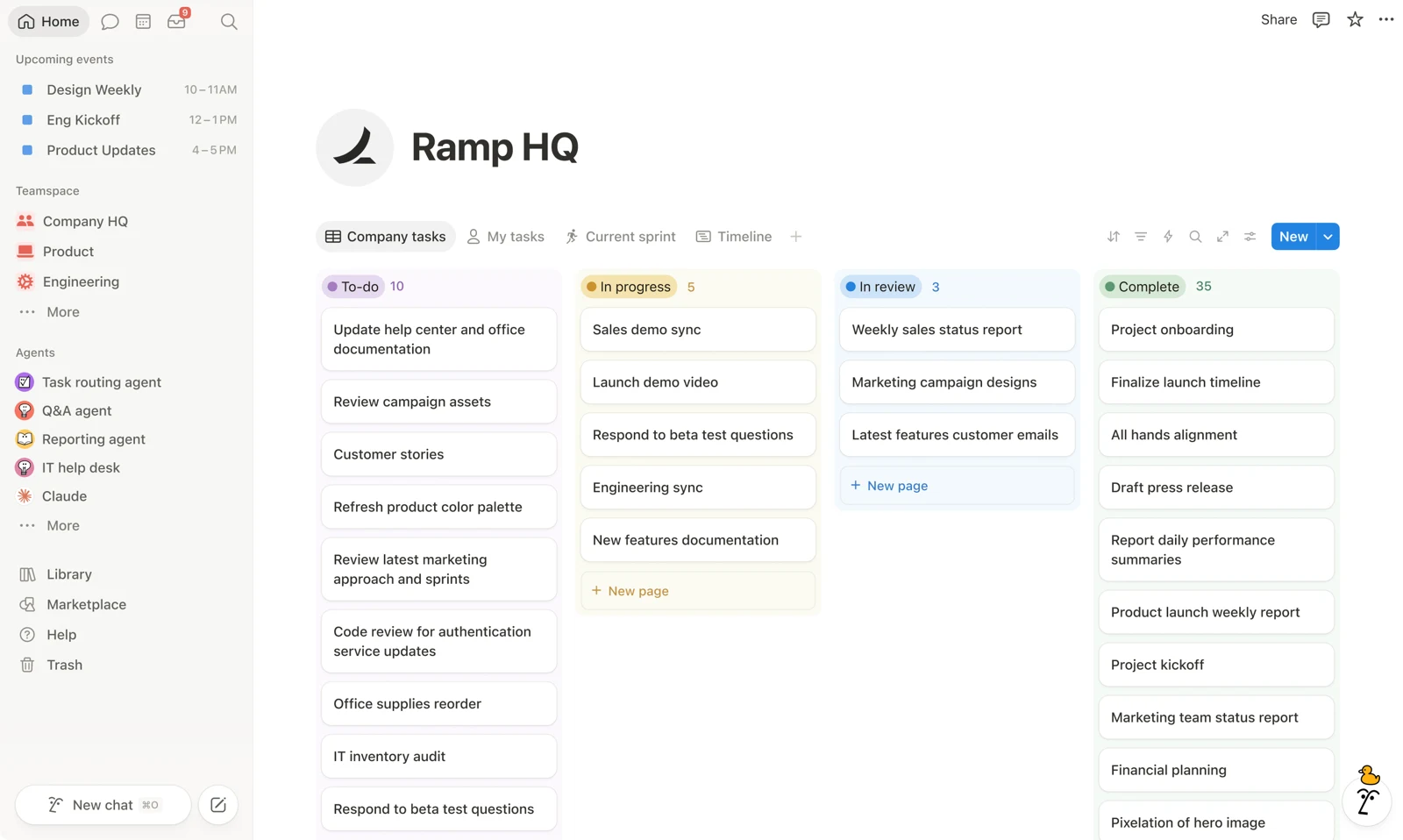
The Notion desktop app with a team task board open. Image from Notion.
Notion is a free all-in-one workspace for notes, docs, tasks and wikis, and its Windows app is available from notion.com or the Microsoft Store. You build pages out of blocks, then turn any page into a to-do list, a table, a project board or a company wiki.
Most apps do one of those jobs. Notion does all of them in one place, and links them together, so a meeting note can point straight at the task it created. Notion AI can then search, write and summarize across everything you keep there.
The desktop app runs on Windows 10 (version 21H2 or later) and Windows 11, on regular x64 PCs and Arm laptops. It syncs with the web and phone apps through your Notion account.
Below: what each feature looks like, how to install it, the shortcuts worth learning, what the plans cost, and how offline mode really works. Questions? Reach out to us directly.
What Is Notion?
Notion is a workspace made of pages, and every page is made of blocks. A block can be a line of text, a checkbox, an image, a table or a whole database. You drag blocks around, nest pages inside pages, and build the exact layout you want.
Notion Labs launched it in 2016. Students use it for class notes and study plans, freelancers use it to track clients, and whole companies run their wiki, projects and meeting notes in it.
The trade-off is the blank page. Notion gives you building blocks, not a finished app, so the first hour goes to setting things up. Templates cut that down a lot.
Key Features of Notion on Windows
The screenshots come from Notion’s own Microsoft Store listing.
Pages built from blocks
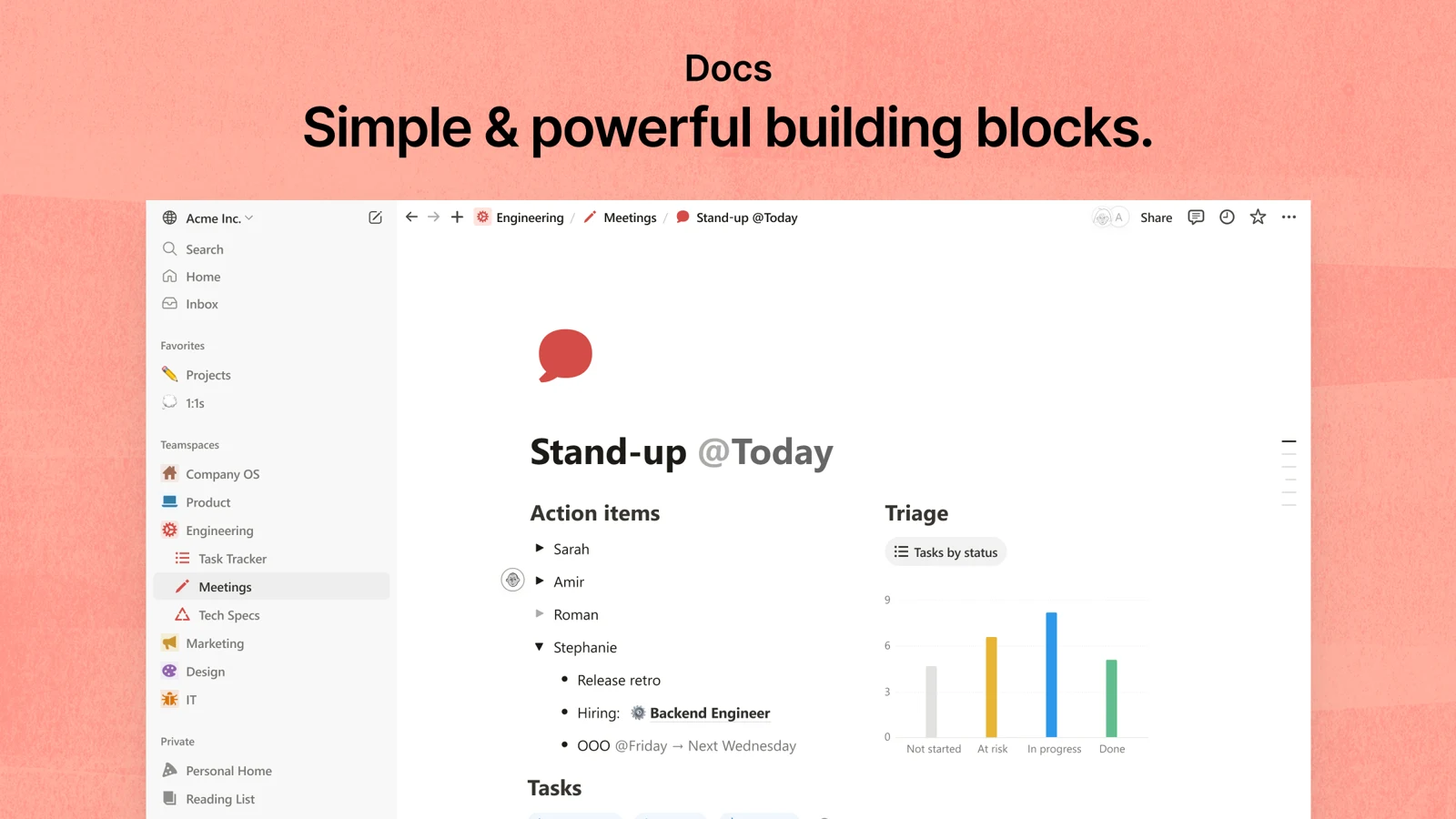
Type / on any line to add a heading, a to-do, a table, a chart, a code block or a file. Every block can be dragged, nested or turned into another type, so a rough note can become a proper doc later without starting over.
Mention people with @ to notify them, and link other pages so your notes connect to each other.
Databases and project boards
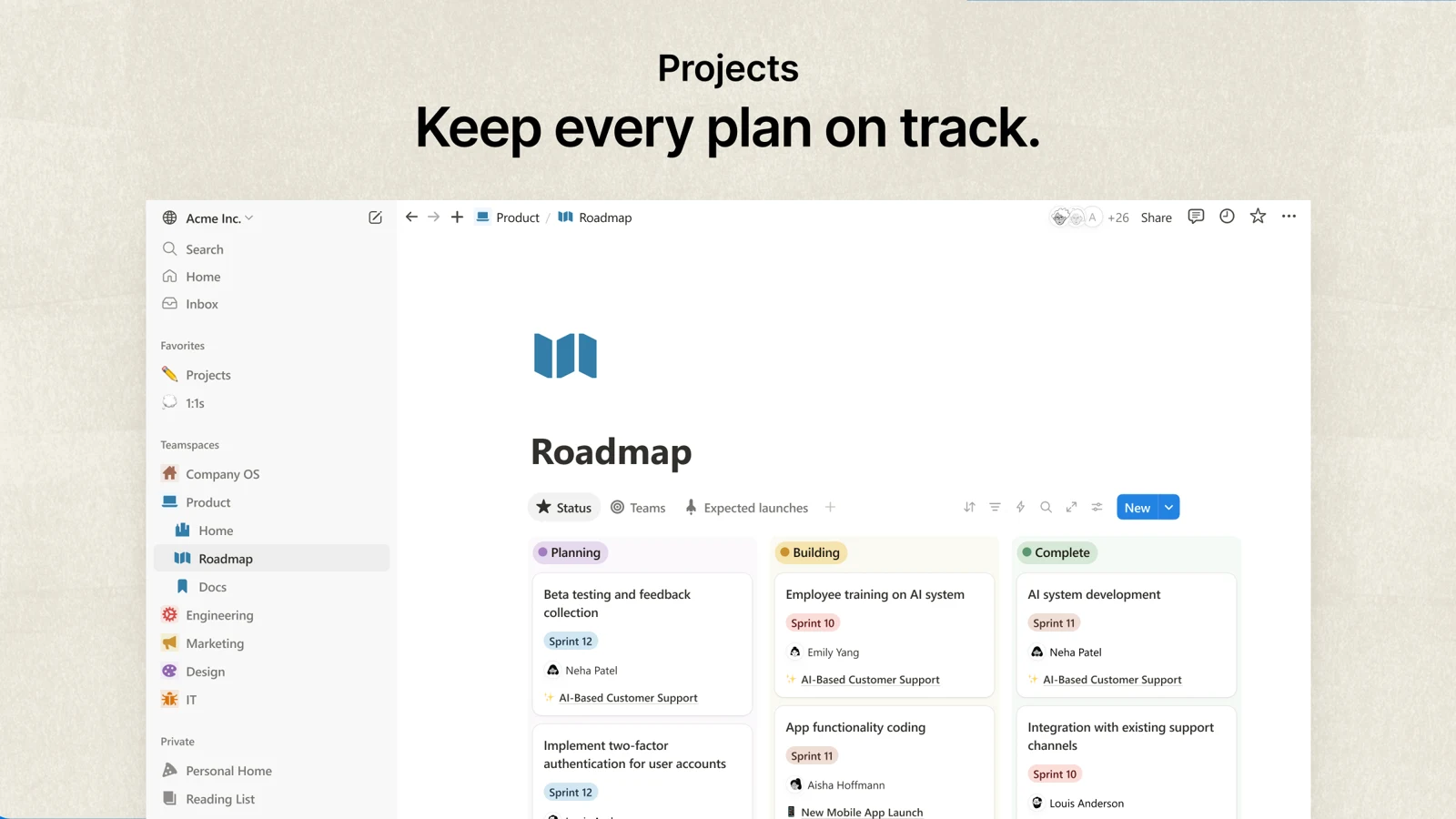
A database is a table of pages that you can view as a board, a list, a calendar, a timeline or a chart. Track a class schedule, a reading list or a product launch with the same tool.
Projects can carry sprints, owners, due dates and dependencies, and every card opens into a full page.
A wiki for everything you know
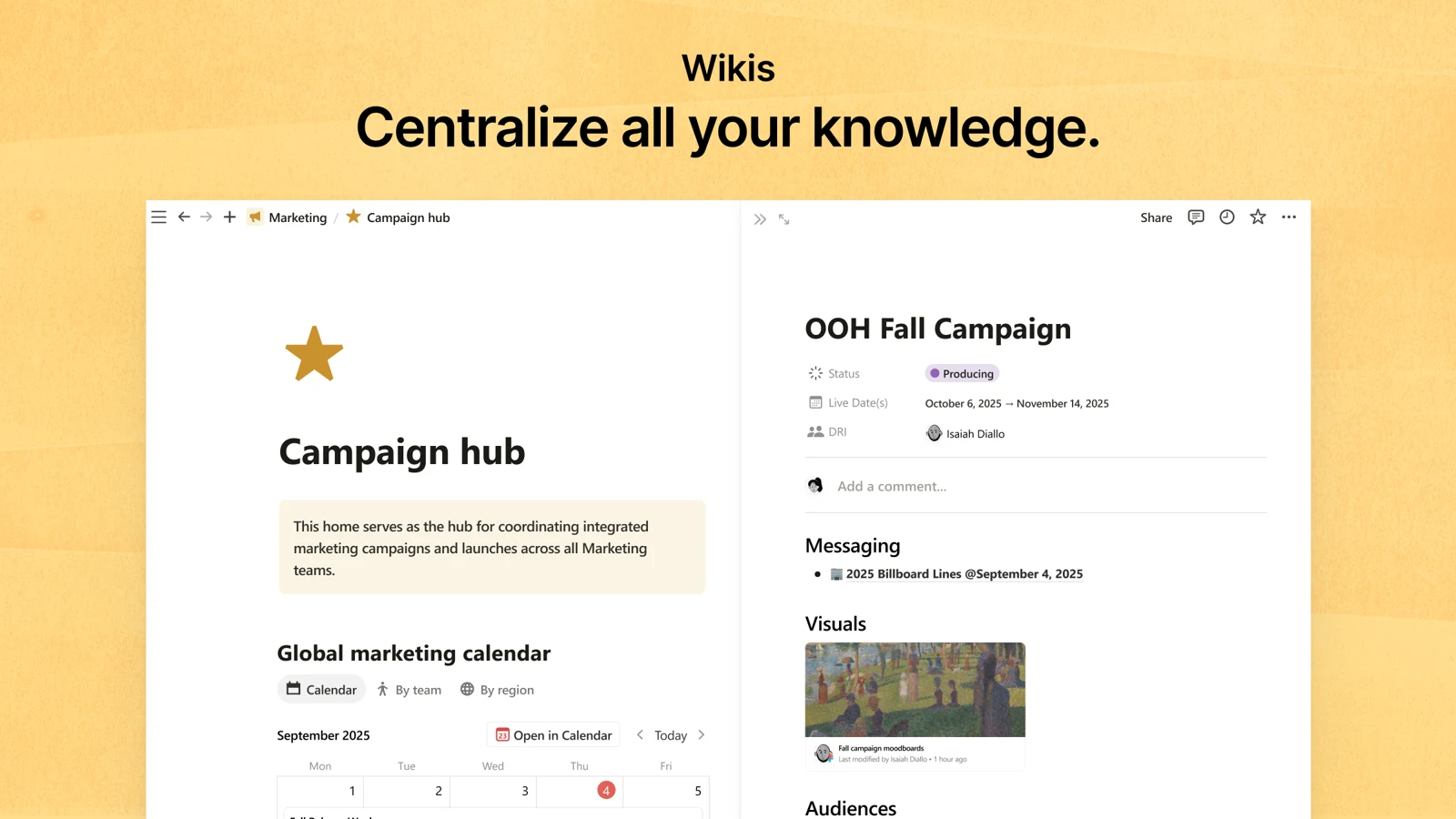
Turn a page into a wiki to collect guides, policies and how-tos in one place. Pages can be marked as verified so readers know which ones are current (the Verify page option needs the Business plan).
AI that knows your workspace
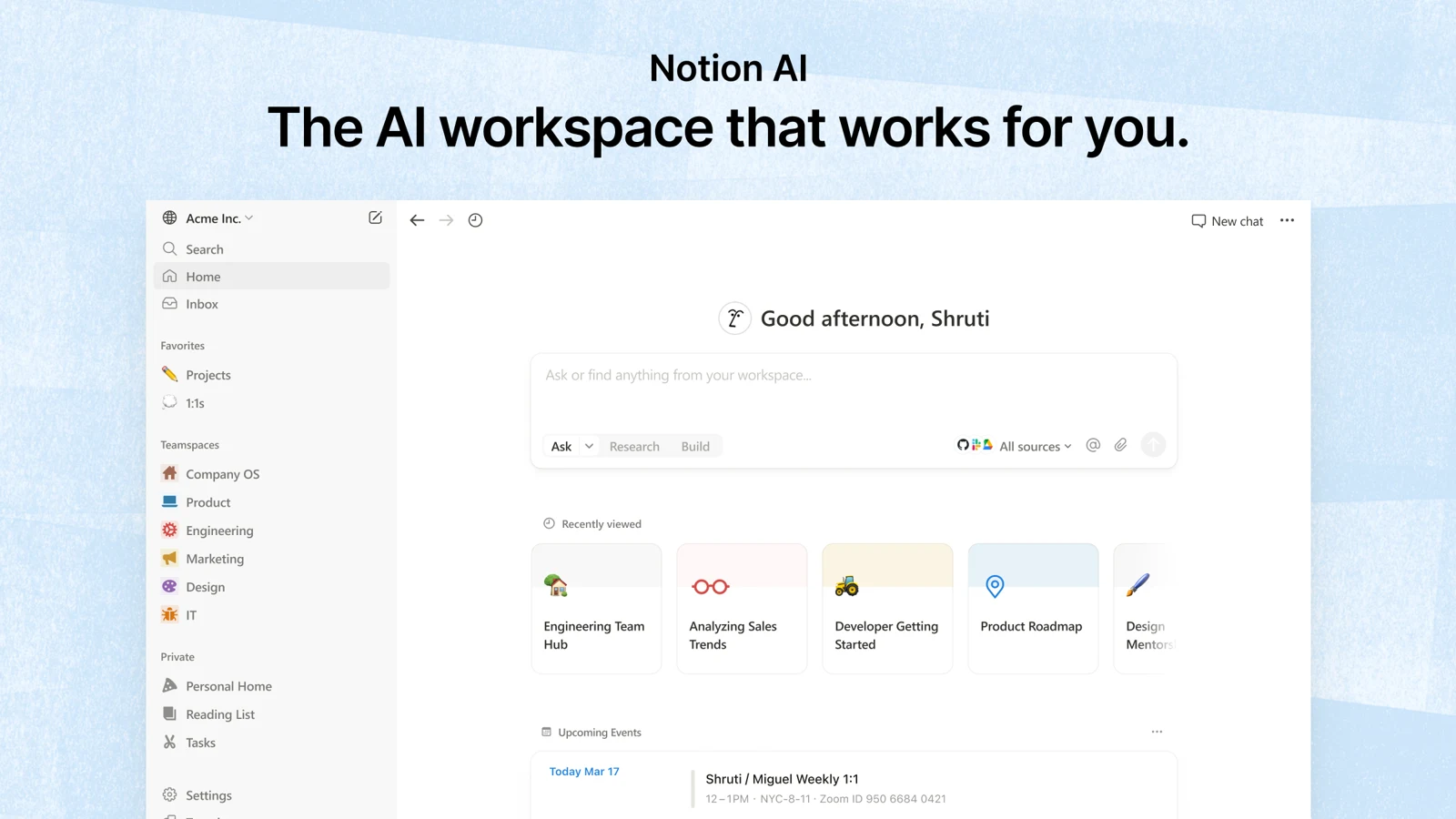
Ask Notion AI a question from the Home page and it answers from your own pages. It can also draft text, summarize long notes and fill in database fields.
Free and Plus include a trial of Notion AI. The full version, with Notion Agent and AI Meeting Notes, comes with the Business plan.
One search across your apps
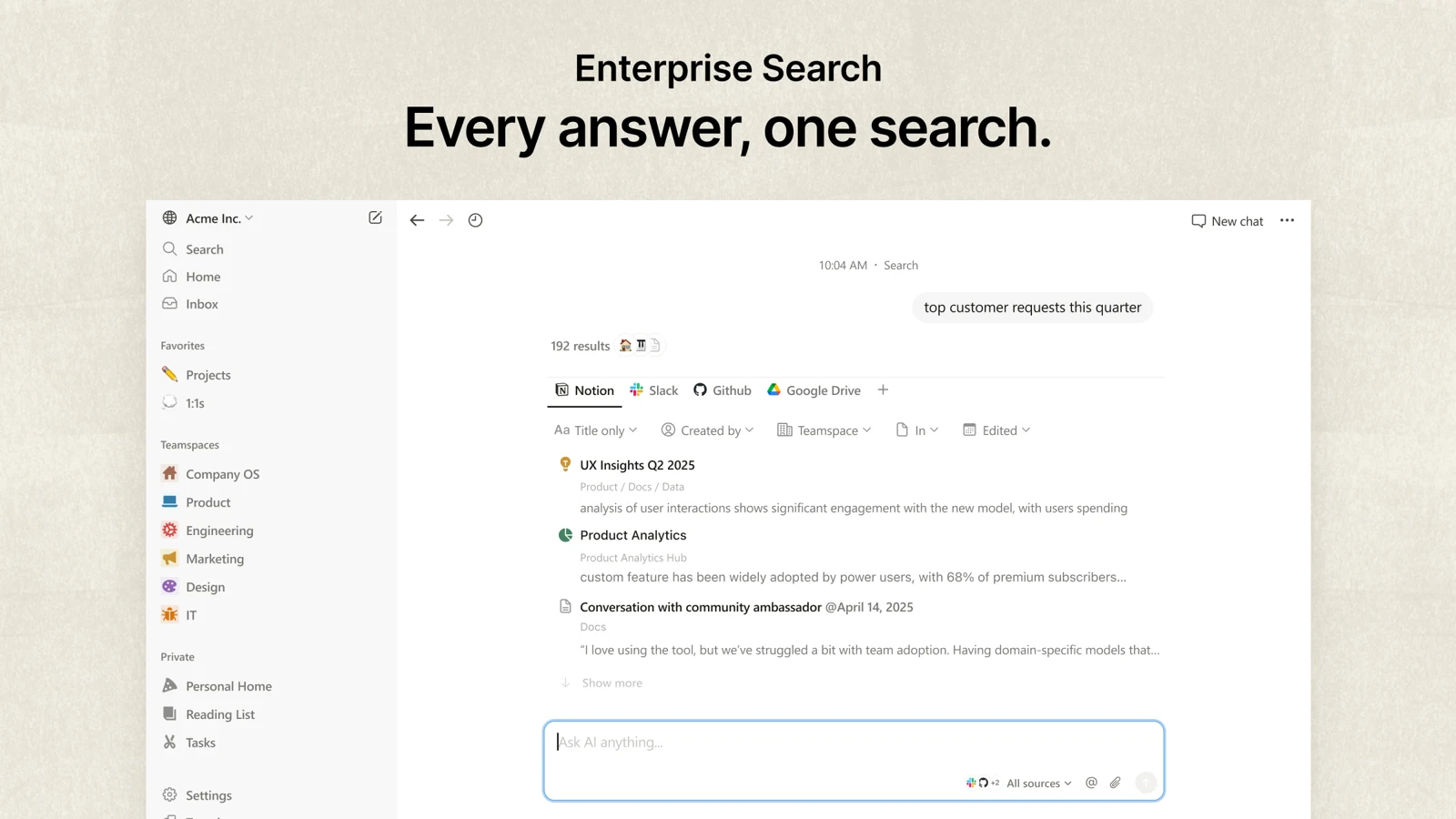
Notion search finds pages by title or content, with filters for who made them, where they live and when they changed. On the Business plan, Enterprise Search also looks inside connected apps like Slack, GitHub and Google Drive.
Templates to start from
Notion’s template gallery has free and paid setups for habit trackers, class notes, CRMs and more. Duplicate one into your workspace and edit it.
Forms and Sites
Build a form that drops answers into a database, or publish any page as a public website. Free includes basic forms and sites; Plus adds custom ones.
How to Get Notion on Windows
Notion’s download page offers one Windows installer that covers both regular x64 PCs and Arm laptops. The Microsoft Store listing installs the same app, so pick whichever you prefer.
1 Go to notion.com/desktop.
2 Click Download under Windows Universal x64/ARM64.
3 Open the downloaded file and follow the install prompts.
4 Log in with your email, or with a Google, Apple or Microsoft account.
5 Pick a template or open a blank page to start.
Three ways to install it
- Notion installer: the standard download from notion.com, shown above.
- Microsoft Store: search for Notion, or open the Notion Store page. The publisher is Notion Labs Inc.
- MSIX package: a cleaner install format that IT teams like, linked from notion.com/desktop. Uninstall the regular app first; your login and tabs carry over.
Updates are automatic. To check by hand, press Alt to show the menu bar, then choose File, then Check for Updates.
Notion Keyboard Shortcuts for Windows
Notion is built for the keyboard. Learn the slash menu and these shortcuts and you will rarely need the mouse.
Markdown works too. Type [] and a space for a checkbox, # and a space for a heading, or — for a divider.
Is Notion Free?
Yes. The Windows app is free, and the Free plan has no time limit. On your own, Free covers most personal use. Paid plans add room for teams and the full Notion AI. You pay per member, and yearly billing costs less.
Sharing a Free workspace with other members caps it at a limited number of blocks. A Free workspace used alone has no such cap. Custom Agents are billed separately in Notion credits. See notion.com/pricing for the current numbers.
Notion Desktop App vs Notion in Your Browser
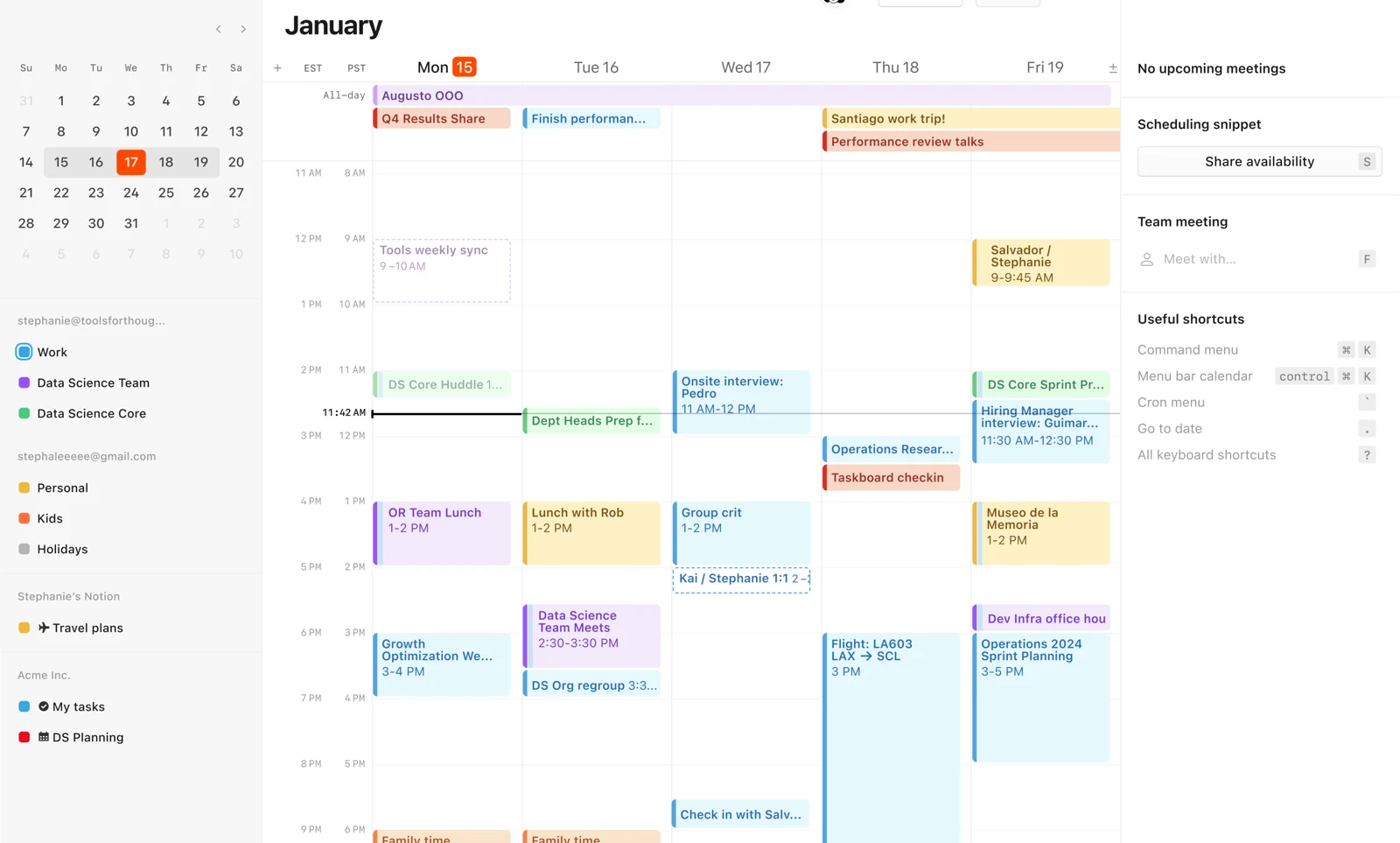
Notion runs well in a browser, so this is the real choice. Your pages are the same in both, but a few features only exist in the desktop app.
Command Search is the one to try first. It opens a search and Notion AI box over whatever you are doing, without bringing the Notion window forward. Turn it on or change its shortcut in Settings, then Preferences.
Our take
If Notion is where your notes live, install the app: offline pages and Command Search are reason enough. If you open it once a week, a pinned browser tab is fine. Want a simpler board just for tasks? See our Trello for Windows guide.
How to Use Notion Offline on Windows
Offline mode works in the desktop app on every plan, including Free. Notion does not save everything offline on its own, so you choose the pages.
1 Open the page you want to keep offline.
2 Click the ••• menu at the top right of the page.
3 Turn on Available offline. A progress bar shows the download.
4 Manage your offline pages in Settings, then Offline.
Know the limits. Subpages do not download with their parent, and a database only saves its first 50 rows. Embeds, AI blocks, forms and buttons need a connection. Paid plans also keep your recent and favorite pages offline automatically.
Common Notion Problems and Fixes
These are the snags Windows users hit most, with what to do about each one.
Ctrl + Shift shortcuts do nothing
Windows may use Ctrl + Shift to switch keyboard languages. Turn off that hotkey in Settings, then Time & language, then Typing, then Advanced keyboard settings, then Input language hot keys.
Links keep opening the desktop app
In the app, go to Settings, then Preferences, and turn on Open Notion links in browser. In Notion on the web, turn off Open links in desktop app.
A page is missing offline
Only pages you marked as Available offline are saved, and subpages need marking on their own. Mark the page while you still have internet.
A shared Free workspace stops letting you add content
Free workspaces with more than one member have a block limit. Deleting content does not lower the count, so upgrade or move to a solo workspace.
A file will not upload
The Free plan accepts files up to 5 MB each. Shrink the file, link to it from cloud storage, or upgrade to Plus.
New features do not show up
Press Ctrl + R to refresh the app. If that does not work, check for updates from the File menu.
Tips for Getting Started with Notion
1 Start from a template. A ready-made setup teaches you how Notion pages fit together faster than a blank page does.
2 Learn the slash menu first. Press / on any line and type what you want, like /todo or /table.
3 Favorite the pages you use daily. They stay at the top of the sidebar, and on paid plans they are saved offline automatically.
4 Mark your key pages offline. Do it before a flight or a trip, from the ••• menu on each page.
5 Keep one inbox page. Dump quick notes there with Ctrl + N, then sort them into the right pages once a day.
Notion Beginner Video
Watch this step-by-step tutorial from Patrisha Dictado to see how to build pages, databases and a simple workspace from scratch.
Frequently Asked Questions
What are the system requirements for Notion on Windows?
Does Notion work offline on Windows?
Is the Microsoft Store version of Notion different?
Is Notion good for students?
Can I import my notes from Evernote or OneNote?
How do I back up my Notion pages?
Support and Community
- Notion, the developer’s own website.
- Notion Help Center, with guides for the desktop app, offline mode and every block type.
- Notion release notes, to see what changed in each update.
- r/Notion on Reddit, a large user community for setup ideas, templates and help.
More Windows software guides: Trello · OneNote · Zenkit · Slack · Microsoft Teams · Claude
Discover more from Windows Mode
Subscribe to get the latest posts sent to your email.














Add your first comment to this post