Readers like you help support this site. When you make a purchase using links on our site, we may earn an affiliate commission. All opinions remain our own.
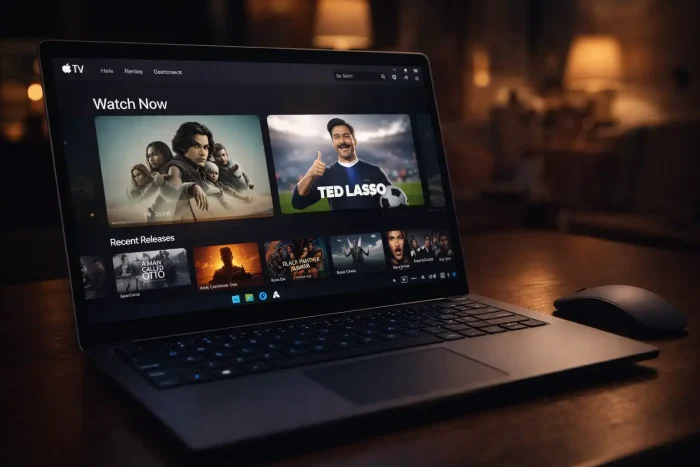
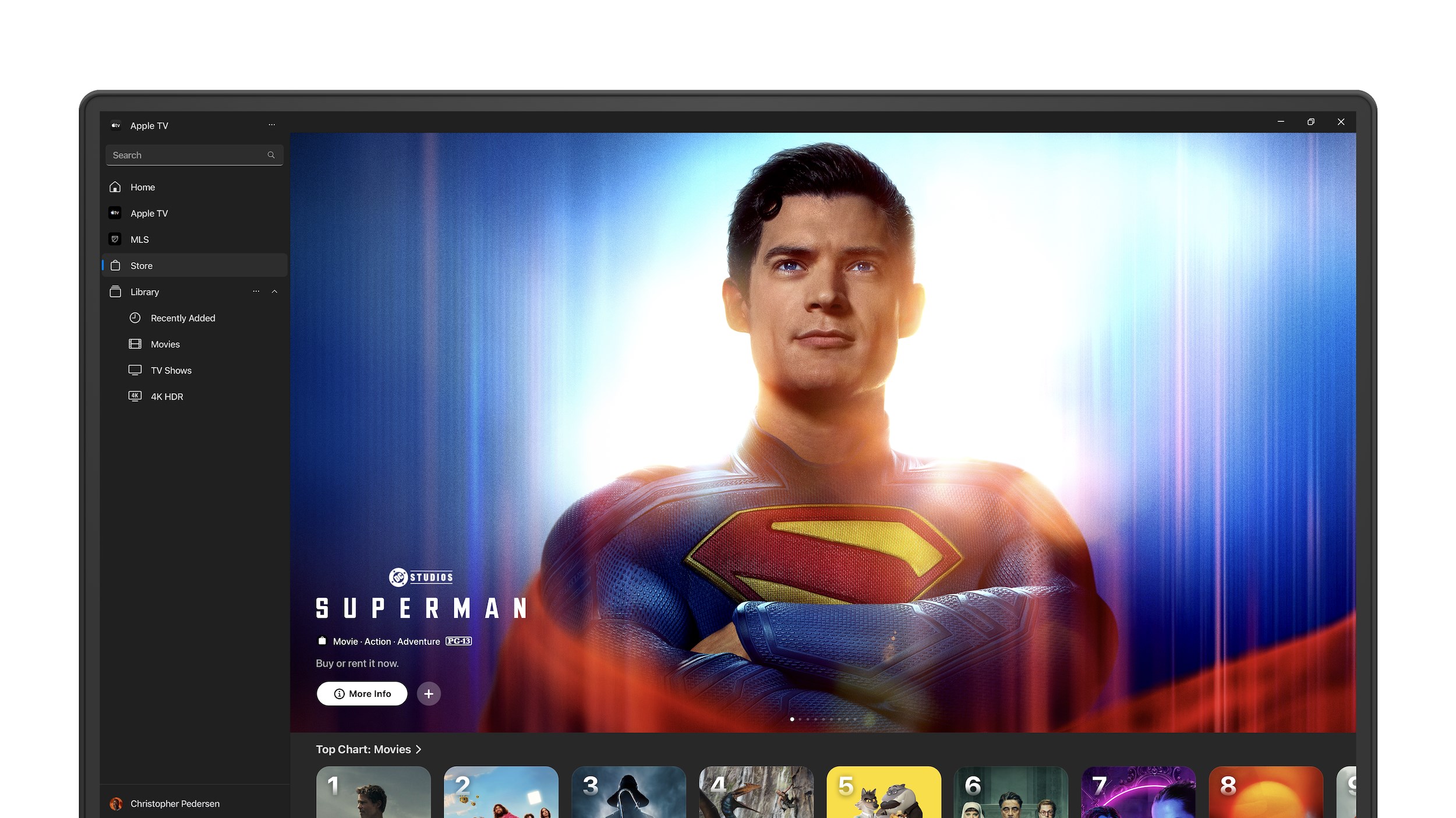
Apple TV for Windows is the official app for watching Apple TV+ and your Apple movie/TV purchases on a PC.
It replaces the old iTunes “Movies” and “TV Shows” experience with a modern player designed for streaming and your Library.
On supported hardware, the app can play higher-quality formats (like 4K and HDR) and it also supports offline downloads for Apple TV+ content on Windows. Availability varies by region, title, and device.
What Apple TV for Windows does (and doesn’t)
- It does: stream Apple TV+ originals, play your Apple rentals/purchases in the Library tab, and let you subscribe to add-ons like MLS Season Pass (where available).
- It does not: replace Apple Music, podcasts, or device backup/sync workflows (those are handled by other Apple apps/services).
Why this matters: if you previously used iTunes for video, you’ll now do video playback inside Apple TV instead.
How to Install Apple TV on PC
1
Get the official app
Install “Apple TV” from the Microsoft Store. It’s a free download (subscription required for Apple TV+).
2
Sign in
Sign in with your Apple Account. Your rentals and purchases should appear in Library.
3
Check playback + downloads
Open Settings to confirm your preferred playback quality and (if available) download location for offline viewing.
Download Apple TV (Microsoft Store)

Apple TV Interface Gallery
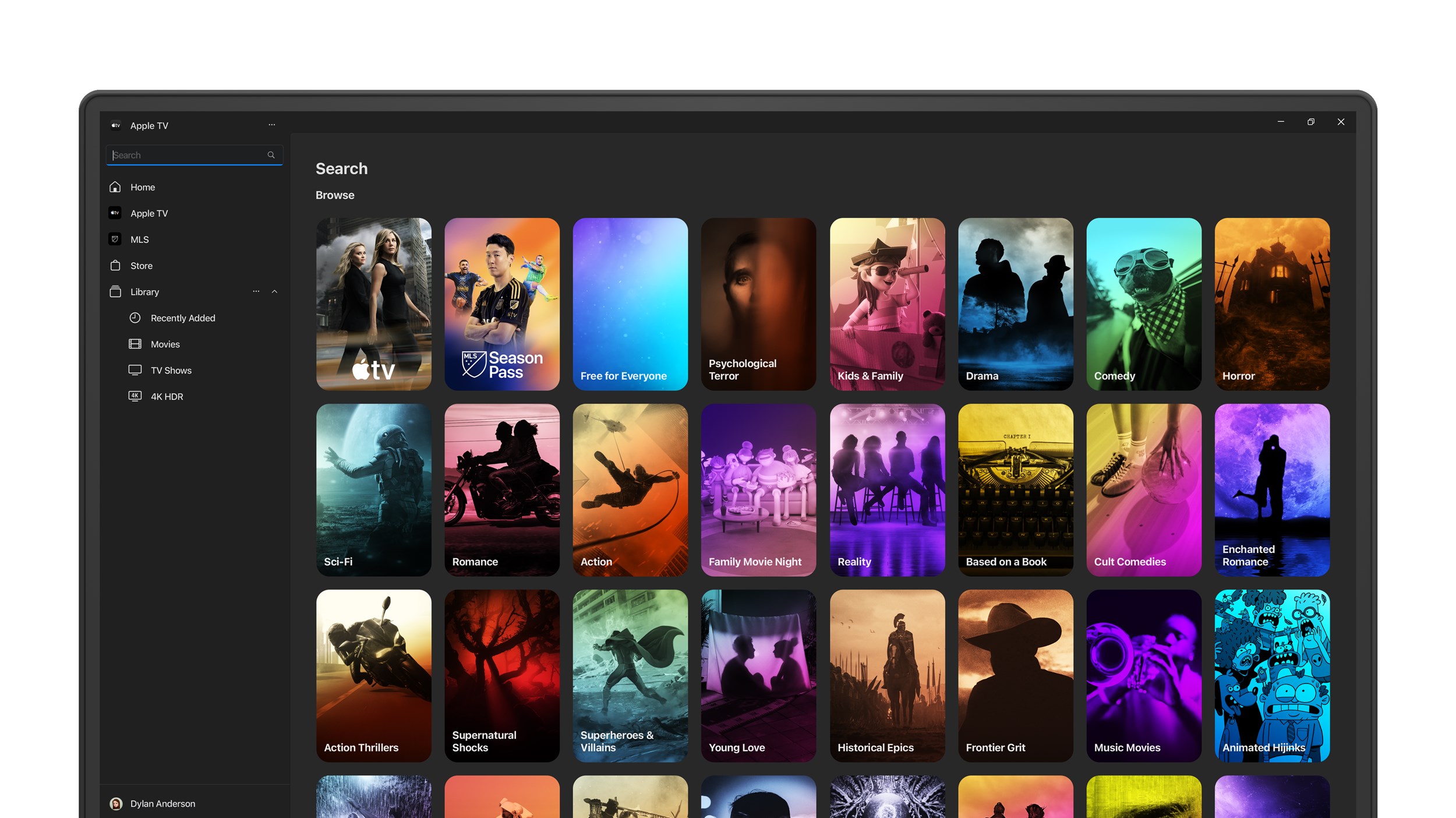
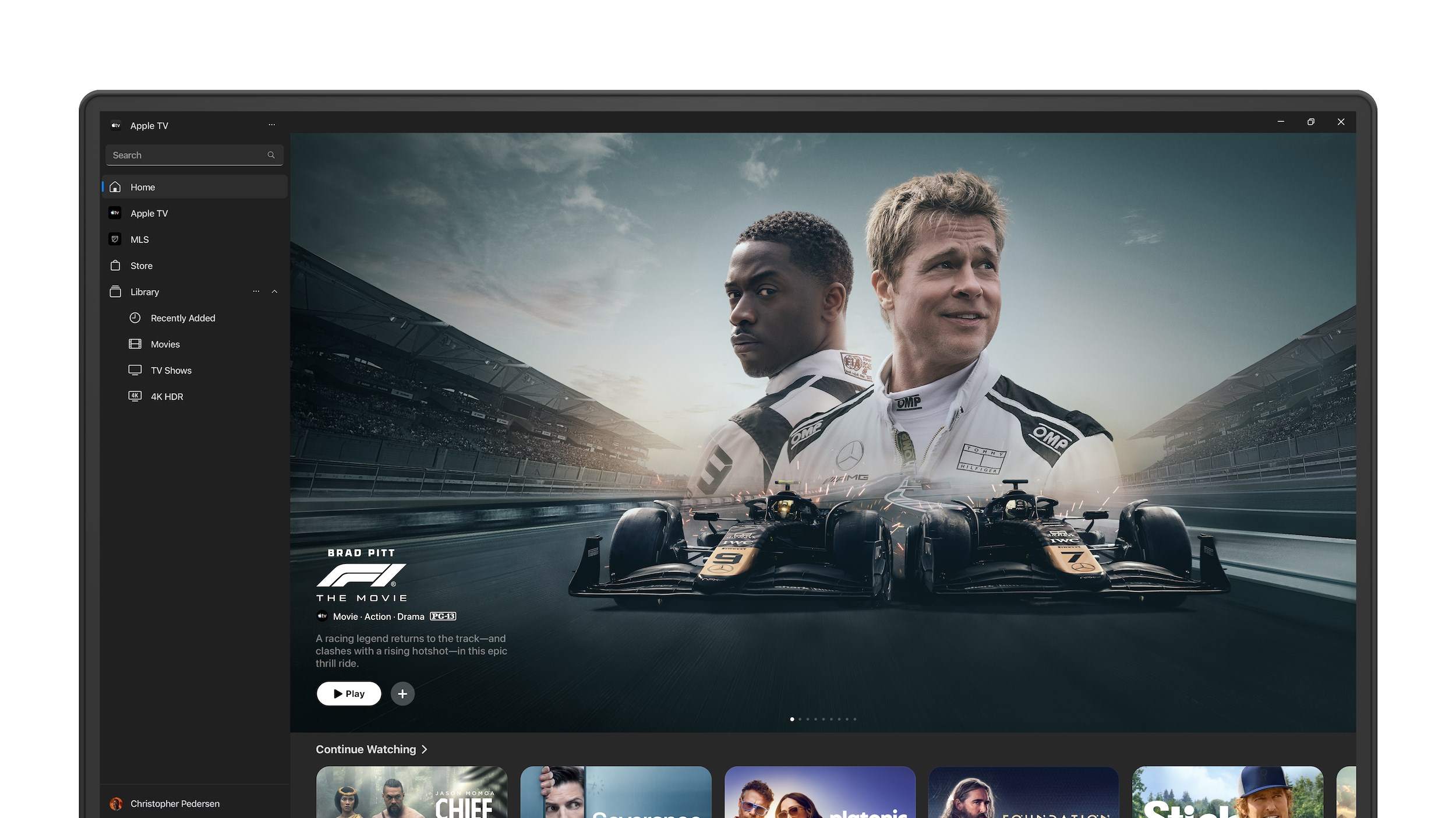
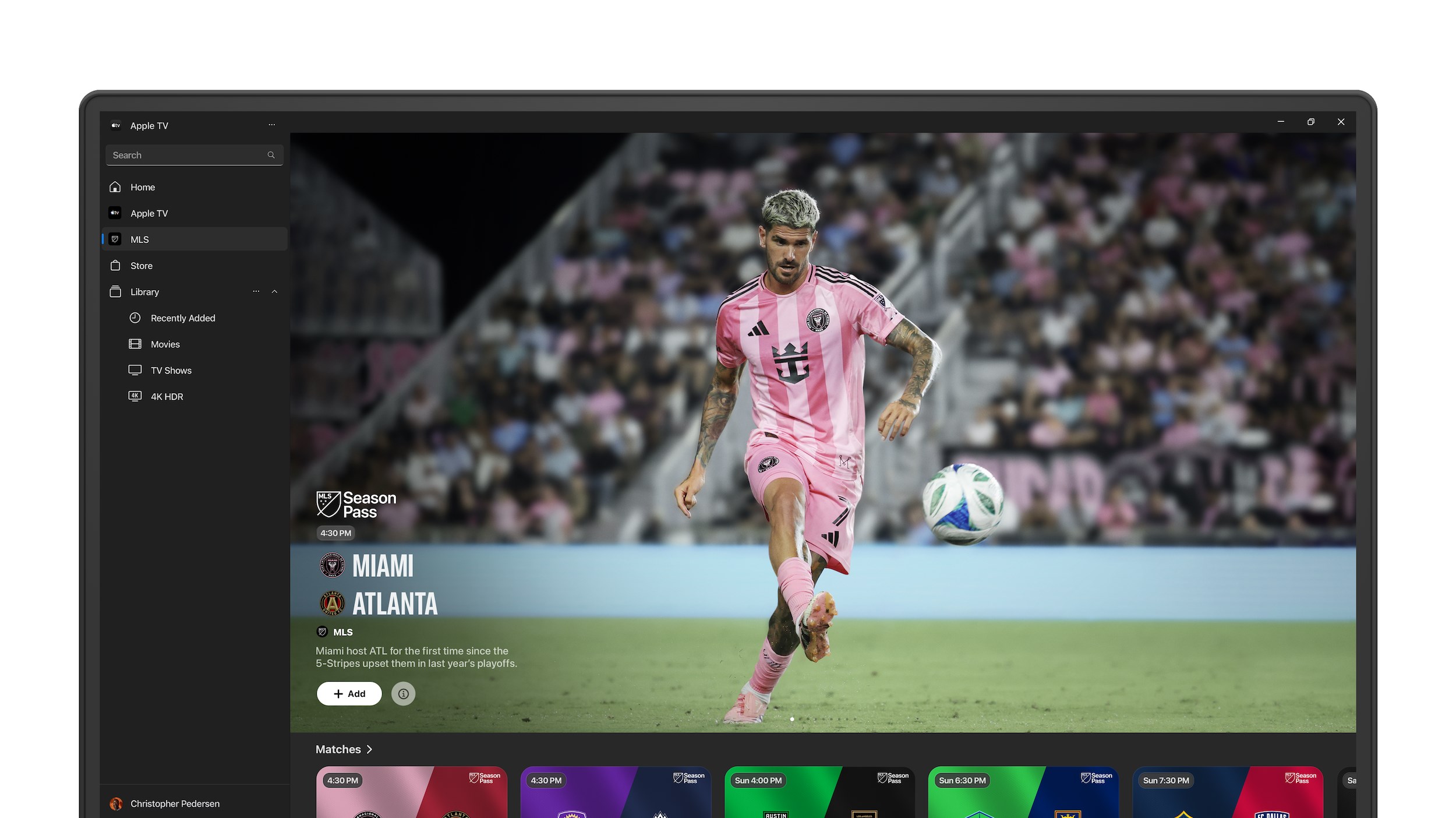
Key Features
The main benefits on PC are: your Apple TV+ app experience, your purchase Library, and the ability to download supported titles for offline viewing.
📺 Higher-quality playback (4K / HDR where supported)
On compatible devices and supported titles, the Apple TV app can play higher-quality formats. If your screen or DRM chain isn’t compatible, playback typically falls back to HD.
Note: 4K/HDR availability varies by title, region, and hardware.
⬇️ Offline downloads
Download supported Apple TV+ movies and episodes to watch without Wi-Fi (useful for travel and unstable connections).
Note: Not all titles/channels allow downloads.
🧾 Your Library (rentals + purchases)
All your Apple rentals and purchases are centralized in Library, so you don’t need iTunes for video playback anymore.
🔎 Search that shows “included vs rent/buy”
Search a title and the app makes it clear if it’s included with Apple TV+, available as a rental, or must be purchased.
System Requirements
- OS: Windows 10 (version 19045) or Windows 11 (Microsoft Store will show the exact requirement for your device).
- Display: For 4K, you’ll need a true 4K panel. For HDR, your display must support HDR and Windows HDR should be enabled.
- Internet: If you want 4K streaming, plan for 25 Mbps+ as a realistic baseline.
- Playback reality: If your device/monitor/DRM chain isn’t compatible, you’ll usually get HD instead of 4K/HDR.
Troubleshooting & FAQ
Why is 4K or HDR not working?
Start with the basics: confirm your monitor is truly 4K (not 1440p), then enable HDR in Windows Settings > System > Display.
If HDR isn’t enabled or your hardware/connection isn’t compatible, the app typically falls back to HD.
Where are my iTunes movies and TV shows?
Open the Apple TV app and go to Library. That’s where rentals and purchases live now for video playback.
Can I download Apple TV+ shows on Windows?
Yes, use the Apple TV app. Look for the Download option on supported titles, then check your Downloads section in the app.
(Some channels/titles may not allow downloads.)
How do I fix “Video not available” errors?
First, sign out/in once and restart the app. If it still happens, it can be account/device-related (for example, hitting limits on authorized devices).
Removing old/unused devices from your Apple Account can help.
The app won’t install from Microsoft Store – what should I do?
Run Windows Update, reboot, then try again. Also try Store cache reset: press Win + R, type wsreset, press Enter.
Finally, open Microsoft Store > Library > Get updates.
Explore More Windows Apps
- Apple Music for PC – Stream Lossless audio and sync your library.
- iCloud for Windows – Sync Photos and Passwords to your PC.
- iTunes for Windows – The classic app for older Apple media workflows.
- Best iTunes Alternatives – Top free replacements for managing local media.
Discover more from Windows Mode
Subscribe to get the latest posts sent to your email.