Readers like you help support this site. When you make a purchase using links on our site, we may earn an affiliate commission. All opinions remain our own.
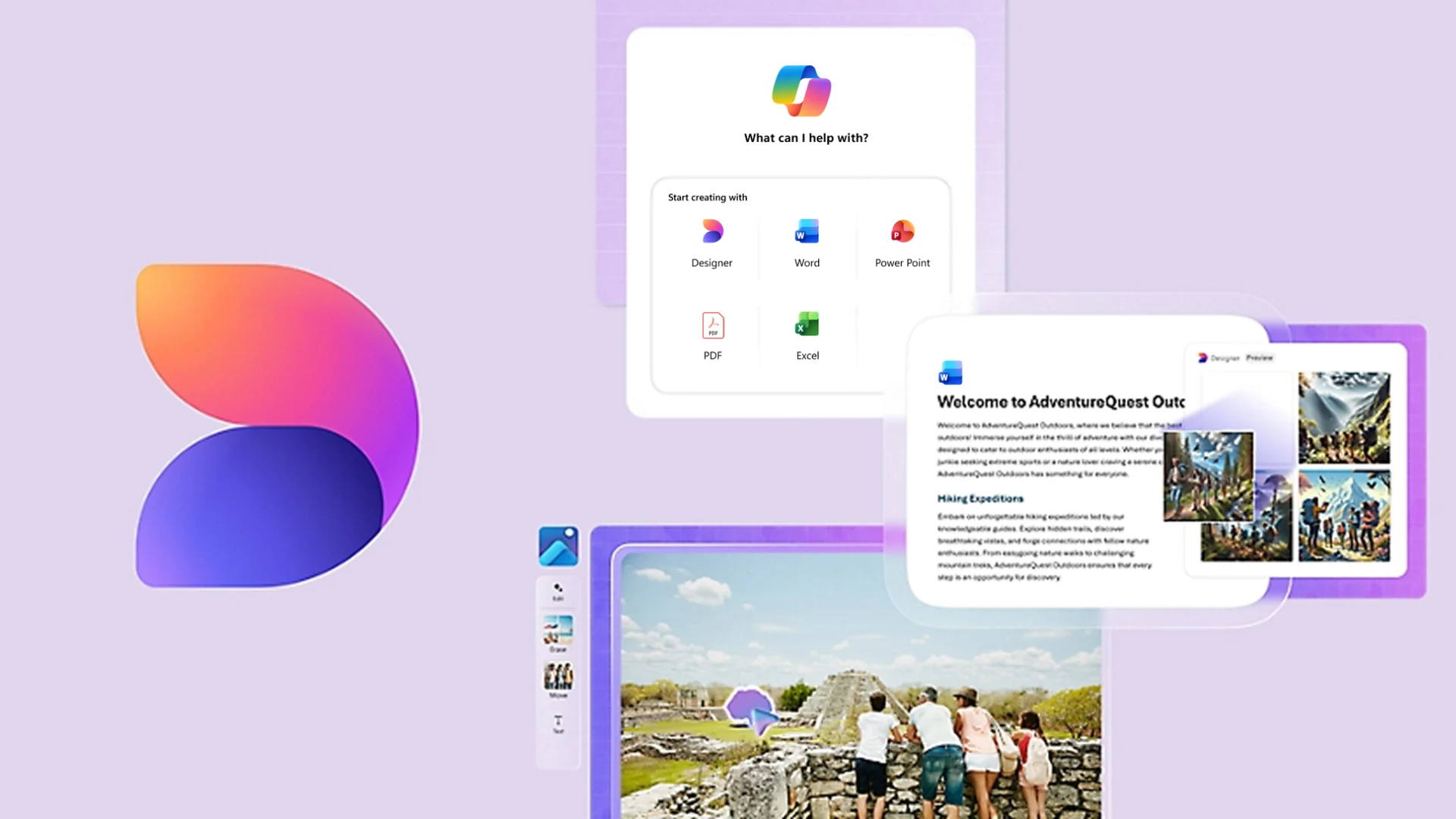
Microsoft Designer is its own free app, and it also shows up inside the Microsoft 365 Copilot app, Word and PowerPoint.
Microsoft Designer is a free AI design app from Microsoft, available from the Microsoft Store or on the web. You describe what you want, such as a birthday invitation or a sticker of a hiking duck, and Designer makes several versions to pick from. Then you edit the one you like and download it.
It also edits your own photos. Designer can remove or blur a background, erase objects, restyle a picture from a short instruction and upscale it to 4K. Each AI action spends a credit from a free monthly allowance.
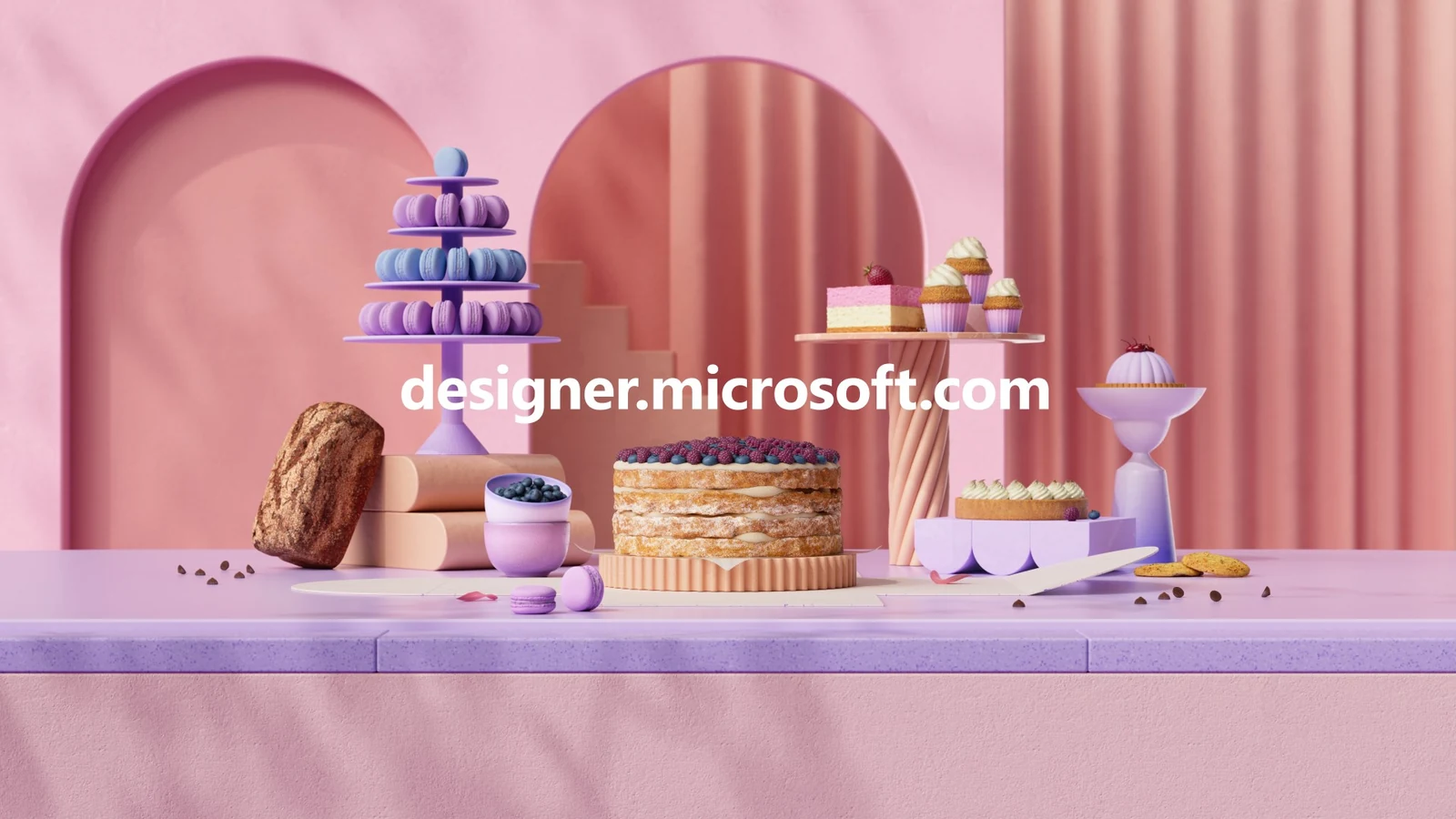
Designer is a standalone app at designer.microsoft.com. The same tools also appear inside Copilot in Word and PowerPoint and in the Microsoft 365 Copilot app, and Microsoft 365 plans give you more credits.
Below: the main features with screenshots, how to get it on Windows, how credits and plans work, how it compares to Canva, and the catches worth knowing first. Questions? Reach out to us directly.
What Is Microsoft Designer?
Microsoft Designer is a graphic design and photo editing app built around AI. Instead of dragging every piece into place yourself, you type a short description and Designer builds a finished image, card, invitation or social post from it.
You can still work by hand. Designer has a regular canvas where you move text, swap photos, change colors and pick a size, plus a Design from scratch option with ready-made sizes for Instagram, Facebook, LinkedIn, Pinterest, flyers and printed cards.
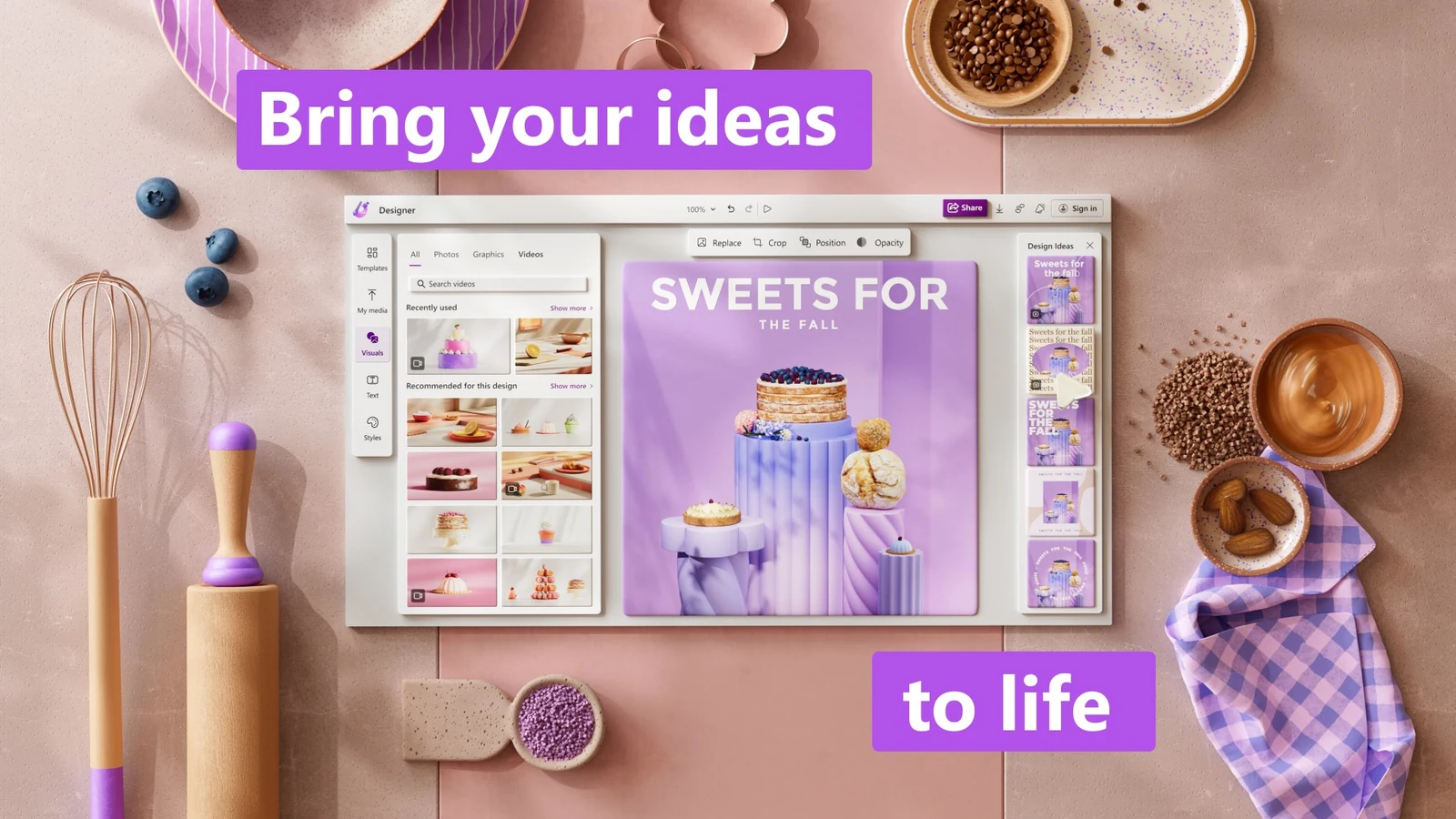
Everything saves to your Microsoft account, so a design you start on the PC is waiting in the phone app or in a browser. Designer is licensed for personal, non-commercial use, which matters if you planned to use it for a business. More on that below.
Key Features of Microsoft Designer
These images come from Microsoft's own Designer pages and its Microsoft Store listing. Features marked Uses credits spend one AI credit each time you run them.
USES CREDITS
Make images from a description
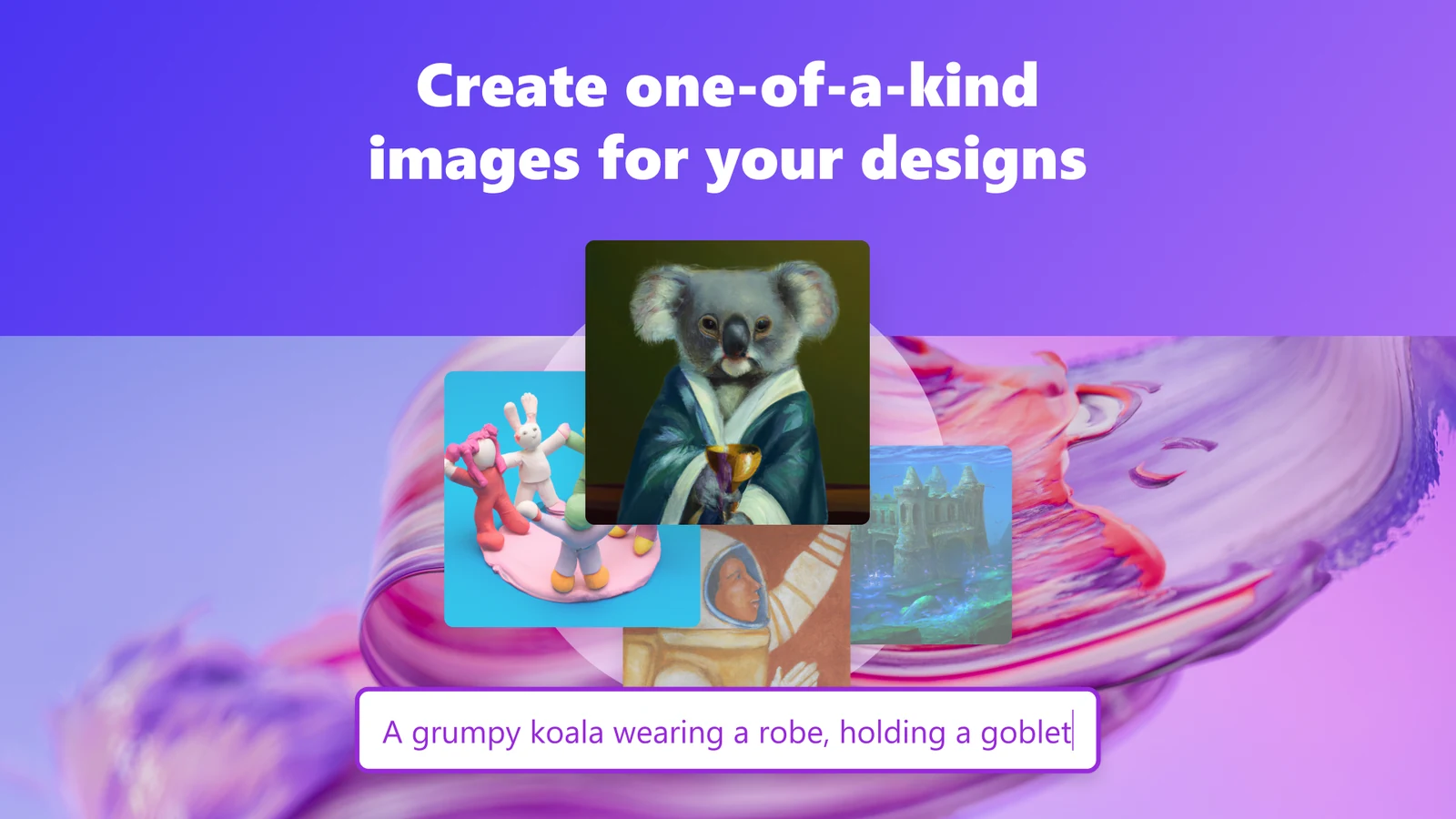
Type what you want to see and Designer creates several images to choose from. Enhance prompt rewrites a short idea into a more detailed description for better results.
Text inside generated images can come out misspelled, so check any words before you share.
USES CREDITS
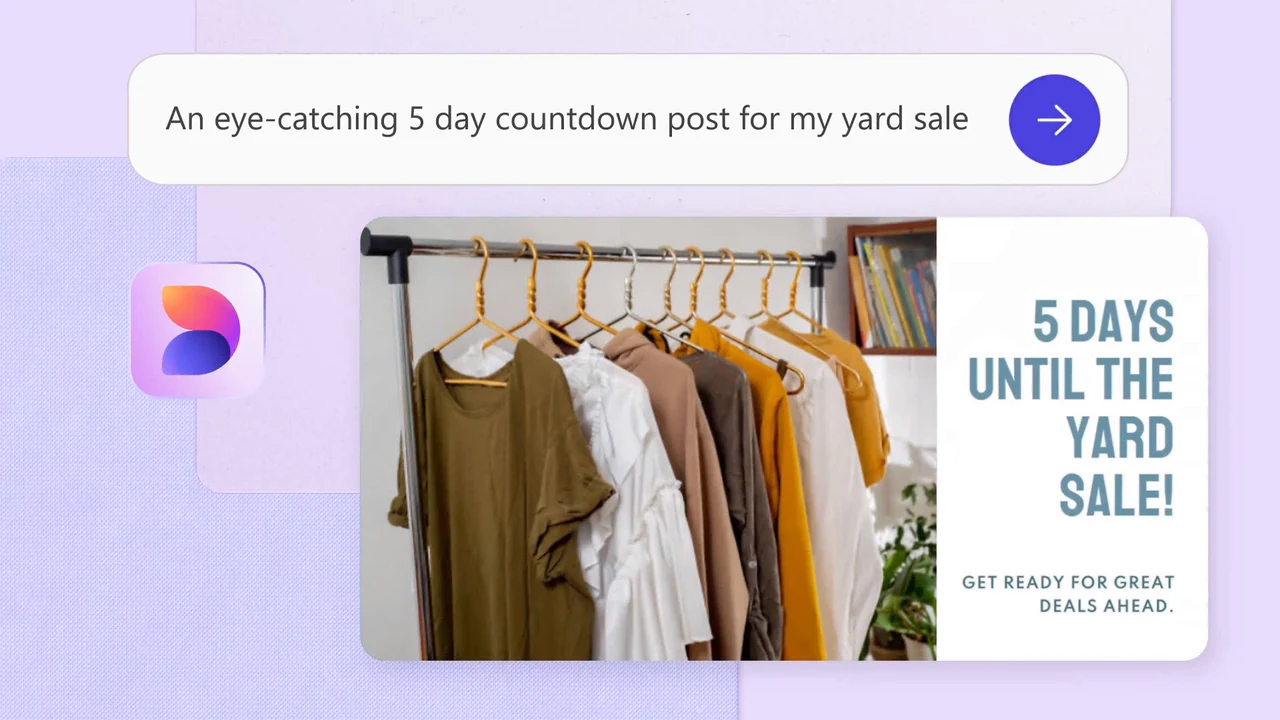
Social posts, invitations, cards and banners
Describe the occasion, add your own photos if you like, and pick a size for the platform. Designer returns finished layouts with the image and text already in place.
Invitations take a date, time, place and RSVP details, and greeting cards come with a written message you can edit.
USES CREDITS
Stickers, emojis, clip art and more
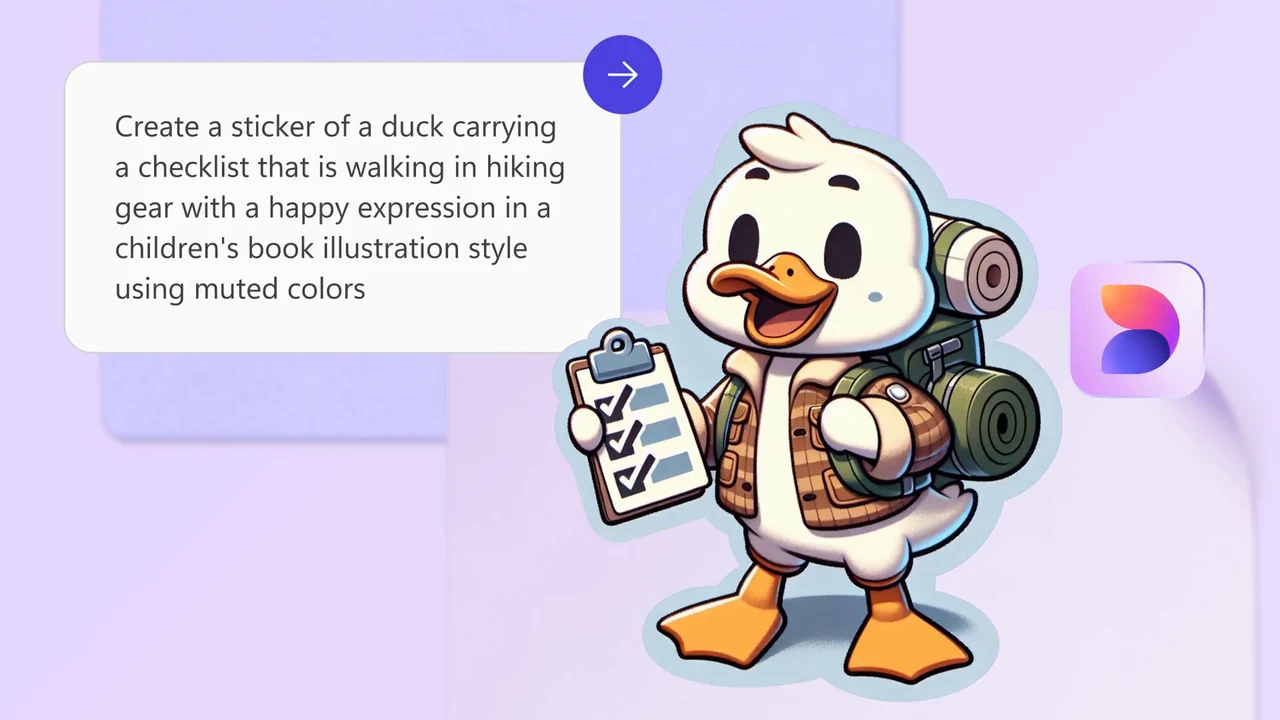
The same describe-and-pick idea makes stickers, emojis, clip art, icons, monograms, wallpapers, avatars and coloring book pages. Each one has its own starting point on the Designer home page.
Stickers come out with a cut-out edge, ready for chat apps.
USES CREDITS
Restyle or fix a photo with a short instruction
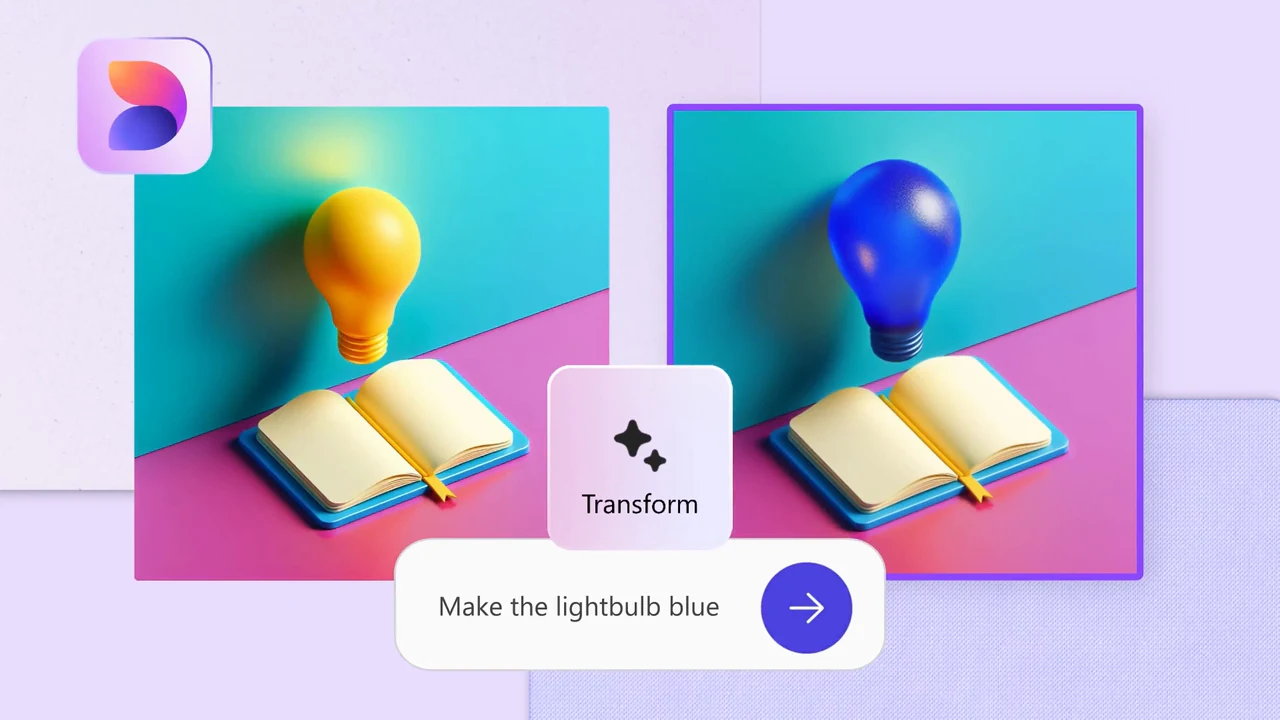
Upload a picture and tell Designer what to change, such as make the lightbulb blue. Generative erase removes people or objects you select, and fills the gap.
You can also move objects around in the frame, or add a frame of AI-drawn flowers, leaves or other themes around a photo.
Remove or blur a background
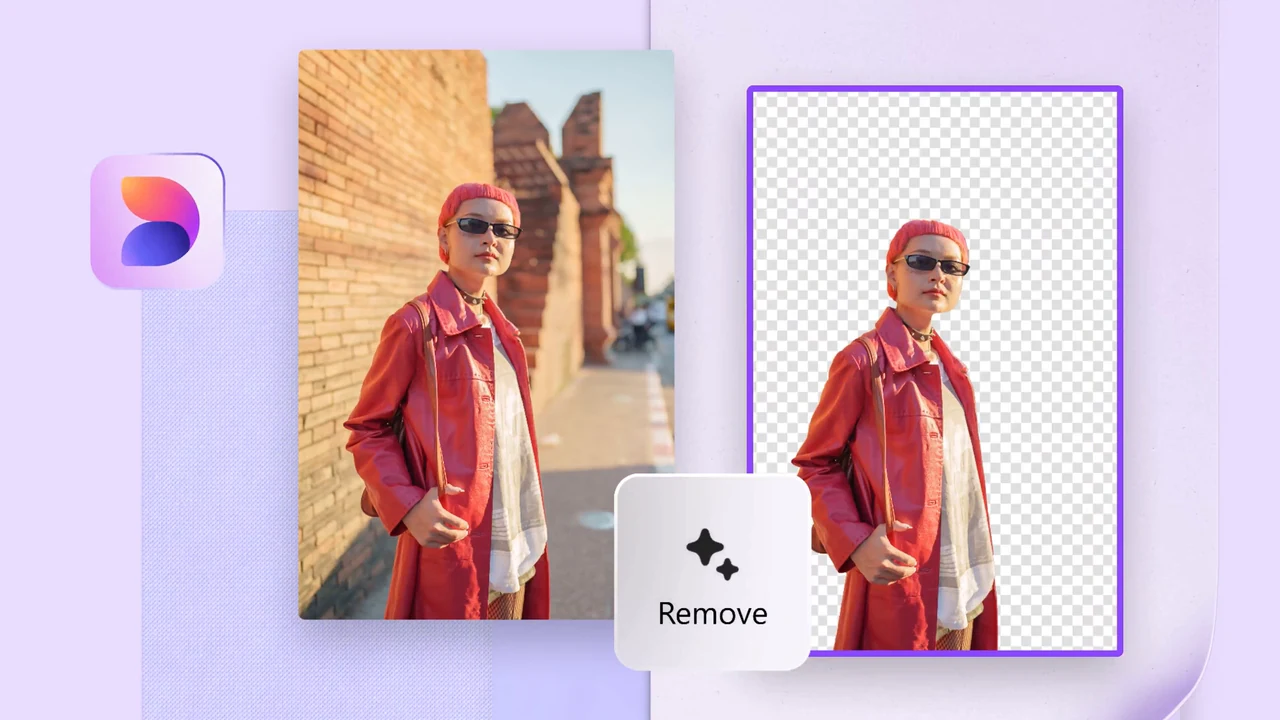
One click takes the background out of a photo and leaves a clean cut-out, or blurs it so the person stands out. This is one of the tools Microsoft lists as part of the free plan.
Crop, add text and resize sit in the same editor.
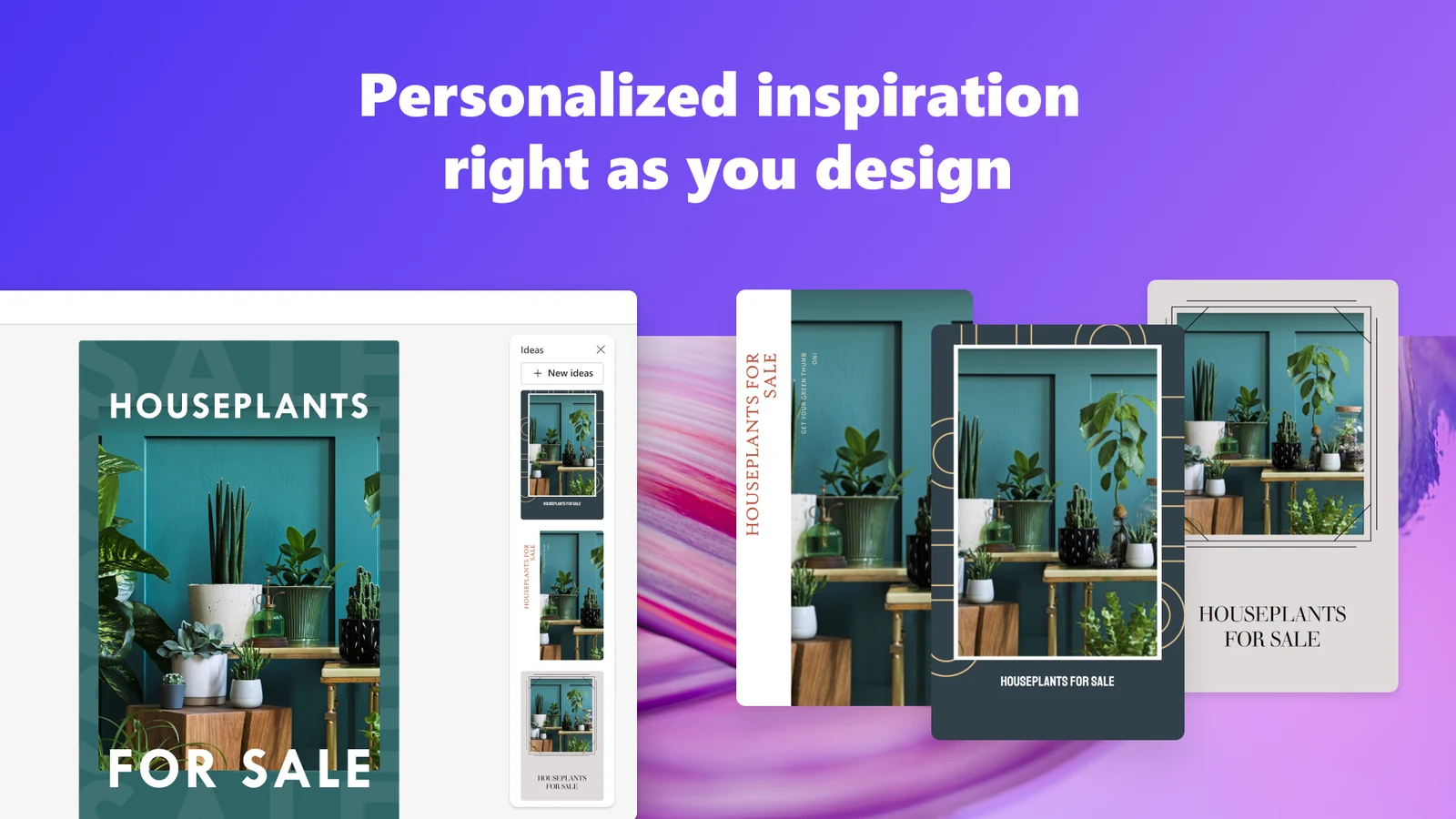
Layout ideas while you edit
As you work on a design, the Ideas panel offers other layouts with the same photos and text. Click one to switch the whole design to it.
It is handy when a poster looks crowded and you cannot see why.
Resize, captions and hashtags
Resize turns one design into the sizes other platforms need. Designer can also write a caption and suggest hashtags for the post.
Download the result, send it to your phone with a QR code, or copy it straight into an email or document.
Brand kit
Enter a name and a short description, and Designer suggests a logo, colors, fonts and a writing voice. You can upload your own logo instead. Only one brand kit can be saved at a time.
Upscale to 4K
Upscale cleans up noise and raises a picture’s resolution, up to 4K. It is limited to people who meet the age requirement in their region.
Collages
Pick up to 10 photos, describe a theme and choose a style, and Designer arranges them inside an AI-made frame.
Content Credentials
Images made or edited with Designer’s AI carry Content Credentials, a tag in the file that shows AI was involved. Microsoft adds it to every one.
Designer Inside Word, PowerPoint and the Copilot App
You do not have to open Designer to use it. Below, Copilot makes a banner in Word and an illustration in PowerPoint with Designer's image tools.
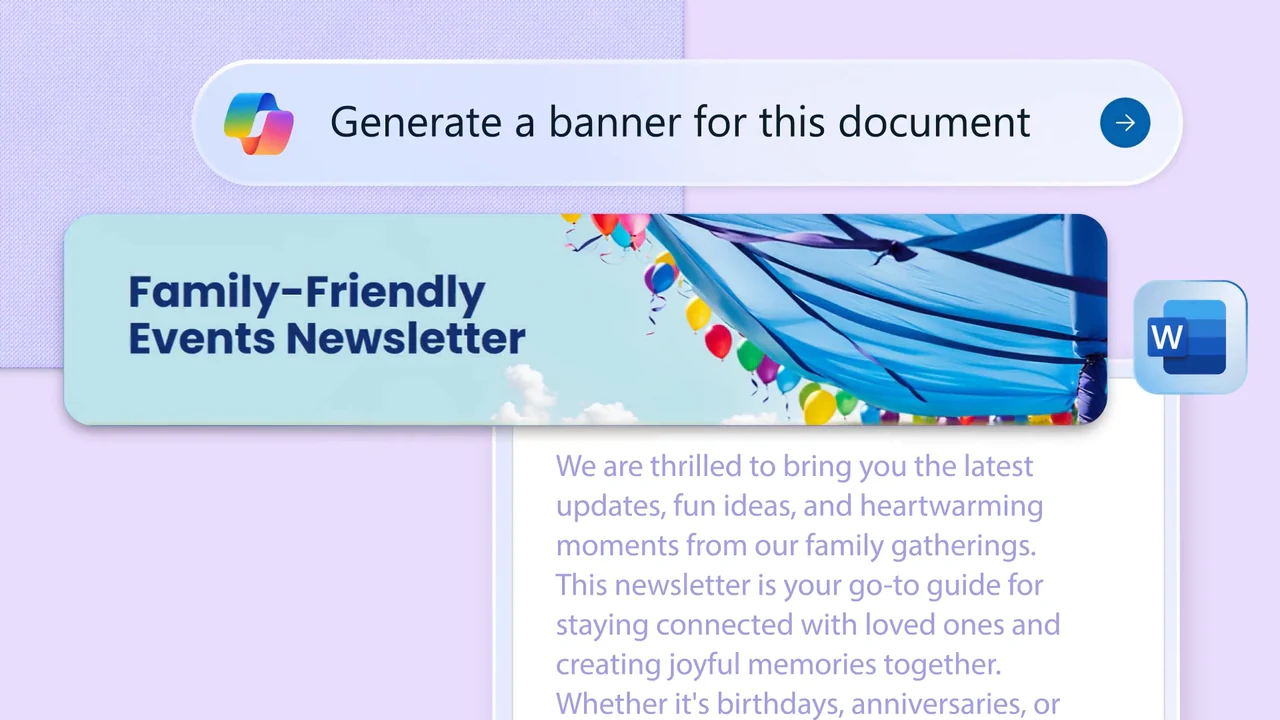
In Word, ask Copilot for a banner and it drops a matching image at the top of your document.
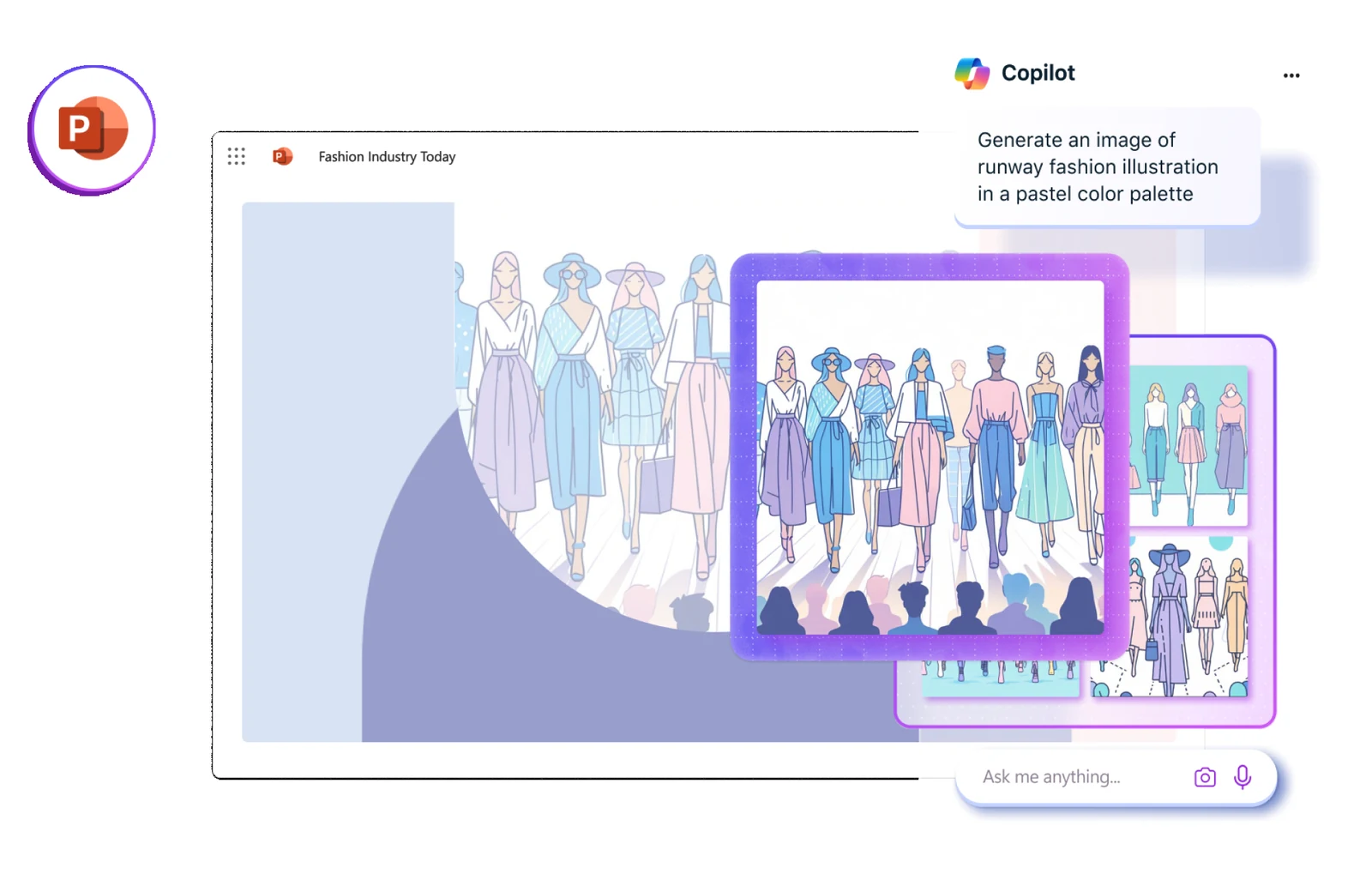
In PowerPoint, describe an image in Copilot and place it straight on the slide.
Microsoft says Microsoft 365 Personal, Family and Premium plans give the account owner more Designer credits and access to Designer through Copilot in Word and PowerPoint. The Microsoft 365 Copilot app also lists Designer as a place to start creating, and some Designer editing tools appear in the Photos app.
Has Designer been replaced by Copilot? No. Microsoft runs Designer as its own free web, phone and Windows app. Its tools also live inside other Microsoft apps, and its AI credits are shared with Copilot, Paint, Photos and Notepad. See our Microsoft Copilot guide for the chat side.
How to Get Microsoft Designer on Windows
Designer is free to install and runs on Windows 10 and Windows 11. You need a free Microsoft account and an internet connection, because Designer saves to the cloud and runs its AI online.
1 Open the Microsoft Designer page in the Microsoft Store.
2 Click Get or Download and let it install. The download is small, about 2.5 MB.
3 Open Microsoft Designer from the Start menu.
4 Sign in with your Microsoft account, or create one for free.
5 Pick a starting point: Create with AI, Edit with AI or Design from scratch.
Rather not install anything? Open designer.microsoft.com in Edge, Chrome or Firefox and sign in. It is the same Designer with the same projects. Microsoft also makes Designer apps for iPhone, iPad and Android.
Is Microsoft Designer Free? Credits and Plans
Yes. Designer is free, and every account gets a fresh set of AI credits at the start of each month. Each AI action, such as making an image from a description, uses one credit. Run out and the AI tools wait for next month, or you upgrade.
Microsoft does not publish an exact credit number on its current pages. It says paid plans give up to four times the free amount, that credits are shared across Copilot, Designer, Paint, Photos, Notepad and the Office apps, and that you can check your balance under Services & subscriptions in your Microsoft account. The paid plans also come with a free one-month trial.
Check today's Designer plans →
Microsoft Designer vs Canva
Canva is the app most people compare Designer with, and both are free to start. They are built for different jobs.
Our take
Designer is the faster tool when you want something new made for you: a sticker, a party invitation, a one-off image for a document. It costs nothing, and if you already pay for Microsoft 365, you have more credits than most people will use for personal projects.
Pick Canva for anything you will reuse, post on a schedule or use for work. Its templates, team tools and print service are deeper, and Designer's personal-use license rules it out for a business anyway. Plenty of people use both: Designer to make the picture, Canva to build the layout around it.
Know This Before You Start
Personal use only
Microsoft licenses Designer for personal, non-commercial use with your Microsoft account. For client work, ads or a store, use a tool licensed for business.
Deleted means gone
Designer has no recycle bin. A project deleted from My projects cannot be recovered, so download anything you want to keep.
It uses your Microsoft storage
Projects count toward your Microsoft cloud storage, and photos you upload are saved to OneDrive. If that storage fills up, saving and even Outlook.com email can stop.
Age limits on AI
If Designer says a feature is not available for your account, it is usually the age rule: generative AI tools are limited to people above a minimum age that varies by region.
Tips for Getting Started with Microsoft Designer
1 Describe the subject, the style and the colors. “A sticker of a duck in hiking gear, children's book style, muted colors” beats “duck sticker” and saves credits on retries.
2 Start from Explore ideas. Each tool has example tiles. Pick one close to what you want and edit its prompt instead of writing from scratch.
3 Add any words yourself. AI images often misspell text. Generate the picture without words, then add the text on the canvas, where it stays sharp and editable.
4 Save your brand kit first. If you make things for a club or a family event, set up the logo, colors and fonts once and apply them to each new design.
5 Download before you clean up. There is no recycle bin, so save a copy of anything worth keeping before you delete old projects to free up storage.
Microsoft Designer Beginner's Video
Watch this beginner's guide from Technology for Teachers and Students to see how to start a design, use AI images and edit on the Designer canvas. Some menus have moved since it was recorded, but the workflow is the same.
Frequently Asked Questions
What are the system requirements for Microsoft Designer on Windows?
Can I use Microsoft Designer for my business?
Does Microsoft Designer work offline?
Where are my Microsoft Designer files saved?
Can I recover a deleted Microsoft Designer project?
Why does Microsoft Designer say it is not available for my account?
Support and Community
- Microsoft Designer on microsoft.com, the developer’s own page with plans and the current feature list.
- Microsoft Designer FAQ, Microsoft’s help page for every Designer tool, storage and account questions.
- AI credits and limits for Microsoft 365, for how credits are counted on paid plans.
- Send feedback from inside Designer with the feedback button at the top of the page.
More Windows software guides: Canva · Microsoft Copilot · Microsoft Photos · Adobe Express Photos · ChatGPT · Best Photo Editors for Windows
Discover more from Windows Mode
Subscribe to get the latest posts sent to your email.














Add your first comment to this post