Readers like you help support this site. When you make a purchase using links on our site, we may earn an affiliate commission. All opinions remain our own.

Cursor is an agent-first coding workspace for Windows that combines a code editor with local agents, cloud agents and automations. You can still open folders and edit code like a normal IDE, but Cursor can now plan work, change files, run commands, test software and hand longer jobs to agents that continue working remotely.
The desktop app supports Windows, macOS and Linux, while Cursor agents can also run through the terminal, web interface and mobile workflows. On Windows, both x64 and Arm64 installers are available.
Cursor has changed significantly during 2026. It added Automations, more capable Cloud Agents, the Agents Window, remote environments, a growing model catalog and its own Git-based code-hosting platform called Origin.
This guide covers how to install Cursor on Windows, how its agents and Automations work, which AI models are available, what Origin does and how much Cursor costs.
What Is Cursor?
Cursor started as an AI-focused code editor, but it now works more like a development workspace built around AI agents. The familiar editor is still there when you want to work directly with files, Git, extensions and terminals.
Its agents can inspect a codebase, plan changes, edit several files, run shell commands and test their own work. Longer tasks can move from your Windows PC to isolated cloud machines, allowing them to continue while you work on something else.
Cursor also supports plugins, skills, MCP servers, hooks, subagents and a wide selection of AI models. That gives it a much larger role than simply providing autocomplete inside an IDE.
How to Download Cursor on Windows
Cursor provides native Windows installers for both x64 and Arm64 machines, with separate System and User installers.
1 Open the official Cursor download page.
2 Choose Windows x64 or Windows Arm64, depending on your PC.
3 Pick either the System or User installer. The User installer is normally the simplest choice for a personal PC.
4 Run the installer and open Cursor when setup finishes.
5 Sign in, then open an existing project folder or create a new project.
Not sure which CPU you have? Open Settings > System > About and check System type. Most Windows PCs use x64, while many newer Snapdragon-based systems use Arm64.
Use Cursor Everywhere You Work
Cursor is no longer limited to the desktop editor. Its agents can be started and managed across several surfaces.
Desktop
The full editor and Agents Window are available on Windows, macOS and Linux.
Terminal / CLI
Run Cursor Agent directly from a terminal or script, including native Windows PowerShell, WSL, macOS and Linux.
Web & Mobile
Launch cloud agents from a browser or phone and continue checking tasks away from your desktop.
Cursor Also Works from the Terminal
Cursor CLI lets you interact with an AI coding agent directly from PowerShell, WSL, macOS or Linux. You can start interactive sessions, ask it to modify code and use it from scripts and development workflows.
WINDOWS POWERSHELL INSTALL
irm ‘https://cursor.com/install?win32=true’ | iex
Key Cursor Features
Most of Cursor’s recent development has focused on agents and the systems that let them work independently or in parallel.
Agents Window
Run several agents across local projects, worktrees, cloud environments and remote machines while keeping the editor available when you need it.
Cloud Agents
Move longer jobs onto isolated cloud VMs that can build, test and verify changes without keeping your Windows PC occupied.
Automations
Start Cloud Agents on schedules or from GitHub, GitLab, Slack, Linear, webhooks and other events.
Plugins, Skills & MCP
Extend agents with skills, plugins, MCP servers, hooks, custom commands and project rules.
Parallel Agents
Use worktrees, separate cloud environments and subagents so multiple tasks can proceed without writing over the same files.
Browser & Computer Use
Agents can launch apps, open browsers, click through interfaces and generate screenshots, videos and logs to show what they changed.
How Cursor Cloud Agents Work
Each Cursor Cloud Agent runs in its own isolated virtual machine rather than directly on your Windows PC. Its environment can include repositories, dependencies, secrets, startup commands and approved network access.
The agent can edit files, run commands, start development servers and test the software it changed. It can also create artifacts such as screenshots, videos and log references for review.
Because the work happens remotely, Cloud Agents can continue without your local machine being connected. They also support multi-repository environments for tasks spanning frontend, backend, infrastructure or shared libraries.
What Are Cursor Automations?
Automations turn Cloud Agents into recurring or event-driven workers. You choose what starts an agent, what it should do and which tools it can use.
Start an agent when a PR opens or changes and have it inspect the code before a human review.
Trigger an agent from Slack and let it investigate a report using the repositories and tools you allow.
Run recurring jobs such as dependency checks, feature-flag cleanup or scheduled reports.
Use GitHub, GitLab, Linear, webhooks and other integrations to start agents when real events occur.
Which AI Models Are Available in Cursor?
Cursor supports its own models alongside models from several major AI providers. The exact catalog can vary by plan, region and team settings.
Cursor includes Grok and Composer models alongside its wider third-party catalog.
Claude models are available for coding, planning, debugging and agent work.
GPT-family models are available through Cursor’s model picker on supported plans.
Gemini models can also be selected for supported Cursor tasks.
Kimi models are also available through Cursor’s expanding model catalog.
GLM models are available alongside the larger providers in Cursor’s model selection.
Cursor changes its model catalog frequently, and availability can depend on your account, region or organization settings. Check Cursor’s model picker for the exact options available to you.
Cursor Origin: Git-Based Code Hosting
Origin is Cursor’s own Git-based code-hosting service, or Git forge. It brings repositories, pull requests, code browsing and agents into the same Cursor environment.
For repositories hosted directly on Origin, Cursor can manage the repository and pull-request workflow itself. Existing GitHub repositories can also be connected and synchronized.
Cloud Agents can even start a project without an existing repository, show you a live browser preview and later save the project into an Origin repository.
Cursor and Grok Bot Are Not the Same Thing
Cursor is primarily designed around software-development agents. Grok Bot is a separate product focused on named AI teammates that can handle broader tasks across websites and business tools.
Paid Cursor plans also provide Grok Bot access. Read our Grok Bot for Windows guide for setup instructions, examples and pricing.
Cursor Plans and Pricing
Cursor has a free Hobby plan, while paid individual plans add more Agent usage, frontier models, Cloud Agents, skills, hooks and other advanced features.
Cursor also offers Enterprise plans with custom pricing. Model usage and limits can change, so check Cursor’s official pricing page before upgrading.
See Cursor in Action
This video gives you a closer look at Cursor and its agent-based workflow.
Cursor Screenshots
A look at Cursor across the desktop editor, agents, downloads and newer cloud-based features.
-
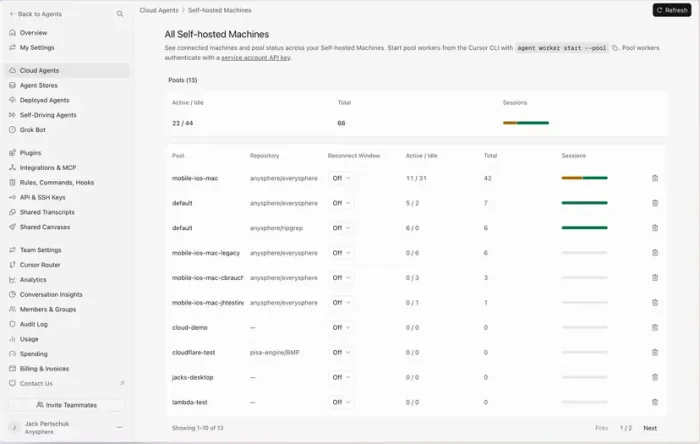
- All machines from Cursor IDE for Windows: What It Is and How to Use It
-
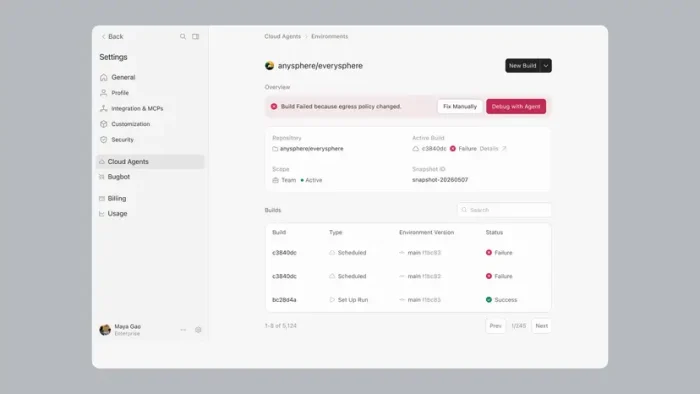
- Build history from Cursor IDE for Windows: What It Is and How to Use It
-
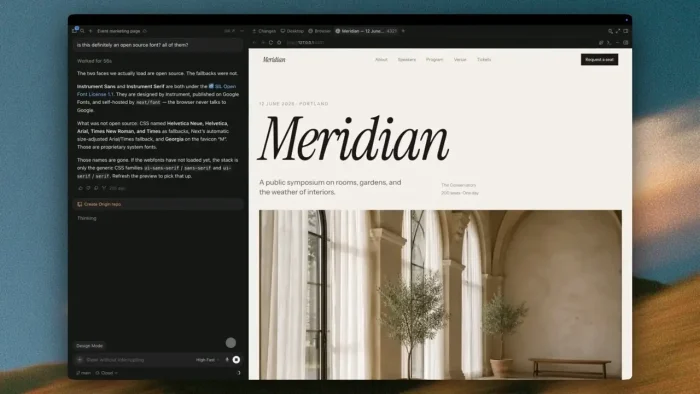
- Canvas from Cursor IDE for Windows: What It Is and How to Use It
-
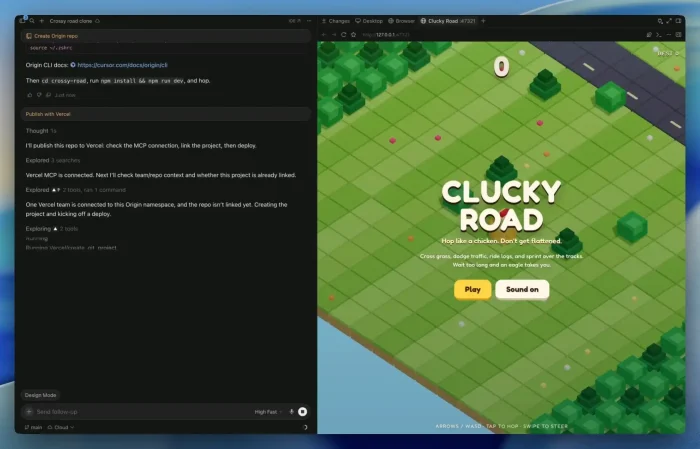
- Create a game from Cursor IDE for Windows: What It Is and How to Use It
-
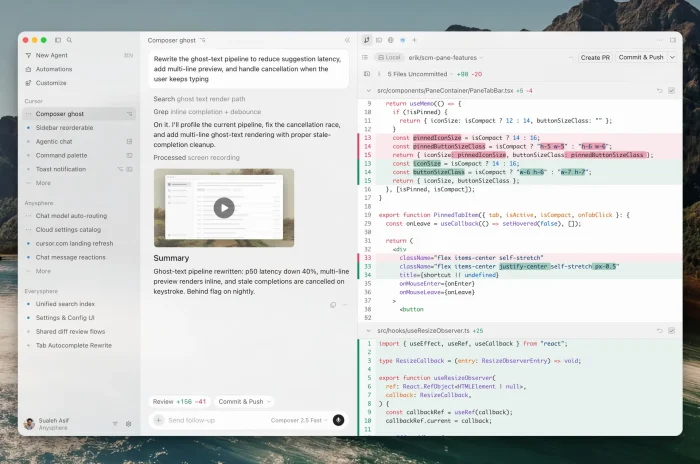
- Cursor3.0 ghost from Cursor IDE for Windows: What It Is and How to Use It
-
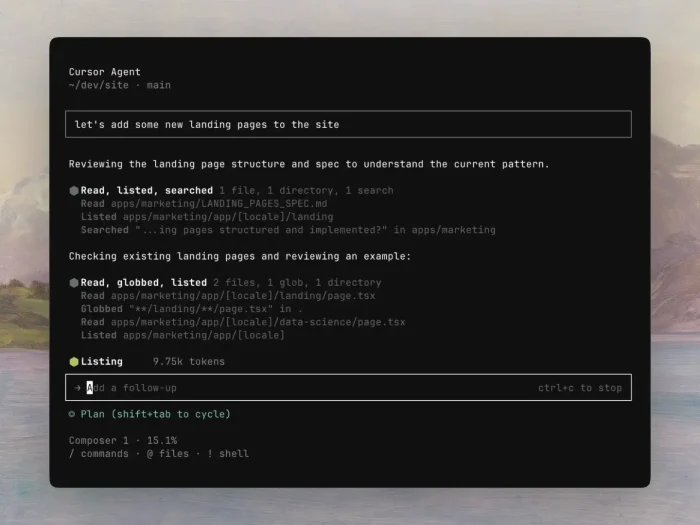
- Cursor cli overview from Cursor IDE for Windows: What It Is and How to Use It
-
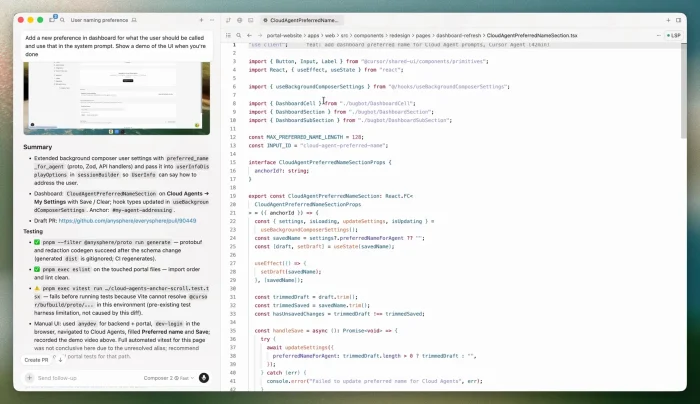
- Custom project from Cursor IDE for Windows: What It Is and How to Use It
-
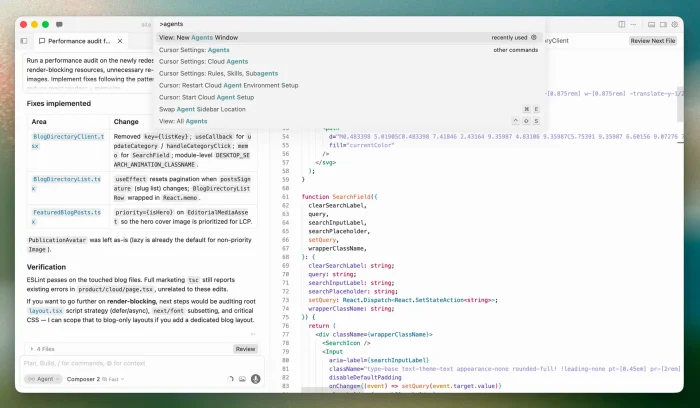
- New agent work from Cursor IDE for Windows: What It Is and How to Use It
-
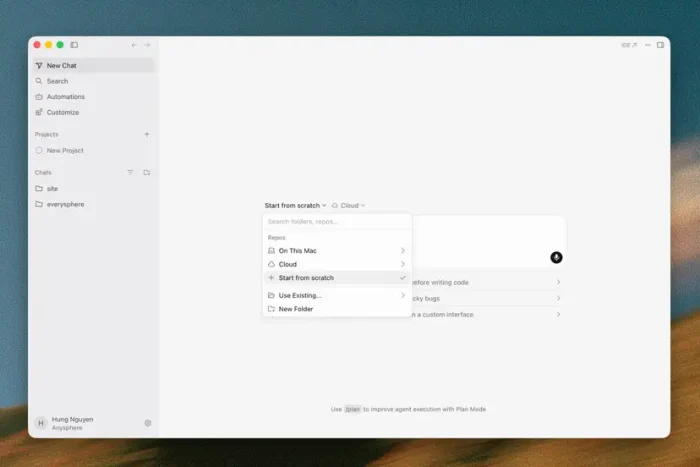
- New chat from Cursor IDE for Windows: What It Is and How to Use It
-
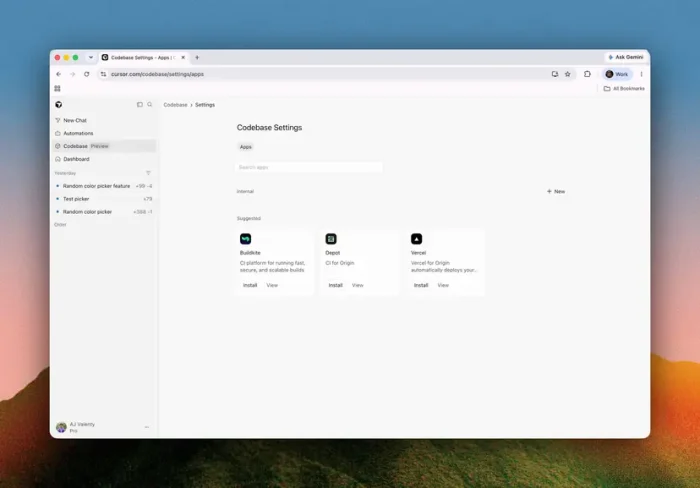
- Origin apps from Cursor IDE for Windows: What It Is and How to Use It
-
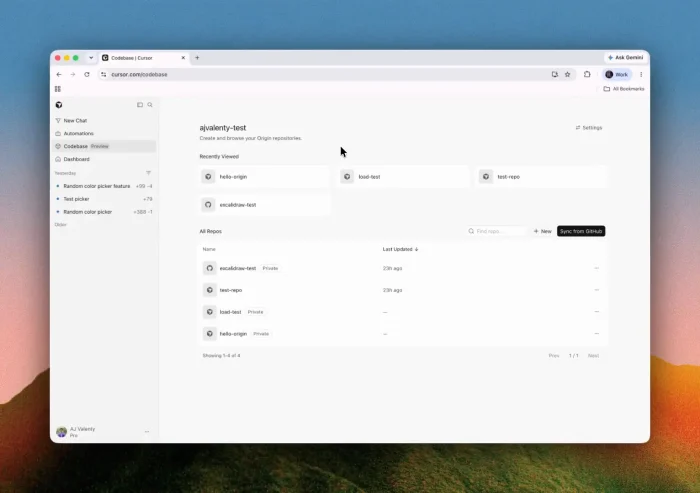
- Origin screenshot from Cursor IDE for Windows: What It Is and How to Use It
-
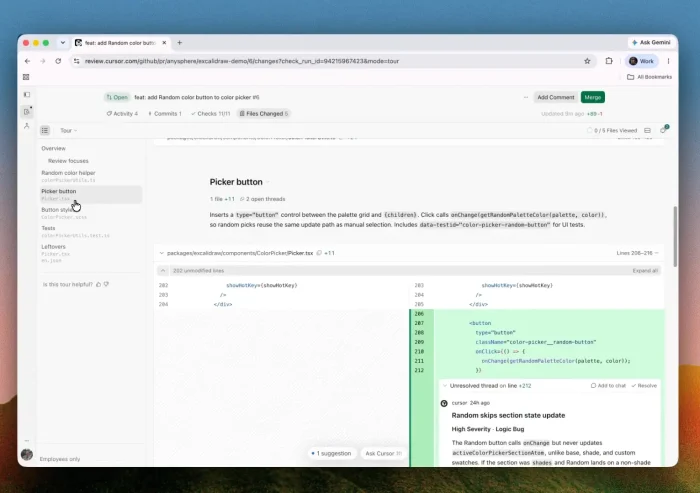
- Pull request from Cursor IDE for Windows: What It Is and How to Use It
-
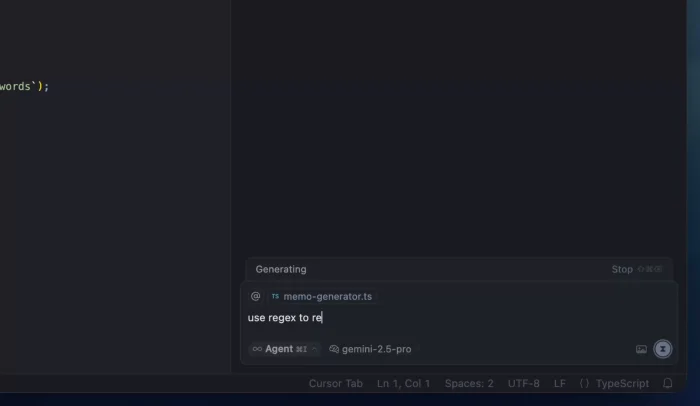
- Queued messages from Cursor IDE for Windows: What It Is and How to Use It
-
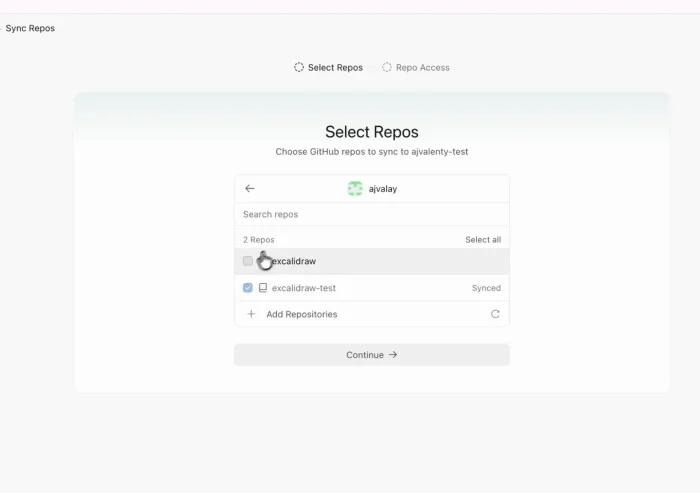
- Select github repos from Cursor IDE for Windows: What It Is and How to Use It
-
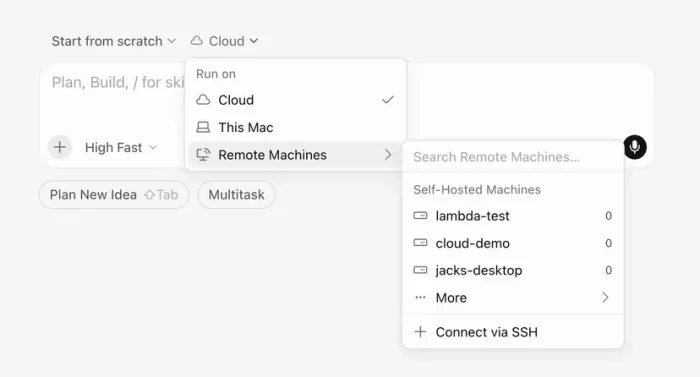
- Self hosted from Cursor IDE for Windows: What It Is and How to Use It
-
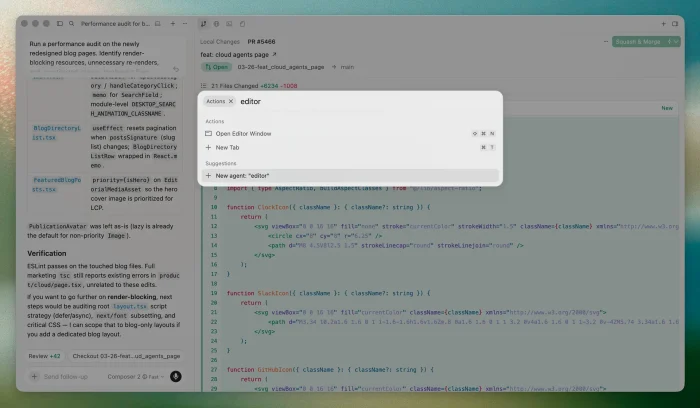
- Switch to ide from Cursor IDE for Windows: What It Is and How to Use It
-
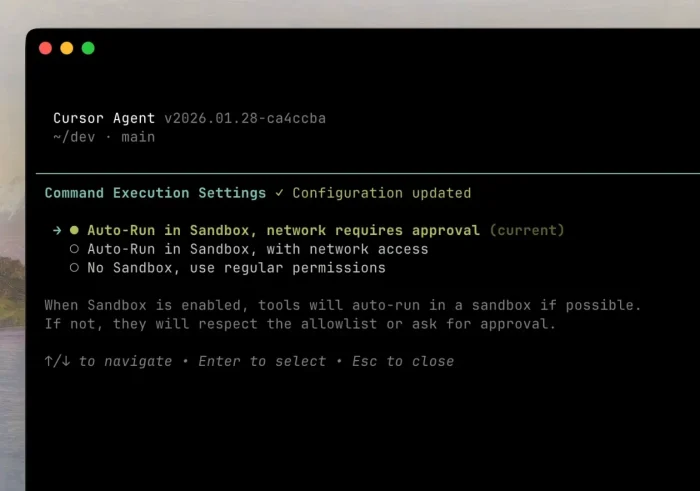
- Typing cli from Cursor IDE for Windows: What It Is and How to Use It
FAQ
What is Cursor?
Does Cursor work on Windows?
Is Cursor free?
Does Cursor Replace VS Code?
Does Cursor work with WSL on Windows?
Does Cursor work without the desktop app?
Which AI Models does Cursor support?
Which AI models does Cursor support?
What is Cursor Origin?
Cursor Downloads and Help
- Cursor download page, for Windows, macOS and Linux installers.
- Cursor documentation, for Agents, Cloud Agents, CLI, plugins and settings.
- Cursor models and pricing, for the current model catalog and usage details.
- Cursor Origin, for its code-hosting platform.
- Cursor pricing, for current plans and subscription details.
More AI software for Windows: Grok Bot for Windows · ChatGPT for Windows · Claude Desktop for Windows
Discover more from Windows Mode
Subscribe to get the latest posts sent to your email.
















Add your first comment to this post