Readers like you help support this site. When you make a purchase using links on our site, we may earn an affiliate commission. All opinions remain our own.
Winslop is a free Windows tool that removes Copilot, forced AI features, Microsoft tracking, and pre-installed apps you never asked for. If you are tired of Windows 11 pushing AI on you, tracking your activity, or filling your Start menu with ads and suggestions, this tool handles all of it. You pick what to remove. Nothing runs without your say-so.
It was built by builtbybel, the developer behind CrapFixer and Bloatynosy. Winslop is small, around 170KB, with no installer and no internet connection required. It has a clean sidebar navigation with sections for Home, Apps, Install, and Tools. Everything runs locally on your PC.
This page covers what Winslop removes, how to download it, how to use it safely, and what to watch out for. Questions? Drop them in the comments or reach out directly.
What You Need to Know
- Free and portable. No installer. Download the ZIP from GitHub, extract it, and run as Administrator.
- You approve everything first. Winslop shows you what it found. Nothing is removed until you check the box and click run.
- All changes can be undone. Built-in undo support. Create a System Restore Point before you start for a full safety net.
- AI Panic Mode built in. One click disables all Windows AI features at once. No need to hunt through settings manually.
What Is Winslop?
Winslop is a free, open-source Windows cleaner built by builtbybel. The name is straightforward: it removes “slop” from Windows. Slop is anything Microsoft forces onto your PC that you cannot easily turn off. If you did not choose it and cannot control it, it is slop.
For most people, that means Copilot showing up everywhere, Windows Recall recording your screen activity, AI-powered search that you never turned on, ads and app suggestions in the Start menu, and background services quietly sending your usage data to Microsoft. Winslop finds all of it and lets you decide what stays and what goes.
The tool runs entirely on your PC. No account needed, no internet connection, no data sent anywhere. It is around 170KB and takes seconds to open.
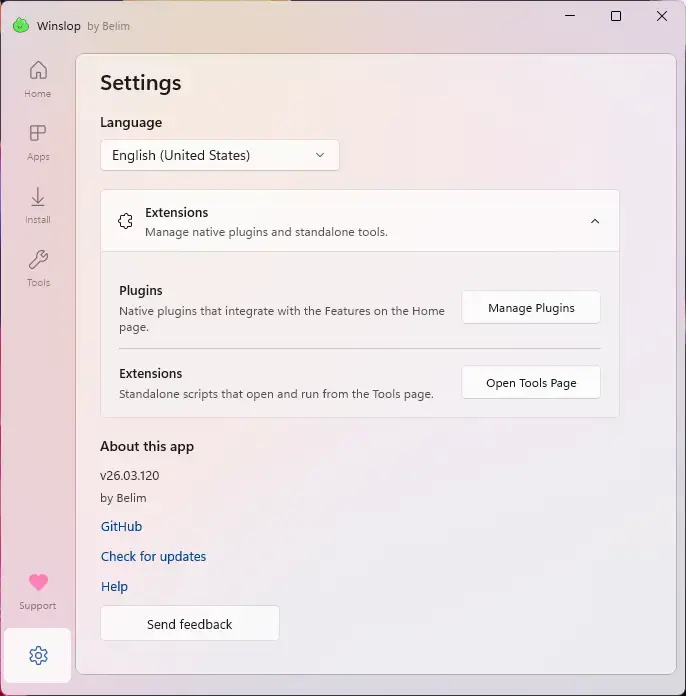 Settings from Winslop
What Winslop Can Remove
How to Download and Install Winslop
No installer needed. You download a ZIP, extract it, and run the file. Done in under two minutes.
Important: Only download from the official GitHub Releases page. There is an unofficial site (winslop.com) the developer does not own or control. Avoid it.
- Step 1. Go to the Winslop Releases page on GitHub and download the latest ZIP file, named something like
Winslop-26.03.110.zip. Skip the “Source code” option. - Step 2. Extract the ZIP to any folder. Your Downloads folder is fine.
- Step 3. Create a System Restore Point before you do anything else. Open Start, search “Create a restore point”, and follow the steps. It takes two minutes and gives you a full safety net if anything goes wrong.
- Step 4. Right-click
Winslop.exeand choose Run as Administrator. Required for full access to Windows settings. - Step 5. If Windows Defender or your antivirus flags the file, that is a common false alarm for system tools. To confirm the file is genuine, compare its checksum (a unique fingerprint for the file) against the one listed on the GitHub Releases page.
How to Use Winslop
Open Winslop, scan, pick what you want gone, and apply. It never removes anything automatically.
- Step 1. Open Winslop as Administrator. The sidebar shows four sections: Home, Apps, Install, and Tools.
- Step 2. Start on the Home tab. This is where Winslop scans your PC and shows a list of features it found. To turn off all Windows AI features at once, select the built-in AI Panic Mode profile here.
- Step 3. Go to the Apps tab to see pre-installed apps you can remove. Read each item before checking it. Some things, like Xbox Game Bar, may be something you actually use.
- Step 4. Use the Tools tab for standalone scripts and extensions, including third-party plugins like Chris Titus Tech’s WinUtil.
- Step 5. When ready, click run. Winslop applies your changes and logs everything it did. Press Ctrl+Z to undo the last change at any time.
- Step 6. Restart your PC so all changes take effect.
Need to undo? Press Ctrl+Z inside Winslop to undo the last change. For a full rollback, use the System Restore Point you created before running the tool.
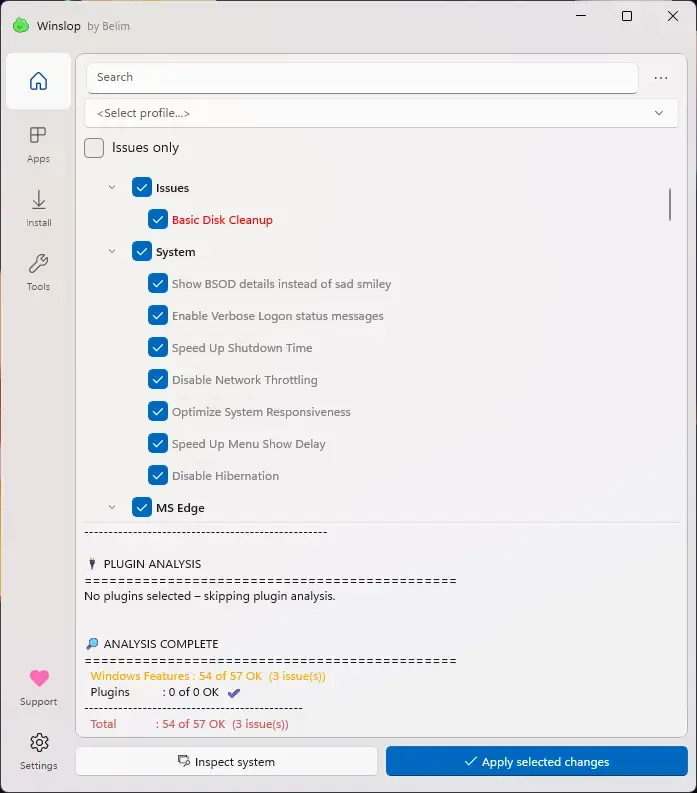 Issues to fix from Winslop
Keyboard Shortcuts
These shortcuts work inside Winslop once it is open. Useful once you know what you are doing and want to move faster.
| Shortcut | What It Does |
|---|---|
| Ctrl+T | Toggle all items on or off at once |
| Ctrl+Z | Undo the last change you applied |
| F5 | Refresh the current scan results |
| Ctrl+L | Copy the activity log to your clipboard |
| Delete | Clear the activity log |
Is Winslop Safe?
Yes, with common sense. Winslop is open source, so the full code is on GitHub for anyone to read. The developer has been building Windows tools for years (CrapFixer, Bloatynosy) and the project is actively updated.
Your antivirus may flag it. That is normal for any tool that touches Windows settings. It does not mean the file is dangerous. If you want to verify it yourself, check the file checksum on the GitHub Releases page. A checksum is a short string that acts as a fingerprint for the file. If it matches, the file is genuine.
The one real risk is removing something you actually use. Winslop is not aggressive, but if you remove Xbox services and you use Xbox Game Bar for recording, that will break. Read each item before you tick it. The tool is only as careful as you are.
Screenshots
Here is what Winslop looks like running on Windows 11. The interface is clean, sidebar-based, and easy to read even if it is your first time using a tool like this.
-
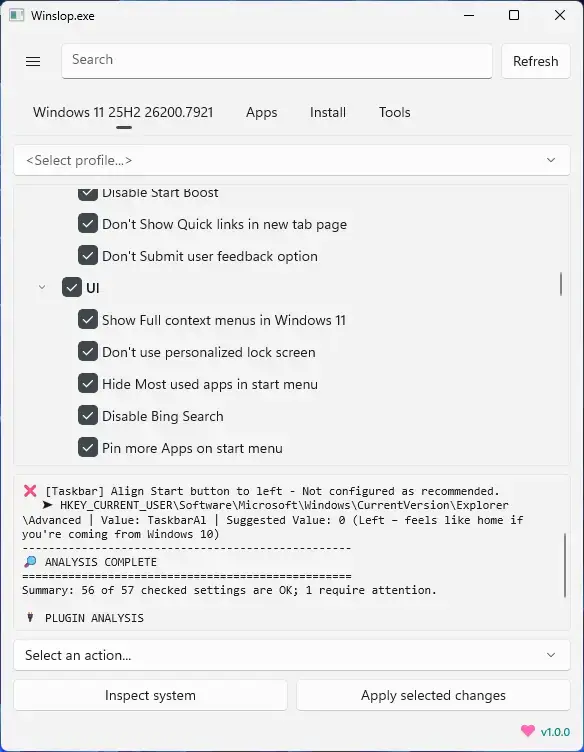
- Disable things from Winslop for Windows: Remove Copilot, Bloat and Telemetry (2026)
-
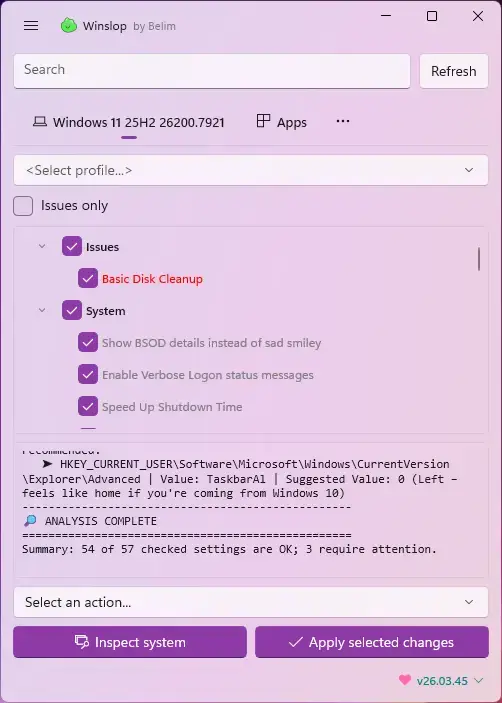
- Inspect system from Winslop for Windows: Remove Copilot, Bloat and Telemetry (2026)
-
- Issues to fix from Winslop for Windows: Remove Copilot, Bloat and Telemetry (2026)
-
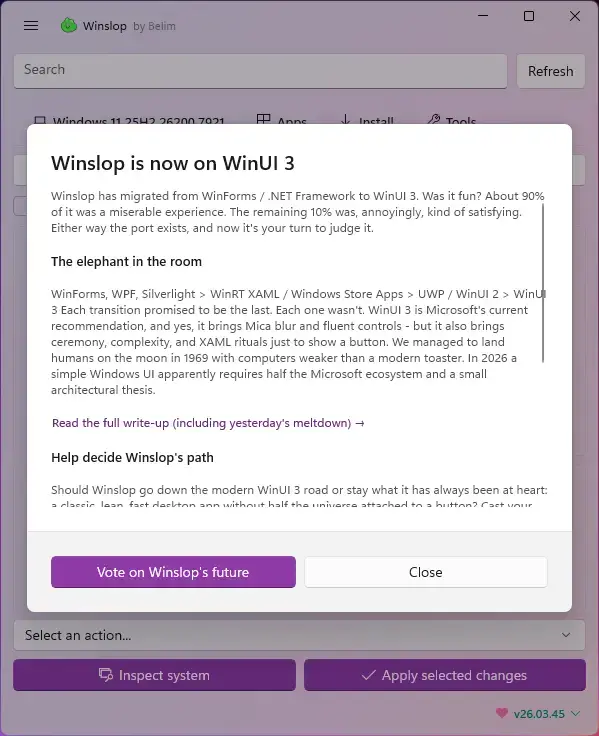
- Now using winui 3 from Winslop for Windows: Remove Copilot, Bloat and Telemetry (2026)
-
- Settings from Winslop for Windows: Remove Copilot, Bloat and Telemetry (2026)
Video
Watch a quick walkthrough of Winslop in action before you download it.
Tips for Using Winslop
How Winslop Works
Quick Poll
Quick question while you are here.
Frequently Asked Questions
What does Winslop do?
Winslop scans your Windows PC and lets you remove Copilot, forced AI features, Microsoft tracking, Start menu ads, and pre-installed apps you never wanted. You review everything before anything is removed.
Is Winslop safe to use?
Yes, when downloaded from the official GitHub Releases page. Some antivirus tools may flag it as suspicious because it changes Windows settings. This is a false positive. Create a System Restore Point before you run it, just to be safe.
Does Winslop work on Windows 10?
Yes, but it is mainly built for Windows 11. Most of what it targets, like Copilot and forced AI features, are heavier in Windows 11 than in Windows 10.
Do I need to install Winslop?
No. Download the ZIP from GitHub, extract it to any folder, and run Winslop.exe as Administrator. No installer, no setup wizard, nothing written to your system.
Can I undo changes made by Winslop?
Yes. Winslop has built-in undo for most changes. You can also use a System Restore Point to roll everything back if needed.
🔗 Support and Community
Got questions, ran into an issue, or want to see what others are removing? These are the best places to go.
- Winslop Help Documentation – official guide covering all features, written by the developer
- GitHub Releases – download the latest version and read the full changelog
- r/Windows on Reddit – community discussions, tips, and real-world experiences with debloat tools
More Windows tools and guides: AdwCleaner for Windows · Malwarebytes for Windows · Best Browsers for Windows
Want new apps? Check our Best Windows Software guide.
Discover more from Windows Mode
Subscribe to get the latest posts sent to your email.
















Add your first comment to this post