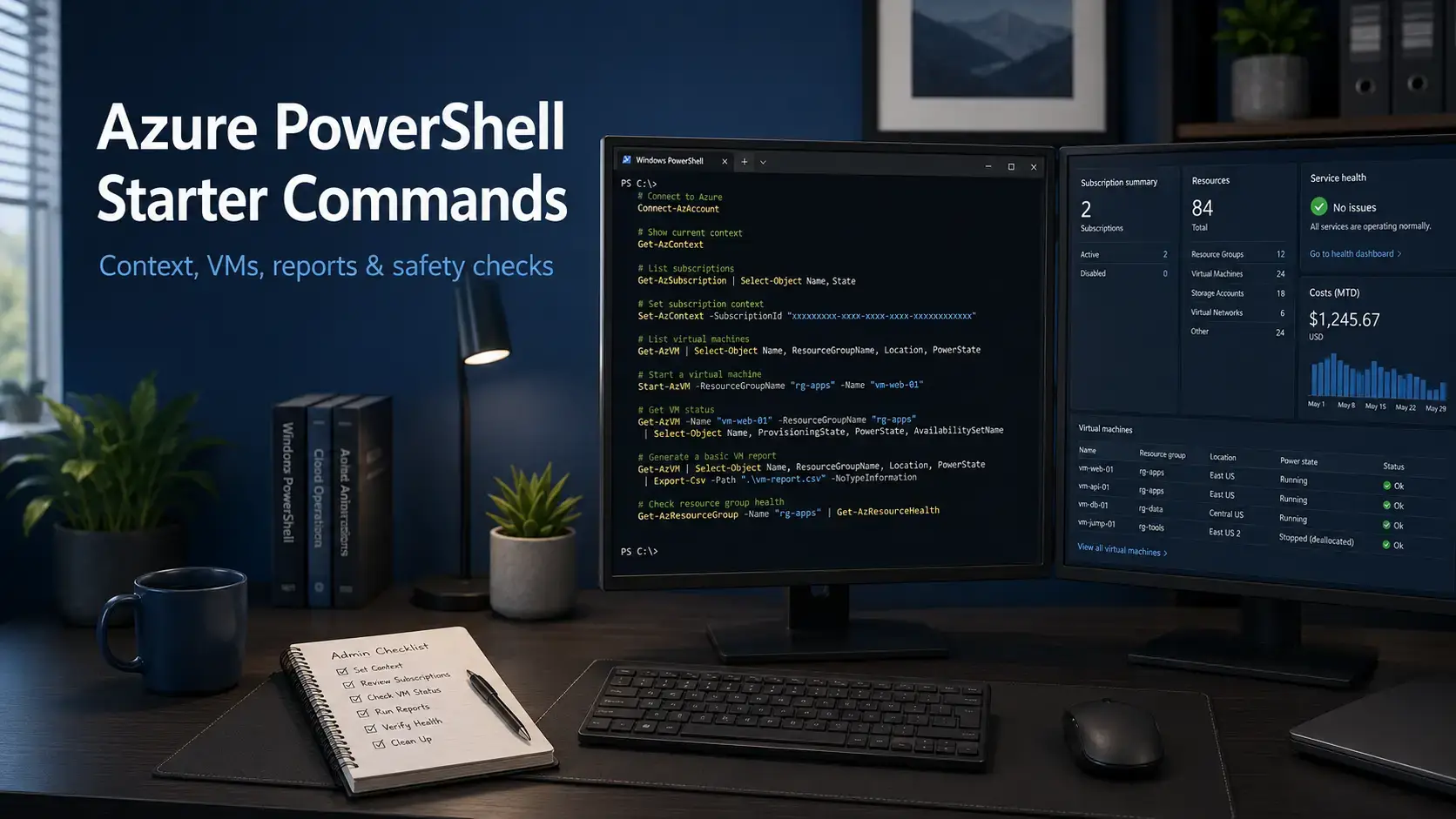
Azure PowerShell starter commands help Windows admins check Azure safely before changing anything. This guide assumes you already installed the Az module, signed in, and now want practical commands you can run with confidence.
Start with context, subscriptions, resource groups, VMs, storage accounts, and network resources. The safest learning path is to run read-only Get commands first. Once you know what your account can see, you can move into changes with more care.
This is not another install guide. If you still need the setup steps, start with our Azure PowerShell install guide, then come back here for the commands. The printable PDF below expands this preview into a 60-command Azure PowerShell reference for Windows admins.
Already managing servers too? Pair this with Windows Admin Center for local Windows Server work and Azure PowerShell for cloud resources.
What You Need to Know
- Run
Get-AzContextbefore admin work so you know the active account, tenant, and subscription. - Use
Get-*commands first because they read information instead of changing resources. - Use subscription IDs when names look similar across tenants, departments, labs, or customer environments.
- Export reports with
Export-Csvafter selecting only the fields you need. - Use
-WhatIfwhere supported before running create, change, or delete commands.
Guide Type
Admin commands
Module
Az
Best For
Windows admins
Risk Level
Mostly read-only
Start With the Safe Command Order
Do not start by creating, stopping, or deleting anything. Start by proving three things: who you are signed in as, which subscription is active, and what resources are visible.
Safe beginner flow
- Check the local shell and Az module.
- Sign in and confirm account context.
- List tenants and subscriptions.
- Set the correct subscription.
- List resource groups, regions, VMs, storage, and public IPs.
- Export useful reports.
- Use WhatIf before any risky change command.
1. Check Your PowerShell and Az Setup
Before you run Azure admin commands, confirm that you are in the shell you expect and that the Az module is available.
2. Sign In and Confirm Your Account
Use Connect-AzAccount for interactive sign-in. Microsoft notes that Azure PowerShell uses MFA for Microsoft Entra ID user sign-in, so do not build new admin habits around password-only login.
Sign in
Connect-AzAccountConfirm current context
Get-AzContext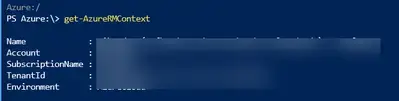
Get-AzContext confirms the active account, tenant, and subscription before you run admin commands.
Admin safety note
If the account, tenant, or subscription looks wrong, stop. Fix the context before running any command that creates, changes, stops, restarts, or removes resources.
3. List Tenants and Subscriptions
Most admin mistakes start with the wrong subscription. Use Get-AzSubscription to list subscriptions your account can access, then choose the right one before doing any work.
List all subscriptions you can access
Get-AzSubscriptionList subscriptions in the current tenant
Get-AzSubscription -TenantId (Get-AzContext).Tenant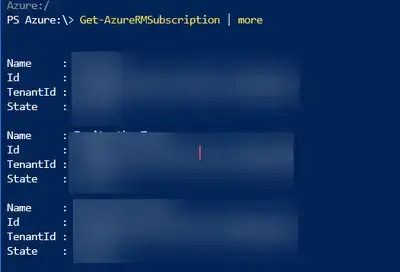
Get-AzSubscription lists the subscriptions available to your signed-in Azure account.
4. Set the Active Subscription
Use Set-AzContext to set the subscription for later commands. Microsoft documents that this context includes tenant, subscription, and environment information.
Set by subscription ID
Set-AzContext -Subscription "<subscription ID>"Set by subscription name
Set-AzContext -Subscription "<subscription name>"Use this safer pattern when names are similar
Get-AzSubscription -SubscriptionId "<subscription ID>" | Set-AzContextThis keeps the lookup and context switch tied to one specific subscription ID.
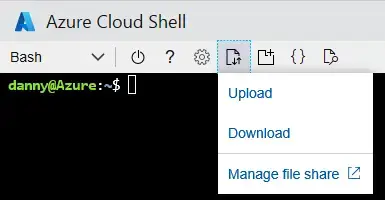
Set-AzContext changes which Azure subscription later commands will use.
5. List Resource Groups and Azure Regions
Resource groups are the first useful map of a subscription. Regions help you understand where resources live and which Azure locations are available.
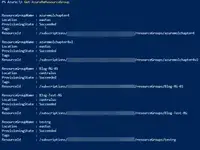
Get-AzResourceGroup gives you a quick map of resource groups in the active subscription.
6. List Azure VMs Safely
Get-AzVM is safe to run because it reads VM information. Microsoft documents that it gets the model view by default and can return instance-level status when you add -Status.
List all VMs in the current subscription
Get-AzVMList VMs in one resource group
Get-AzVM -ResourceGroupName "<resource group name>"List VM names in a cleaner table
Get-AzVM | Select-Object Name,ResourceGroupName,Location,VmSize7. Check VM Status
Add -Status when you need instance-level details. This is useful when you want to know whether a VM is running, stopped, or deallocated without opening the Azure portal.
Get status for one VM
Get-AzVM -ResourceGroupName "<resource group name>" -Name "<vm name>" -StatusList VM status for the subscription
Get-AzVM -Status | Select-Object Name,ResourceGroupName,Location,PowerStateWhy -Status matters
Without -Status, Get-AzVM mainly returns the VM model, meaning the settings Azure stores for the VM. With -Status, it asks for instance view data, including live status details.
8. List Storage Accounts
Storage accounts often hold disks, logs, backups, app data, or Cloud Shell files. Microsoft documents that Get-AzStorageAccount can list all storage accounts in a subscription or in a resource group.
List all storage accounts in the subscription
Get-AzStorageAccountShow storage accounts in a simple report
Get-AzStorageAccount | Select-Object StorageAccountName,ResourceGroupName,Location,SkuName,Kind9. List Public IP Addresses
Public IP addresses are worth checking early because they show which Azure resources may be reachable from the internet. Microsoft documents that Get-AzPublicIpAddress gets one or more public IP addresses in a resource group.
List public IP addresses
Get-AzPublicIpAddressMake the output easier to scan
Get-AzPublicIpAddress | Select-Object Name,ResourceGroupName,Location,IpAddress,PublicIpAllocationMethodSecurity habit
A public IP does not always mean a service is open, but it is a good reason to check network security groups, firewalls, and owner tags.
10. Export Azure Results to CSV
PowerShell objects can be exported cleanly, but only after you choose the fields you want. Microsoft recommends selecting useful properties before converting or exporting output.
Export VMs to CSV
Get-AzVM | Select-Object Name,ResourceGroupName,Location,VmSize | Export-Csv .\azure-vms.csv -NoTypeInformationExport resource groups to CSV
Get-AzResourceGroup | Select-Object ResourceGroupName,Location,ProvisioningState | Export-Csv .\azure-resource-groups.csv -NoTypeInformationExport public IPs to CSV
Get-AzPublicIpAddress | Select-Object Name,ResourceGroupName,IpAddress,PublicIpAllocationMethod | Export-Csv .\azure-public-ips.csv -NoTypeInformation11. Use WhatIf Before Risky Changes
Many Azure PowerShell cmdlets support common PowerShell safety switches like -WhatIf and -Confirm. Microsoft documents -WhatIf on commands such as Remove-AzResourceGroup, where it shows what would happen without running the command.
Do not run this without understanding it
Resource group delete commands can remove the resource group and its resources from the current subscription. Beginners should treat them as dangerous until they understand the active context and the target.
Preview a delete command
Remove-AzResourceGroup -Name "<resource group name>" -WhatIfSimple rule
If a command starts with New, Set, Remove, Stop, Restart, or Update, slow down. Check context, read help, and use -WhatIf if the command supports it.
12. Use Cloud Shell When Local Setup Is Blocked
Azure Cloud Shell is a browser-accessible terminal for managing Azure resources. Microsoft says it is authenticated, supports Bash and PowerShell, and automatically gives secure access to Azure PowerShell cmdlets.
- Use Cloud Shell if: your admin PC blocks PowerShell Gallery, you are on a temporary device, or you need a fast session from the Azure portal.
- Use local Azure PowerShell if: you need local script files, scheduled jobs, source control, custom modules, or repeatable admin workstation setup.
- Remember: Cloud Shell runs on a temporary host and uses a cloud file share for persisted files.
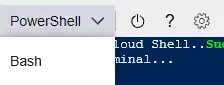
Azure Cloud Shell lets you choose PowerShell in the browser when local setup is blocked.
Common Beginner Mistakes
Skipping Get-AzContext
This is the easiest mistake. Always check the active account, tenant, and subscription before running admin commands.
Trusting subscription names too much
Many companies reuse names like Production, Dev, Test, or Sandbox. Use the subscription ID when the wrong target would matter.
Running delete examples from old tutorials
Old training posts often show cleanup commands that delete resource groups. Do not paste them into a real tenant unless you know exactly what they target.
Exporting raw objects without selecting fields
Raw Azure objects can contain nested data that looks messy in CSV. Use Select-Object first so your report is readable.
Mixing Azure CLI and Azure PowerShell syntax
Azure CLI uses az commands. Azure PowerShell uses Az cmdlets like Get-AzVM. They can both run in PowerShell, but the syntax is different.
Printable PDF Version
Get the PDF version
Azure PowerShell Starter Commands PDF (Printable)
A printable command reference based on this guide, formatted for desk use, onboarding, and quick admin checks. It includes 60 Azure PowerShell commands, not just the starter examples shown in this post.
Included: context checks, subscription commands, resource group reports, VM checks, storage commands, network checks, public IP checks, CSV exports, Cloud Shell commands, and safety reminders.
Get the printable PDF version. Pay $1, or name your own price.
Instant download after payment. No account required.
Quick Command Reference
| Task | Command | Safe for beginners? |
|---|---|---|
| Check active account and subscription | Get-AzContext |
Yes |
| Sign in | Connect-AzAccount |
Yes |
| List subscriptions | Get-AzSubscription |
Yes |
| Set active subscription | Set-AzContext -Subscription "<id>" |
Yes, if the ID is correct |
| List resource groups | Get-AzResourceGroup |
Yes |
| List regions | Get-AzLocation |
Yes |
| List VMs | Get-AzVM |
Yes |
| Check VM status | Get-AzVM -Status |
Yes |
| List storage accounts | Get-AzStorageAccount |
Yes |
| List public IPs | Get-AzPublicIpAddress |
Yes |
| Preview resource group deletion | Remove-AzResourceGroup -Name "<name>" -WhatIf |
Preview only |
Frequently Asked Questions
What Azure PowerShell command should I run first?
Run Get-AzContext first. It shows the Azure account, tenant, subscription, and environment your current PowerShell session is using. This helps you avoid running commands against the wrong subscription.
How do I list Azure subscriptions in PowerShell?
Use Get-AzSubscription. It lists the subscriptions your signed-in account can access, including the subscription name, ID, tenant ID, and state.
How do I change the active Azure subscription in PowerShell?
Use Set-AzContext -Subscription “<subscription name or ID>”. For safer admin work, use the subscription ID when names are similar across tenants or departments.
Is Get-AzVM safe to run?
Yes. Get-AzVM is a read-only command. It lists virtual machine details in the current subscription or resource group. Add -Status when you also need instance status, such as power state and provisioning state.
How do I export Azure PowerShell results to CSV?
Pipe the command into Select-Object, then Export-Csv. For example, Get-AzVM | Select-Object Name,ResourceGroupName,Location | Export-Csv .\azure-vms.csv -NoTypeInformation.
Does -WhatIf work with every Azure PowerShell command?
No. Many commands that create, change, or remove resources support -WhatIf, but not every cmdlet does. Check the command help first, then use -WhatIf when it is available before running risky changes.
When should I use Azure Cloud Shell instead of local Azure PowerShell?
Use Azure Cloud Shell when you cannot install modules locally, are on a temporary computer, or need a quick browser-based Azure PowerShell session. Use local Azure PowerShell when you need scripts, local files, scheduled tasks, or your own admin workstation setup.
Support and Community
Use Microsoft Learn for official command behavior and Reddit for peer discussion from other admins. Avoid copying old AzureRM examples from search results unless you are maintaining an old script on purpose.
- Get started with Azure PowerShell on Microsoft Learn – official starting point for sign-in, commands, modules, and Cloud Shell notes
- Azure contexts and sign-in credentials – official details on contexts, subscriptions, and scope
- Azure Cloud Shell overview – official Cloud Shell behavior and access points
- r/AZURE on Reddit – peer help from Azure admins and cloud users
- r/PowerShell on Reddit – PowerShell-specific troubleshooting and scripting discussion
More Windows software guides: How to Install Azure PowerShell on Windows · Windows Admin Center · Azure Data Studio for Windows · What Is Microsoft Azure? · Beginner’s Guide to Azure Monitor · Windows Terminal App
Discover more from Windows Mode
Subscribe to get the latest posts sent to your email.














Add your first comment to this post