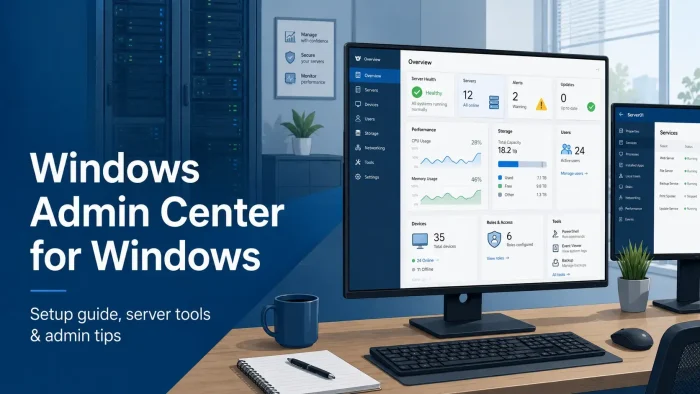
Windows Admin Center is a free Microsoft management tool for Windows Server and Windows PCs, available from the Microsoft Evaluation Center. It runs in a browser and gives admins one place to manage servers, clusters, updates, roles, storage, events, services, firewall rules, certificates, Hyper-V, and more.
The main reason to use it is simple: it puts many old admin consoles into one modern web console. You can manage servers from a browser without giving up local control of your environment. That makes it useful for small IT teams, lab admins, and server admins who still need a clear GUI.
You can install it on Windows 10 or Windows 11 as a local client, or on Windows Server as a gateway for multiple admins. Microsoft supports Edge and Chrome for the browser experience, and the tool works best with current Windows Server versions.
Already managing servers? Use this guide to choose the right install type, avoid common setup problems, and decide where Windows Admin Center fits next to Server Manager, PowerShell, Azure Arc, Remote Desktop, and Intune.
What You Need to Know
- Windows Admin Center is free from Microsoft, but you still need valid Windows licenses.
- Use a local client install on Windows 10 or Windows 11 for testing, labs, or one-admin setups.
- Use a gateway install on Windows Server when multiple admins need browser access.
- Do not install it on a domain controller. Microsoft does not support that setup.
- Use a trusted TLS certificate for production. A self-signed certificate is fine for testing.
- Edge and Chrome are the supported browsers on Windows 10 and Windows 11.
Price
No extra cost
Developer
Microsoft
Install On
Windows 10/11, Server
Best For
Windows Server admins
Who Should Use Windows Admin Center?
Windows Admin Center is for people who manage Windows infrastructure, not casual PC users. It is useful when you need a browser-based console for servers, clusters, Hyper-V, storage, firewall rules, roles, services, users, updates, certificates, and related tasks.
- Use it if: you manage Windows Server, Server Core, Hyper-V, failover clusters, Azure Local, or several Windows PCs from one admin workstation.
- Skip it if: you only use one personal Windows laptop and never manage servers, roles, remote PCs, or infrastructure.
- Be careful if: you plan to expose the gateway beyond a trusted network. Use proper certificates, firewall rules, and access controls before production use.
How to Download and Install Windows Admin Center
Start with Microsoft’s official download page. Avoid third-party mirrors. Windows Admin Center is an admin tool, so the download source matters more than convenience.
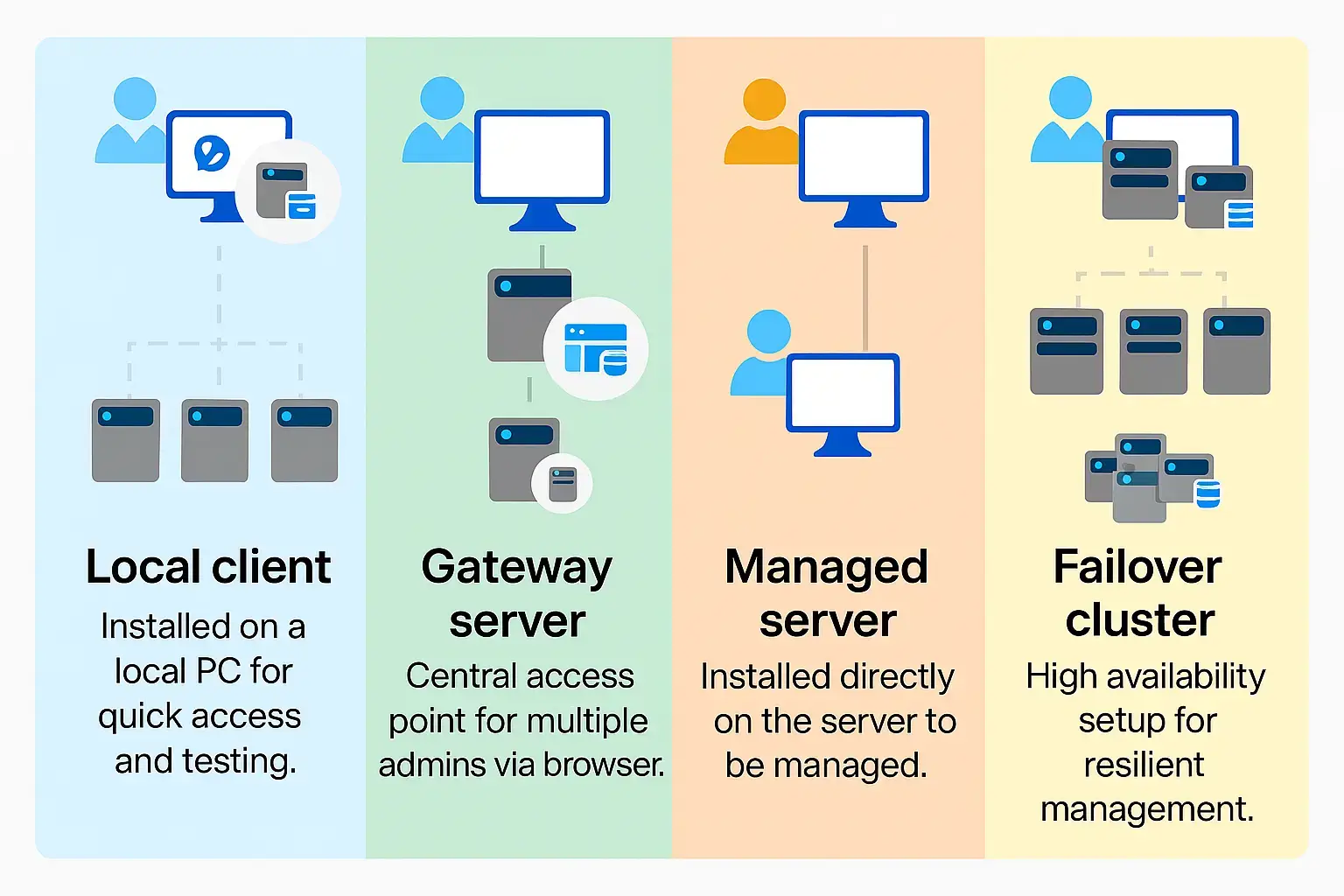
Choose the right install type
- Local client: install on Windows 10 or Windows 11 for quick testing, lab work, or one-admin use.
- Gateway server: install on a dedicated Windows Server so multiple admins can access Windows Admin Center from a browser.
- Managed server: install directly on a server when that server needs its own remote management endpoint.
- Failover cluster: use a clustered gateway when high availability is required.
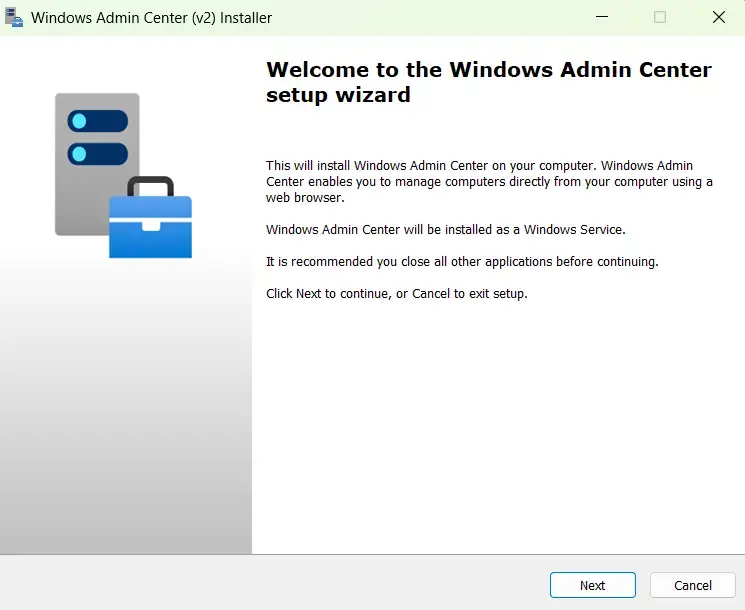
- Step 1. Open the official Microsoft Windows Admin Center download page.
- Step 2. Download the Windows Admin Center installer to the Windows PC or Windows Server where you want to install it.
- Step 3. Run the installer as an administrator.
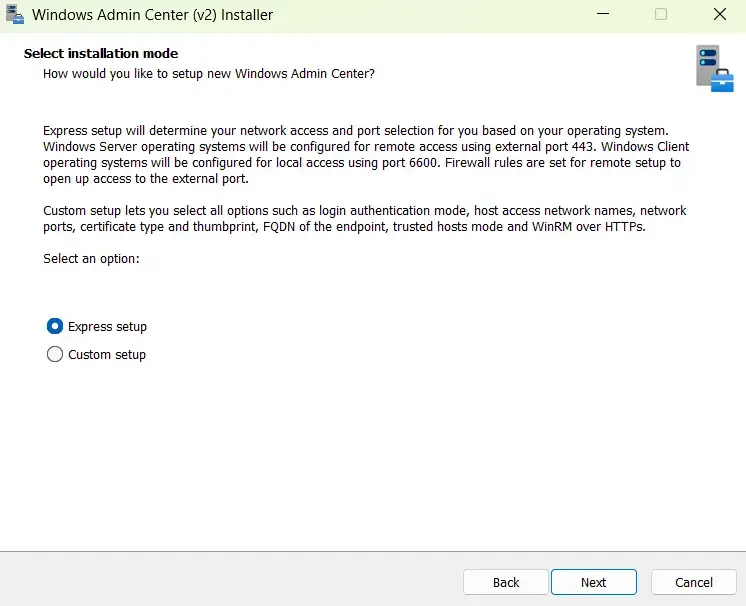
- Step 4. Accept the license terms and privacy statement, then choose Express setup or Custom setup.
- Step 5. Use Express setup for a simple local or lab install. Use Custom setup when you need to choose network access, ports, TLS certificate options, trusted hosts, or WinRM over HTTPS.
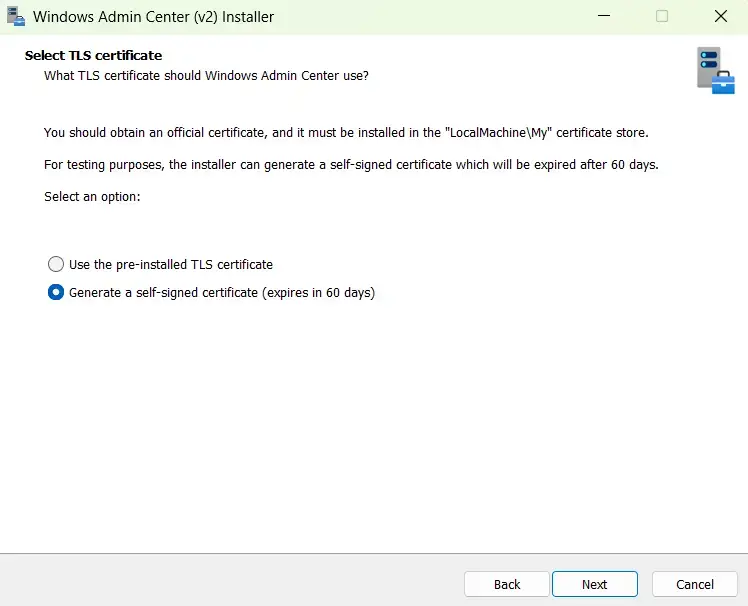
- Step 6. Select a TLS certificate. For testing, the installer can create a self-signed certificate. For production, use a certificate from a trusted certificate authority.
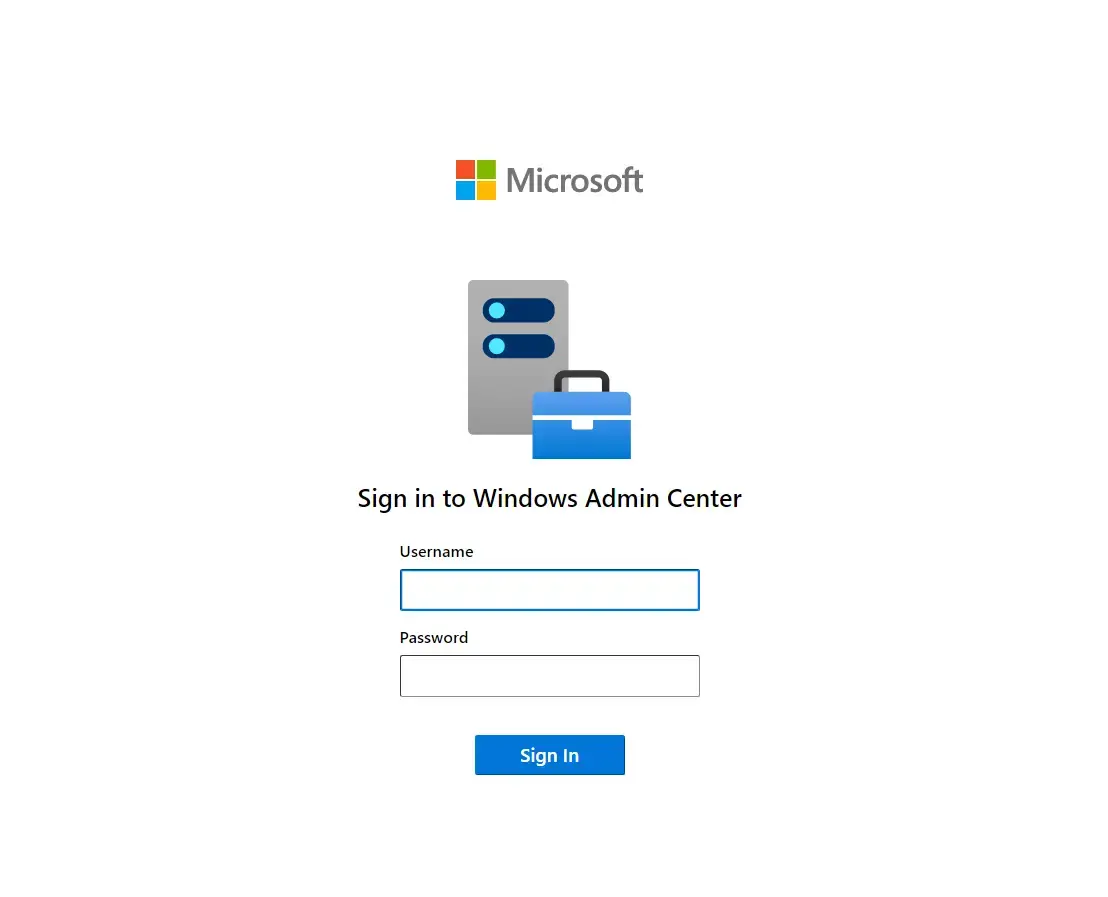
- Step 7. Finish setup, open Windows Admin Center in Edge or Chrome, and sign in with administrator credentials.
Server Core install note
Microsoft also documents a PowerShell install path for Server Core. Download the installer with Start-BitsTransfer, run it silently, then start the Windows Admin Center service if needed. This is useful when there is no desktop shell.
Is Windows Admin Center Safe?
Windows Admin Center is an official Microsoft tool. It is locally deployed, runs through a browser, and uses administrator permissions to manage Windows systems. It does not require you to move server management into the cloud.
The important caveat is permissions. Windows Admin Center can restart servers, change firewall rules, install roles, modify services, manage certificates, run PowerShell, and control Hyper-V resources. Treat access to the gateway like access to a powerful admin console.
What Is Windows Admin Center?
Windows Admin Center is Microsoft’s browser-based management console for Windows Server and Windows PCs. It is the modern replacement for many older admin experiences, including parts of Server Manager and Microsoft Management Console tools.
It runs through a gateway service. Your browser talks to the gateway, and the gateway manages target machines using Remote PowerShell and WMI over WinRM. In plain terms, that means Windows Admin Center gives you a web interface for tasks that would otherwise be spread across several consoles and command-line tools.
It works especially well for Windows Server environments that still need local control. You can manage servers on private networks without connecting them to the cloud, while still using Azure features when they make sense.
Key Features
Server Dashboard
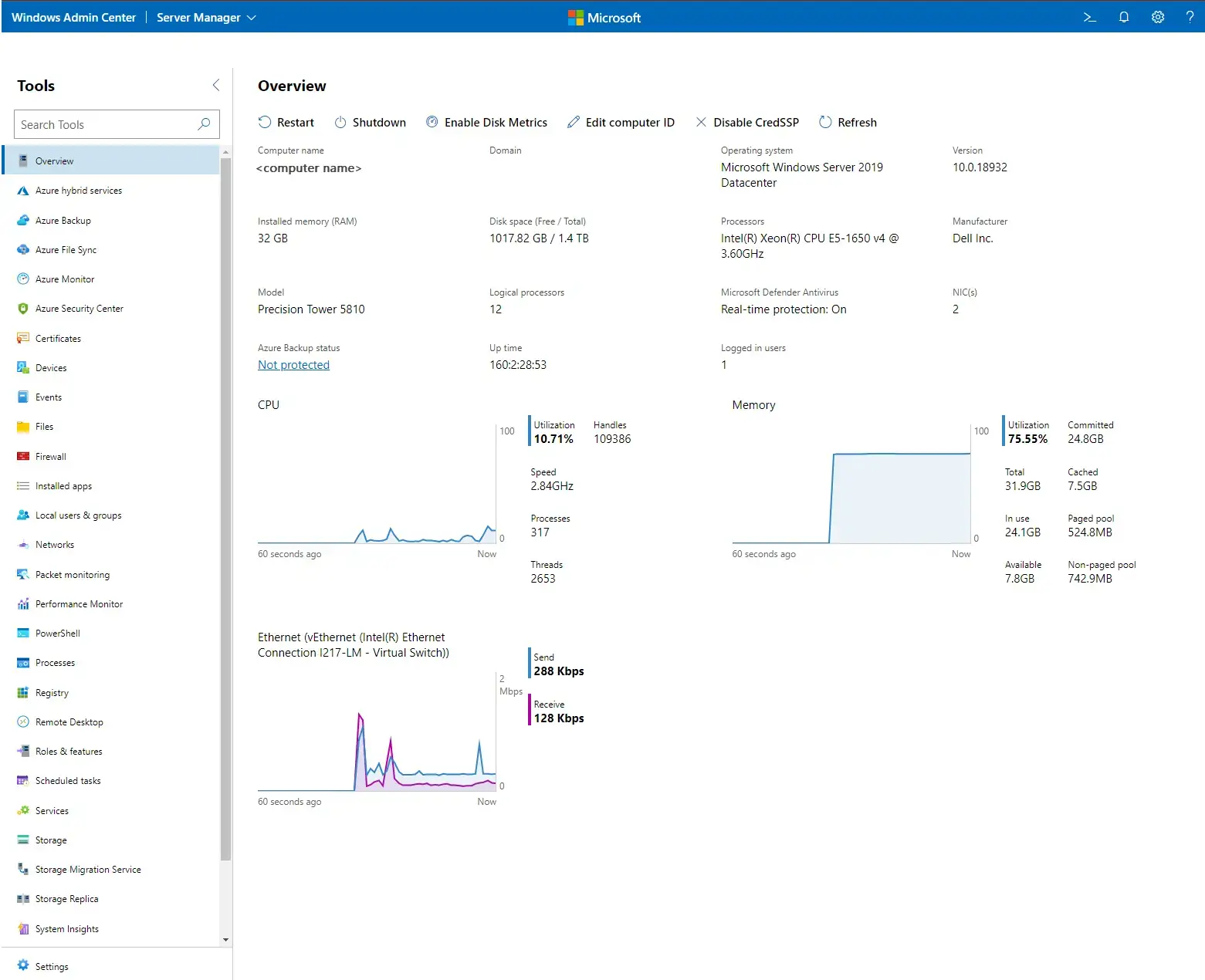
View CPU, memory, network activity, server details, and common server actions from one overview page.
Roles and Features
View installed roles, add new roles, remove features, and check server configuration without opening Server Manager.
Events and Services
Search event logs, clear logs, inspect services, start services, stop services, restart services, and check service details.
Storage and Files
Browse files, manage shares, view disks, create volumes, resize volumes, and handle common storage tasks.
Hyper-V Management
Manage virtual machines and virtual switches when the Hyper-V role is available on the target server or cluster.
Azure Hybrid Options
Connect supported workloads to Azure services such as Azure Backup, Azure File Sync, Azure Monitor, and Azure Arc when your environment needs them.
What You Can Manage With It
| Area | What Windows Admin Center can help with |
|---|---|
| Servers and PCs | Server overview, performance, processes, devices, installed apps, settings, and basic system actions. |
| Identity and access | Local users and groups, Active Directory extension features, credentials, access control, and role-based access where configured. |
| Security | Certificates, firewall rules, Windows security settings, Microsoft Defender for Cloud integration, and update status. |
| Infrastructure roles | Roles and features, DNS, DHCP, scheduled tasks, services, event logs, files, registry, and PowerShell. |
| Storage and migration | Disks, volumes, shares, Storage Migration Service, Storage Replica, and file server tasks. |
| Virtualization | Hyper-V virtual machines, virtual switches, failover clusters, hyper-converged infrastructure, and Azure Local tools where supported. |
System Requirements and Supported Browsers
Microsoft supports Windows Admin Center on current Windows client and Windows Server releases. The exact setup depends on whether you want a local client install or a shared gateway.
| Requirement | Current Microsoft guidance |
|---|---|
| Local client install | Windows 11 or Windows 10. |
| Gateway server install | Windows Server Semi-Annual Channel, Windows Server 2025, 2022, 2019, or 2016. |
| Managed server install | Supported on Windows Server Semi-Annual Channel, Windows Server 2025, 2022, 2019, or 2016. |
| Failover cluster install | Supported on the same Windows Server versions when high availability is needed. |
| Supported browsers | Microsoft Edge and Google Chrome on Windows 10 and Windows 11. |
| Production certificate | Use a trusted TLS certificate. Use the installer’s self-signed certificate only for testing. |
Common Issues and Fixes
The browser cannot reach Windows Admin Center
Check that the Windows Admin Center app or service is running, use Edge or Chrome, confirm the correct gateway URL and port, and test the network path to the gateway.
Certificate warnings or authorization errors
On first launch, select the Windows Admin Center client certificate when prompted. For production, replace self-signed test certificates with a trusted certificate that matches the gateway name.
WinRM errors when connecting to a server
Make sure WinRM is running on both the gateway and target server. In workgroup setups, confirm trusted hosts and allow WinRM traffic through the firewall.
Remote Desktop, Events, or PowerShell tools fail
These tools need web socket support. Proxy servers and firewalls can block that traffic, so test from a direct browser session before assuming the server is broken.
Port conflicts after uninstall or reinstall
If another service cannot use the same port after Windows Admin Center was removed, Microsoft documents cleanup steps for old SSL certificate and URL reservations.
Windows Admin Center vs Alternatives
| Tool | Use it for | Where Windows Admin Center fits |
|---|---|---|
| Server Manager | Traditional server roles and local admin tasks. | Windows Admin Center gives a newer browser interface for many of those tasks. |
| Remote Desktop | Full desktop access to a server. | Windows Admin Center handles many admin jobs without opening a full remote desktop session. |
| PowerShell | Automation, repeatable tasks, deep scripting, and advanced control. | Windows Admin Center is better for visual checks and common tasks, but PowerShell still wins for automation. |
| Azure Arc | Bringing servers into Azure for inventory, policy, monitoring, and hybrid management. | Windows Admin Center can help with local management and Azure hybrid onboarding, but it is not a full Azure Arc replacement. |
| Microsoft Intune | Cloud device management, policies, apps, compliance, and endpoint management. | Windows Admin Center is for server and local infrastructure management, not cloud-first device management. |
Official Video
Watch this Windows Admin Center video to see the browser console, server management flow, and setup experience in action.
Shortcut Preview
Windows Admin Center is mostly a browser-based console, so there is no strong product-specific shortcut list worth forcing. These practical shortcuts are still useful while working in it:
- Ctrl + L: jump to the browser address bar when switching between gateway URLs.
- Ctrl + R: refresh the page after a service restart or credential change.
- Ctrl + F: search within a long settings or documentation page.
- Alt + Tab: move between Windows Admin Center, PowerShell, Event Viewer, and browser tabs during troubleshooting.
- Win + X: open the Windows power user menu when you need Terminal, Device Manager, or Computer Management locally.
Tips for Getting Started
Start with a local client install
If you are new to Windows Admin Center, test it from a Windows 10 or Windows 11 admin PC before building a shared gateway.
Use a dedicated gateway for teams
For shared use, install it on a server that is meant to be a management gateway. Avoid mixing it into domain controller duties.
Fix certificates early
Self-signed certificates are fine in a lab, but they create trust warnings. Use a trusted certificate before rolling it out to other admins.
Check WinRM before blaming the console
Many connection problems are really WinRM, firewall, credential, or trusted hosts problems. Test remote PowerShell if a server refuses to connect.
Keep PowerShell nearby
Windows Admin Center is great for visual work, but serious admin work still needs PowerShell for repeatable changes and deeper troubleshooting.
Screenshots
These screenshots show the Windows Admin Center installer, setup mode screen, TLS certificate screen, sign-in page, install options diagram, and server overview dashboard.
Frequently Asked Questions
Is Windows Admin Center free?
Yes. Windows Admin Center has no extra cost beyond Windows. You still need valid Windows client or Windows Server licenses for the machines you manage.
Does Windows Admin Center replace Server Manager?
Not completely. Windows Admin Center replaces many day-to-day Server Manager and MMC tasks, but Microsoft still treats it as a complement to tools such as RSAT, System Center, Intune, Azure Arc, and PowerShell.
Can I install Windows Admin Center on Windows 11?
Yes. Microsoft supports Windows Admin Center as a local client install on Windows 11 and Windows 10. This is useful for testing, small environments, and admin PCs that can reach the servers you manage.
Which browsers support Windows Admin Center?
Microsoft tests and supports Windows Admin Center in Microsoft Edge and Google Chrome on Windows 10 and Windows 11. Other browsers may work, but they are not officially supported.
Can Windows Admin Center manage older Windows Server versions?
Windows Admin Center is optimized for Windows Server 2025 and fully supports Windows Server 2016 and newer. Microsoft notes limited functionality for Windows Server 2012, and older versions are not a good target for a new setup.
Should I install Windows Admin Center on a domain controller?
No. Microsoft says installing Windows Admin Center on a domain controller is not supported. Use a separate Windows Server gateway or an admin PC instead.
Does Windows Admin Center need the cloud?
No. Windows Admin Center is locally deployed and can manage servers on private networks without a cloud connection. Some Azure features, such as Azure Arc or Azure Backup integration, only work if you connect those services.
Support and Community
For official guidance, use Microsoft Learn and the Windows Admin Center release history. For peer discussion, r/sysadmin is usually more useful than a generic Windows forum because this tool is aimed at admins.
- Microsoft Learn Windows Admin Center docs – overview, planning, install, configuration, and usage documentation
- Windows Admin Center release history – current release notes and platform changes
- r/sysadmin on Reddit – peer discussion from Windows and infrastructure admins
More Windows server guides: Windows Server 2025 Download · Windows Server 2025 Cheat Sheet · Install Azure PowerShell on Windows · Azure Data Studio for Windows · Remote Desktop Apps for Windows
Discover more from Windows Mode
Subscribe to get the latest posts sent to your email.















Add your first comment to this post