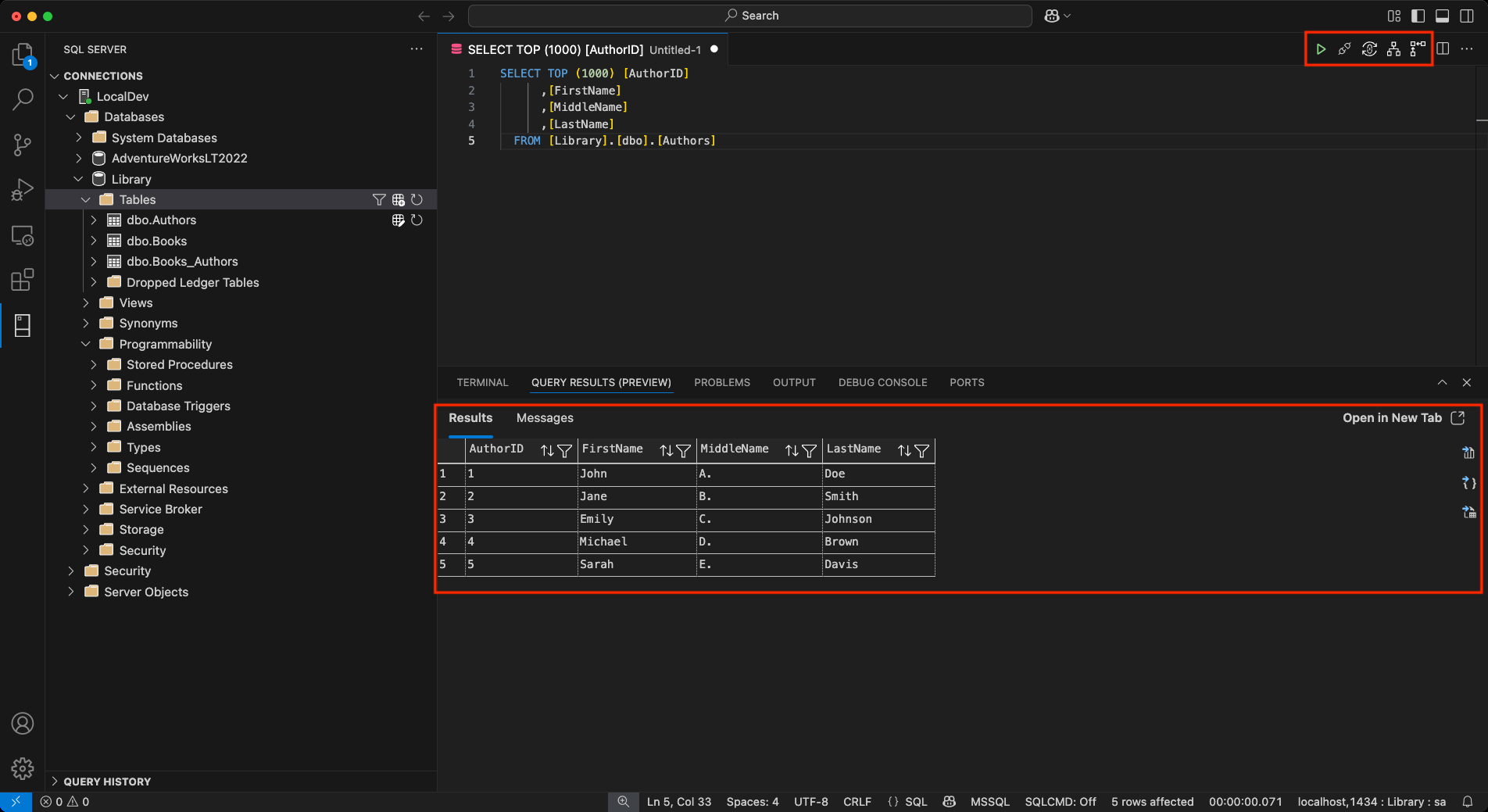
VS Code with the MSSQL extension, Microsoft’s replacement for Azure Data Studio. Image from Microsoft Learn.
Azure Data Studio, Microsoft’s free database tool for Windows, was retired on February 28, 2026. It gets no more updates or security fixes, so Microsoft now points everyone to two other free tools.
For writing queries and building apps, the replacement is Visual Studio Code with the MSSQL extension. Your queries, scripts and database projects open there without any conversion. For server administration, such as SQL Server Agent jobs, Microsoft sends you to SQL Server Management Studio (SSMS).
Both are free. VS Code runs on Windows 10 and 11, while the current SSMS needs Windows 11 or Windows Server.
Below: what the retirement means, where every Azure Data Studio feature went, how to switch step by step, and which tool to pick. Stuck mid-move? Reach out to us directly.
What Happened to Azure Data Studio?
Microsoft retired Azure Data Studio to put its work into fewer tools. Its features moved into the MSSQL extension for Visual Studio Code, and full server administration stays in SSMS.
Azure Data Studio was itself built on the VS Code editor, so the move is smaller than it sounds. The editor, IntelliSense (code suggestions as you type), Git and the integrated terminal all work the same way in VS Code.
On the retirement date Microsoft also archived the Azure Data Studio GitHub project, which means it is read-only. The last build is still listed there, but nobody will fix new bugs or security holes in it.
Can I keep using Azure Data Studio?
If it is already installed, it still opens. But an unpatched tool that holds database passwords is a risk, and it will fall further behind new SQL Server and Azure SQL features. Do not install it on new PCs, and plan your move now. Microsoft’s own notes are on its Azure Data Studio retirement page.
Where Each Azure Data Studio Feature Went
Microsoft published a replacement for every Azure Data Studio feature. Here is the full map in plain terms.
Using MySQL? Microsoft has not named a VS Code replacement for the Azure Data Studio MySQL extension. Until it does, a general database tool or MySQL’s own MySQL Workbench is the practical stopgap.
VS Code with the MSSQL Extension
The MSSQL extension is free and made by Microsoft. It works with SQL Server, Azure SQL Database, Azure SQL Managed Instance and SQL database in Microsoft Fabric, on Windows 10 and 11 (including Arm PCs). If you spent your day writing queries in Azure Data Studio, this is your new home.
Connection dialog
Connect with a server name and login, paste a full connection string, or browse the databases in your Azure account. Saved and recent connections sit on the right, and you can group them in color-coded folders.
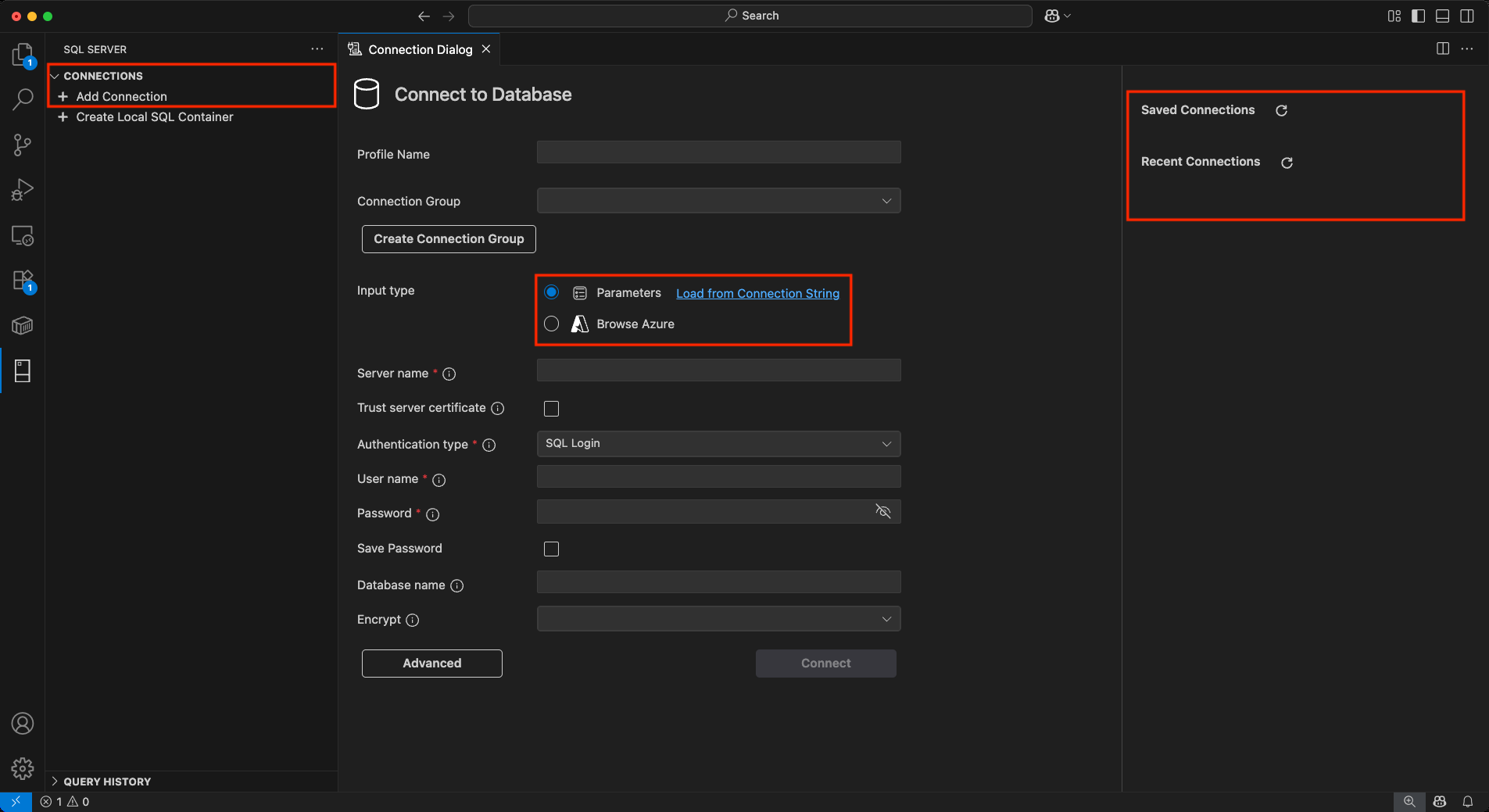
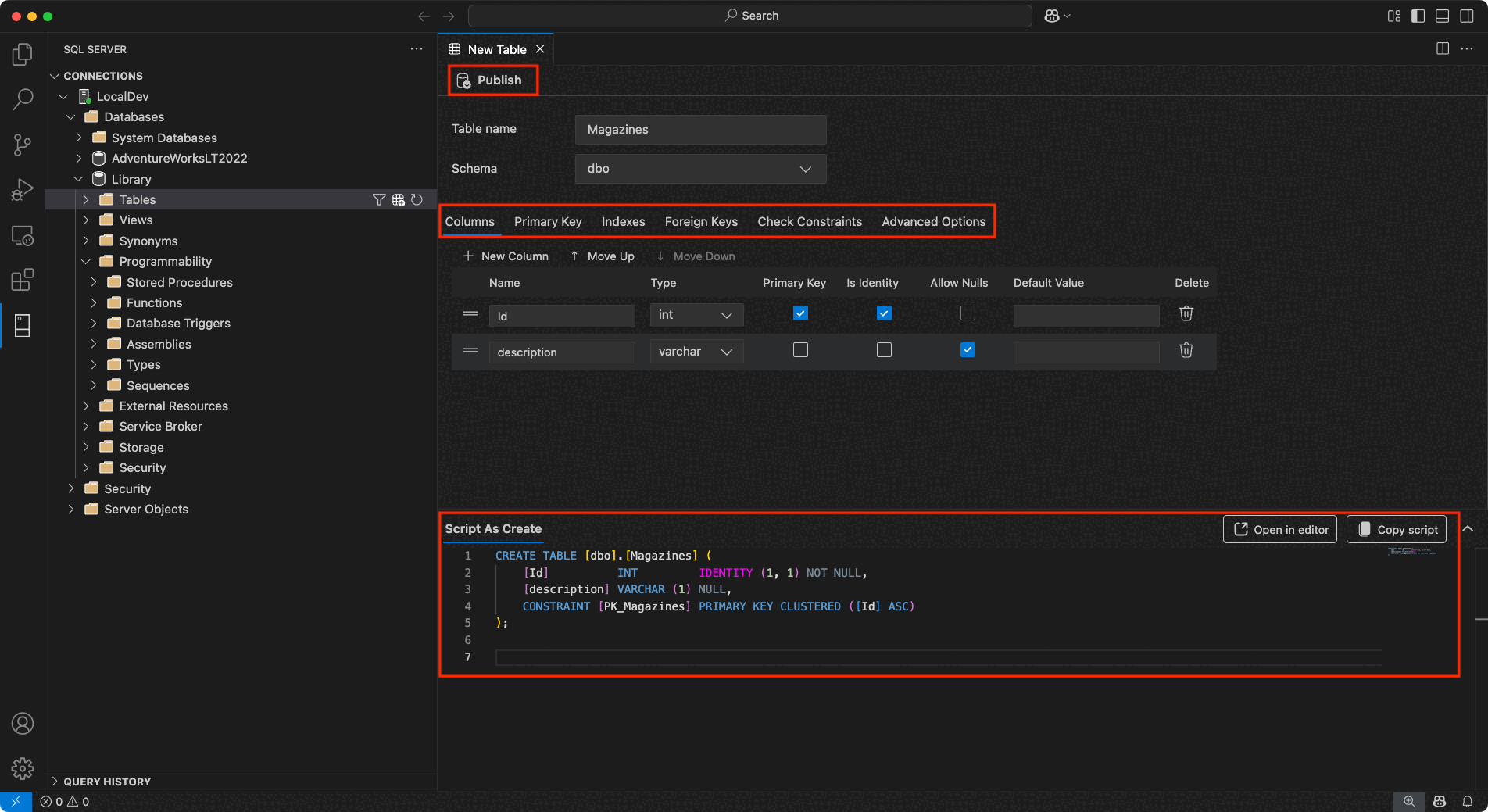
Table designer
Right-click a table and choose Modify Table Structure to edit columns, keys, indexes and constraints in a form.
The designer writes the CREATE TABLE script for you as you go. Publish it straight to the database, or copy the script and run it yourself.
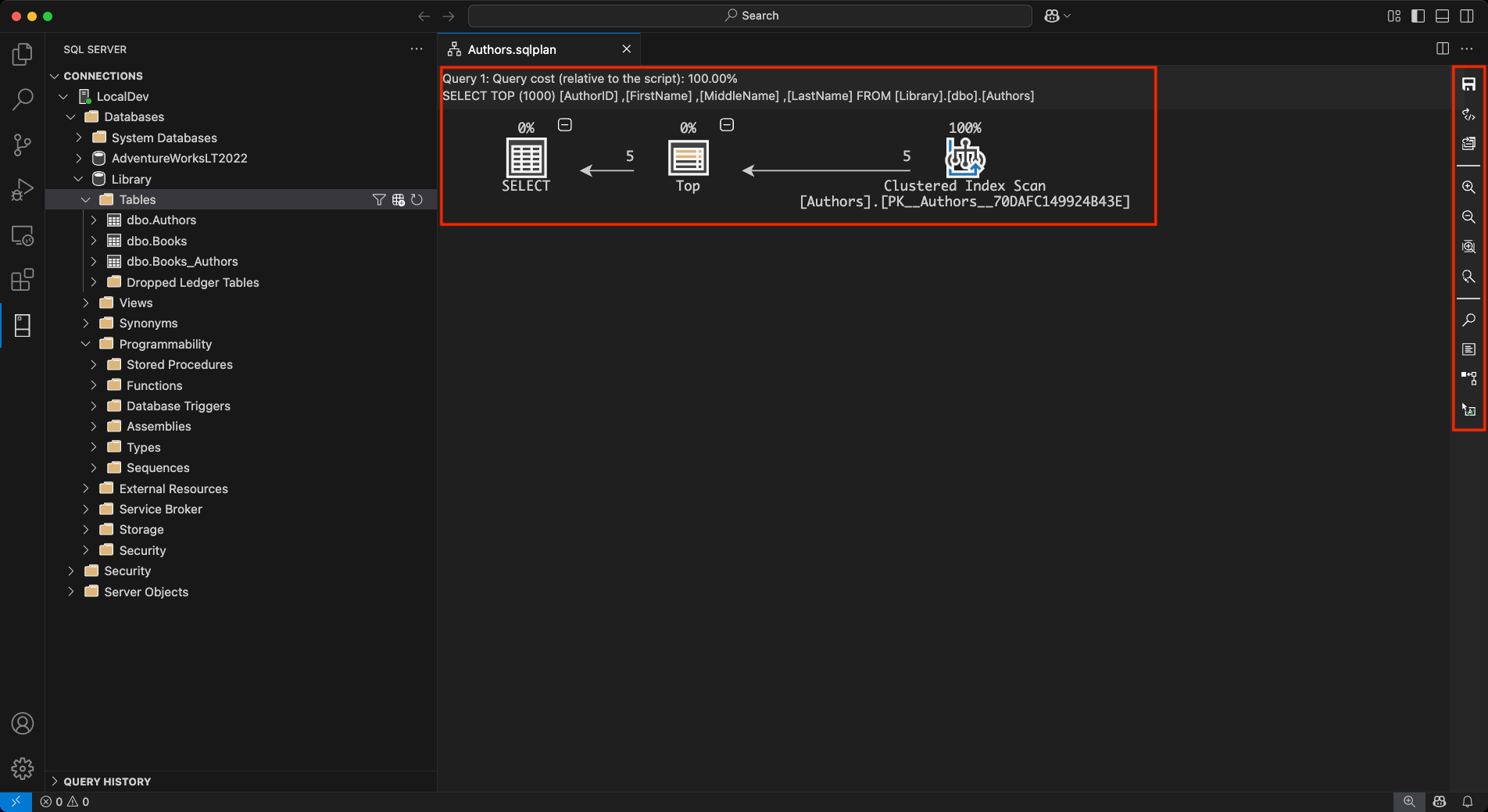
Query plan visualizer
See how SQL Server runs a query, step by step, with the cost of each step. Sort by elapsed time or cost to find the slow part fast.
Use Estimated Plan to check a query before you run it, or Enable Actual Plan to see what really happened.
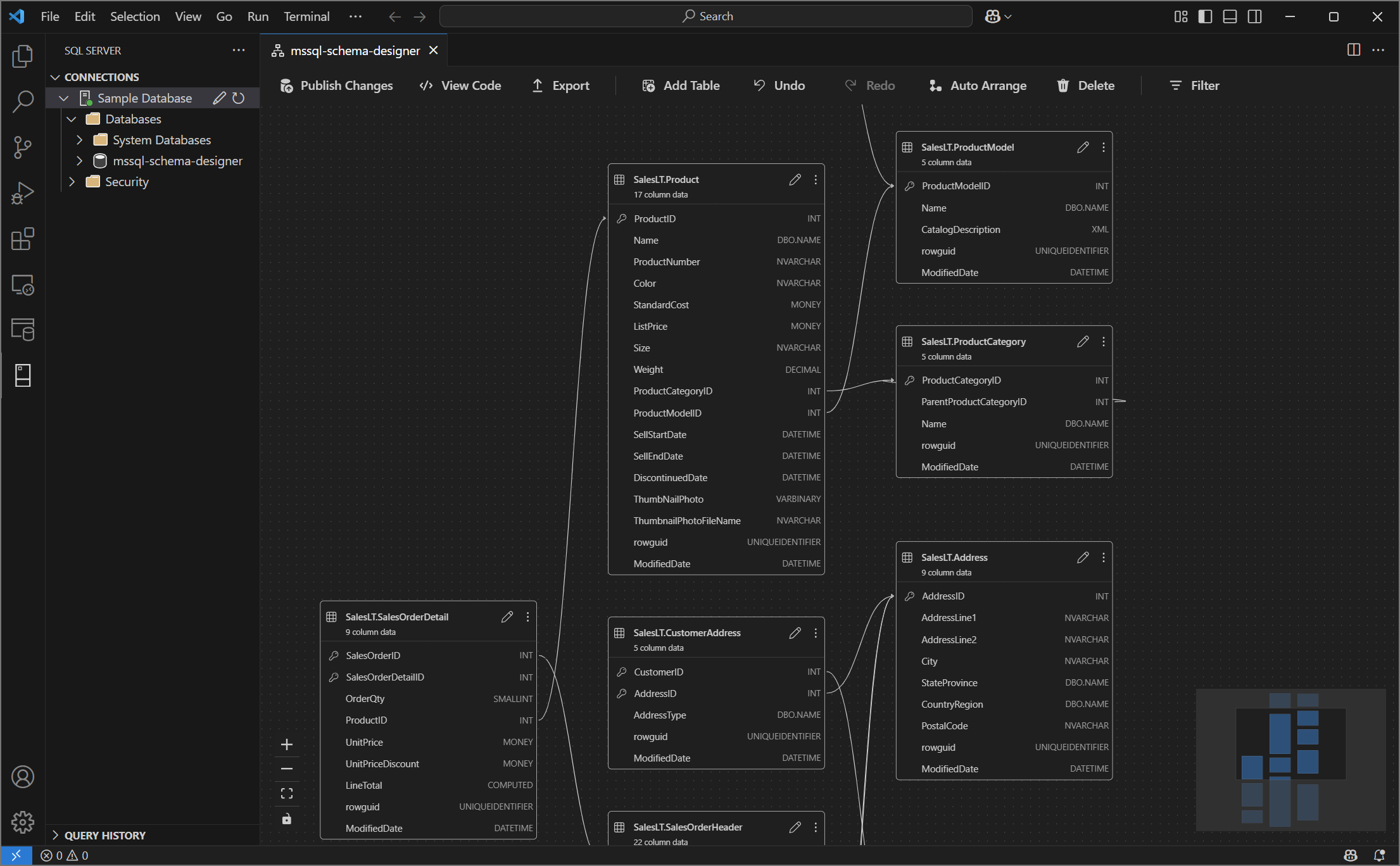
Schema designer
View a whole database as a diagram of tables and their relationships. Drag tables around, add new ones, and publish the changes.
With GitHub Copilot connected, you can describe a change in plain words and the designer drafts it for you to review.
GitHub Copilot chat
Right-click a database and choose Chat with this database to ask questions in plain words or get help writing T-SQL. Needs a GitHub account with Copilot access.
SQL notebooks
Mix runnable SQL cells with notes, saved as standard .ipynb files. Pick the MSSQL kernel and your old notebooks run against your database.
Query Profiler
Watch live database activity with Extended Events (SQL Server’s built-in event tracing), the replacement for the old Profiler extension.
Edit data in a grid
Double-click a table to change rows like a spreadsheet. Changes wait until you select Save Changes, and you can see the script first.
How to Move from Azure Data Studio to VS Code
The whole switch takes about ten minutes. Nothing in your scripts or projects needs converting.
1 Install Visual Studio Code from code.visualstudio.com, or run winget install Microsoft.VisualStudioCode in Windows Terminal.
2 Open the Extensions view with Ctrl + Shift + X.
3 Search for mssql and install SQL Server (mssql), published by Microsoft.
4 Select the SQL Server icon in the left bar, then Add Connection, and enter your server details.
5 Open your old work folder with File, then Open Folder. Your .sql files, notebooks and SQL projects open as they are.
6 Add the other extensions you need, such as the PostgreSQL or SQL Database Projects extensions, from the same Extensions view.
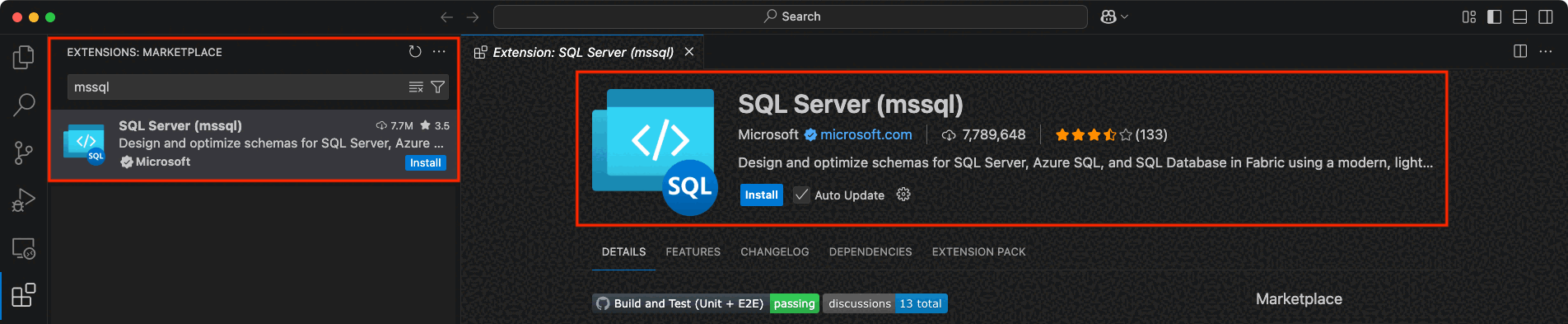
Know when it worked: a SQL Server icon appears in the left bar and the Connections view opens. Want more add-ons? See our best VS Code extensions for developers.
SQL Server Management Studio (SSMS) for Admin Work
SSMS is Microsoft’s full SQL Server admin tool, and it is free. Keep it for the jobs the MSSQL extension does not cover, above all SQL Server Agent jobs and server-level settings. It works with SQL Server 2014 and later, plus Azure SQL and SQL database in Fabric.
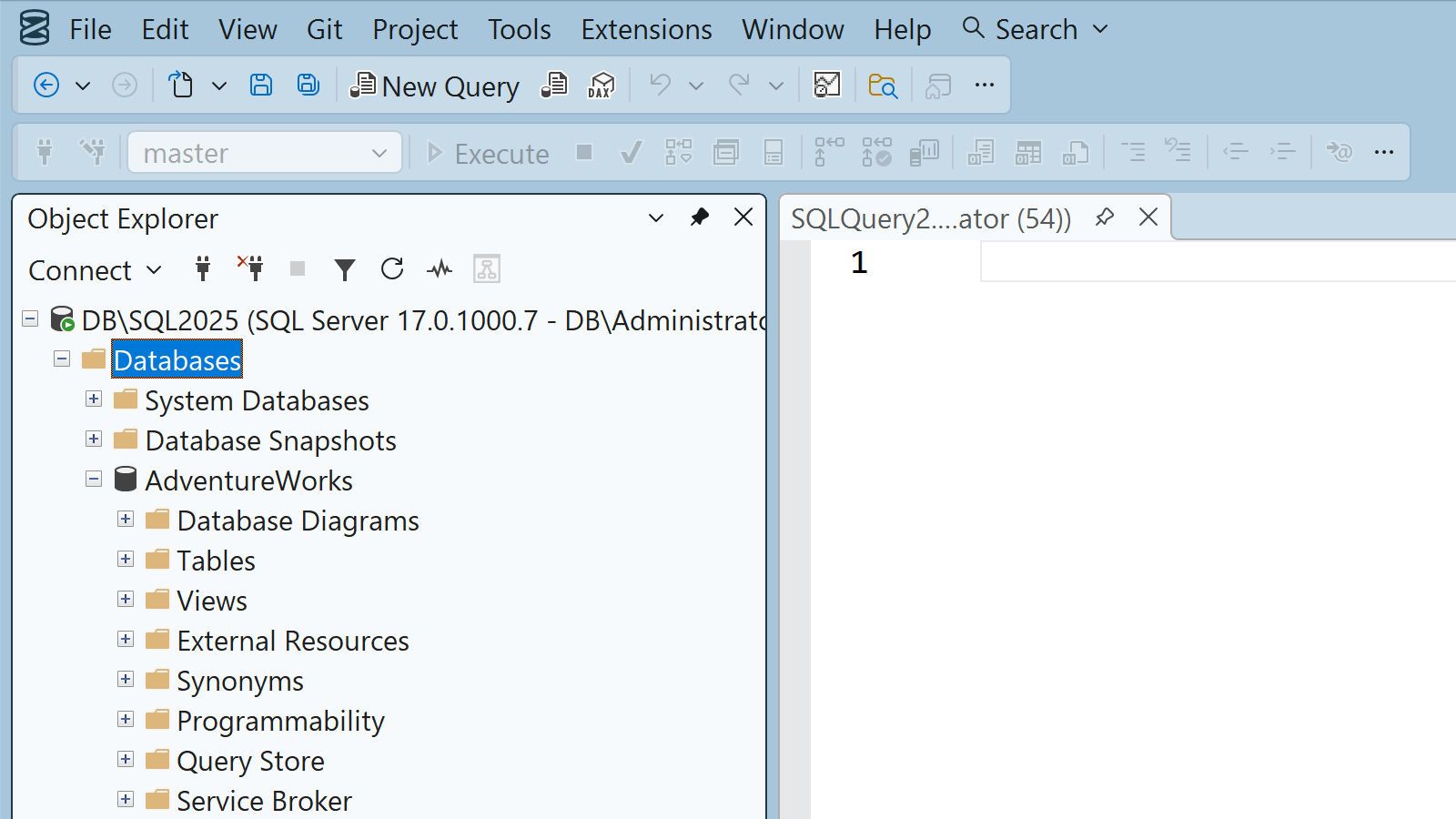
1 Download the SSMS installer (vs_SSMS.exe) from Microsoft’s SSMS install page.
2 Run it and select Yes at the User Account Control prompt. You need admin rights.
3 Pick any extra workloads in the Visual Studio Installer, or keep the defaults.
4 Select Install, then open SSMS from the Start menu when it finishes.
SSMS has GitHub Copilot too. Sign in with a GitHub account that has Copilot access to get chat, code suggestions and an agent mode that can run queries with your approval. Setting up a test server first? See our SQL Server 2025 download guide.
VS Code or SSMS: Which Should You Use?
Many people end up with both. Use VS Code for daily query work and SSMS when you need to manage the server itself.
Pick VS Code if
You mostly write and test queries, you build apps, you work on a Mac or Linux machine too, or your PC still runs Windows 10. It feels the most like Azure Data Studio.
Pick SSMS if
You manage SQL Server for a living: Agent jobs, security, replication, high availability and server settings. Install it next to VS Code, not instead of it.
Frequently Asked Questions
Can I still download Azure Data Studio?
Will my Azure Data Studio notebooks work in VS Code?
Does the MSSQL extension work with MySQL or PostgreSQL?
Can I install SSMS on Windows 10?
Is SSMS available for Mac or Linux?
Do I need to pay for GitHub Copilot to use the MSSQL extension?
Support and Community
- What’s happening with Azure Data Studio, Microsoft’s official retirement and migration guide.
- MSSQL extension documentation on Microsoft Learn, with a guide for every feature.
- MSSQL extension on GitHub, to report bugs or request features from Microsoft’s team.
- SSMS documentation on Microsoft Learn, including release notes and Copilot setup.
- r/SQLServer on Reddit, a large community of SQL Server admins and developers.
More Windows software guides: What Is Microsoft Azure? · SQL Server 2025 · Azure PowerShell · Best VS Code Extensions · AI Coding Extensions for VS Code · Visual Studio 2022
Discover more from Windows Mode
Subscribe to get the latest posts sent to your email.
















Add your first comment to this post