Three steps to the Azure CLI on Windows: install it, sign in with az login, and run your first commands.
The Azure CLI is Microsoft’s free command-line tool for managing Azure, and you can install it on Windows with one winget command or a regular installer from Microsoft Learn. You type short commands that start with az, and Azure creates, lists, changes or deletes things for you.
Anything you can click in the Azure portal, you can also type. A command you type once can be saved, repeated and shared, which a series of clicks cannot. That is why admins and developers reach for it as soon as a task repeats.
It runs in PowerShell, Command Prompt and Windows Terminal on Windows 10 and Windows 11, and it brings its own copy of Python, so there is nothing else to install.
Below: three ways to install it, how to sign in, your first commands, and fixes for the errors beginners hit most. Stuck on a step? Reach out to us directly.
What Is the Azure CLI?
CLI stands for command-line interface: a program you control by typing instead of clicking. The Azure CLI gives you one command, az, followed by the service you want and what to do with it. For example, az vm list lists your virtual machines.
Behind the scenes, every command talks to Azure Resource Manager (the service that handles every create, change and delete in Azure), the same one the portal uses. So a resource made from the command line shows up in the portal right away, and the other way round.
The tool itself is free and open source. You only pay for the Azure resources you create with it, at the same price as creating them in the portal.
New to Azure? Our beginner’s guide to Microsoft Azure explains subscriptions, resource groups and the portal in plain words. Read it first if those terms are new.
How to Install the Azure CLI on Windows
Pick one method. Winget is the quickest, the MSI suits people who prefer a normal installer, and Cloud Shell needs no install at all.
Option 1: winget (recommended)
Winget is the Windows Package Manager, a tool built into Windows 11 and modern versions of Windows 10. It installs the 64-bit Azure CLI on a 64-bit PC and makes later updates one command.
1 Open Windows Terminal or PowerShell. Right-click the Start button and choose Terminal.
2 Run the install command shown below and wait for it to finish.
3 Close the terminal and open a new one. The az command only works in windows opened after the install.
winget install --exact --id Microsoft.AzureCLIWhy –exact? It makes sure winget installs the official Microsoft package and not a lookalike with a similar name.
Option 2: the MSI installer
Download and double-click
Get the 64-bit MSI from the Azure CLI install page on Microsoft Learn, run it, and select Yes when Windows asks for permission. Running a newer MSI later updates your existing install, so there is no need to uninstall first.
Prefer a script?
Microsoft also gives a PowerShell snippet that downloads the MSI and installs it silently. Run PowerShell as administrator and use the 64-bit link, aka.ms/installazurecliwindowsx64, since the older aka.ms/installazurecliwindows link gets the 32-bit build.
$ProgressPreference = 'SilentlyContinue'
Invoke-WebRequest -Uri https://aka.ms/installazurecliwindowsx64 -OutFile .\AzureCLI.msi
Start-Process msiexec.exe -Wait -ArgumentList '/I', 'AzureCLI.msi', '/quiet'
Remove-Item .\AzureCLI.msi
Option 3: no install, with Azure Cloud Shell
Azure Cloud Shell is a terminal that runs in your browser with the Azure CLI already installed and signed in. Open it from the shell icon at the top of the Azure portal or at shell.azure.com, and pick Bash or PowerShell.
The machine behind Cloud Shell is free. Choose No storage account required for a quick session that keeps nothing, or attach a storage account (normal storage charges apply) if you want your files to stay between sessions.
Already have the 32-bit version? Microsoft recommends the 64-bit build for better speed. Installing the 64-bit MSI removes the 32-bit one, but extensions need reinstalling afterwards.
Check That the Install Worked
Open a new terminal window and run az version. If you see a short list of version numbers, the Azure CLI is installed and ready.
az version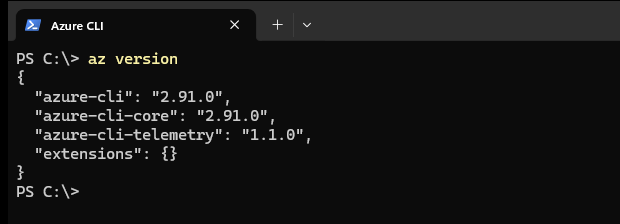
Sign In With az login
Most commands need to know who you are. Run az login and sign in with the account you use for the Azure portal.
az loginWindows sign-in window
On Windows 10 and 11, az login opens a Windows sign-in window instead of a browser tab. It uses Web Account Manager (the part of Windows that handles work and school accounts), so Windows Hello, security keys and single sign-on work.
Pick a subscription
If your account can reach more than one subscription (a billing container for Azure resources), the CLI lists them with numbers. Type a number and press Enter, or just press Enter to keep the default, marked with an asterisk.
No browser? Use a code
On a server or remote session, run az login –use-device-code. The CLI prints a code; open aka.ms/devicelogin on any device, enter the code and sign in there.
MFA is required to change anything
Azure requires multifactor authentication (a second proof of identity, such as an Authenticator app prompt) for every person who creates, changes or deletes resources from the Azure CLI. Reading works without it, but changes fail with a RequestDisallowedByPolicy error. Our guide to Azure mandatory MFA shows how to turn it on.
To see which subscription your commands will run against, or to switch to another, use these:
az account show --output table
az account list --output table
az account set --subscription "My Subscription Name"
Sign out when you are done on a shared PC: run az logout. To refresh a subscription list that looks out of date, run az account clear and sign in again.
Find Your Way Around the Azure CLI
Nobody memorizes thousands of commands. These built-in helpers find the right one for you. All of them work before you sign in.
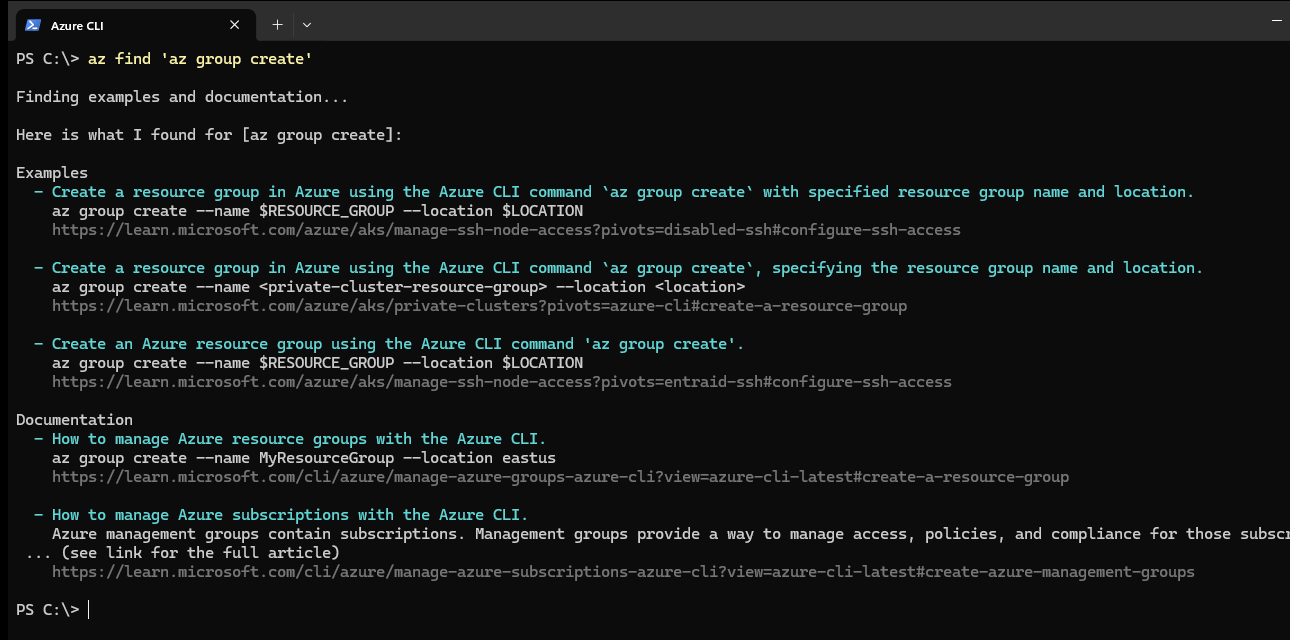
Ask az find for examples
Type az find followed by a command or a few words, and it returns real example commands with links to the matching Microsoft Learn page. It is the fastest way to go from “I want to do X” to a working command.
az find is backed by an AI service that learns from Microsoft Learn and from how people use the CLI.
Add –help to anything
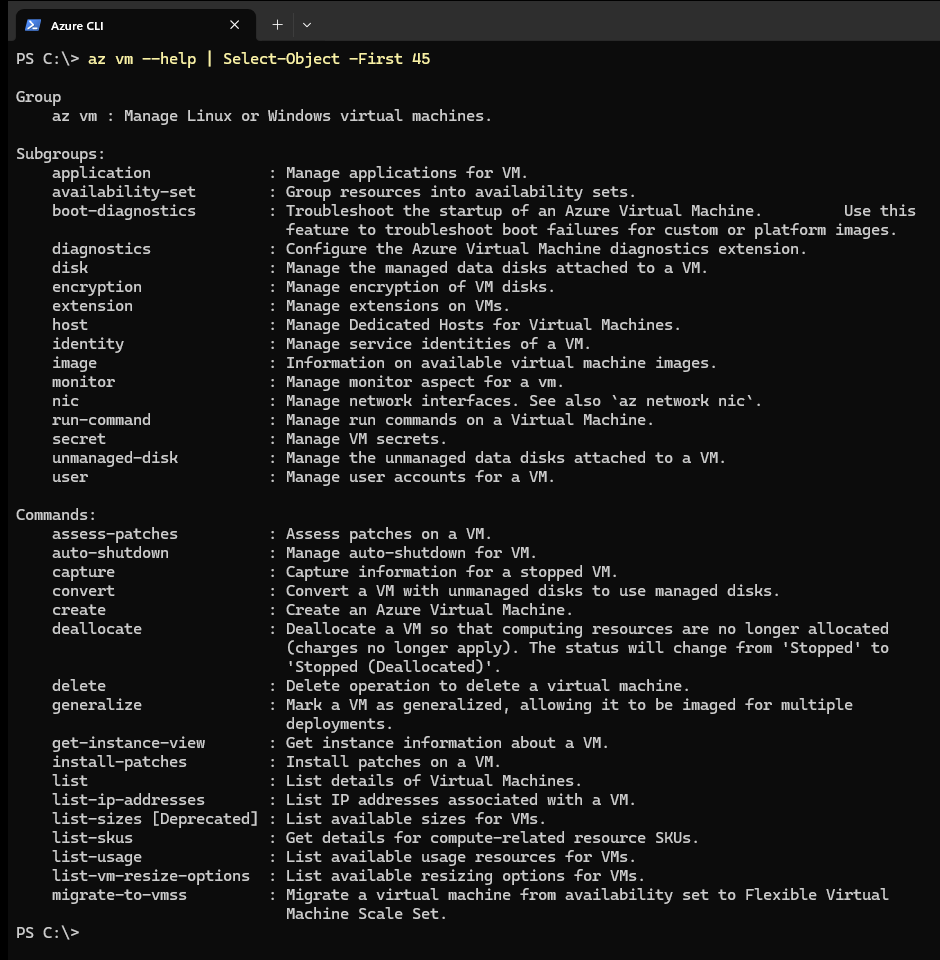
Commands are arranged in groups: az vm for virtual machines, az storage for storage, az group for resource groups. Put –help after any group or command to see what it can do and which settings it takes.
az –help lists every group, and az vm create –help shows each setting plus worked examples.
Pick a format that fits
Results come back as JSON (structured text that scripts read easily) by default. Add –output table for a tidy table you can read at a glance, or tsv for plain values to feed into another command.
The –query setting filters results with JMESPath (a small query language for JSON), so you get only the columns you need.
Add extra commands with extensions
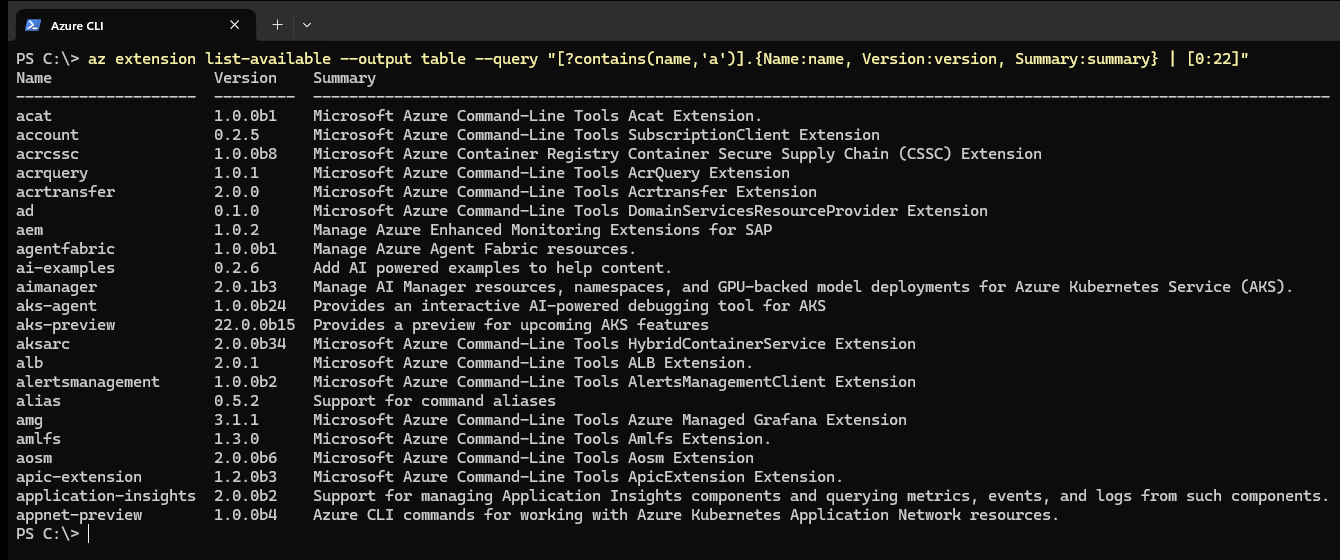
Some Azure services keep their commands in optional add-ons called extensions. You rarely install them by hand: the first time you run an extension command, the CLI offers to install it.
To browse them, run az extension list-available –output table. To add one yourself, use az extension add –name followed by its name.
Try interactive mode
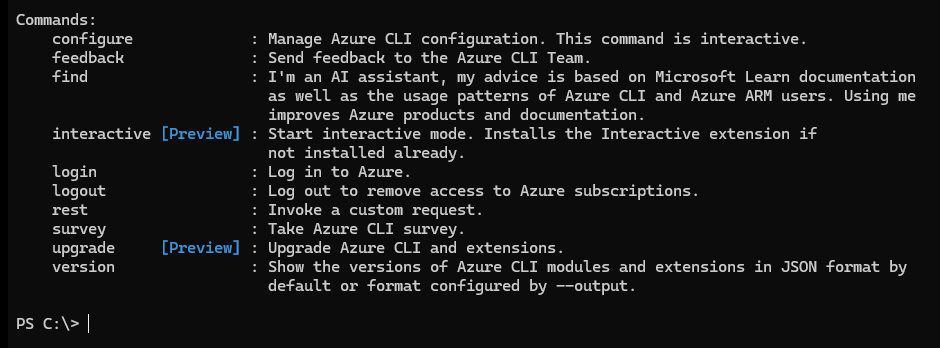
Run az interactive for a guided shell with autocomplete drop-downs, command descriptions and examples as you type. Press F1 to show or hide descriptions.
It installs as an extension the first time you run it, is marked as preview, and asks whether you agree to send telemetry (usage data) before it starts. Microsoft recommends PowerShell 7 for it on a local PC.

Want Tab to finish commands for you? Tab completion is off by default in PowerShell. Microsoft’s install guide has a short block to paste into your PowerShell profile that switches it on.
Your First Azure CLI Commands
This short run creates a resource group (a folder that holds related Azure resources), checks it, and removes it again. An empty resource group costs nothing, so it is a safe first test.
1 Create a resource group called rg-cli-test in the East US region.
2 List your resource groups as a table to see the new one.
3 Delete it when you are done. –yes skips the confirmation and –no-wait hands the prompt back straight away.
az group create --name rg-cli-test --location eastus
az group list --output table
az group delete --name rg-cli-test --yes --no-wait
See your virtual machines
List every VM in the current subscription with its resource group and region.
az vm list --output tableStop paying for an idle VM
Deallocate releases the hardware, so compute charges stop. A plain stop does not.
az vm deallocate --resource-group MyGroup --name MyVMList everything in a group
Handy before deleting a group, to see what goes with it.
az resource list --resource-group MyGroup --output tableFind a region name
Region names in commands have no spaces, like westeurope.
az account list-locations --output tableWatch the bill as you experiment. Deleting test resources when you finish is the habit that keeps a trial cheap. Our guide to reducing Azure costs covers budgets and alerts.
Azure CLI vs Azure PowerShell vs the Portal
All three manage the same Azure. The difference is how you work: clicking, short az commands, or PowerShell cmdlets that return objects.
You can install both command-line tools side by side, and many admins do. If PowerShell is already your daily tool, see our guides to installing Azure PowerShell on Windows and the Azure PowerShell commands Windows admins use most.
Keep the Azure CLI Up to Date
Microsoft releases new versions often, and older ones can fail with newer Azure features and sign-in rules. Any of these updates it:
Built-in updater
Updates the CLI and, by default, every extension you have installed.
az upgradeWith winget
Works when you installed with winget. You can also just run the latest MSI over the top.
winget upgrade --exact --id Microsoft.AzureCLIUpdate one extension
For an extension you added by name.
az extension update --name <extension-name>Installed from the ZIP? Delete the old folder and unzip the new version to the same place.
Common Azure CLI Errors and Fixes
These are the problems Microsoft’s own troubleshooting notes call out, plus the one every new user meets first.
az is not recognized
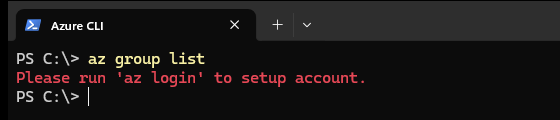
Windows cannot find the command. The usual cause is a terminal that was open during the install. Close every terminal window and open a new one. If you used the ZIP, check that its bin folder is in your PATH.
RequestDisallowedByPolicy
Your account has not passed MFA, so Azure blocks changes. Run az logout, then az login, and complete the MFA prompt. If that fails, update the CLI, since older versions handle MFA poorly.
User cancelled the Accounts Control Operation
The Windows sign-in window failed or was closed. To use the browser sign-in instead, run az account clear, then az config set core.enable_broker_on_windows=false, then az login.
The MSI will not download
A proxy is blocking it. Set your proxy under Settings, Network and internet, Proxy, and make sure it allows aka.ms and azcliprod.blob.core.windows.net.
Commands feel slow
You may still have the 32-bit build. Run az version, and if winget list shows the 32-bit package, install the 64-bit MSI, which replaces it.
Wrong subscription
Commands ran against a different subscription than you expected. Check with az account show, then switch with az account set –subscription.
Tips for Getting Started
1 Use –output table while you learn. JSON is great for scripts, but a table shows what you have at a glance.
2 Run az init once. It walks you through a setup that suits you, such as interaction or automation, and explains each choice. To skip typing the same group every time, set a default with az config set defaults.group=MyGroup.
3 Mind the quotes in PowerShell. Most Microsoft examples are written for Bash. In PowerShell, wrap values that contain spaces or special characters in quotes, and use a backtick, not a backslash, to split a long command over lines.
4 Test changes with a throwaway resource group. Create it, experiment inside it, delete the whole group when you finish.
5 Let scripts sign in as an app, not as you. Automation should use a managed identity or service principal, which do not need MFA.
Keeping an eye on what you build? Our beginner’s guide to Azure Monitor explains metrics, logs and alerts, and the az monitor commands follow the same pattern you just learned.
How to Uninstall the Azure CLI
1 Open Settings, then Apps, then Installed apps. On Windows 10 it is Settings, Apps, Apps and features.
2 Search for Azure CLI. It may be listed as Microsoft Azure CLI or Microsoft CLI 2.0 for Azure.
3 Select it, then Uninstall. Or run winget uninstall --exact --id Microsoft.AzureCLI.
4 Remove leftover data if you are not coming back. Delete the .azure folder in your user folder, which holds your sign-in tokens and extensions.
Frequently Asked Questions
Do I need Python to use the Azure CLI on Windows?
Can I use the Azure CLI without an Azure subscription?
Can I install the Azure CLI without admin rights?
Can I use the Azure CLI in Bash on Windows?
How do I turn off Azure CLI telemetry?
Support and Community
- Azure CLI documentation on Microsoft Learn, with the full command reference and how-to guides.
- Azure CLI on GitHub, the open-source project from Microsoft, with release notes and the place to report bugs.
- Microsoft Q&A for Azure, where Microsoft engineers and other users answer questions.
- r/AZURE on Reddit, a large community for Azure questions and tips.
More Windows software guides: What Is Microsoft Azure? · Azure PowerShell · Azure PowerShell Commands · Azure Mandatory MFA · Azure Monitor · Reducing Azure Costs
Discover more from Windows Mode
Subscribe to get the latest posts sent to your email.
















Add your first comment to this post