Azure checks a second proof of identity through Microsoft Entra ID before it lets you change anything. Screenshot from microsoft.com.
Microsoft Azure requires multifactor authentication (MFA) for every person who manages Azure resources, whether they use the Azure portal, Azure CLI, Azure PowerShell or the REST API. A password alone is no longer enough to create, change or delete anything.
Microsoft rolled the rule out in two phases, starting with the portals and then moving to command-line and code tools. There is no opt-out, and test tenants and break-glass accounts are included. Apps and scripts that sign in as a managed identity or service principal are not affected.
The rule applies in the public Azure cloud. Azure for US Government and other sovereign clouds are not enforced.
Below: what each phase covers, who has to comply, the errors you will see without MFA, and three ways to turn it on. Questions? Reach out to us directly.
What Is Azure Mandatory MFA?
Mandatory MFA means Azure asks for a second proof that it is really you, such as a tap in the Microsoft Authenticator app, a passkey or a security key, before you can manage resources. Your password is the first proof, and the second one stops an attacker who has stolen it.
Microsoft enforces this on its side, through Microsoft Entra ID (the sign-in service behind Azure, formerly Azure Active Directory). It is part of Microsoft’s Secure Future Initiative, and Microsoft’s own research says MFA blocks more than 99.2% of account compromise attacks.
If your organization already requires MFA, or you sign in with a passkey or other passwordless method, nothing changes for you.
New to Azure? Our guide to Microsoft Azure explains tenants, subscriptions and the portal in plain words.
The Two Phases of Azure MFA Enforcement
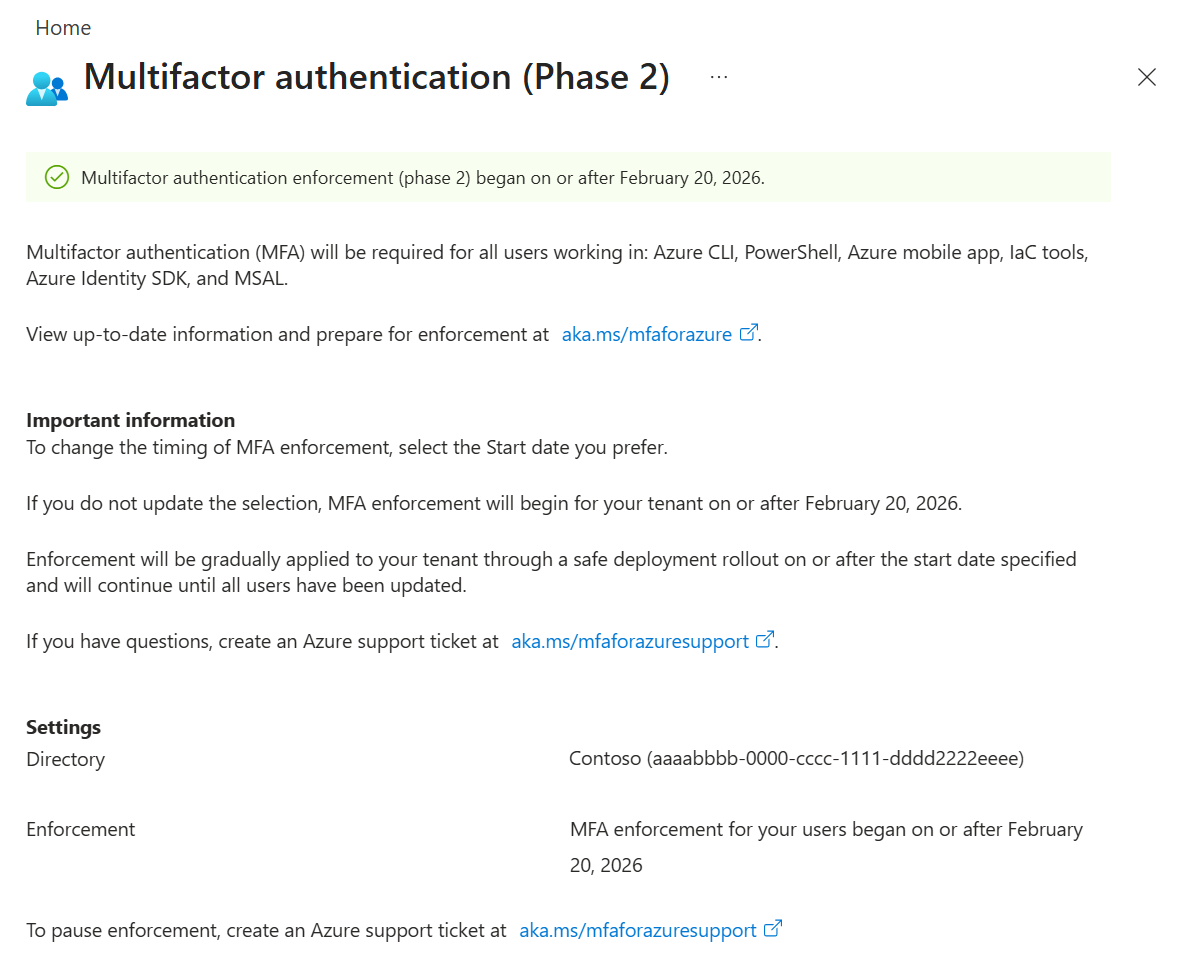
Microsoft applied the rule gradually, tenant by tenant. Phase 1 covered the web portals, and Phase 2 covered every tool that changes resources.
Phase 2 is checked on the server side, at Azure Resource Manager (management.azure.com), so it does not matter which tool sends the request. Microsoft Graph calls are generally not in scope.
Who Has to Use MFA, and Who Does Not
Every user account
Admins, regular users, students and anyone with an eligible role. If a person signs in to manage Azure, MFA applies. Conditional Access exclusions do not exempt them.
Break-glass accounts
Emergency access accounts are included too. Microsoft recommends a passkey (FIDO2 security key) or certificate-based sign-in for them, since both count as MFA.
Guest (B2B) users
Guests must pass MFA either in your tenant or in their home tenant, if cross-tenant access is set up to trust it.
Managed identities and service principals
These workload identities (accounts for apps and automation, not people) are not affected by either phase.
Entra Connect sync account
The account that syncs your on-premises directory with Microsoft Entra Connect or Cloud Sync is not affected.
Apps you host on Azure
Your customers signing in to a website or app that runs on Azure are not covered. The rule is about managing Azure, not using things built on it.
Running scripts as a person?
A user account used as a service account (for example, a script that signs in with a username and password) must pass MFA like anyone else, which an unattended script cannot do. Move that automation to a managed identity or service principal. The steps are below.
What Happens If You Sign In Without MFA
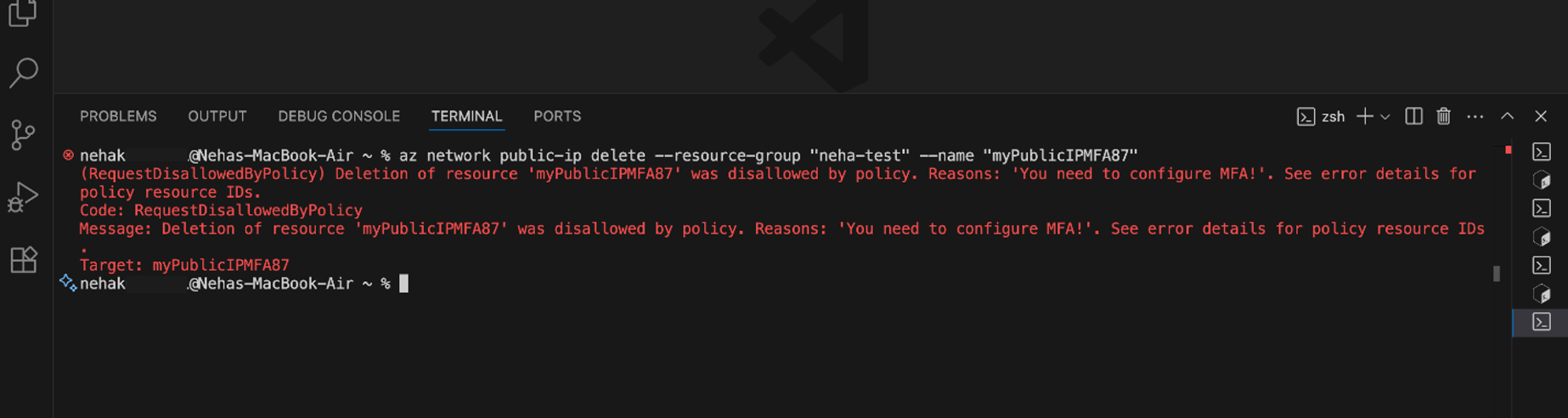
Reading resources works without MFA, but changing them fails. These screenshots from Microsoft Learn show what the block looks like.
RequestDisallowedByPolicy
Azure CLI stops the command and explains that you need to configure MFA. The resource is left untouched.
Sign out with az logout, then sign in again with az login and complete the MFA prompt.
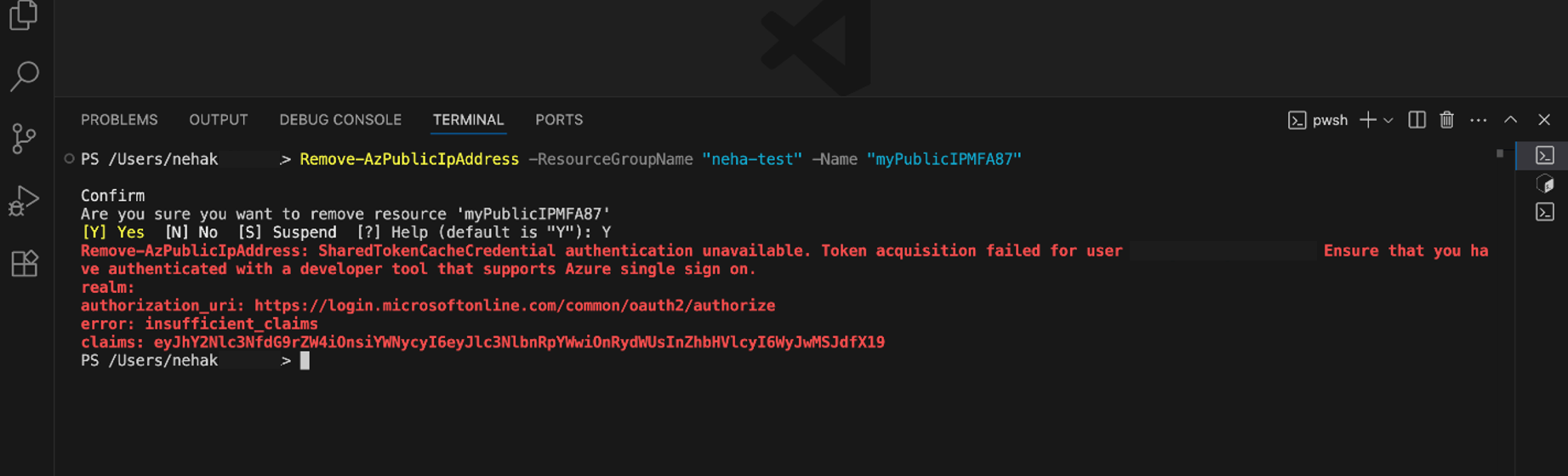
The same block in PowerShell
Azure PowerShell returns a similar error. Some tools prompt you to step up and complete MFA, while others only show the error.
Run Disconnect-AzAccount, then Connect-AzAccount, and finish the MFA prompt in the browser window.
Update your tools first. Microsoft recommends Azure CLI 2.76 or later and Azure PowerShell 14.3 or later, which handle the MFA prompt properly. Older versions show confusing errors. Our guides to installing the Azure CLI on Windows and Azure PowerShell on Windows cover updating.
How to Turn On MFA for Azure
Pick the path that matches your account. Check your license under Entra ID, then Overview, in the Azure portal.
Path 1: A personal Microsoft account
If you signed up for Azure with an Outlook.com, Hotmail or other personal Microsoft account, turn on two-step verification for that account.
1 Open your account security page at account.microsoft.com/security and sign in.
2 Select Manage how I sign in.
3 Under Two-step verification, select Turn on and follow the steps on screen.
Path 2: Entra ID Free or Microsoft 365 (security defaults)
Turn on security defaults
Security defaults is a single switch that makes every user register for MFA and blocks old sign-in methods that cannot do MFA. It costs nothing and is already on in most tenants created since October 2019.
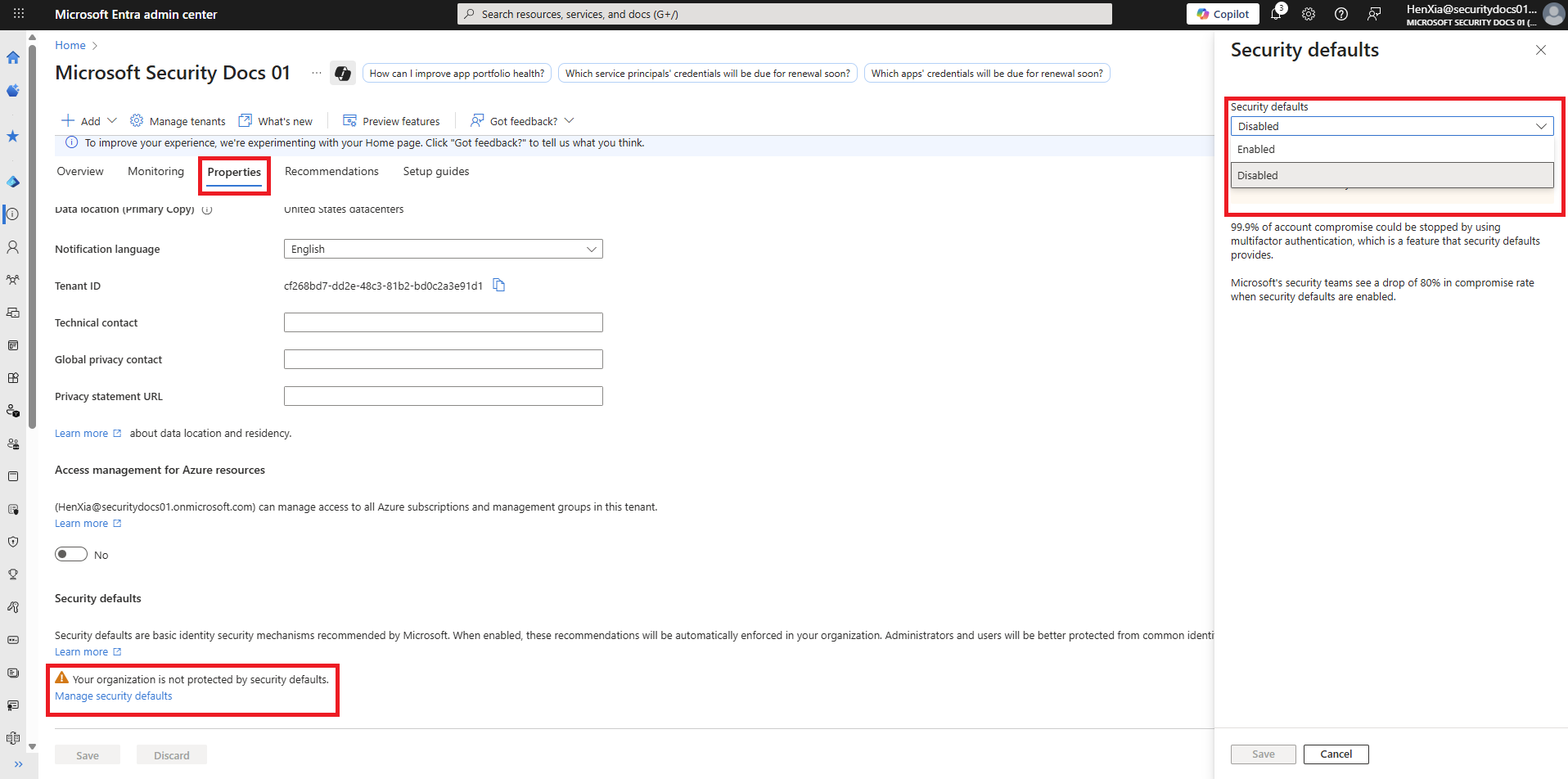
In the Microsoft Entra admin center, go to Entra ID, then Overview, then Properties. Select Manage security defaults, set it to Enabled and select Save.
What your users will see
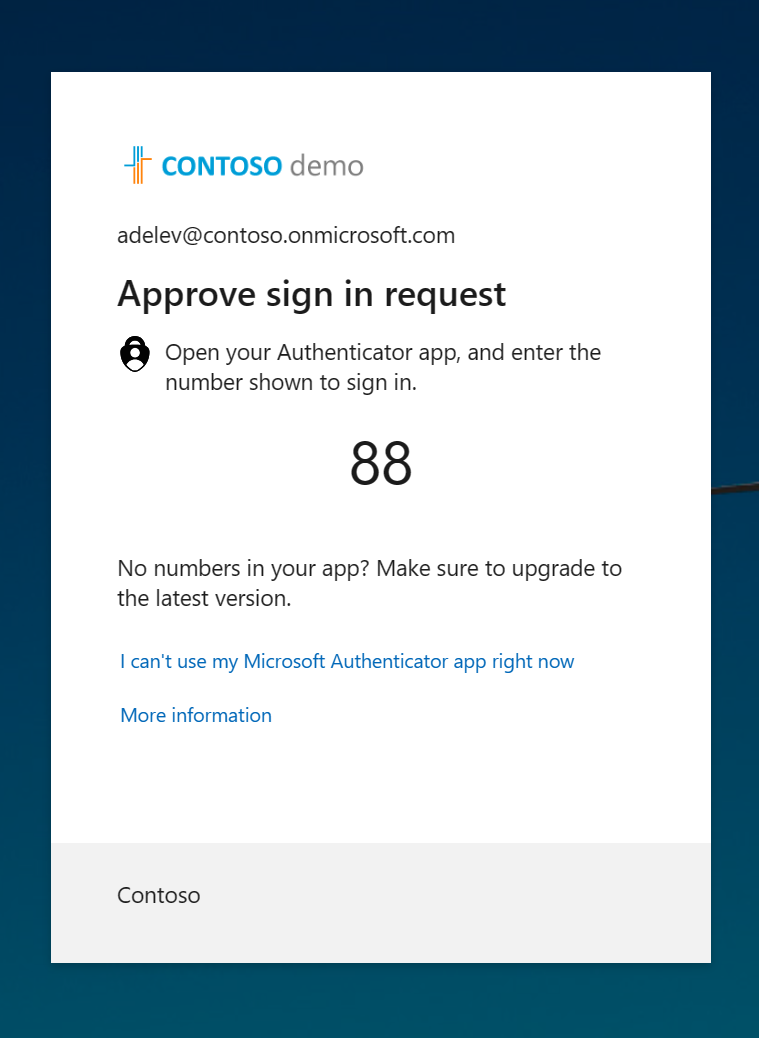
With security defaults, users approve sign-ins in the Microsoft Authenticator app by typing the number shown on screen. This number matching stops people from approving a prompt they did not start.
Users can also use codes from another authenticator app. Send them to myprofile.microsoft.com, Security info, to register.
Prefer per-user MFA? Without security defaults, an Authentication Administrator can switch MFA on one user at a time under Entra ID, then Users. Users with per-user MFA are asked for MFA at every sign-in.
Path 3: Entra ID P1 or P2 (Conditional Access)
With a premium license, a Conditional Access policy gives you control over who is asked and how.
1 Open Conditional Access in the Microsoft Entra admin center under Entra ID, then Conditional Access, then Policies, and select New policy.
2 Under Users, include All users or the group of people who manage Azure.
3 Under Target resources, select apps: Microsoft Admin Portals and Windows Azure Service Management API.
4 Under Grant, require authentication strength and choose Multifactor authentication.
5 Set the policy to Report-only first, check the results in the sign-in logs, then switch it on.
Fix Scripts and Automation
Any script that signs in as a person will break when it tries to change a resource. The fix is to give the script its own identity.
Managed identity
Best for code that runs inside Azure, such as a VM, Function or Automation account. Azure handles the credentials, so there is no password to store. In Azure CLI, sign in with az login –identity.
Service principal
Best for code that runs outside Azure, such as a build server. Use a certificate or a federated credential rather than a secret where you can.
Stop using username and password sign-in
The old password flow (called ROPC) cannot do MFA. Microsoft’s sign-in libraries have marked those methods as deprecated, and the AZURE_USERNAME and AZURE_PASSWORD settings will fail.
How to Check Your MFA Status
1 See if enforcement has started: as a Global Administrator, open aka.ms/managemfaforazure for Phase 1 and aka.ms/postponePhase2MFA for Phase 2. Each page shows a banner with the start date.
2 Find users without MFA: Microsoft offers a PowerShell script at aka.ms/AzMFA that exports every user and their sign-in methods.
3 Read the sign-in logs: Microsoft Entra sign-in logs show which app asked for MFA and whether the user passed.
Test the impact before it hits you
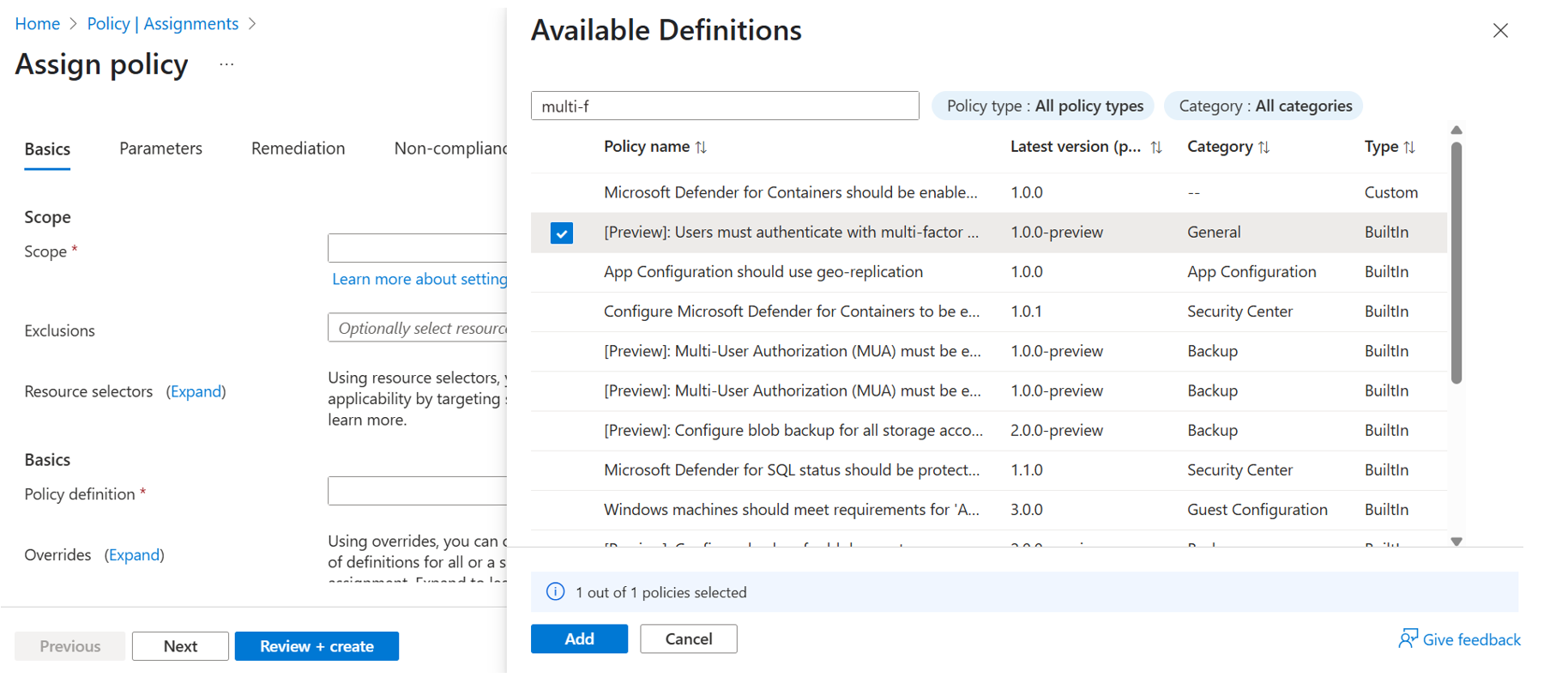
Two built-in Azure Policy definitions copy what Microsoft enforces: one for creating or updating resources, one for deleting them. Assign them in Audit mode to log every change made without MFA, without blocking anyone.
Audit events show up in the activity log, not the compliance list. When the log is clean, switch the effect to Deny.
Can You Still Postpone or Opt Out?
No opt-out exists, and the self-service postponement windows have closed. Global Administrators could push Phase 1 back to September 30, 2025, and Phase 2 back to July 1, 2026.
Once enforcement has started, a Global Administrator can ask Microsoft Support to lift it temporarily. Treat that as a short emergency fix while you set up MFA, not a plan.
Why Microsoft will not budge: accounts that can manage Azure are prime targets, and one stolen password can expose a whole subscription. Other cloud providers have made the same move. For the bigger picture, see our piece on why zero trust security often goes wrong.
Frequently Asked Questions
Does Azure MFA apply to test or student tenants?
Do I need MFA if I choose Stay signed in?
Does a third-party MFA provider count?
Will mandatory MFA break Microsoft Entra Connect sync?
Which MFA methods work best for emergency access accounts?
Does Azure for US Government require MFA too?
Support and Community
- Microsoft Entra multifactor authentication, Microsoft’s own product page.
- Plan for mandatory MFA on Microsoft Learn, the official reference for phases, scope and dates.
- Verify mandatory MFA setup on Microsoft Learn, with steps for each license type.
- Microsoft Q&A for Microsoft Entra ID, where Microsoft engineers and users answer sign-in questions.
- r/AZURE on Reddit, a large community for Azure questions and tips.
More Windows software guides: What Is Microsoft Azure? · Azure PowerShell · Azure PowerShell Commands · Azure Monitor · Azure AI Search · Zero Trust
Discover more from Windows Mode
Subscribe to get the latest posts sent to your email.

















Add your first comment to this post