Azure AI Search, the service once called Azure Cognitive Search. Screenshot from azure.microsoft.com.
Azure AI Search is Microsoft’s cloud search service, available through the Azure portal: you feed it your documents and data, and your app or AI agent can search them in milliseconds. It used to be called Azure Cognitive Search.
The name changed because the job changed. Today its main use is feeding company data to AI chatbots and agents so their answers are grounded in your own files. It also powers classic search boxes for websites and apps too.
It runs in Azure, so you need an Azure subscription. A free tier lets you try it at no cost, and it is the engine under Foundry IQ, the knowledge layer for agents in Microsoft Foundry.
Below: how it works, the features worth knowing, what each pricing tier gets you, and how to create your first search service. Questions? Reach out to us directly.
What Is Azure AI Search?
Think of it like the index at the back of a book, built for millions of pages. Azure AI Search reads your content once, builds an index, and then answers searches against that index almost instantly.
Your content can be files in Azure Blob Storage, rows in a database, SharePoint documents or data in Microsoft OneLake. Azure AI Search can only store JSON documents (a simple text format for data), so its import tools turn PDFs, Office files and database rows into JSON for you.
It handles every kind of search: keyword search, vector search (matching by meaning instead of exact words), hybrid search that mixes both, and search across text and images together.
One product, three names. It launched as Azure Search in 2015, became Azure Cognitive Search in 2019, and was renamed Azure AI Search in late 2023. Some older API and SDK pages use the Cognitive Search name. Same service, same data.
How Azure AI Search Works
Every search service comes with two engines. Microsoft’s diagrams below show what each one does.
Classic search is the traditional model. Your content is indexed (copied in and organized), and your app sends a query and gets a ranked list back in one round trip. It is fast and predictable, and it needs no AI model at all.

Agentic retrieval is the newer engine, built for AI agents. The agent asks one question, and Azure AI Search splits it into smaller searches, runs them at the same time across several sources, reranks the results and returns an answer with references.
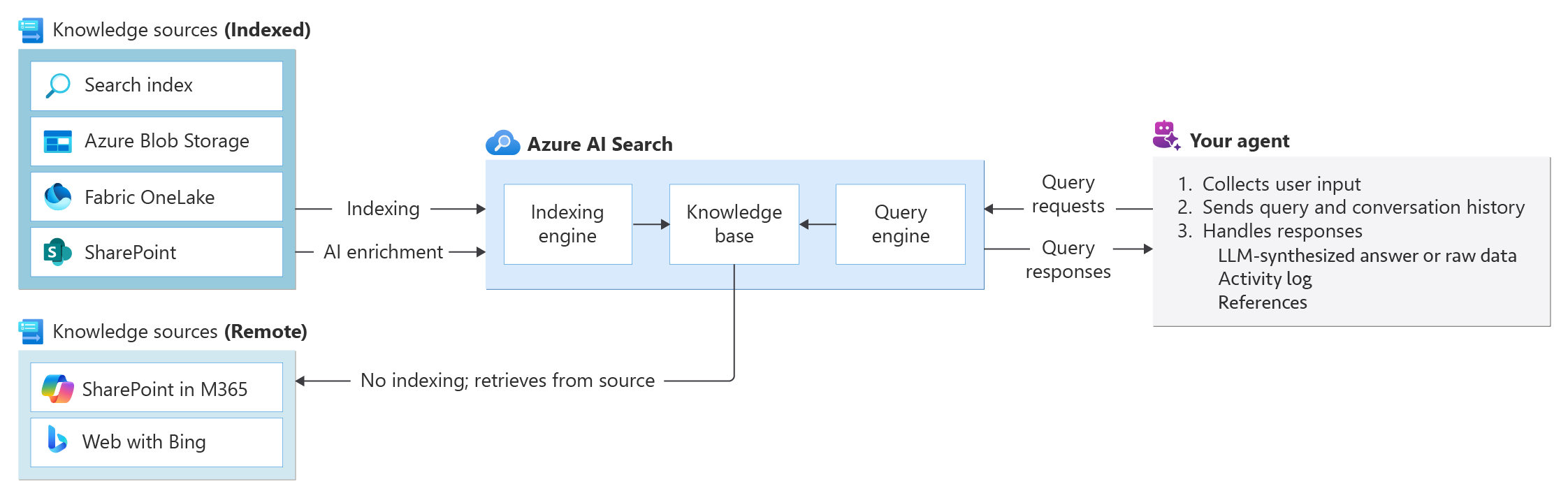
Which one do you need? Microsoft’s own advice: for a regular app without a chatbot, classic search covers most needs at lower cost. Use agentic retrieval when an agent has to pull from several sources at once.
Key Features of Azure AI Search
These screenshots come from Microsoft Learn and show the tools in the Azure portal.
Import wizard
The import wizard connects to your data, builds an index and keeps it updated on a schedule. You pick a goal first: keyword search, RAG (answers built from your own files) or multimodal RAG for files full of charts and diagrams.

Integrated vectorization
Vectors are lists of numbers that capture what text means, which lets search match ideas instead of exact words.
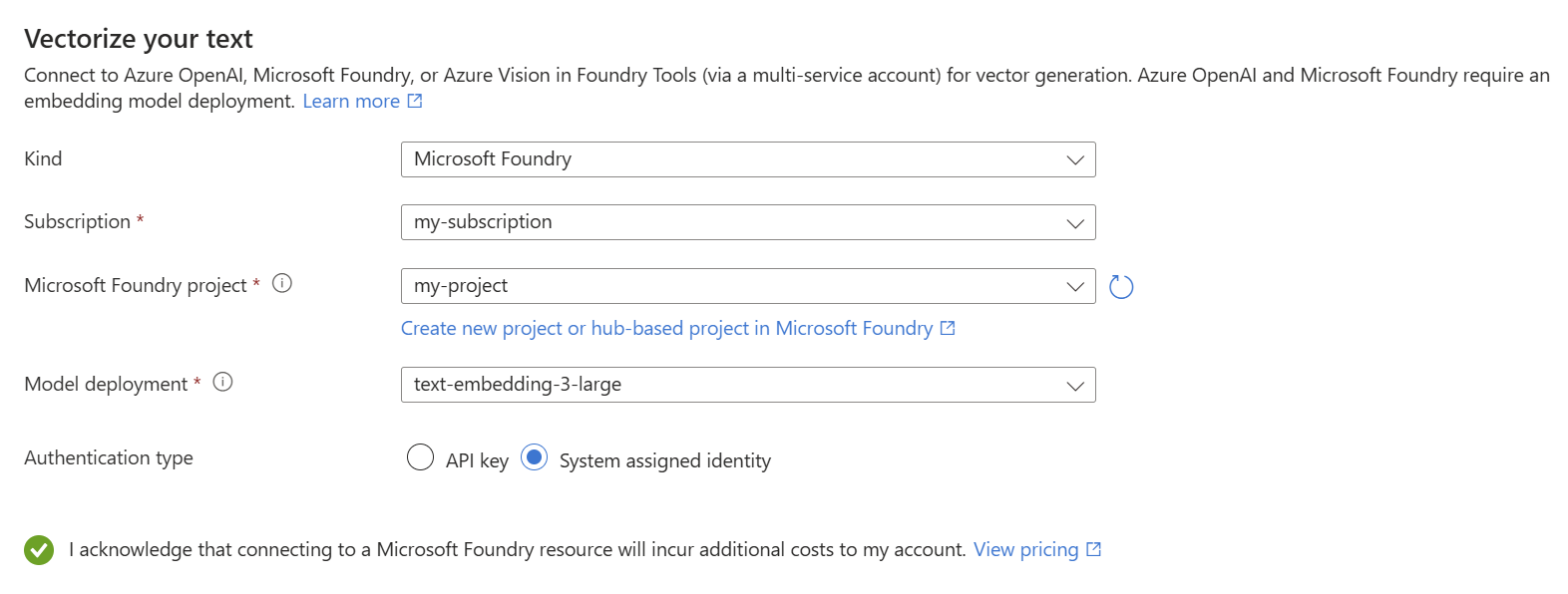
Azure AI Search can create them for you while it indexes, by connecting to an embedding model in Azure OpenAI or Microsoft Foundry. No separate pipeline to build.
Search explorer
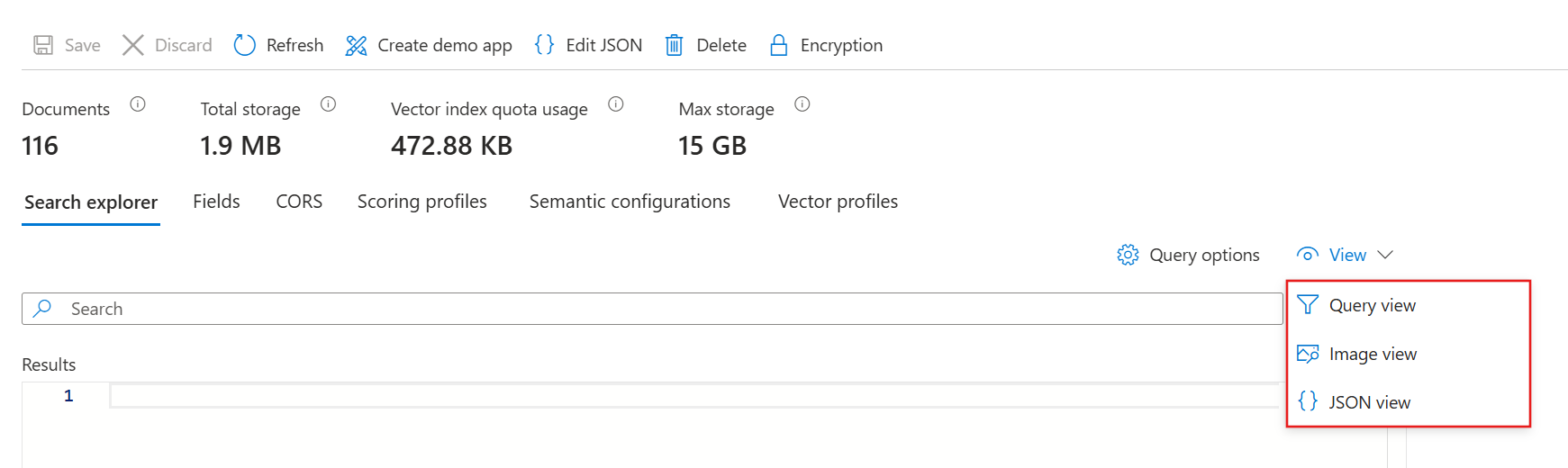
Search explorer lets you try queries right in the portal before you write any code. Switch between a simple query box, image results and the raw JSON response.
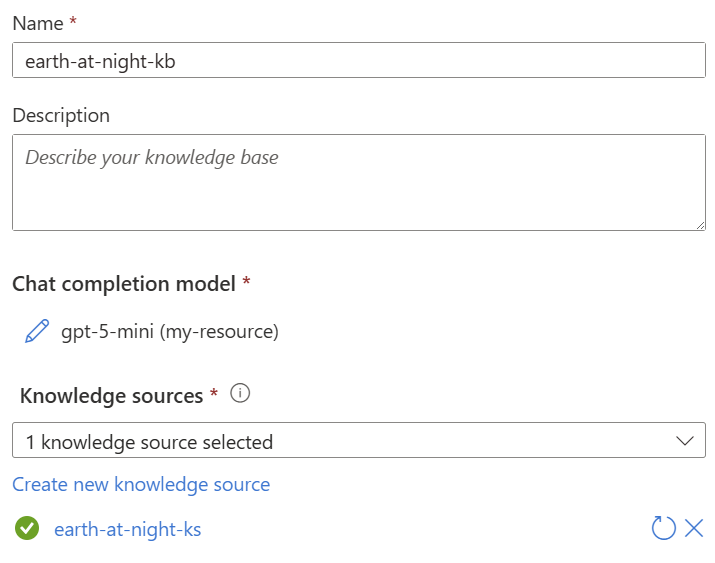
Knowledge bases
A knowledge base groups one or more knowledge sources, plus an optional chat model that plans the searches. Several agents can share one knowledge base.
This is what Microsoft Foundry calls Foundry IQ, and you can connect it to Foundry agents or Copilot Studio agents.
Hybrid search
Runs keyword and vector search together and merges the results, so you get exact matches and close-in-meaning matches in one list.
Semantic ranker
A Microsoft language model rereads the top results and moves the most relevant ones up. It is a paid add-on and not part of the Free tier.
Multimodal search
Searches text and images in the same query, useful for manuals, slides and reports where the answer sits in a diagram.
Classic search tools
Filters, faceted navigation (the category checkboxes on shopping sites), geo-search, synonyms, autocomplete and relevance tuning are all built in.
Many data sources
Pull content from Azure Blob Storage, Azure Cosmos DB, Azure SQL, SharePoint and OneLake, or push JSON documents in from your own code.
Security and permissions
Sign in with Microsoft Entra ID, keep traffic private with Private Link, and filter results so people only see documents they are allowed to open.
What Can You Build with Azure AI Search?
A chatbot that knows your company
Answer staff questions from your own policies, manuals and wikis instead of the open internet, with links to the source files.
AI agents in Microsoft Foundry
Give Foundry agents a shared knowledge base so every agent works from the same, permission-aware company data.
Search for a website or app
Add a fast search box with filters, autocomplete and typo tolerance to a store, help center or media library.
Search across piles of documents
Turn thousands of scanned PDFs, contracts or reports into something you can search by meaning, not just file name.
Azure AI Search Pricing and Tiers
You pay for a search service by the hour, in search units (one replica or one partition of capacity). Prices depend on the tier and the region, so check the calculator for yours. Here is what each tier gives you.
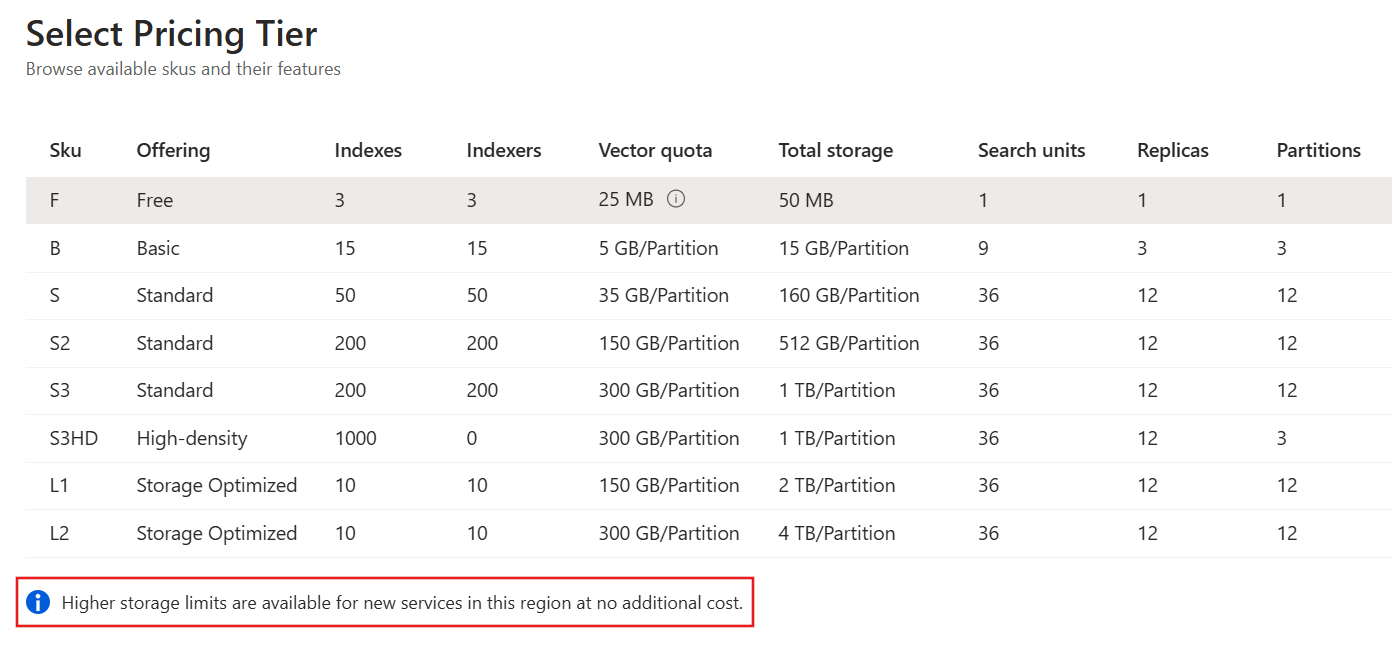
Free allowances on paid tiers: the semantic ranker includes the first 1,000 requests a month, and agentic retrieval includes the first 50 million tokens a month. A Free tier service that sits unused for a long time can be deleted by Microsoft. Current prices are on the Azure AI Search pricing page.
How to Create Your First Azure AI Search Service
You need an Azure account. New to Azure? Start with our guide to Microsoft Azure and its free account. Then the setup takes about five minutes.
1 Sign in to the Azure portal at portal.azure.com.
2 Select Create a resource, search for Azure AI Search and select Create.
3 Choose a subscription and resource group, then type a service name. The name becomes part of your search URL.
4 Pick a region and pricing tier. Choose Free to experiment at no cost.
5 Select Review + create, then Create. The service is ready in a few minutes.
6 Open the service and select Import data to connect your content and build your first index.
7 Test it in Search explorer before you connect your app or agent.
Azure AI Search and Foundry IQ Video
Watch this Microsoft Mechanics demo to see Azure AI Search build a multi-source knowledge base for an AI agent, from connecting data to grounded answers with citations.
Frequently Asked Questions
Is Azure Cognitive Search the same as Azure AI Search?
Does Azure AI Search need Azure OpenAI?
What is Foundry IQ?
Can Azure AI Search search my SharePoint files?
Can Azure AI Search read PDFs and Office documents?
Will Microsoft delete my free search service?
Support and Community
- Azure AI Search, Microsoft’s own product page.
- Azure AI Search documentation on Microsoft Learn, with quickstarts for keyword, vector and agentic search.
- Microsoft Q&A for Azure AI Search, where Microsoft engineers and users answer questions.
- Azure AI Search vector samples on GitHub, Microsoft’s code samples for vector and hybrid search.
- r/AZURE on Reddit, a large community for Azure questions and tips.
More Windows software guides: What Is Microsoft Azure? · Azure Machine Learning · Azure Monitor · Azure Data Studio Replacements · Azure PowerShell · Microsoft Copilot
Discover more from Windows Mode
Subscribe to get the latest posts sent to your email.
















Add your first comment to this post