Key takeaways
- FastUnlock is an unpatched Windows 11 lock screen bypass made public on November 19, 2026.
- It needs physical access to the PC and an account linked to a Microsoft account. It can’t be used over the internet.
- It runs programs in a limited, non-administrator lock screen account. It doesn’t break BitLocker encryption, but it works on a PC whose drive the TPM already unlocked at startup.
- Best protection for now: keep your laptop with you, shut down or hibernate it instead of leaving it locked, and add a BitLocker startup PIN if your edition supports it.
Is a locked Windows 11 PC safe if someone walks off with it? Right now, not completely. A newly disclosed flaw called FastUnlock lets a person holding a locked PC start programs from the lock screen without knowing your password or PIN.
There is no fix from Microsoft yet, and nothing shows it being used in real attacks. The risk is limited to someone with the PC in their hands, and a couple of simple habits close most of the gap.
What FastUnlock is
A security researcher who posts as MSNightmare and Nightmare Eclipse published FastUnlock on November 19 without first giving Microsoft time to fix it. The flaw sits in Narrator, the screen reader built into Windows. When Narrator is opened during the Microsoft account recovery prompt on the lock screen, it can reach parts of Windows that should stay closed until you sign in.
Security firm ThreatLocker tested it the same day and confirmed that it works. In its test, the bypass ran programs as WSIAccount, a lock screen account that ThreatLocker says is “not an administrator account.” ThreatLocker used an external drive to get a program onto the PC, but said there are other ways to do it.
The researcher says they tested Windows 11 26H2 with the November 2026 Patch Tuesday updates installed, so being fully updated doesn’t protect you here. We are not sharing the steps.
What it can and can’t do
What it can do
- Start programs from the lock screen without signing in.
- Run them as a limited lock screen account.
- Work on a BitLocker PC that started normally with the default TPM-only setup.
What it can’t do
- Work remotely. Someone has to be at the PC.
- Give administrator rights directly, based on ThreatLocker’s test.
- Break BitLocker encryption or recover your recovery key.
- Get past a startup PIN on a PC that is shut down or hibernated.
The BitLocker part is the one people get confused about. On most PCs, a chip called the TPM unlocks the encrypted drive automatically as Windows starts. By the time the lock screen appears, the drive is already open, and that is where FastUnlock works. Encryption still protects a PC that is switched off and needs a PIN to start.
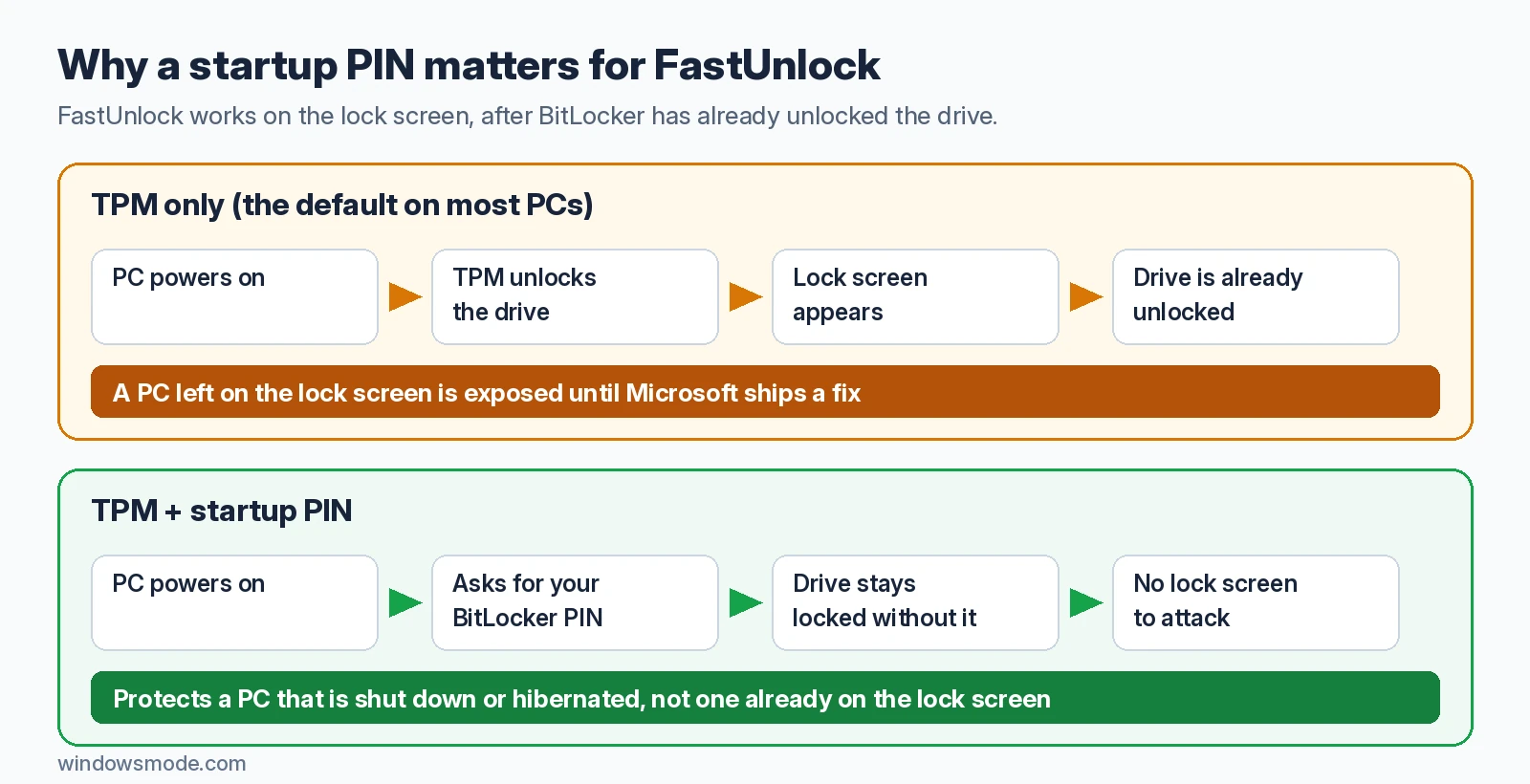
Who is at risk
The researcher’s stated requirements are physical access and at least one account on the PC linked to a Microsoft account, since the recovery prompt is the way in. In practice, the PCs worth thinking about are:
- Laptops that travel and could be lost or stolen.
- Shared or front-desk PCs that strangers can walk up to.
- Work devices holding sensitive files that rely on TPM-only BitLocker.
A desktop at home that only your family can reach is a much smaller concern. PCs that use only local accounts don’t meet the researcher’s stated requirements. Microsoft hasn’t published a list of affected versions, and the researcher only tested Windows 11 26H2, so treat any PC that meets the conditions as possibly affected.
How to protect your PC until Microsoft fixes it
Keep the PC in your hands
FastUnlock needs someone at the keyboard. Don’t leave a laptop sitting on the lock screen in a cafe, office or hotel lobby, and keep shared or front-desk PCs where staff can see them.
Shut down or hibernate instead of locking
A locked or sleeping PC keeps its drive unlocked. When your laptop leaves your control, such as in a bag on a trip, shut it down or hibernate it. Microsoft gives the same advice in its BitLocker countermeasures guidance for hands-on attackers.
If Hibernate is missing from the power menu, open Control Panel > Hardware and Sound > Power Options > Choose what the power buttons do, select Change settings that are currently unavailable, then tick Hibernate. Laptops with Modern Standby can drop from sleep into hibernate on their own, but that now happens less often when the battery is above 80%, as we explained in our adaptive hibernate post. Don’t count on it, and hibernate the laptop yourself.
Check: Hibernate now appears under Start > Power.
Add a BitLocker startup PIN
A startup PIN means the drive stays locked until someone types the PIN, before Windows even loads. This needs Windows 11 Pro, Enterprise or Education. Windows 11 Home uses Device encryption, which doesn’t offer a startup PIN.
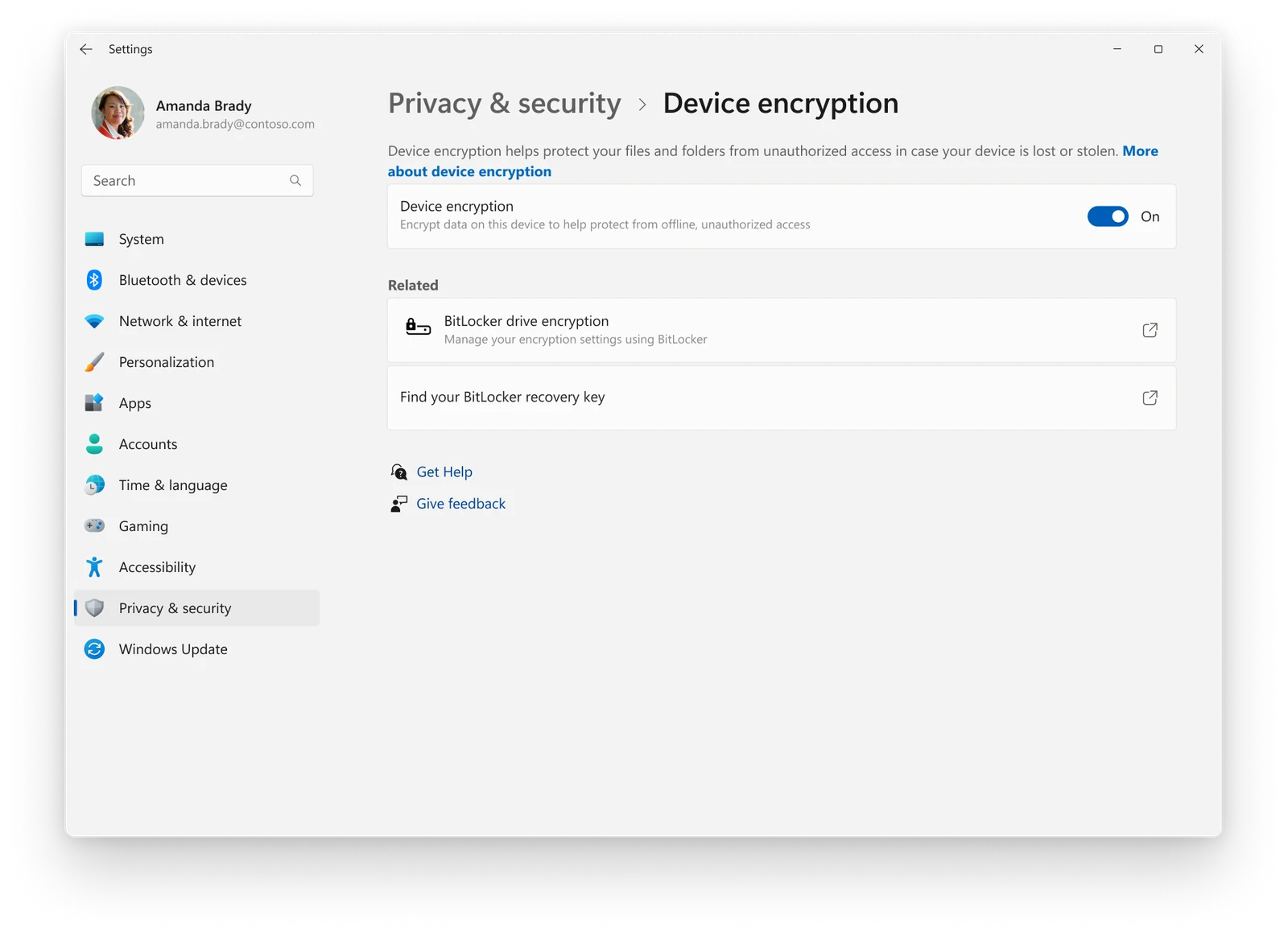
Do this first: make sure you know where your BitLocker recovery key is saved. If you forget the new PIN, you will need it to get back in.
Open the Group Policy Editor (gpedit.msc) and go to Computer Configuration > Administrative Templates > Windows Components > BitLocker Drive Encryption > Operating System Drives. Enable Require additional authentication at startup and set Configure TPM startup PIN to Allow startup PIN with TPM.
Then open Terminal (Admin) and run this command. It asks you to type and confirm a PIN:
manage-bde -protectors -add C: -TPMAndPIN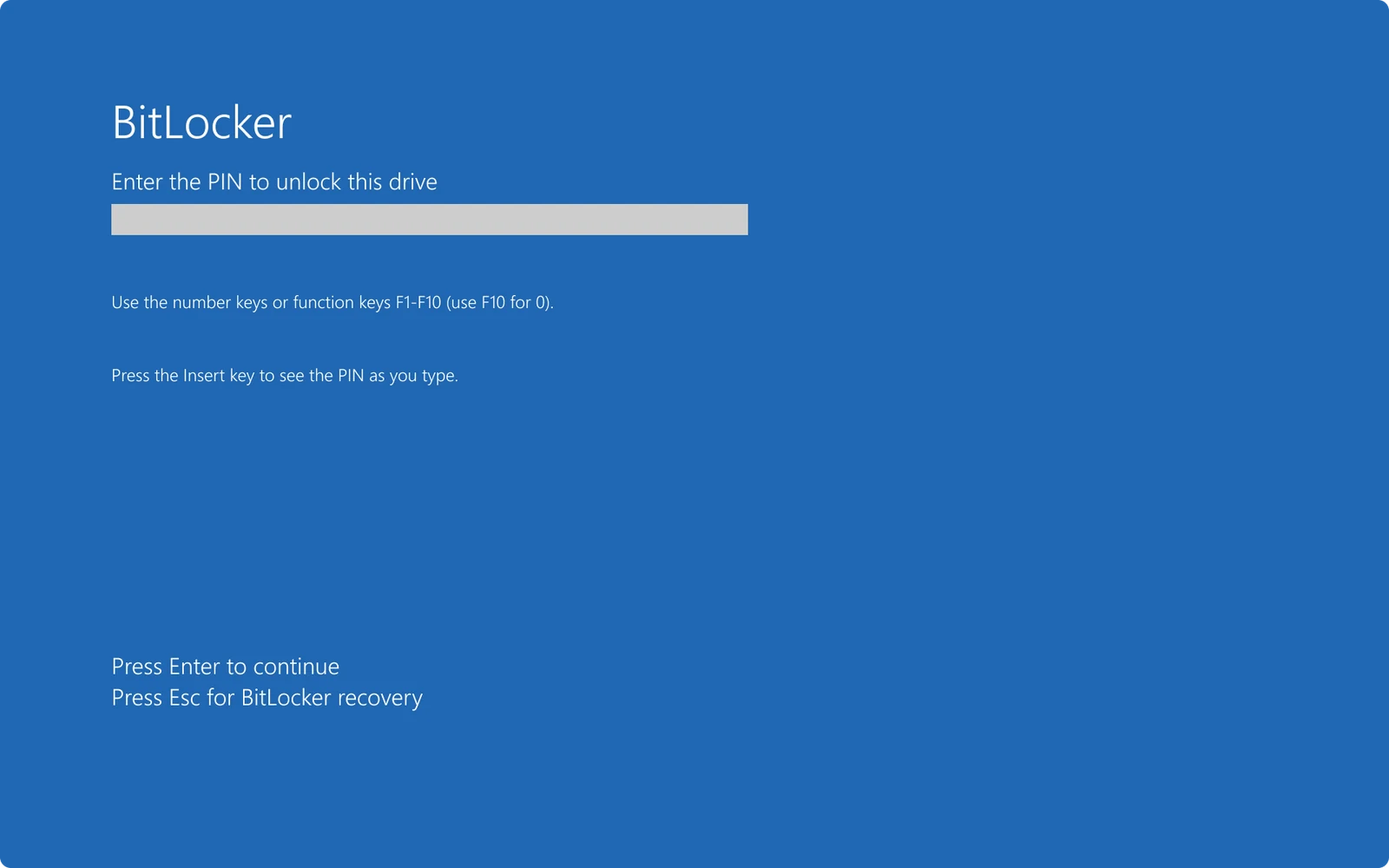
You’re protected when: the BitLocker PIN screen appears every time the PC starts. Remember that the PIN only helps once the PC has been shut down or hibernated. It does nothing for a PC that is already on the lock screen.
On a work or school PC, ask IT. Microsoft is also testing a change that lets standard users on managed PCs add a startup PIN themselves, which we covered in our November 13 Insider builds roundup.
Install Microsoft’s fix when it arrives
Keep Settings > Windows Update turned on and install updates when they appear. A fix could arrive in a regular Patch Tuesday update or sooner.
For IT admins: is there a temporary workaround?
The researcher has suggested blocking Narrator with AppLocker or a custom access control list as a stopgap. Microsoft hasn’t endorsed this, and it removes a tool that blind and low-vision users rely on, so test it carefully and keep it to PCs where nobody needs Narrator. A TPM plus PIN policy, disabled standby and a shut down or hibernate rule for devices that leave the office are the safer, documented steps.
Has Microsoft said anything?
Not yet. As of publishing, Microsoft has not released a security advisory, a CVE number, a fix or a public statement about FastUnlock. The BitLocker fixes in November’s Patch Tuesday are for separate issues, so don’t count them as protection here. There are also no reports of FastUnlock being used in real attacks. We’ll update this post when Microsoft responds.
Source: The Hacker News.
Discover more from Windows Mode
Subscribe to get the latest posts sent to your email.












Add your first comment to this post