Key takeaways
- Since November 18, 2026, Microsoft has been installing Windows 11 26H2 automatically on PCs running 24H2 or 25H2.
- It covers personal PCs and business PCs that aren’t managed by IT. Managed work PCs keep following their IT policies.
- The update is a small enablement package that needs one restart. Your files and apps stay put.
- 26H2 Home and Pro get updates until October 10, 2028. You can pause updates for a few weeks if you’d rather wait.
Did your PC restart into Windows 11 26H2 without you asking? That’s expected now. Microsoft has moved the 2026 Update into its next rollout phase, and Windows Update is starting to install it on its own instead of waiting for you to click Download & install.
Since late October, any eligible PC could get 26H2 by checking for updates, as we covered in our earlier 26H2 availability update. Here is what changed this week, how to tell which version you have, and what to do if you want it now or later.
What changed on November 18
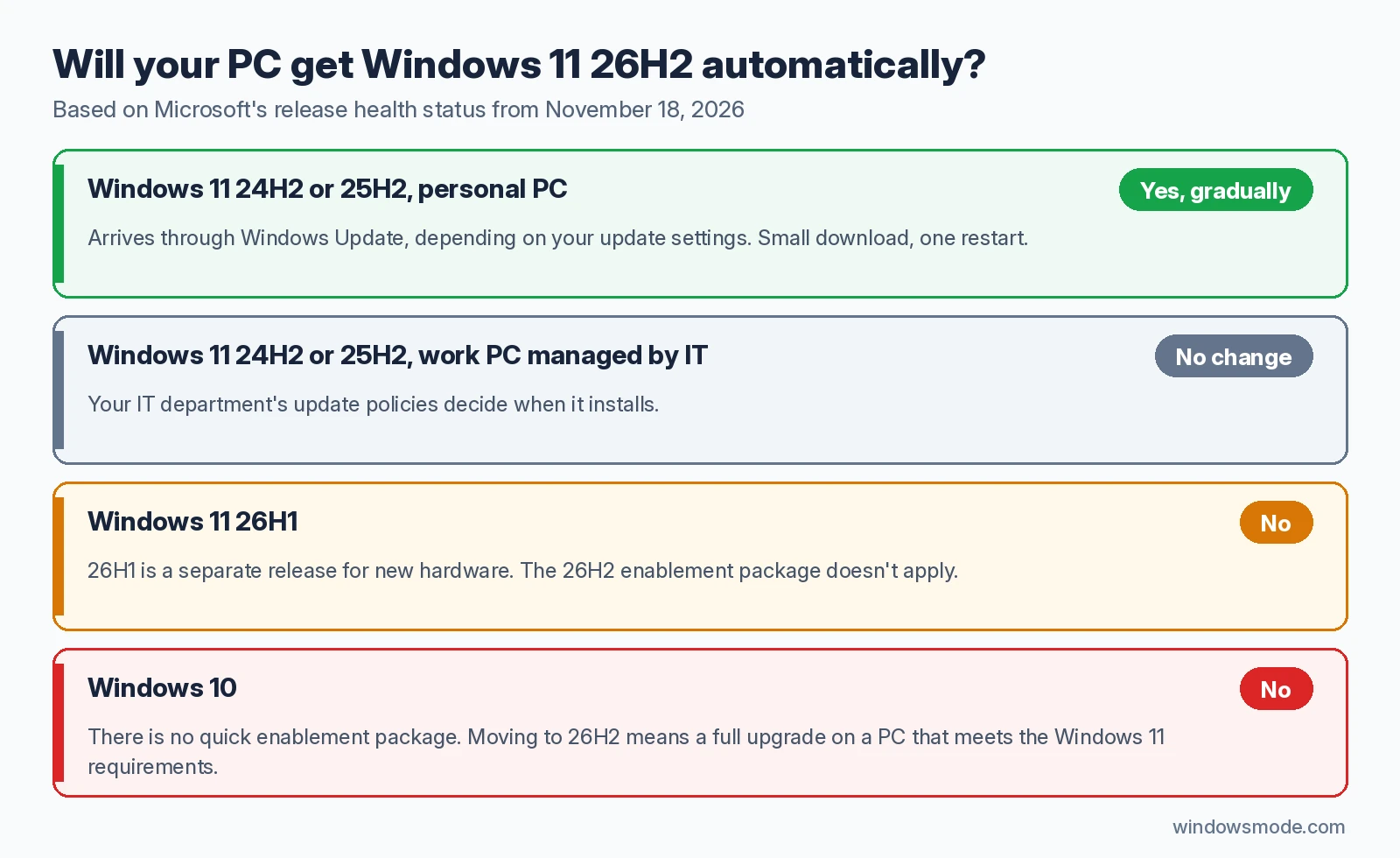
Microsoft’s Windows 11 26H2 release health page says it is “gradually expanding automatic delivery, beginning with devices running Windows 11, versions 24H2 and 25H2, that are not managed by IT departments.” As the rollout goes on, more PCs will get the update without anyone having to look for it.
It’s still gradual, and timing depends on each PC’s Windows Update settings, so two similar laptops in the same house may update weeks apart. Microsoft hasn’t said when the rollout will reach every eligible PC.
What the update does to your PC
For PCs already on 24H2 or 25H2, 26H2 isn’t a big reinstall. Microsoft delivers it as an enablement package (KB5121794), a small switch that turns on features already sitting on your PC. It installs quickly and needs a single restart.
Before it installs
- Your PC needs the September 22, 2026 update (KB5124010) or a later monthly update.
- Microsoft may hold it back on PCs with a known compatibility problem.
After it installs
- Your files, apps and settings stay where they were.
- The features from 24H2 and 25H2 are all there, and the support clock resets.
For a tour of the new Start menu, movable taskbar and other changes, see our Windows 11 26H2 guide.
How to check which version you have
- Press Windows + R, type winver and press Enter.
- The small window that opens shows your version. Version 26H2 with an OS build starting 26300 means you’re already updated.
You’ll find the same details under Settings > System > About, in the Windows specifications section.
How to install 26H2 now
If you don’t want to wait for your turn, you can start the update yourself:
Open Windows Update
Go to Settings > Windows Update and select Check for Windows updates.
Download and restart
If you see Windows 11, version 26H2 is available, select Download & install, then restart when Windows asks.
Optional: get updates early
To get future feature updates as soon as they’re ready, turn on Get the latest updates as soon as they’re available on the same page.
Not offered yet?
Install any pending updates first, then check again. If it still doesn’t show up, your PC may have a safeguard hold for a known problem. It’s best to wait for Microsoft to lift it rather than forcing the update.
How to wait if you’re not ready
Windows 11 doesn’t have a simple switch to skip a feature update on a home PC, but you can delay it by pausing updates:
- Open Settings > Windows Update.
- Next to Pause updates, choose how long to pause. Depending on your build, you’ll see a set number of weeks or a date picker.
- Select Resume updates on the same page whenever you’re ready.
Before you pause
- Pausing stops all updates, including monthly security fixes like the November 2026 Patch Tuesday updates.
- The pause only lasts a few weeks, up to about five. Once you reach the limit, Windows installs the latest updates before you can pause again.
- Waiting makes sense if you rely on an app or device that hasn’t been confirmed to work with 26H2 yet. Otherwise there is little reason to hold off.
Why updating matters: support end dates
Each version of Windows 11 only gets security updates for a set time. According to Microsoft’s Windows 11 Home and Pro lifecycle page, version 24H2 Home and Pro already reached its end of support in October 2026. If your PC is still on 24H2, the 26H2 update is the quickest way to get back onto a supported version.
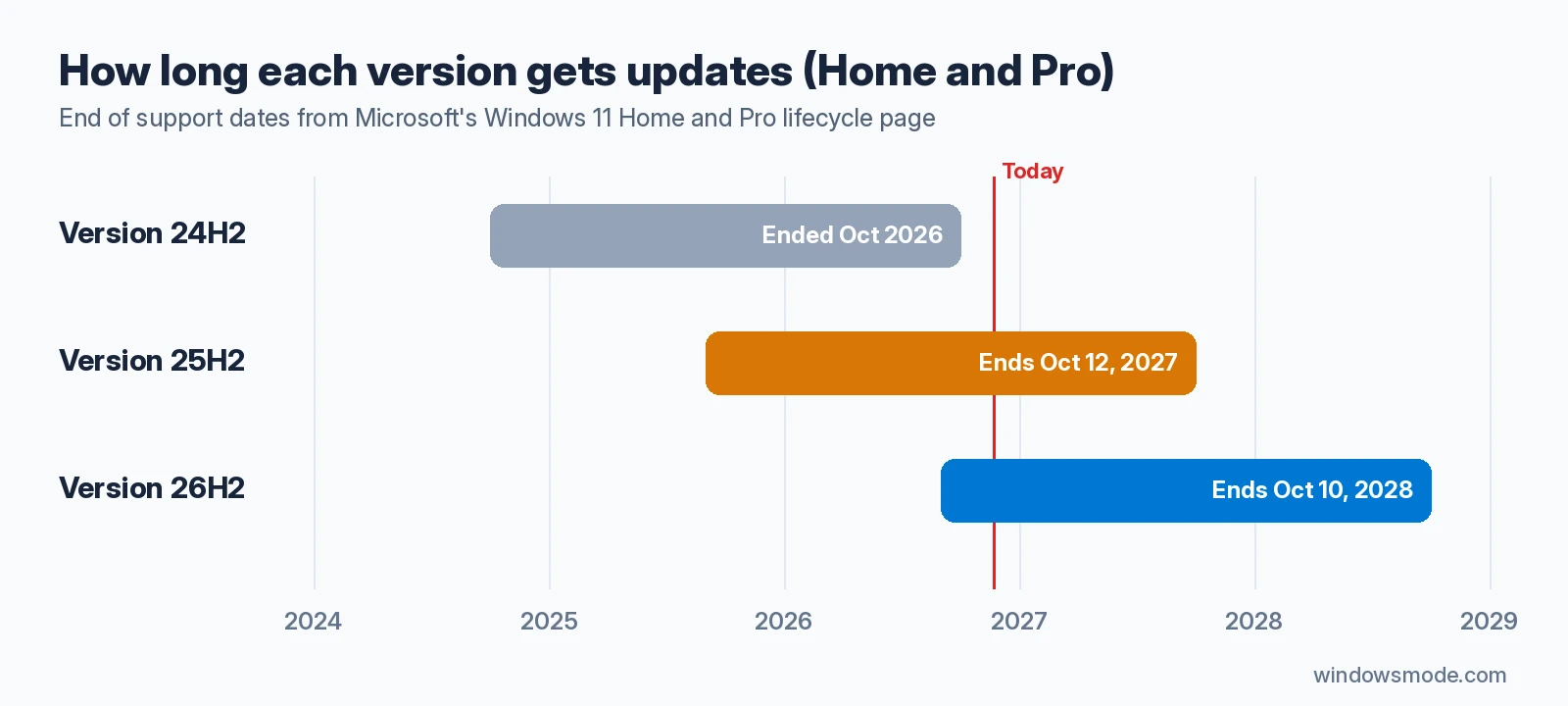
Version 25H2 Home and Pro gets updates until October 12, 2027, so there is no rush on those PCs. Version 26H2 Home and Pro is covered until October 10, 2028.
What about work PCs?
PCs managed by an IT department aren’t part of this automatic rollout. They keep following the update policies their administrators set, so if your work laptop hasn’t moved to 26H2, ask your IT team rather than forcing it.
Frequently asked questions
Will updating to Windows 11 26H2 delete my files?
No. On a PC running 24H2 or 25H2, 26H2 installs as a small enablement package with one restart and keeps your files, apps and settings. A backup before any big update is still a good habit.
Can I stop Windows 11 26H2 from installing automatically?
On a home PC you can delay it by pausing updates in Settings > Windows Update for up to about five weeks. After that, Windows installs the latest updates before it lets you pause again.
Source: BleepingComputer, gHacks.
Discover more from Windows Mode
Subscribe to get the latest posts sent to your email.












Add your first comment to this post