Microsoft Teams Reference
Every Microsoft Teams keyboard shortcut for Windows, in one searchable list, organized by what you are trying to do.
Skip the mouse for search, chat, replies, calls, and calendar tasks. 96 shortcuts across 8 categories, covering both the desktop app and the web app, since the two do not always match.
What you need to know
- Desktop and web app shortcuts are different for a lot of actions. Both are listed side by side in every table below.
- Use Ctrl+F to jump straight to the shortcut you need, or use the category links right below this box.
- Want a printable copy for your desk? A print-ready PDF with all 96 shortcuts is available further down for $1.
The 10 Shortcuts You Will Use Most
Start here if you only want the shortcuts that matter for daily use. The full list below covers everything else.
Ctrl+Period (.)
Ctrl+E
Ctrl+N
Shift+Esc
Ctrl+J
Alt+Shift+R
Ctrl+Shift+M
Ctrl+Shift+A
Ctrl+Shift+X
F11
1. General
| To Do This | Desktop App | Web App |
|---|---|---|
| Show keyboard shortcuts | Ctrl+Period (.) or Alt+/ | Ctrl+Period (.) or Alt+/ |
| Go to Search | Ctrl+E | Ctrl+Alt+E |
| Open filter | Ctrl+Shift+F | Ctrl+Shift+F |
| Start a new chat | Ctrl+N | Left Alt+N |
| Start a chat in a new window | Ctrl+Shift+N | No shortcut |
| Open Settings | Ctrl+Comma (,) | Ctrl+Shift+Comma (,) |
| Open Help | F1 | Ctrl+F1 |
| Close | Esc | Esc |
| Zoom in | Ctrl+Equals sign (=) | No shortcut |
| Zoom out | Ctrl+Minus sign (-) | No shortcut |
| Reset zoom level | Ctrl+0 | No shortcut |
| Report a problem | Ctrl+Alt+Shift+R | Ctrl+Alt+Shift+R |
| Go to a specific chat or channel | Ctrl+G | Ctrl+G |
| Move focus to pane divider | Ctrl+Alt+Enter | Ctrl+Alt+Enter |
| Return pane to default width | Ctrl+Shift+Enter | Ctrl+Shift+Enter |
| Pin a window on top | Ctrl+Shift+T | Shift+Command+T |
| Open existing conversation in new window | Ctrl+O | No shortcut |
2. Navigation
| To Do This | Desktop App | Web App |
|---|---|---|
| Open 1st app on app bar | Ctrl+1 | Ctrl+Shift+1 |
| Open 2nd app on app bar | Ctrl+2 | Ctrl+Shift+2 |
| Open 3rd app on app bar | Ctrl+3 | Ctrl+Shift+3 |
| Open 4th app on app bar | Ctrl+4 | Ctrl+Shift+4 |
| Open 5th app on app bar | Ctrl+5 | Ctrl+Shift+5 |
| Add Loop paragraph (shared live block) | Alt+Shift+L | Alt+Shift+L |
| Move focus to chat or channel list | Ctrl+L | Alt+Shift+L |
| Move focus to message pane | Ctrl+M | Alt+Shift+M |
| Move focus to pop-up notification | Ctrl+Alt+T | No shortcut |
| Go to compose box | Ctrl+R | Alt+Shift+R |
| Open history menu | Ctrl+H | No shortcut |
| Go to previous section | Ctrl+Shift+F6 | Ctrl+Shift+F6 |
| Go to next section | Ctrl+F6 | Ctrl+F6 |
| Go back | Alt+Left arrow key | No shortcut |
| Go forward | Alt+Right arrow key | No shortcut |
3. Messaging
| To Do This | Desktop App | Web App |
|---|---|---|
| Collapse all conversation folders | Alt+Q | Alt+Q |
| Mark all as read | Shift+Esc | Shift+Esc |
| Jump to last read or newest message | Ctrl+J | Alt+J |
| Find in current chat or channel | Ctrl+F | Ctrl+F |
| Open 1st tab on chat header | Alt+1 | Alt+1 |
| Open 2nd tab on chat header | Alt+2 | Alt+2 |
| Toggle details pane | Alt+P | Alt+P |
| Reply to the last message | Alt+Shift+R | Alt+R |
| React to the last message | Ctrl+Alt+R | Ctrl+Alt+R |
| See all unread chats | Ctrl+Alt+U | Ctrl+Alt+U |
| See all chat conversations | Ctrl+Alt+C | Ctrl+Alt+C |
| See all channel conversations | Ctrl+Alt+A | Ctrl+Alt+A |
| See all meeting chats | Ctrl+Alt+B | Ctrl+Alt+B |
| Clear all filters | Ctrl+Alt+Z | Ctrl+Alt+Z |
4. Compose and Formatting
| To Do This | Desktop App | Web App |
|---|---|---|
| Expand compose box | Ctrl+Shift+X | Ctrl+Shift+X |
| Send from expanded compose box | Ctrl+Enter | Ctrl+Enter |
| Attach a file | Alt+Shift+O | Alt+Shift+O |
| Start a new line | Shift+Enter | Shift+Enter |
| Apply bold style | Ctrl+B | Ctrl+B |
| Apply italic style | Ctrl+I | Ctrl+I |
| Apply underline style | Ctrl+U | Ctrl+U |
| Mark message as important | Ctrl+Shift+I | Ctrl+Shift+I |
| Rewrite with Copilot | Alt+A | Alt+A |
| Open video recorder | Alt+Shift+E | Alt+Shift+E |
| Add Loop paragraph (shared live block) | Ctrl+Alt+L | Ctrl+Alt+L |
| Insert a link | Ctrl+K | Ctrl+K |
| Insert inline code | Ctrl+Shift+C | Ctrl+Alt+Shift+C |
| Insert a code block | Ctrl+Shift+B | Ctrl+Alt+Shift+B |
5. Meetings and Calls
| To Do This | Desktop App | Web App |
|---|---|---|
| Accept video call | Ctrl+Shift+A | Alt+Shift+A |
| Accept audio call | Ctrl+Shift+S | Alt+Shift+S |
| Decline a call | Ctrl+Shift+D | Ctrl+Shift+D |
| Start an audio call | Alt+Shift+A | Alt+Shift+A |
| Start a video call | Alt+Shift+V | Alt+Shift+V |
| Toggle full screen | F11 | F11 |
| End a call | Ctrl+Shift+H | Ctrl+Shift+H |
| Toggle mute | Ctrl+Shift+M | Ctrl+Shift+M |
| Toggle speaker | Ctrl+Shift+U | Ctrl+Shift+U |
| Temporarily unmute while holding the key | Ctrl+Spacebar | Ctrl+Spacebar |
| Raise or lower your hand | Ctrl+Shift+K | Ctrl+Shift+K |
| Toggle your video | Ctrl+Shift+O | No shortcut |
| Toggle the share content tray | Ctrl+Shift+E | Ctrl+Shift+E |
| Admit someone from the meeting lobby | Ctrl+Shift+Y | No shortcut |
| Schedule a meeting | Alt+N | Alt+N |
| Save or send a meeting request | Ctrl+S | Ctrl+S |
| Join from meeting details | Alt+Shift+J | Alt+Shift+J |
6. Calendar
| To Do This | Desktop App | Web App |
|---|---|---|
| Open the calendar view | Ctrl+3 | Ctrl+Shift+3 |
| Open a selected item | Enter | Enter |
| Delete a selected item | Delete | Delete |
| Open Day view | Alt+Shift+1 | Alt+Shift+1 |
| Open Week view | Alt+Shift+3 | Alt+Shift+3 |
| Open Month view | Alt+Shift+4 | Alt+Shift+4 |
| Go to previous time period | Ctrl+Alt+Left arrow key | Ctrl+Alt+Left arrow key |
| Go to next time period | Ctrl+Alt+Right arrow key | Ctrl+Alt+Right arrow key |
| Go to today | Alt+Shift+Y or Home | Shift+Alt+Y |
| Create a new event | Alt+N | Alt+N |
| Send a meeting invite | Ctrl+Enter | Ctrl+Enter |
| Forward an event | Ctrl+Alt+F | Ctrl+Alt+F |
| Reply to a meeting | Alt+R | Alt+R |
| Print your calendar | Ctrl+P | Ctrl+P |
7. Activity Feed
| To Do This | Desktop App | Web App |
|---|---|---|
| Mark all activity as read | Ctrl+Alt+K | Ctrl+Alt+K |
| See all unread activity | Ctrl+Alt+U | Ctrl+Alt+U |
| Filter activity to missed calls | Ctrl+Alt+C | Ctrl+Alt+C |
| Filter activity to @ mentions | Ctrl+Alt+M | Ctrl+Alt+M |
8. Diagnostics
| To Do This | Desktop App | Web App |
|---|---|---|
| Download diagnostic logs | Ctrl+Alt+Shift+1 | Ctrl+Alt+Shift+1 |
How to Customize Teams Keyboard Shortcuts
Microsoft Teams lets you change most of these shortcuts if the default keys clash with your workflow or another app.
- Step 1. Press Ctrl+Period (.) to open the Keyboard shortcuts window.
- Step 2. Use Tab to move to the shortcut you want to change, then select Edit shortcut.
- Step 3. Press your new key combination, then select Save.
A few keys are reserved by Windows itself, like Ctrl+C and Ctrl+V, so those cannot be reassigned inside Teams.
Get the PDF version
Microsoft Teams Keyboard Shortcuts Cheat Sheet (PDF)
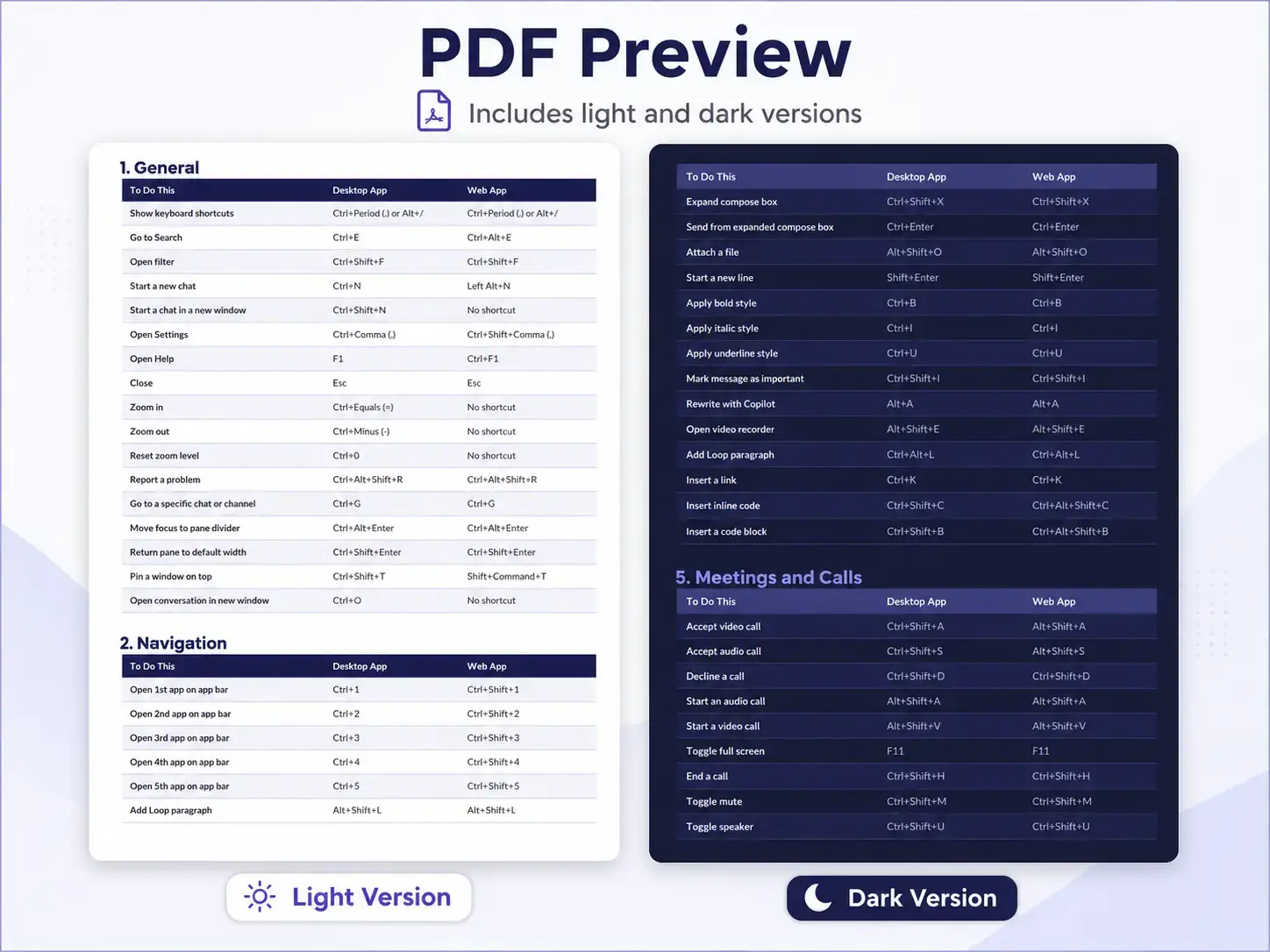
All 96 shortcuts from this page, sorted by category, formatted for print and for a second monitor.
✅ Two versions included in the ZIP:
☀️ Light version, clean white background, built for printing and keeping at your desk
🌙 Dark version, easier on the eyes if you keep it open on a second screen
🖨️ Both are print-ready. $1, instant download.
Instant download after payment. No account required.
More $1 cheat sheet PDFs
Frequently Asked Questions
Can I change or customize Microsoft Teams keyboard shortcuts?
Yes. Press Ctrl+Period (.) to open the Keyboard shortcuts window, tab to the shortcut you want to change, select Edit shortcut, press your new key combination, and select Save. A few keys are reserved by Windows itself, like Ctrl+C and Ctrl+V, so those cannot be reassigned.
Do Teams keyboard shortcuts work the same in the desktop app and the web app?
No, not always. A lot of shortcuts match exactly, but some use different key combinations between the two, and a handful only exist in one or the other. Every table on this page lists both versions side by side so you do not have to guess.
Why does a Teams keyboard shortcut stop working after I rearrange my app bar?
The Ctrl+1 through Ctrl+9 shortcuts open apps in the order they appear on your app bar, not by name. If you move Calendar to the first spot, Ctrl+1 opens Calendar instead of whatever used to be there. Check your app bar order first if a shortcut suddenly opens the wrong thing.
How do I see the full shortcut list from inside Teams itself?
Press Ctrl+Period (.) or Alt+/, or select Settings and more in the upper right corner and choose Keyboard shortcuts. That menu also lets you turn on shortcuts from other apps you use alongside Teams.
Do Microsoft Teams keyboard shortcuts work on Mac or iPad?
Some do, but the key combinations are different. Mac generally swaps Ctrl for Command, and iPad has its own separate shortcut set built for an external keyboard. This page covers Windows desktop and web app shortcuts only.
Why doesn’t Ctrl+Spacebar unmute me during a call?
That shortcut has to be turned on first. Go to Settings, then Privacy, and switch on Keyboard shortcut to unmute. Once it is on, holding Ctrl+Spacebar unmutes you only while you hold the keys down.
What if my keyboard shortcuts don’t match what’s listed here?
These shortcuts are built for a US keyboard layout. If you use a different layout, some key combinations may land on a different key or not work at all. Check Settings, then Keyboard shortcuts inside Teams to see the exact shortcuts assigned to your setup.
More Microsoft Teams resources
Discover more from Windows Mode
Subscribe to get the latest posts sent to your email.
















Add your first comment to this post