Is Windows 11 really faster on a PC with 8 GB of memory? Microsoft says yes. In a November 3 post on the Windows Experience Blog, Windows chief Pavan Davuluri said everyday actions on 8 GB PCs are now up to 20% quicker, and a heavy multitasking test finished up to 40% faster than on the January 2026 builds.
The gains come from smarter memory handling, less background work while you are using the PC, and lighter apps. These are Microsoft’s own numbers from its own tests, so treat them as a guide and not a promise for your PC.
What Microsoft changed for 8 GB PCs
Microsoft groups the work into three parts: using the memory a PC already has more cleverly, protecting the moments that need to feel instant, and making key apps need less memory. Here are the headline numbers.
| Area | What Microsoft says |
|---|---|
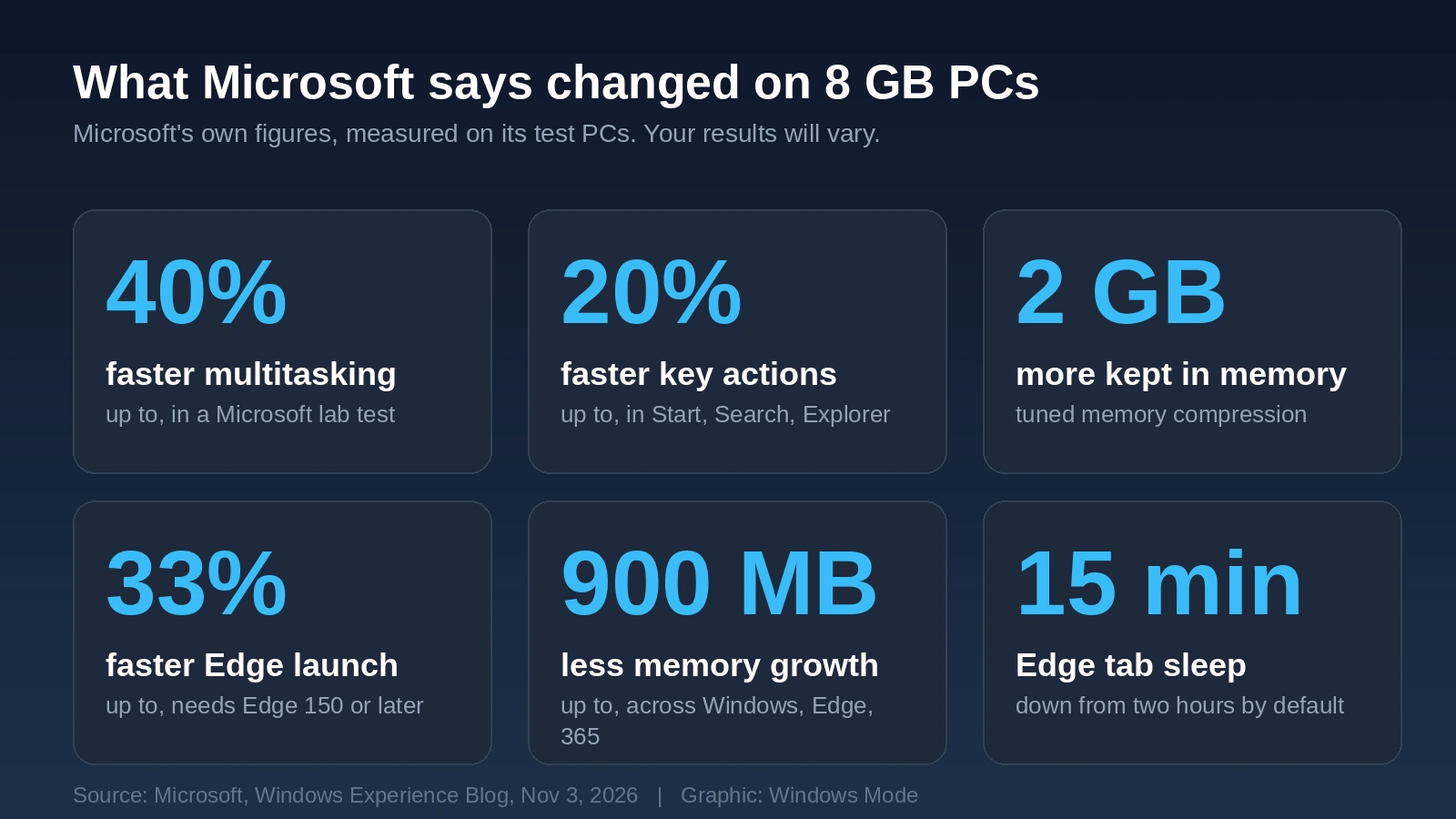
| Memory compression | Tuned so up to 2 GB more of your active data stays in memory instead of moving to the drive. |
| Start, Search, right-click, Settings, Snipping Tool, File Explorer | Respond up to 20% faster than with the January 2026 update. |
| Edge launch | Opens up to 33% faster from Start or a link, because Windows connects to an Edge already running in the background. |
| Heavy multitasking | Up to 40% faster to complete a test with 20 Edge tabs, a 4K video, large Word, PowerPoint and Excel files, Outlook and File Explorer. |
| Memory use | Up to 900 MB less memory growth across Windows, Edge and Microsoft 365 apps in multitasking tests. |
Why a full memory meter is not a problem
Open Task Manager on an 8 GB PC and most of the memory may look used. Microsoft says that is normal. Windows puts spare memory to work keeping apps and data ready, then hands it back when you need it. What matters is whether the PC stays responsive, not how much memory is left empty.
When there is more open than memory can hold, Windows moves less-used data to the drive and fetches it back later, which is slower. The fix is memory compression: Windows squeezes less-active data into a smaller space so it can stay in memory. Windows has done this for years. The change is that Microsoft retuned how much to compress, and when to use the drive, specifically for 8 GB PCs. In practice, an app or browser tab you left open is less likely to reload when you come back to it.
Faster Start, Search and File Explorer
For the actions you ask for right now, Windows now briefly prioritizes your request and backs off background jobs such as search indexing while you are active. Microsoft points to the first few minutes after a restart for an update as a good test: Windows still has setup work to finish, but it should not make you wait to open your browser.
Apps are doing their part too. Microsoft Teams can turn on Efficiency Mode by default on 8 GB PCs, which Microsoft says makes it launch up to 20% faster. During calls, Teams can lower camera resolution to keep processor power free for audio.
How to read these numbers
- The 40% result is from one test. Microsoft ran it on a HP OmniBook 3 with 8 GB of memory and a Snapdragon X Plus processor, and calls it specific to that scenario, not a benchmark.
- The 20% result is telemetry. It compares build 26300.9550 with build 26200.7628 on 8 GB PCs.
- The Edge result needs Edge 150 or later. Your own results will vary by PC and workload.
Lighter Widgets, Edge and Microsoft 365
- Widgets: on PCs with 8 GB of memory or less, Widgets now loads only when you open it. Microsoft says that saves roughly 200 MB while it is closed.
- Microsoft Edge: inactive tabs now go to sleep after 15 minutes by default, down from two hours.
- Microsoft 365: Word, PowerPoint, Excel and Outlook together save about 360 MB, partly through more efficient memory organization.
- Third-party apps: Microsoft says WhatsApp is seeing a double-digit memory improvement in its Windows app.
Microsoft also says a 2026 8 GB Dell XPS 13 delivered up to 94% faster multi-core CPU performance than a 2021 8 GB model, in commissioned testing by Principled Technologies. Newer processors help as much as the software does.
How to get the improvements
You need Windows 11 version 26H2, build 26300.9818 or later. These changes are not described for Windows 10.
- Open Settings > Windows Update.
- Turn on Get the latest updates as soon as they’re available.
- Select Check for updates and install what appears, then restart.
- Press Windows + R, type winver and press Enter to confirm your build number.
- Keep Microsoft Edge, Microsoft 365 and Teams updated too, since some gains arrive through app updates or the Microsoft Store.
Not on 26H2 yet? Our Windows 11 26H2 guide explains the update, and our 26H2 availability post covers who can get it now.
Is 8 GB enough?
Microsoft says 8 GB suits everyday work like browsing, email, documents and video calls. For 3D modeling, advanced video editing or large data work, it recommends 16 GB or more. If your PC regularly runs out of memory, adding RAM, where your PC allows it, is still the surest fix.
Frequently Asked Questions
Which Windows version do I need for the 8 GB improvements?
Will my 8 GB PC really be 40% faster?
Do these changes help Windows 10?
Source: Microsoft.
Discover more from Windows Mode
Subscribe to get the latest posts sent to your email.















Add your first comment to this post