Key takeaways
- KB5132057 is the November 19, 2026 optional preview for Windows 11 25H2 (build 26200.10075) and 26H2 (build 26300.10075).
- The changes most people will notice are a redesigned Windows Search (English only at first) and a new Run dialog that stays off until you turn it on.
- This is not a security update, and Windows 11 24H2 does not get it. There is no December preview. Monthly servicing resumes in January 2027.
Want the new Windows Search without joining the Insider program? Microsoft has released KB5132057 as an optional preview for regular Windows 11 25H2 and 26H2 PCs. It also adds a modern Run dialog, a few accessibility upgrades and some everyday bug fixes.
It will not install itself. You pick it under Settings > Windows Update > Advanced options > Optional updates. New features roll out gradually, so two PCs on the same build may not show the same Search or Run dialog on day one. We first covered this package when it reached Release Preview last week.
Who can install KB5132057
This preview applies to Windows 11 versions 25H2 and 26H2, all editions. It is not the November security update (that was Patch Tuesday’s KB5132061 on November 10).
| Windows 11 version | Build after install | Gets KB5132057? |
|---|---|---|
| 25H2 | 26200.10075 | Yes, as an optional update |
| 26H2 | 26300.10075 | Yes, as an optional update |
| 24H2 | Not in this preview | No. Microsoft ended 24H2 preview updates in September, and Home and Pro already reached end of updates in October. |
24H2 and 26H1
If you are still on 24H2, this package will not appear. ARM-based PCs on Windows 11 26H1 get a separate optional preview the same day, KB5132265 (build 28000.3620), not this one.
How to install KB5132057
You need a 25H2 or 26H2 PC that is allowed to install optional updates, plus a restart when Windows asks.

Open Windows Update
Go to Settings > Windows Update.
Open optional updates
Select Advanced options, then Optional updates.
Install KB5132057
If the preview is offered, choose KB5132057 and install it. A work or school PC may not show optional updates if IT manages Windows Update.
You can skip it. This is not a security patch. If you would rather wait for the next monthly security update, leave it uninstalled.
Restart, then check your build
Restart when Windows asks. Press Windows logo key + R, type winver and press Enter.
You’re finished when: winver shows 26200.10075 (25H2) or 26300.10075 (26H2).
Gradual features, normal fixes
Microsoft splits this update in two. New experiences such as Search and the Run dialog use a gradual rollout, so they can take time to appear after you install the update. Quality fixes use a normal rollout and should apply once the package is installed.
What’s new

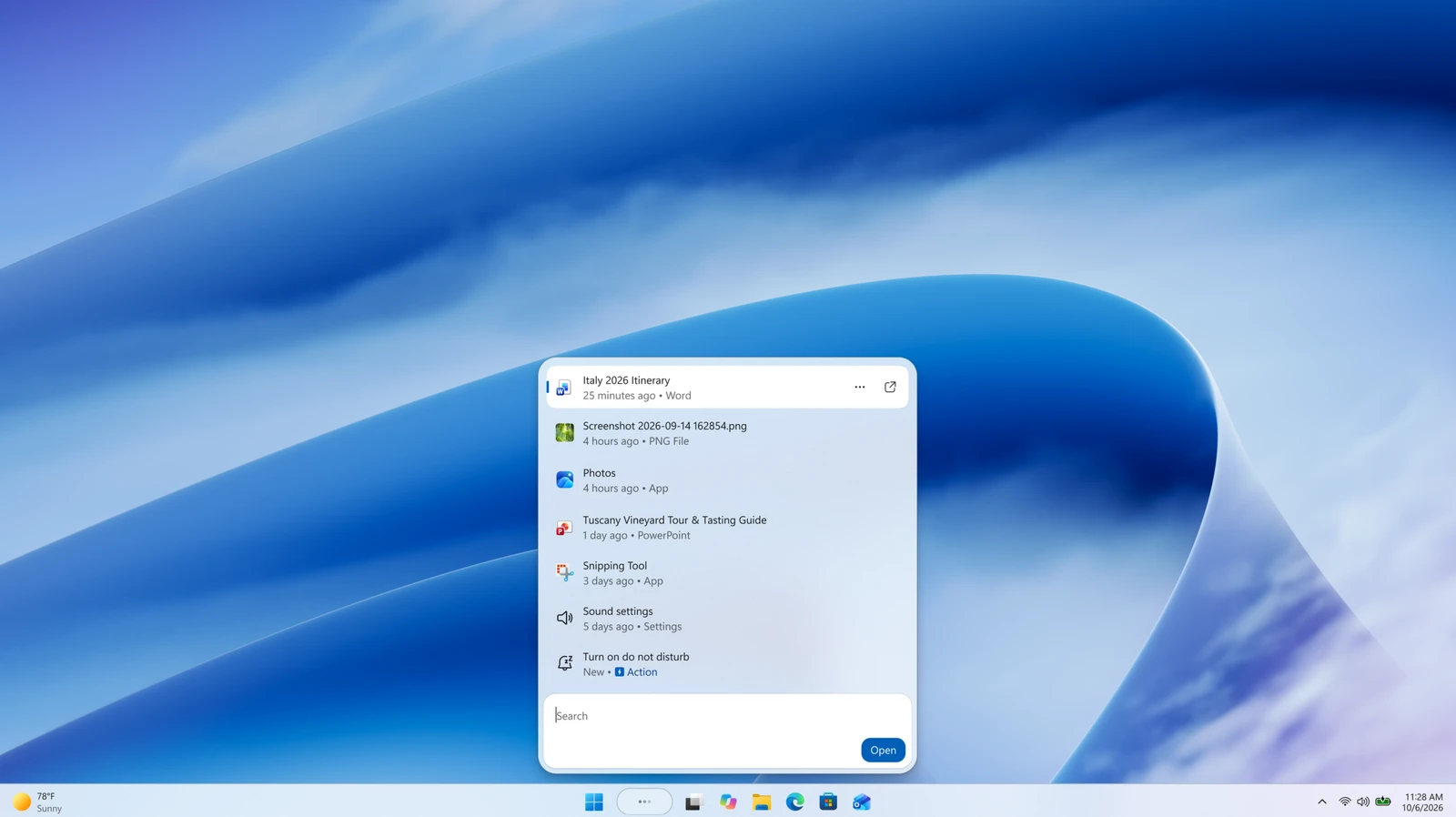
A faster, simpler Windows Search
Search results now show up in one simple list. Microsoft says the new experience is also faster and uses less memory. You can finish common jobs from the search box without opening Settings, such as turning on dark mode or Bluetooth, changing brightness, muting the PC or arranging open windows. If an Android phone is connected through Phone Link, you can also call or text, find your phone or set Do Not Disturb.
You can preview files in Search and see when a file was last changed, where it is saved and who created it. Search handles typos and similar words better, and it can give quick answers for weather, stocks and facts. The new Search is initially available in English only. For more on the redesign and why Copilot stays opt-in, see our earlier Windows Search article.
A modern Run dialog, off by default
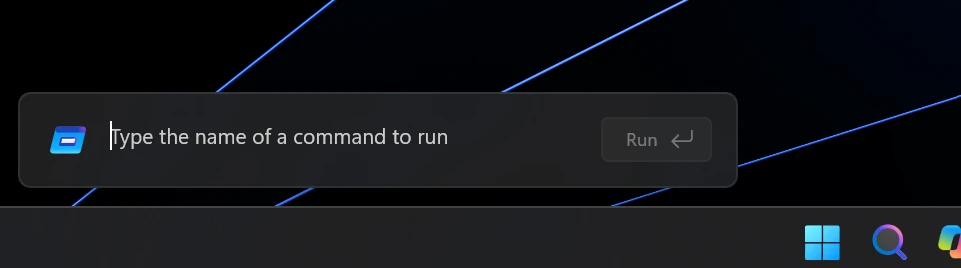
The classic Win + R box gets a cleaner, modern look. It stays off until you turn it on. Go to Settings > System > Advanced and switch on New Run dialog.
Other changes worth knowing
Windows Hello in the dark
Face sign-in can briefly brighten your screen in a dim room. Turn it on in Settings > Accounts > Sign-in options > Facial recognition (Windows Hello), then enable Automatically adjust screen brightness during face recognition.
Faster This PC search
Searching from This PC in File Explorer now uses the search index, so it should feel as quick as search from File Explorer Home.
Red capture border
The border shown while your screen is being captured changes from yellow to red, so it is easier to spot.
Live captions
You can now choose to caption system audio, microphone audio, or both, in Live captions settings.
Pointer indicator
A new aid helps people with low vision find the mouse pointer. Turn it on in Settings > Accessibility > Mouse pointer and touch, then toggle it with Win + Ctrl + Shift + X.
Xbox mode Quick settings
Xbox mode gets the full set of Quick settings in its Gaming Task View bar, so you do not have to leave the mode to use them.
Everyday bug fixes
These quality fixes use the normal rollout, so they should apply after you install the update:
- False “someone else is using this PC” warning when you restart or shut down, even if nobody else is signed in.
- File History restore not finding backups when you select a drive as the backup location.
- Android passkeys failing with a “Something went wrong” error during cross-device sign-in.
- Miracast dropping to a lower resolution on some wireless displays.
Microsoft also lists fixes for Sage 50 Accounting crashes, Fax and Scan authentication, an extra character in Japanese RemoteApp text, and a few other less common issues.
Known issues
There are no known issues in this update that typical home PCs need to plan around. Microsoft lists one problem, and it affects SQL Server linked-server connections on servers, not everyday Windows use.
No December preview
Microsoft says there will be no December 2026 non-security preview update, because of the holidays. Regular monthly servicing resumes in January 2027.
Frequently asked questions
How do I install KB5132057?
Open Settings > Windows Update > Advanced options > Optional updates, install KB5132057 if it is offered, then restart. On 25H2, winver should show 26200.10075. On 26H2, it should show 26300.10075.
Is KB5132057 safe to install?
Microsoft describes it as a production-quality preview, not a security update. New features roll out gradually, and you can skip the package if you prefer to wait for the next monthly security update. Typical home PCs have no known issues listed for this release.
How do I turn on the new Run dialog?
After the update is installed, go to Settings > System > Advanced and turn on New Run dialog. If you do not see the switch yet, the gradual rollout may not have reached your PC.
Why don’t I see the new Windows Search?
The new Search is a gradual-rollout feature and starts in English only. Installing the update does not guarantee it appears immediately. It is also not offered on Windows 11 24H2.
Does KB5132057 work on Windows 11 24H2?
No. This preview is for 25H2 and 26H2 only. Windows 11 24H2 Home and Pro already reached end of updates in October 2026.
Source: Microsoft’s KB5132057 preview notes.
Discover more from Windows Mode
Subscribe to get the latest posts sent to your email.














Add your first comment to this post