Readers like you help support this site. When you make a purchase using links on our site, we may earn an affiliate commission. All opinions remain our own.
 To run Qwen 3 VL (Vision-Language) locally on Windows, we use the industry-standard engine: Ollama.
Most AI models are “blind” in that they only understand text. Qwen 3 VL is different. It can look at images, screenshots, and diagrams and analyze them instantly. Released in late 2025, it rivals GPT-4 Vision in its ability to extract text (OCR) and understand complex visual details.
This is the perfect model for users who want to build a “Visual Agent” or simply chat with their photos offline.
Compare this with the agentic GPT-OSS, the heavyweight Llama 4, the reasoning expert DeepSeek-R1, the native Phi-4, or the efficient Gemma 3.
System Requirements
Qwen 3 VL comes in multiple sizes. The 2B version is perfect for old laptops, while the 8B version is the standard for most users.
| Component | Minimum (2B Mobile) | Recommended (8B Standard) |
|---|---|---|
| Operating System | Windows 10 / 11 | Windows 10 / 11 |
| RAM | 8 GB | 16 GB |
| GPU (Graphics) | Integrated Graphics | RTX 3060 (12GB VRAM) or better |
Step 1: Install Ollama for Windows
If you already installed Ollama for our other guides, skip to Step 2.
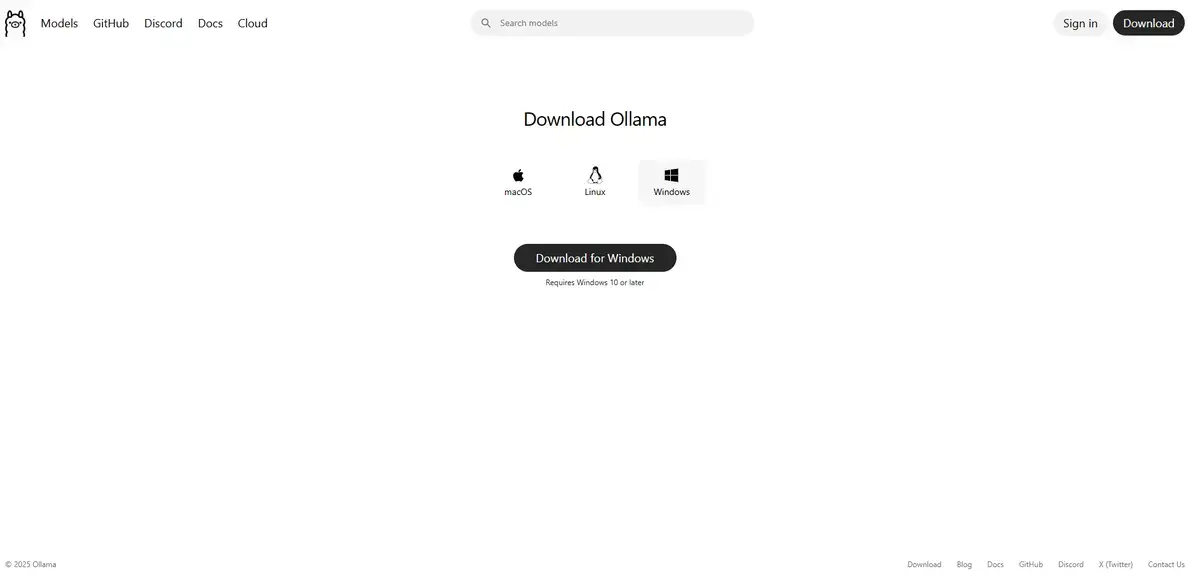
- Navigate to the official Ollama website.
- Click Download for Windows.
- Run the
OllamaSetup.exeinstaller. - Follow the on-screen prompts to complete the installation.
Step 2: Download and Run Qwen 3 VL
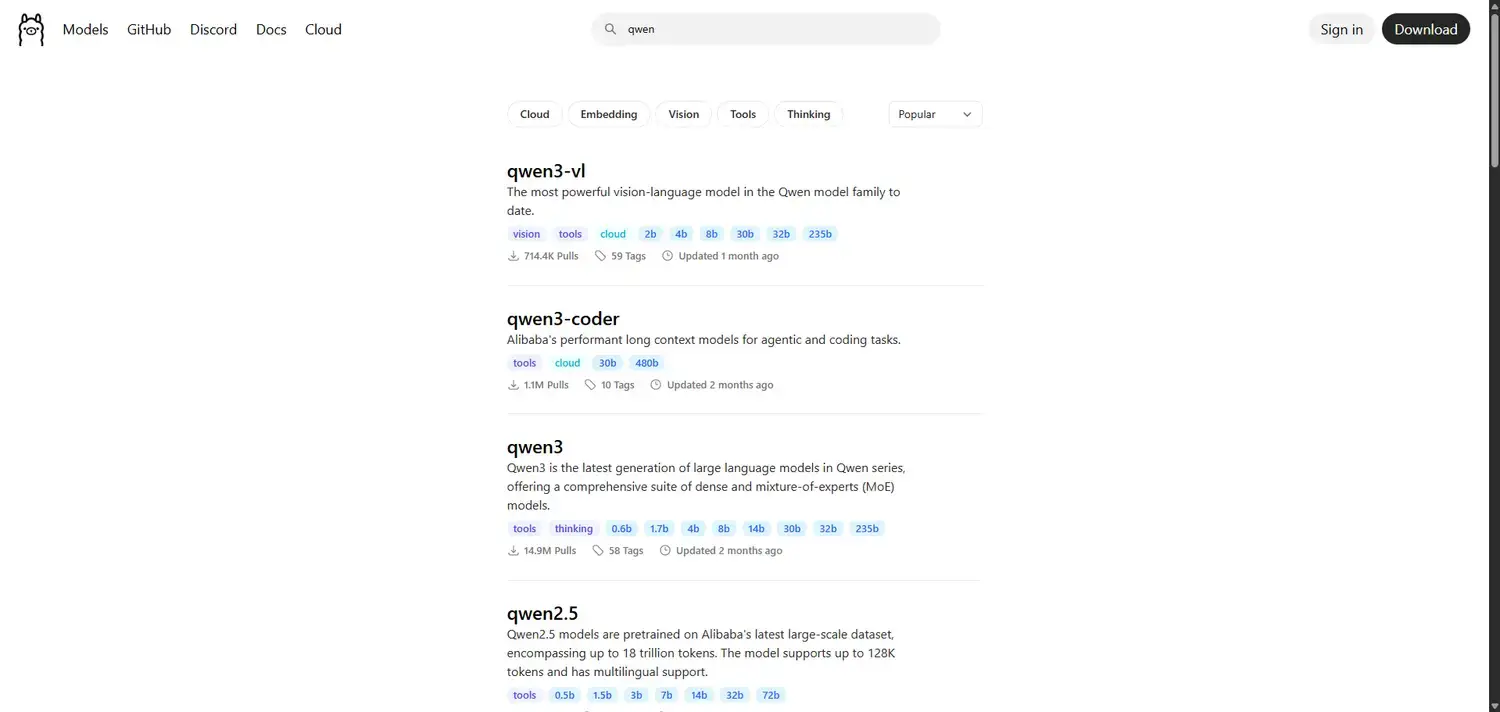
Open your Command Prompt. You have two main choices.
Option A: The Standard (Recommended)
The 8B model offers the best balance of visual accuracy and speed. It can read small text in images very well.
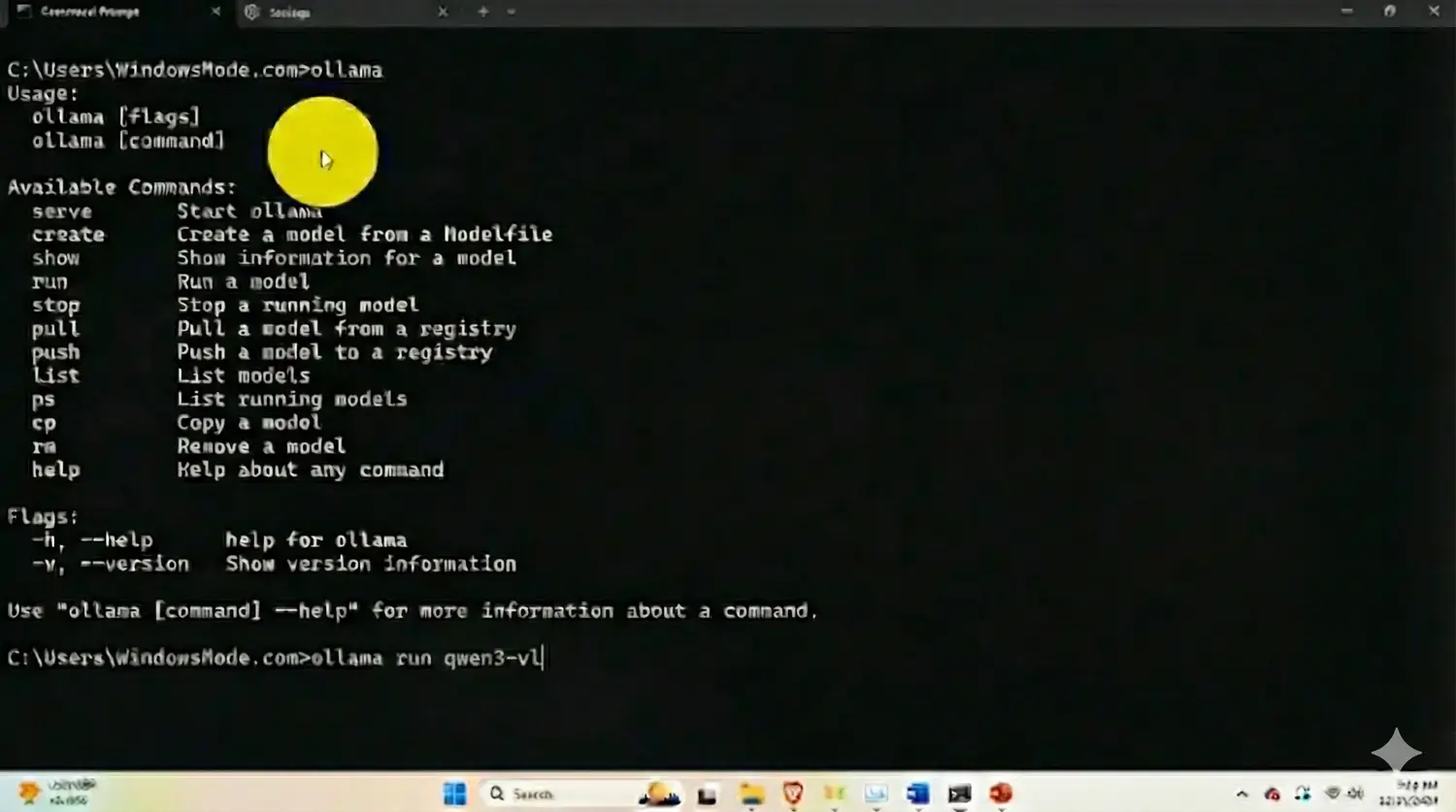
ollama run qwen3-vl
Option B: The Speedster (Low-End PCs)
If you have an older laptop, use the 2B version. It is incredibly fast but slightly less detailed in its descriptions.
ollama run qwen3-vl:2b
Once the download finishes, the prompt will appear. Note: To use images with Ollama, you usually need to drag and drop the image file path into the window, or use a tool like Open WebUI.
Step 3: What Can Qwen 3 VL Do? (First Run Examples)
Unlike other models, Qwen 3 VL is built to see.
1. The Screenshot Analysis
Take a screenshot of a complex software error or a graph.
[Drag and drop your image path here]
Explain what this error message means and suggest a fix.
2. The Receipt Reader (OCR)
It is excellent at turning photos of documents into text.
[Drag and drop a photo of a receipt]
Convert this receipt into a JSON list of items and prices.
Why Run Qwen 3 VL Locally?
Privacy is the number one reason. If you want to analyze personal photos, receipts, or sensitive work screenshots, you do not want to upload them to a cloud server like ChatGPT. With Qwen 3 VL running locally, your images never leave your computer.
Troubleshooting Common Errors
“Error: Vision encoder failed”
If you get an error when loading an image, your version of Ollama might be too old. Vision models require the latest updates. Re-install Ollama from the official site to fix this.
“Very Slow Image Processing”
Vision tasks are heavy. If it takes 30 seconds to read one image, ensure you are using the qwen3-vl:2b version, which is optimized for weaker hardware.
Reader Poll
Discover more from Windows Mode
Subscribe to get the latest posts sent to your email.