
Visual Studio Code (VS Code) is the most popular code editor in the world for Windows. It is free, lightweight, and built by Microsoft. Unlike the larger “Visual Studio” IDE, VS Code is designed to open instantly and supports almost every programming language through a massive library of extensions.
You can download Visual Studio Code via the Microsoft Store or the Official Microsoft website. While both versions work perfectly, most developers prefer the official website installer because it offers more control over updates and right-click context menus.
It has become the standard tool for everything from web development (HTML/CSS) to Python scripting and editing game config files (JSON/Lua).
In this guide, we cover both official download methods, the system requirements, and the essential AI tools you can add to it.
If you are confused about which extensions to install or how to set up your environment, leave a comment below or contact us for help.
Download and install Visual Studio Code
There are two official ways to get VS Code on Windows. We recommend the “User Installer” from the website for most users, but the Microsoft Store version is a great alternative if you prefer automatic background updates.
VS Code (User Installer)
The standard version. Best for full control.
VS Code (Microsoft Store)
Updates automatically via Store.
Once the installer runs:
- Accept the agreement and click Next.
- Important: On the “Select Additional Tasks” screen, we strongly recommend checking these two boxes:
- “Add ‘Open with Code’ action to Windows Explorer file context menu”
- “Add ‘Open with Code’ action to Windows Explorer directory context menu”
- Click Install.
Why check the “Context Menu” boxes?
Checking these boxes lets you right-click any file or folder on your computer and select “Open with Code”. This is the fastest way to start working and saves you from navigating through menus every time.
5 Pro tips to get started fast
If you are new to VS Code, these five tips will save you hours of setup time.
1. Use AI Coding Assistants
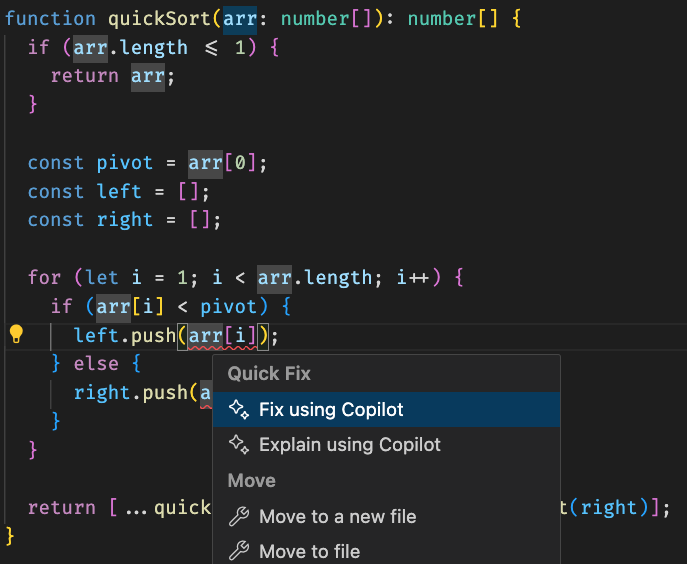
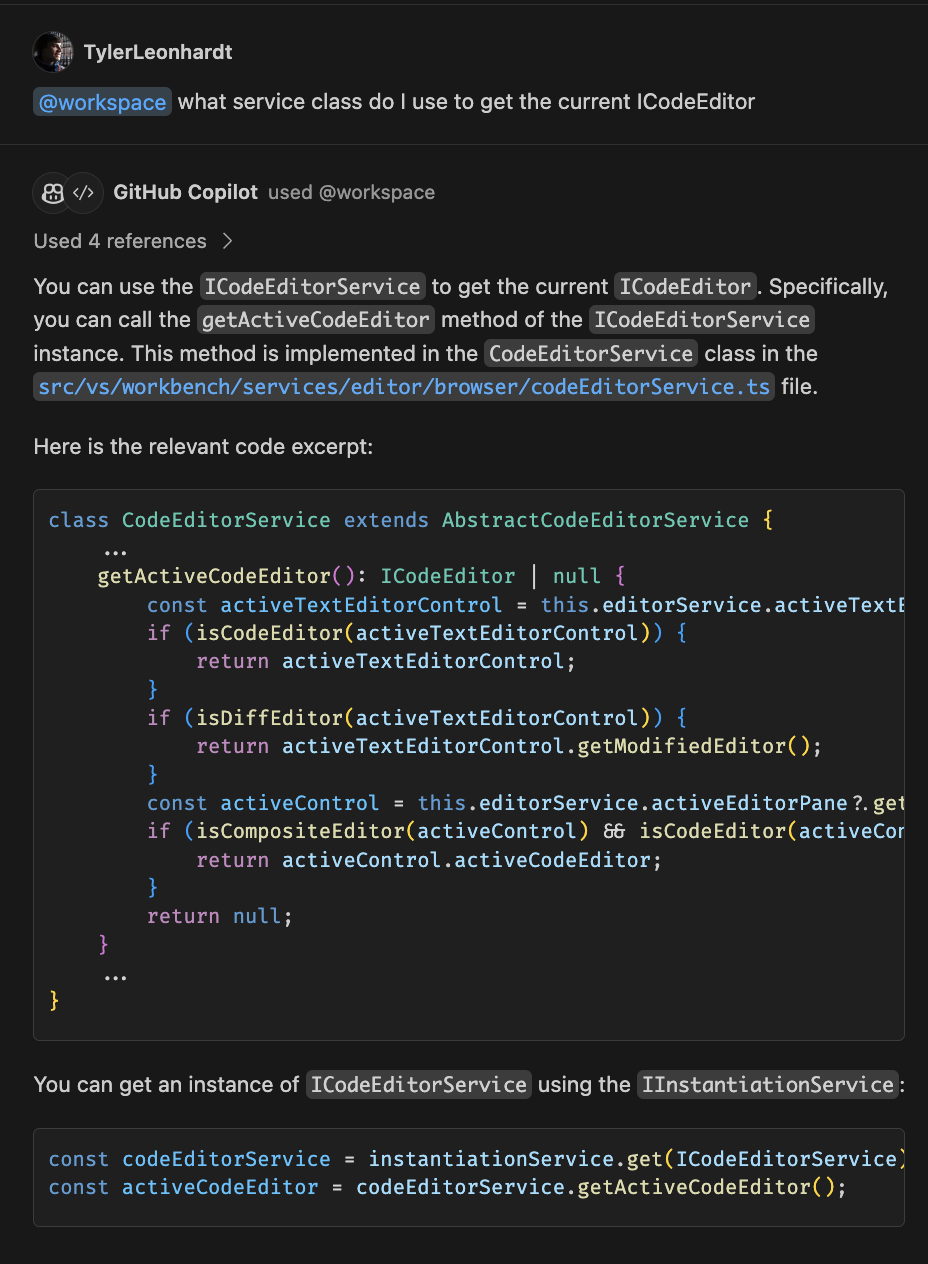
VS Code is built to work natively with GitHub Copilot, but you are not locked into Microsoft’s ecosystem. You can install official extensions to use your favorite AI model directly in the editor:
- Gemini Code Assist: Google’s official extension for smart code completion and chat.
- ChatGPT: Various community extensions let you paste code directly to OpenAI.
- Claude: Use the “Claude Dev” or “Claude Code” extensions to handle complex reasoning tasks.
2. Master the Command Palette
Forget hunting through menus. Press Ctrl + Shift + P to open a search bar that can do literally anything—from “Dark Mode” toggles to “Format Document.”
3. Turn on Auto Save
By default, VS Code asks you to save manually. Go to File > Auto Save to toggle this on so you never lose work if your PC crashes.
4. Sync Your Settings
If you use multiple computers (like a laptop and a desktop), click the Gear Icon > Turn on Settings Sync. This backs up your themes, extensions, and keybindings to your Microsoft or GitHub account.
5. Format on Save
Messy code is hard to read. Open settings (Ctrl + ,), search for “Format On Save,” and check the box. Now, every time you save, VS Code will automatically clean up your indentation and spacing.
Core features
VS Code is an “editor,” not a full IDE, which means it starts fast. You add features as you need them.
- Extensions Marketplace: The sidebar lets you one-click install support for Python, C++, Java, Prettier, and thousands of other tools.
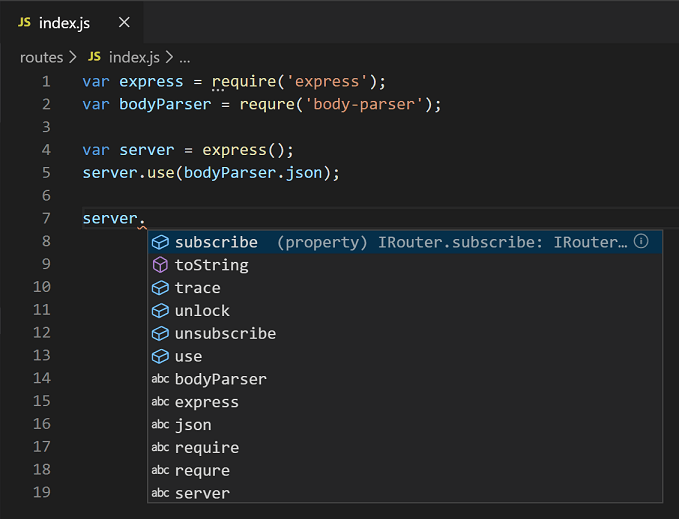
- IntelliSense: Smart code completion that highlights syntax errors and suggests fixes as you type.
- Integrated Terminal: Opens PowerShell or Command Prompt directly inside the editor so you don’t have to switch windows to run scripts.
- Git Integration: Built-in source control lets you commit, push, and pull code changes to GitHub without using the command line.
PC system requirements
VS Code is incredibly efficient. It runs smoothly on almost any laptop manufactured in the last decade.
| Spec | Minimum | Recommended |
|---|---|---|
| OS | Windows 10 / 11 | Windows 10 / 11 (64-bit) |
| Processor | 1.6 GHz or faster | Multi-core processor |
| RAM | 1 GB | 4 GB+ |
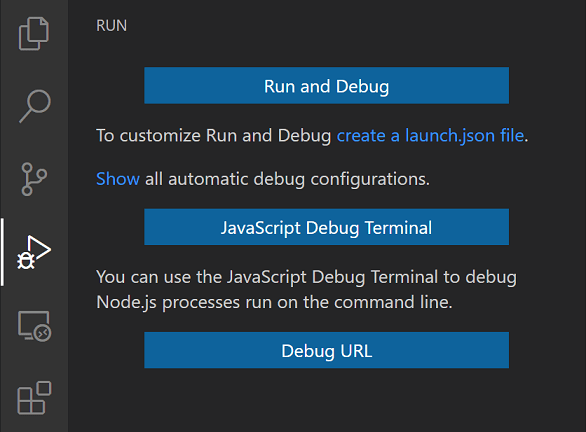
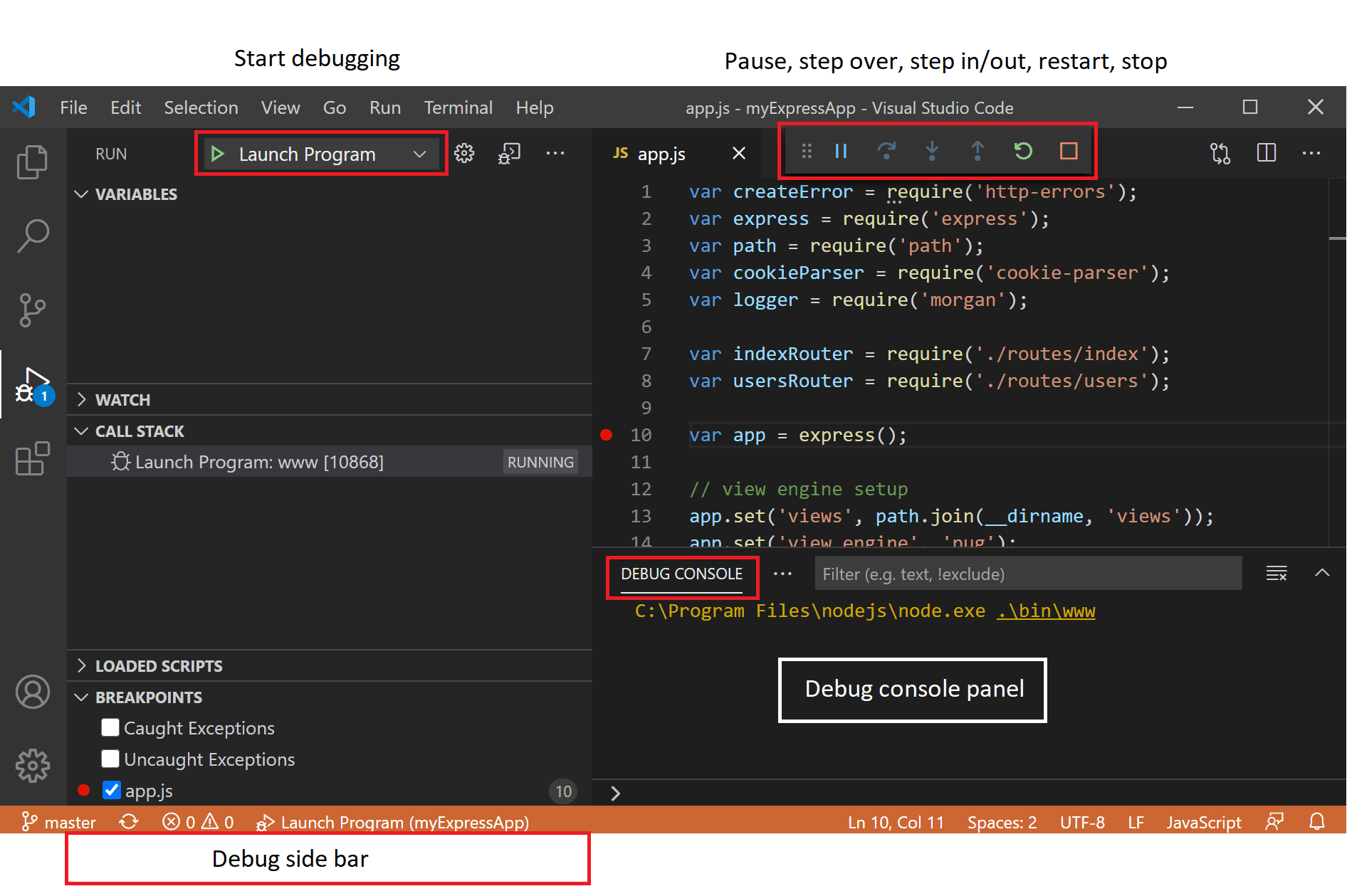
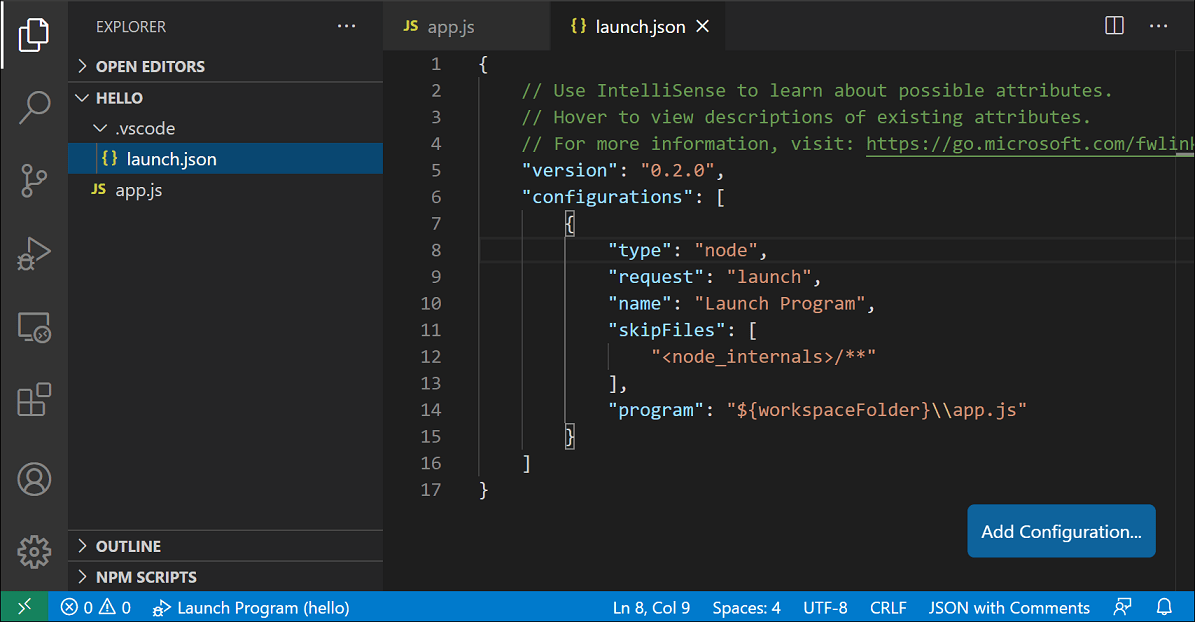
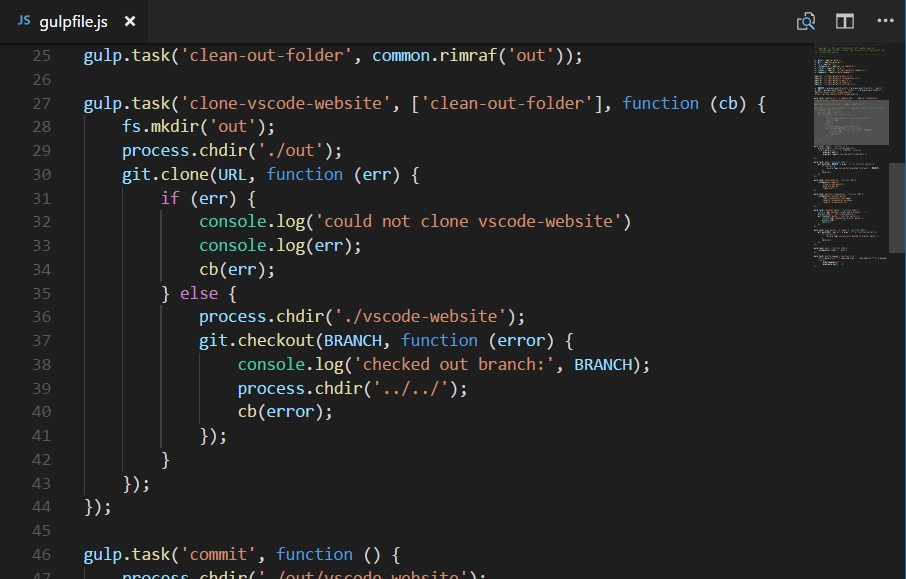
Visual Studio Code screenshots
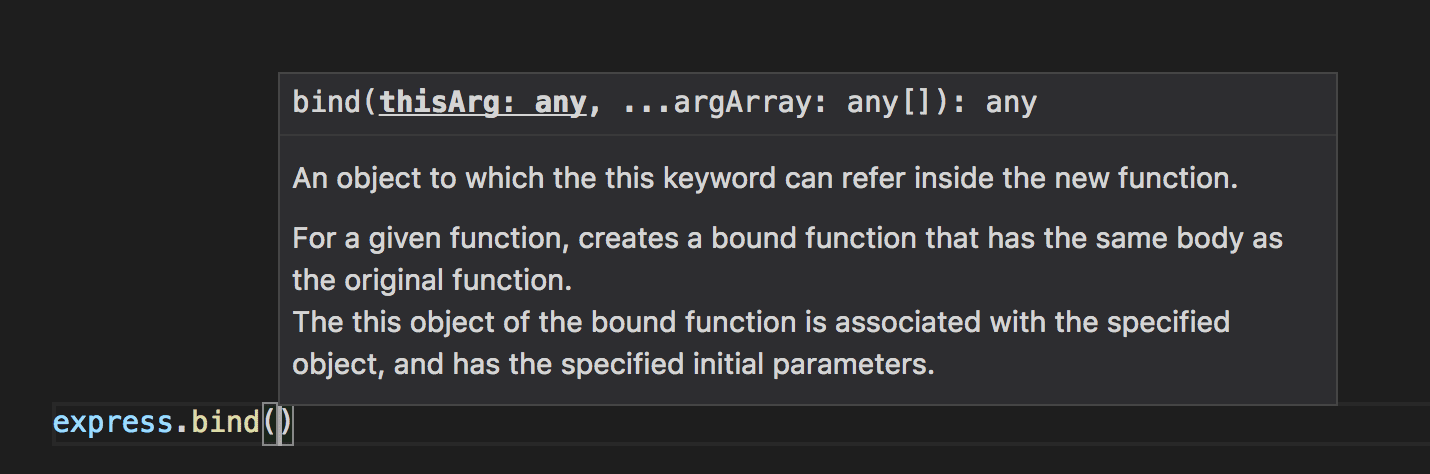
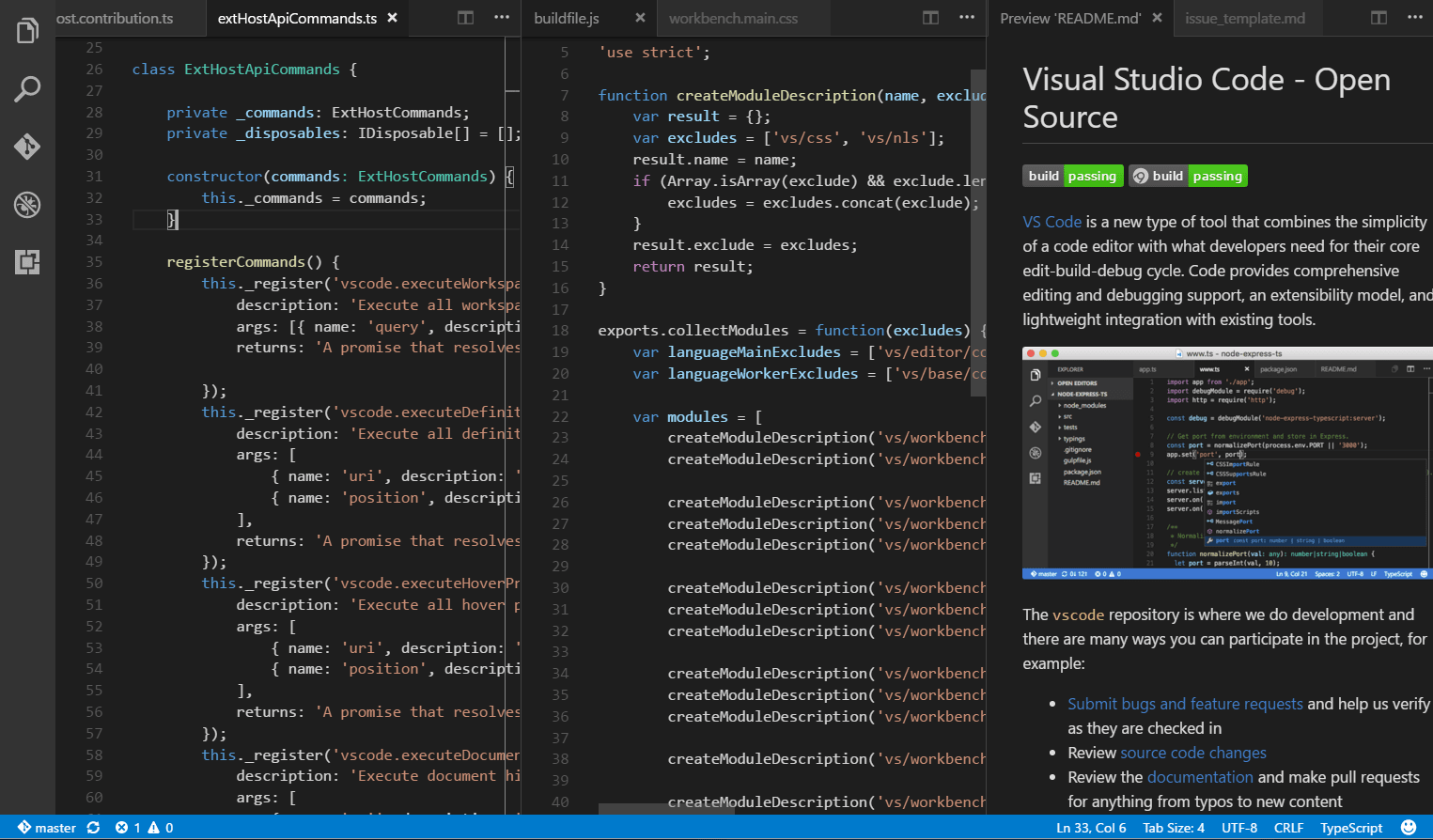
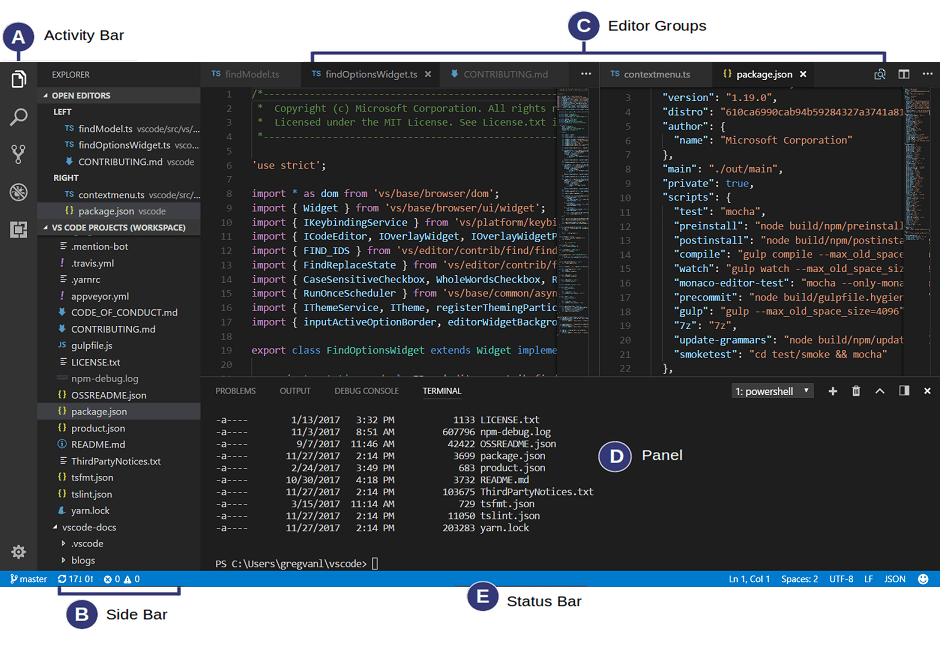
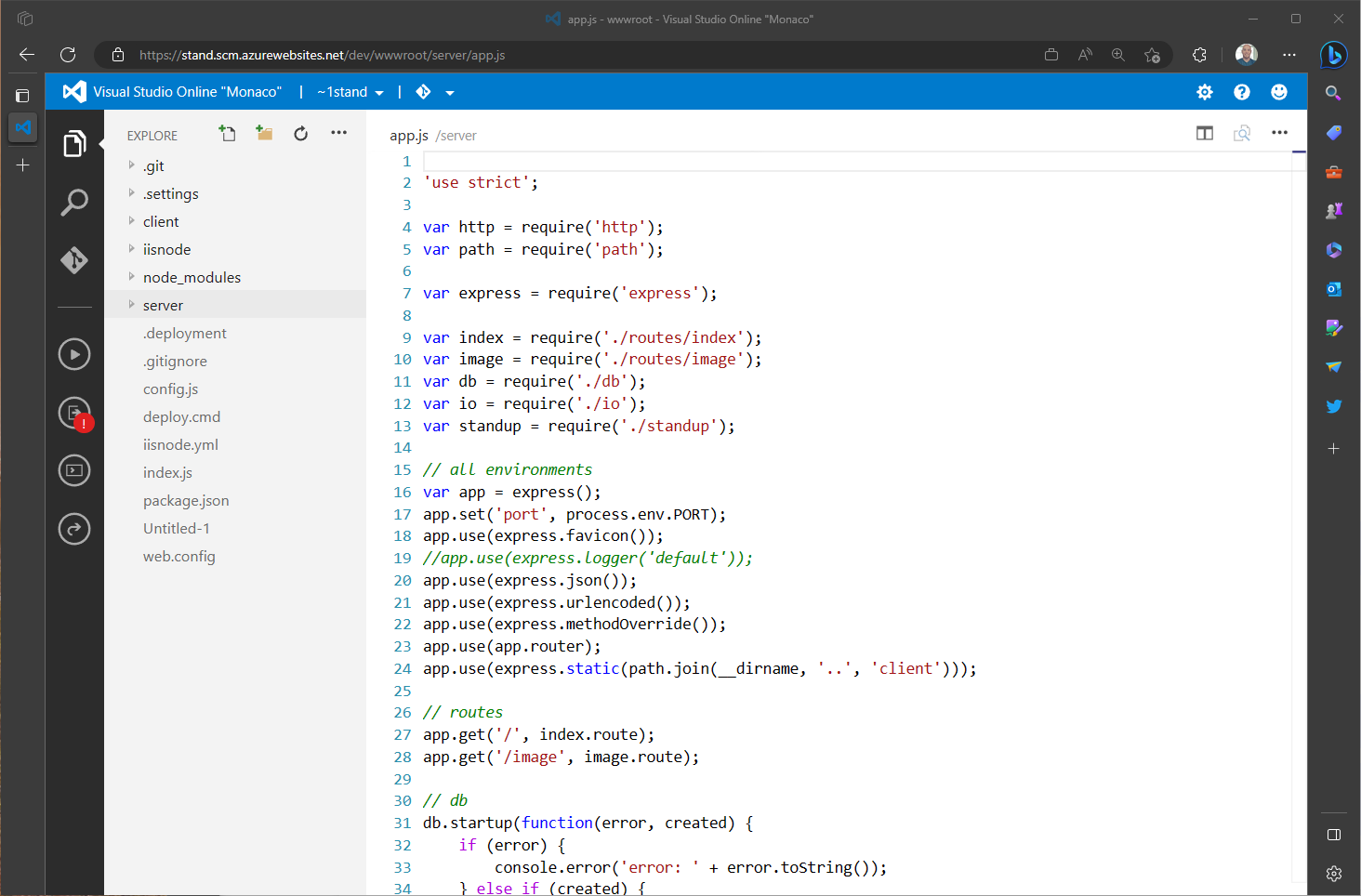
Visual Studio Code setup guide
This video covers the installation process and how to set up the basic extensions for web development.
Related resources
Discover more from Windows Mode
Subscribe to get the latest posts sent to your email.

















Love VS Code and will use it for ever, but jetbrains is good too but VS code #1!