Readers like you help support Windows Mode. When you make a purchase using links on our site, we may earn an affiliate commission. All opinions remain my own.
Wallpaper Engine transforms your Windows desktop by replacing static backgrounds with complex animated scenes. Unlike standard wallpapers, it renders real-time 3D graphics, videos, and audio-reactive elements that sit behind your icons.
It is a paid utility (roughly $4/5 USD), but it is widely considered the most essential customization tool for PC users. Many enthusiasts pair it with VTube Studio to build a fully immersive, animated streaming environment.
In this guide, we cover the official installation, how to ensure it pauses during games to save performance, and how to find the best backgrounds in the Workshop.
If you are having trouble applying wallpapers or syncing with your phone, please leave a comment below or contact us for help.
Download and install Wallpaper Engine on Windows
Wallpaper Engine is distributed exclusively through Steam. This integration allows you to browse and download over a million user-created wallpapers directly from the Steam Workshop.
Wallpaper Engine (Steam)
The official version for Windows 10/11.
Once purchased and installed via Steam:
- Launch Wallpaper Engine.
- Follow the initial setup wizard to choose your “Quality” preset (we recommend “High” for most modern PCs).
- Browse the Workshop tab to find and subscribe to new wallpapers, they will download and apply instantly.
Core features
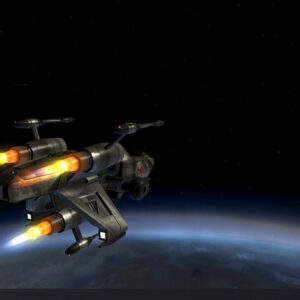
The software does more than just play a video loop. It is a full rendering engine that sits behind your desktop icons.
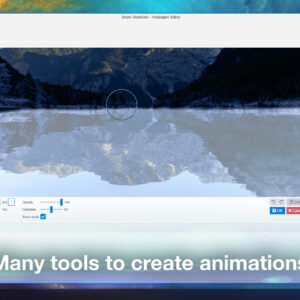
- Interactive Wallpapers: Scenes that react to your mouse movement or clicks (e.g., ripples in water or parallax effects).
- Audio Responsiveness: Visualizers that pulse or change color in sync with your system audio or music.
- Playlist Mode: Automatically cycles through your favorite wallpapers based on the time of day or a timer.
- Hardware Control: Can take control of Corsair iCUE or Razer Chroma RGB lights to match your room lighting to your wallpaper colors.
Performance and Gaming (Important)
The biggest concern new users have is: “Will this slow down my games?”
The answer is no, provided you use the default settings. Wallpaper Engine is designed to pause automatically.
Performance Tip: Check the “Playback” Tab
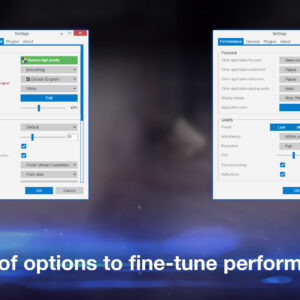
In the Wallpaper Engine settings, ensure that “Other application maximized” is set to “Pause”. This completely stops the wallpaper engine when you are playing a game or watching a YouTube video in full screen, freeing up your CPU and GPU usage entirely.
PC system requirements
Wallpaper Engine is generally lightweight, but complex “3D Scene” wallpapers can use more GPU power than simple 2D videos.
| Spec | Minimum | Recommended |
|---|---|---|
| OS | Windows 7 (with Aero) | Windows 10 / 11 |
| Processor | 1.66 GHz Intel i5 | 2.0 GHz Intel i7 or equiv |
| RAM | 1 GB | 2 GB |
| Graphics | HD Graphics 4000 | NVIDIA GTX 660 / AMD HD7870 |
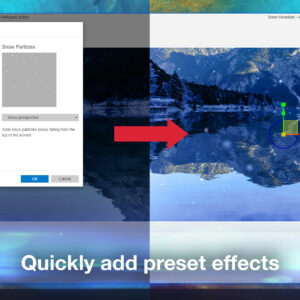
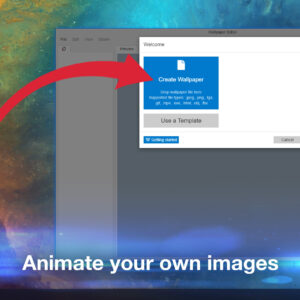
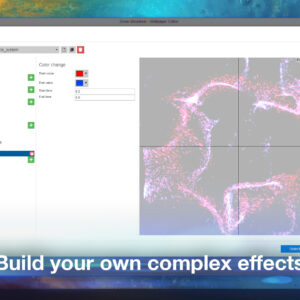
Wallpaper Engine screenshots





Wallpaper Engine setup guide
This video covers the installation process and how to find high-quality wallpapers in the Workshop.
Related resources
Discover more from Windows Mode
Subscribe to get the latest posts sent to your email.