Readers like you help support this site. When you make a purchase using links on our site, we may earn an affiliate commission. All opinions remain our own.

The Update Assistant brings any Windows 10 PC up to the final version, 22H2.
The Windows 10 Update Assistant is Microsoft’s free tool for bringing a Windows 10 PC up to the latest version, 22H2, available from Microsoft’s official download page. It checks your PC, downloads the update and installs it while keeping your apps and files.
22H2 matters more now than ever. Windows 10 support ended on October 14, 2025, and the only way to keep getting security fixes is Extended Security Updates, which Microsoft runs until October 12, 2027. ESU only works on Windows 10, version 22H2. If your PC is on an older version, this tool is how you get there.
If your PC can run it, moving to Windows 11 is the better long-term fix. See how to upgrade to Windows 11. Questions? Contact us or leave a comment.
Price
Free
Straight from Microsoft
Installs
Windows 10 22H2
The final version
Keeps
Apps and files
An in-place update
Unlocks
ESU
Security updates to Oct 2027
How to Use the Windows 10 Update Assistant
Back up anything important and plug in your laptop first. Then:
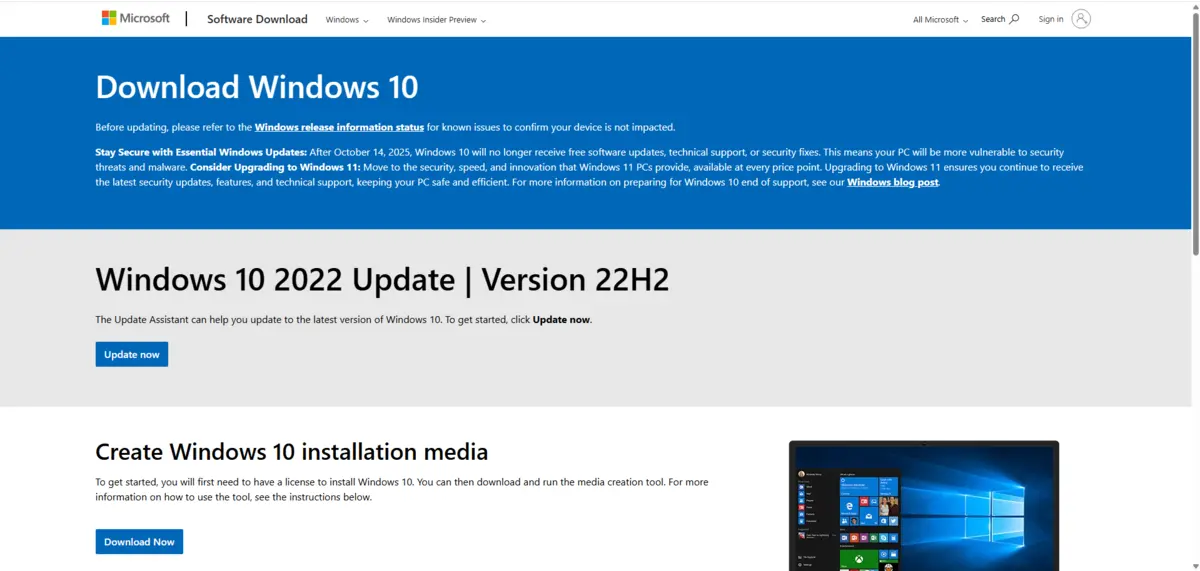
Open Microsoft’s Windows 10 download page and select Update now.
Run the file you downloaded as an administrator.
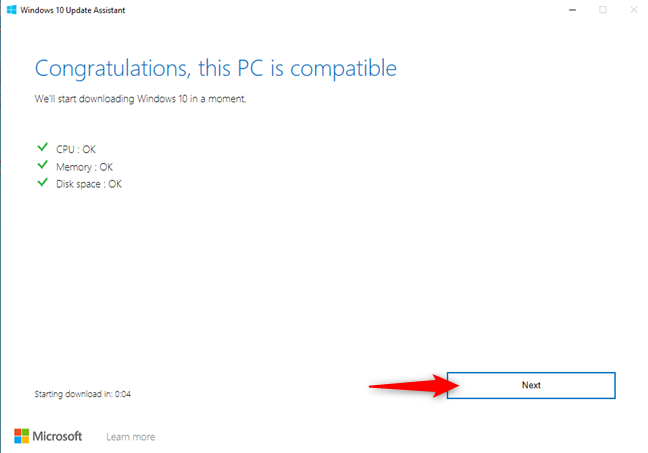
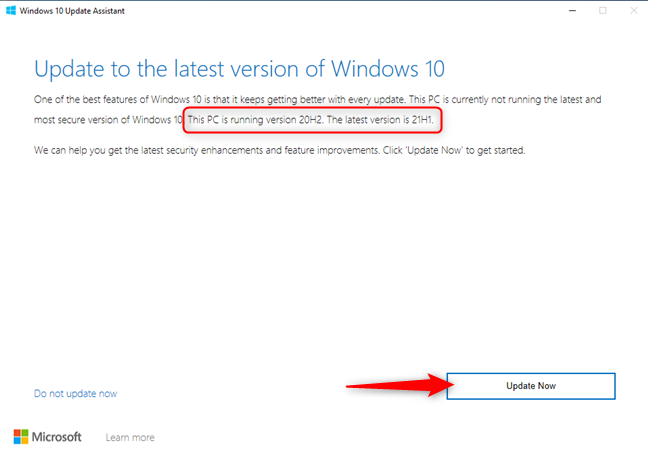
Select Update Now in the assistant. It checks your PC and starts downloading.
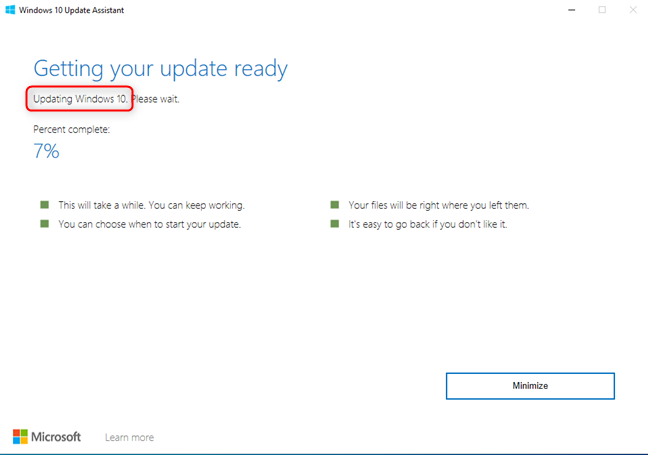
Let it install. Your PC restarts a few times, and that is normal.
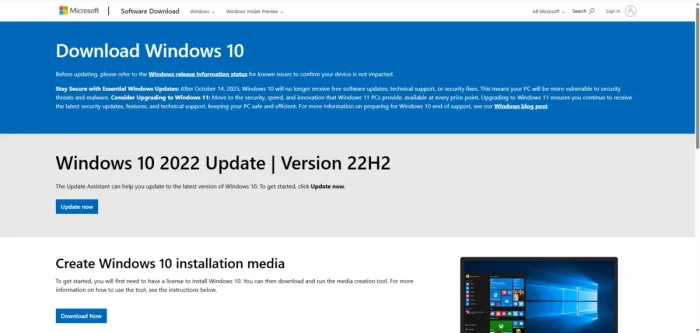
The Update now button on Microsoft’s Windows 10 download page.
Check Your Version First
Press Windows + R, type winver and press Enter. If the window says Version 22H2, you do not need this tool, since you are already on the final version. If it shows anything older, run the Update Assistant.
Keep Getting Security Updates With ESU
Once you are on 22H2, you can sign up for Extended Security Updates. Microsoft lists these requirements.
Windows 10, version 22H2
Home, Pro, Pro Education or Pro for Workstations. The Update Assistant gets you here.
The latest updates
Install everything waiting in Windows Update before you try to enroll.
An admin Microsoft account
The Microsoft account signed in to the PC must be an administrator, not a child account.
Enroll in Settings
Go to Settings > Update & Security > Windows Update and select Enroll now. It is free if you sync your PC settings.
What Is the Windows 10 Update Assistant?
It is a small app from Microsoft that installs the newest Windows 10 version over your current one. Your apps, settings and files stay where they are. On PCs already running 20H2 or later, 22H2 installs as a small enablement package, so it is quick.
Need a clean install instead? Use the Windows 10 Installation Media tool or the Windows 10 ISO. Ready for Windows 11? Use the Windows 11 Installation Assistant.
Tips for Getting Started
Free up space
Clear room on your C: drive before you start. Disk Cleanup and uninstalling unused apps are the fastest ways.
Plug in and stay online
Keep laptops on power and use a stable connection until the update finishes.
Pick a quiet time
The PC restarts on its own, so start the update when you will not need it for a while.
Save your work
Close your apps before the assistant restarts the PC.
Common Issues and Fixes
Stuck at 99 percent
Give it time first. If nothing moves for a long time, restart the PC and run the assistant again.
Not enough disk space
Run Disk Cleanup as an administrator and include system files, or move large files to an external drive.
Antivirus gets in the way
Some third-party antivirus apps block the update. Pause yours during the install and turn it back on afterwards.
It keeps coming back
Once your PC is on 22H2, you can uninstall the assistant, as shown below.
How to Remove the Update Assistant
After your PC is on 22H2, you no longer need the assistant. To remove it:
Press Windows + R, type appwiz.cpl and press Enter.
Find Windows 10 Update Assistant in the list, select it and select Uninstall.
Delete the C:\Windows10Upgrade folder if it is still there, then restart.
Do not turn off Windows Update. Some guides suggest disabling the Windows Update service to stop forced upgrades. That also blocks every security fix, including ESU updates, which leaves an unsupported Windows 10 PC wide open.
Screenshots
The assistant’s screens, from the compatibility check to the install.
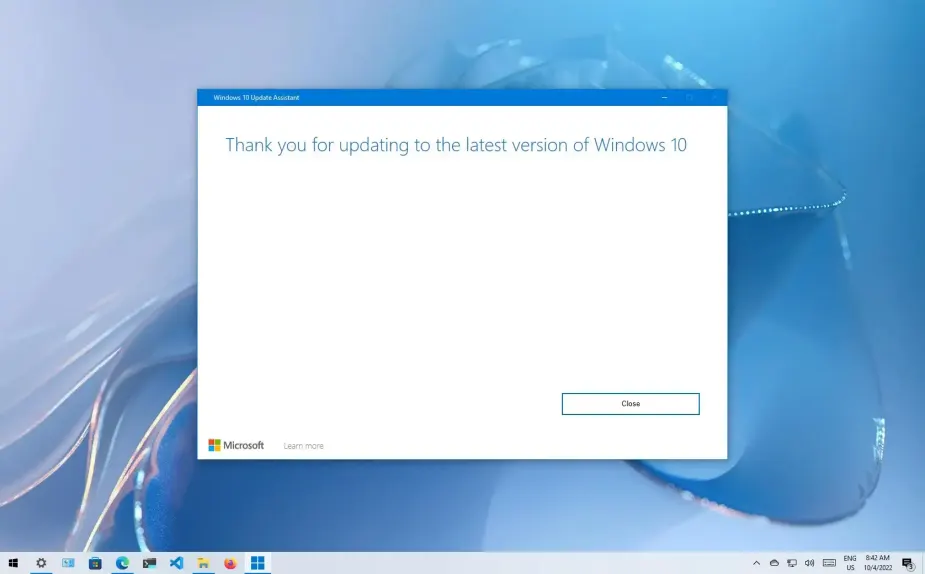
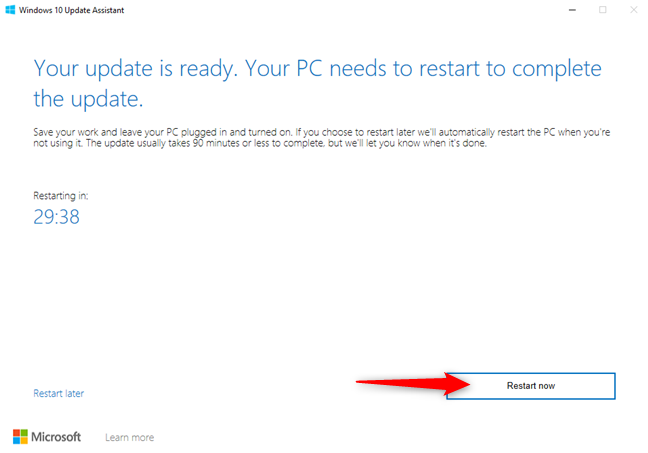
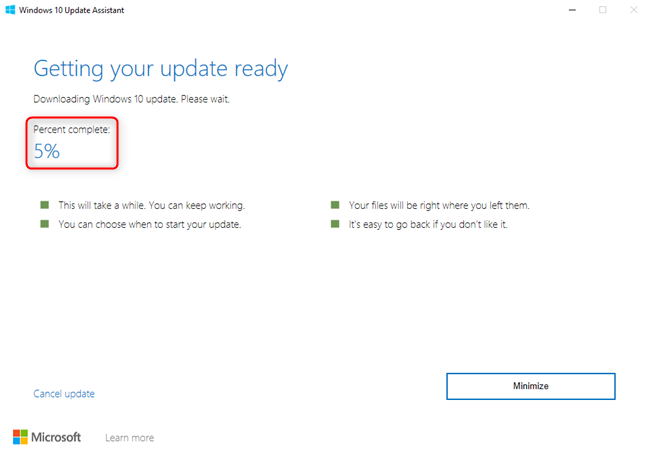
Watch: Use the Update Assistant
This video shows the Update Assistant installing the latest Windows 10 version by hand.
Frequently Asked Questions
Is the Windows 10 Update Assistant free?
What is Windows 10 22H2?
Can I skip the update?
Support and Community
Get help on Microsoft Support, read more on the official Windows site, or ask other users on r/Windows10.
More Windows software guides: Windows 10 ISO · Windows 10 Installation Media · Upgrade to Windows 11 · Windows 11 Installation Assistant · PC Health Check
Discover more from Windows Mode
Subscribe to get the latest posts sent to your email.














Add your first comment to this post