Readers like you help support this site. When you make a purchase using links on our site, we may earn an affiliate commission. All opinions remain our own.
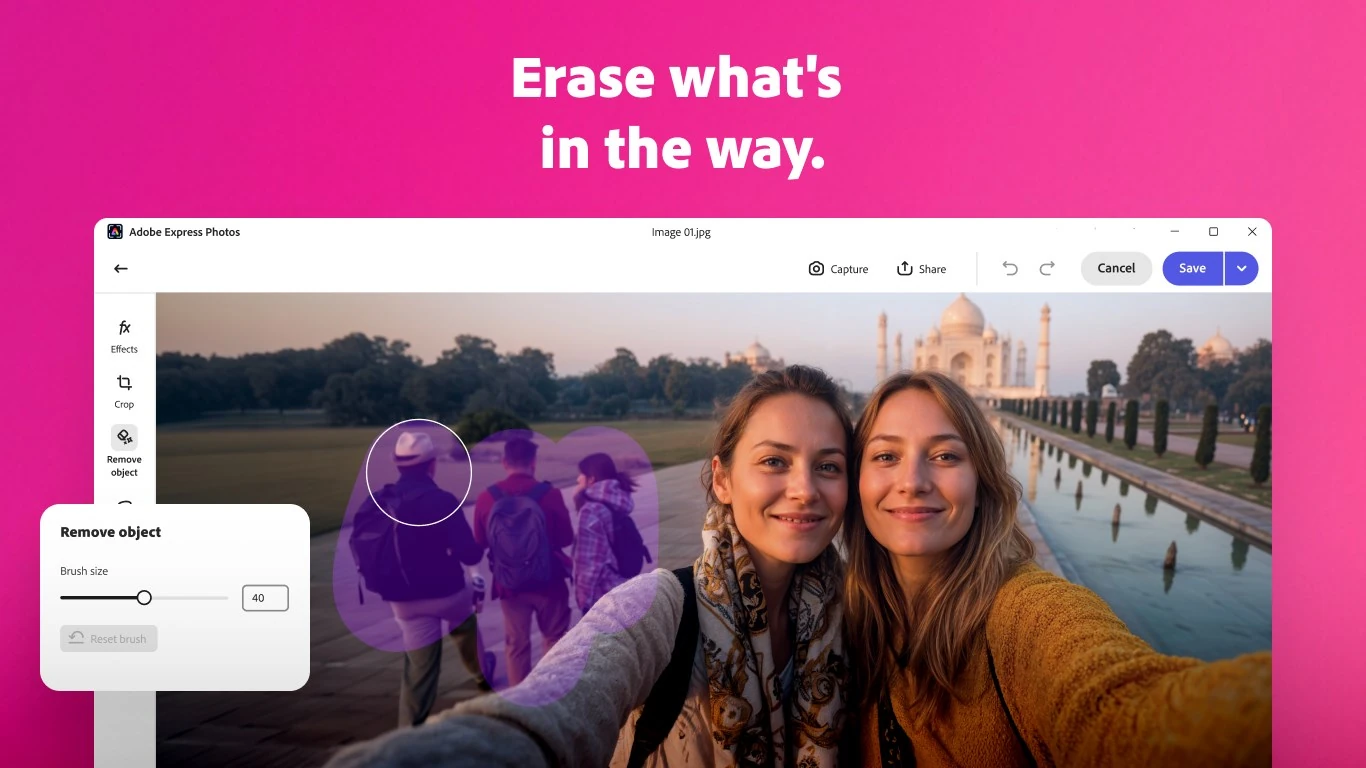
Adobe Express Photos, the new name for Photoshop Express on Windows, erasing people from the background of a photo. Image from Adobe.
Adobe Express Photos is a free photo editor and screenshot tool for Windows from Adobe, available on the Microsoft Store. It is the app that used to be called Photoshop Express. You open a photo, fix the light and color, erase what you do not want, and save or share it.
The rename came with a bigger job. It now captures and marks up screenshots too, including whole scrolling webpages in one image. That puts it up against the Photos app and Snipping Tool that come with Windows.
It runs on Windows 10 (version 1809 or later) and Windows 11, on 64-bit PCs. The core tools are free, and photo editing works offline.
Below: what each tool looks like, what is free and what is not, how it compares to the apps already on your PC, and how to stop it opening every image. Questions? Reach out to us directly.
What Is Adobe Express Photos?
It is the same Microsoft Store app as Photoshop Express, with a new name and new tools. If you already had Photoshop Express installed, it updates in place, so there is nothing new to download.
It does three jobs. It is a photo editor with sliders, filters, frames and AI cleanup tools. It is a screenshot tool that grabs your screen and lets you draw arrows, boxes and notes on it. And it is a photo library that keeps your pictures in one place to browse.
When you need more, one click sends a photo to Adobe Express, Adobe’s free design app for social posts, flyers and presentations. For layers and step-by-step Guided Edits, Adobe’s paid desktop editor is Photoshop Elements.
Key Features of Adobe Express Photos on Windows
Every screenshot below comes from Adobe’s own Microsoft Store listing for the current version.
Remove people and clutter
Brush over a photobomber, a trash can or a stranger in the background, and the app fills the gap. It is the tool most people install this app for, and it works on screenshots too, for hiding a name or a notification.
Remove or blur the background
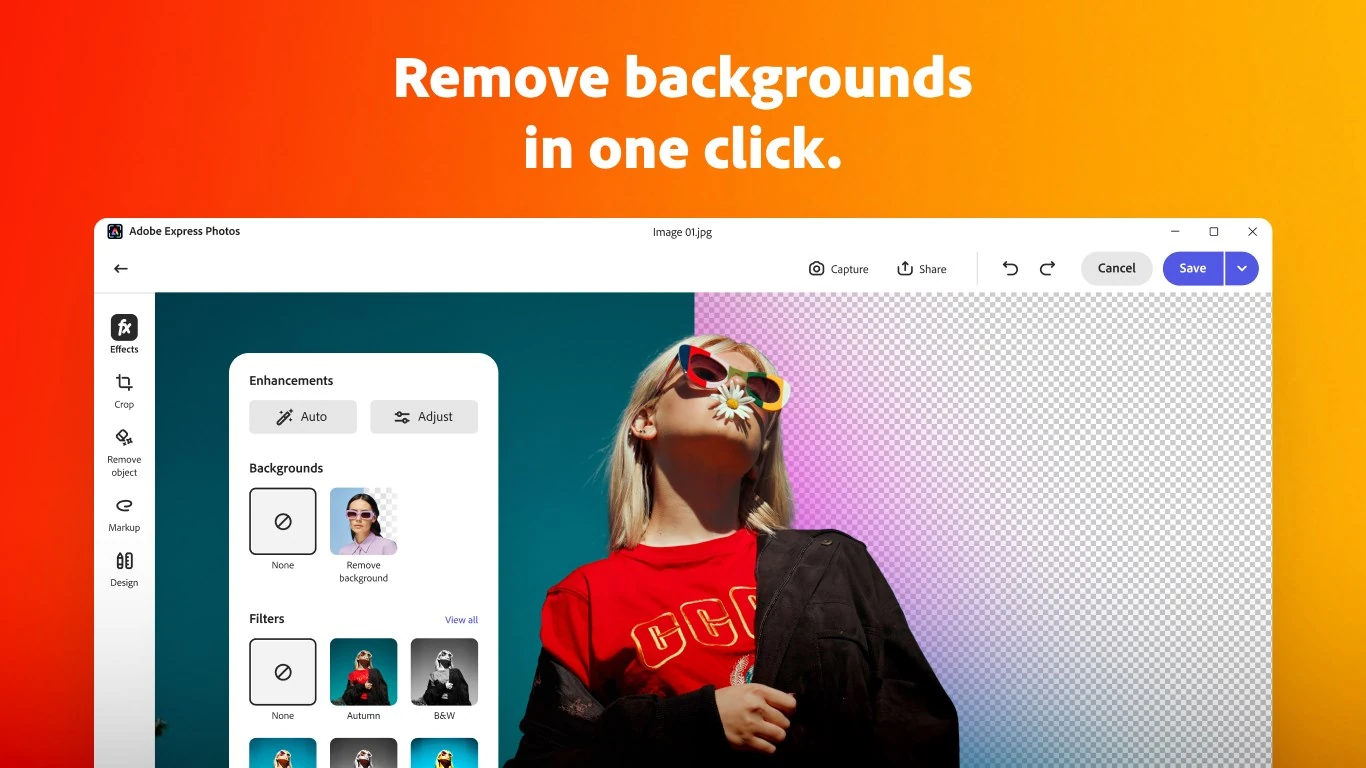
One click cuts the person or product out of a photo and leaves a transparent background, ready for a profile picture or a product shot. Blur keeps your subject sharp and softens everything behind it.
Edit by typing what you want
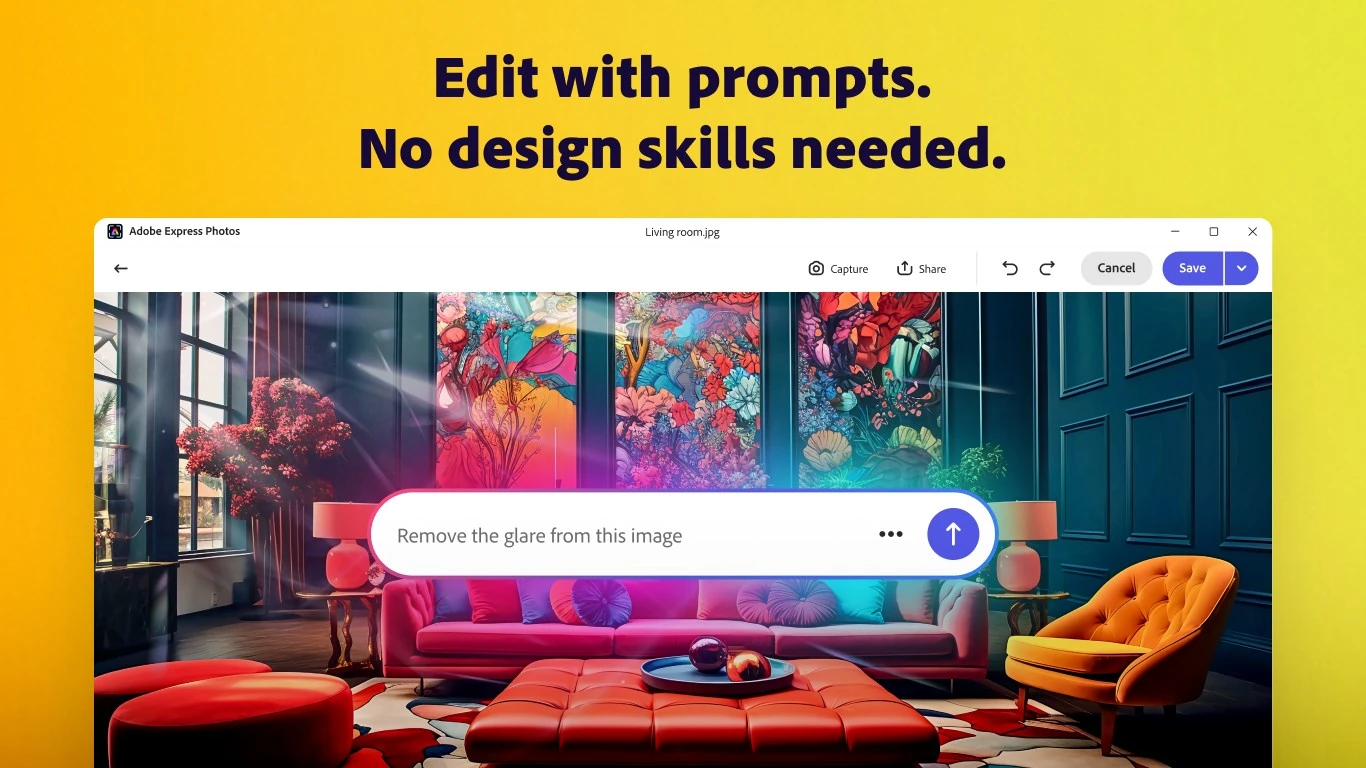
Type a request like remove the glare from this image, and the AI Assistant makes the change. It is labeled beta, so treat it as a shortcut rather than a finished feature. Some AI edits use generative credits, see the pricing section below.
Capture and mark up your screen
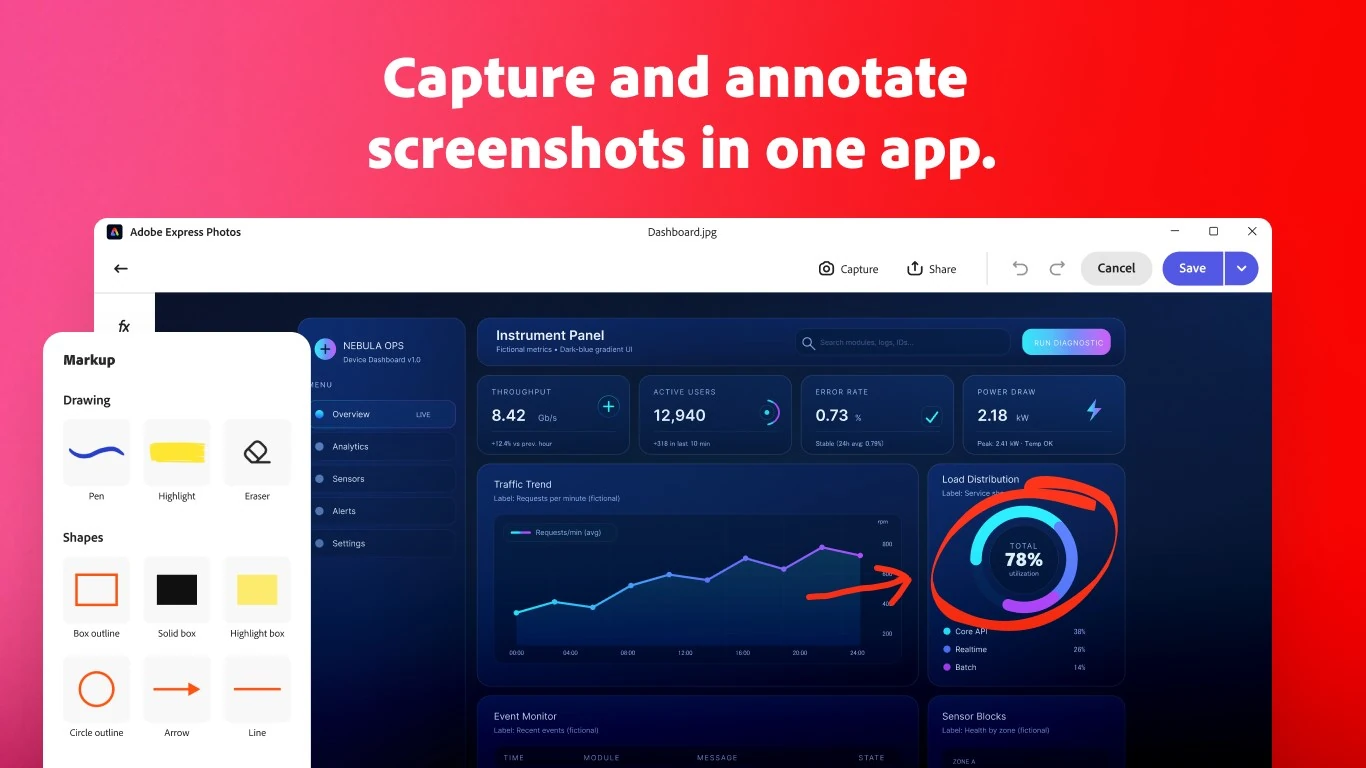
Press PrtSc or Windows + Shift + S to grab your screen, then add arrows, boxes, highlights and text in the same window. You can save, copy or share the result without opening a second app.
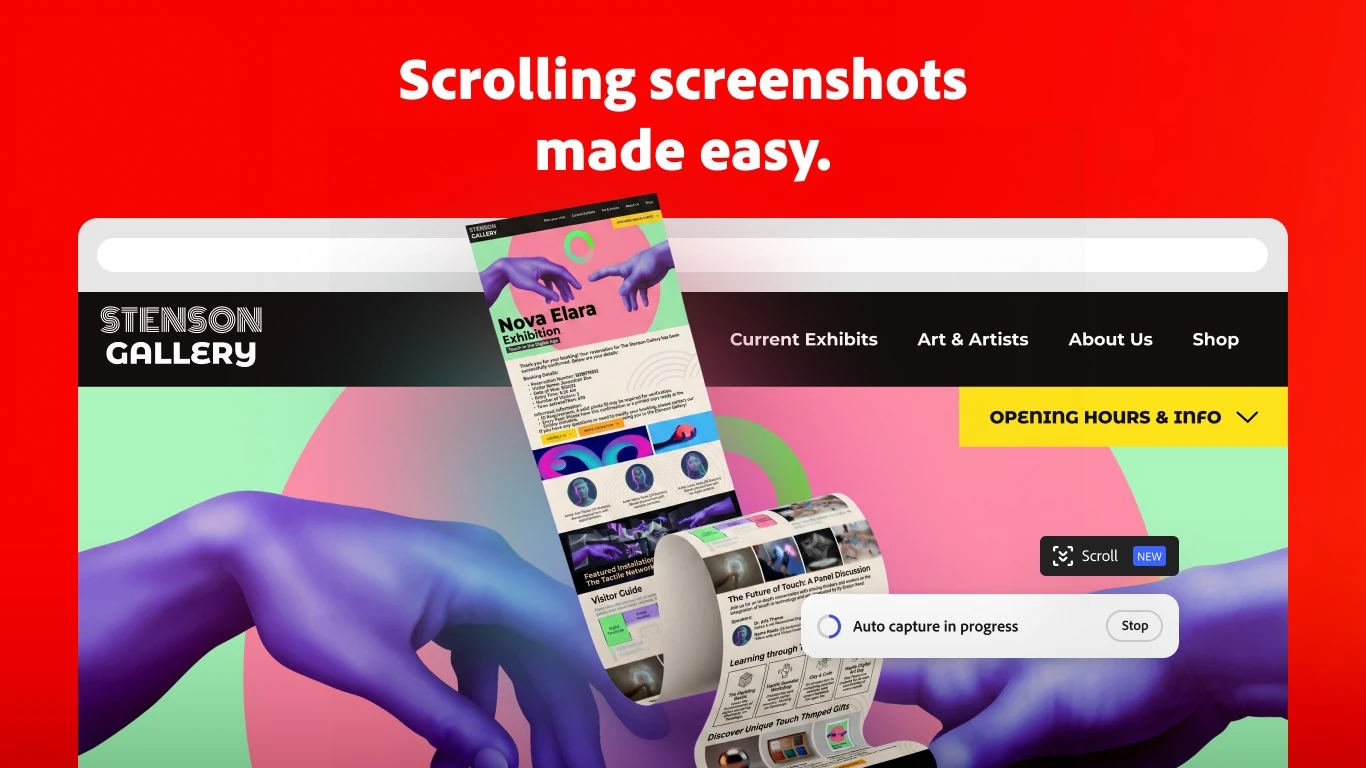
Save a whole webpage as one image
Full page capture scrolls a webpage, document or spreadsheet for you and saves it as one long image. No stitching screenshots together by hand.
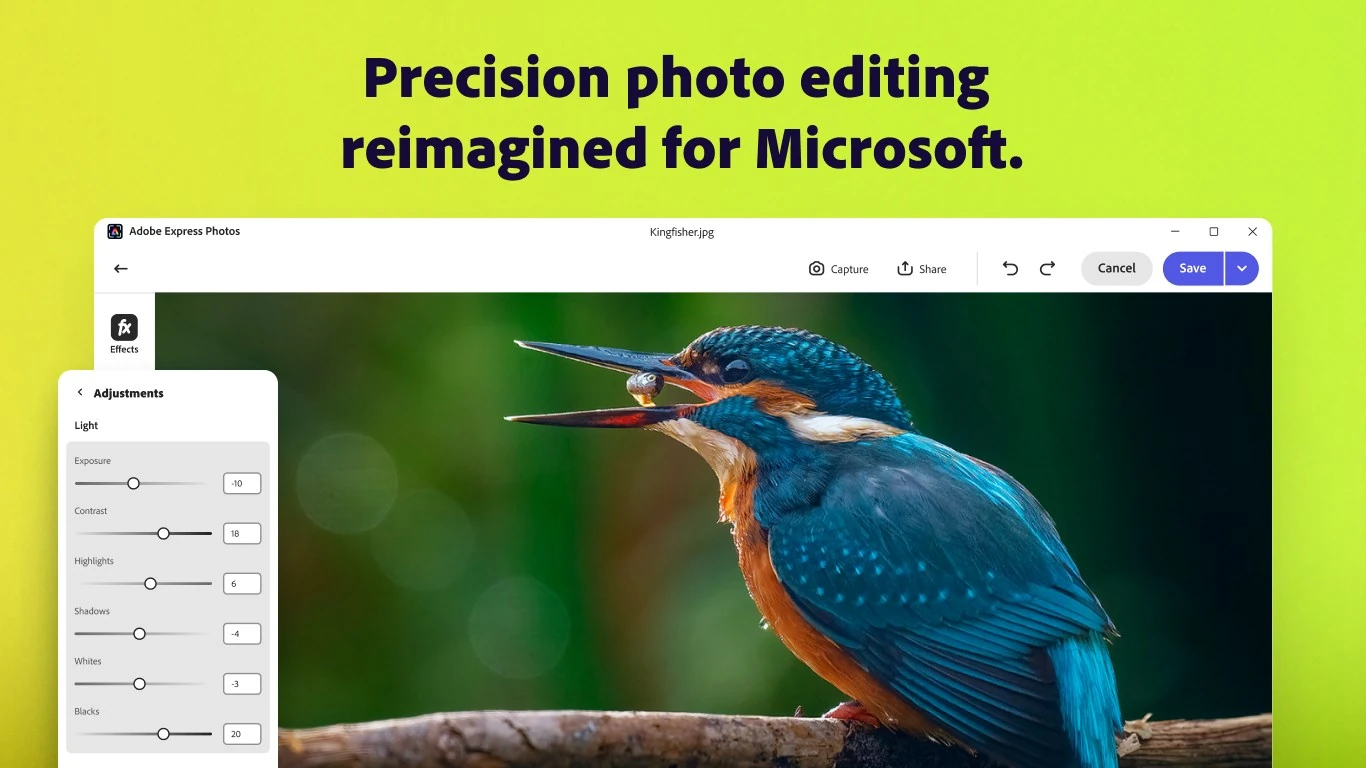
Fine-tune light and color
Auto Enhance fixes a dull photo in one click. If you want control, sliders for exposure, contrast, highlights, shadows, clarity and color let you set it yourself, and crop, straighten and resize presets for social sites sit in the same panel.
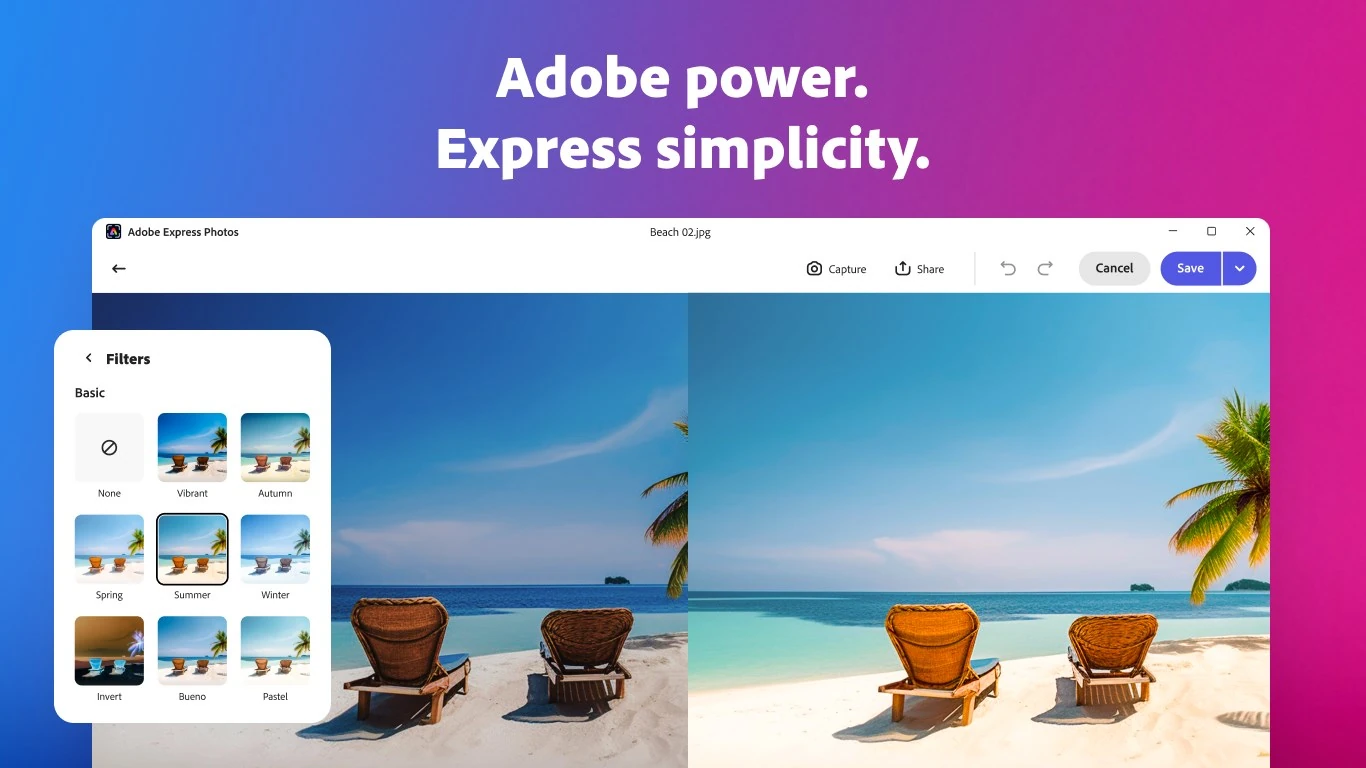
Filters, effects and frames
Pick from more than 90 filters and effects, from simple looks like Vibrant and Summer to blur, vignette, dehaze and split tone. More than 30 frame styles, including film and wood, finish the picture.
Opens RAW photos
Edit JPEG, PNG and more than 20 other formats, including RAW files from most cameras such as CR2, NEF, ARW and DNG.
Works offline
Photo and screenshot editing works without an internet connection. You can share straight to Outlook, Mail, Teams or WhatsApp when you are back online.
How to Get Adobe Express Photos on Windows
The app is only sold through the Microsoft Store, and it is free to download. If Photoshop Express is already on your PC, the Store updates it to Express Photos for you.
1 Open the Adobe Express Photos Store listing, or search for Adobe Express Photos in the Microsoft Store.
2 Click Get and wait for the install to finish.
3 Open the app from the Start menu.
4 Sign in with your Adobe account, or create a free one.
5 Open a photo or press PrtSc to start editing or capturing.
Publisher check: the real app is listed by ADOBE INC. Ignore look-alike apps with similar names.
Is Adobe Express Photos Free?
Yes. The app and its everyday editing and screenshot tools are free. The catch is the AI tools that create new pixels, which can use generative credits from your Adobe account.
Most people never need to pay. If you hit the daily AI limit often, Premium is the upgrade Adobe points to. Full plan details: Adobe Express pricing.
Adobe Express Photos vs the Windows Photos App and Snipping Tool
Windows already gives you a photo editor and a screenshot tool for free. Express Photos puts both jobs in one app and adds more editing control.
Our take
If you only crop and brighten now and then, the Photos app is enough and needs no account. Express Photos is worth installing if you take a lot of screenshots for work, want full-page captures of long webpages, or like having more filters and finer sliders in one app. For serious editing, look at our best photo editors for Windows list.
Is Adobe Express Photos Safe?
Yes, it is Adobe’s own app from the Microsoft Store. It does not change system files, and you can remove it like any other Store app from Settings > Apps > Installed apps.
What it can change is how your PC behaves. It can take over opening image files and start when Windows starts. Both are easy to undo:
It opens every image
Go to Settings > Apps > Default apps, type .jpg in the search box, and pick Photos or the app you prefer. Repeat for .png if needed.
It starts with Windows
Go to Settings > Apps > Startup and turn Adobe Express Photos off. It still opens normally when you click it.
Tips for Getting Started with Adobe Express Photos
1 Try Auto Enhance first. It fixes most dull photos in one click, then use the sliders only if you want more.
2 Use the box tool to hide details. Before you share a screenshot, cover names, emails and order numbers with a solid box.
3 Capture long pages in one go. Full page capture beats taking five screenshots of a receipt or an article.
4 Hand big jobs to Adobe Express. Once a photo is cleaned up, send it to Adobe Express to drop it into a free social post or flyer template.
5 Pick your default image app. If you only want Express Photos for editing, set Photos back as the default viewer in Settings > Apps > Default apps.
How to Install Adobe Express Photos Video
Watch this short walkthrough from Amit Thinks to see the Microsoft Store install and the app opening for the first time on Windows 11.
Frequently Asked Questions
What are the system requirements for Adobe Express Photos on Windows?
What happened to Photoshop Express on Windows?
Can Adobe Express Photos edit RAW photos?
Does Adobe Express Photos work offline?
Is Adobe Express Photos available on Mac or phones?
Support and Community
- Adobe, the developer’s own website.
- Adobe Express Photos page, Adobe’s overview and FAQ for the Windows app.
- Adobe Community, Adobe’s forums, where staff and longtime users answer questions.
- r/photoshop on Reddit, a large community for photo editing help.
More Windows software guides: Photoshop Elements · Premiere Elements · Microsoft Photos · How to Take a Screenshot · Canva · GIMP · Best Photo Editors
Discover more from Windows Mode
Subscribe to get the latest posts sent to your email.












=) Does this work on Windows Phone as well??
Yes this app also works on Windows mobile phones, I have been using it since last year on my Lumia phone.
This is actually better than I thought!