Readers like you help support this site. When you make a purchase using links on our site, we may earn an affiliate commission. All opinions remain our own.
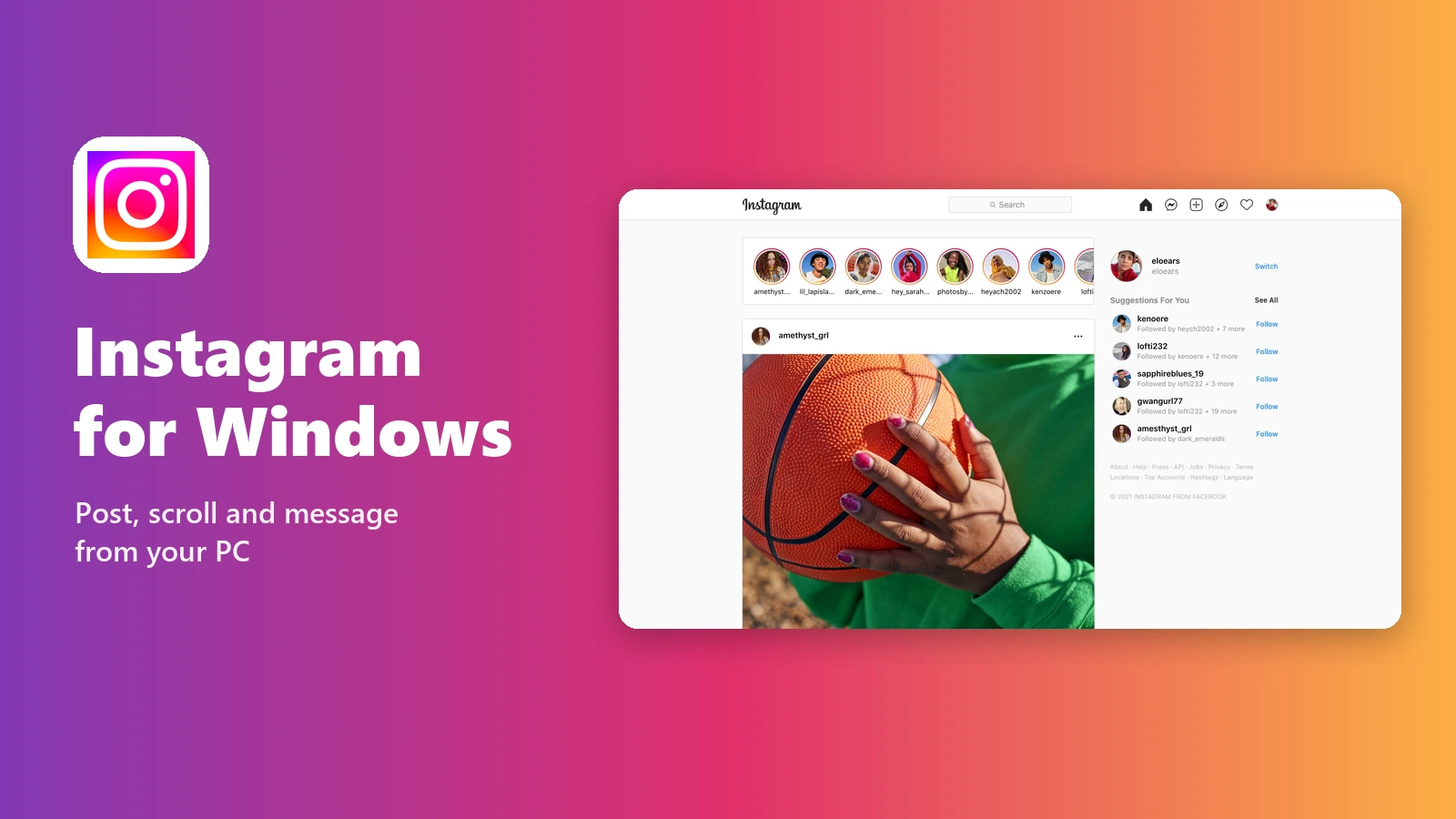
Instagram’s feed and stories on a Windows PC. App screenshot: Instagram, from its Microsoft Store listing.
Instagram for Windows is the free Instagram app for PC from Instagram (Meta), available on the Microsoft Store. You can scroll your feed, watch stories and reels, reply to messages, and post photos and reels from your computer.
Posting from a PC works better than most people expect. You can upload photos and reels up to 20 minutes long straight from your computer’s files. The one big gap is stories, which you still post from your phone.
The Store app is a light web app that runs through Microsoft Edge on Windows 10 and Windows 11. You log in with the same account you use on your phone.
This guide covers how to install it, what you can and cannot do on a PC, how to post from your computer, and fixes for common problems. Questions? Reach out to us directly.
What Is Instagram for Windows?
The Microsoft Store version of Instagram is a web app: instagram.com packaged to run in its own window through Microsoft Edge. That is why the download is only about 1.5 MB, and why it updates itself whenever Instagram changes its website.
It does everything instagram.com does in a browser. The difference is convenience: it gets its own Start menu entry and taskbar icon, so Instagram is not buried among your browser tabs.
The Store listing says it needs Windows 10 version 1709 or later, 2 GB of memory and the latest version of Microsoft Edge.
What You Can Do in Instagram on PC
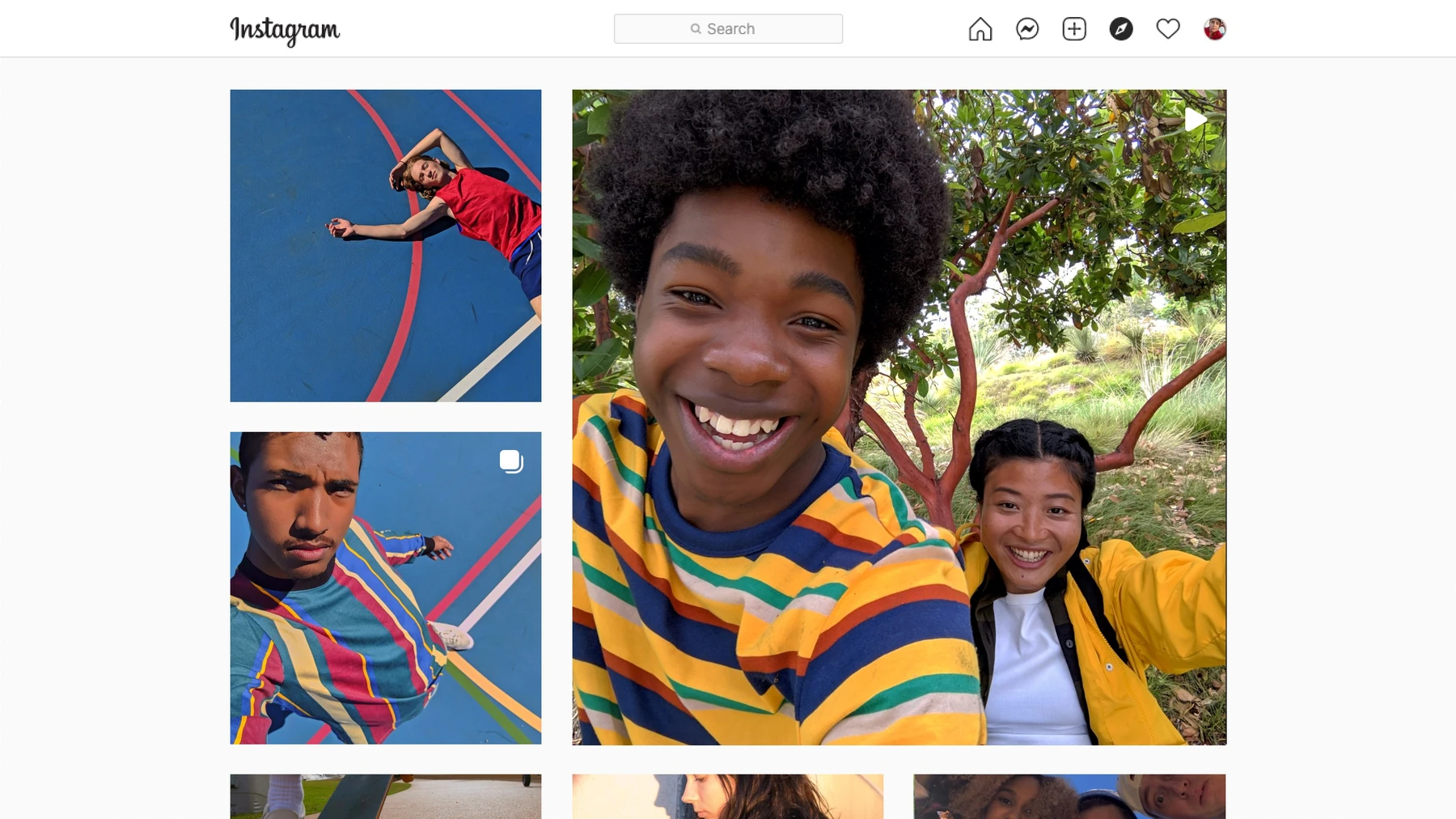
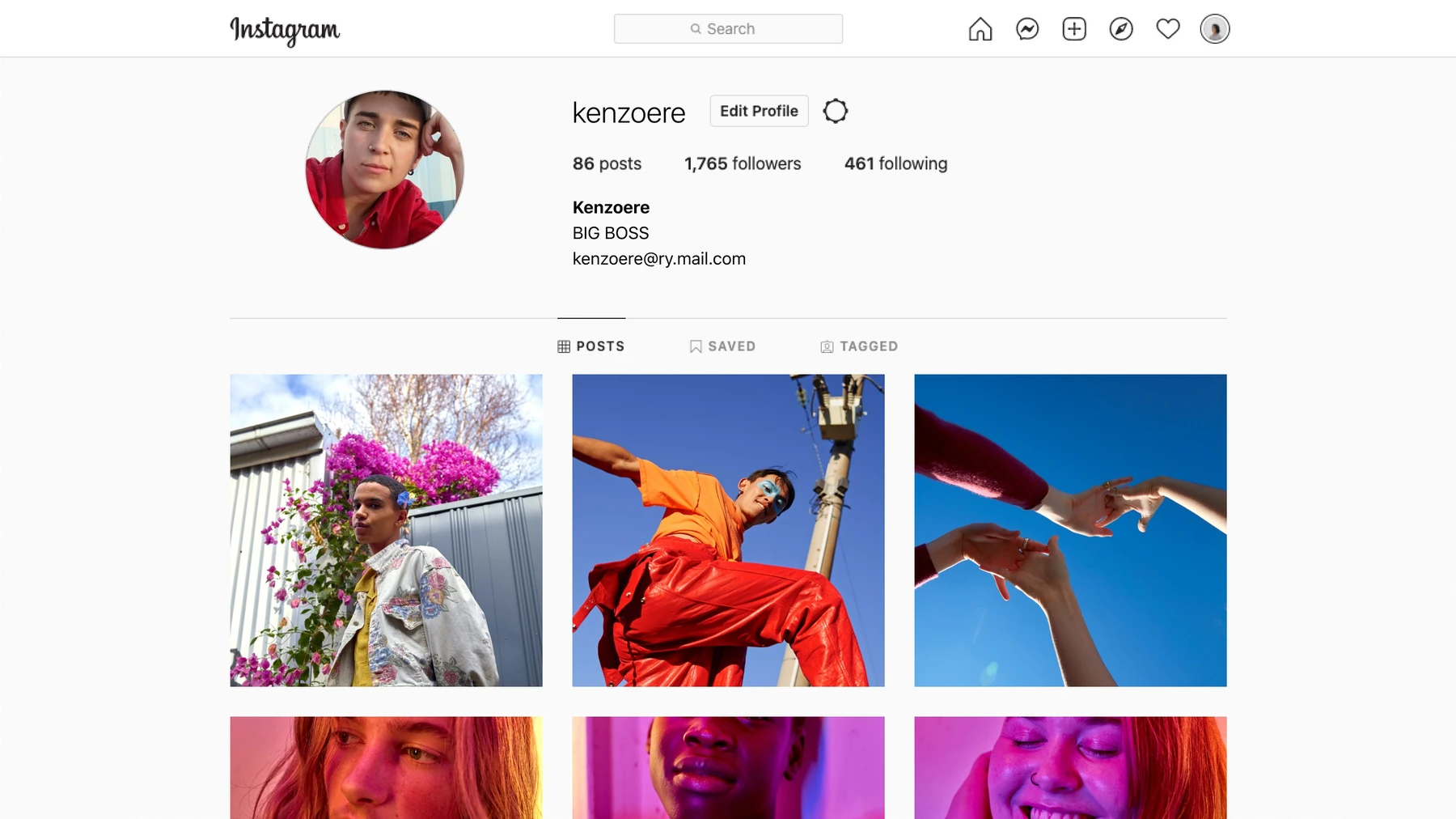
These screenshots come from Instagram’s own Microsoft Store listing. Instagram has since moved its menu to the left side of the window, but the feed, stories and profile work the same way.
Your feed and stories on a big screen
Stories from people you follow run across the top of the feed. Click one to watch it, and use the arrows to move to the next.
Photos look far better on a monitor than on a phone, which makes the PC a good place to catch up on accounts you follow for their pictures.

Explore photos and reels
Browse grids of photos and reels from accounts you follow and accounts Instagram suggests. Click any post to open it full size with its comments.
Manage your profile
Edit your profile, check your posts and saved items, and create Story Highlights from your profile page. You can also stay logged in to up to 10 accounts and switch between them.
Reply to messages with a real keyboard
Click Messages on the left to read and answer your chats, or click Compose to start a new one. Your conversations are the same ones you see on your phone.
What Works on PC and What Needs Your Phone
Instagram’s Help Center lists separate instructions for computers, and they show a clear split. Posting photos and reels works from a PC; posting stories does not.
How to Install Instagram on Windows
The install takes a few seconds. Update Microsoft Edge first, since the app runs through it.
1 Open the Instagram page on the Microsoft Store. Check that the publisher reads Instagram.
2 Click Download or Get, then open Instagram from the Start menu.

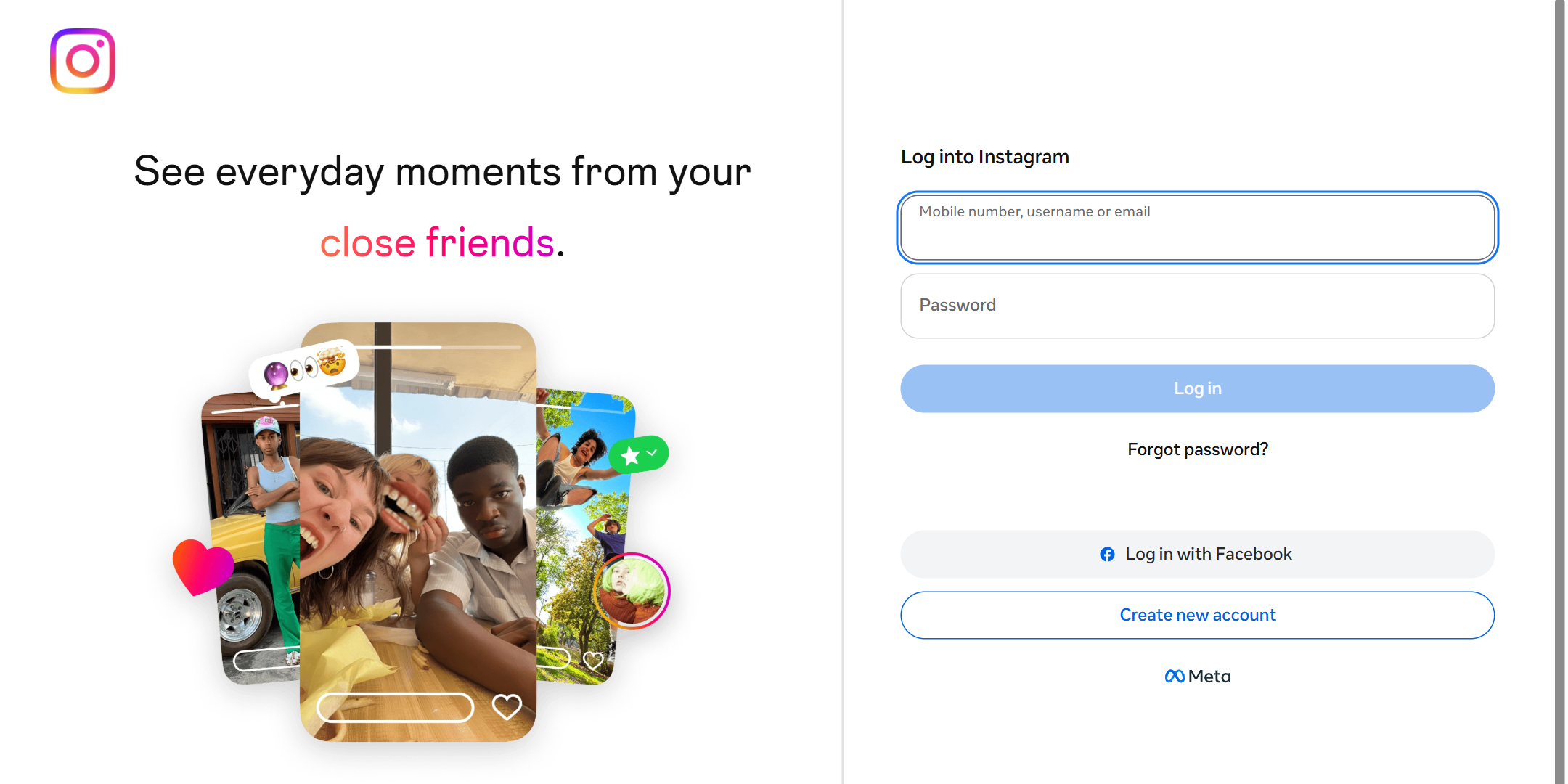
3 Log in with your phone number, username or email and password, or choose Log in with Facebook.
4 Pin it to the taskbar: right-click the Instagram icon while it is open and choose Pin to taskbar.
No Store? Open instagram.com in any browser and log in. It is the same Instagram, and you can install it as an app from Edge’s menu under More tools, then Apps.
How to Post a Photo or Reel From Your PC
These are Instagram’s own steps for computers. Photos and reels both start from the same Create button.
1 Click Create on the left, then click Post.
2 Click Select from computer and choose your photos or video, or drag the files into the window.
3 For a photo, pick the size, then click Filters or Adjustments to edit it. For a reel, use the sliders to pick a cover photo and trim the start or end.
4 Click Next, then write a caption, add a location, and click Accessibility to write alt text describing the image.
5 Click Share in the top right.
Reels can run up to 20 minutes, but Instagram says reels over 3 minutes will not be recommended to new audiences. Keep a reel under 3 minutes if you want it to reach people who do not follow you yet.
Want to edit before you post? Canva and CapCut both have free Windows apps for editing photos and videos first.
Common Problems and Fixes
There is no option to post a story
That is expected. Instagram does not let you post to your story from a computer. Use the Instagram app on your phone for stories.
The Store app will not open
It runs through Microsoft Edge and needs the latest version. Update Edge from its Settings, under About Microsoft Edge, then open Instagram again.
You cannot send a photo in a new message
If the person does not follow you yet, your first message goes as a request and can only contain text. You can send photos once they accept it.
Your photo will not upload
Instagram accepts JPG, PNG and HEIC photos from a computer. Convert other formats, such as WebP or TIFF, to JPG first.
Tips for Getting Started
1 Switch accounts from the bottom left. Click More, then Switch accounts. You can keep up to 10 accounts logged in at once.
2 Write alt text for every photo. Click Accessibility before sharing and describe the image. It helps people using screen readers and takes ten seconds.
3 Turn off comments before you post, if you need to. On the caption screen, open Advanced Settings and switch on Turn off commenting.
4 Edit on your PC, post from your PC. Finish your photo or video in your editor of choice, then drag the file straight into Instagram.
5 Keep stories for your phone. Plan photos and reels on the PC, and post anything meant for your story from the phone app.
Frequently Asked Questions
What are the system requirements for Instagram on Windows?
Can I post an Instagram story from my PC?
How long can a reel be when I post it from a computer?
How many Instagram accounts can I use on one PC?
How do I uninstall Instagram from Windows?
Support and Community
- Instagram, the developer’s own site.
- Instagram Help: Post a photo, with a Computer Help tab for posting from a PC.
- Instagram Help: Record a reel, the computer steps and length limits for reels.
- r/Instagram on Reddit, the large user-run community for Instagram questions.
More Windows software guides: Threads for PC · Facebook for Windows · Messenger on Windows · Snapchat for Windows · TikTok for Windows · Canva for Windows
Discover more from Windows Mode
Subscribe to get the latest posts sent to your email.














Addicting app!!
Better than the mobile app!