Readers like you help support this site. When you make a purchase using links on our site, we may earn an affiliate commission. All opinions remain our own.

Zoom Workplace is the Zoom desktop app for Windows. Image from Zoom.
Zoom Workplace is the free Zoom app for Windows, available from Zoom’s website or the Microsoft Store. You use it to join and host video meetings, and it also holds team chat, a whiteboard, phone calls and AI meeting notes in one window.
If you only ever click a meeting link, this is still the app that opens. Joining a meeting is free and does not even need a Zoom account. An account only matters once you want to host your own meetings.
It runs on Windows 10 and Windows 11, with separate downloads for regular 64-bit PCs and ARM laptops. Zoom Communications makes it, and your meetings, chats and notes sync with the Mac, Linux and phone apps.
Below: install steps, what the free plan really allows, the meeting shortcuts worth learning, and fixes for the problems people hit most. Questions? Reach out to us directly.
What Is Zoom Workplace?
Zoom Workplace is the new name for the Zoom desktop app. Most people still just call it Zoom. Meetings are still the main job, but the same app now has tabs for chat, phone, whiteboards, mail, calendar and notes.
Zoom calls it an AI-first work platform. In practice, that means the app can write up a meeting for you: a summary, the action items, and answers to questions about what was said.
You do not have to use any of the extras. If all you want is video calls, you can ignore every tab except Meetings and the app behaves like the Zoom you remember.
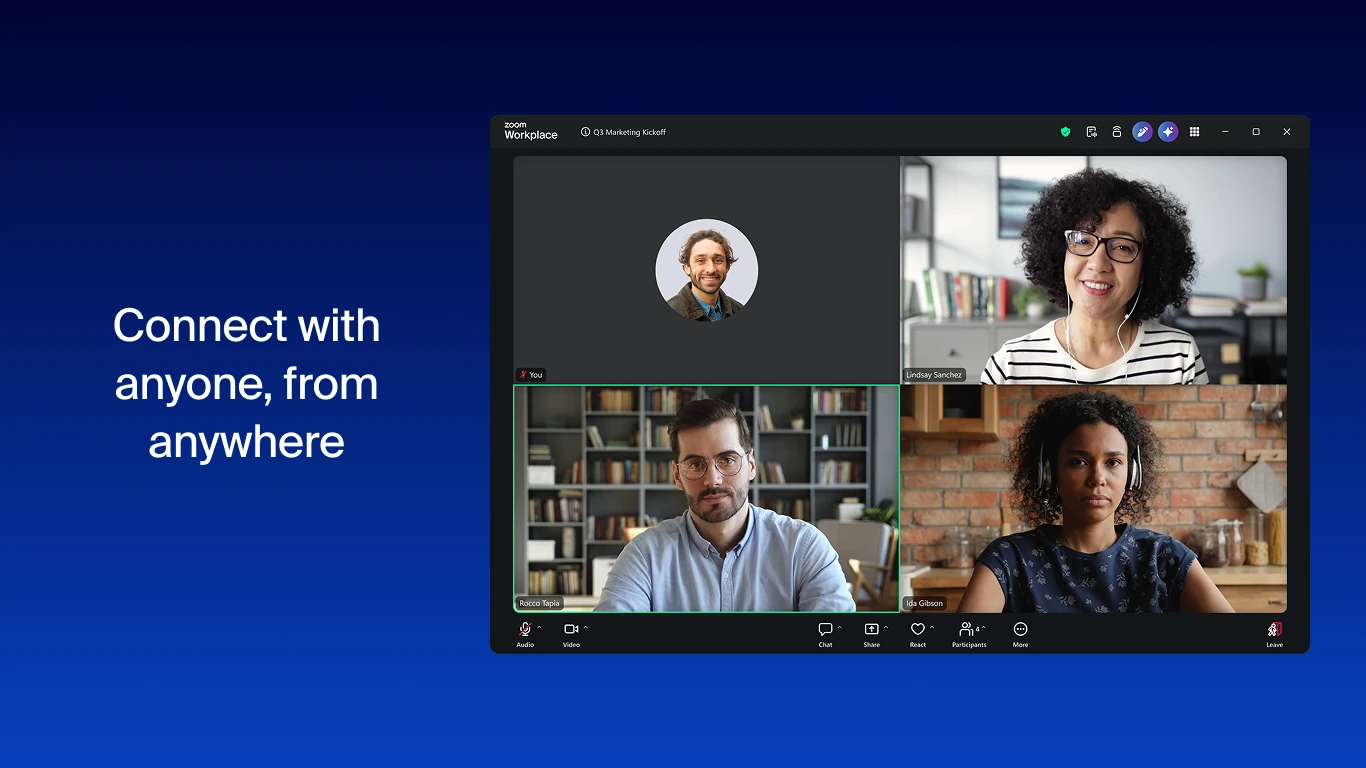
A four-person meeting in gallery view, with the controls along the bottom. Image from Zoom.
Key Features of Zoom Workplace
These are the parts of Zoom Workplace you are most likely to use, starting with the one everyone installs it for.
Video meetings
Host or join calls with screen sharing, breakout rooms, a waiting room, virtual backgrounds and live captions. All of these are on the free plan.
AI notes and summaries
My Notes writes notes and a transcript while you talk, and ZoomMate (Zoom’s AI assistant) turns a meeting into a summary and action items. Free accounts get three of each a month.
Team Chat
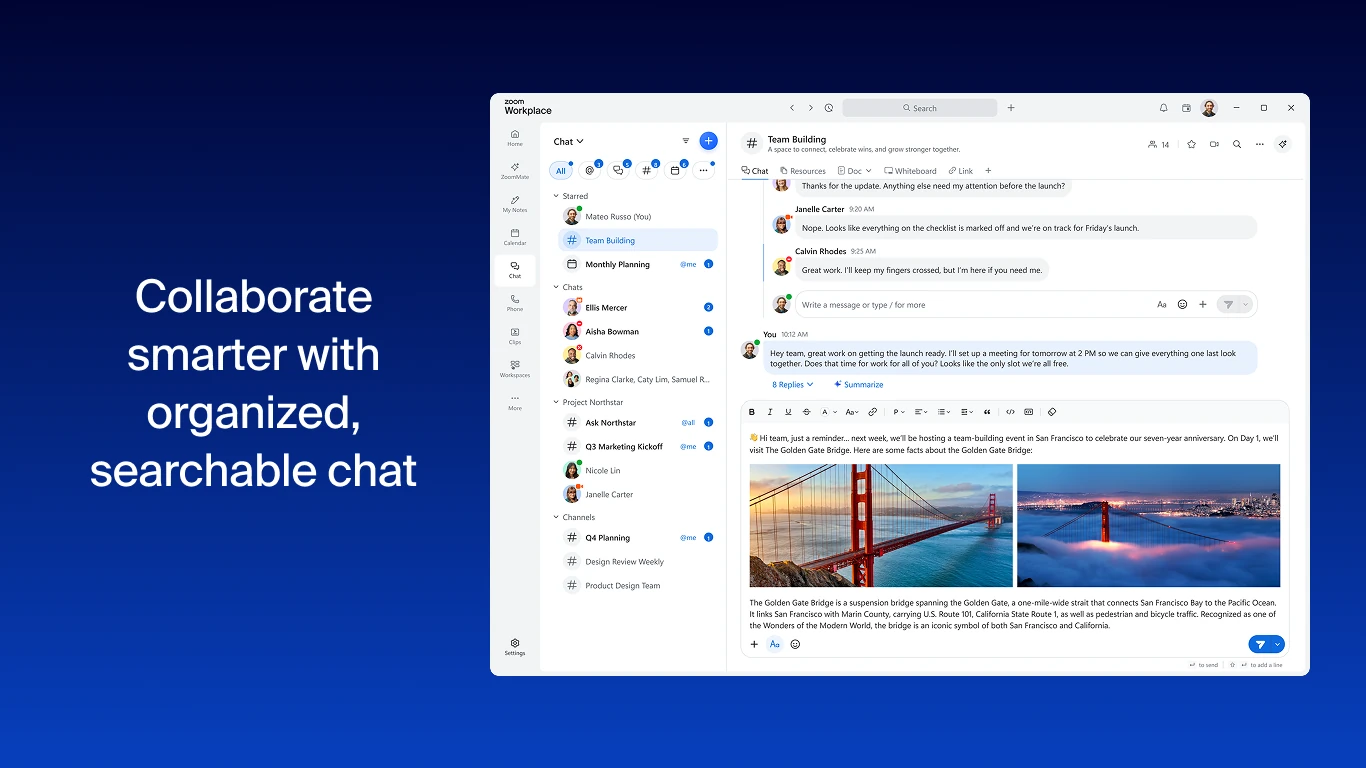
Channels, direct messages, files and voice notes, with search across everything. Meeting chat stays saved after the call ends.
Whiteboard
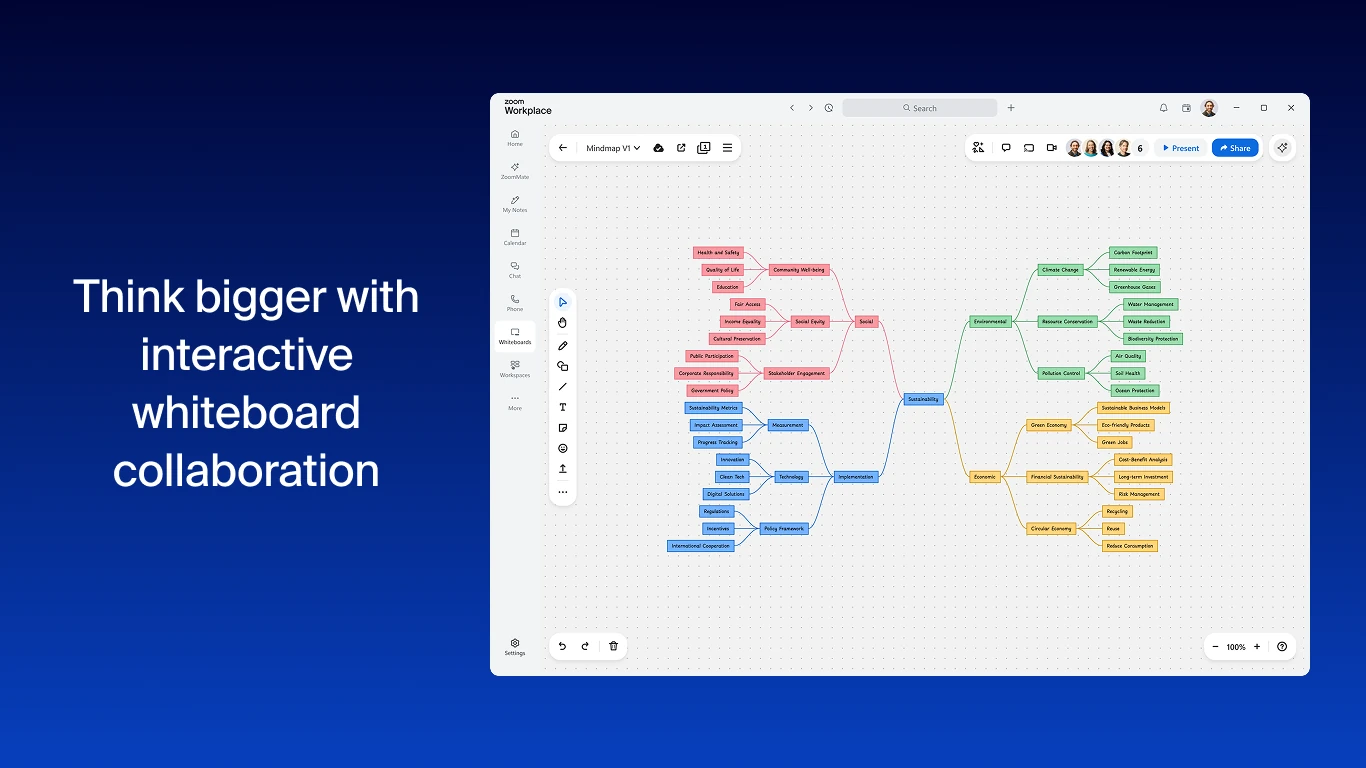
A shared canvas for sticky notes, mind maps and diagrams that you can open during a meeting or on its own. Free and Pro accounts get three editable boards.
Phone calling
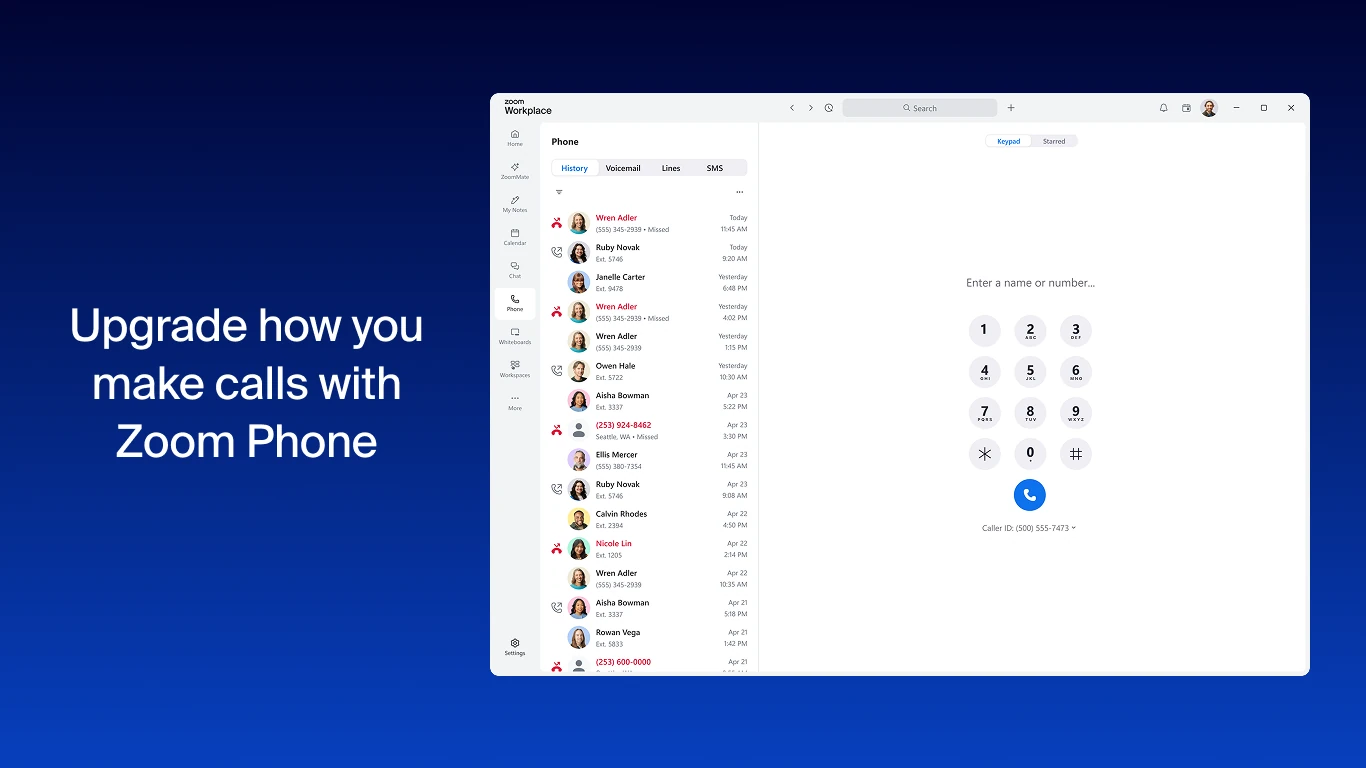
Make internet voice calls to other Zoom users on any plan. A real phone number with voicemail and call transfer needs a paid Zoom Phone license.
Mail and Calendar
Connect your Gmail or Outlook account and your Google or Microsoft calendar, so meetings, invites and email sit in the same app.
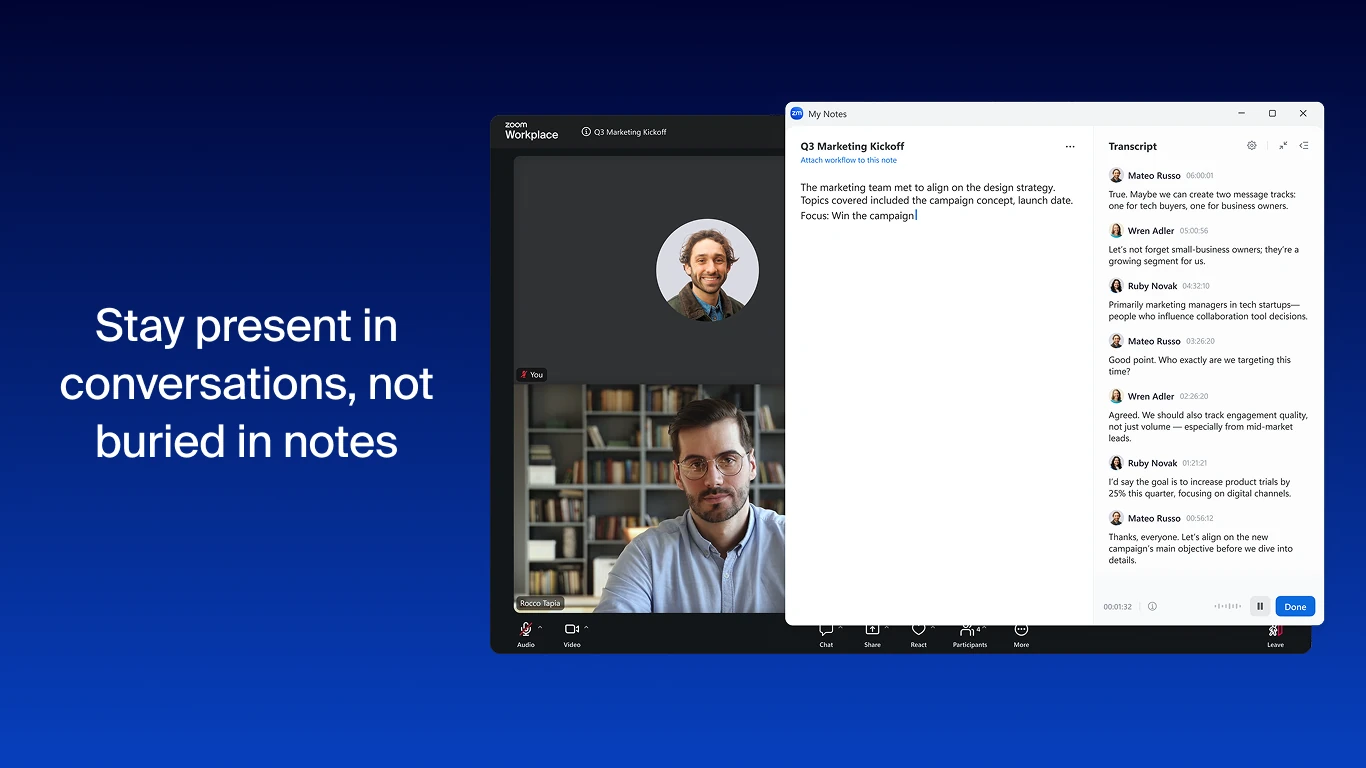
My Notes keeps a transcript next to your own notes during a call. Image from Zoom.
How to Get Zoom Workplace on Windows
Zoom’s own Download Center has the newest version and the right file for your PC. Most PCs need the 64-bit download. Pick ARM64 only if you have an ARM laptop, such as one with a Snapdragon chip.
1 Open the Download Center at zoom.us/download.
2 Click Download (64-bit) under Zoom Workplace for Windows, or Download (ARM64) on an ARM laptop.
3 Run the downloaded file. It installs in a few seconds with no setup choices.
4 Join or sign in. Click Join a meeting to enter a meeting ID, or sign in with your Zoom, Google, Microsoft or Apple account.
5 Test your mic and camera in Settings, under Audio and Video, before your first call.
Prefer the Microsoft Store? The Zoom Workplace Store page runs Zoom’s own installer, published by Zoom Communications. You get the same app, and it updates itself after the first launch.
Skip third-party download sites. They repackage Zoom’s installer, sometimes with extras bundled in. Zoom.us and the Microsoft Store are the only two places you need.
Is Zoom Workplace Free?
Yes. The app is free, and so is the Basic plan behind it. The catch is the meeting length: meetings you host on Basic end after 40 minutes. Joining someone else’s meeting is free and follows their plan’s limit, not yours.
ZoomMate is sold separately. The full AI assistant, with agents and document and slide creation, is an add-on from $16.67 per user a month billed yearly. Prices can differ by country, so check zoom.us/pricing before you buy.
Zoom Workplace vs Microsoft Teams
Many Windows PCs already have Teams, so this is the comparison most people actually face. On the free plans, the biggest difference is meeting length.
Our take
If your school, clients or employer send Zoom links, install Zoom. You need it either way, and joining is free. If you host family calls that run long and pay for nothing, Teams Free gives you 20 more minutes. Teams also makes more sense if you already live in Word, Outlook and OneDrive; see our Microsoft Teams for Windows guide.
Zoom Keyboard Shortcuts for Windows
A few shortcuts save you from hunting for buttons mid-call. Alt + A to mute is the one worth learning first.
You can change any shortcut, and make some work outside Zoom. Open Settings, then Keyboard shortcuts. Tick the box next to a shortcut to make it global, so Alt + A mutes you even while you are in another window.
Common Zoom Problems and Fixes
These are the snags Windows users run into most, with what to do about each one.
The meeting ends at 40 minutes
That is the Basic plan limit for the host. The host’s plan decides, not yours, so the fix is a Pro account for whoever schedules the meeting, or starting a new meeting when time runs out.
Zoom will not install
Zoom does not support Windows 10 in S mode. Switching out of S mode in the Microsoft Store is free, but you cannot switch back afterward.
An old version stopped updating
Zoom ended support for 32-bit Windows in December 2025. Uninstall the 32-bit app and install the 64-bit or ARM64 version from the Download Center.
Camera or mic not found
Open Windows Settings, then Privacy and security, then Camera (and Microphone). Make sure desktop apps are allowed, then retest in Zoom’s Audio and Video settings.
Zoom says you must update
Zoom sets a minimum version and blocks older apps from meetings. Click your profile picture, then Check for Updates, and restart the app.
Screen sharing is choppy
Zoom says dual-core laptops share at around 5 frames per second. Close other heavy apps, or share one window instead of your whole screen.
Tips for Getting Started with Zoom
1 Join a test meeting first. zoom.us/test opens a practice call where you can check your speaker, mic and camera with nobody watching.
2 Join with your mic muted. In Settings, under Audio, turn on the option to mute your mic when joining. Then nobody hears your kitchen when you click a link.
3 Make Alt + A global. Tick the global box for mute in Keyboard shortcuts, so you can unmute fast even while reading notes in another app.
4 Connect your calendar. Sync your Google or Microsoft calendar, and your upcoming meetings show up on the Home tab with a join button.
5 Turn on the waiting room. When you host, the waiting room lets you check who is joining before they get in. It is free and keeps uninvited guests out.
Zoom Workplace Beginner Video
Watch this walkthrough from Let’s Do Video to see the Zoom Workplace tabs, from meetings and chat to whiteboards and notes, in action.
Zoom Workplace Screenshots
More screens from the Windows app: the ZoomMate home screen, Team Chat, Zoom Phone and a whiteboard.
-
- Zoom workplace zoommate home from
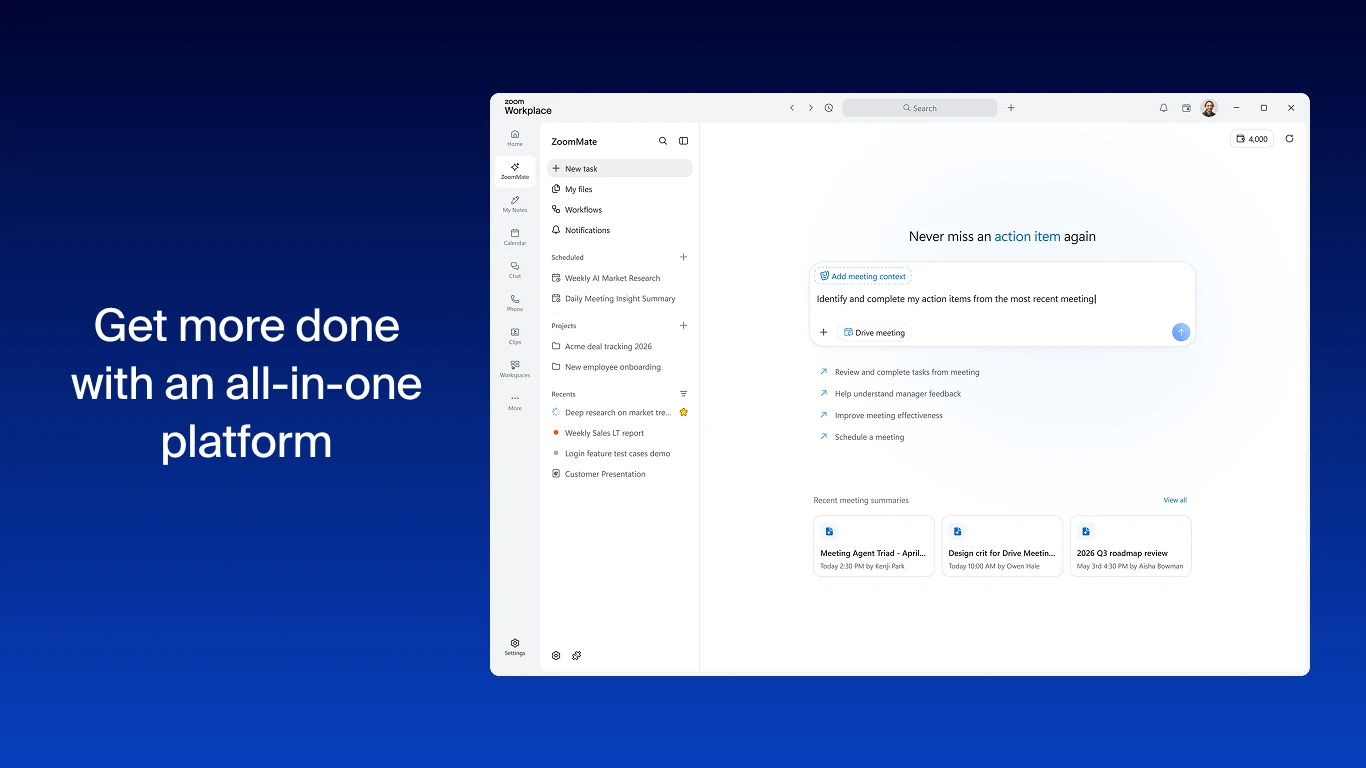
-
- Zoom workplace team chat from
-
- Zoom workplace phone dialer from
-
- Zoom workplace whiteboard mind map from
Frequently Asked Questions
What are the system requirements for Zoom Workplace on Windows?
Do I need a Zoom account to join a meeting?
Can I use Zoom without installing the app?
Is the Microsoft Store version of Zoom the same as the zoom.us download?
Does Zoom Workplace work on ARM laptops like Snapdragon PCs?
Support and Community
- Zoom.com, the developer’s own website.
- Zoom Support, Zoom’s help center with setup guides and the full shortcut list.
- Zoom Community, Zoom’s official forum for questions answered by users and staff.
- r/Zoom on Reddit, a user community for troubleshooting and tips.
More Windows software guides: Microsoft Teams · Slack · Discord · WhatsApp · Trello
Discover more from Windows Mode
Subscribe to get the latest posts sent to your email.















Add your first comment to this post