Readers like you help support this site. When you make a purchase using links on our site, we may earn an affiliate commission. All opinions remain our own.
The best free AI apps for Windows in 2026 are Microsoft Copilot for everyday tasks, ChatGPT for writing and conversation, Cursor for coding, and Upscayl for improving photos. For privacy-focused users, GPT4All lets you run AI completely offline on your PC.
We collected 25 AI apps you can download and use on Windows right now. Every app on this list has a fully functional free version. Whether you want to chat with AI, create images, write code, edit photos, or transcribe audio, there is a tool here for you.
All of these apps work with Windows 11 and Windows 10. Some run entirely on your computer (no internet needed), while others connect to cloud services.
Microsoft Copilot
ChatGPT
GPT4All
Upscayl
🔍 What We Looked For
Free Version Quality
Is the free version actually useful?
Ease of Use
Can anyone use it, or is it for experts?
Privacy
Does it run offline or send data to the cloud?
Windows Integration
Does it have a proper Windows desktop app?
Quick Verdict: Our Top Picks by Category
| App | Best For | Runs Offline | Rating |
|---|---|---|---|
| Microsoft Copilot | Everyday Windows Tasks | ❌ | ⭐⭐⭐⭐⭐ |
| ChatGPT | Writing and Conversation | ❌ | ⭐⭐⭐⭐⭐ |
| Cursor AI | Writing Code | ❌ | ⭐⭐⭐⭐⭐ |
| GPT4All | Private, Offline AI Chat | ✅ | ⭐⭐⭐⭐½ |
| Upscayl | Fixing Blurry Photos | ✅ | ⭐⭐⭐⭐½ |
| Perplexity | Research with Sources | ❌ | ⭐⭐⭐⭐½ |
| ComfyUI | AI Image Creation | ✅ | ⭐⭐⭐⭐½ |
25 Best Free AI Apps for Windows
1. Microsoft Copilot
🏆 Best for Everyday Windows Tasks
Key Features:
- Chat with AI using text, voice, or images
- Generate text, images, summaries, and code
- Built into Windows so it works with your apps and settings
- Free version included with Windows
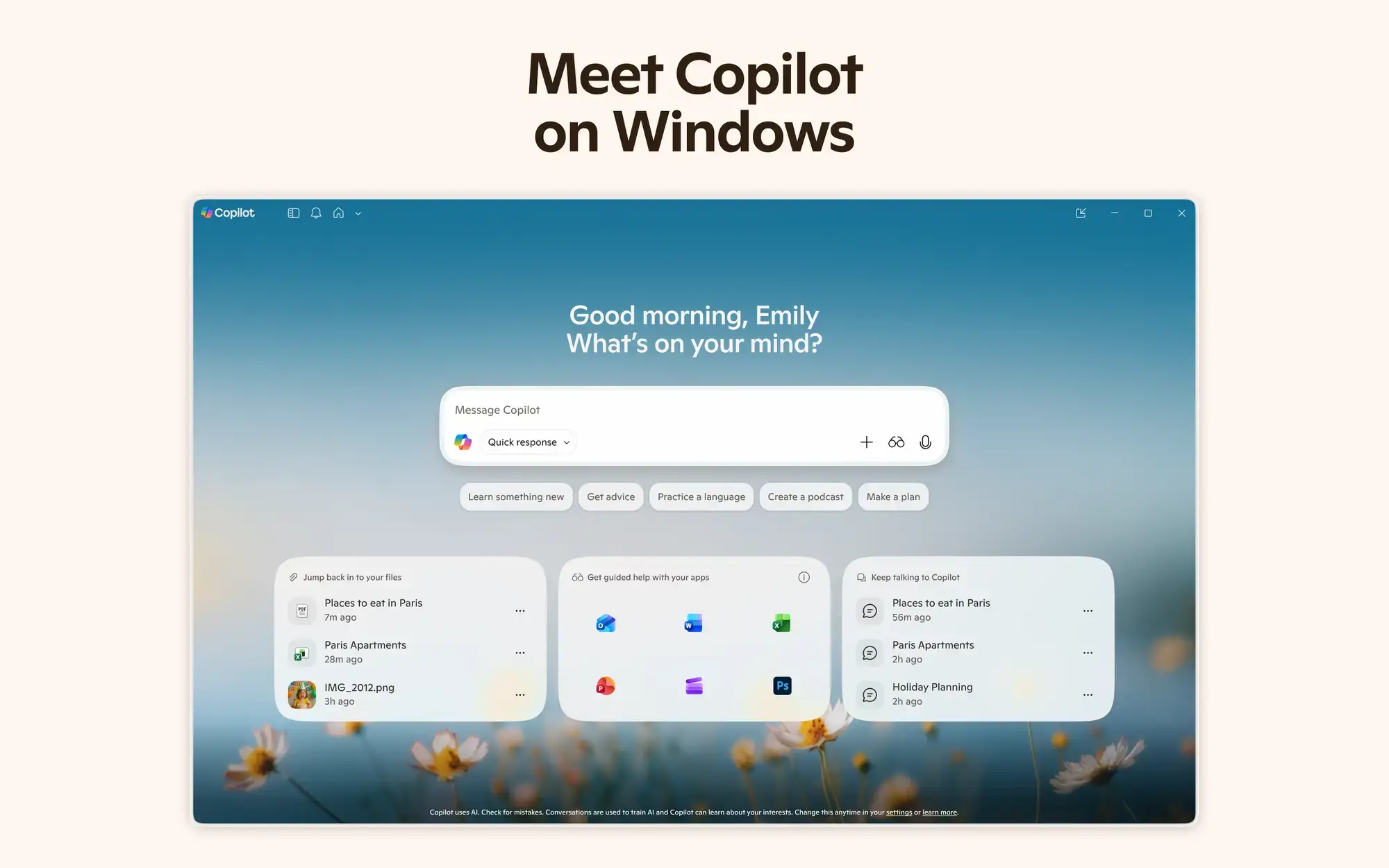
Why We Like It: Microsoft Copilot is built right into Windows. You can ask it to change settings, summarize documents, create images, or answer questions without opening a browser. It is the most convenient AI tool for Windows users.
2. ChatGPT for Windows
🏆 Best for Writing, Brainstorming, and Conversation
Key Features:
- Windows desktop app (press Alt+Space to open instantly)
- Analyze images and use voice input
- Works alongside your other apps
- Free tier available with an OpenAI account
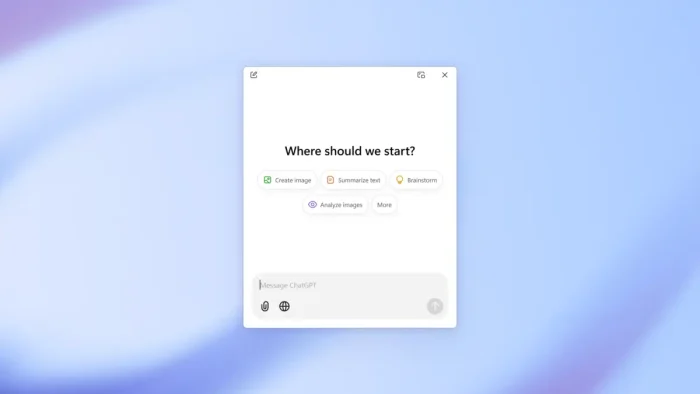
Why We Like It: The official ChatGPT desktop app is faster than the website and perfect for quick writing, coding help, and creative brainstorming. The Alt+Space shortcut makes it available instantly from any app.
3. Perplexity for Windows
Best AI-Powered Research Tool
Key Features:
- AI search engine that actually shows its sources
- Gives you a clear answer instead of a list of links
- Windows desktop app available
- Great for homework, fact-checking, and deep research
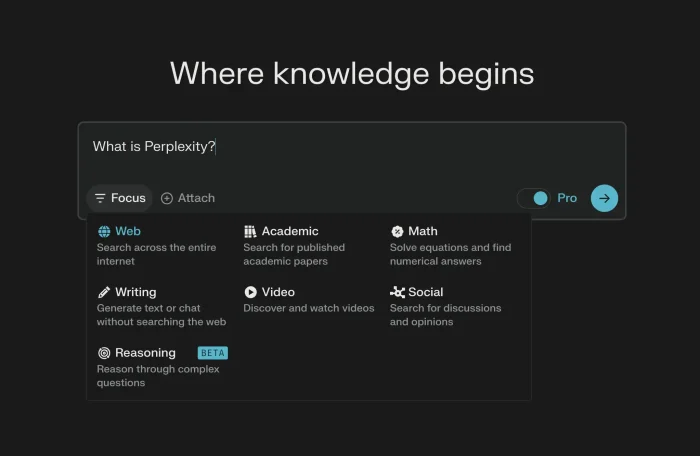
Why We Like It: Perplexity combines web search with AI. Instead of scrolling through search results, you get a clear answer with links to where the information came from so you can verify it.
4. Cursor AI
🏆 Best AI Tool for Writing Code
Key Features:
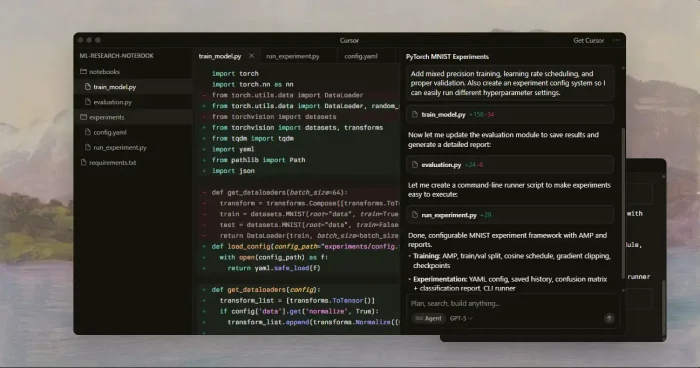
- Code editor with AI built in (based on VS Code)
- Predicts your next code change automatically
- Ask questions about your entire project
- Free tier for hobby projects
Why We Like It: Cursor is the best AI coding tool for Windows. You describe what you want in plain English, and it writes, fixes, or improves your code. It feels like having a programming partner.
5. Microsoft Designer
Best Free AI Image Creator

Key Features:
- Create images from text descriptions
- Remove backgrounds with one click
- Design social media posts instantly
- Free with a Microsoft account
Why We Like It: Just describe the image you want in plain English, and Designer creates it for you. No design skills needed. It also makes it easy to create professional social media posts.
6. Canva for Windows
Best for Quick Graphic Design with AI
Key Features:
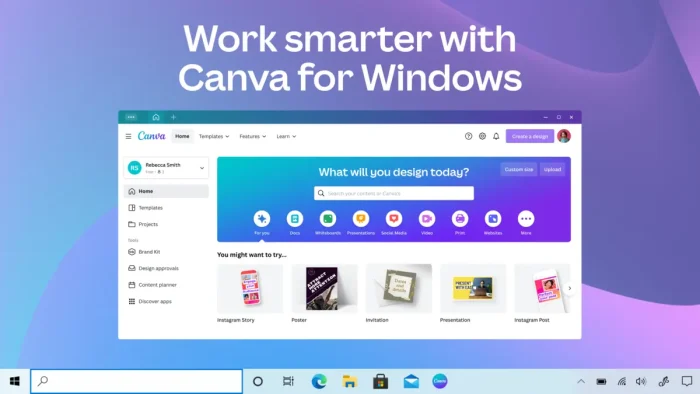
- AI writing assistant (Magic Write)
- AI image editing (replace objects, erase backgrounds)
- Windows desktop app runs faster than browser
- Thousands of ready-made templates
Why We Like It: Canva’s desktop app puts powerful AI design tools on your PC. Erase objects from photos, generate text, and create professional designs without any design experience.
7. GPT4All Desktop
🏆 Best for Private, Offline AI Chat
Key Features:
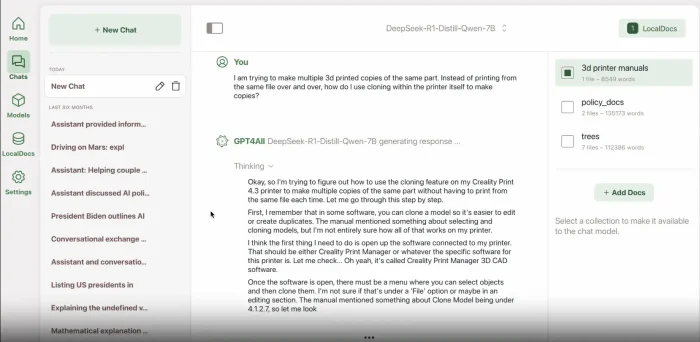
- Chat with AI completely offline on your PC
- Nothing you type is sent to the internet
- Works on regular computers (no fancy hardware needed)
- Free and open source
Why We Like It: GPT4All is the easiest way to have a ChatGPT-like experience that runs entirely on your computer. Your conversations stay private and never leave your PC.
8. Ollama
Run AI Models Locally (Powers Many Other Apps)
Key Features:
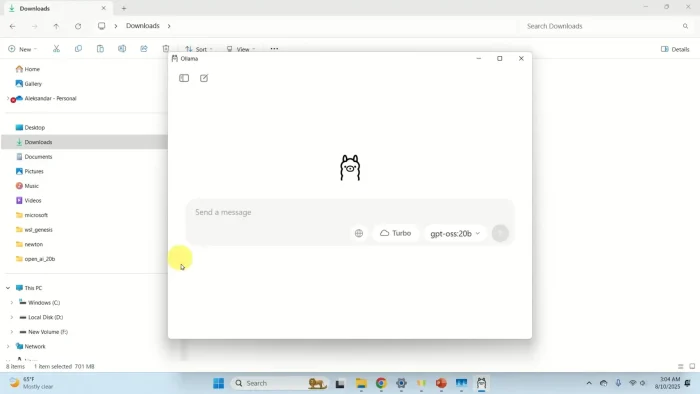
- Download and run AI models with one command
- Supports popular models like Llama 3 and Mistral
- Simple Windows installer
- Powers many other AI apps behind the scenes
Why We Like It: Ollama has become the standard way to run AI locally on Windows. It runs quietly in the background and lets you download new AI models with a single command. Many other apps on this list use Ollama under the hood.
9. LM Studio
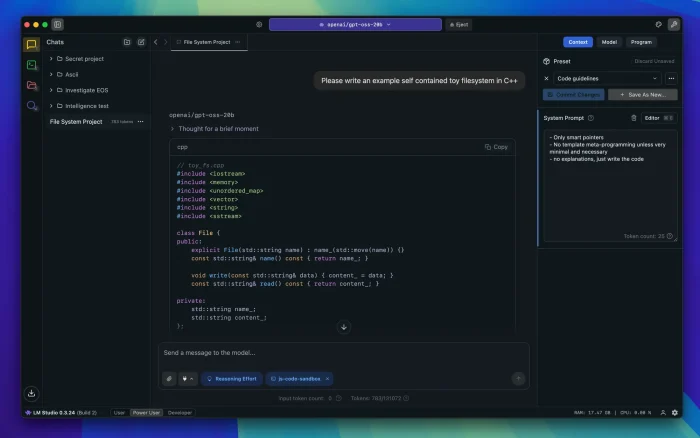
Easiest Way to Try Different AI Models
Key Features:
- Browse and download AI models with a visual interface
- No command line knowledge needed
- Built-in chat to test models
- Runs everything on your PC
Why We Like It: If you want to try different AI models but do not want to use command-line tools, LM Studio is perfect. It gives you a simple app where you can browse, download, and chat with AI models.
10. Whisper Transcription
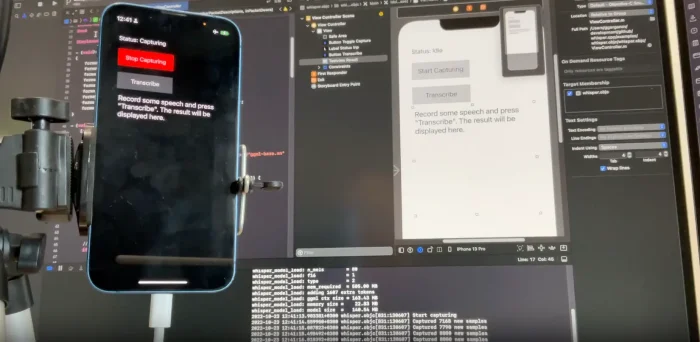
Best Free Speech-to-Text Tool
Key Features:
- Convert audio and video to text with high accuracy
- Runs completely offline on your PC
- Fast processing of long recordings
- Supports multiple languages
Why We Like It: Perfect for podcasters, journalists, students, and anyone who needs to turn audio into text. It uses OpenAI’s speech recognition technology but runs privately on your computer.
11. Braina
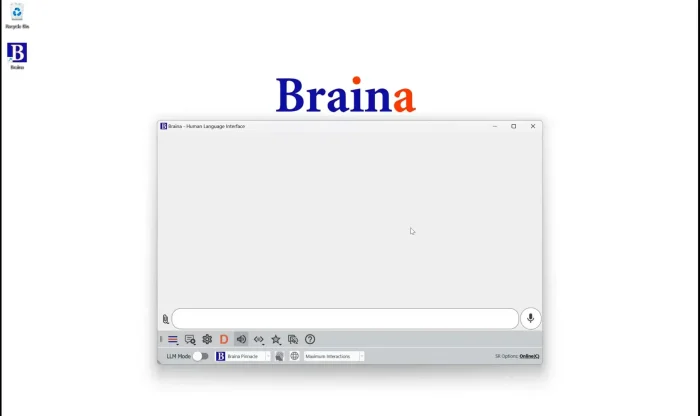
Voice-Controlled AI Assistant for Windows
Key Features:
- Control your PC with voice commands
- Dictate text in any application
- Automate tasks (open apps, set alarms, search the web)
Why We Like It: Braina lets you talk to your computer to open apps, type text, and automate repetitive tasks. It is a hands-free way to interact with Windows.
12. ComfyUI
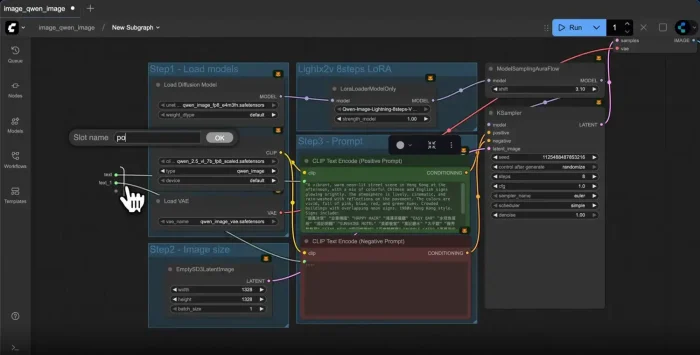
Best for Advanced AI Image Creation
Key Features:
- Create AI images using a visual drag-and-drop workflow
- Incredible control over every step of image creation
- Fast and works entirely on your PC
- Free and open source
Why We Like It: ComfyUI is the go-to tool for AI artists who want full creative control. You build image creation workflows by connecting visual blocks, giving you way more control than simple “type and generate” tools.
13. Stable Diffusion WebUI
The Classic AI Image Generator
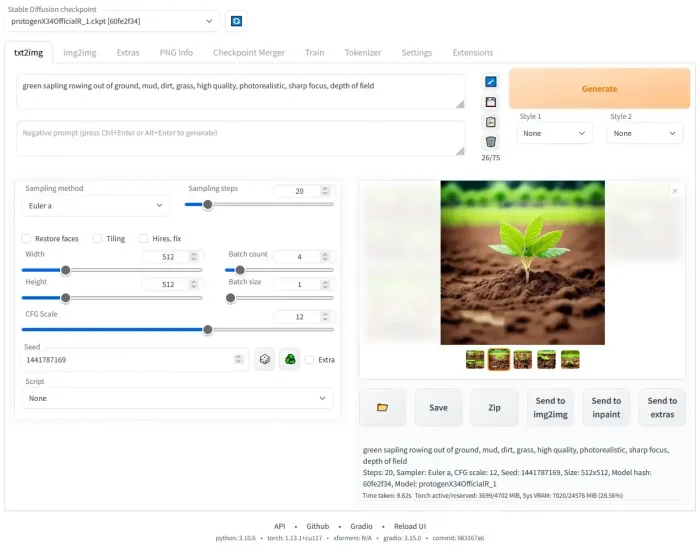
Key Features:
- Generate images from text descriptions on your own PC
- Huge library of community add-ons and styles
- Advanced tools for controlling poses, faces, and composition
- Free and open source
Why We Like It: This is the most popular way to create AI images locally on your computer. The community has built thousands of add-ons, styles, and models you can use for free.
14. AnythingLLM Desktop
Best for Chatting With Your Own Documents
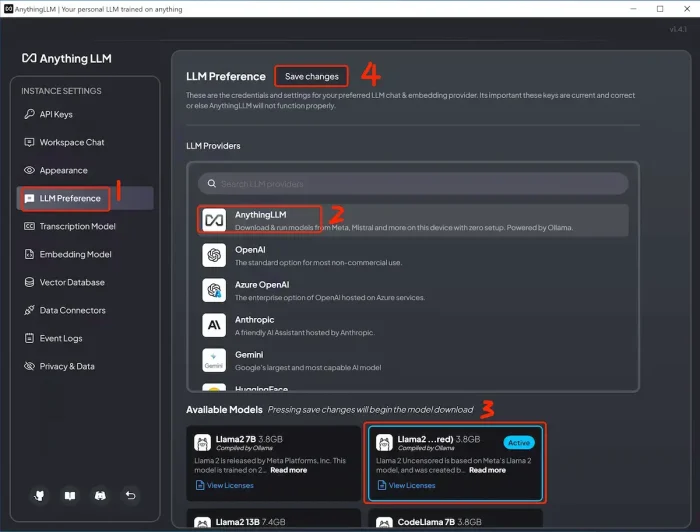
Key Features:
- Upload PDFs, Word docs, or text files and ask questions about them
- Create your own private knowledge base
- Simple one-click installer for Windows
- Free and open source
Why We Like It: The best tool for “chat with my files.” Upload your documents and ask questions about them. Great for students, researchers, and professionals who work with large amounts of text.
15. LocalAI
Run Your Own AI Server on Your PC (For Developers)
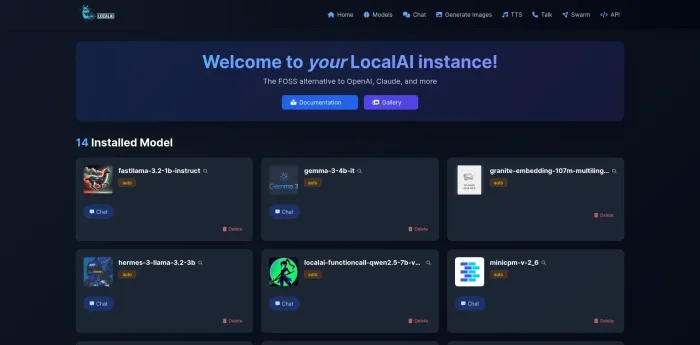
Key Features:
- Runs a private AI server on your own computer
- Works as a drop-in replacement for cloud AI services
- Handles text, images, and audio models
- Free and open source
Why We Like It: Developers can use LocalAI to build apps that use AI without paying for cloud services. It works the same way as online AI services but everything runs on your own computer.
16. Voicemod
Best Real-Time Voice Changer for Streamers
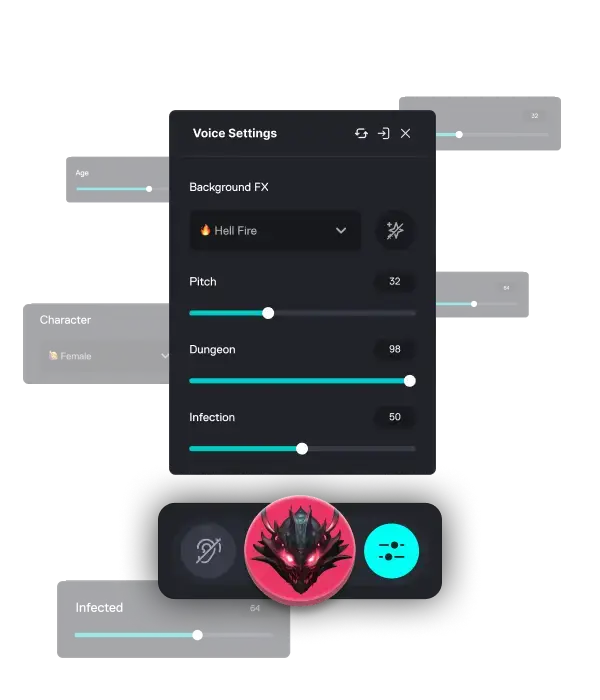
Key Features:
- Change your voice in real-time using AI
- Sound effects board for streams and calls
- Works with Discord, OBS, Zoom, and more
- Free version with rotating voice options
Why We Like It: The most popular voice changer for streamers and gamers. Sound like a robot, a celebrity, or anyone else in real-time during calls, streams, or gaming sessions.
17. Upscayl
🏆 Best Free AI Photo Enhancer
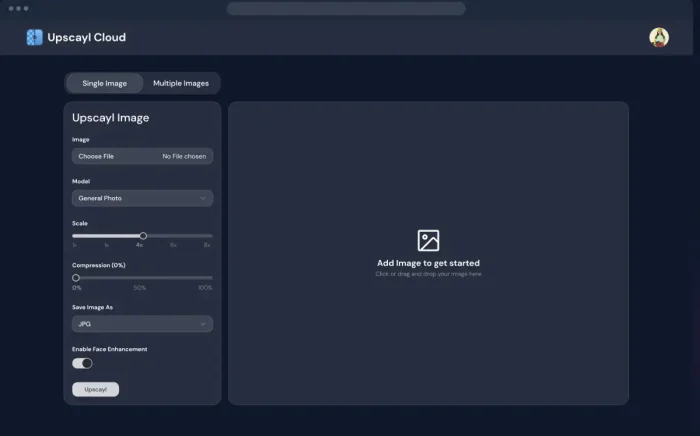
Key Features:
- Make blurry or small images sharp and clear
- Process multiple images at once
- Runs offline on your PC
- Completely free and open source
Why We Like It: Drag in a tiny, blurry photo and Upscayl uses AI to make it sharp and detailed. It is completely free, runs on your PC, and gives results that rival paid tools.
18. Claude for Desktop
Best Alternative to ChatGPT (Great for Long Documents)
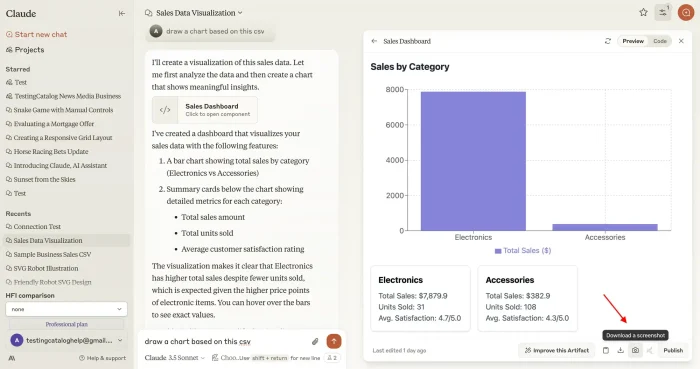
Key Features:
- Access Anthropic’s latest Claude AI models
- Can process very long documents in one go
- Strong focus on safety and accuracy
- Free tier available
Why We Like It: Claude is a serious competitor to ChatGPT, often better at coding and writing tasks. It can handle much longer documents at once, making it ideal for analyzing reports, contracts, or research papers.
19. Meshroom
Turn Photos into 3D Models
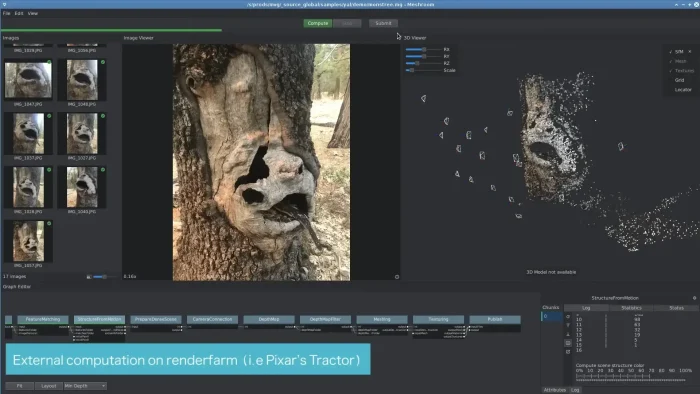
Key Features:
- Create 3D models from regular photos of an object
- Visual drag-and-drop workflow
- Free and open source
Why We Like It: Take a bunch of photos of an object from different angles, and Meshroom uses AI to build a 3D model you can use in games, 3D printing, or design projects. Completely free.
20. Kilo Code
Flexible AI Coding Assistant (400+ Models)
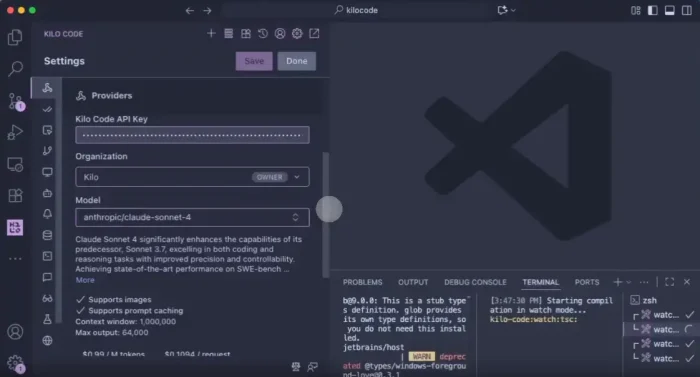
Key Features:
- Connect to over 400 different AI models
- Go from a simple description to working code
- Switch between AI providers freely
Why We Like It: Kilo Code gives developers the freedom to choose any AI model for coding assistance, rather than being locked into a single provider. Great for experimenting with different models.
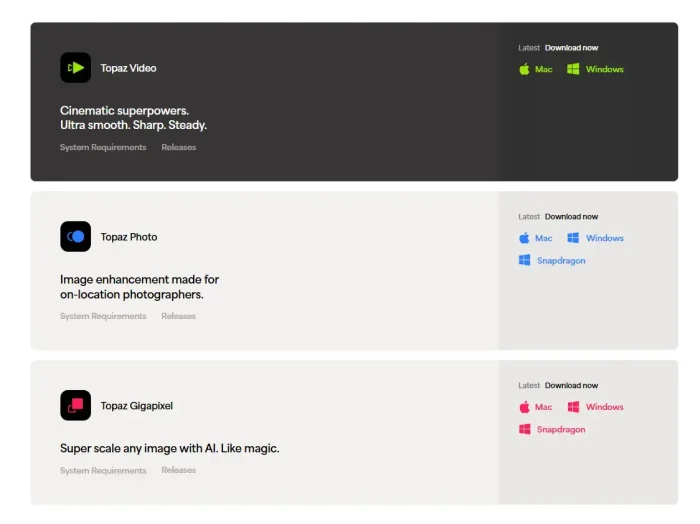
21. Topaz Gigapixel AI
Professional-Grade Image Enhancement (Free Trial)
Key Features:
- Professional-quality image upscaling
- Recover detail in blurry faces
- Free trial to test before buying
Why We Like It: Topaz produces the best image enhancement results in the industry. While it is a paid app, the free trial lets you test the quality on your own photos before deciding.
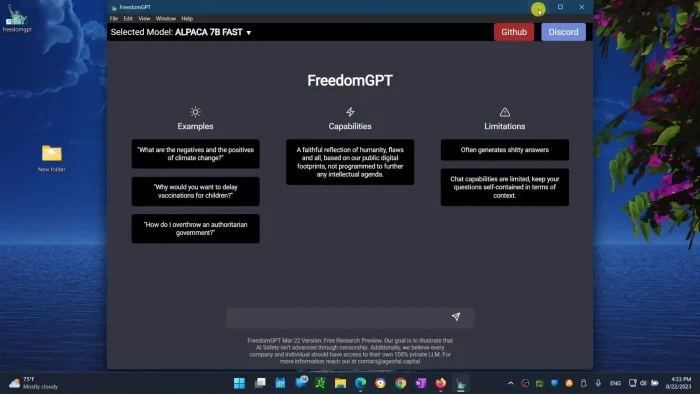
22. FreedomGPT
Unfiltered AI Chat (Runs Offline)
Key Features:
- AI chat without content filters or restrictions
- Runs completely offline on your computer
- Easy Windows installer
Why We Like It: For users who want an AI that answers any question without content restrictions or data collection. Everything stays on your computer.
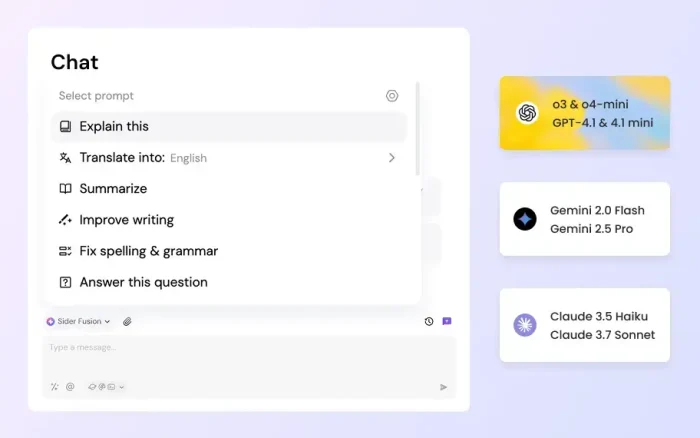
23. Sider
All-in-One AI Sidebar (Multiple AI Models in One App)
Key Features:
- Access ChatGPT, Claude, and Gemini from one sidebar
- Analyze anything on your screen
- Chat with PDF files
Why We Like It: Instead of switching between different AI apps, Sider puts ChatGPT, Claude, and Gemini in one convenient sidebar. Compare answers from different AI models side by side.
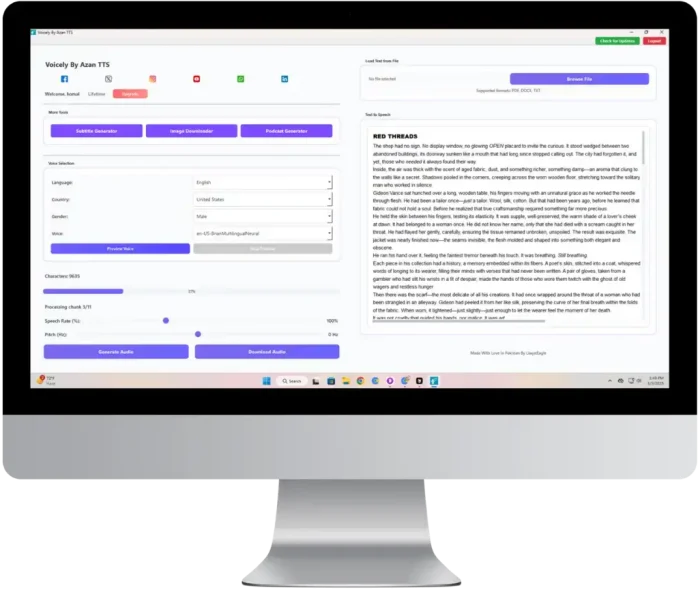
24. Voicely by Azan
AI Text-to-Speech for Voiceovers
Key Features:
- Turn written text into natural-sounding speech
- Create voiceovers for videos and presentations
- Simple Windows interface
Why We Like It: A simple tool for content creators who need quick AI voiceovers without hiring a narrator. Type your script, pick a voice, and export.
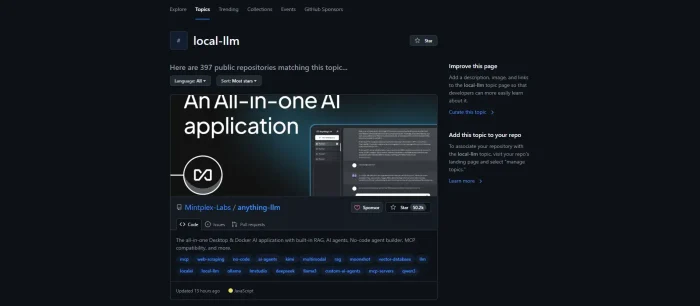
25. Local AI Tools Collection (GitHub)
Community-Driven Collection of Open Source AI Tools
Key Features:
- Collection of free, open-source AI tools
- New experimental projects added regularly
- Community-maintained and always growing
Why We Like It: If you have explored everything on this list and want more, this GitHub collection is a treasure trove of new and experimental AI tools you can run on your Windows PC.
All 25 Apps at a Glance
| App | Category | Runs Offline | Best For |
|---|---|---|---|
| Microsoft Copilot | Assistant | ❌ | Windows tasks |
| ChatGPT | Chatbot | ❌ | Writing & chat |
| Perplexity | Search | ❌ | Research |
| Cursor AI | Coding | ❌ | Writing code |
| Microsoft Designer | Design | ❌ | Quick image creation |
| Canva | Design | ❌ | Social media posts |
| GPT4All | Local AI | ✅ | Private AI chat |
| Ollama | Local AI | ✅ | Running AI models |
| LM Studio | Local AI | ✅ | Trying local models |
| Whisper | Audio | ✅ | Speech to text |
| Braina | Voice | Partial | Voice control |
| ComfyUI | Image Gen | ✅ | Advanced images |
| Stable Diffusion | Image Gen | ✅ | Classic image gen |
| AnythingLLM | Documents | ✅ | Chat with files |
| LocalAI | Developer | ✅ | Local AI server |
| Voicemod | Audio | Partial | Voice changing |
| Upscayl | Photo | ✅ | Fix blurry photos |
| Claude | Chatbot | ❌ | Long documents |
| Meshroom | 3D | ✅ | Photos to 3D |
| Kilo Code | Coding | ❌ | Multi-model coding |
| Topaz Gigapixel | Photo | ✅ | Pro image upscaling |
| FreedomGPT | Local AI | ✅ | Unfiltered chat |
| Sider | Multi-AI | ❌ | All models in one |
| Voicely | Audio | ❌ | Voiceovers |
| GitHub Collection | Misc | ✅ | Discover new tools |
Common Problems and Solutions
An AI app says my GPU is not supported
Many local AI apps need an NVIDIA graphics card with at least 4-6GB of video memory. If you have an AMD card or integrated graphics, look for apps that support “CPU mode” (like GPT4All and Ollama). Performance will be slower, but it will still work.
Local AI models run very slowly on my computer
Try using a smaller AI model. Most local AI apps let you choose different sizes. A 7 billion parameter model runs much faster than a 70 billion parameter one. Also make sure your graphics drivers are up to date and close other heavy programs while running AI.
ChatGPT or Copilot gives me wrong information
AI chatbots can sometimes generate information that sounds correct but is actually wrong. Always double-check important facts, especially for medical, legal, or financial topics. Use Perplexity for research since it shows its sources so you can verify the information.
Stable Diffusion or ComfyUI will not install
These tools need Python and specific graphics drivers installed first. Make sure you have Python 3.10 or newer and the latest NVIDIA drivers. If installation fails, try the pre-packaged “portable” versions that include everything in one download.
I am worried about AI privacy. Which apps keep my data private?
Apps that run completely on your PC never send your data anywhere. The most private options are: GPT4All, Ollama, LM Studio, Whisper, FreedomGPT, Upscayl, and ComfyUI. Cloud-based apps like ChatGPT and Copilot process your data on remote servers.
Frequently Asked Questions
What is the best free AI app for Windows?
Microsoft Copilot is the best free AI app for general Windows use because it is built right in and works with your apps and settings. For writing and conversation, ChatGPT is the best. For privacy, GPT4All runs completely offline.
Can I run AI on my computer without the internet?
Yes! Apps like GPT4All, Ollama, LM Studio, and Whisper run entirely on your computer. You need internet to download the AI models the first time, but after that, everything works offline.
Do I need a powerful computer to run AI apps?
It depends on the app. Cloud-based apps (Copilot, ChatGPT, Perplexity) work on any computer since the processing happens online. Local AI apps (GPT4All, Stable Diffusion, ComfyUI) work best with an NVIDIA graphics card and at least 16GB of RAM. Without a good graphics card, you can still use smaller AI models, they will just be slower.
Which AI app is best for creating images?
For beginners, Microsoft Designer is the easiest since you just type what you want. For advanced users who want full control, ComfyUI and Stable Diffusion WebUI run on your PC and give you far more creative options.
Which AI app is best for writing code?
Cursor AI is the best AI coding tool for Windows. It is a full code editor with AI built in. You describe what you want, and it writes the code. Kilo Code is a good alternative if you want to choose from hundreds of different AI models.
Are these AI apps really free?
Yes, every app on this list has a functional free version. Some apps are completely free and open source (GPT4All, Upscayl, ComfyUI). Others offer free tiers with optional paid upgrades (ChatGPT, Cursor). Only Topaz Gigapixel is a paid app, but it offers a free trial.
What is the difference between ChatGPT and Copilot?
ChatGPT is made by OpenAI and is the best for long conversations, creative writing, and detailed explanations. Copilot is made by Microsoft and is better for quick tasks inside Windows, like changing settings, summarizing documents, or creating images. Both are free to use.
Our Top Recommendations
Just getting started with AI: Install Microsoft Copilot (already on your PC) and try ChatGPT for more detailed conversations.
Want privacy: Use GPT4All for offline AI chat that never sends your data anywhere.
Want to create images: Start with Microsoft Designer for quick results, or ComfyUI for full creative control.
Need to code: Cursor AI is the best AI-powered code editor available.
Do research: Use Perplexity for answers with sources you can actually verify.
Start With the Essentials
Copilot is already on your Windows PC and ChatGPT takes 60 seconds to install.
Related Guides: Best Apps for Windows, Free Office Alternatives, Best Antivirus Software, Best Free AI Code Editors
Discover more from Windows Mode
Subscribe to get the latest posts sent to your email.















AI is here to take over everything!