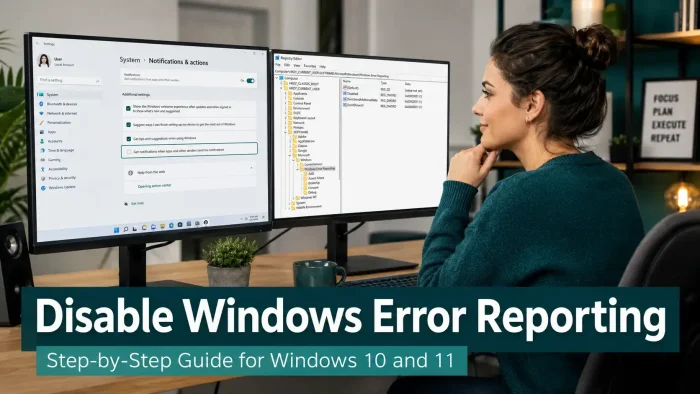
To disable Windows Error Reporting on Windows 11 or 10, you have three options: the Services app (services.msc), Group Policy Editor (gpedit.msc, Pro and Enterprise only), or Registry Editor (regedit). All three work without a reboot and can be reversed at any time. This guide walks through each method, plus PowerShell commands if you prefer the terminal.
3 methods covered
PowerShell included
What You Need to Know
- Group Policy Editor (gpedit.msc) is only available on Windows 10/11 Pro, Enterprise, and Education. Home users should use Services or Registry Editor.
- Disabling WER does not cause crashes or harm Windows. Your crash logs stay visible in Event Viewer. Nothing is hidden from you locally.
What Is Windows Error Reporting?
Windows Error Reporting (WER) is a built-in feature that watches for app crashes, freezes, and system errors. When something goes wrong, it collects details about what happened, such as which program crashed, what was running at the time, and basic system information, then sends that data to Microsoft over the internet.
Microsoft uses this to identify bugs and push fixes through Windows Update. You might want to disable it if you are on a slow or metered connection, work with sensitive data, or simply prefer not to send anything to Microsoft automatically.
Video: How to Disable Windows Error Reporting
Watch this walkthrough to see all three methods in action on Windows 10 and 11, including the Services app, Registry Editor, and Group Policy steps shown below.
Should You Disable Windows Error Reporting?
Good reasons to disable it
- You want to limit what data leaves your PC
- You are on a metered or slow connection
- Your PC handles sensitive business or personal data
- You run an offline or air-gapped system
Reasons to leave it on
- You want Microsoft to receive data that helps fix bugs
- You use it to troubleshoot crashes on your own PC
- Your IT team uses WER for internal diagnostics
- You are unsure. Leaving it on causes no harm.
How to Disable Windows Error Reporting
Pick the method that fits your Windows edition.
What happens after you disable WER?
- Crashes still happen and are still logged in Event Viewer. Nothing is hidden from you locally.
- No crash data is sent to Microsoft.
- You will not see the “We’re sorry for the inconvenience” dialog after most crashes.
- Windows will not suggest automatic fixes based on your crash reports.
- Your PC performance is not affected at all.
How to Enable Windows Error Reporting
Changed your mind or need it back on for troubleshooting? Use the same method you used to disable it.
Manage WER with PowerShell
PowerShell gives you a fast way to check and change WER without opening any settings window. These commands work on Windows 10 and 11. Run PowerShell as Administrator for the commands that make changes.
Check current WER status
Shows whether WER is currently enabled or disabled.
Get-WindowsErrorReportingCheck the WerSvc service status
Shows whether the Windows Error Reporting Service is running and how it is configured to start.
Get-Service -Name WerSvc | Select-Object Name, Status, StartTypeDisable WER via the built-in cmdlet
The cleanest PowerShell method. Sets the registry Disabled value to 1. Returns True on success.
Disable-WindowsErrorReportingEnable WER via the built-in cmdlet
Reverses the above. Sets the Disabled registry value back to 0. Returns True on success.
Enable-WindowsErrorReportingDisable WER via the service (stops and disables WerSvc)
Stops the service immediately and prevents it from starting on next boot.
Stop-Service -Name WerSvc -ForceSet-Service -Name WerSvc -StartupType DisabledEnable WER via the service (restores WerSvc to default)
Sets the service back to Manual startup (the Windows default) and starts it.
Set-Service -Name WerSvc -StartupType ManualStart-Service -Name WerSvcDisable WER via the registry directly
Sets the Disabled DWORD value to 1 using the registry path directly.
Set-ItemProperty -Path "HKLM:\SOFTWARE\Microsoft\Windows\Windows Error Reporting" -Name "Disabled" -Value 1 -Type DWordEnable WER via the registry directly
Sets the Disabled value back to 0 to re-enable reporting.
Set-ItemProperty -Path "HKLM:\SOFTWARE\Microsoft\Windows\Windows Error Reporting" -Name "Disabled" -Value 0 -Type DWordCheck current registry config
Shows the current values in the WER registry key so you can see exactly what is configured.
Get-ItemProperty -Path "HKLM:\SOFTWARE\Microsoft\Windows\Windows Error Reporting"Windows Server note: On Windows Server, use the Disable-WindowsErrorReporting cmdlet from the WindowsErrorReporting PowerShell module. The module is available by default on Server 2016 and later.
Windows Keyboard Shortcuts for This Task
These shortcuts open the tools you need directly without clicking through menus.
| Shortcut | What It Opens | Use It For |
|---|---|---|
Win + R |
Run dialog | Opens services.msc, regedit, or gpedit.msc |
Win + X |
Quick Access menu | Fast access to Device Manager, Event Viewer, PowerShell (Admin) |
Win + I |
Windows Settings | Access Privacy and Diagnostics settings |
Win + S |
Windows Search | Search for Services, PowerShell, Event Viewer by name |
Win + Pause |
System properties | Quick way to check your Windows edition (Home vs Pro) |
Ctrl + Shift + Esc |
Task Manager | Check if WerSvc or WerFault.exe is running |
Quick Reference: Method Comparison
| Method | Works on Home? | Reboot needed? | Skill level | Best for |
|---|---|---|---|---|
| Services (services.msc) | Yes | No | Beginner | Most users |
| Group Policy (gpedit.msc) | No (Pro/Enterprise only) | No | Intermediate | Managed PCs, IT admins |
| Registry (regedit) | Yes | No | Intermediate | Granular control |
| PowerShell | Yes | No | Intermediate | Scripting, remote management |
Tips for Getting This Right
Check your Windows edition before choosing a method
Press Win + Pause or search for “About your PC” in Settings. If it says Home, skip Group Policy and use Services or Registry instead.
Export a registry backup before editing regedit
In Registry Editor, navigate to the WER key, then go to File > Export. Save the .reg file somewhere safe. If anything goes wrong, double-click the file to restore it.
Run PowerShell as Administrator or the commands will fail
Right-click the Start button and choose Terminal (Admin) or Windows PowerShell (Admin). Registry and service changes require admin rights.
Use Event Viewer to see crash logs even with WER disabled
Press Win + X and select Event Viewer. Go to Windows Logs > Application and filter by Error or Critical. Your crashes are still logged there locally.
Re-enable WER temporarily if you are troubleshooting a crash
If an app keeps crashing and you cannot figure out why, turn WER back on for a day or two. The full crash report, including the dump file, can help you or the app developer identify the cause.
Frequently Asked Questions
Support and Community
- r/Windows10 on Reddit: community help for Windows 10 settings and issues
- r/Windows11 on Reddit: community help for Windows 11 settings and issues
- Windows Error Reporting documentation: official Microsoft developer reference for WER settings
More Windows software guides: How to take a screenshot on Windows · Disable Automatic Updates in Windows 11 · Fix Windows Error Code 0x80070005 · Fix Windows Error Code 0xC0000005
Discover more from Windows Mode
Subscribe to get the latest posts sent to your email.

















Add your first comment to this post