Readers like you help support this site. When you make a purchase using links on our site, we may earn an affiliate commission. All opinions remain our own.

Rainmeter is a free, open source tool that puts customizable widgets, called skins, right on your Windows desktop, available as a direct download from the official site.
Clocks, system stats, weather panels, and hundreds of other small tools sit above your wallpaper instead of buried in an app window. You pick the skins you want, drag them where you like, and adjust their look from a simple settings menu.
Most people start with the default illustro skin suite that installs automatically, then branch out to skins made by the community. Every skin is a small set of plain text files, so nothing is a hidden binary you have to trust blindly. Thousands of free skins are available to download and mix into your own setup.
Rainmeter runs on Windows 7 with Service Pack 1 and later, including Windows 10 and 11. It was first released in 2009, building on an earlier project from 2001, and is still updated regularly by the Rainmeter Team.
Already running Rainmeter? Tell us which skins made your desktop feel like your own in the comments. Got a question before you install it? Reach out to us directly.
What You Need to Know:
- Rainmeter is free and open source, and every skin is a set of plain text files you can open and read
- It runs as its own layer on the desktop and does not inject into or modify other running programs
- Thousands of community-made skins are available beyond the default set that installs automatically
Who Should Use Rainmeter?
- Use it if you want real widgets on your desktop, not just a moving wallpaper, and you like the idea of tweaking exactly what shows and where.
- Skip it if you want something that works with zero setup. Getting a desktop you love usually means trying a few skins first.
- Be careful if you plan to install skins from random links instead of the official Discover page, DeviantArt, or the forum. A skin is still a script, so stick to sources you trust.
How to Get Rainmeter on Windows
Rainmeter is a free direct download from the official site, not the Microsoft Store, so your browser or antivirus may show a normal “unrecognized app” warning the first time you run the installer.
- Step 1. Go to the official Rainmeter website and click Download.
- Step 2. Run the installer. Choose the standard install, or pick the portable option if you would rather Rainmeter run from a single folder with no registry changes.
- Step 3. Open Rainmeter once installation finishes. The default illustro skin suite loads automatically, so your desktop already shows a clock and a few system stats.
- Step 4. Right-click the Rainmeter icon in the system tray and open Manage to see every skin that is currently loaded, and turn more of the default set on.
- Step 5. Download extra skins as .rmskin files (Rainmeter’s own skin package format) from the Discover page, then double-click the file. Rainmeter’s built-in Skin Installer handles the rest.
Worth knowing: Rainmeter also installs through WinGet (Windows’ built-in package manager) with winget install Rainmeter, and supports a fully silent command-line install for advanced setups. See the official installation docs for the exact parameters.
What Is Rainmeter, Really?
Rainmeter is a toolkit for building and running small desktop widgets called skins, built so you do not need programming skill to use one someone else made.
It started life in 2001 as a module for an older shell tool, went quiet for a few years, then was rebuilt from the ground up starting in 2009. The Rainmeter Team has kept it updated ever since, with a new release most months.
- One app, thousands of skins. Browse a huge community library instead of hunting for separate tools for each widget.
- Every skin is plain text. A skin’s .ini file is readable, and Lua scripting (a simple, widely used scripting language) only shows up when a skin needs more advanced logic.
- Nothing touches other programs. Rainmeter draws its own layer on the desktop and leaves every other running program alone.
🛡️ Is it safe? Yes. Rainmeter runs as its own layer on the desktop and never injects into or modifies other running programs. Official releases are code signed (marked with a certificate that proves they really came from the Rainmeter Team) and the full source is public on GitHub. A low-reputation antivirus engine has occasionally flagged the installer as a false positive, a known issue the project has shipped fixes for before. The one real thing to watch is skins, since a skin can run Lua scripts. Stick to the official Discover page, DeviantArt, or the Rainmeter forum, and check an unfamiliar skin’s source first. See the FAQ below for more.
Key Features
Skin-Based Customization
Thousands of user-made clocks, monitors, and widgets
Live System Monitoring
CPU, RAM, disk, and network stats right on the desktop
Fully Scriptable
Build your own skins with plain text and optional Lua
Multi-Monitor Aware
Position and scale skins independently on each screen
Lightweight
Runs quietly in the background with a tiny resource footprint
Open Source
GPL-2.0 licensed (a well known open license), full source on GitHub
What You Can Customize
| Area | What Changes |
|---|---|
| Desktop Widgets | Clocks, weather panels, RSS feeds, to-do lists, and app launchers |
| System Monitors | CPU, RAM, disk space, network usage, and battery, all live on the desktop |
| Media Controls | Play, pause, and track info for supported media players |
| Look and Feel | Fonts, colors, transparency, size, and position of every skin |
| Automation | Lua scripts and bangs (short, built-in commands) that trigger actions on click or hover |
| Multi-Monitor Setup | Independent skin placement and scaling on each connected display |
A Few Skins Worth Trying
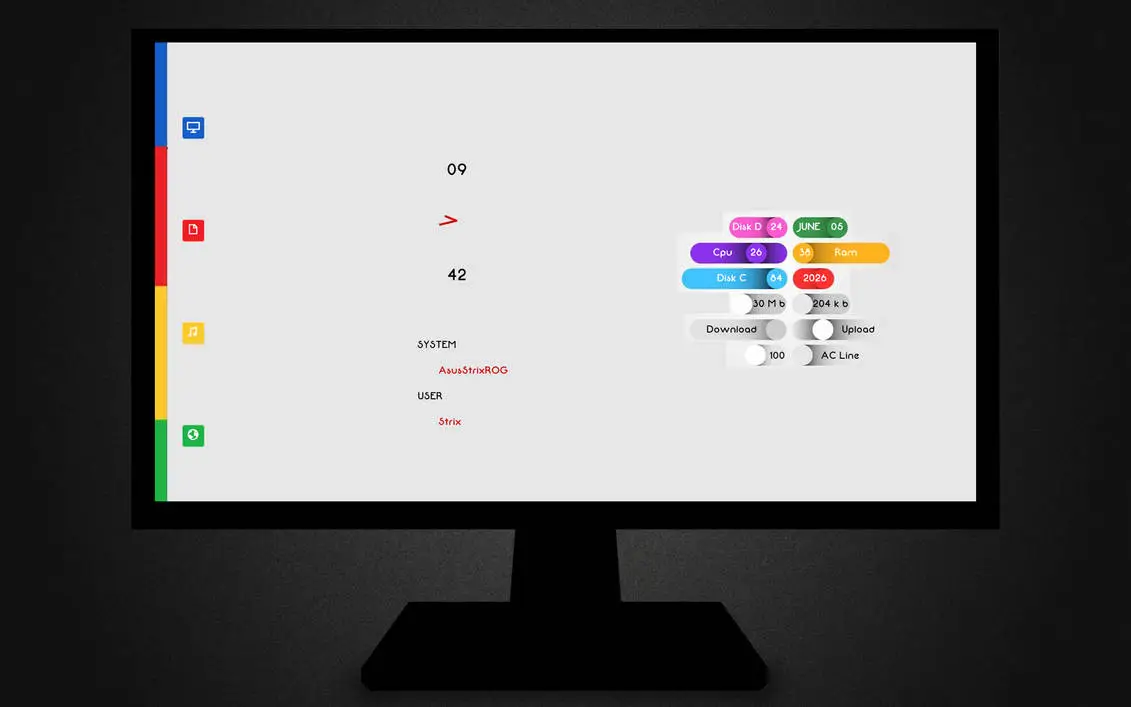
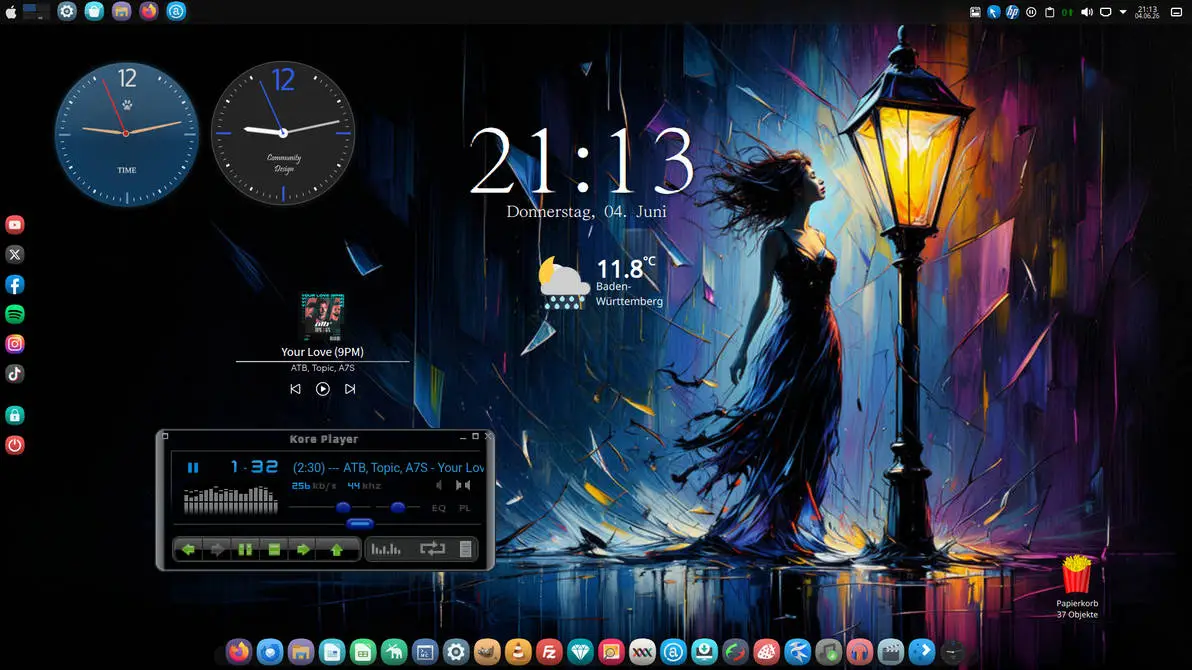
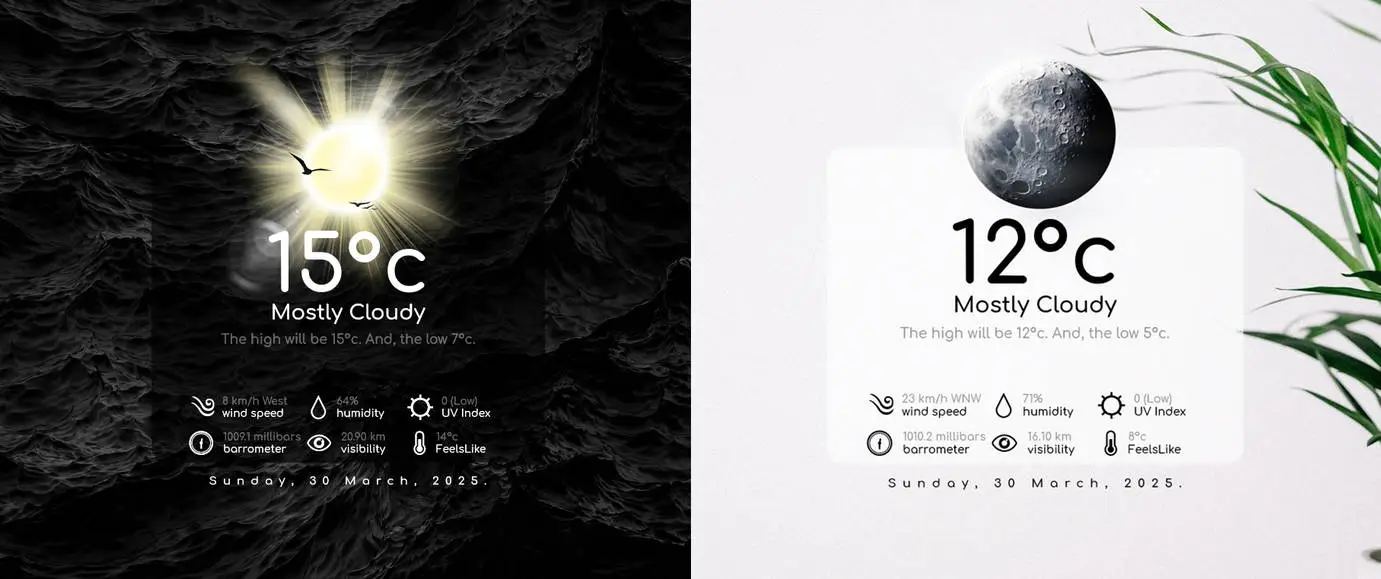
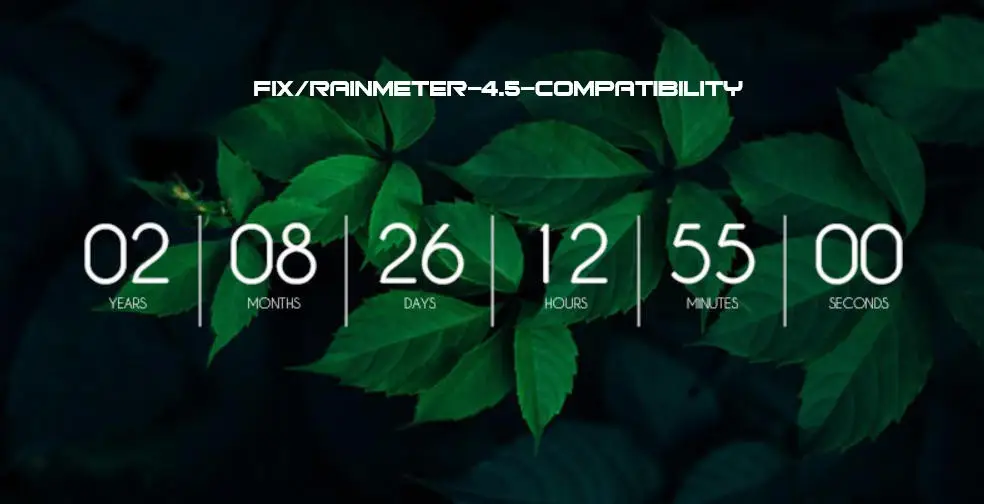
Rainmeter has no single in-app marketplace with download counts, skins are shared across DeviantArt, GitHub, and the forum instead. These six were pulled directly from the official Rainmeter DeviantArt group gallery, checked one by one for a real, recent publish date so nothing here is an abandoned decade-old download.
![AnyClock[1.2] Rainmeter skin screenshot](https://www.windowsmode.com/wp-content/uploads/2026/07/AnyClock-skin.webp)

For thousands more, browse the official Discover page, which links out to DeviantArt, the Rainmeter forum, and Reddit.
System Requirements
| Requirement | Details |
|---|---|
| Operating System | Windows 7 with Service Pack 1 and the Platform Update, or later, including Windows 10 and 11 |
| Processor | Any processor capable of running a supported version of Windows |
| Memory | No dedicated minimum published, Rainmeter is built to use very little RAM |
| Graphics | No dedicated GPU required |
Rainmeter is free and open source with optional donations to the project. There is no paid tier, subscription, or premium skin pack.
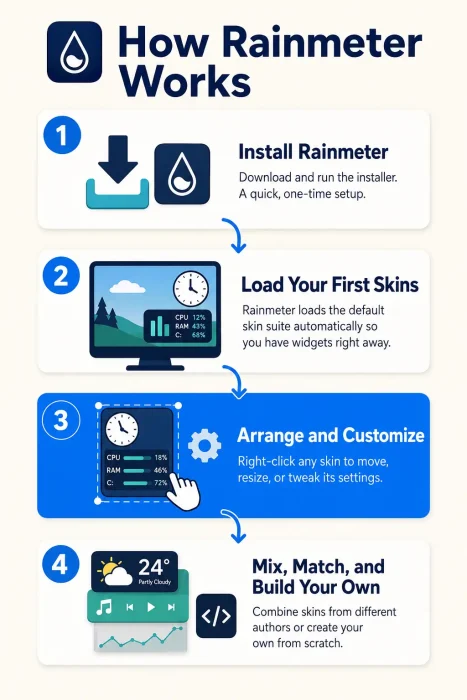
How Rainmeter Works
See how a skin goes from the default set to a fully arranged desktop, and where building your own fits in, in the infographic below.
Common Issues and Compatibility Notes
A skin runs hot on CPU
Some skins poll data very often, especially ones that pull from the web. Right-click the skin, open its settings, and lower the update rate, or disable the skin if you do not need it running all the time.
Text looks blurry on a 4K or mixed-DPI setup
Skins built for standard scaling can look soft on a high-DPI monitor. Check the skin’s own scaling option first, or look for a version built for high-DPI displays.
A skin stops working after a Windows update
Some skins rely on specific Windows features that can change between updates. Check the skin’s page for a newer version, or ask in its thread on the Rainmeter forum.
Antivirus flags the installer
A known, rare false positive on some lower-reputation antivirus engines. Confirmed safe if downloaded straight from rainmeter.net, see the FAQ below for more.
Rainmeter vs the Alternatives
| App | Price | Open Source | Approach |
|---|---|---|---|
| Rainmeter | Free | Yes | Desktop widgets and skins, deep scripting control |
| Wallpaper Engine | $3.99 one-time | No | Animated and interactive wallpapers, Steam Workshop |
| Windhawk | Free | Yes | Mods that restyle the built-in Windows taskbar and Start menu |
See Rainmeter in Action
Watch this walkthrough to see Rainmeter installed and a first round of clock, system monitor, and launcher skins arranged on a real Windows desktop.
Tips for Getting Started
Start with the default illustro suite before downloading anything else. It shows you how skins snap together before you add more.
Right-click any skin for a quick settings menu instead of hunting through folders for its .ini file.
Use Manage, from the tray icon, to turn skins on and off without digging through File Explorer.
Only install .rmskin files from sources you trust, like the official Discover page, DeviantArt, or the Rainmeter forum.
Update Rainmeter itself before updating individual skins if something looks broken after a Windows update.
Rainmeter Screenshots
A look at Rainmeter’s default skin suite and a few community skins on Windows.
-
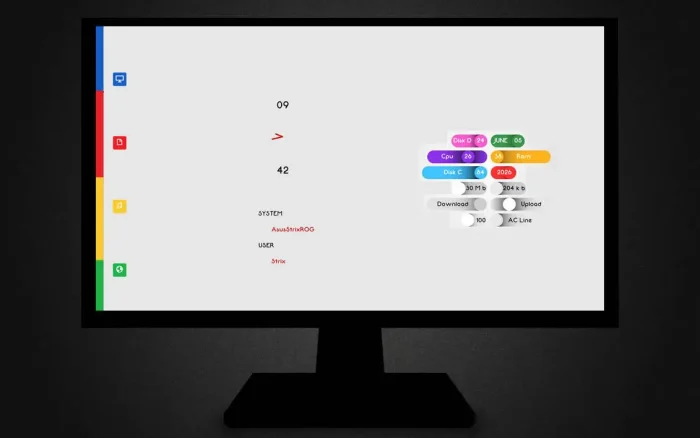
- Flow skin screenshot from Rainmeter for Windows: Skins, Setup, and Getting Started
-
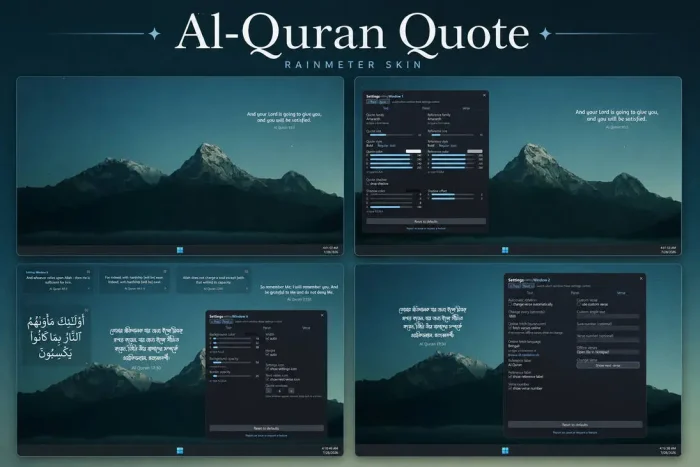
- Al quran quote rainmeter from Rainmeter for Windows: Skins, Setup, and Getting Started
-
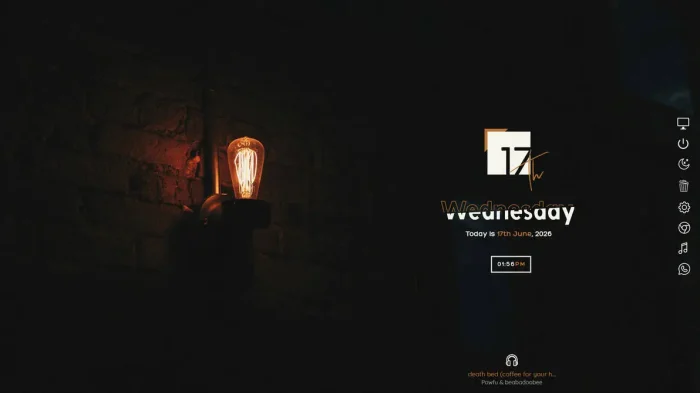
- Blackout rainmeter from Rainmeter for Windows: Skins, Setup, and Getting Started
-
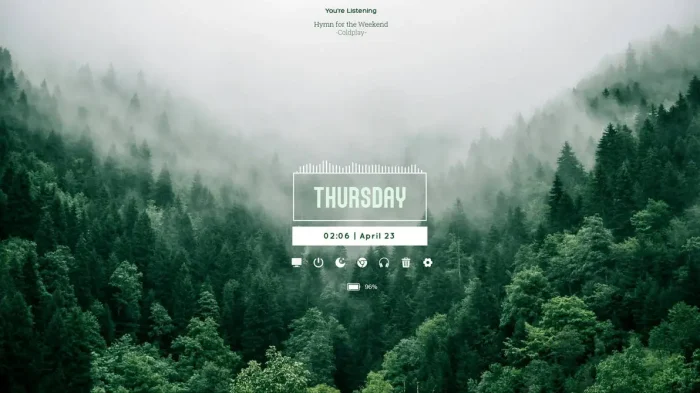
- Canopy rainmeter from Rainmeter for Windows: Skins, Setup, and Getting Started
-
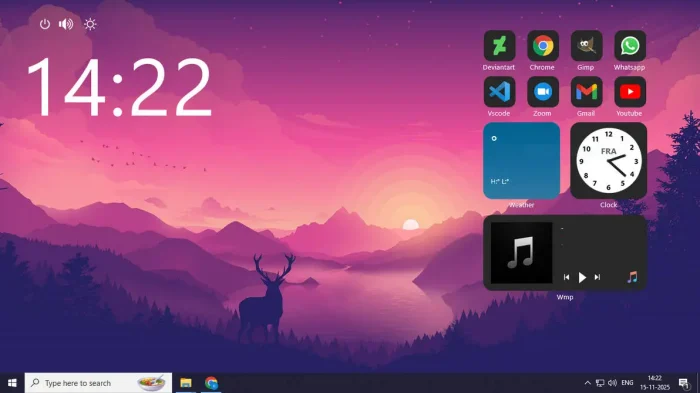
- Inova ui ios like rainmeter from Rainmeter for Windows: Skins, Setup, and Getting Started
-

- Jesus christ rainmeter from Rainmeter for Windows: Skins, Setup, and Getting Started
-
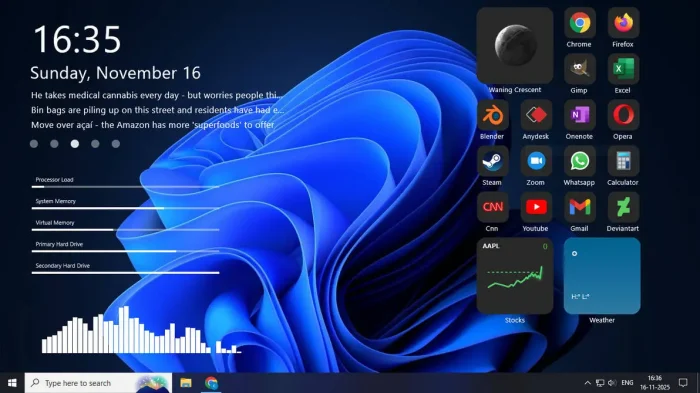
- Nebuladesk rainmeter from Rainmeter for Windows: Skins, Setup, and Getting Started
-

- Neoscape rainmeter from Rainmeter for Windows: Skins, Setup, and Getting Started
-

- Panel rainmeter from Rainmeter for Windows: Skins, Setup, and Getting Started
-
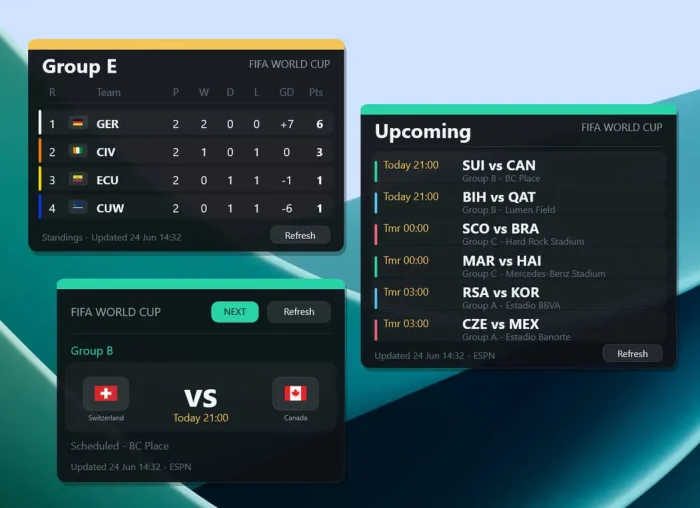
- Sports pulse rainmeter from Rainmeter for Windows: Skins, Setup, and Getting Started
-
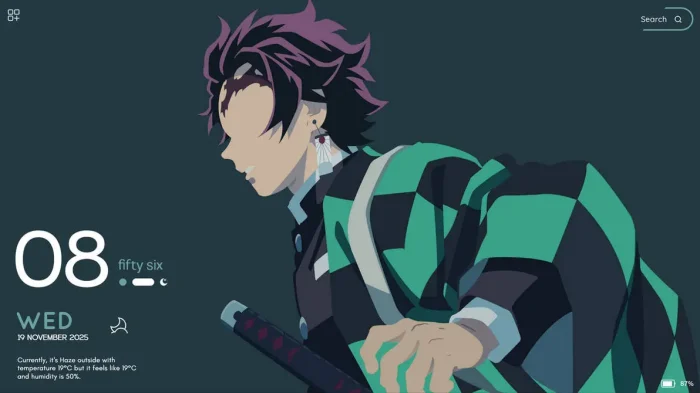
- Tanjiro minimalistic rainmeter from Rainmeter for Windows: Skins, Setup, and Getting Started
-
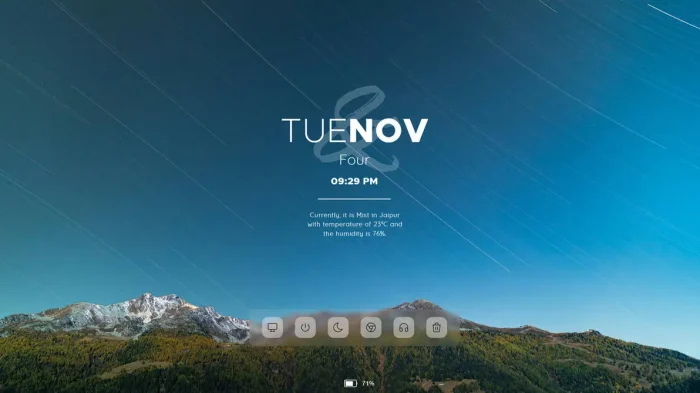
- Tuenov rainmeter from Rainmeter for Windows: Skins, Setup, and Getting Started
-
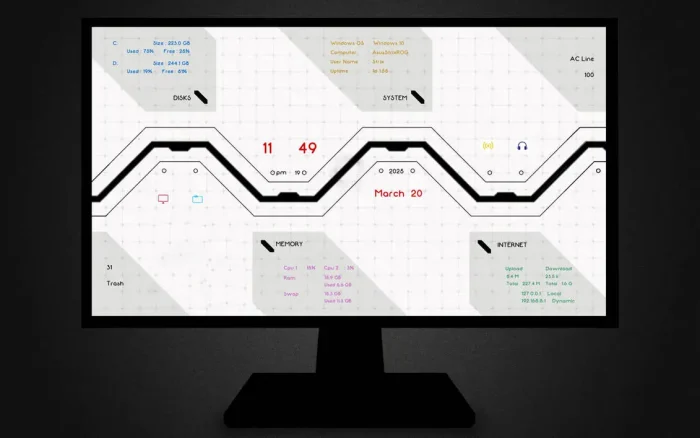
- Wave rainmeter from Rainmeter for Windows: Skins, Setup, and Getting Started
-
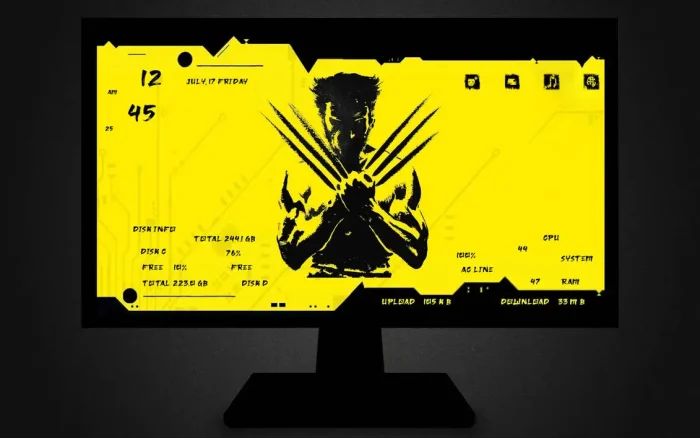
- Wolverine rainmeter from Rainmeter for Windows: Skins, Setup, and Getting Started
-

- Anyclock skin from Rainmeter for Windows: Skins, Setup, and Getting Started
-

- Real weather skin from Rainmeter for Windows: Skins, Setup, and Getting Started
-
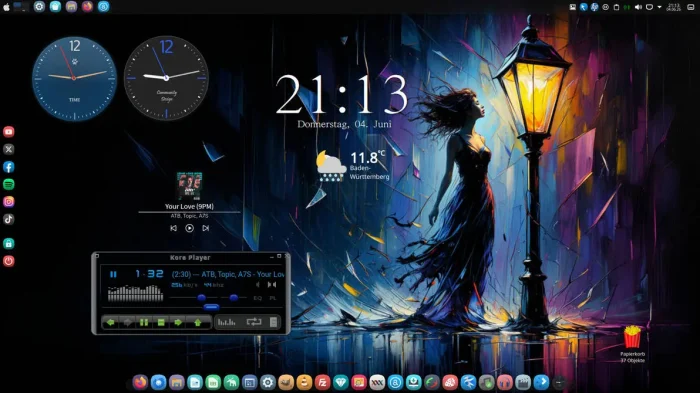
- Kde plasma dock skin from Rainmeter for Windows: Skins, Setup, and Getting Started
-

- Coastline skin from Rainmeter for Windows: Skins, Setup, and Getting Started
-
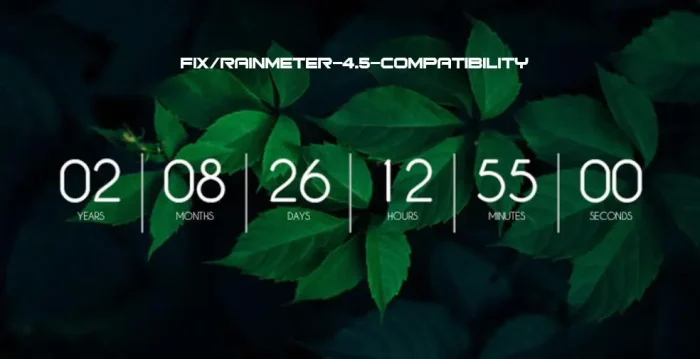
- Countdown timer skin from Rainmeter for Windows: Skins, Setup, and Getting Started
Frequently Asked Questions
Is Rainmeter free?
Will Rainmeter’s installer get flagged by my antivirus?
Do I need to know how to code to use Rainmeter?
How is Rainmeter different from Wallpaper Engine or Windhawk?
Can I make my own skin without any Lua scripting?
What are the system requirements for Rainmeter?
Support and Community
Need help or want to see what other users are building? Join the r/Rainmeter community on Reddit, browse the official Rainmeter Forums, or chat on the unofficial Rainmeter Discord.
More Windows software guides: Windhawk for Windows · Seelen UI for Windows · Customize the Windows Taskbar
Discover more from Windows Mode
Subscribe to get the latest posts sent to your email.

















Add your first comment to this post