Key Takeaways
- OpenAI announced dots, always-on ChatGPT agents that run on their own cloud computer and keep working when you are away.
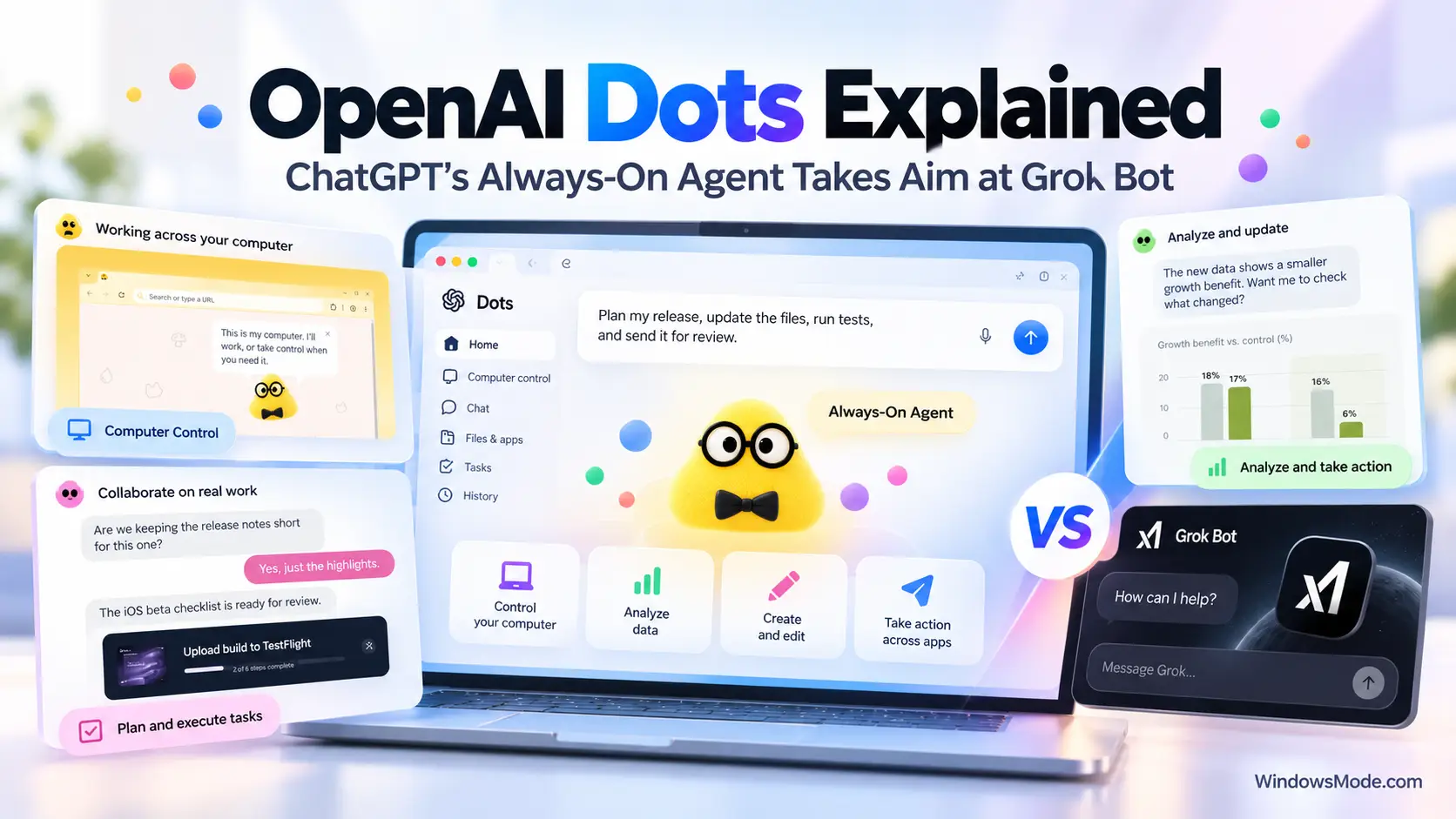
- The idea is very close to xAI’s Grok Bot: a named AI teammate with its own browser, access to your apps and approval checkpoints.
- Dots come with any ChatGPT Pro plan, which now starts at $100 a month, and with Business Premium. Pro users in the EU, the UK and Switzerland are left out at launch.
- You set one up in the ChatGPT desktop app on Windows or in a desktop browser.
- OpenAI also added a $500 Pro 500 plan and lowered the usage allowance for new Pro 200 subscribers.
OpenAI held its DevDay event in San Francisco on September 29, 2026, and made more than 20 announcements. The one that matters most for everyday ChatGPT users is dots: agents that stay switched on, learn how you work, and take tasks off your plate without waiting for you to type a prompt.
If that sounds familiar, it should. We covered almost the same idea when xAI launched Grok Bot for Windows, and Microsoft showed its own version, Autopilot, in the new Microsoft Copilot a few days earlier. Below is what a dot does, how it stacks up against Grok Bot, who can get one and how to set it up on a Windows PC.
Watch the DevDay Keynote
OpenAI’s full DevDay keynote introduces dots on stage, along with the new ChatGPT Space, Pages and the Pro 500 plan.
What Is a Dot?
A dot is an AI agent that lives inside ChatGPT. You give it a name and a character, tell it what matters to you, and it keeps working between your conversations. It can research in the background, run tasks on a schedule and message you when it needs a decision.
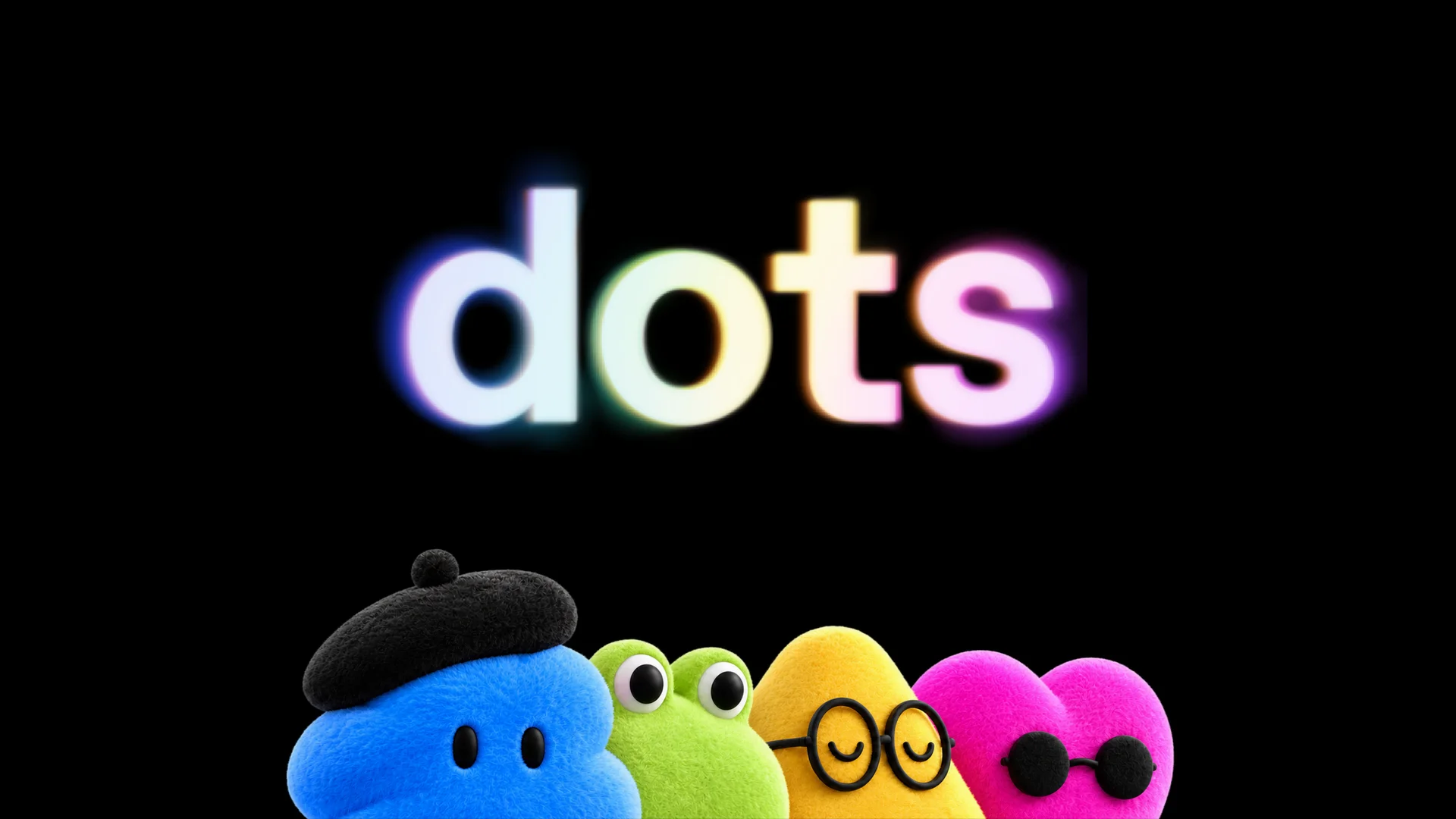
Each dot gets its own name and character. Image: OpenAI.
The difference from a normal chat is ownership. A chat answers the question in front of it and stops. A dot takes on an ongoing job, such as watching customer feedback or keeping a project plan up to date, and follows it through. OpenAI’s own example: an early tester’s dot noticed he had forgotten to invoice a client, prepared the invoice, and sent it once he approved.
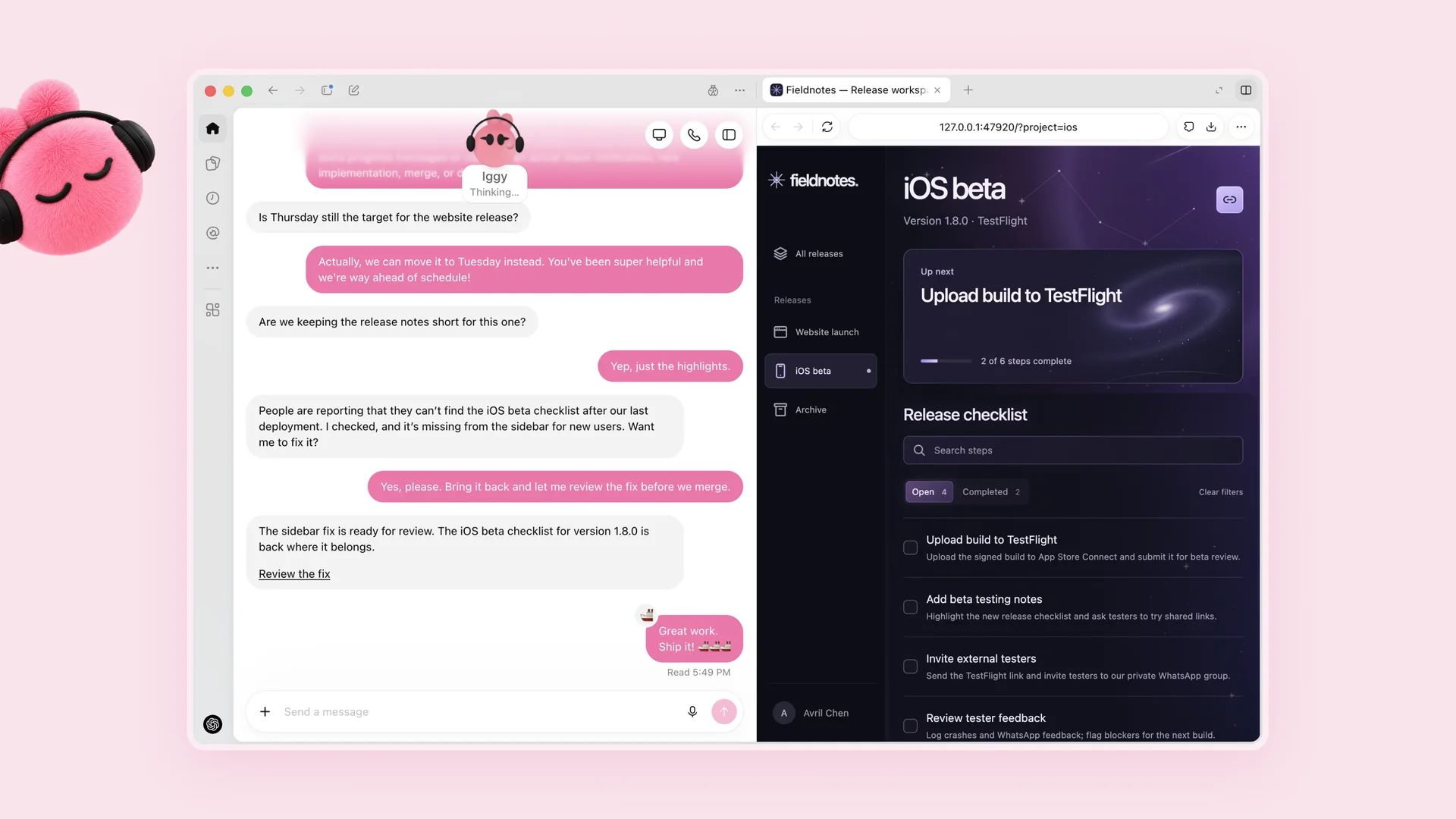
A dot named Iggy spots a bug, fixes it and waits for a review before anything ships. Image: OpenAI.
What a Dot Can Do
OpenAI says dots run on GPT-6 Astra, its most capable model at launch. These are the four abilities that make a dot different from a regular ChatGPT chat.
Its own cloud computer
Each dot has a computer and browser in the cloud. It keeps working when your PC is off, and you can open its computer at any time to watch what it is doing.
Access to your apps
Through ChatGPT plugins, a dot can connect to more than 4,000 apps. You pick which ones, and you can disconnect them in the same settings you already use for ChatGPT.
It learns how you work
A dot uses your ChatGPT memories and builds its own. The more feedback you give it, the closer its work gets to how you would have done it.
Optional access to your PC
Your own computer is off limits by default. If you allow it in the ChatGPT desktop app, your dot can work with files on that PC and use your local browser when its cloud browser is blocked.
You can reach your dot in ChatGPT on desktop, web and mobile, and in Slack and Microsoft Teams. It carries the same context across all of them, so a project started in ChatGPT can continue in a Teams thread. You can also start a voice call with it when typing is too slow. New to Teams? Start with our Microsoft Teams for Windows guide.
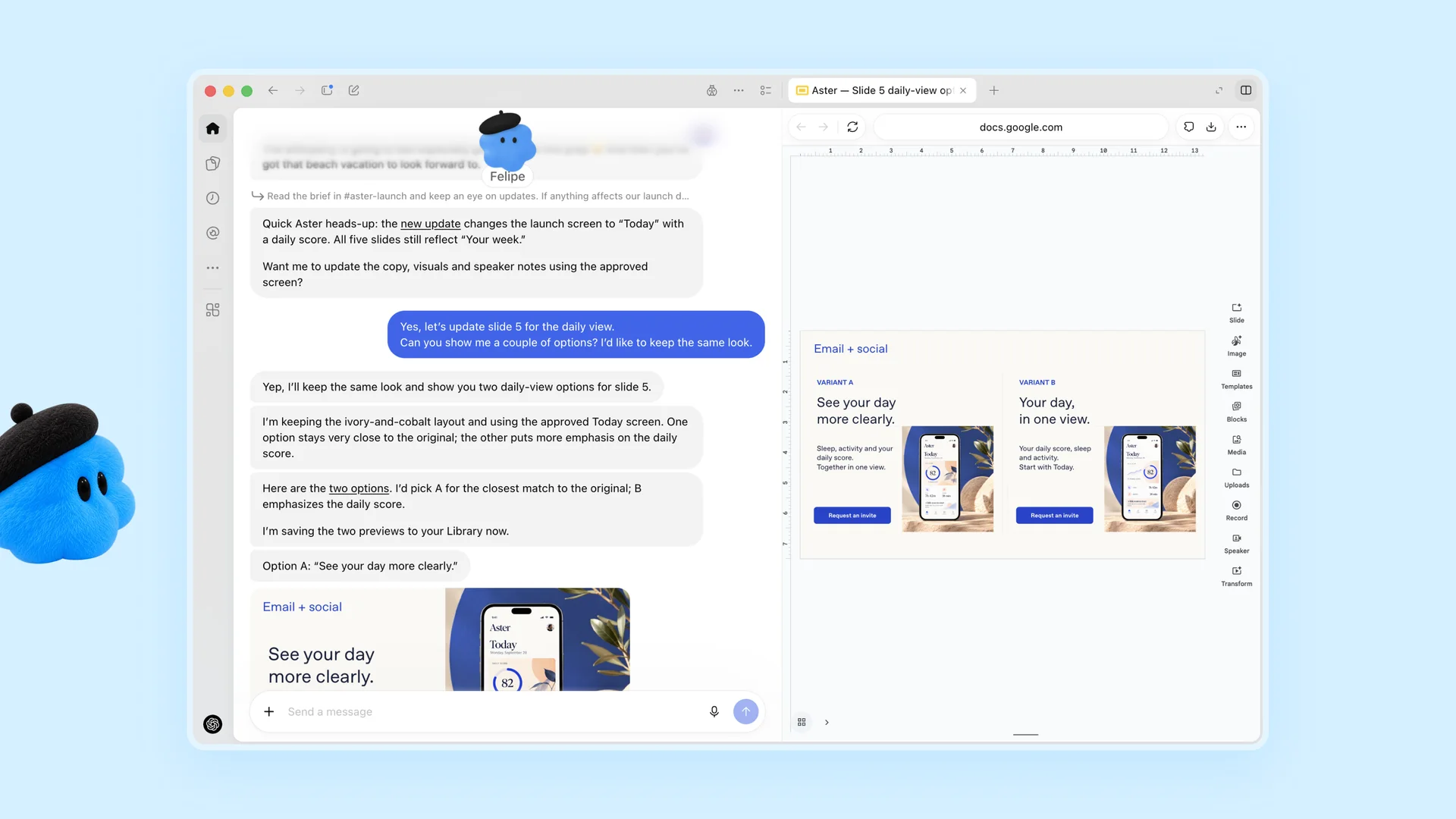
A dot named Felipe notices a product change and offers two updated slides to choose from. Image: OpenAI.
Dots vs Grok Bot
Put the two side by side and the resemblance is clear. Both give you a named agent with its own cloud computer, access to your apps and a pause for your approval on anything risky. The biggest gap is how many agents you get and how they work together.
One thing dots do better on paper is reach. A dot sits inside ChatGPT, an app many people already have open all day, while Grok Bot is a separate app you have to install and sign into. If you already live in ChatGPT, that matters more than any single feature.
Who Gets Dots and What It Costs
Dots started rolling out on September 29, 2026, and OpenAI says access can take several days to reach every account. Your first dot is included in your plan at no extra cost. OpenAI also changed its Pro plans at DevDay, so there are now three to choose from.
Not in the EU, the UK or Switzerland on Pro: OpenAI’s help center says dots are rolling out to Pro users everywhere except the European Economic Area, Switzerland and the UK. Business Premium users get dots in all regions ChatGPT supports.
If you already pay for Pro 200, OpenAI says you keep your old usage allowance through October 29, 2026, as long as your subscription was active at OpenAI’s cutoff date or in the seven days before it. After that date it moves to the new, lower allowance at the same $200 price. Want the full plan picture first? See our ChatGPT for Windows guide.
How to Set Up Your Dot on Windows
You can only create a dot on a computer, not on your phone. OpenAI confirms the ChatGPT desktop app on Windows supports it, and so does ChatGPT in a desktop browser.
- 1Open the ChatGPT desktop app on your Windows PC, or go to chatgpt.com in a desktop browser.
- 2Follow the dot onboarding prompts once dots reach your account.
- 3Name your dot and pick a character, or let it make a pet for you.
- 4Connect the apps you want it to use, and check each app’s permissions first.
- 5Set up Slack or other channels from the desktop app if you want to message it there.
- 6Choose Allow access only if you want it on your PC. Skip this step and your dot stays in its own cloud computer.
After setup, you can talk to your dot from the ChatGPT mobile app. Its profile in the desktop app shows what it is working on under In progress, Scheduled and Completed.

Once set up on a PC, you can hand a dot work from your phone. Image: OpenAI.
Staying in Control of Your Dot
An agent that can send email and use your accounts needs limits. Dots start with built-in rules for when to act and when to ask, and Custom Rules let you set your own. For each kind of action, you can choose one of four behaviors: act without asking, act only if you asked for it in your message, ask first, or hand the task back to you.
Some things stay with you no matter what, such as changing a password. When a dot works in the background on its own, OpenAI says it only uses read-only tools, so it cannot send messages or change anything without you. You can also pause your dot from its profile, and resetting it deletes its conversations, memories and scheduled tasks.
Other DevDay News for Windows Users
Dots were the headline, but several other announcements touch the ChatGPT desktop app and the Microsoft tools many Windows users rely on.
ChatGPT Space and Pages
Space is a shared home where your team, ChatGPT and your dot work from the same notes. Pages are documents that people and agents edit together. Both are for Pro, Business and Enterprise plans.
@ChatGPT in Microsoft Teams
Business and Enterprise users can mention @ChatGPT in a Teams or Slack channel to get help. Teammates can add to the answer without needing their own ChatGPT license.
Slides that export to PowerPoint
OpenAI announced shared slide decks that teammates and agents edit at the same time, then export to PowerPoint or Google Slides. It said they would reach Pro, Business and Enterprise in the weeks after DevDay.
One feature Windows misses
The new Meetings plugin, which takes notes and writes summaries with action items, launched as a beta in the ChatGPT desktop app on macOS only.
Businesses should also watch one detail. OpenAI says it is working with Microsoft to bring “specialist dots”, agents set up by a company for one job such as invoice processing, into Microsoft Agent 365, so IT teams can manage them with Microsoft tools they already use. That work started as enterprise pilots.
Our Take
Dots are OpenAI’s answer to Grok Bot, and the match is close: a named agent, its own cloud computer, your apps, and approval before anything risky. Where OpenAI is behind is organization. Grok Bot already lets you run a small team of Bots that each own a job and hand work to each other. OpenAI gives you one dot and spreads the new work features across ChatGPT, ChatGPT Work, Codex, Space and Pages. That is a lot to keep straight, and the “teams of dots” that would tie it together are still a promise. OpenAI’s advantage is that dots live inside ChatGPT, which is where many people already work.
If you already pay for ChatGPT Pro, turn on your dot and give it one small recurring job, such as a morning calendar summary, before trusting it with email. If you are on Plus, there is no reason to jump to $100 a month for dots alone yet. Wait until OpenAI publishes its usage terms after the first month. If you want several agents with separate jobs today, Grok Bot is the more complete product at launch.
OpenAI Dots FAQ
Is Aeon the same thing as OpenAI dots?
Does my dot count against my ChatGPT usage limits?
Can I text my dot or get a phone call from it?
If I disconnect an app, does my dot forget what it learned from it?
Sources and Official Links
- Introducing dots, OpenAI’s announcement this article is based on.
- DevDay 2026 Recap, OpenAI’s list of everything announced at the event.
- Getting started with your dot, OpenAI’s help article on setup, regions and controls.
- About ChatGPT Pro tiers, for the Pro 100, Pro 200 and Pro 500 details.
- Grok Bot, xAI’s official page, used for the comparison.
More Windows software guides: ChatGPT for Windows · Grok Bot for Windows · Claude for Windows · Gemini for Windows · The New Microsoft Copilot
Discover more from Windows Mode
Subscribe to get the latest posts sent to your email.
















Add your first comment to this post