Copilot Notebooks gather your files, notes and links into one AI workspace inside OneNote.
Copilot Notebooks are Microsoft’s AI workspaces for projects, available in OneNote on Windows and the Microsoft 365 Copilot app. You drop in the files, notes and links for one project, then ask Copilot questions about them. It answers from your material, not from the open web.
Think of it as a research folder that can talk back. Copilot reads only the references you add, so its summaries, drafts and study guides stay grounded in your own documents. It can even read you an audio overview of the whole notebook.
Copilot Notebooks come with Microsoft 365 Personal, Family, Premium and Pro, and with work or school accounts that have Copilot or Copilot Chat. On Windows, they live in OneNote and in the Microsoft 365 Copilot app.
This guide covers what they do, who can use them, how to make your first one, and how they compare with OneNote notebooks and Google’s Gemini Notebook. Using them already? Tell us your best prompt.
What Are Copilot Notebooks?
A Copilot Notebook is a project space with Copilot built in. You collect references, such as Word files, PDFs, slide decks, OneNote pages, web links and past Copilot chats, and Copilot uses only those to answer you.
That is the big difference from asking Copilot or ChatGPT a question in a chat window. A normal chat guesses from general knowledge. A notebook answers from the documents you picked, and the references stay live, so if a linked file changes, Copilot reads the new version.
The same notebook opens in two places. The Microsoft 365 Copilot app gives you a lighter view for quick questions, and OneNote gives you the full workspace. You can switch between them without losing anything.
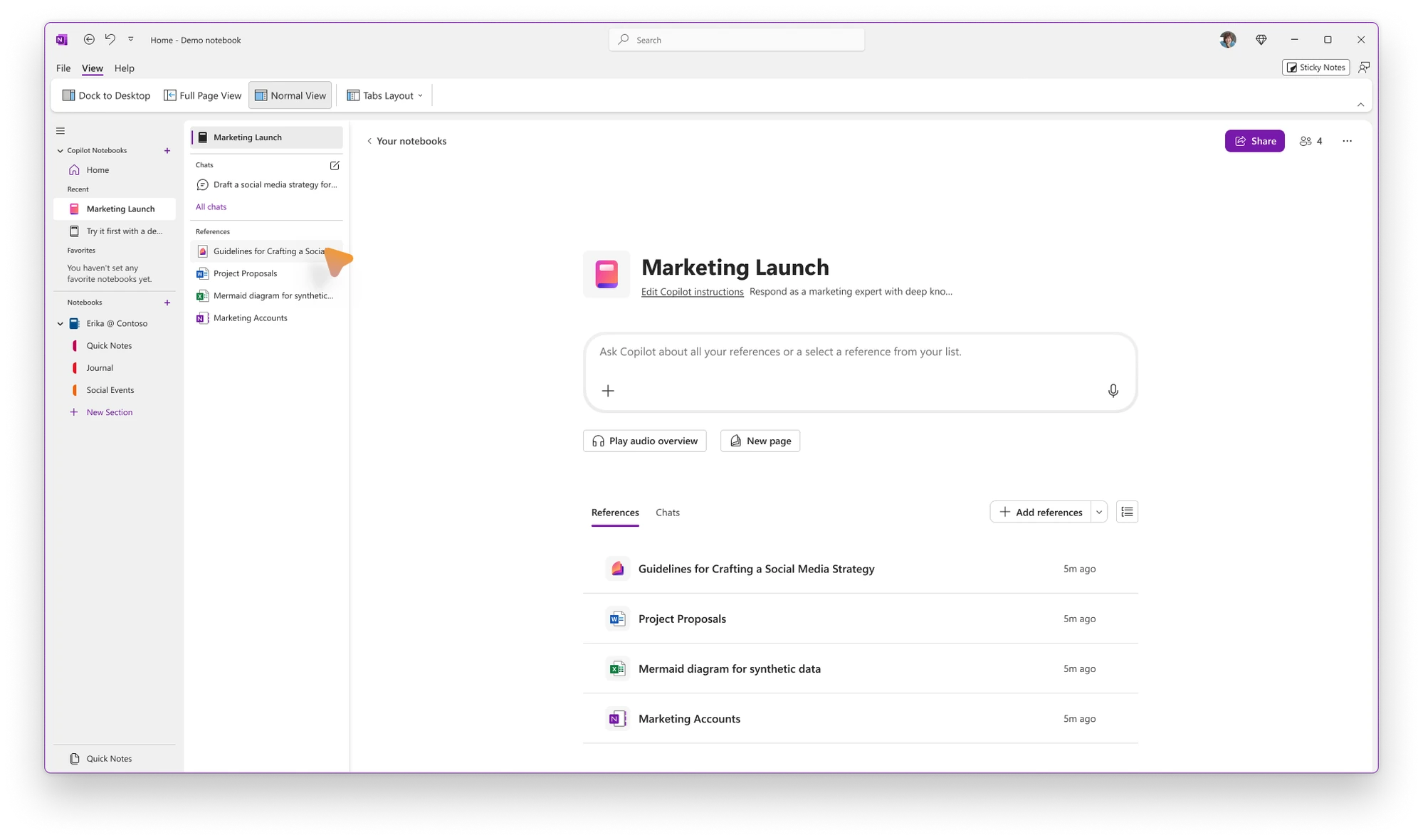
A Copilot Notebook open inside OneNote on Windows, with its references listed below the chat box. Image: Microsoft.
What You Can Do With a Copilot Notebook
These are the jobs Microsoft built Copilot Notebooks for, taken from its own support pages.
Get answers from your own files
Type a question in the Message Copilot box and Copilot answers using only the references in that notebook. Ask it to find key themes, pull out action items or explain something buried in a long PDF.
Each notebook can also have its own Copilot instructions, such as “answer in bullet points” or “write in a friendly tone”, so every answer comes back the way you want.
Write from your references
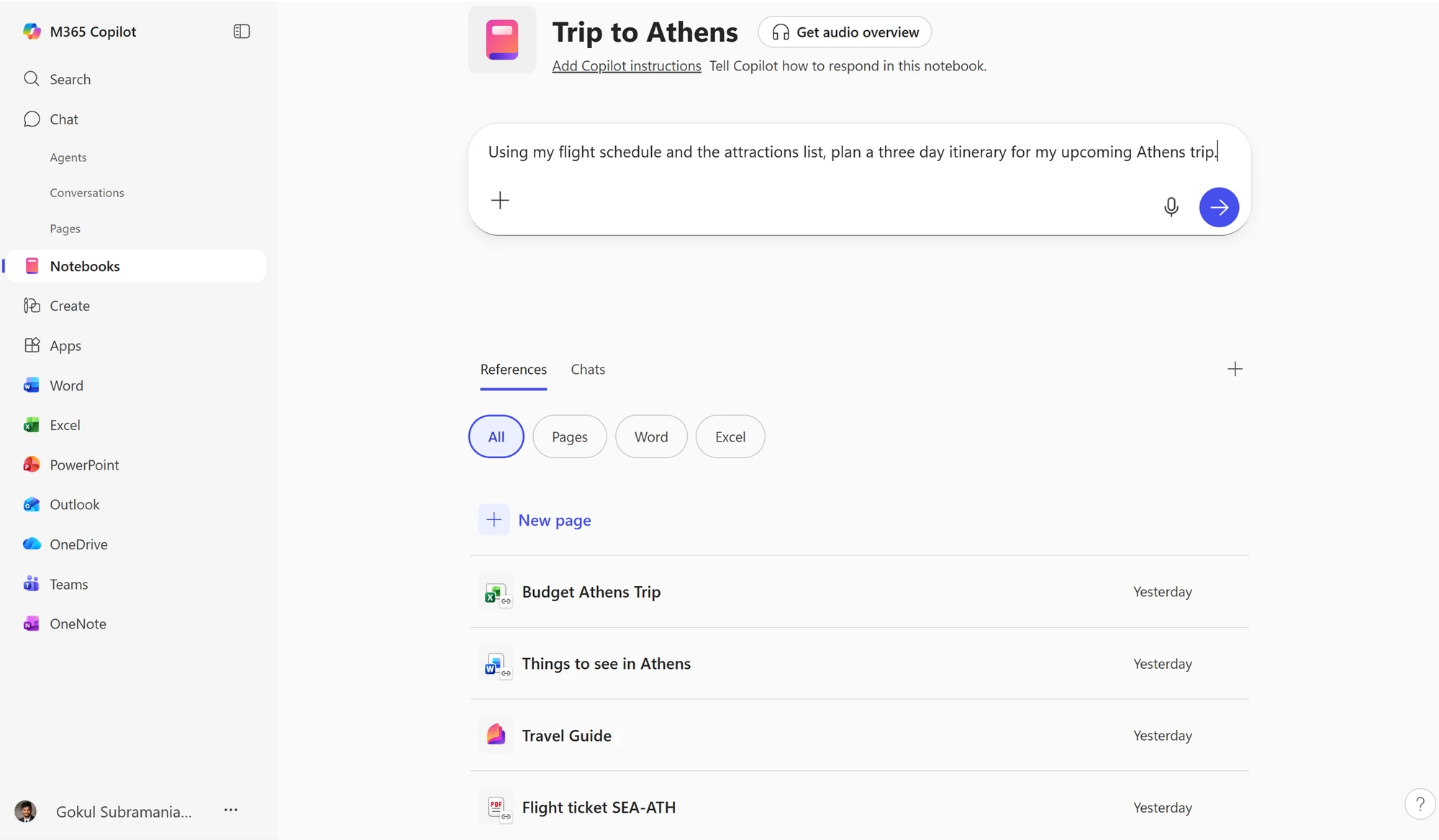
Ask for a summary, a plan, an email or a report and Copilot drafts it from what you collected. It can also suggest a Word document, Excel workbook or PowerPoint deck based on the notebook and build a first draft.
Audio overviews
Click Play audio overview to hear a spoken summary of everything in the notebook. It is handy for catching up on a project while you walk, drive or cook.
Study guides from class notes
Add your lecture slides, notes and readings, then choose Study Guide. Copilot always makes a summary page, and you can add a page per topic, flashcards and a quiz.
The study pages are private to you unless you share the notebook, and you can edit them like any other page or regenerate them after adding new material.
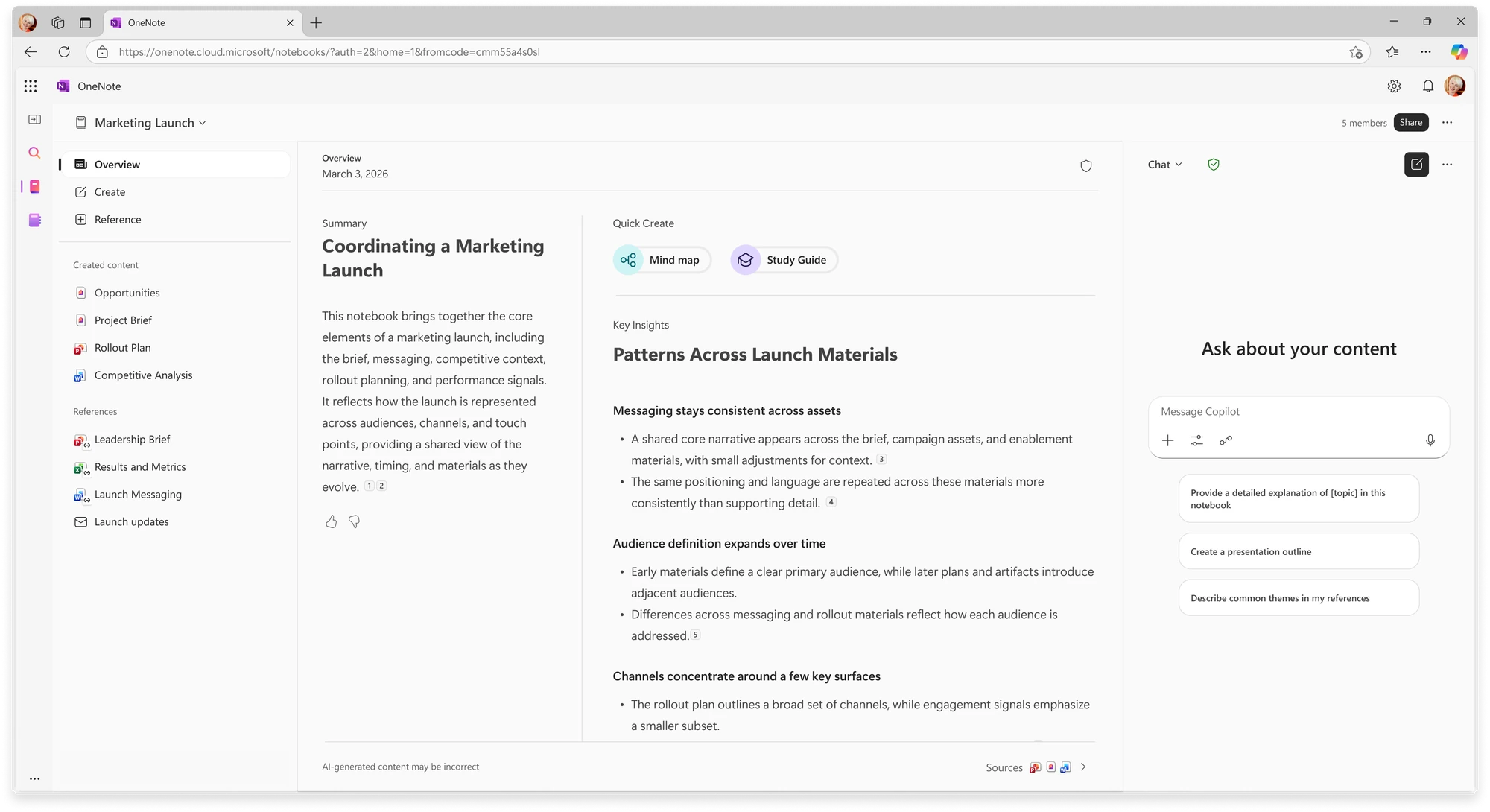
Work and school accounts with a Microsoft 365 Copilot license also get mind maps, which lay out how the ideas in your references connect. Microsoft lists mind maps and Capture as not available on Personal, Family and Premium plans.
Who Can Use Copilot Notebooks?
Copilot Notebooks are not part of free OneNote. You need one of the Microsoft plans below. On a personal plan, they come with your Microsoft 365 subscription at no extra cost, and use the same monthly AI credits as Copilot in Word and Excel.
On a Family or Premium plan? Microsoft gives the AI features to the subscription owner only. Other people on the plan keep OneNote and their storage, but not Copilot Notebooks.
How to Create a Copilot Notebook on Windows
Find Copilot Notebooks in OneNote
In OneNote on Windows, Copilot Notebooks have their own section at the top of your notebook list. If you use the horizontal tabs layout, they sit in the notebook dropdown instead.
Need OneNote first? Our OneNote for Windows guide covers the free install.
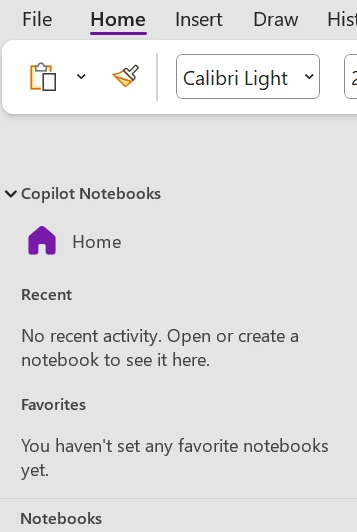
1 Open OneNote and sign in with the Microsoft account that has your Microsoft 365 plan.
2 Click Home under Copilot Notebooks at the top of the notebook list.
3 Select New notebook and give it a clear name, such as Spring Term Biology or Kitchen Remodel.
4 Add references. Search for files, upload them, pick them from OneDrive, paste a link, or drag and drop them in.
5 Ask your first question in the Message Copilot box, or click Play audio overview.
Prefer the Copilot app? Open the Microsoft 365 Copilot app, choose Notebooks in the left menu, then New notebook. Use Open in OneNote any time you want the full workspace.
What You Can Add as References
Documents
Word (.docx), PowerPoint (.pptx), Excel (.xlsx), PDF, text (.txt and .md), Loop and Copilot pages, plus OneNote pages and whole OneNote notebooks.
Web pages and more
Public web pages, and on work accounts, Outlook emails, Teams meetings with their transcripts, and SharePoint sites and folders. Paywalled pages and pages behind a sign-in do not work.
Copilot may use only some of your references for a given answer, picking the ones that fit your question. If one file really matters, mention it by name in your prompt.
Prompts to Try in Your First Notebook
Copy one, change the details to fit your project, and send it.
Plan a trip
“Using my flight details and the attractions list, plan a three-day itinerary with travel time between stops.”
Run a home project
“Compare the three quotes in my references and list what each one includes, what it leaves out and the total cost.”
Prepare for an exam
“Explain the five hardest ideas in these lecture notes in plain words, then quiz me on each one.”
Get ready for a meeting
“Summarize the latest updates across my references and write three discussion points for tomorrow’s team meeting.”
Copilot Notebooks vs OneNote Notebooks
They share a name and an app, but they do different jobs. A OneNote notebook is where you write and keep notes for years. A Copilot Notebook is where you hand a pile of files to Copilot for one project.
Most people use both. OneNote pages can be references in a Copilot Notebook, so your class or meeting notes can feed straight into it.
Copilot Notebooks vs Gemini Notebook (NotebookLM)
Google’s rival used to be called NotebookLM. Google renamed it Gemini Notebook in July 2026, and it does a very similar job: you add sources and ask an AI about them.
If your files already live in Word, OneDrive and OneNote, and you pay for Microsoft 365, Copilot Notebooks save you the upload step. If you do not pay for Microsoft 365, Gemini Notebook is the free way to try this style of AI study and research. Our Gemini for Windows guide covers Google’s main AI app.
Limits and Privacy
It only sees what you add
Copilot does not search your whole OneDrive, email or chats. It uses only the references in that notebook. Microsoft says Copilot Notebooks do not use your data to train its AI models.
Check the answers
Microsoft warns that AI answers can be wrong even when they come from your files. Check names, numbers and dates against the source before you send anything on.
Text, not images
Copilot Notebooks do not make charts, graphs or images. Ask for a table of numbers instead and build the chart in Excel.
Deleting is permanent
Microsoft says a deleted notebook cannot be restored. Your original files stay where they were, but the chats and pages made in the notebook go with it.
Video: Copilot Notebooks Walkthrough
Watch Mike Tholfsen, a product manager at Microsoft, show Copilot Notebooks in action, from adding references to the newer features Microsoft has added.
Frequently Asked Questions
Are Copilot Notebooks free?
What do I need to use Copilot Notebooks on Windows?
Does Microsoft use my notebook files to train its AI?
Can I share a Copilot Notebook with someone else?
Can Copilot Notebooks read my whole OneDrive or my email?
Is Gemini Notebook the same as NotebookLM?
Support and Community
These places answer most Copilot Notebooks questions.
- Microsoft 365 Copilot, Microsoft’s own product page for Copilot.
- Get started with Copilot Notebooks, Microsoft’s official how-to guide.
- Copilot Notebooks FAQ, Microsoft’s answers on plans, sharing and privacy.
- r/OneNote on Reddit, where OneNote users trade Copilot Notebooks tips.
More Windows software guides: OneNote for Windows · Microsoft Copilot for Windows · Gemini for Windows · ChatGPT for Windows
Discover more from Windows Mode
Subscribe to get the latest posts sent to your email.














Add your first comment to this post