Getting fake virus alerts from a website you don’t remember allowing? Microsoft Edge now turns off notifications from a site once Microsoft’s scam checks tie it to a scam. A new Block and report option on the notification permission prompt also lets you flag a suspicious site before it sends anything.
Microsoft’s Edge team described the changes in an Edge blog post. It says the automatic blocking arrived with the Edge 156 rollout, which reached the Stable channel on October 22. The same steps apply to Edge on Windows 11/10.
| Change | What happens |
|---|---|
| Automatic block | When Microsoft Defender SmartScreen or Scareware blocker detects a scam that was pushed through a notification, Edge disables notifications from the site that sent it. |
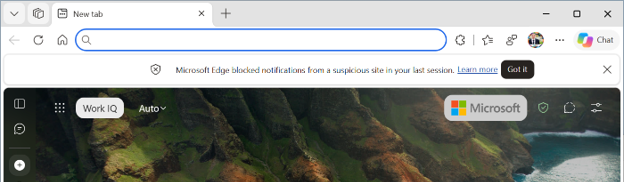
| Info bar | The next time Edge starts, a bar explains that notifications from a suspicious site were blocked in your last session. |
| Block and report | A new choice in the menu next to Block on a notification permission prompt. It is optional and only runs if you pick it. |
Is it on for you yet?
Edge’s release notes call the automatic block a controlled rollout, so having Edge 156 does not guarantee it is active on your PC. To check your version, paste edge://settings/help into the address bar.
What Edge does when a scam notification is caught
Scam sites usually start with a prompt that tries to trick you into clicking Allow, often by claiming you must “prove you are not a robot.” Once you allow it, the site can keep sending fake virus warnings and security alerts, even after you close the page. Clicking one of those alerts can lead you back to the scam.
With the new protection, Edge cuts that link. If SmartScreen or Scareware blocker catches a scam that came from a notification, Edge turns off notifications from the sender. You are told on the next launch, and you can undo it.
Why Microsoft added it
Microsoft says Scareware blocker has been on by default on qualifying PCs for just over a year. It directly protects tens of thousands of people a day, and it helps protect millions more because its reports feed Microsoft Defender SmartScreen. In Microsoft’s preview, each report helped protect about 50 more users.
While reviewing those reports, the team noticed that many scams began with a website notification. Blocking the notification sender, not only the scam page, was the logical next step.
How to use Block and report
You only see this when a site asks to show notifications. Nothing is sent to Microsoft unless you choose it.
Don’t click Allow
When a page asks to Show notifications, ignore any text telling you to click Allow to prove you are human or to continue. A real site does not need notification permission for that.
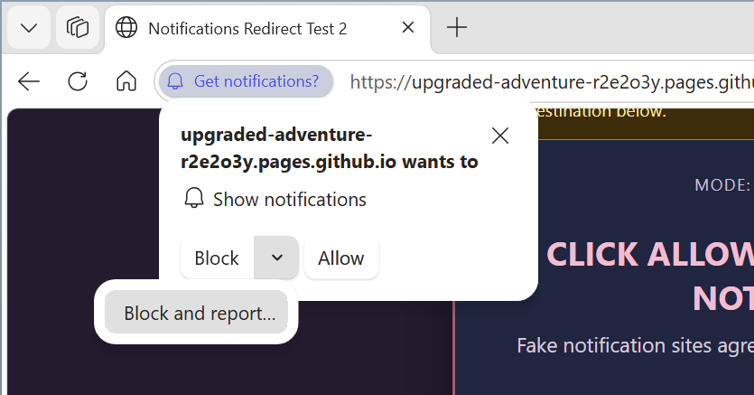
Check: the prompt shows Block, a small arrow next to it, and Allow.
Open the menu next to Block
Select the arrow beside Block, then choose Block and report…
Review the report and send it
A Send feedback window opens. In Microsoft’s example, the page address is already filled in, you can describe what the site tried to do, and an Include this screenshot option is set to Yes (recommended). Pick No if you would rather not share the screenshot, then select Send.
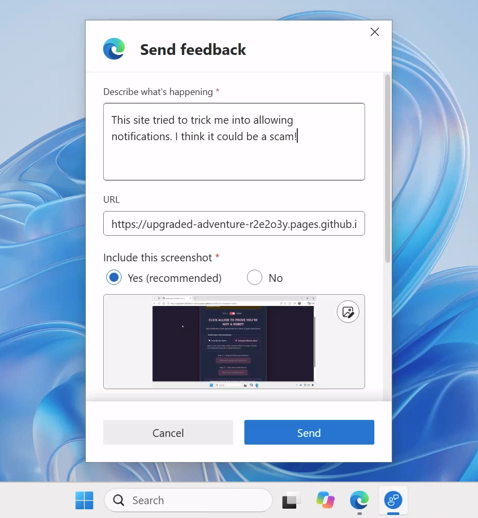
You’re finished when: the prompt is gone and the report has been sent. Microsoft says this gives SmartScreen evidence before the first abusive notification is delivered.
How to review or unblock a site
If Edge blocked a site you actually trust, you can restore it. Microsoft’s release notes give the direct page for this.
Open the blocked notifications page
Paste edge://settings/privacy/sitePermissions/allPermissions/notifications into the Edge address bar and press Enter. You can also open Settings and search for notifications.
Find the site and select Unblock
Scroll to Blocked notifications. Sites Edge blocked automatically are listed there. Select Unblock next to a site to restore its notifications.
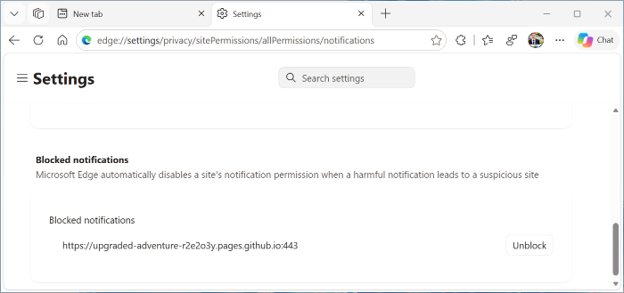
Check: the site disappears from the blocked list.
Be careful
If you do not recognise a site in that list, leave it blocked. Fake alerts are designed to look urgent and legitimate.
What to do if a fake alert still appears
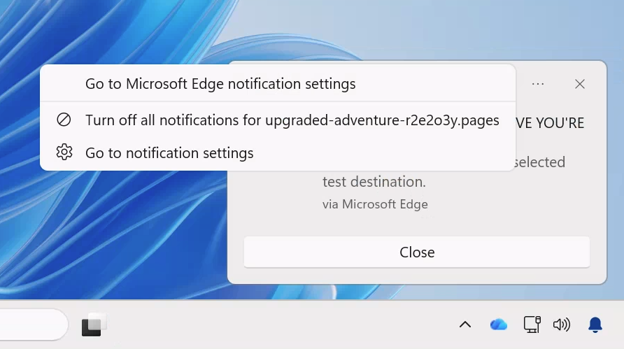
Edge will not catch every scam. If a notification gets through, turn the site off yourself. Microsoft warns that clicking other buttons on a fake alert may just open more pop-ups, so use the menu on the notification instead.
What gets sent to Microsoft
For Block and report, Microsoft says the report can include the requesting URL and a screenshot of the page that tried to persuade you to enable notifications. That only happens if you choose it. Microsoft’s post does not describe any extra data sent for the automatic block, which relies on detections SmartScreen and Scareware blocker already make.
Source: Microsoft Edge Blog and Microsoft Edge Stable release notes.
Discover more from Windows Mode
Subscribe to get the latest posts sent to your email.














Add your first comment to this post