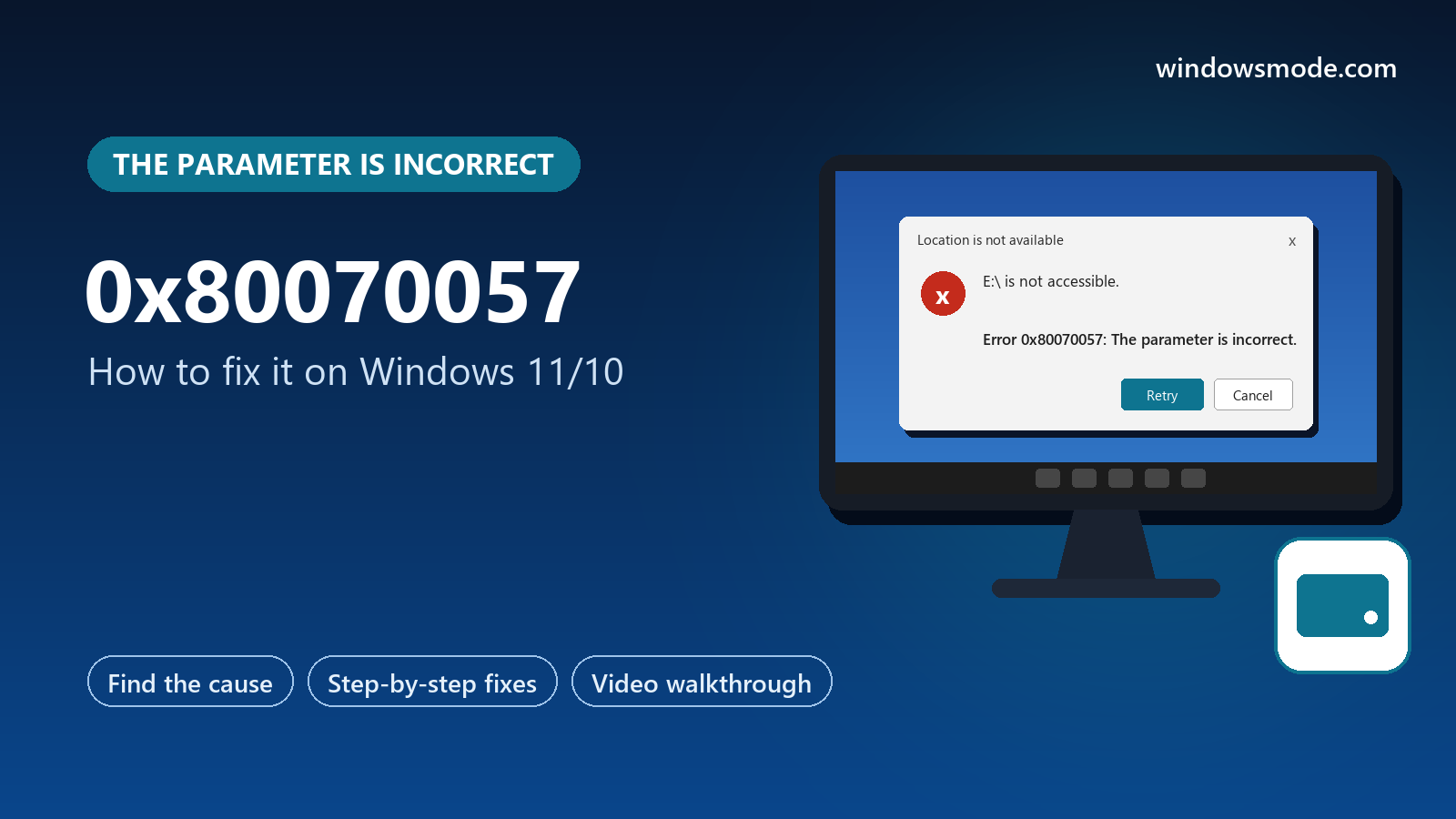
Error 0x80070057: The parameter is incorrect. Usually a drive with file system errors or damaged update files.
Error 0x80070057 is the Windows message The parameter is incorrect: a program passed Windows a value it could not accept, so the action stopped. It shows up on Windows 10 and Windows 11 when opening a USB drive or SD card, copying files, running a backup or installing updates.
It sounds like you typed something wrong, but you almost never did. The usual causes are a drive with file system errors or damaged Windows files, and both can be repaired with built-in tools. Microsoft lists corrupted files and incorrect system settings as the cause for its Windows Update version.
Below: what the code means, a table for where you saw it, eight fixes in order, and a video that shows checking a drive for errors. Still stuck after trying them? Reach out to us directly.
What Does Error 0x80070057 Mean?
Microsoft’s list of generic Windows error codes names 0x80070057 E_INVALIDARG: one or more arguments are invalid. An argument is a value one part of Windows hands to another, like which drive to read, which file to copy or which update to install.
When the drive is damaged, the update file is broken or a setting is wrong, the value no longer makes sense, and the action is refused. That is why the same message shows up for a USB drive that will not open and for a Windows update that will not install.
Start from where you saw it. The drive fixes and the update fixes are completely different.
Start Here: Where Did You See It?
Find your situation and jump to its fix.
How to Fix Error 0x80070057 on Windows 10/11
Start with the fix for your situation. Commands go in Terminal (Admin): right-click Start and choose it.
Reconnect the drive properly
A drive that was pulled out without ejecting, or a loose connection, often gives The parameter is incorrect the next time it is plugged in.
- Plug it into a different USB port, directly into the PC rather than through a hub or front-panel socket, and try another cable if it has one.
- Restart the PC with the drive unplugged, then plug it in again.
- Still not accessible? Do not format it yet. Go to Fix 2.
Check and repair the drive’s file system
This repairs the most common cause on drives: file system errors left by unsafe removal or a power cut. The video below shows the click-through version.
- Clicking: in File Explorer, right-click the drive, choose Properties > Tools, and select Check under Error checking. Then choose Scan and repair drive.
- Command: if the drive will not open at all, run the command below, replacing E with the drive’s letter.
chkdsk E: /fNever run chkdsk on a drive with files you cannot lose if it is clicking or very slow. A failing drive can get worse under repair. Copy what you can first, or use Fix 3’s recovery tool.
Drive shows RAW or asks to format: recover first
If Windows says the drive needs formatting, or Disk Management shows its file system as RAW, the file system is too damaged for Windows to read. Formatting fixes the drive but erases everything on it, so recover your files first if you need them.
- Recover the files: Microsoft’s free Windows File Recovery app (from the Microsoft Store) can pull files off damaged or formatted drives. Save recovered files to a different drive.
- Then format: right-click Start, choose Disk Management, right-click the drive and select Format. Use NTFS for drives that stay with Windows PCs, or exFAT for drives shared with Macs, cameras or TVs.
- Format fails too? The drive is likely failing. Replace it.
Copying from a phone or camera fails
Phones connect through a slower, more fragile method than a normal drive, and big copies can stop partway with The parameter is incorrect.
- Unlock the phone and keep it unlocked during the copy. On Android, choose File transfer when you plug it in; on iPhone, tap Allow.
- Copy in smaller batches, a few hundred photos at a time rather than the whole camera folder.
- Use a good cable and a USB port on the PC itself. Charging-only cables and loose ports cause dropped connections.
- Alternatives: the Photos app’s Import button, or a cloud backup, avoid the long single copy entirely.
Backups fail with 0x80070057
When Windows Backup, File History or a system image backup reports this error, the backup drive is the usual suspect.
- Check the backup drive for errors with Fix 2.
- Make sure it has room: a full or nearly full backup drive causes failures. Delete old backup versions or use a bigger drive.
- Use NTFS on the backup drive. Older backup tools expect it, and FAT32 cannot hold files over 4 GB.
- Reconnect the backup: remove the drive from the backup settings and add it again, which resets the backup’s configuration.
Windows Update fails: run SFC and the troubleshooter
For the update version, Microsoft’s own guidance points to corrupted files or wrong settings, and lists two fixes. Run System File Checker first:
sfc /scannow- Then run the troubleshooter: Settings > System > Troubleshoot > Other troubleshooters, and select Run next to Windows Update.
- If SFC could not fix everything, run DISM /Online /Cleanup-Image /RestoreHealth, then sfc /scannow again.
Reset Windows Update or install the update by hand
If updates still fail, clear Windows Update’s cache. Run these one at a time:
net stop wuauserv
net stop bits
ren C:\Windows\SoftwareDistribution SoftwareDistribution.old
net start bits
net start wuauserv
Still failing? Note the KB number in Update history and install it from the Microsoft Update Catalog. Our guide to error 0x80070002 has more update repair steps.
Repair-install Windows
If the error shows up in several places on your system drive and nothing above helps, a repair install replaces Windows files and keeps your apps and files.
- Windows 11: Settings > System > Recovery > Fix problems using Windows Update > Reinstall now.
- Back up first as a precaution, and plug in a laptop.
Video Walkthrough
This walkthrough from MDTechVideos shows checking a drive for errors from its Properties window (Fix 2). It was recorded on Windows 10, and the steps are the same on Windows 11.
How to Avoid It
Eject before unplugging
Use Safely Remove Hardware, or eject from File Explorer, before pulling out a USB drive or SD card.
Replace drives that keep failing
A drive that needs repairing again and again is wearing out. Copy your files off and replace it.
Keep the backup drive healthy
Check it for errors now and then and leave free space for new backups.
Let updates finish
Interrupted updates leave damaged files behind, which cause update errors later.
Frequently Asked Questions
Will fixing error 0x80070057 delete my files?
Why does my USB drive say The parameter is incorrect?
Is 0x80070057 a sign my hard drive is failing?
Can I fix 0x80070057 on an SD card?
Is 0x80070057 the same as 0x80070005?
Support and Community
- Troubleshoot problems updating Windows on Microsoft Support, including Microsoft’s steps for 0x80070057.
- Windows File Recovery on Microsoft Support, Microsoft’s free tool for getting files off a damaged drive.
- COM Error Codes (Generic) on Microsoft Learn, where 0x80070057 is listed as E_INVALIDARG.
- r/techsupport on Reddit, where you can describe where the error appears for help.
More Windows Error Fixes
- How to fix Windows Update error 0x80070643
- How to fix error 0x800f081f
- How to fix error 0x80004005
- How to fix error 0x80070002
- How to fix error 0x80070005
- How to fix error 0x800f0923
- How to fix error 0xc0000005
- How to fix error 0xc000007b
- How to fix DPC_WATCHDOG_VIOLATION
- All Windows error code guides
Discover more from Windows Mode
Subscribe to get the latest posts sent to your email.













Add your first comment to this post