Readers like you help support this site. When you make a purchase using links on our site, we may earn an affiliate commission. All opinions remain our own.
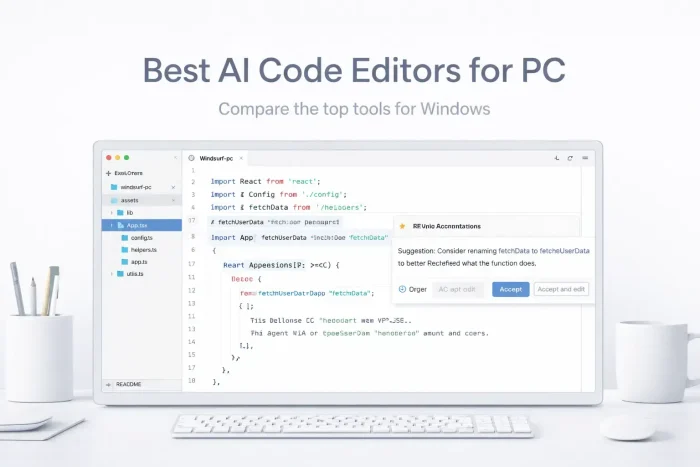
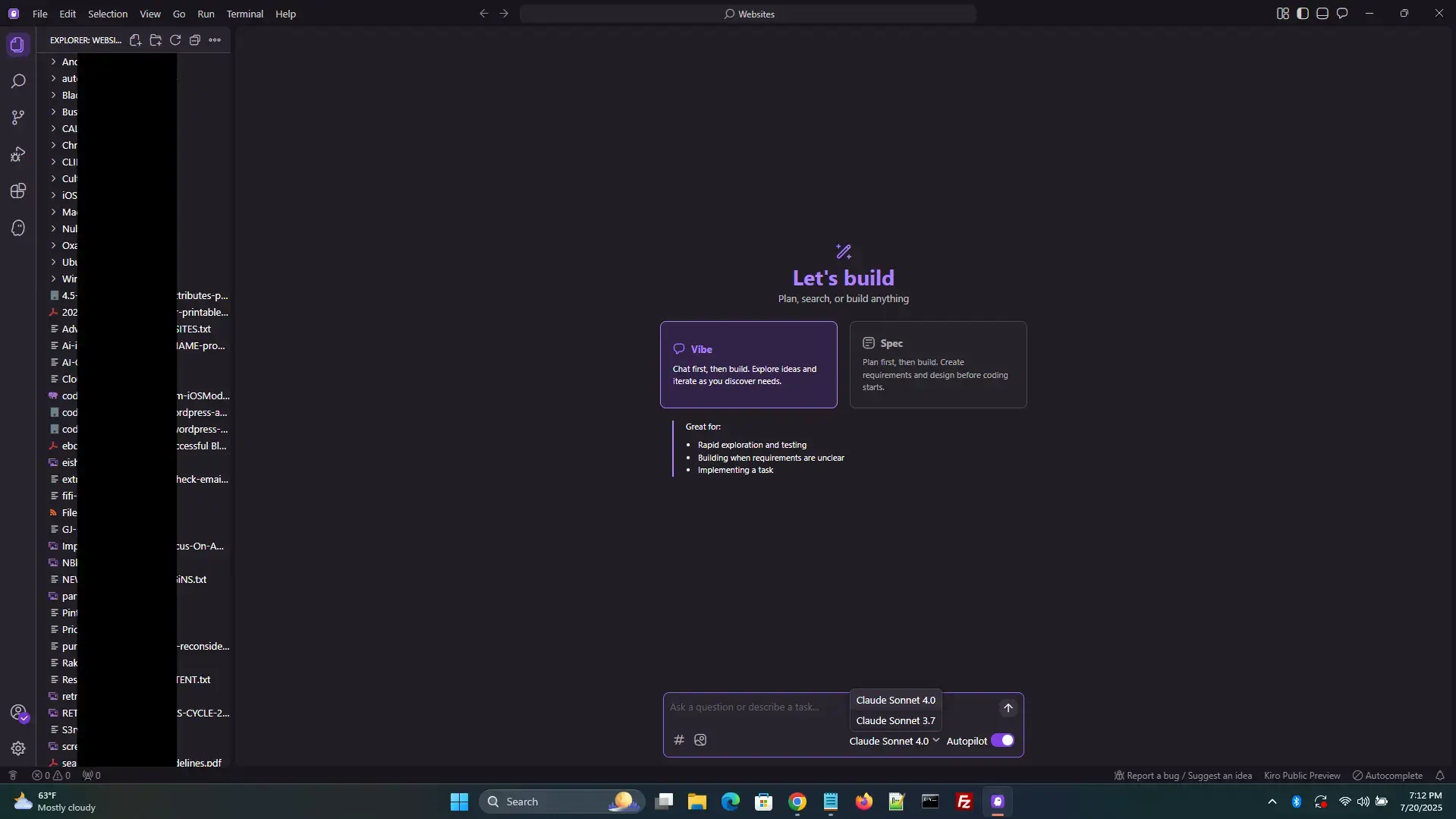
The best AI code editors for PC right now are Cursor, Windsurf, GitHub Copilot, Kiro, and Google Antigravity. All run on Windows 10 and 11, and every tool on this list has a free tier or trial so you can start without paying anything.
Whether you want an agent that rewrites entire files on its own, a lightweight extension that slots into VS Code, or a fully local setup where your code never leaves your machine, there is a tool here for you. We cover free tier limits, agent capabilities, pricing, and local model support for all 19. Pricing changes often. Always check the official page before subscribing.
Pricing in this space changes constantly. We link to every official pricing page so you can verify before you subscribe. If we missed a tool you use every day, drop a comment or reach out to us directly.
What We Look For
Works on Windows 10/11 · Free tier or trial available · Agent mode for autonomous edits · Local model support · Pricing that is clear and honest
Quick Comparison
| Editor |
Type |
Free Tier |
Paid From |
Agent Mode |
Best For |
| Cursor |
Full IDE |
Yes (limited) |
$20/mo |
Yes |
Daily pro use |
| Windsurf |
Full IDE |
Yes |
$20/mo |
Yes (Cascade) |
Agentic workflows |
| GitHub Copilot |
Extension |
Yes (2k/mo) |
$10/mo |
Yes (tiered) |
GitHub teams |
| VS Code + Copilot |
IDE + Extension |
Yes (2k/mo) |
$10/mo |
Yes |
VS Code users |
| Zed Editor |
Full IDE |
Yes (BYOK) |
Sub + tokens |
Yes (ACP) |
Speed + local models |
| Trae |
Full IDE |
Yes (full access) |
Free (preview) |
Yes (SOLO) |
Free full IDE |
| Cline |
VS Code Extension |
Yes (BYOK) |
API costs only |
Yes |
Autonomous agents |
| JetBrains AI |
IDE Plugin |
Yes (limited) |
$10/mo |
Yes (Junie) |
Java/Kotlin/C# devs |
| Amazon Q |
Extension |
Yes (50 req/mo) |
$19/mo |
Yes |
AWS developers |
| Tabnine |
Extension |
Dev Preview |
$9/mo |
Paid only |
Privacy / enterprise |
| Gemini Code Assist |
Extension |
Yes (6k req/day) |
Free / teams $19 |
Yes |
Best free tier |
| Roo Code |
VS Code Extension |
Yes (BYOK) |
API costs only |
Yes |
Cline users wanting speed |
| Continue |
Extension |
Yes (BYOK) |
API costs only |
Yes |
IDE-agnostic BYOK |
| Aider |
CLI Tool |
Yes (BYOK) |
API costs only |
Yes |
Git-native agent |
| Copilot in Visual Studio |
IDE + Extension |
Yes (2k/mo) |
$10/mo |
Yes |
.NET / C# on Windows |
| Kiro |
Full IDE |
Yes (50 credits/mo) |
$20/mo |
Yes (spec-driven) |
Spec-driven workflows |
| Google Antigravity |
Full IDE |
Yes (multi-model) |
Free / Google One |
Yes |
Best free model selection |
| OpenAI Codex |
Agent / CLI |
Usage-based |
Usage-based |
Yes (async) |
Async task queuing |
| Claude Desktop |
Desktop App |
Yes |
$20/mo |
Via MCP |
Architecture + code review |
Pricing changes frequently in this space. Always check each tool’s official pricing page before subscribing.
What Is the Best AI Code Editor for PC?
Here are our top 19 picks, tested and ranked for 2026.
1Claude DesktopEditor’s Pick
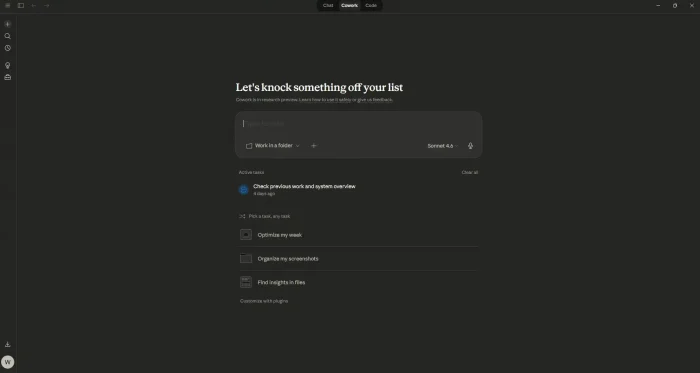
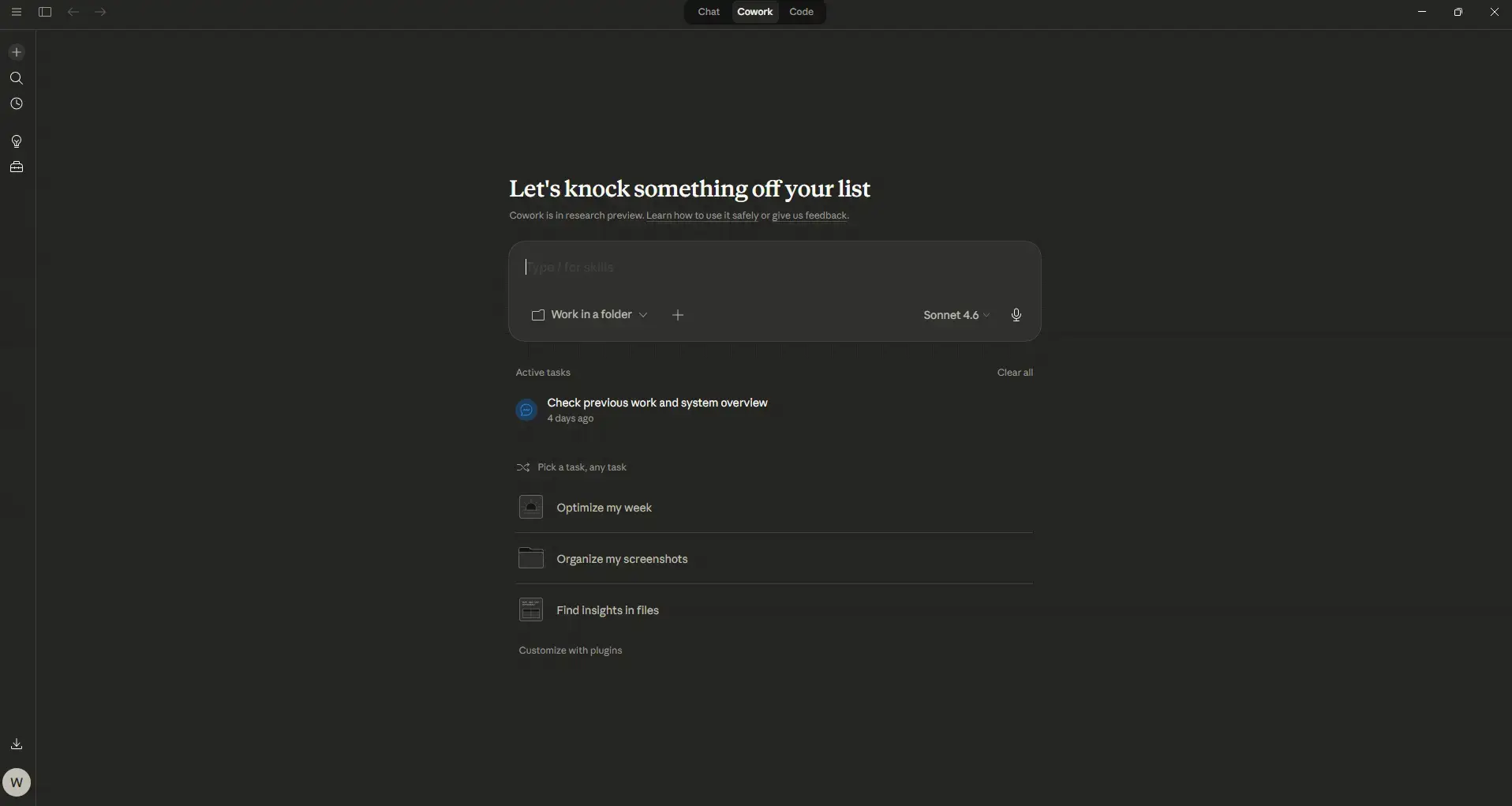
Claude Desktop is Anthropic’s native Windows app and it does more coding work than most people expect from a “chat” tool. You can give it access to your local files, run it alongside your editor, and use it as a coding partner that reads actual files from your machine rather than working from pasted snippets. The MCP (Model Context Protocol) support means Claude can connect to databases, APIs, and local services directly, making it a genuine development environment companion rather than just a chatbox.
For coding tasks, Claude excels at long-context reasoning: reading an entire codebase, writing full implementations from a spec, explaining complex code, and catching logic errors that completion-based tools miss. It comes bundled with Claude Cowork and Claude Code(what most of you use as a plugin in VS) But if your workflow involves a lot of back-and-forth thinking through problems, architecture decisions, and code review before writing, Claude Desktop fills a gap that no pure IDE tool does. Free tier available.
Local File AccessMCP IntegrationsLong-Context ReasoningArchitecture + Code ReviewFree Tier
Best for: Developers who want a thinking partner for architecture, code review, and complex problem-solving alongside their main IDE.
Read our full guide.
2OpenAI Codex

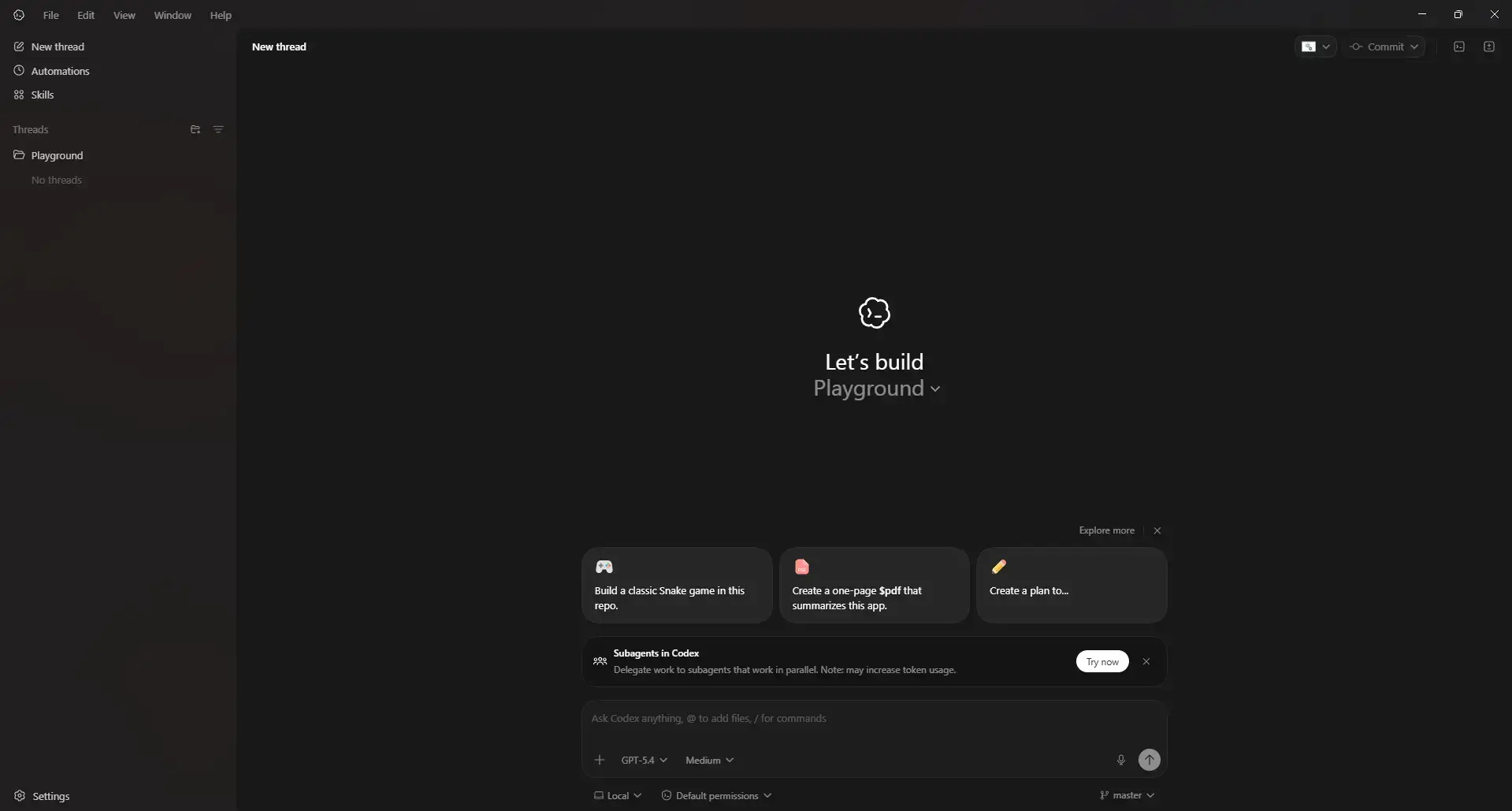
OpenAI Codex is OpenAI’s coding agent, built on the o3 model family and designed for tasks that go beyond autocomplete. It runs as a cloud agent you give a task to, and it works through that task autonomously: reading your codebase, writing code, running tests, and iterating until the task is done or it needs your input. On Windows, it runs via the CLI (PowerShell or Command Prompt) or integrates as an agent inside ChatGPT.
The key difference from most tools here is the async workflow. You hand Codex a task, and it runs in a sandboxed environment in parallel. You can queue multiple tasks at once and come back to review results. It reads your repo, understands context across files, and cites which files it changed and why. Pricing is usage-based through your OpenAI account rather than a flat monthly subscription.
o3-Based AgentAsync Task QueueSandboxed ExecutionFull Repo ContextCLI + ChatGPT
Best for: Developers who want to queue up coding tasks and let an agent run them autonomously while they focus on other work.
Read our full guide.
Pricing note: Codex is usage-based and billed through your OpenAI account. Check the official pricing page for current rates as they change with model updates.
3Cursor
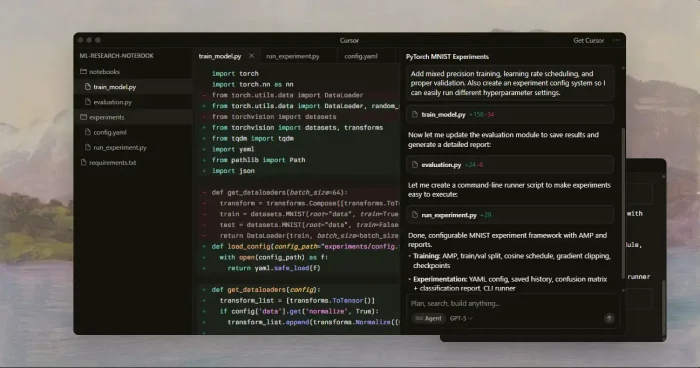
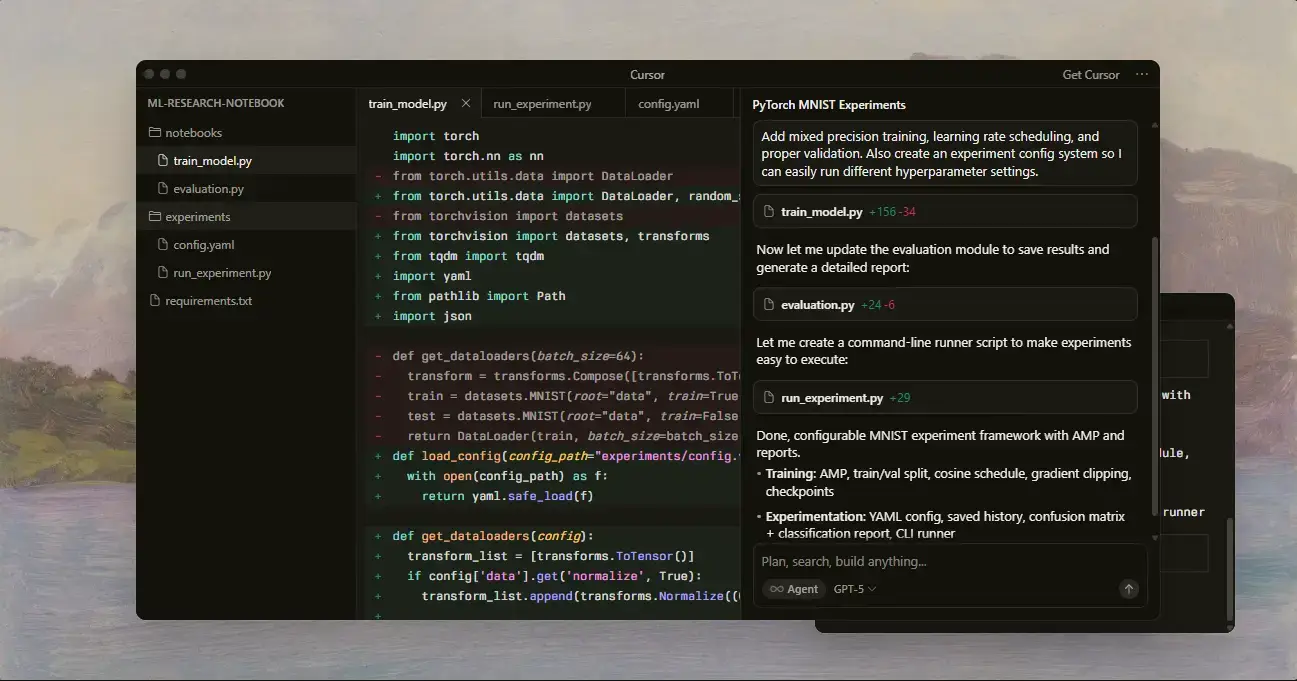
Cursor is the AI IDE most professional developers reach for first. It is built on VS Code, so your existing extensions, themes, and muscle memory carry over. The agent mode can plan and execute multi-file changes autonomously, and the Auto model-routing makes your monthly credit pool go further by picking the most cost-effective model automatically.
The Pro plan ($20/month) includes $20 of frontier model credits. When credits run out you can enable pay-as-you-go, or stick to Auto mode which is unlimited. The free Hobby tier gives 50 premium requests and 500 free-model requests per month : enough to evaluate the editor.
Multi-File AgentTab AutocompleteAuto Model RoutingVS Code ForkWindows ARM64
Watch out for: Cursor changed from request-based limits to a credit pool in 2025. Enable the usage dashboard to track spend before you get an overage charge.
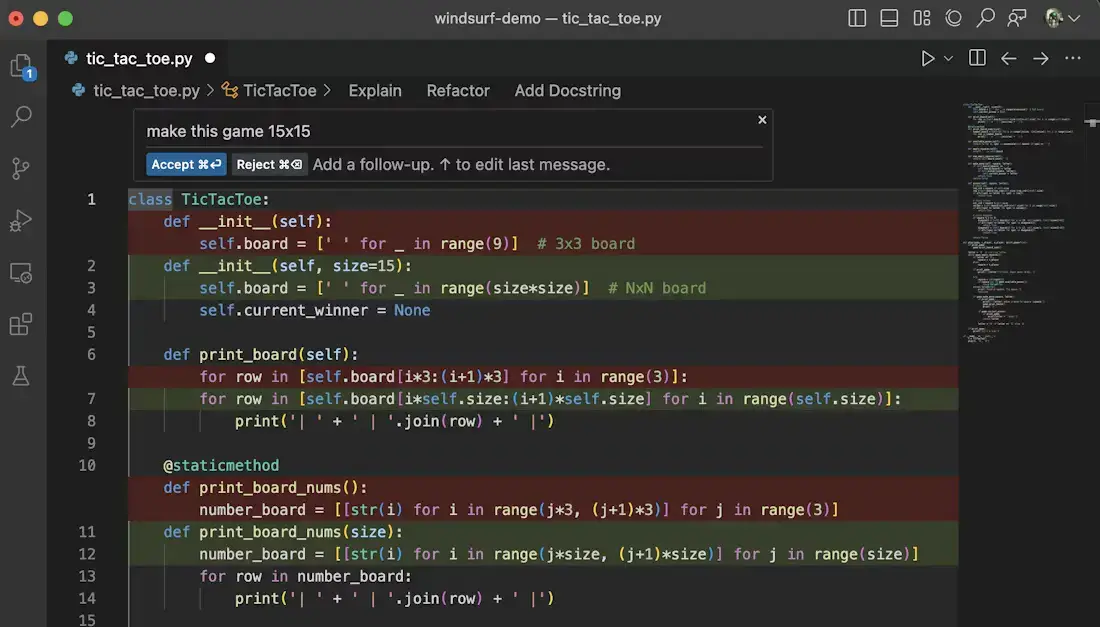
4Windsurf
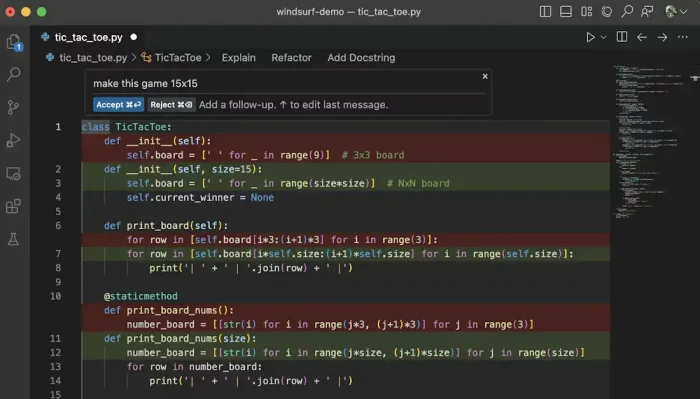
Windsurf is Cursor’s closest competitor and for multi-step autonomous tasks, many developers prefer it. The differentiator is Cascade, Windsurf’s in-house agent built specifically for software engineering. Cascade tracks context across an entire session, knows what it has changed, and course-corrects when something breaks.
Windsurf updated its pricing from a credit system to daily and weekly usage allowances: Free, Pro ($20/month), Teams ($40/user/month), Max ($200/month), and Enterprise. The Pro plan covers daily use for most developers under normal workloads. Windsurf also has its own SWE model family (SWE-1 model family) trained specifically for software engineering tasks.
Cascade AgentSWE Model FamilyTab AutocompleteVS Code ForkWindows 10/11
Best for: Developers who want an agent that keeps context across long coding sessions.
Read our full guide.
Worth noting: Windsurf was acquired by Cognition in 2025. The product is still actively developed but enterprise buyers should watch the roadmap for changes post-acquisition.
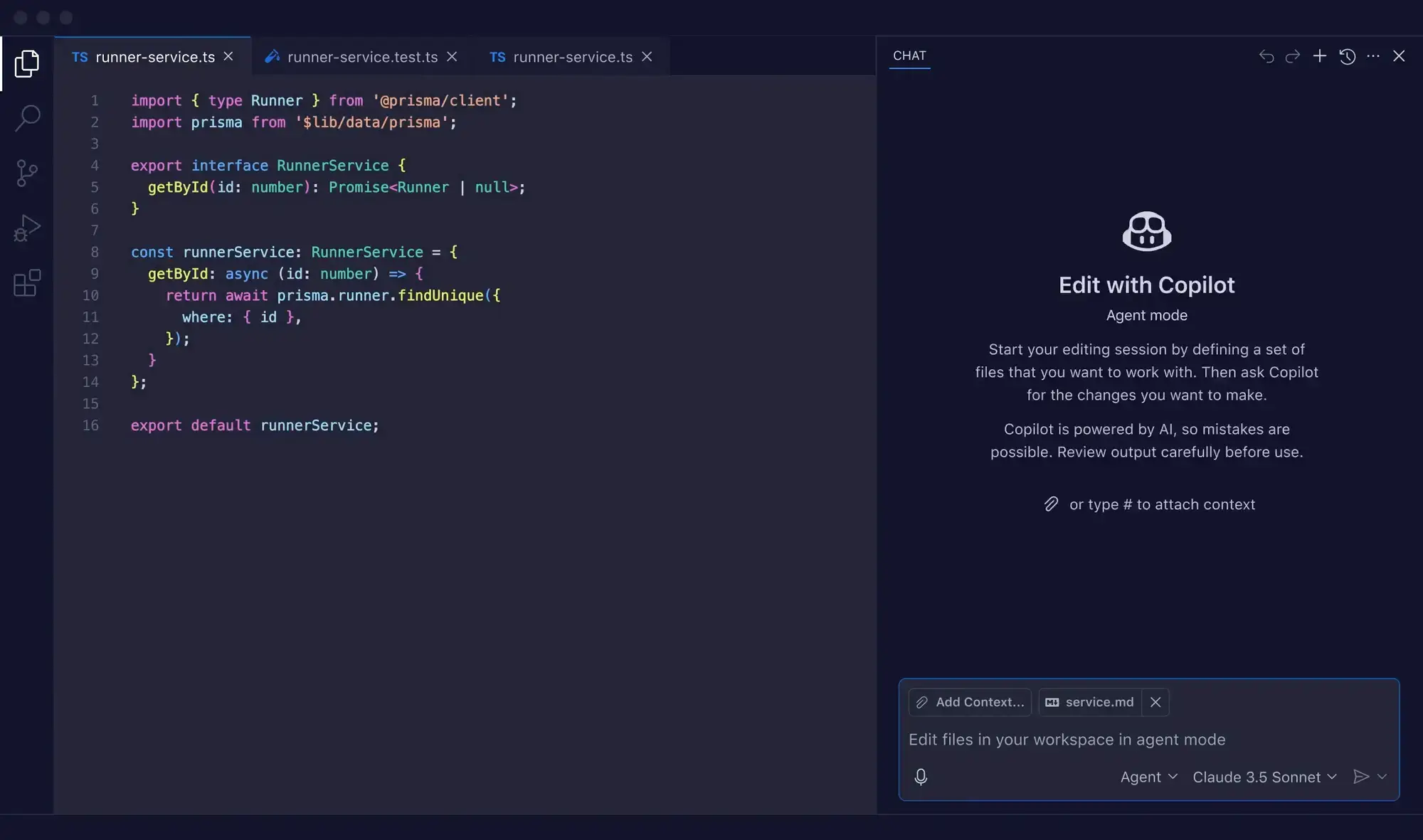
5GitHub Copilot

GitHub Copilot is the most widely used AI coding tool in the world. The Stack Overflow 2025 Developer Survey placed it at 67.9% usage among developers using AI tools. It works inside VS Code, JetBrains IDEs, Visual Studio, Neovim, and on GitHub.com, so one subscription covers your entire workflow.
The free tier gives 2,000 inline completions and 50 agent or chat requests per month. Pro ($10/month) adds 300 premium model requests, code review, and a coding agent. Pro+ ($39/month) pushes to 1,500 premium requests and wider model access. The biggest advantage over Cursor or Windsurf is ecosystem depth: Copilot connects your editor, pull requests, and GitHub CLI under one account.
2,000 Free Completions/moPR Code ReviewMulti-IDE SupportGitHub CLIAgent Mode
Best for: Teams who live in GitHub and want one subscription that covers IDE editing, pull request review, and CLI automation.
6VS Code + GitHub Copilot
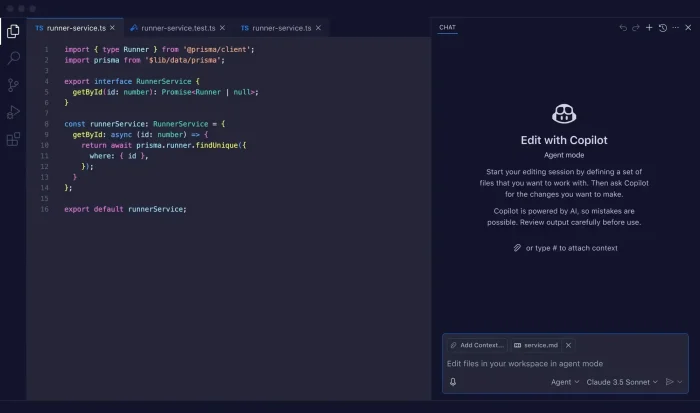
This is the most popular AI coding setup on Windows. VS Code is already the dominant editor on Windows, and adding Copilot as an extension gives you inline completions, an in-editor chat panel, and agent mode inside the workspace you already know. No learning curve, no migration, no new editor to configure.
This is listed separately from GitHub Copilot (above) because the experience differs meaningfully. When Copilot runs in VS Code, it has access to your open files, terminal output, and workspace context in real time. It is the same subscription, but the in-editor workflow is what most Windows developers actually use day to day. Install the Copilot extension from the VS Code marketplace, sign in with GitHub, and the free tier activates automatically.
Inline CompletionsWorkspace ContextTerminal AccessAgent ModeFree Tier
Best for: Developers already on VS Code who want AI without switching editors. Takes 2 minutes to set up.
Read our full guide.
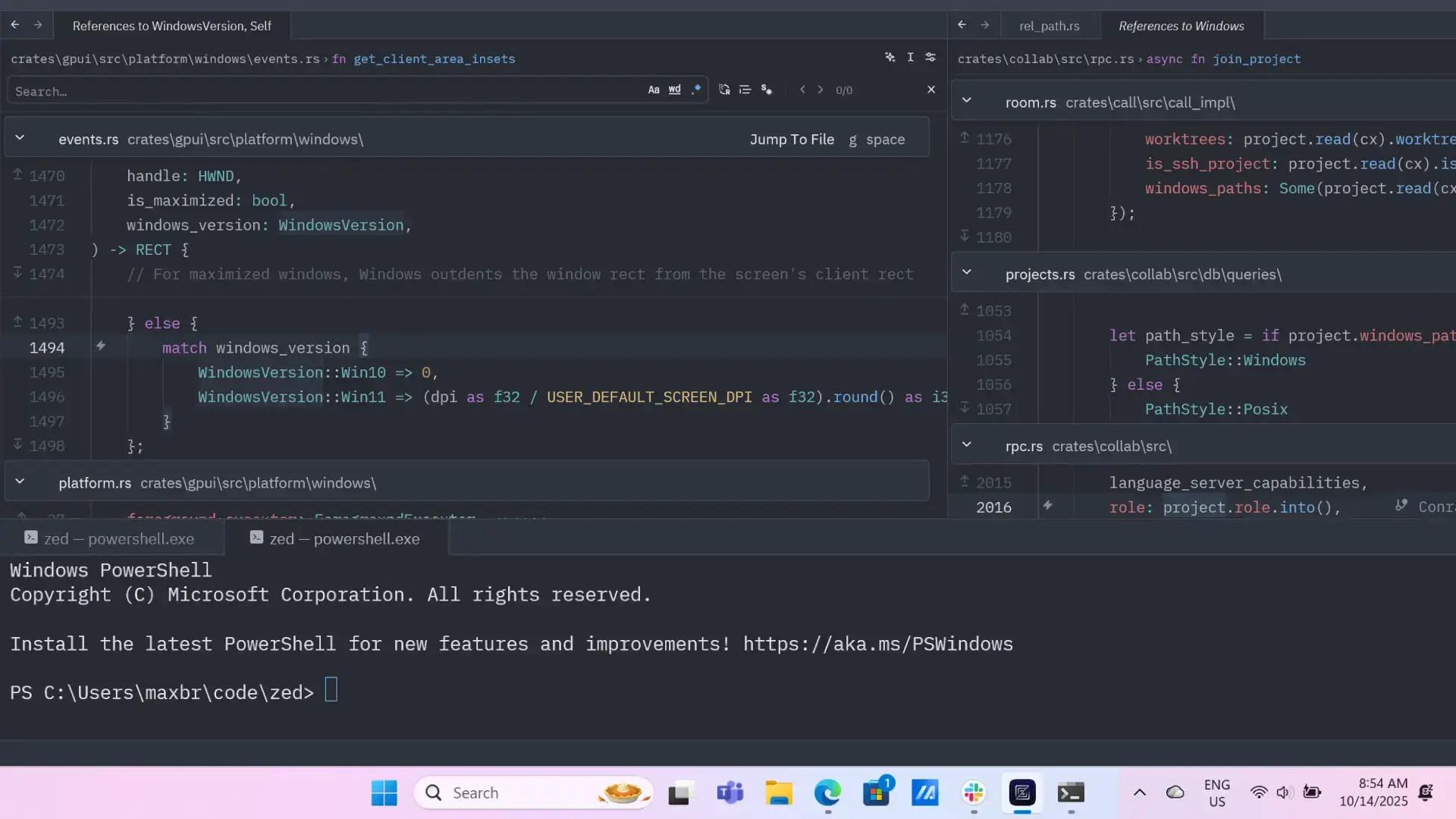
7Zed Editor
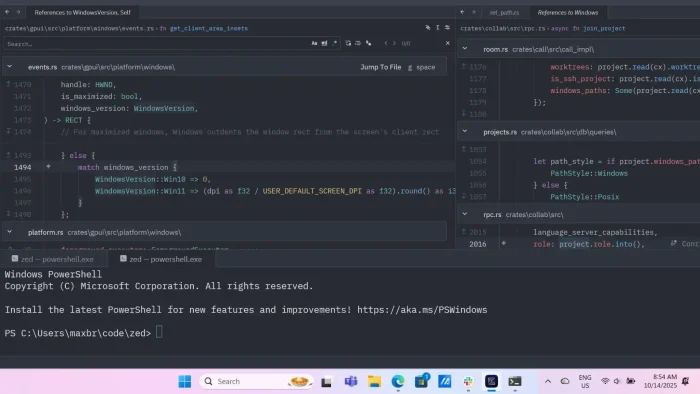
Zed is not a VS Code fork. It was built from scratch in Rust for raw speed, and the difference is noticeable. Keystroke latency in Zed is lower than in VS Code or Cursor, especially on large files. For developers who find VS Code slow or heavy, Zed is worth trying for the editing experience alone.
The AI layer supports Zed-hosted models (billed per token), bring-your-own API keys across Anthropic, OpenAI, Google, and others, and fully local model runtimes via Ollama and LM Studio. You can use Zed with full AI features and never pay Zed a cent if you bring your own keys. Zed Pro ($5/month in token credits) is for developers who prefer Zed-hosted models. Students get $10/month free for one year.
Rust-Native SpeedLocal Models (Ollama)BYOK SupportACP Agent ModeStudent Credits
Best for: Developers who want maximum editor speed and full control over which AI provider they use, including local models.
Windows note: Zed requires DirectX 11. It may not run in virtual machines. On physical Windows 11 hardware it works well. Full Windows support stabilized in late 2025.
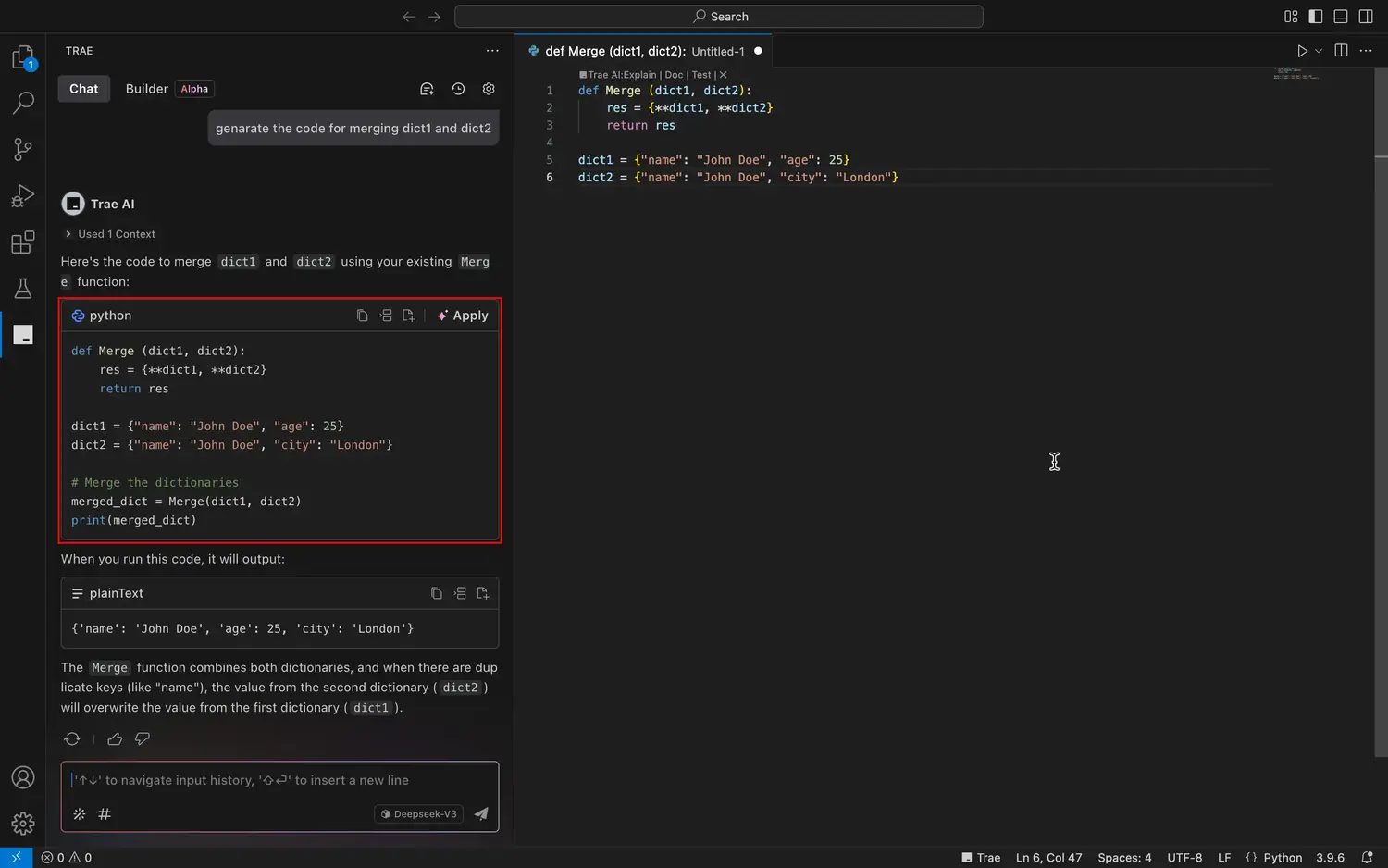
8Trae
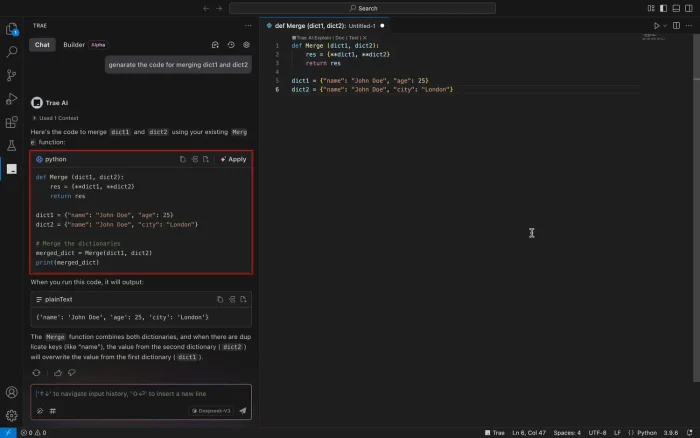
Trae is built by ByteDance and is currently in preview. The entire editor, including access to Claude and GPT-4o, is free right now. No trial period, no credit cap, no credit card required. That will change when it exits preview, but right now it is the most generous free offering on this list for a full IDE experience.
The SOLO agent can orchestrate the editor, terminal, and browser together to complete tasks. The interface is cleaner than Cline and more beginner-friendly than Cursor. For developers who want to try an agentic IDE without committing to a subscription, Trae is the obvious starting point.
Fully Free (Preview)SOLO AgentClaude + GPT-4o AccessVS Code ForkWindows 10/11
Best for: Developers who want a full agentic IDE for free while the preview lasts. Good starting point before committing to a paid tool.
Privacy flag: Trae is made by ByteDance, the same company that makes TikTok. Enterprise teams with strict data policies should check their requirements before using it with production code.
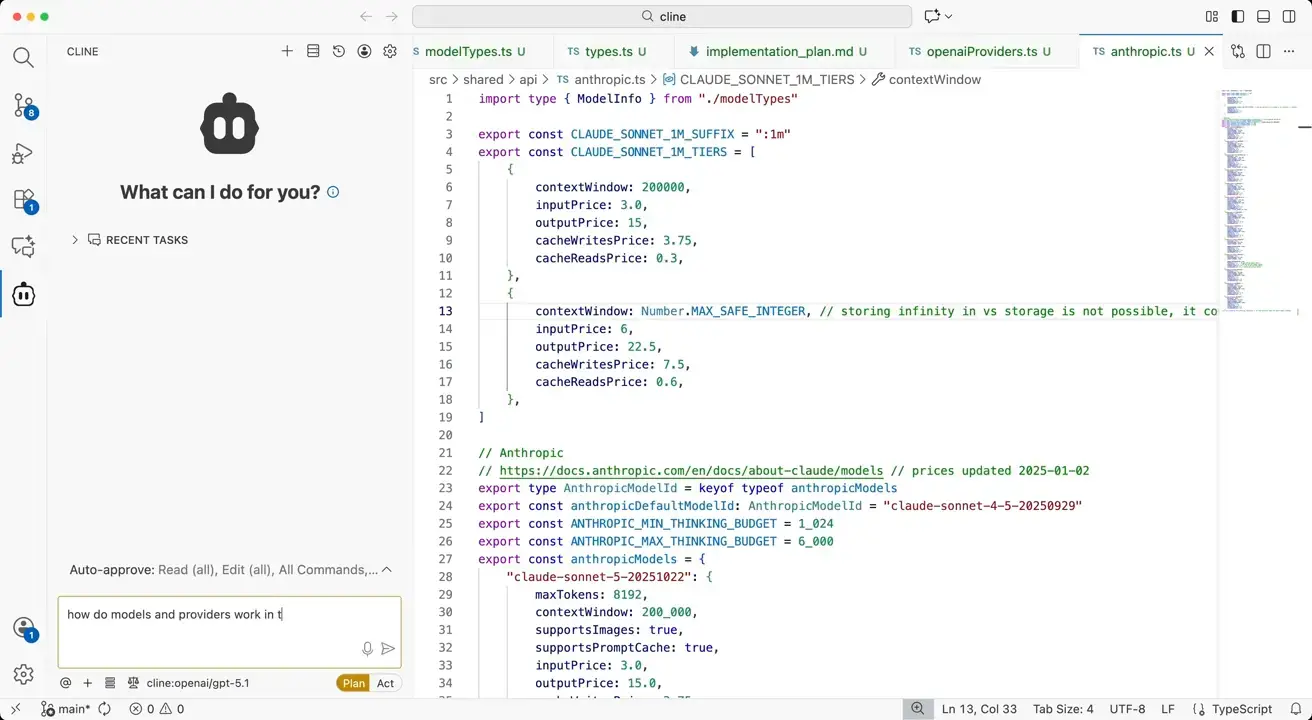
9Cline
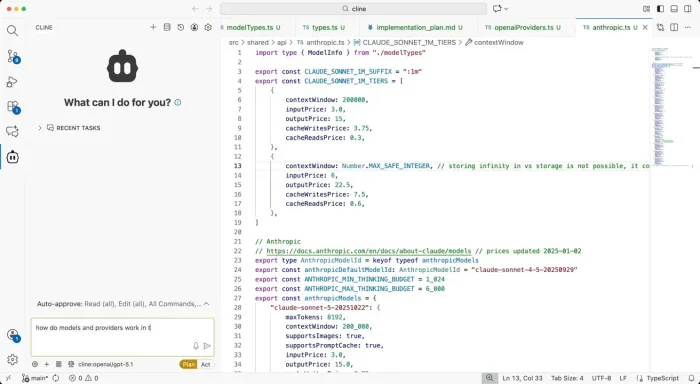
Cline is an open-source autonomous coding agent that runs inside VS Code. It can read and write files, run terminal commands, open a browser, and chain all of those actions together to complete a task. Every action requires your approval before it executes, so you stay in control even when Cline is working autonomously.
The extension is free. You connect your own API keys (Anthropic, OpenAI, OpenRouter, Bedrock, Gemini, and others) or point it at a local model via Ollama or LM Studio. Your actual cost depends on which model you use. Light users typically spend $5 to $20 a month in API costs. Heavy agentic users can spend significantly more.
Human-in-the-LoopOpen SourceBYOK + Local ModelsBrowser ControlTerminal Access
Best for: Developers who want an autonomous agent but want to approve every action before it executes.
Security note: In February 2026 a prompt-injection attack through a malicious npm package showed how an AI agent with broad tool permissions can be exploited in CI/CD pipelines. Give Cline only the permissions it actually needs.
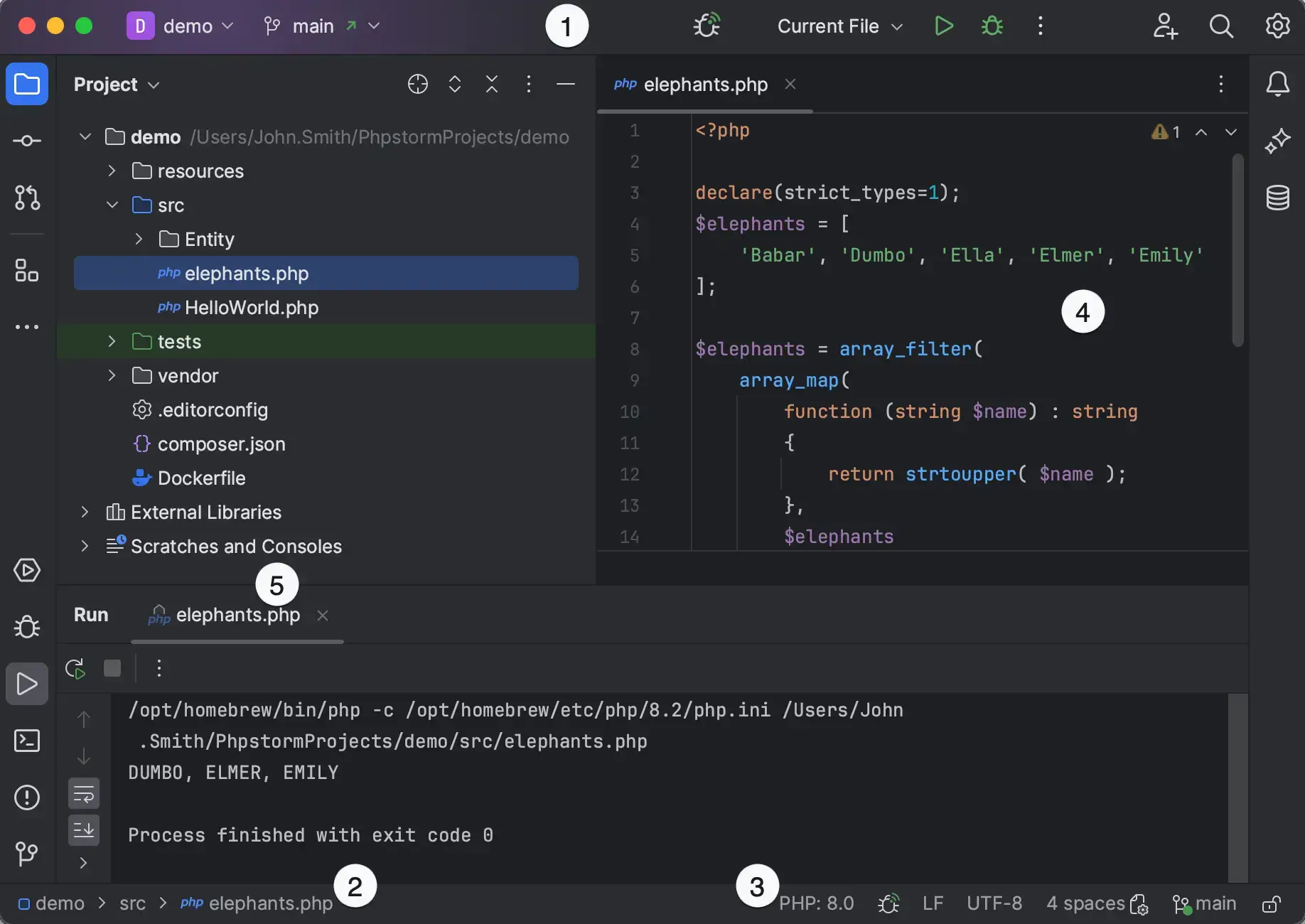
10JetBrains AI Assistant
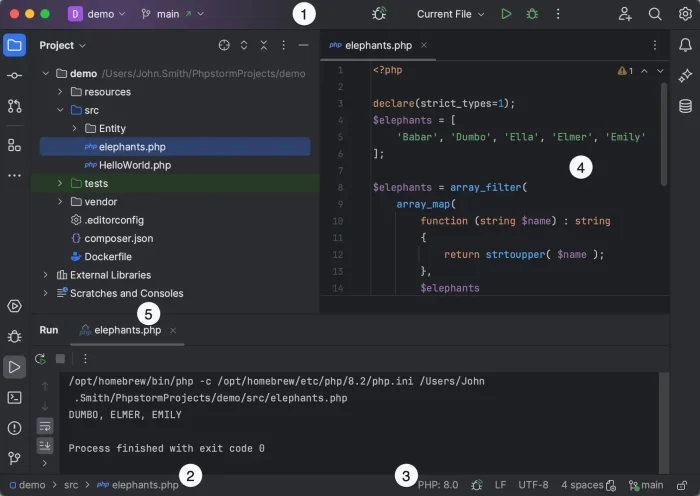
If you already use a JetBrains IDE, the AI Assistant is the obvious first stop. It adds AI completions, chat, and an agentic coding layer called Junie that understands JetBrains-specific context: refactoring actions, project structure, and inspections. No other tool on this list has that level of IDE-native integration for Java, Kotlin, C#, or Python projects on JetBrains tooling.
The free tier includes local model completions via Ollama or LM Studio and a small cloud credit quota, with 30 days of AI Pro to start. AI Pro ($10/month) gives roughly $10 in cloud AI credits. AI Ultimate ($30/month) is for heavier use. Both tiers support BYOK, so you can bypass the cloud quota entirely by connecting your own API keys.
Junie AgentIDE-Native ContextLocal Models (Ollama)BYOK SupportAll JetBrains IDEs
Best for: Java, Kotlin, C#, and Python developers already using IntelliJ, Rider, PyCharm, or WebStorm on Windows.
Privacy note: JetBrains has an opt-in setting that can share your AI conversations for model training. It is off by default. Check Settings > AI Assistant > Data Sharing before you start.
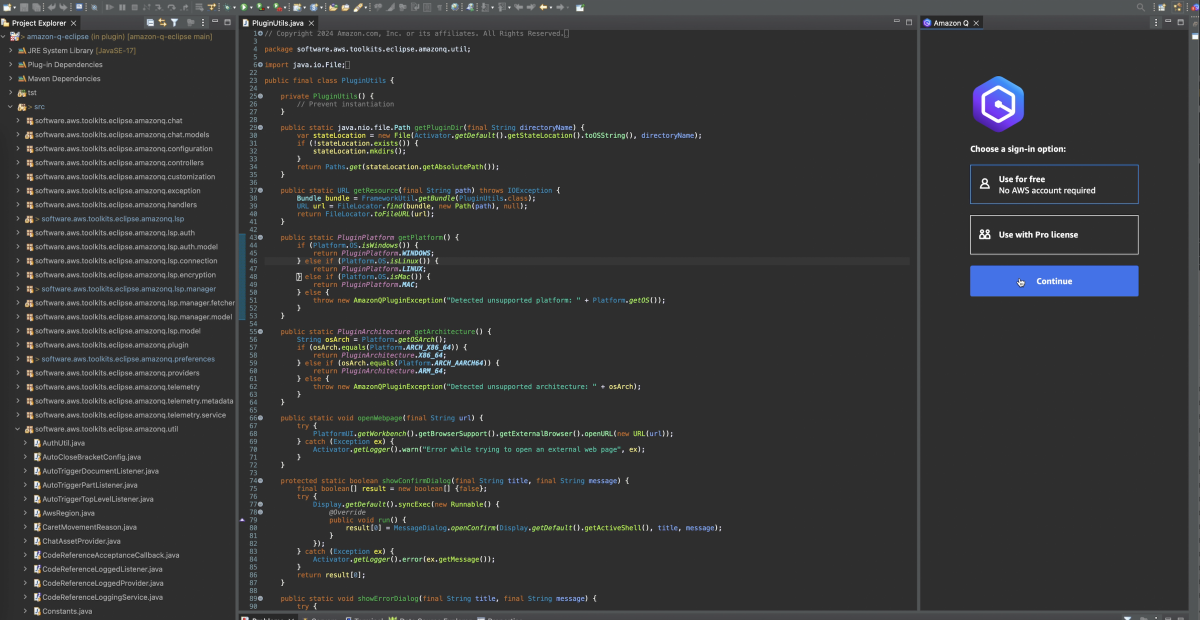
11Amazon Q Developer
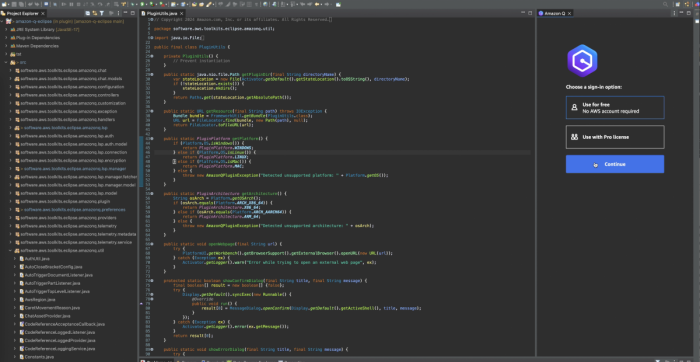
Amazon Q Developer (formerly AWS CodeWhisperer) is built for developers who work inside the AWS ecosystem. It does what every other tool does : completions, chat, and agent mode : but it also understands AWS services, IAM policies, CloudFormation templates, and infrastructure-as-code patterns at a depth that general-purpose tools do not match.
The agent mode can handle language migration tasks like upgrading a Java 8 codebase to Java 21+, tasks that would take days manually. IDE chat runs on the latest Claude model on Amazon Bedrock with a 200k token context window on both free and Pro tiers. The free tier gives 50 agentic requests per month. Pro ($19/month) increases limits and removes the free-tier data training policy.
AWS-Native ContextJava Migration AgentLarge Context WindowVS Code + Visual StudioFree Tier
Best for: AWS developers who want AI that understands their cloud infrastructure, not just their code files.
Data note: AWS uses free-tier AI conversations to improve their models. Pro tier conversations are not used for this. If you write code for a client on the free tier, check their data policies first.
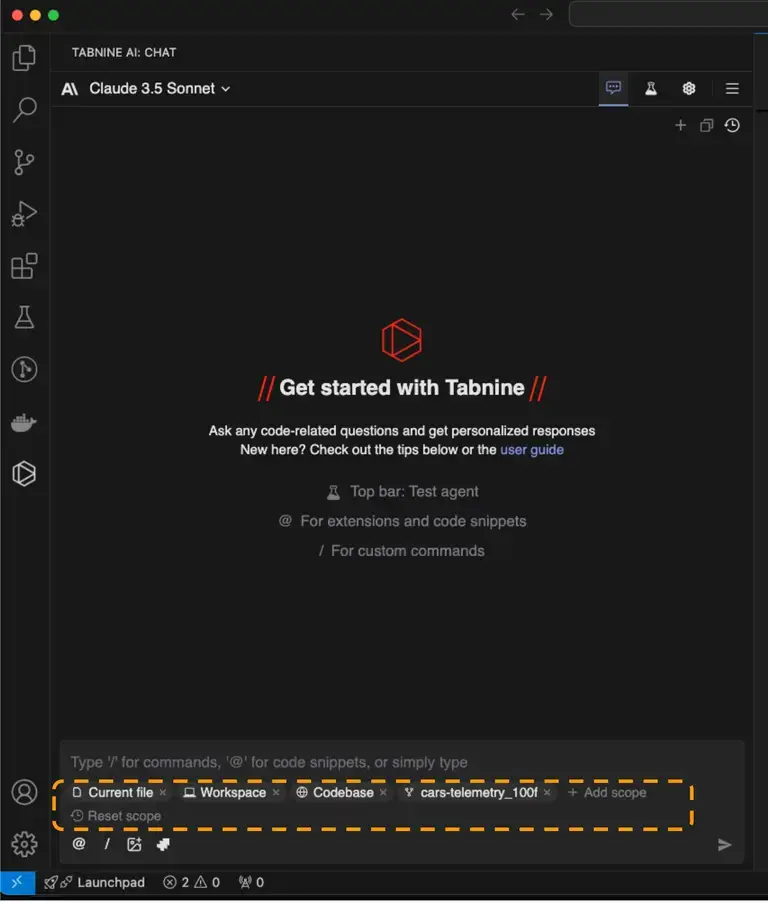
12Tabnine
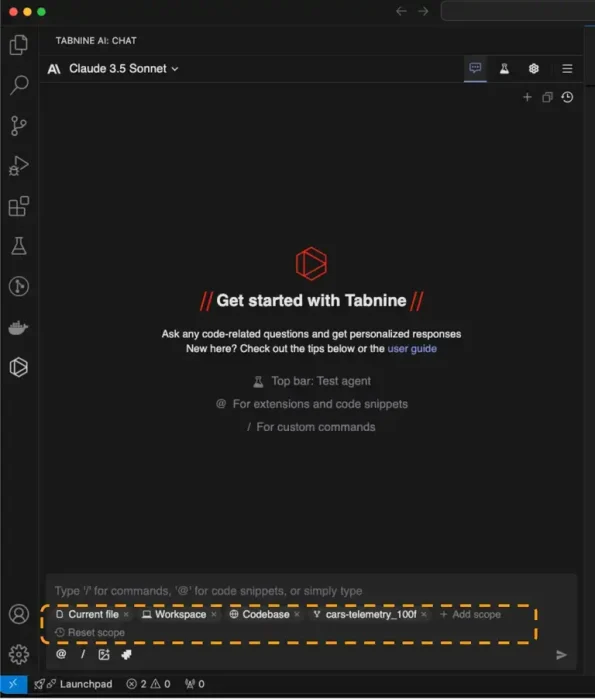
Tabnine is aimed at enterprise teams with strict data requirements. It can run fully on-premises, inside a private VPC, or in an air-gapped environment where no code ever leaves your network. No other tool on this list offers the same range of deployment options for regulated industries.
The Dev Plan ($9/user/month) includes cloud-based completions and chat with models from Anthropic, OpenAI, Google, Meta, and Mistral. Enterprise ($39/user/month, annual) adds private deployment, IP indemnification, and admin controls. Tabnine discontinued its free tier in April 2025. If you need a proper free tier, other tools on this list serve that need better.
On-Prem DeploymentAir-Gapped OptionVPC SupportIP IndemnificationMulti-IDE
Best for: Enterprise teams in regulated industries where code cannot leave the organization’s network.
13Google Gemini Code Assist
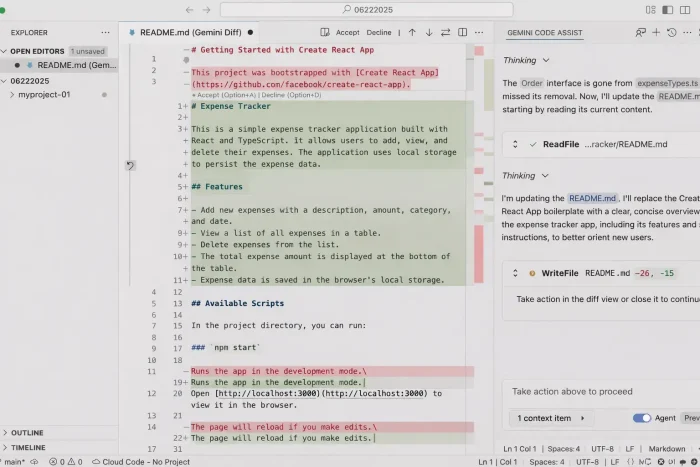
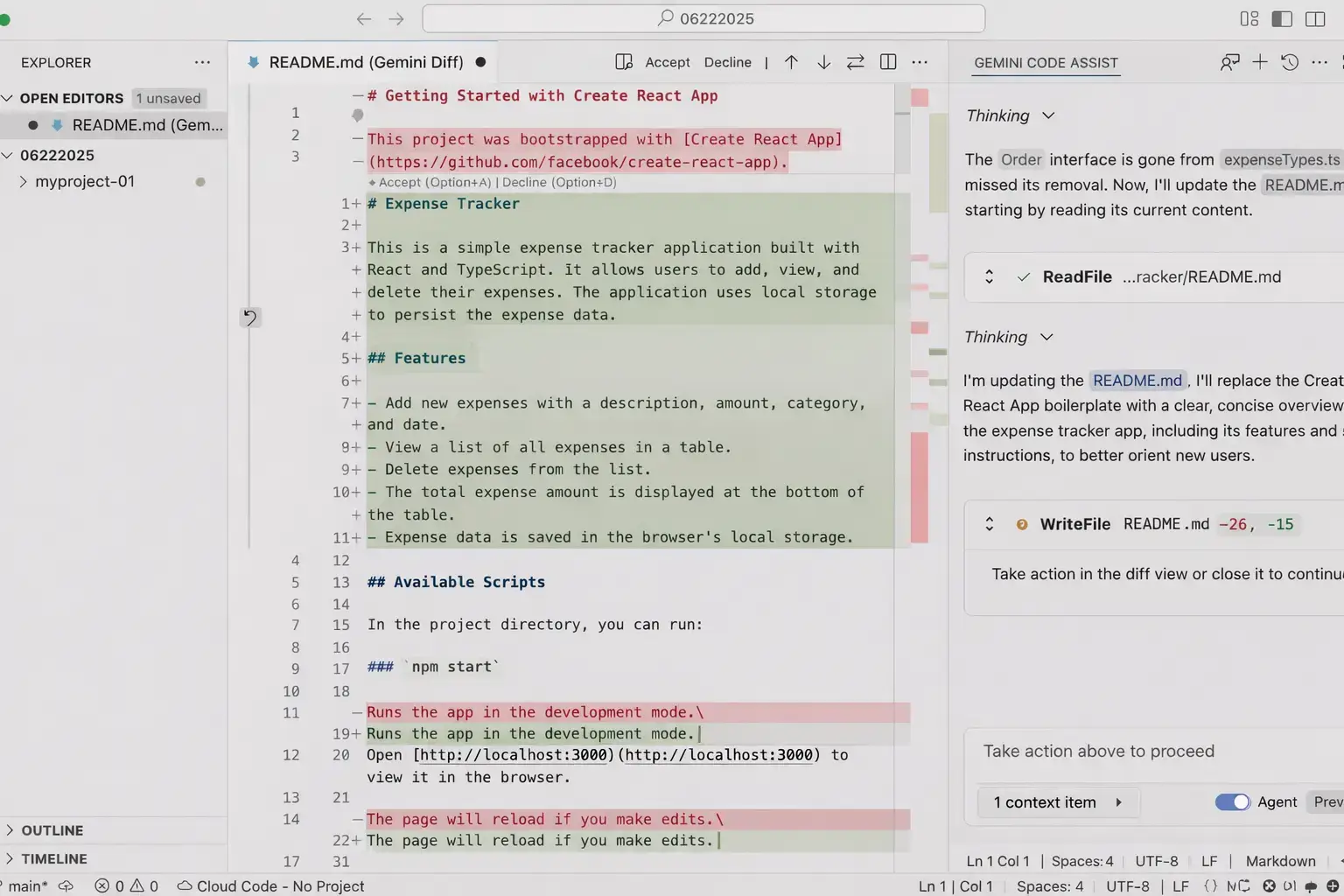
Gemini Code Assist has the most generous free tier on this entire list. Individual developers get 6,000 code-related requests and 240 chat requests per day at no cost, with a personal Gmail account and no credit card required. That is more than enough for full professional use.
The VS Code extension works like GitHub Copilot: inline completions as you type, a chat panel on the side, and agent mode for multi-file tasks. For developers already in the Google ecosystem (Firebase, GCP, Android), Gemini Code Assist has context awareness that other tools lack. Teams can upgrade to a paid plan ($19/user/month) for admin controls and higher limits.
6,000 Free Requests/DayNo Credit CardVS Code + JetBrainsAgent ModeGCP Integration
Best for: Developers who want a genuinely free daily driver for AI completions. Also pairs well alongside a paid tool : use Gemini for routine completions and save paid credits for agent tasks.
14Roo Code
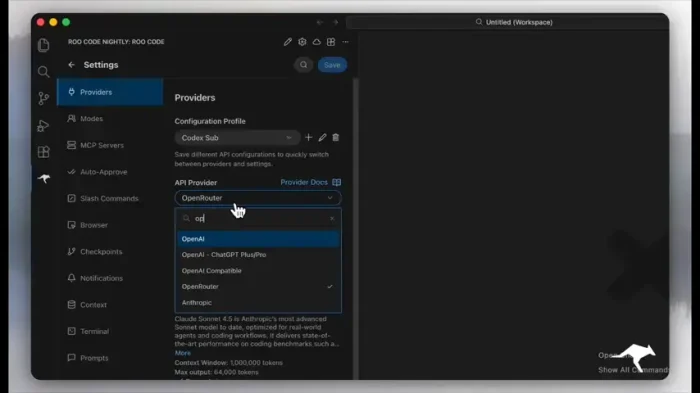
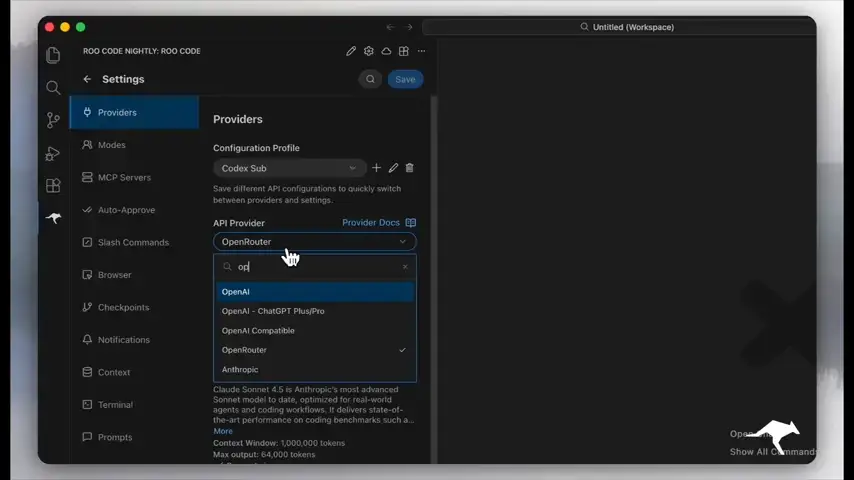
Roo Code started as a fork of Cline and has grown into its own tool with one million users. The main difference from Cline is speed and a role-based execution system. You can switch between modes such as Architect (for planning), Code (for writing), and Test (for reviewing), each with its own system prompt and behavior tuned to that task.
The extension is free and open source. You pay only for API usage through whichever provider you connect: Anthropic, OpenAI, OpenRouter, Gemini, DeepSeek, and local models via Ollama. If Cline feels too strict or too slow for your workflow, Roo Code is the natural alternative to try first.
Role-Based ModesOpen Source1M UsersLocal ModelsBYOK
Best for: Cline users who want faster execution and the ability to switch the agent’s behavior by task type.
15Continue
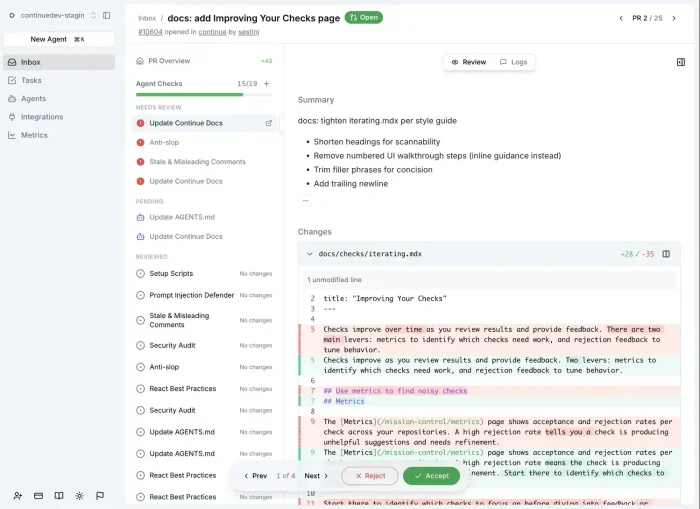
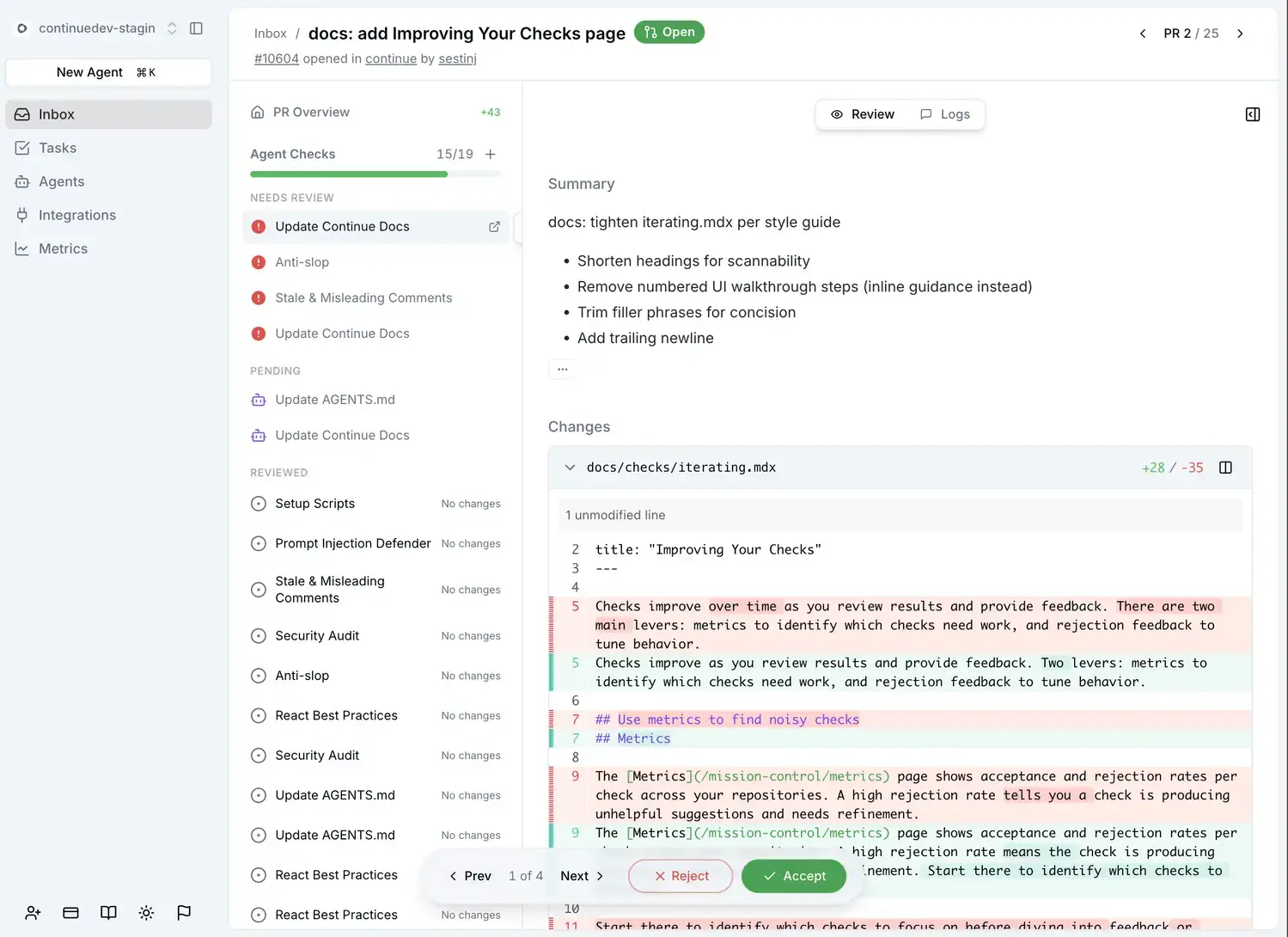
Continue is the most IDE-agnostic tool on this list. It runs as a VS Code extension and as a JetBrains plugin using the same configuration. That matters if your team uses both editors, or if you personally move between them. No other BYOK tool here covers both ecosystems equally well.
You connect any AI provider you have access to: Anthropic, OpenAI, Gemini, Ollama for local models, and a range of others. Continue adds tab autocomplete, a chat panel, and an edit mode that applies changes inline. It has over 26,000 GitHub stars and active enterprise adoption, which means the feature set is well-maintained and the enterprise configuration options (custom context providers, workspace-level setup) are real.
VS Code + JetBrainsBYOK + Local Models26k GitHub StarsEnterprise ConfigOpen Source
Best for: Teams using both VS Code and JetBrains who want one BYOK AI tool configured once and working everywhere.
16Aider
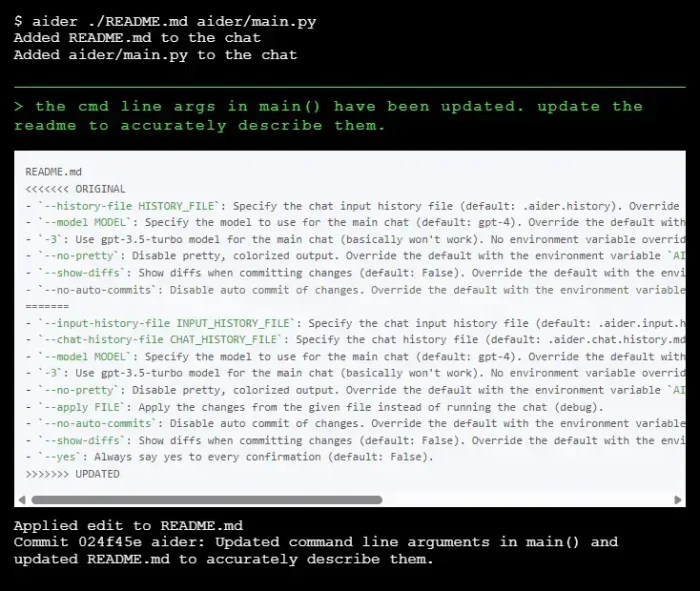
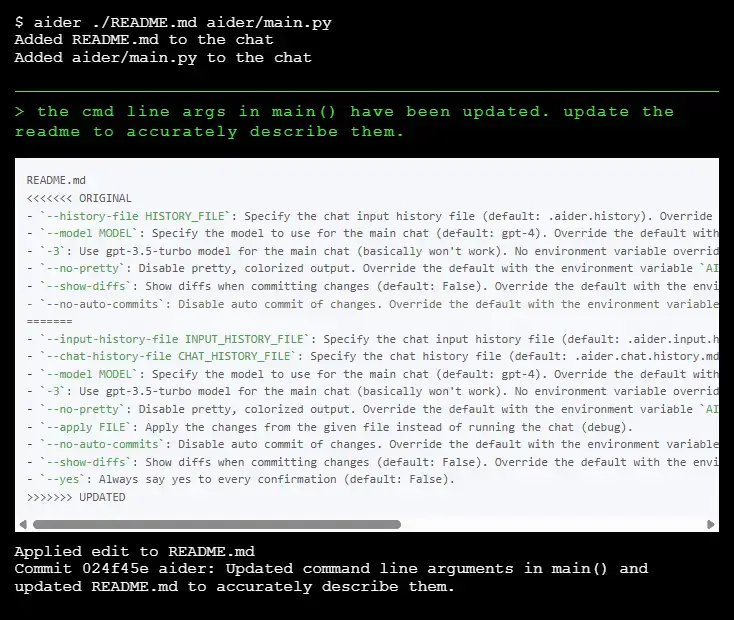
Aider is different from everything else on this list. It is a command-line coding agent that lives in your terminal and works directly with your git repository. You describe what you want to change in natural language, Aider edits your files, and creates a proper git commit. No GUI, no VS Code extension, just your terminal and your codebase.
The use case where Aider stands out is large-scale refactoring. When you need to rename something across 30 files, update an interface and all its implementations, or apply a structural change across a codebase, Aider handles it quickly and commits the result cleanly. On Windows, it runs in PowerShell or WSL. Install via pip and connect your API key.
Git-Native CommitsCLI ToolMulti-File RefactorLocal ModelsBYOK
Best for: Developers comfortable on the command line who want a scriptable AI agent that integrates directly into their git workflow.
17GitHub Copilot in Visual Studio
Visual Studio (the full IDE, not VS Code) is Windows-only and is the primary tool for .NET, C#, C++, and enterprise Windows development. GitHub Copilot integrates directly into Visual Studio 2022 and later, giving you inline AI completions, a chat panel, and agent mode inside Microsoft’s most powerful Windows IDE.
This is the same Copilot subscription as entries 3 and 4. One $10/month Pro subscription covers VS Code, Visual Studio, JetBrains IDEs, and GitHub.com. If you are a Windows developer in .NET or C#, the Visual Studio integration deserves its own mention because Cursor and Windsurf do not have a Visual Studio equivalent. The free Copilot tier works here too.
Windows-Only IDE.NET + C# NativeAI CompletionsAgent ModeSame Copilot Sub
Best for: Windows developers working in .NET, C#, or C++ who want AI inside Visual Studio without switching to VS Code. Read our full
Visual Studio guide.
18Kiro
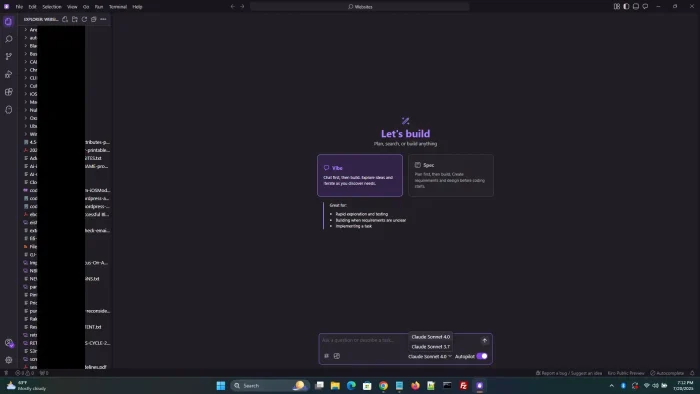
Kiro is Amazon’s standalone agentic IDE, built as a VS Code fork and launched in July 2025. It takes a different approach from Cursor and Windsurf through what it calls spec-driven development. Instead of jumping straight into code, Kiro asks you to define requirements first. It generates a requirements document with user stories, a design spec, and a task list, then works through those tasks as an agent. The result is code that stays aligned with your original intent even across long sessions.
On top of specs, Kiro has “hooks”: automated triggers that run when specific events happen in your project, such as running tests automatically after every save or updating documentation when an API changes. It runs natively on Windows x64 and ARM64. The free tier gives 50 credits per month, with 500 bonus credits on signup. Pro starts at $20/month. All plans run on the latest Claude models via Amazon Bedrock. We have a full guide at the link below.
Spec-Driven DevelopmentAutomated HooksVS Code ForkClaude + Haiku ModelsFree Tier
Best for: Developers who want an agentic IDE that plans before it codes, with automated workflow hooks and AWS ecosystem integration.
Read our full Kiro guide.
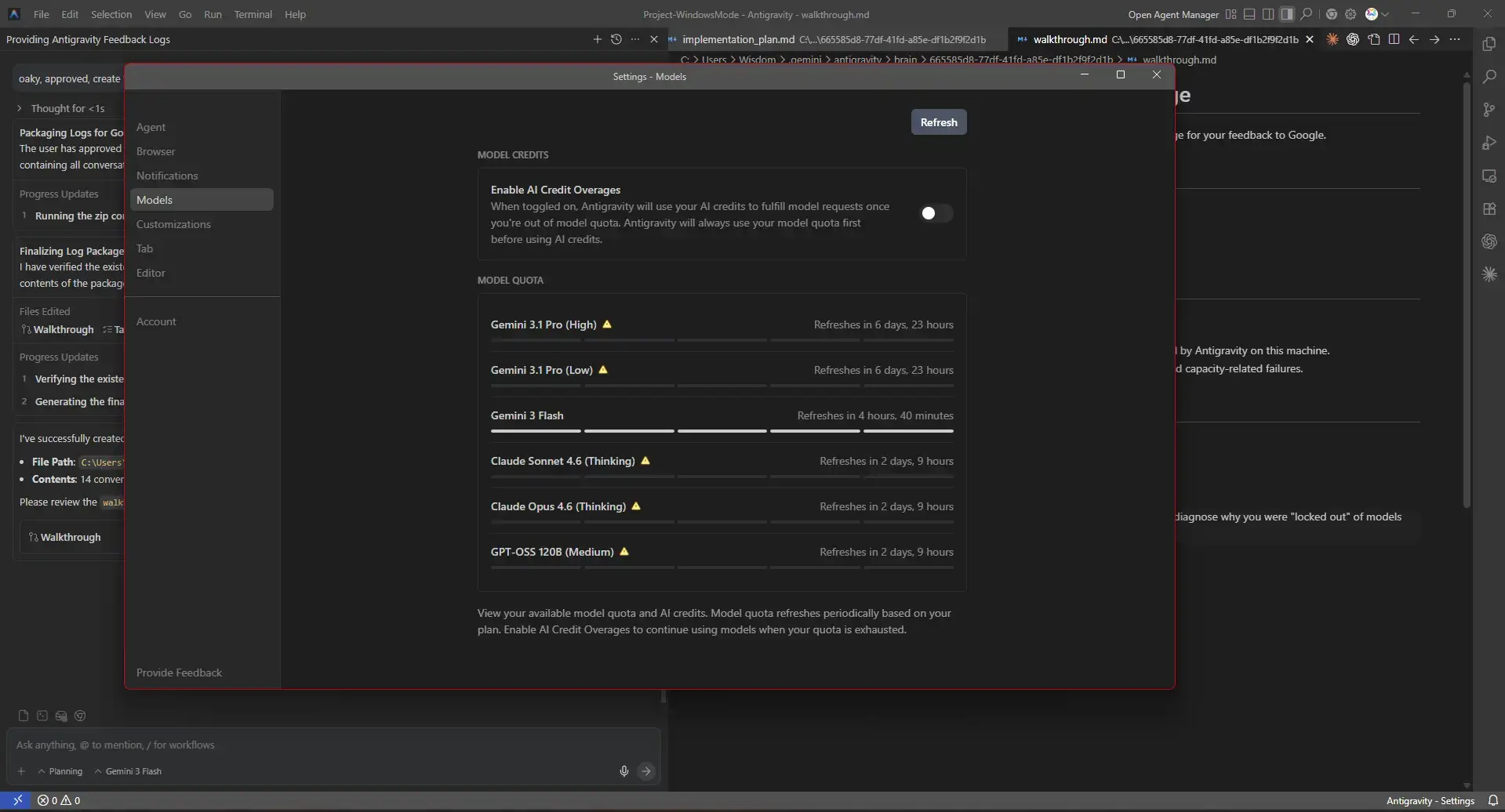
19Google Antigravity
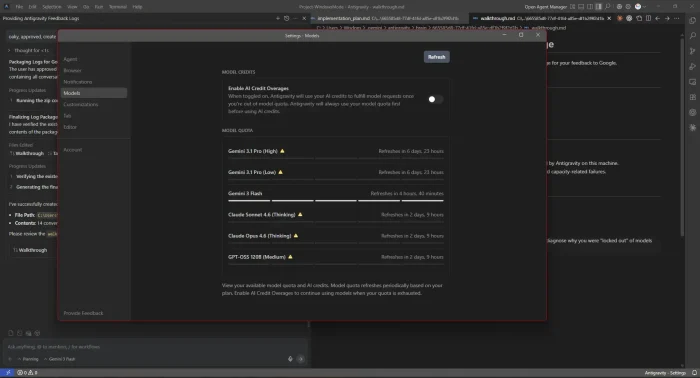
Google Antigravity is Google’s agentic IDE, launched in November 2025 as a VS Code fork for Windows (x64 and ARM64). Like Cursor, Windsurf, and Kiro, it is built on the VS Code open-source base with AI features baked in at the core. The editor has tab autocompletion, natural language code commands, and a context-aware agent. What sets it apart from the other VS Code forks is synchronized agentic control across your editor, terminal, and browser at the same time, so the agent can read and act across all three surfaces in one workflow.
The individual plan is free and includes access to the latest Gemini, Claude, and OpenAI models. No other IDE on this list gives you that model breadth on the free tier. Higher rate limits come through Google One (AI Pro or Ultra) and Google Workspace for teams. It also has an Agent Manager for running multiple agents across workspaces at once. We have a full setup guide on the site.
Multi-Model Free TierEditor + Terminal + Browser AgentAgent ManagerWindows x64 + ARM64Google-Backed
Best for: Developers who want the widest model selection in a free IDE, or who are already in the Google ecosystem and want native Gemini integration.
Read our full guide.
Not sure which one to pick?
If you want a thinking partner that reads your actual files and handles architecture and code review, start with Claude Desktop. If you want a full IDE replacement, try Windsurf or Kiro. If you want to stay in VS Code, Gemini Code Assist has the most generous free tier. If you want everything free right now, Trae is the easiest starting point.
Read Our Claude Desktop Guide
Frequently Asked Questions
Do I need to know how to code to use an AI code editor?
Most AI code editors are built for developers, but the skill level needed varies. Some tools handle full tasks on their own, so you describe what you want in plain English and the agent writes the code. Others work best when you already know the language and just want help moving faster. If you are learning to code, a tool with a chat panel is a good starting point. If you are experienced, an agent mode will save you the most time.
What is the difference between an AI IDE and an AI coding extension?
An AI IDE is a full editor built around AI from the ground up. You download it and use it instead of your current editor. An AI coding extension sits inside an editor you already have, like VS Code or a JetBrains IDE, and adds AI features on top. IDEs tend to have deeper agent integration. Extensions are easier to adopt if you do not want to change your workflow.
Can I use an AI code editor without sending my code to the cloud?
Yes. Several tools on this list support local models through tools like Ollama or LM Studio. With a local model, your code never leaves your machine. Some tools also support bringing your own API key, which gives you more control over where your data goes. Check the privacy settings of any tool before using it with sensitive or client code.
Do AI code editors work on Windows 10 or only Windows 11?
Most tools on this list support both Windows 10 and Windows 11. A small number require newer system components that are more common on Windows 11. If you are still on Windows 10, check the system requirements on the tool’s official download page before installing.
How do I choose the right AI code editor for my workflow?
Start by deciding whether you want a full IDE replacement or an extension. If you want something that handles multi-step tasks on its own, look for agent mode. If you work with sensitive code, check local model support. If you are on a budget, start with a tool that has a meaningful free tier. Most tools here let you try before you pay.
More tools and roundups for Windows developers: Best AI Coding Extensions for VS Code · Best VS Code Extensions · Best Free Windows AI Software · Best Browsers for Windows · Best Free Windows Software
Want to save money or looking for free alternatives? Check our Free AI Code Editors Guide.
Post Views: 108
Related Posts
Discover more from Windows Mode
Subscribe to get the latest posts sent to your email.