Readers like you help support this site. When you make a purchase using links on our site, we may earn an affiliate commission. All opinions remain our own.
Microsoft Teams is a free communication app for Windows, available from the Microsoft Store and microsoft.com.
It combines video calls, chat, file sharing, screen sharing, meeting recordings, and AI-powered tools in one place. Whether you are running a remote team, coordinating a school project, or just calling your family, Teams handles it all without needing separate apps.
What makes Teams different from standalone video call apps is how deeply it connects to Microsoft 365. Your Word documents, Excel sheets, PowerPoint files, and OneDrive storage are built right into every chat and channel. You can co-edit a document with your team during a call without ever leaving the app.
This guide covers how to download Teams, how to set it up, what each plan includes, keyboard shortcuts, and tips to get the most out of it. Got questions? Reach out to us directly.
What You Need to Know
- Teams free plan: 60-minute meetings, 100 participants, 5 GB cloud storage, screen sharing.
- Copilot AI can summarize meetings, draft messages, and generate notes (available on paid plans).
- Teams comes pre-installed on Windows 11. On Windows 10, install it from the Microsoft Store.
- Works on Windows, Mac, iOS, Android, Linux, and the web.
Price
Free (paid from $4/user/mo)
Developer
Microsoft
Windows
10 / 11
Also On
Mac, iOS, Android, Linux, Web
Best For
Team communication and video calls
Who Should Use Microsoft Teams?
- Use it if: you need video calls, team chat, and file sharing in one app, especially if your workplace uses Microsoft 365.
- Skip it if: you only need simple one-on-one video calls. Zoom or FaceTime may be simpler for casual use.
- Be careful if: your organization has strict data residency rules. Check the admin settings and data storage region before deploying.
How to Get Microsoft Teams on PC
- Step 1. Open the Microsoft Store and search for “Microsoft Teams,” or go to microsoft.com/teams.
- Step 2. Click Get or Install (from the Store) or Download for desktop (from the website).
- Step 3. Open Teams from the Start menu and sign in with your Microsoft account.
- Step 4. Create a team or start a chat. You can also join an existing organization by entering a team code.
What Is Microsoft Teams?
Microsoft Teams started in 2017 as a replacement for Skype for Business. It has since grown into a full workplace hub used by over 320 million people worldwide. Schools, businesses, and government agencies all use it as their primary tool for meetings, messaging, and file sharing.
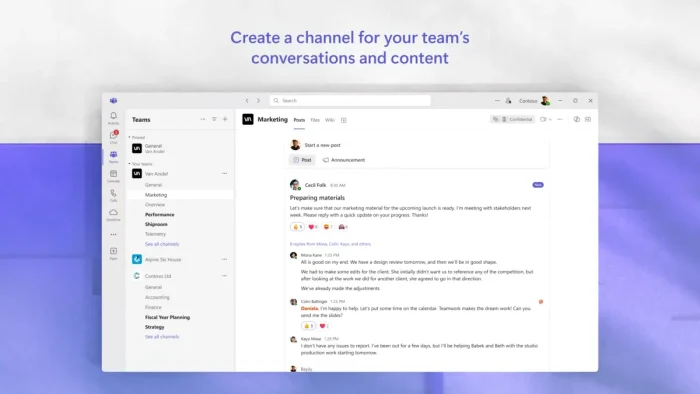
Teams brings chat, video calls, channels, file storage, and app integrations into one window. You can organize conversations by project or department using channels, share and co-edit Office documents in real time, and connect apps like Trello, Salesforce, and GitHub directly into your workflow. Everything stays searchable and organized.
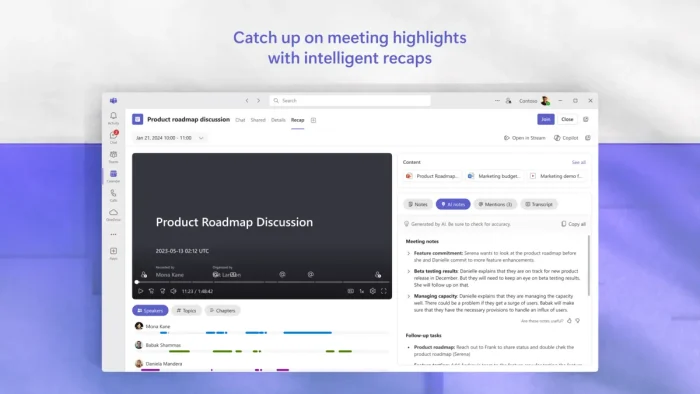
In 2024, Microsoft added Copilot, an AI assistant that sits inside Teams meetings and chats. Copilot can summarize a meeting you missed, draft a reply based on the conversation, and pull action items from a call automatically. It works for businesses, schools, and personal use with separate account types for each.
Key Features
Video Calls and Meetings
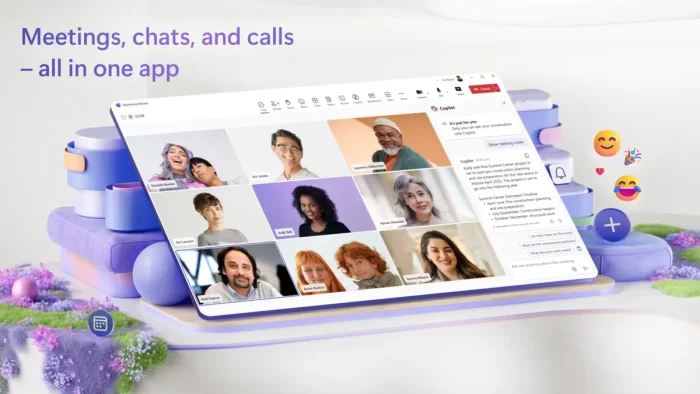
HD video with screen sharing, virtual backgrounds, recording, live captions, and breakout rooms. The free plan supports up to 100 participants. Paid plans go up to 1,000.
Chat and Channels
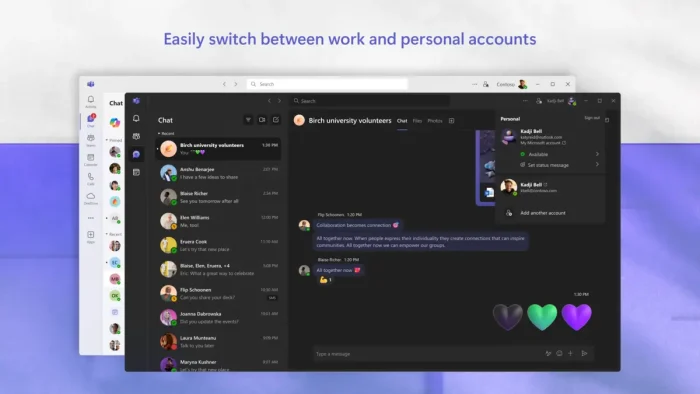
Threaded conversations with mentions, reactions, GIFs, and formatting. Organize by topic or project using channels. Pin important messages so they do not get buried.
File Sharing and Collaboration
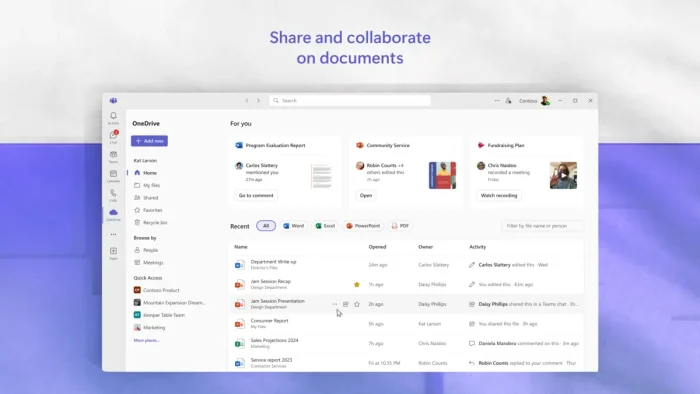
Share files directly in chat or channels. Co-edit Word, Excel, and PowerPoint documents in real time without leaving Teams. All files sync through OneDrive and SharePoint.
AI-Powered Copilot
Copilot summarizes meetings, recaps chat threads, drafts messages, and extracts action items. Available on Business Standard and higher plans, or as a paid add-on.
App Integrations
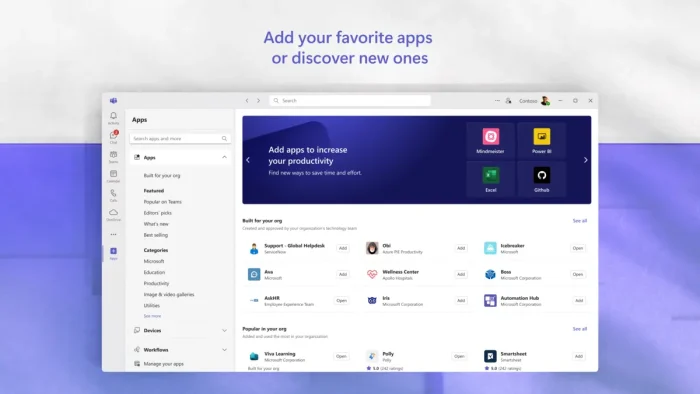
Connect over 2,000 apps directly into Teams. Trello, Salesforce, GitHub, Jira, and custom bots all plug in. You can manage tasks and approvals without switching windows.
Screen Sharing and Whiteboard
Present your screen or a specific window during calls. Use Microsoft Whiteboard for real-time drawing and brainstorming. Together Mode puts everyone in a shared virtual space.
Keyboard Shortcuts
| Action | Shortcut |
|---|---|
| Show all keyboard shortcuts | Ctrl + . |
| Open search | Ctrl + E |
| Start new chat | Ctrl + N |
| Mute or unmute | Ctrl + Shift + M |
| Toggle camera | Ctrl + Shift + O |
| Share screen | Ctrl + Shift + E |
| Accept incoming call | Ctrl + Shift + A |
| Decline incoming call | Ctrl + Shift + D |
| Open Activity | Ctrl + 1 |
| Open Chat | Ctrl + 2 |
| Open Teams | Ctrl + 3 |
| Push to talk (hold) | Ctrl + Space |
Plans and Pricing
| Plan | Price | Meeting Length | Participants | Storage | Copilot |
|---|---|---|---|---|---|
| Free | $0 | 60 min | 100 | 5 GB | No |
| Teams Essentials | $4/user/mo | 30 hours | 300 | 10 GB | No |
| Business Basic | from $6/user/mo | 30 hours | 300 | 1 TB | Add-on |
| Business Standard | from $12.50/user/mo | 30 hours | 300 | 1 TB | Included |
| Enterprise E3/E5 | Contact sales | 30 hours | 1,000 | Unlimited | Included |
Microsoft Teams vs the Alternatives
| App | Price | Best For | Max Participants (Free) | Meeting Length (Free) | AI Tools |
|---|---|---|---|---|---|
| Microsoft Teams | Free / from $4/user/mo | Workplaces using Microsoft 365 | 100 | 60 min | Yes (Copilot) |
| Slack | Free / from $8.75/user/mo | Text-first communication | 1:1 only (free) | Huddles only | Yes (Slack AI) |
| Zoom Workplace | Free / from $14.16/user/mo | Video-first meetings | 100 | 40 min | Yes (AI Companion) |
| Google Meet | Free / from $7/user/mo | Google Workspace users | 100 | 60 min | Yes (Gemini) |
| Discord | Free | Gaming and communities | Unlimited | Unlimited | Limited |
How Microsoft Teams Works
Create or Join a Team
Set up a team for your project, department, or group. Invite people by email or share a join code.
Chat and Share Files
Send messages in channels or direct chats. Share files from your computer or OneDrive.
Start a Meeting
Launch a video call instantly or schedule one. Share your screen, record the session, and use AI-generated notes.
Review and Follow Up
Copilot generates meeting summaries, action items, and chat recaps so nothing gets missed.
Tips for Getting Started
Tip 1. Pin your most-used channels
Right-click any channel and select Pin. Pinned channels appear at the top of your sidebar so you never have to scroll to find them.
Tip 2. Use @mentions to get attention
Type @name in a message to notify someone directly. Use @team or @channel to notify the whole group. This cuts through the noise when you need a quick response.
Tip 3. Set your notification preferences early
Go to Settings > Notifications. Turn off sounds for low-priority channels and set quiet hours so Teams does not interrupt you outside of work.
Tip 4. Try keyboard shortcuts
Press Ctrl + . to see the full list. Ctrl + E for search and Ctrl + N for new chat are the most useful ones to learn first.
Tip 5. Check out our Teams tips guide
We put together a full list of tips and tricks in a separate post. Read it here for deeper workflows, hidden features, and power-user tricks.
System Requirements
| Component | Minimum |
|---|---|
| OS | Windows 10 version 10.0.19041 or later, or Windows 11 |
| CPU | Dual-core 1.1 GHz or faster |
| RAM | 4 GB |
| Storage | 3 GB free disk space |
| Display | 1024 x 768 or higher |
| Graphics | DirectX 9 or later with WDDM 2.0 |
| Runtime | Microsoft Edge WebView2 (usually pre-installed) |
| Internet | Required for all features |
Video: Getting Started with Microsoft Teams
A full tutorial on how to get started using Microsoft Teams, perfect for both beginners.
Screenshots
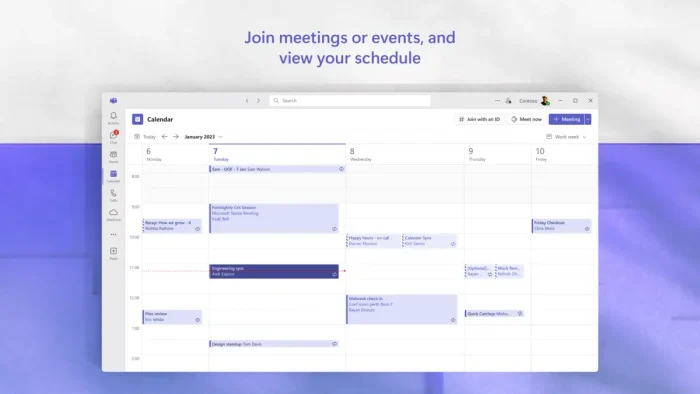
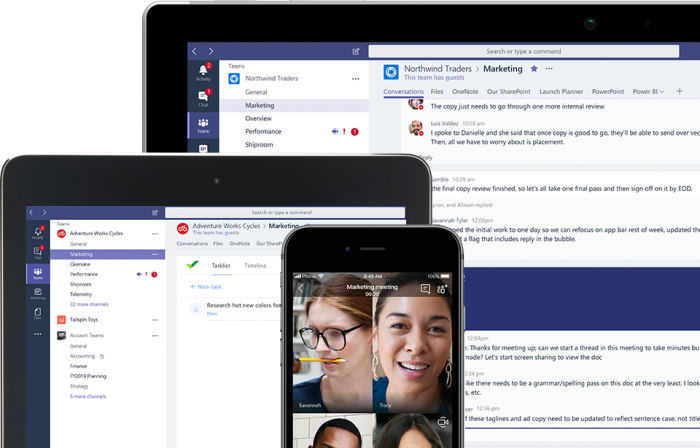
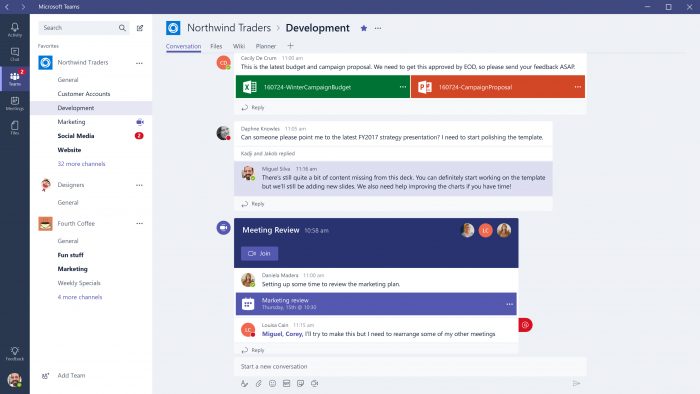
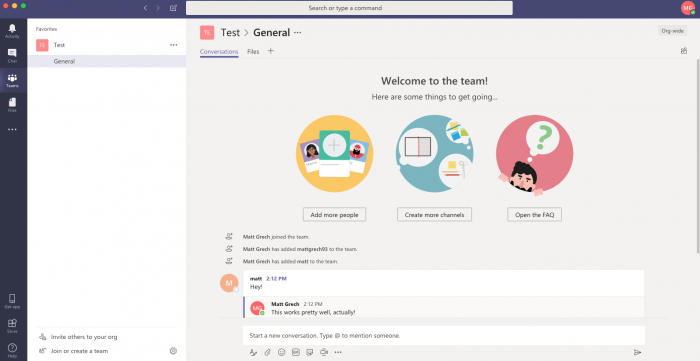
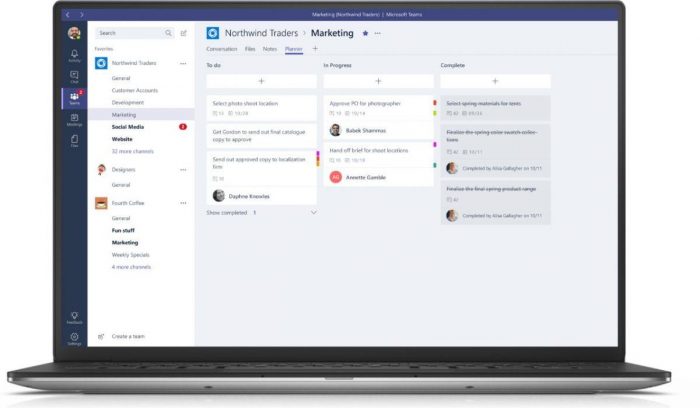
Here is what Microsoft Teams looks like on Windows.
Frequently Asked Questions
Is Microsoft Teams free?
Yes. The free version of Teams includes chat, video calls up to 60 minutes with 100 participants, 5 GB of cloud storage, and screen sharing. Paid plans start at $4 per user per month and add longer meetings, more storage, and admin controls.
How do I download Microsoft Teams on Windows?
Open the Microsoft Store and search for “Microsoft Teams” or go directly to the Teams page. Click Get or Install. You can also download it from microsoft.com/teams. Teams comes pre-installed on Windows 11.
Does Microsoft Teams work on Windows 10?
Yes. Teams works on Windows 10 version 10.0.19041 or later. You need at least 4 GB of RAM, a dual-core 1.1 GHz processor, and 3 GB of free disk space. WebView2 is required and is usually already installed.
Can I use Teams without a Microsoft 365 subscription?
Yes. The free version of Teams works with any Microsoft account. You do not need a Microsoft 365 subscription to use chat, video calls, screen sharing, or file sharing. Paid plans add features like meeting recordings, webinar tools, and more storage.
What is Microsoft Copilot in Teams?
Copilot is an AI assistant built into Teams that can summarize meetings, draft messages, catch you up on missed chats, and generate meeting notes automatically. It is available with Microsoft 365 Business Standard and higher plans, or as an add-on.
Does Teams support keyboard shortcuts?
Yes. Press Ctrl + . (period) inside Teams to see the full list. Common shortcuts include Ctrl + E for search, Ctrl + N for new chat, Ctrl + Shift + M to mute or unmute, and Ctrl + Shift + O to toggle your camera. You can also customize shortcuts in Settings.
Can I use Teams on my phone and PC at the same time?
Yes. Teams syncs across Windows, Mac, iOS, Android, and the web. Messages, calls, files, and meeting history stay in sync across all your devices automatically.
Support and Community
- Microsoft Teams Support (official help and troubleshooting)
- r/MicrosoftTeams on Reddit (community discussions and tips)
- Microsoft Teams Tips and Tricks
- Microsoft Teams Keyboard Shortcuts
More Windows software guides: Slack for Windows · Zoom Workplace for Windows · Discord for Windows · Copilot for Windows
Discover more from Windows Mode
Subscribe to get the latest posts sent to your email.












One of the apps Microsoft has ever made!!
True.