Readers like you help support this site. When you make a purchase using links on our site, we may earn an affiliate commission. All opinions remain our own.
OpenAI Codex is a free AI coding tool by OpenAI for Windows 10 and Windows 11. You download it from the Microsoft Store and sign in with a free ChatGPT account. It works differently from tools like GitHub Copilot. Instead of suggesting code while you type, Codex works on its own.
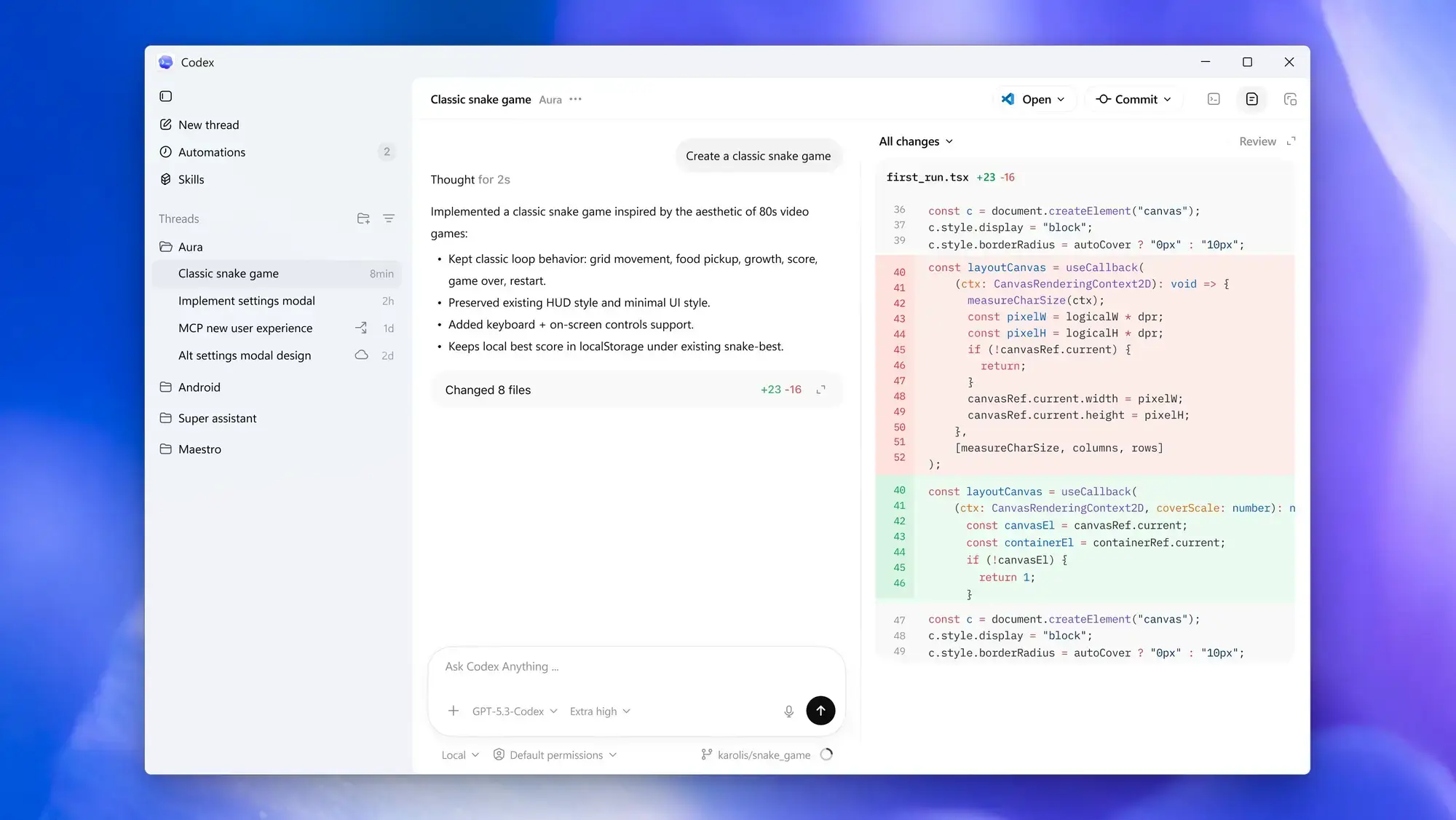
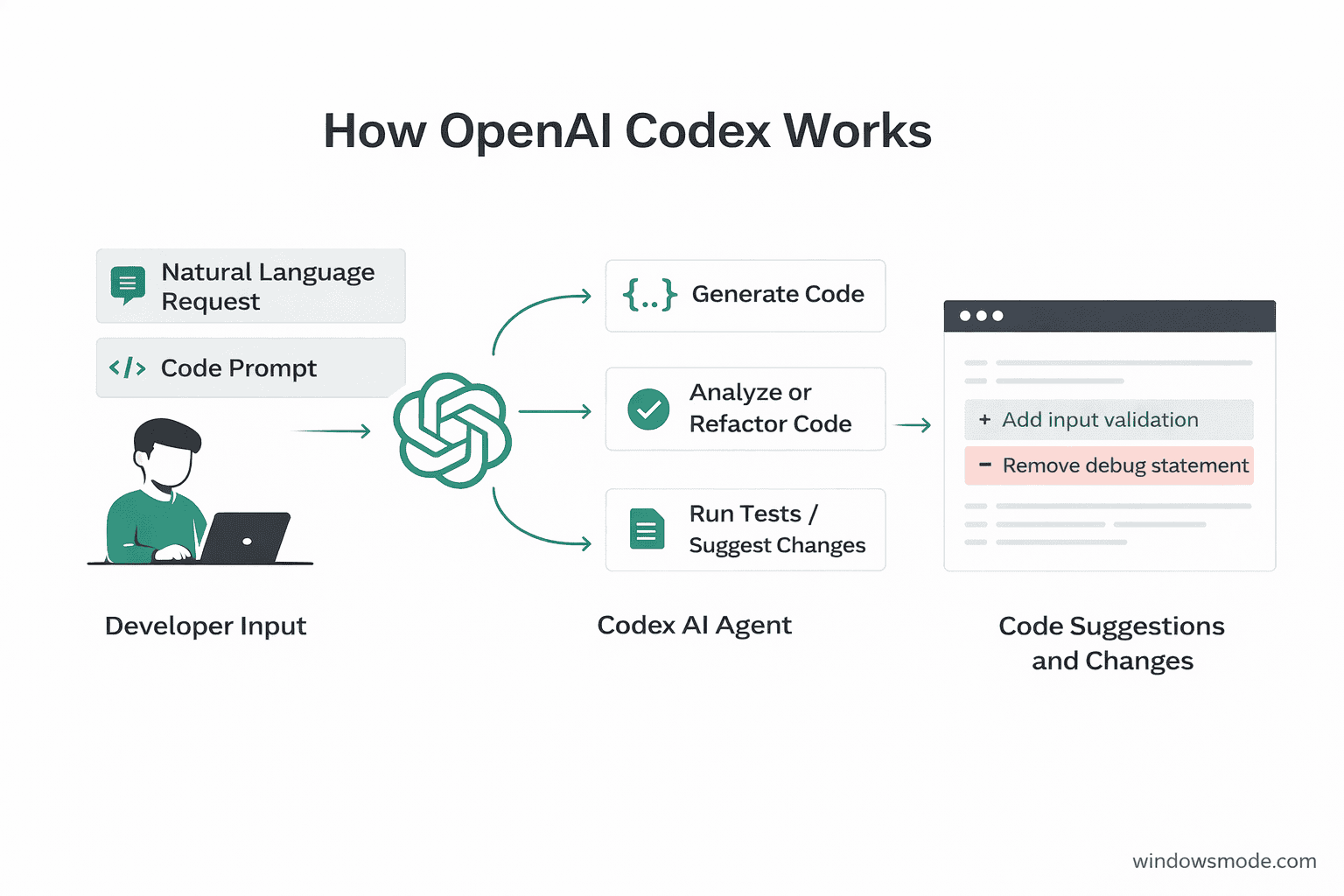
You describe what you need in plain English(or hundreds other languages), it reads your project files, writes the code, runs tests, and hands you a summary of every change it made before anything gets saved. You can have several of these tasks running at the same time without managing each one yourself.
This page covers how to download and install Codex on Windows, what it can do, how its shortcuts work, how it compares to other AI tools, and tips for getting started. If you have any questions or comments, don’t be shy, leave a comment below or contact us.
What You Need to Know
- Free with a ChatGPT account. Download from the Microsoft Store and sign in. No payment required.
- It works on its own. Codex is not autocomplete. You give it a task, it writes the code, runs tests, and handles your files without you clicking anything.
- Run several tasks at once. Codex can manage multiple jobs at the same time across different parts of your project, each one in its own safe, separate space.
How to Download and Install Codex on Windows
There are two ways to install Codex on Windows. The Microsoft Store is the easiest option. The second uses winget, which is Windows’ built-in tool for installing software from a terminal.
Option 1: Microsoft Store
- Step 1. Open the Microsoft Store on your Windows 10 or Windows 11 PC.
- Step 2. Search for Codex or go straight to the Codex listing on the Microsoft Store.
- Step 3. Click Get and wait for it to finish installing.
- Step 4. Open Codex and sign in with your ChatGPT account. If you do not have one, you can create a free account during setup.
- Step 5. Choose your working environment. The default is the Windows sandbox, a safe space that keeps the agent away from the rest of your files. You can also switch to WSL (Windows Subsystem for Linux) if you prefer Linux tools.
Option 2: winget (Command Line)
Open a terminal window and run this command:
Sign in the same way as the Store version once the install finishes.
What Is OpenAI Codex?
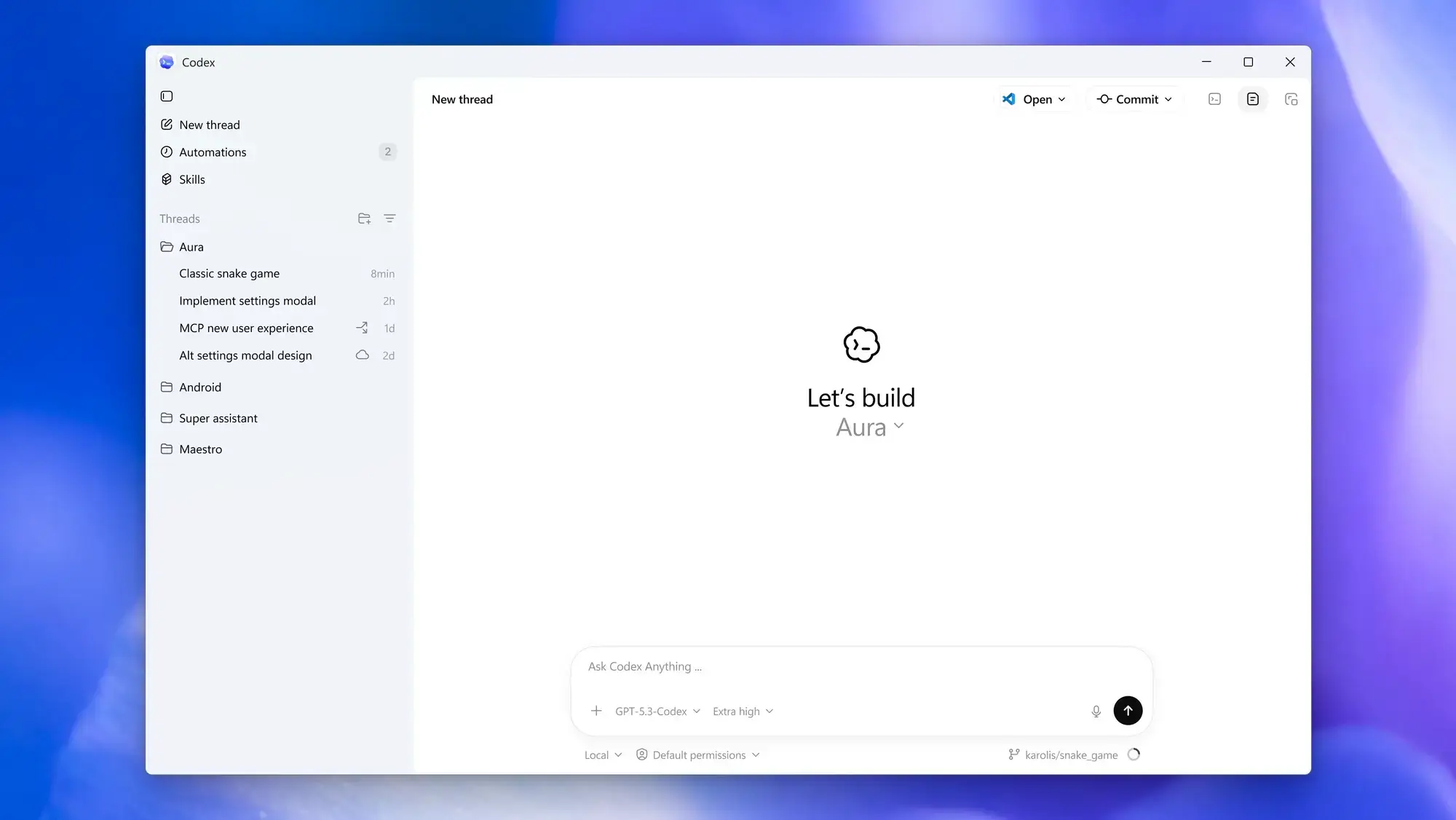
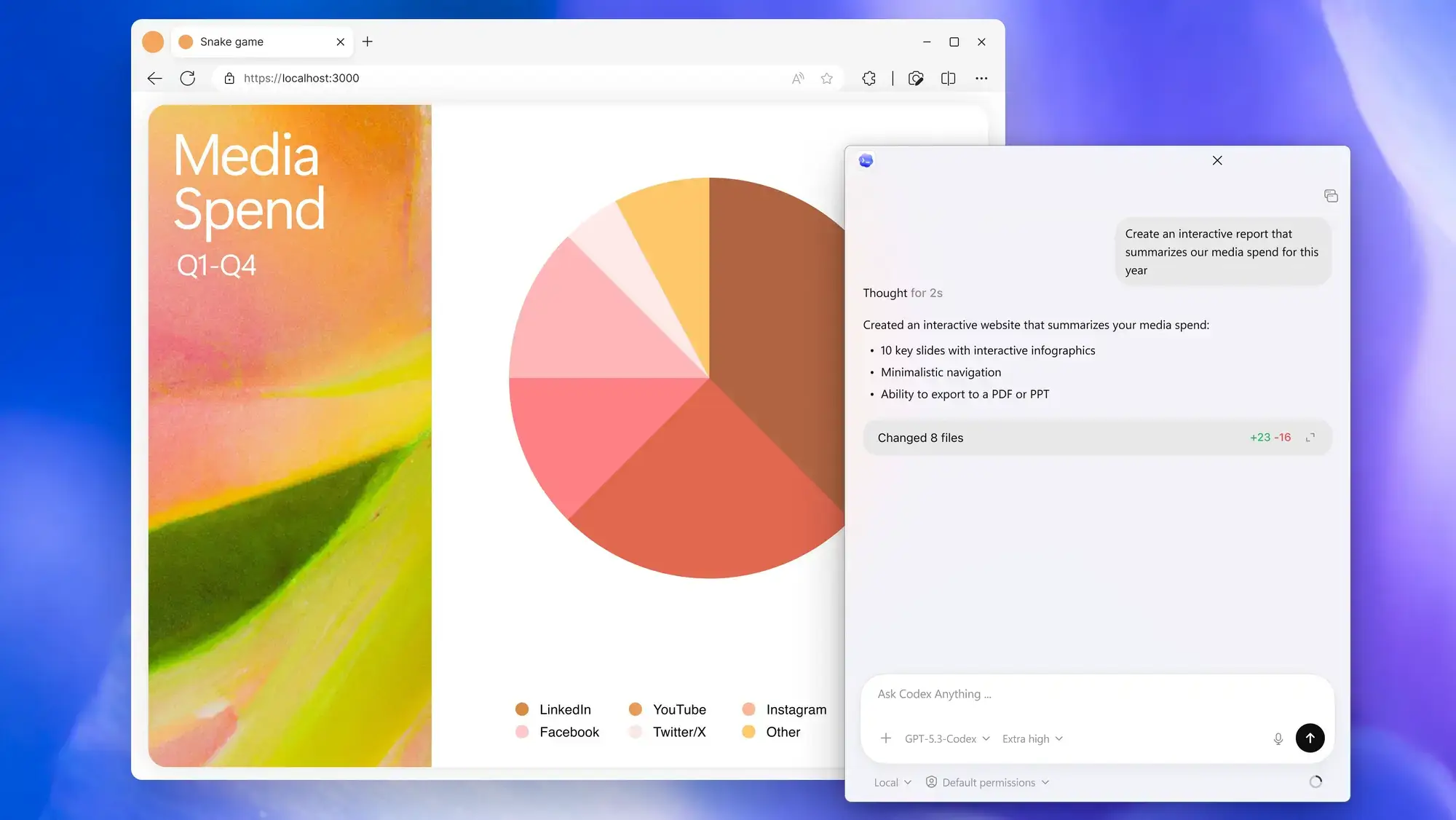
OpenAI Codex is a standalone AI coding tool built by OpenAI. It is not an autocomplete tool. Instead of suggesting the next line while you type, it acts more like an assistant you assign jobs to. You describe a task in plain English, it reads your project files, writes the code, runs any tests you have set up, and then shows you a full summary of every change it made. Nothing gets saved until you approve it.
You can run more than one task at the same time. Each task gets its own separate, isolated copy of your code, so nothing one task does can accidentally affect what another one is working on. This is useful when you want to fix a bug on one part of the project while adding a new feature somewhere else.
On Windows, Codex runs inside a secure sandbox built in collaboration with Microsoft. The agent can only touch the project files you give it access to. If you already use Linux tools in your workflow, you can also point the agent at WSL instead of the default Windows environment.
Key Features
Run Tasks in Parallel
You can have multiple Codex agents working at the same time, each on a different part of your project. Codex keeps them organized and shows you what each one is doing so nothing gets mixed up.
Each Task Gets Its Own Copy
Every task runs on a separate, isolated copy of your code. A bug fix and a new feature can be built at the same time without either one breaking the other.
Review Every Change First
When the agent finishes, you see a line-by-line summary of everything it added, changed, or removed. You approve, ask for adjustments, or reject it before anything gets saved to your project.
Reusable Skills
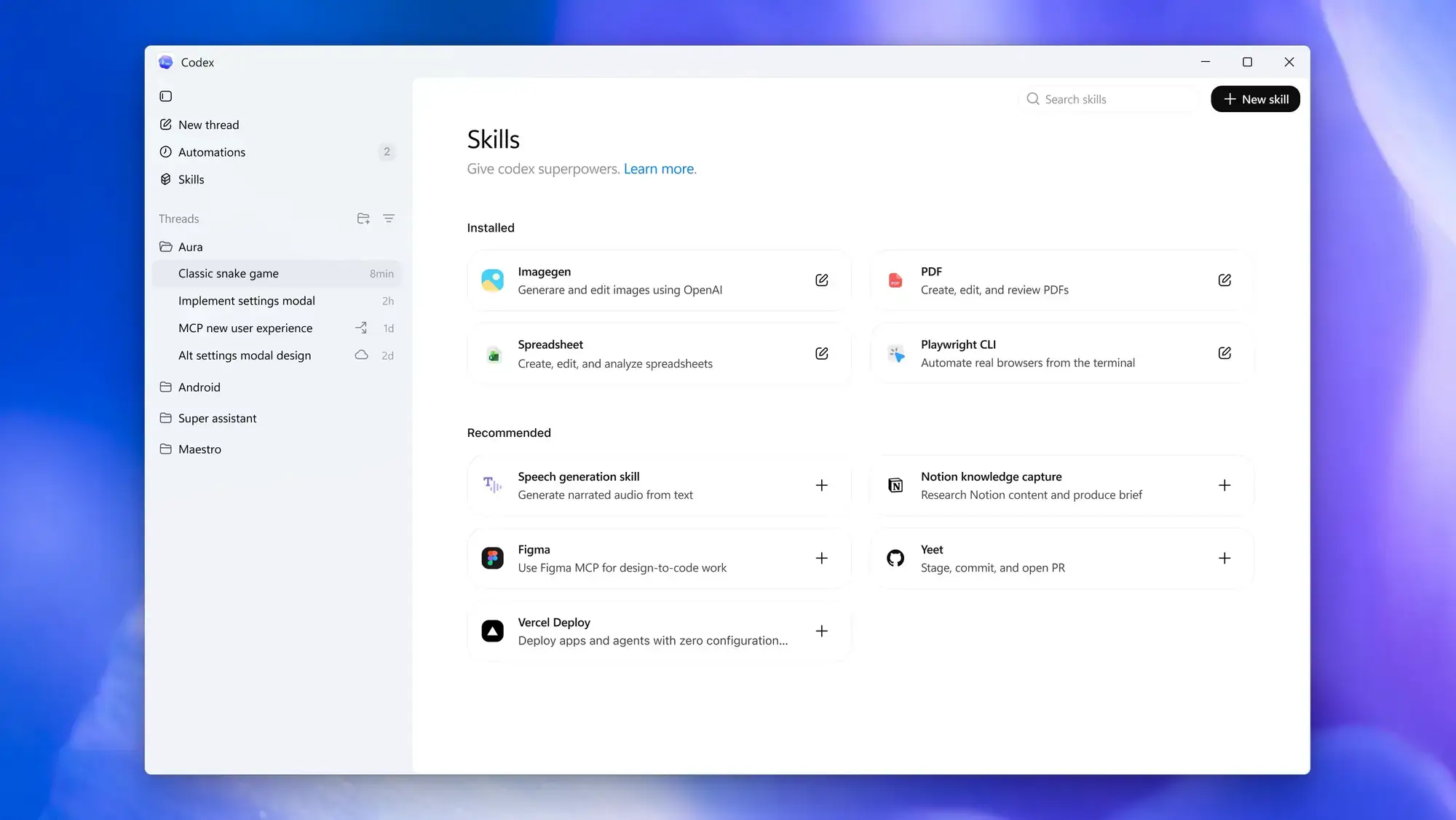
A Skill is a saved set of instructions you build once and reuse. If you keep asking Codex to do the same type of task, save it as a Skill and call it with one command instead of explaining it every time.
Scheduled Automations
Set tasks to run on a schedule without you starting them. Things like running your test suite, checking for outdated packages, or generating reports can happen in the background automatically.
Secure Windows Sandbox
The agent runs in a locked environment built with Microsoft. It cannot reach files outside the project you opened. If a task does something unexpected, it is contained. WSL is also supported if you prefer it.
System Requirements
Codex is a lightweight app. Almost any modern Windows PC can run it.
| Operating System | Windows 10 (version 19041.0 / May 2020 Update or newer) or Windows 11 |
| Account | Free ChatGPT account (no payment required) |
| Internet | Required (the AI runs in the cloud) |
| WSL | Optional (for Linux-based development only) |
Supported Tools and Editors
Codex works alongside the tools most developers already have. It picks up configuration from the Codex CLI extension if you have it installed in your editor.
Keyboard Shortcuts
These shortcuts work in the Codex desktop app on Windows. OpenAI’s official docs are written for Mac. These have been converted to their Windows equivalents.
| Action | Windows Shortcut |
|---|---|
| Open command palette | Ctrl + Shift + P or Ctrl + K |
| Settings | Ctrl + , |
| Open project folder | Ctrl + O |
| Show / hide sidebar | Ctrl + B |
| Show / hide terminal | Ctrl + J |
| New thread | Ctrl + N |
| Search in thread | Ctrl + F |
| Previous thread | Ctrl + Shift + [ |
| Next thread | Ctrl + Shift + ] |
| Show changes panel | Ctrl + Alt + B |
| Go back | Ctrl + [ |
| Go forward | Ctrl + ] |
| Increase font size | Ctrl + + |
| Decrease font size | Ctrl + – |
| Voice dictation | Ctrl + M |
Slash Commands
Type / in the message box to see and use these built-in commands:
| Command | What it does |
|---|---|
| /feedback | Send feedback and app logs to OpenAI |
| /mcp | Check which external tool connections are active |
| /plan-mode | Ask Codex to plan its approach out loud before it starts writing code |
| /review | Start a code review on the current thread |
| /status | Show the current thread ID and how much context has been used so far |
Codex vs the Alternatives
How Codex compares to other AI coding tools available on Windows in 2026.
| Tool | Type | Price | Best For |
|---|---|---|---|
| OpenAI Codex | Standalone agent app | Free (ChatGPT account) | Hands-off tasks, running multiple jobs at once |
| Cursor | VS Code fork with AI built in | Free / $20 per month | Developers who want AI built into their editor |
| GitHub Copilot | Plugin for your existing editor | $10 per month | Inline code suggestions as you type |
| Claude Code | Command-line agent | Requires API key | Terminal-based coding workflows |
| Google Antigravity | VS Code fork by Google | Free | Developers who want an IDE that supports third-party agents and multimodal input |
| Windsurf | AI code editor | Free / $10 per month | AI-native editing with deep code understanding |
5 Tips for Getting Started
Quick Poll
Screenshots
Here is what OpenAI Codex looks like on Windows. Click any image to see it full size.
How does Codex work? What makes it different.
Frequently Asked Questions
Is OpenAI Codex free on Windows?
Yes. Codex is free to download from the Microsoft Store. You need a ChatGPT account to sign in. Free and Go users can use it at no cost. Plus and Pro subscribers get higher usage limits.
What are the system requirements for OpenAI Codex on Windows?
Codex needs Windows 10 version 19041.0 (the May 2020 Update) or newer, or Windows 11. You also need an internet connection and a free ChatGPT account. No specific RAM or graphics card is required. Any modern Windows PC can run it.
Do I need ChatGPT Plus to use Codex?
No. Codex works with a free ChatGPT account. Plus and Pro subscribers get higher usage limits, but the free tier is fully functional and a good way to try it out before upgrading.
What code editors does Codex work with?
Codex works alongside Visual Studio, VS Code, Rider, PhpStorm, Git Bash, GitHub Desktop, Cmder, Sublime Text, and WSL. You can also use the built-in terminal inside the Codex app itself.
How is OpenAI Codex different from GitHub Copilot?
GitHub Copilot sits inside your code editor and suggests lines of code as you type. Codex is a separate app that works on its own. You give it a task, it writes the code, runs tests, and handles files without you staying in the loop. They solve different problems and can actually be used together.
🔗 Helpful Links
Stay updated and ask questions about OpenAI Codex:
- r/ChatGPT on Reddit (community discussions about OpenAI tools including Codex)
- Codex on GitHub (open-source repo, issues, and release notes)
- OpenAI Developer Community (official forum for questions and feedback)
More developer tools for Windows: Cursor IDE for Windows · Best VS Code Extensions · AI Toolkit for VS Code
Looking for more free AI tools for Windows? See our Best Free Windows AI Software guide.
Discover more from Windows Mode
Subscribe to get the latest posts sent to your email.