 Opening Visual Studio Code (VS Code) for the first time can feel overwhelming. It is a powerful tool, but the default interface is cluttered, and the best features are often hidden behind menus.
You do not need to spend hours configuring it. This guide covers the 10 most essential setup steps to turn a fresh installation into a professional, AI-ready(you DON’T have to use AI if you don’t want to and that’s okay too!!) workspace in under 10 minutes.
See our Complete Installation Guide for Windows here before continuing.
1. Open a Project, Not Just the App
Why this matters: When you open VS Code without a folder, you are “detached” from your files. The editor cannot help you with file paths or project structure.
How to do it:
Do not just click the VS Code icon. Instead, drag your project folder from Windows Explorer directly onto the VS Code window. Alternatively, go to File > Open Folder. This populates the “Explorer” sidebar with your specific files and sets the workspace context.

2. Enable GitHub Copilot (Free Tier)
Why this matters: You no longer need a paid subscription to get AI coding assistance. Microsoft now offers a free tier for Copilot within VS Code.
How to do it:
Look for the Copilot icon (or the Profile icon) in the bottom or side activity bar. Sign in with your free GitHub account. This activates the “Agent” mode, which can explain errors, write code snippets, and answer questions about your project. You get 2,000 free completions per month.
3. Remove Sidebar Clutter
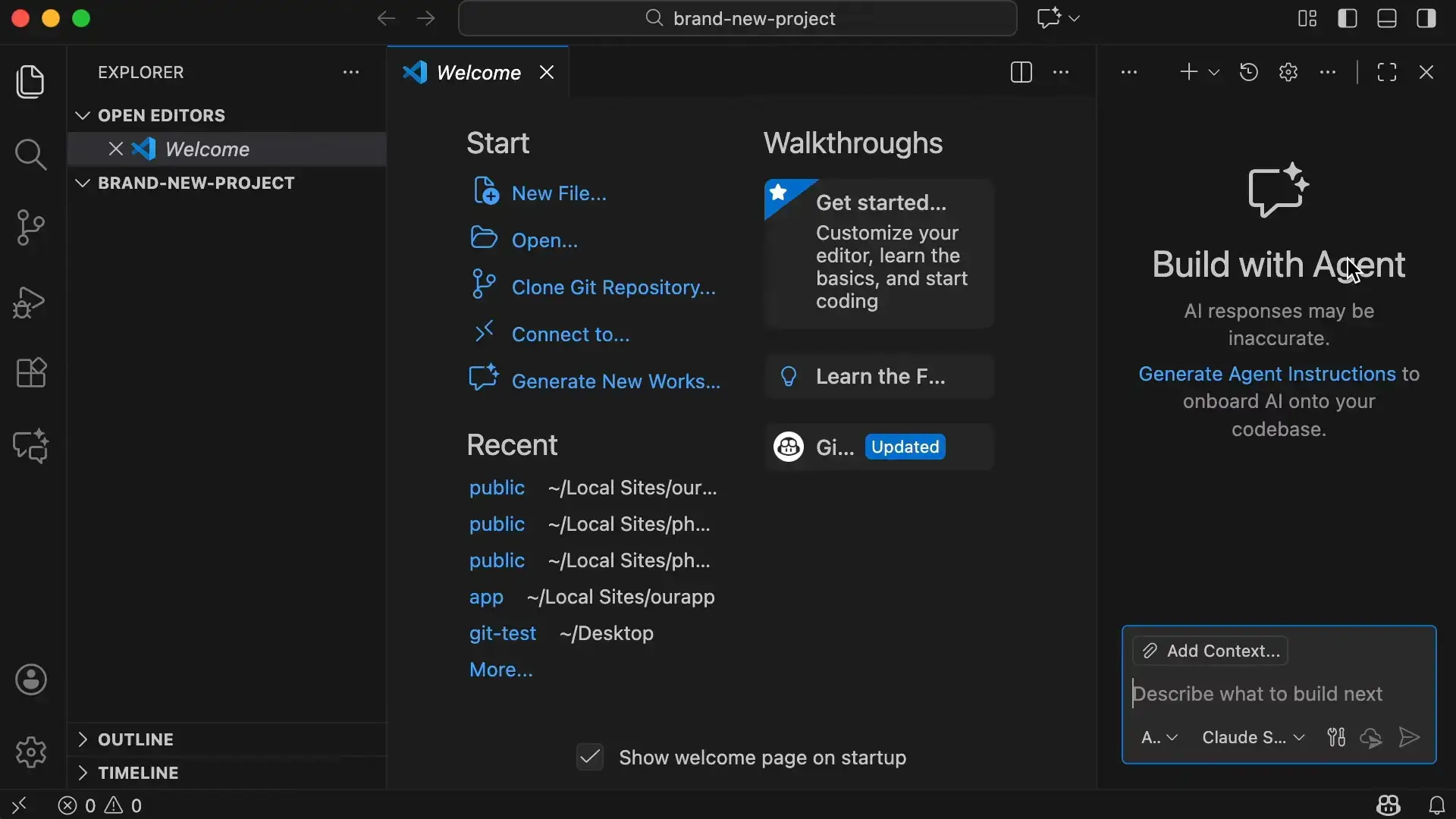
Why this matters: The default sidebar contains sections like “Open Editors” and “Timeline” that duplicate information and waste vertical screen space.
How to do it:
Right-click on the “Open Editors” header in the left sidebar. Uncheck it. Do the same for “Timeline” if you do not use it. This simplifies your interface so you can focus entirely on your project files.
4. Master the Command Palette
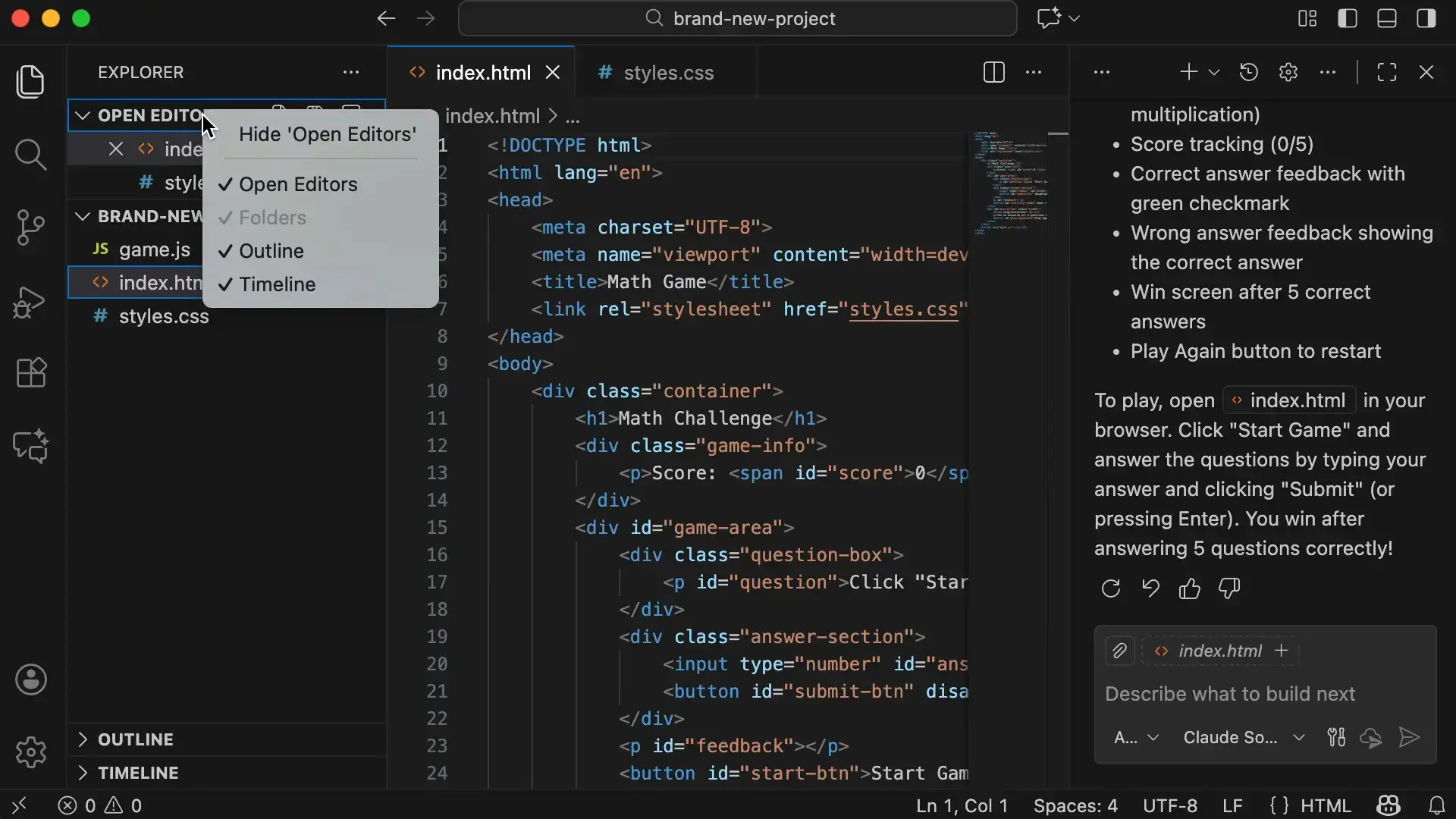
Why this matters: You do not need to memorize complex shortcuts immediately. The Command Palette is the universal search bar for every action in the editor.
How to do it:
Press Ctrl + Shift + P. A search bar will appear at the top. Type any action you want to perform (like “Toggle Word Wrap” or “Theme”). The palette will execute the command and show you the keyboard shortcut so you can learn it naturally.
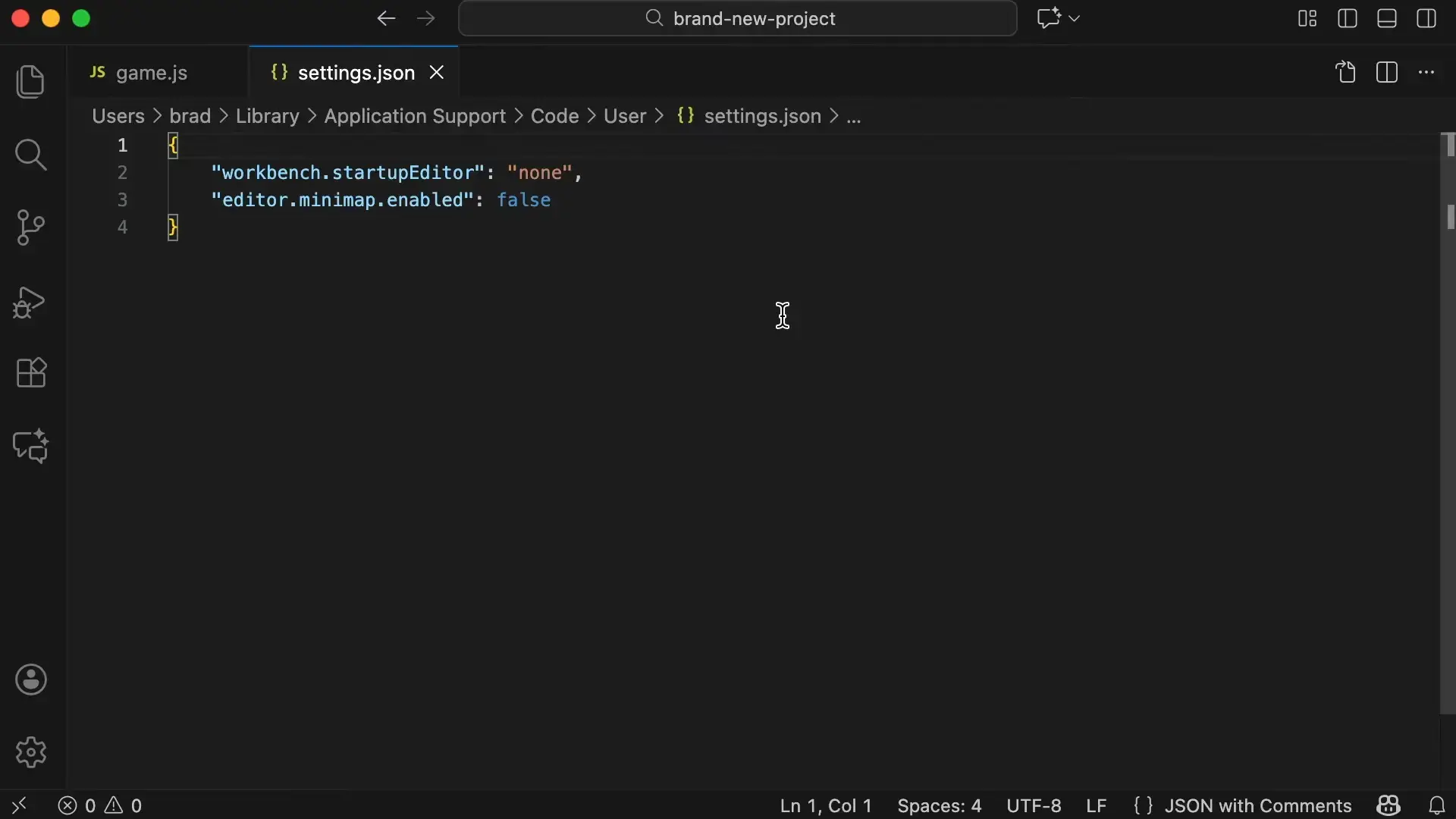
5. Customize Settings via JSON
Why this matters: The graphical settings menu is slow. Editing the settings.json file gives you direct, text-based control over your environment.
How to do it:
Open the Command Palette (Ctrl + Shift + P) and search for “User Settings (JSON)”. This opens a text file where you can type commands like "editor.fontSize": 16 to instantly change settings without hunting through menus.
6. Install a Custom Theme
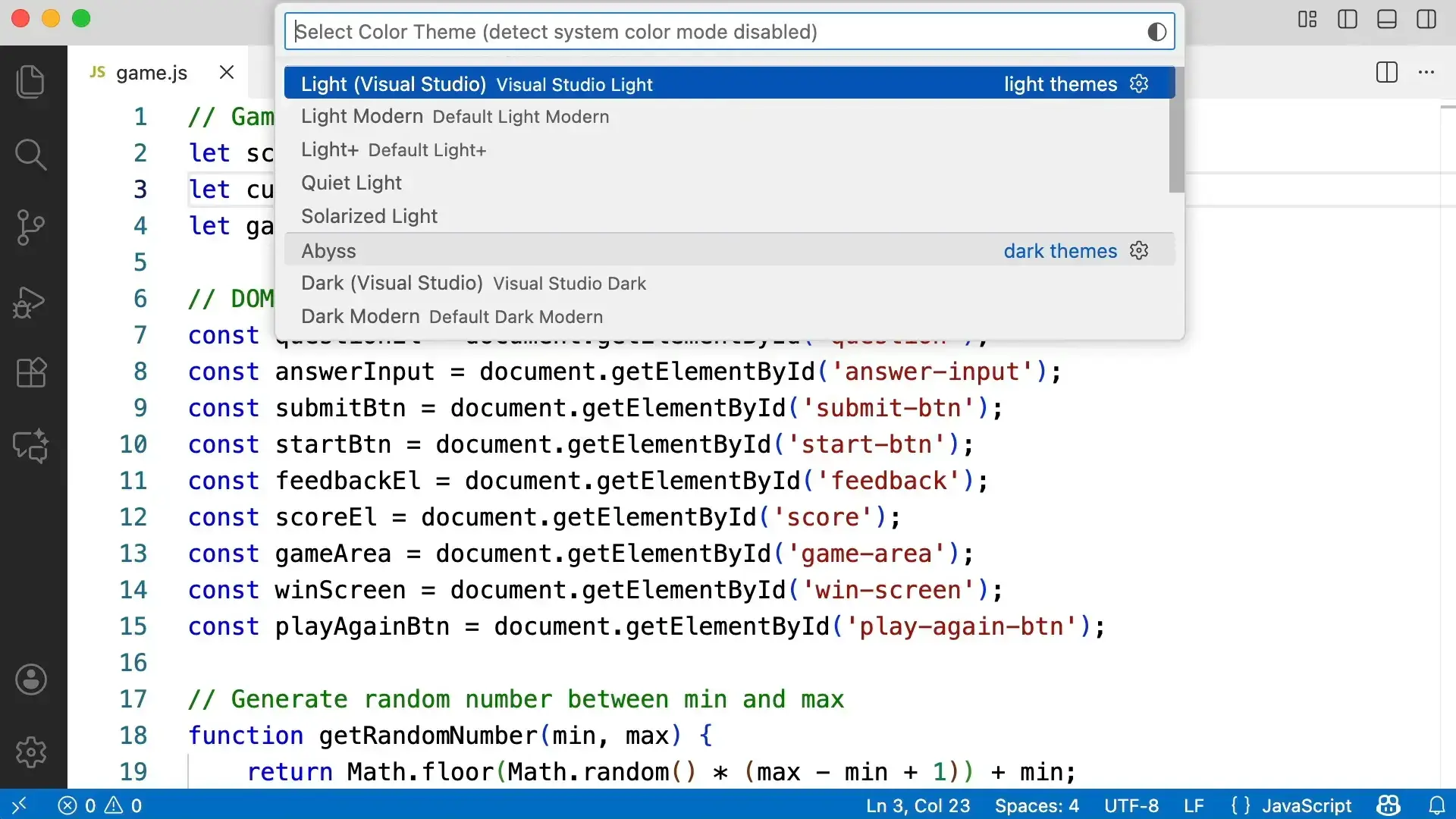
Why this matters: A high-contrast theme reduces eye strain and makes code syntax easier to read.
How to do it:
Open the Command Palette and type “Color Theme”. You can cycle through default options or select Install Additional Color Themes to browse the marketplace. The “Catppuccin” theme is a popular, high-contrast choice for modern development.
7. Enable Font Ligatures
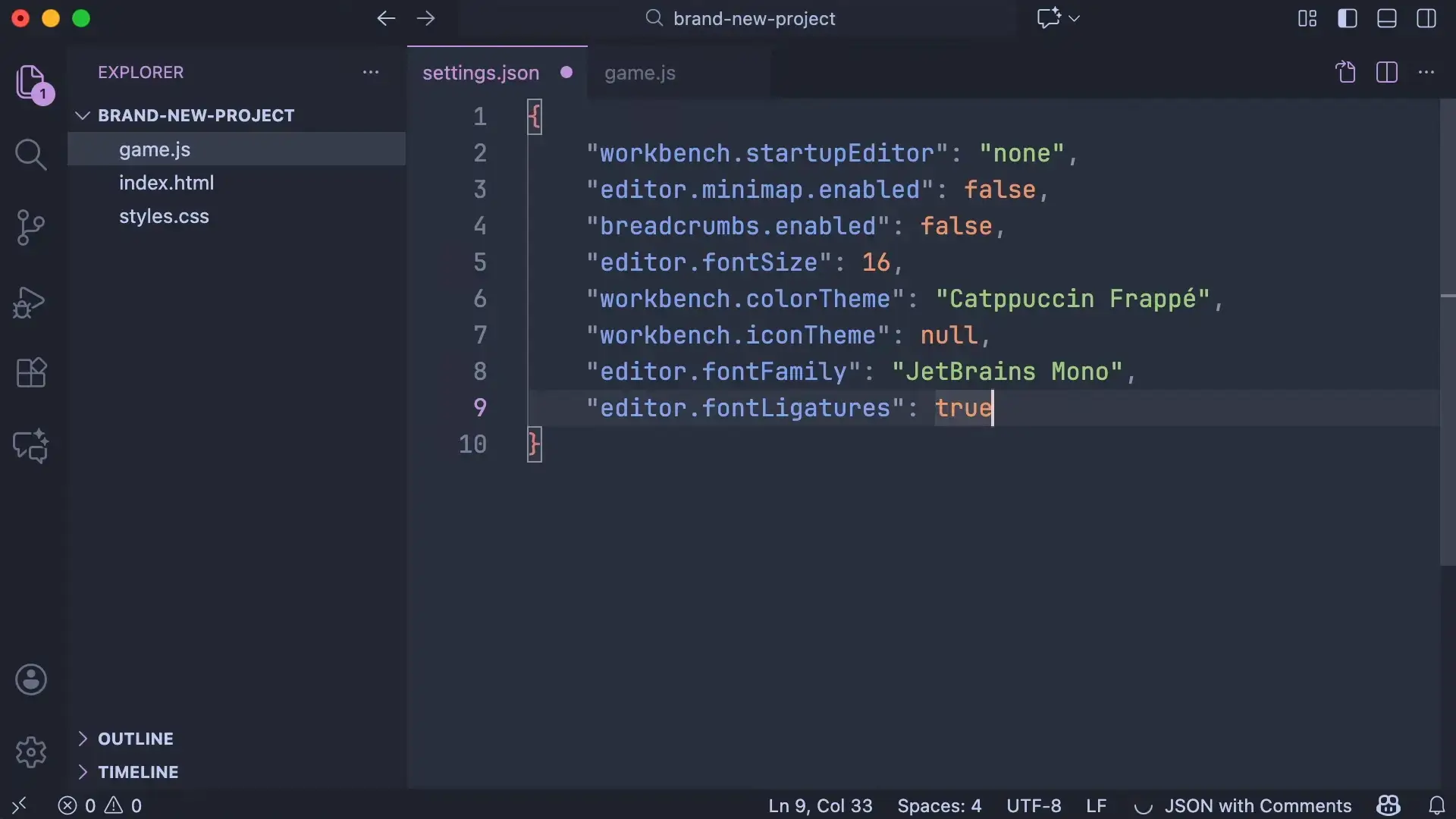
Why this matters: Ligatures combine multiple characters into a single, clean symbol. For example, => (arrow function) or != (does not equal) render as single glyphs, making code easier to scan.
How to do it:
In your settings.json file, add the line:
"editor.fontLigatures": true
Note: You must be using a font that supports ligatures, such as Fira Code or JetBrains Mono.
8. Speed Up HTML with Emmet
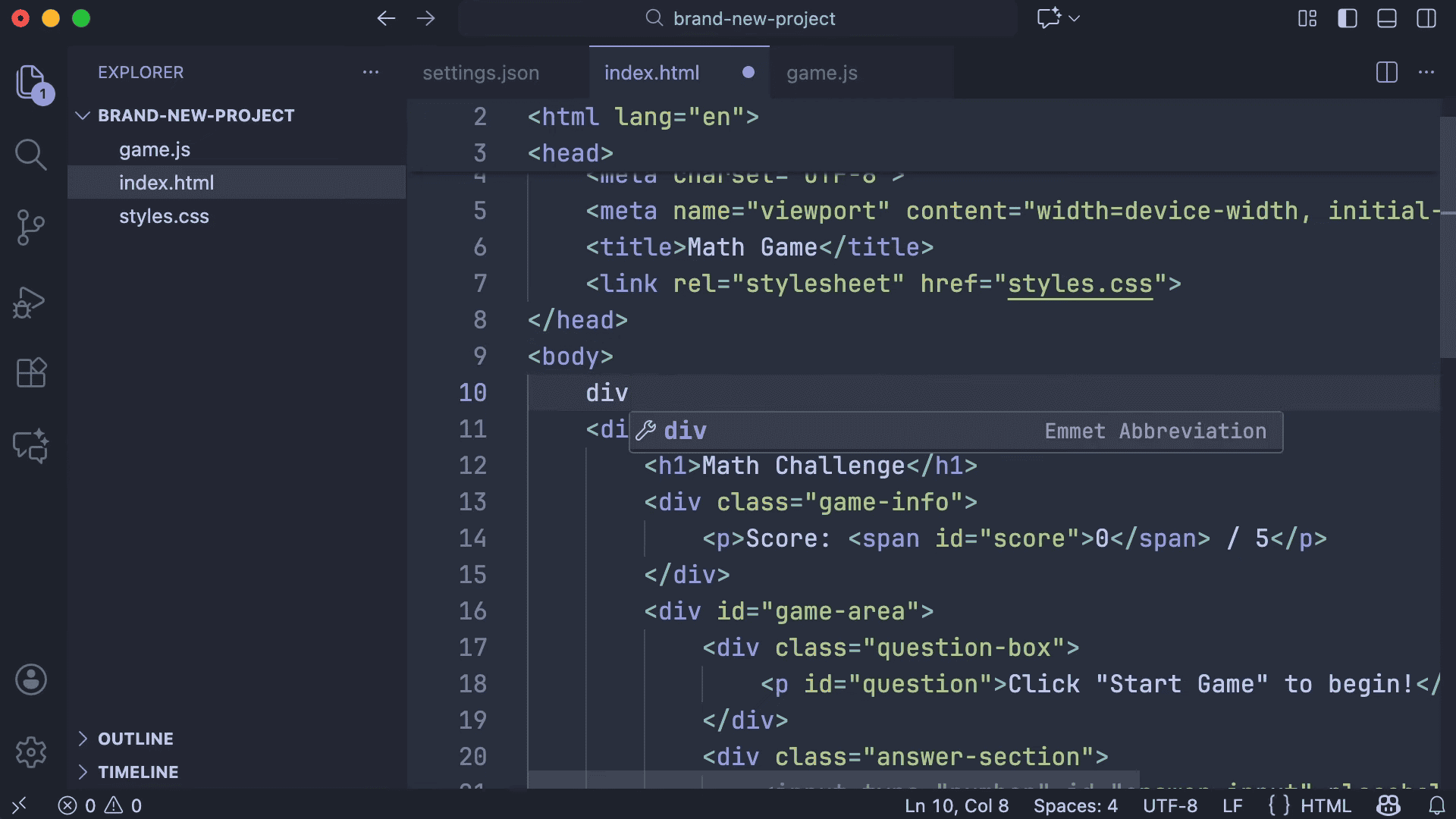
Why this matters: Typing full HTML tags manually is slow and prone to errors. Emmet allows you to type shorthand abbreviations that expand into full code.
How to do it:
In an HTML file, type a shorthand like div.container and press Tab. VS Code will instantly convert it to <div class="container"></div>. This is built-in and requires no extensions.
9. Edit Multiple Lines (Multi-Cursor)
Why this matters: Renaming variables or adding classes to multiple elements one by one is inefficient.
How to do it:
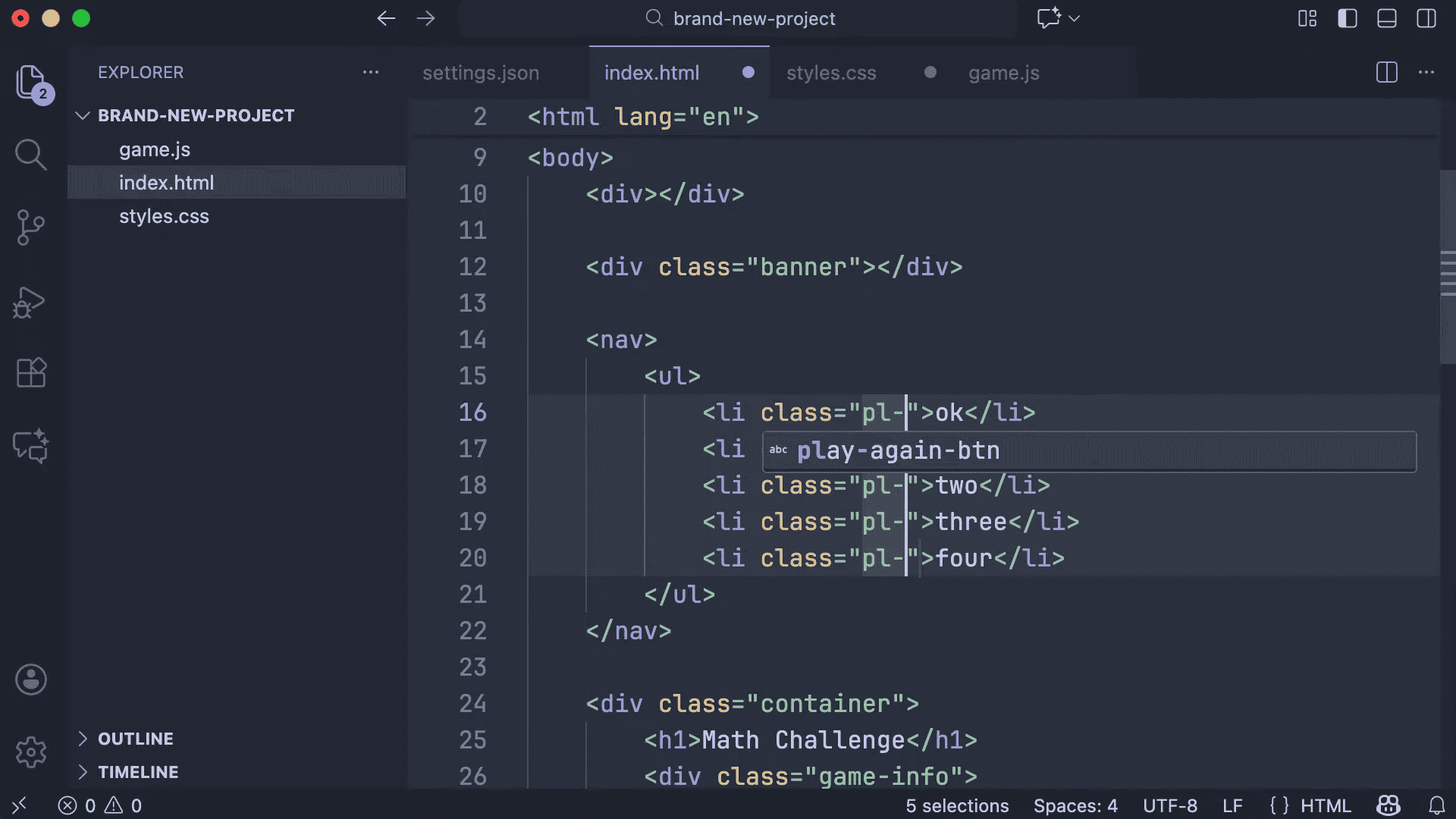
Highlight a piece of text (like a class name). Press Ctrl + D to select the next occurrence of that text. Press it repeatedly to select multiple instances. You can then type once to change all selected lines simultaneously.
10. Automate Formatting on Save
Why this matters: Manually fixing indentation breaks your flow. This setting ensures your code is always clean and consistent.
How to do it:
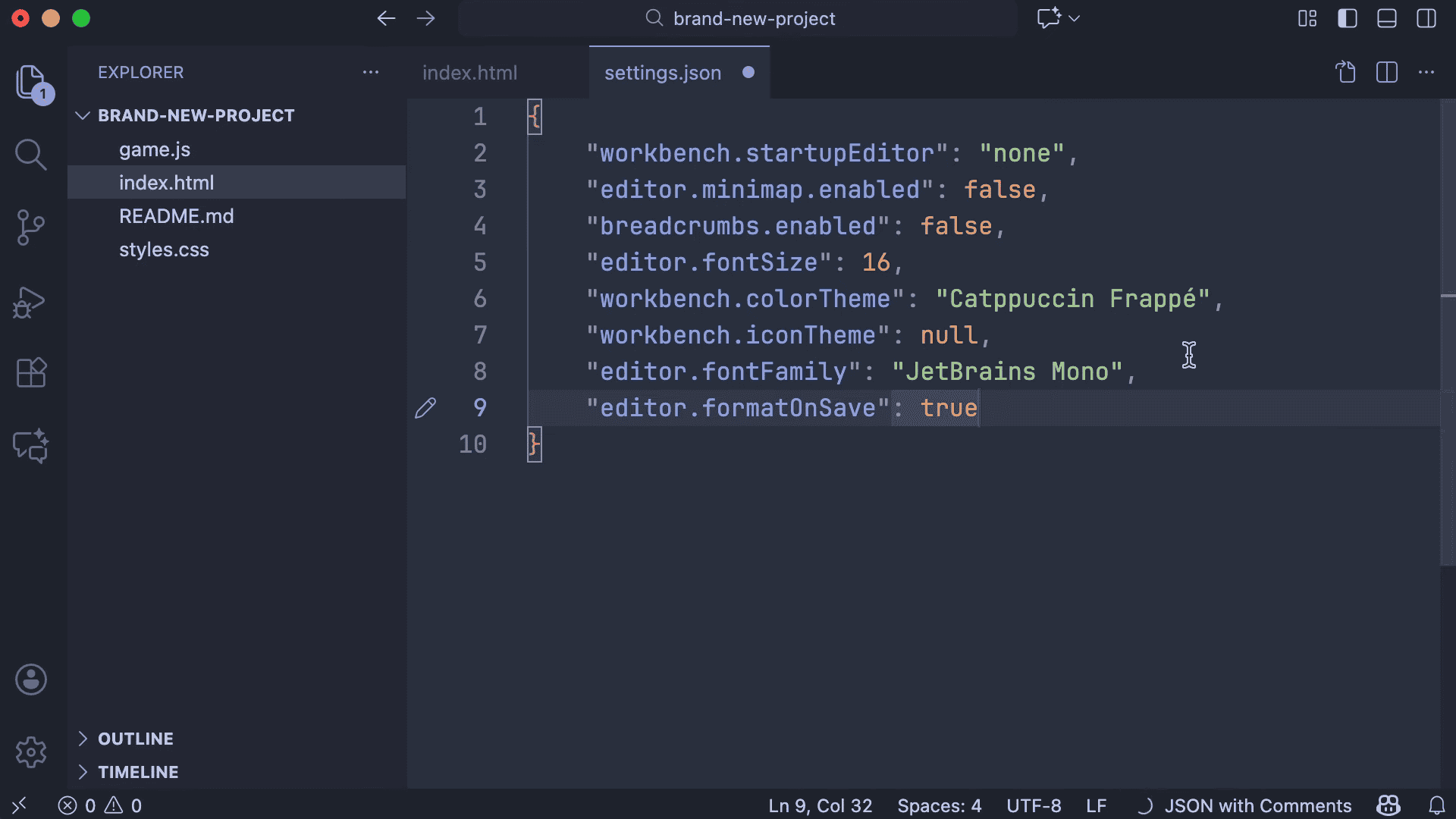
Add this line to your settings.json file:
"editor.formatOnSave": true
Now, every time you save a file (Ctrl + S), VS Code will automatically fix spacing and indentation.
Windows-Specific Workflow Tips
Since you are running VS Code on Windows, take advantage of these OS integrations:
- Terminal Integration: You do not need to leave VS Code to run commands. Press Ctrl + ` (backtick) to open the integrated terminal. By default, this uses PowerShell.
- Context Menu: If you followed our installation guide, you can right-click any folder in Windows Explorer and choose “Open with Code”.
- WSL (Advanced): If you need Linux tools, install the WSL extension to run a full Linux environment directly inside your Windows VS Code window.
Essential Extensions for Beginners
Keep your editor light. Install only what you need to start.
| Extension Name | Primary Function | Who needs it? |
|---|---|---|
| Prettier | Opinionated code formatting | Everyone |
| Live Server | Launches a local browser for web files | Web Developers |
| Python | IntelliSense and debugging for Python | Python Developers |
| Material Icon Theme | Makes file icons easier to distinguish | Everyone |
Visual Studio Code is a practical, well-designed editor that adapts to how you work. Its core features are easy to pick up, and its extension ecosystem allows you to add only what you actually need. With a few thoughtful customizations, VS Code can stay fast, uncluttered, and focused on your daily tasks.
Whether you are writing your first lines of code or refining an established workflow, VS Code gives you control without getting in your way. Used intentionally, it becomes less about the tool itself and more about helping you focus on solving problems and shipping work efficiently.
Next step: If you want to get more out of VS Code, see our upcoming guide on best VS Code extensions to help you tailor the editor to your workflow.
Discover more from Windows Mode
Subscribe to get the latest posts sent to your email.