Readers like you help support this site. When you make a purchase using links on our site, we may earn an affiliate commission. All opinions remain our own.

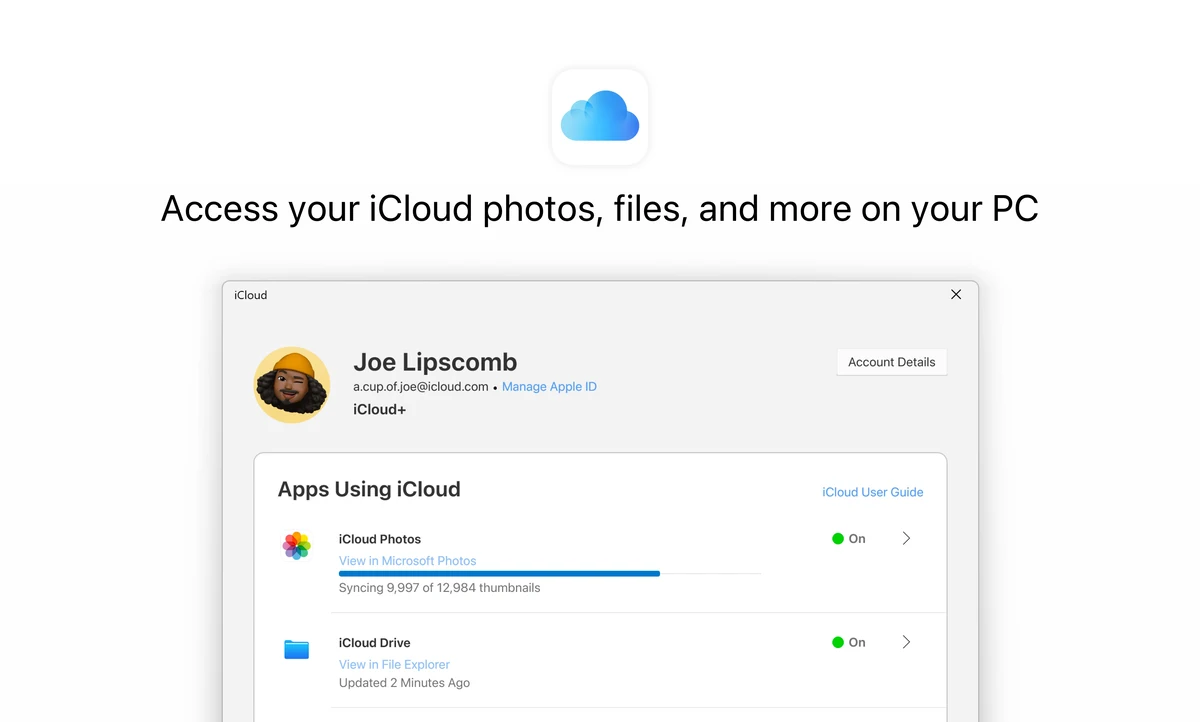
iCloud for Windows is the official bridge that syncs your Apple data to your PC. It puts your iPhone Photos, iCloud Drive files, Safari passwords, and even your Outlook mail directly inside Windows 11 and 10.
Unlike iTunes, which is just a media player, iCloud for Windows is a background utility that deeply integrates with File Explorer and Microsoft Edge. It runs silently to ensure that a photo taken on your iPhone appears on your PC desktop seconds later.
Drop a comment below or contact our friendly team. We answer every question!
How to Download & Install iCloud
1
Get it from the Store
Download the app directly from the Microsoft Store. It is secure and updates automatically.
2
Sign In & Verify
Launch the app and sign in with your Apple ID. You will need your iPhone nearby to approve the 2FA prompt.
3
Select Features
Check the boxes for Photos, Drive, and Passwords. Click Apply to start the first sync.
iCloud Interface Gallery
What can iCloud for Windows actually do?
It turns your PC into a natural extension of your Apple ecosystem. Here are the 5 core features that make it indispensable.
📸 Photos Everywhere
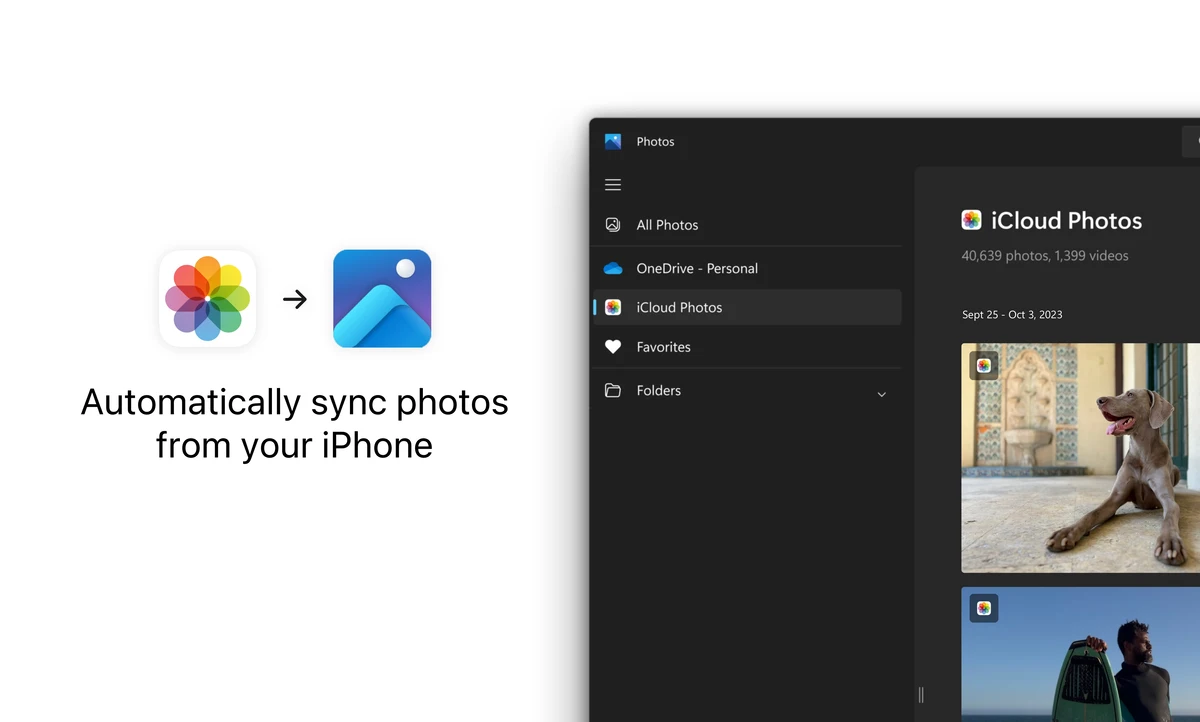
It connects your iPhone’s camera roll to the Microsoft Photos app. Snap a pic on your phone, and it’s ready to edit on your big monitor instantly.
🔐 Keychain on Windows
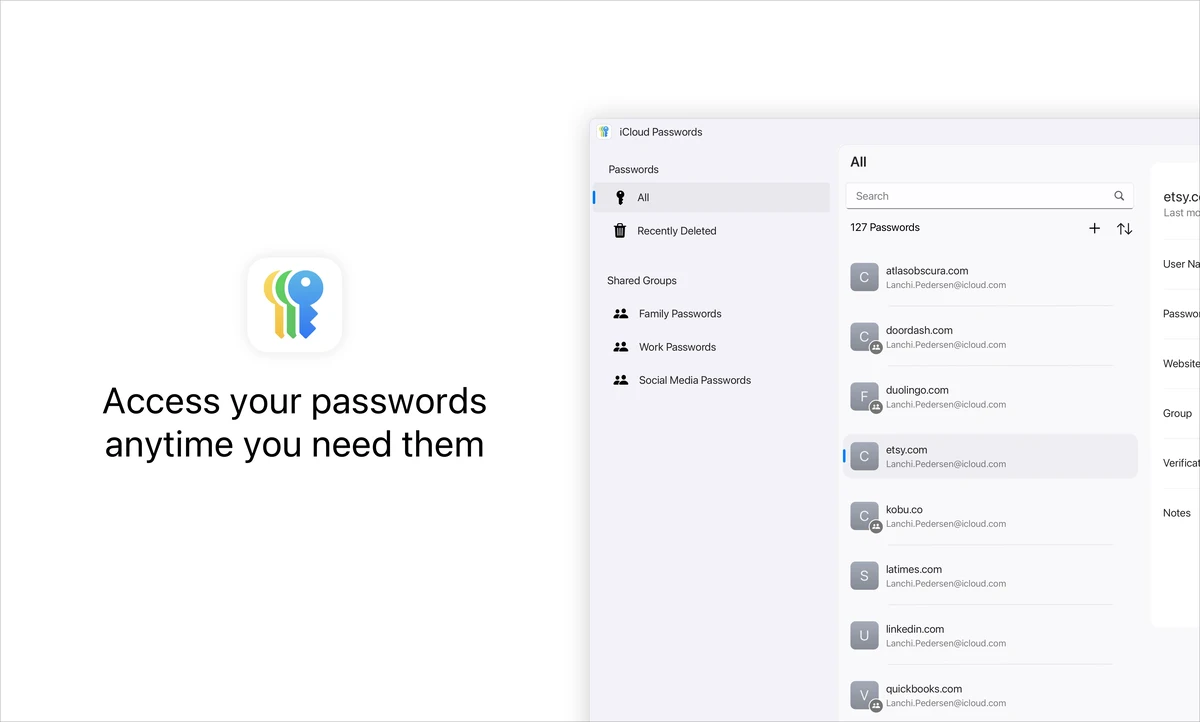
With the iCloud Passwords app and browser extension, you can autofill your Safari passwords inside Google Chrome or Edge securely.
📂 Desktop Drive Access
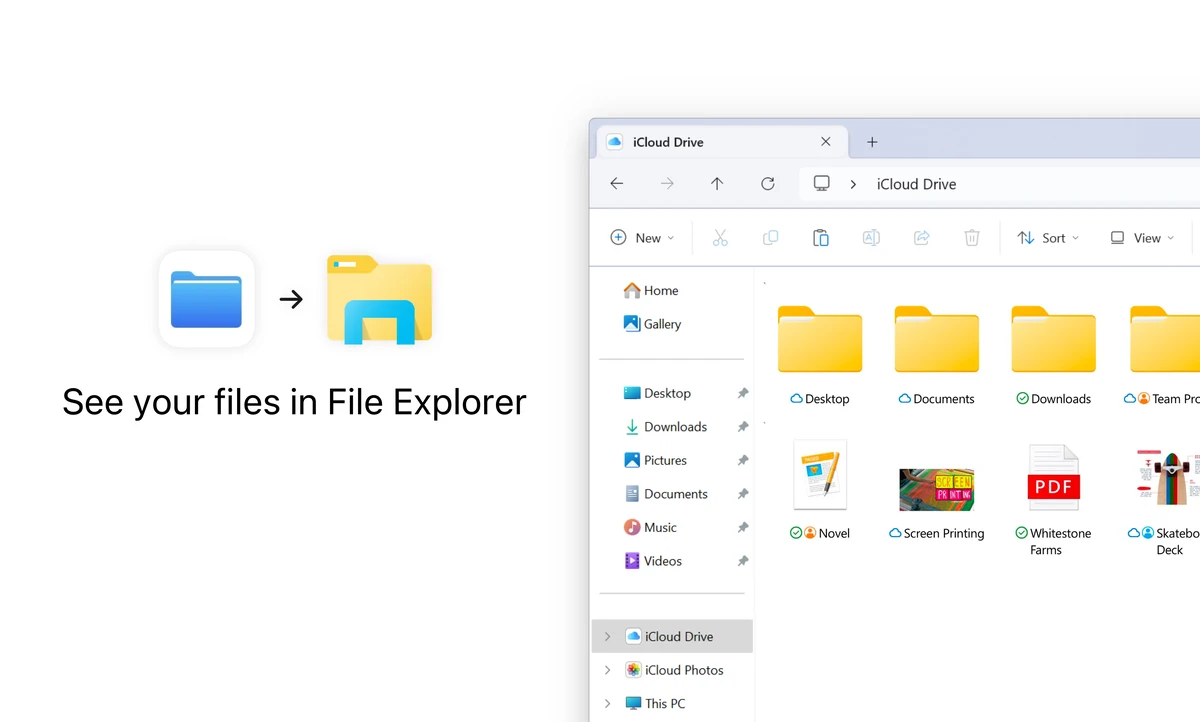
iCloud Drive appears as a native folder in File Explorer. You can pin it to Quick Access and work on documents just like they were on a USB stick.
📅 Outlook Sync
Crucial for business. It syncs your iCloud Mail, Contacts, and Calendars directly into Microsoft Outlook (2021 or later) so you never miss a meeting.
🔖 Safari Bookmarks
Keep your reading list in sync. If you bookmark a site on your iPad, it will appear in your Windows browser bookmarks bar automatically.
Is iCloud useful for Professionals?
Absolutely. If you are a creator who uses a MacBook Pro for design but a high-powered PC for rendering or gaming, iCloud is the fastest bridge between the two.
- Asset Sharing: Save a Photoshop file to “Desktop” on your Mac, and open it immediately from the “iCloud Drive” folder on your PC.
- Client Folders: Create shared folders for clients that they can access on their iPads, while you manage the files comfortably from Windows Explorer.
- Universal Clipboard: Use tools like SwiftKey or 3rd party apps to copy text on iPhone and paste on Windows, mimicking the Mac feature.
System Requirements
| Category | Requirement |
|---|---|
| Operating System | Windows 11 or Windows 10 (May 2019 Update or later, 64-bit) |
| Outlook Sync | Microsoft Outlook 2021 or later |
| Browser Extension | Google Chrome 88+, Edge 88+, or Firefox 109+ |
| Account | Apple Account (formerly Apple ID) |
Best Settings for iCloud on PC
| Feature | Optimization Tip |
|---|---|
| iCloud Drive | Right-click specific project folders and select “Always keep on this device”. This prevents lag when opening large files like videos or PSDs. |
| Photos | Enable “iCloud Photos” but consider disabling “Shared Albums” if you are on a metered connection, as they can consume background data. |
| Passwords | Install the iCloud Passwords Extension for Chrome or Edge immediately. Without it, the passwords app is much less useful. |
iCloud Installation Video (2025 Guide)
Where can I find out more about iCloud?
- Apple Official iCloud Support – The primary source for troubleshooting specific error codes.
- r/iCloud Community – Real user discussions, tips, and problem-solving.
- Microsoft Store Page – Download the latest official version here.
- Apple System Status – Check this if sync isn’t working; servers might be down.
- Apple Music for Windows Guide – Learn how to pair iCloud with the new Music app.
Explore More Windows Apps
- Apple TV for PC – Stream your favorite shows and movies on Windows.
- Apple Music for PC – The dedicated app for high-quality music streaming.
- iTunes for Windows – The classic manager for local libraries and backups.
- Best iTunes Alternatives – Top free replacements if you want to avoid Apple apps.
- Google Drive for Windows – Google’s sync app, if your files live in Google Drive instead of iCloud.
Discover more from Windows Mode
Subscribe to get the latest posts sent to your email.

















Add your first comment to this post