The latest NVIDIA App update (version 11.0.9.565) adds a built-in MCP server that lets AI agents control the app with plain-language requests. That sounds handy, but users say the feature is switched on by default after updating, and many PC gamers are not happy about software on their PC quietly opening a door for AI agents. Here is what changed, why people are upset, and how to turn it off.
What the NVIDIA App Update Adds
The News
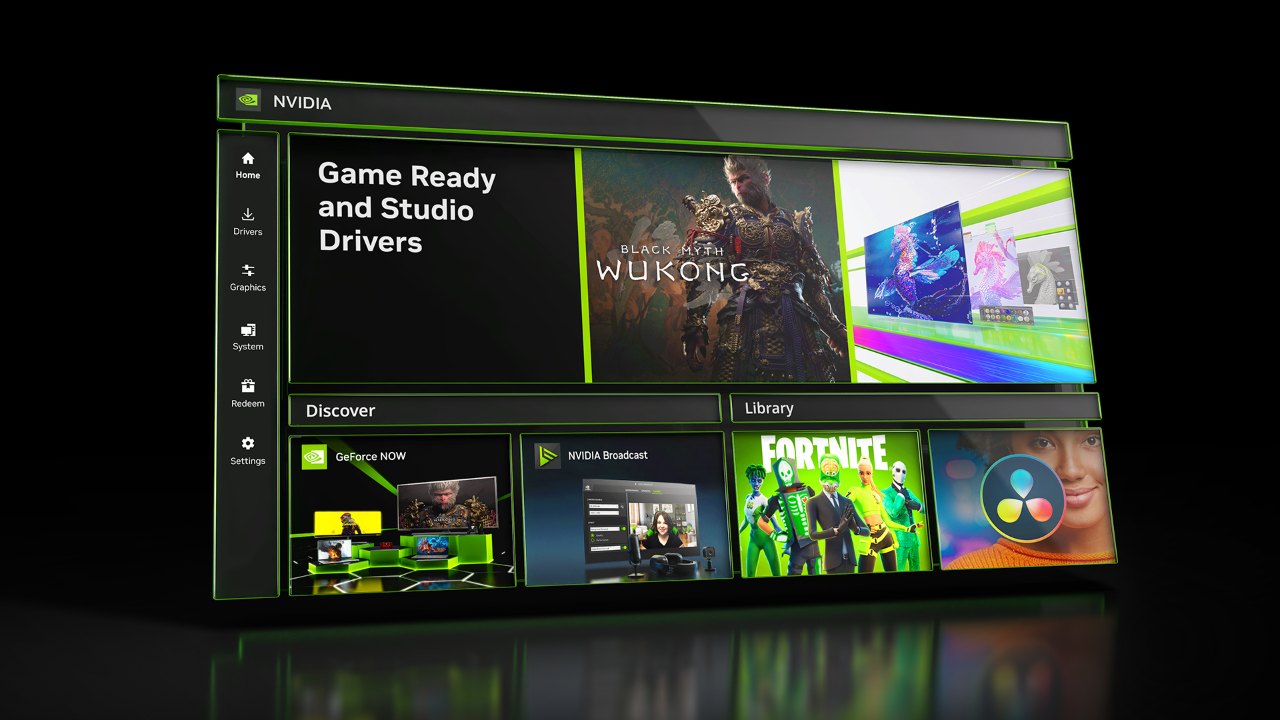
In its official release highlights, NVIDIA says the app “includes a local MCP server (Model Context Protocol) that lets a compatible AI agent control the NVIDIA App using natural-language requests.” It names Hermes, OpenClaw, and Perplexity as examples of assistants that can “see your installed games and apply optimal settings, or enable Shadowplay to record gameplay, all through simple conversation.”
The same update also adds support for RTX Spark devices, a new DLSS Frame Generation Performance Mode (Beta), and new CPU stats in the NVIDIA Overlay.
What Is an MCP Server? Explainer
MCP is a common standard that lets AI agents use tools in other apps. Instead of clicking through menus, you ask your AI assistant to do something, and it calls the app’s MCP server to do it. Microsoft is building the same idea into Windows itself, as we covered in our look at Windows hybrid intelligence and MXC.
According to the Hermes Agent plugin docs, the server runs on your PC’s local loopback address, uses a token the app publishes, and “nothing leaves loopback.” In other words, it listens on your own machine, not the open internet.
Why Gamers Are Angry
User Reaction
The pushback started on Reddit’s r/pcmasterrace and spread to forums like Taiwan’s PTT, where a widely shared post titled “NVIDIA App enables MCP by default after update” asked why the feature is on when “most people probably don’t run local AI yet.” The main complaints:
- Opt-out, not opt-in: users say the feature was turned on without a prompt.
- Security worries: some fear that a bug, or a rogue AI agent, could change driver and game settings without them knowing.
- Privacy: the agent tools can start screen recordings and screenshots, which some see as too much power to hand out by default.
- App bloat: gamers who only want drivers see it as one more AI feature they never asked for.
Keep it in perspective: an AI agent still has to be installed and connected before it can use the server, and the server only listens locally. Turning it off is still a sensible choice if you do not use AI agents.
How to Turn Off AI Agent Control in the NVIDIA App
How-To
Disable AI Agents and App Connections Step by Step
- Open the NVIDIA App from the Start menu or the system tray icon.
- Click Settings (the gear icon at the bottom of the left sidebar).
- Open the Features tab.
- Find AI Agents and App Connections, the path NVIDIA lists in its release notes.
- Switch the toggle off. If the page also lists connected apps or agents, disconnect any you don’t use.
- Restart the NVIDIA App to make sure the change sticks.
Check after updates: big NVIDIA App updates can reset settings. After the next update, go back to Settings > Features and confirm it is still off.
Skip the NVIDIA App Altogether Alternative
If you only need drivers, you can download Game Ready drivers straight from NVIDIA’s website instead of using the app. Some users on PTT also suggest third-party tools like NVCleanstall for a drivers-only install, but those aren’t made by NVIDIA, so use them at your own risk.
Bottom Line
Verdict
Letting AI agents tune your games is a genuinely useful idea, but switching it on by default without asking is what has users upset. If you don’t use an AI agent, take 30 seconds to turn it off. If you do, just remember that any agent you connect can also start recordings and change settings.
Source: NVIDIA App release highlights. User reaction via PTT PC_Shopping and Reddit’s r/pcmasterrace.
Discover more from Windows Mode
Subscribe to get the latest posts sent to your email.















Add your first comment to this post