Readers like you help support this site. When you make a purchase using links on our site, we may earn an affiliate commission. All opinions remain our own.
Microsoft PC Manager is a free cleanup and maintenance app made by Microsoft for Windows 10 and Windows 11.
Microsoft PC Manager is a free cleanup app for Windows, made by Microsoft and available on the Microsoft Store. One click frees up memory and clears temporary files. A health check looks for junk, viruses and problems in a single scan.
It looks like the third-party PC cleaners people have used for years, but it comes from the company that makes Windows. Most of what it does uses tools already inside Windows, gathered into one simple window. It also adds a few things Windows does not have, such as a pop-up blocker for apps.
It works on Windows 10 (version 20H2 or later) and Windows 11, on regular Intel and AMD PCs and on Arm laptops.
This guide covers what each tab does, how to install it, which parts Windows already does for free, and whether it is safe. Using it already? Tell us what you think.
What Is Microsoft PC Manager?
Microsoft PC Manager is a maintenance app that keeps the everyday clutter on a Windows PC under control. It clears temporary files, frees up memory, finds large files and shows which apps slow down startup.
Microsoft first released it as a test version in China in 2022 and later opened it to Windows users worldwide through the Microsoft Store. It is built for people who do not want to dig through Settings and Task Manager to keep a PC tidy. Everything sits behind five tabs on the left side of the window.
It is not antivirus software and it is not a Windows upgrade checker. If you want to know whether your PC can run Windows 11, that is the job of the PC Health Check app.
What Each Tab Does
PC Manager splits its tools across five tabs: Home, Protection, Storage, Apps and Toolbox. Here is what you will find on each one, with Microsoft’s own screenshots.
PC Boost and Smart Boost
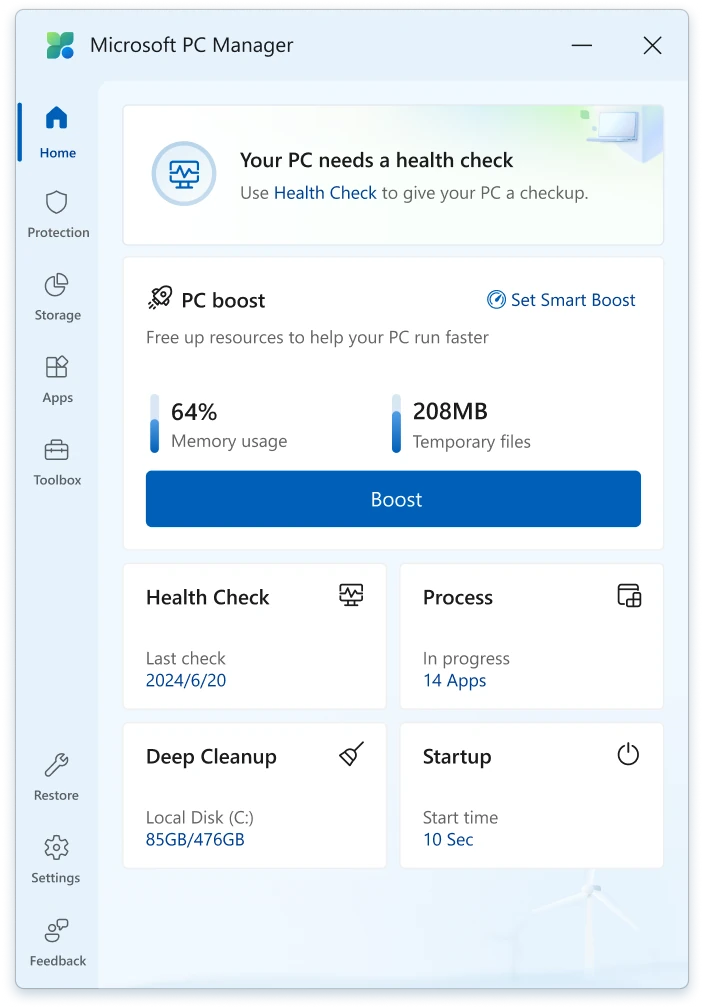
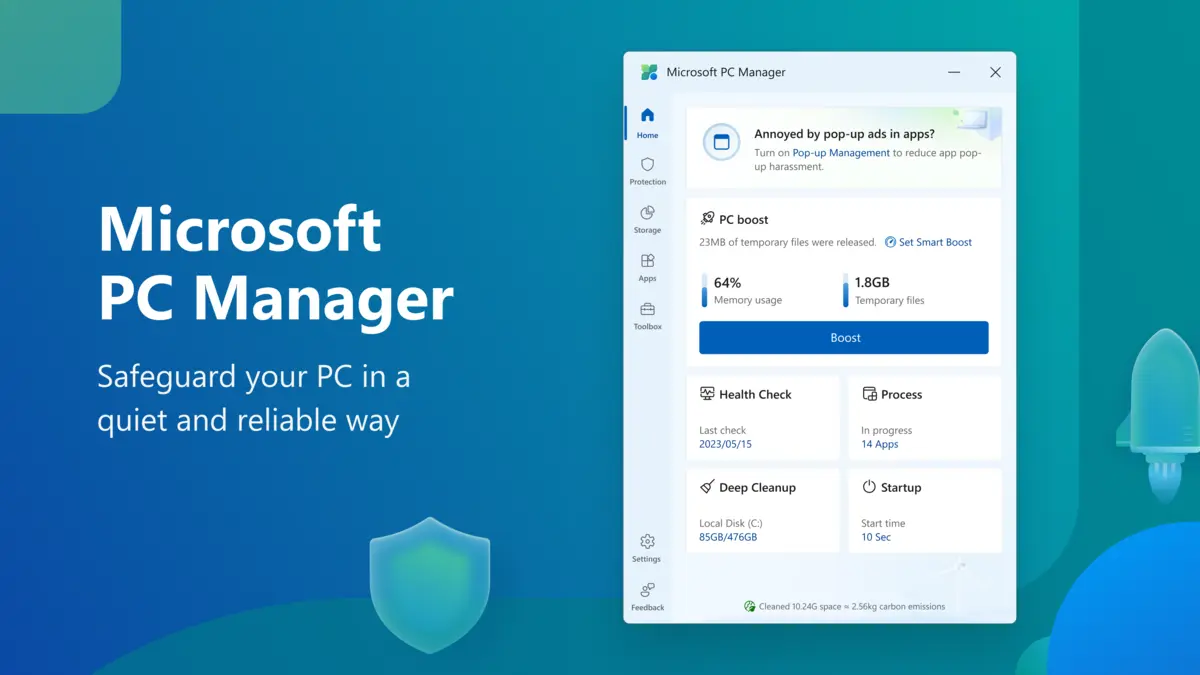
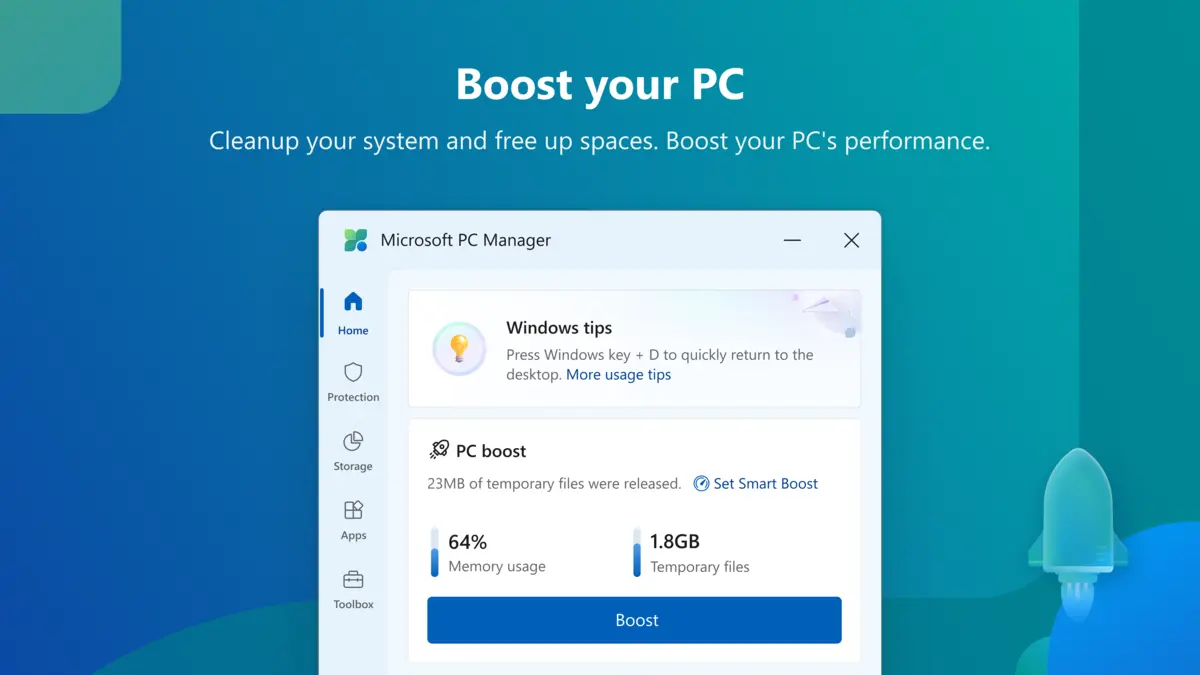
The Home tab shows how much memory is in use and how many temporary files are sitting on your drive. Press Boost and PC Manager frees up memory and clears those files in one go.
Smart Boost does the same job for you in the background, so you do not have to remember to press the button. The tiles below it open Health Check, Process, Deep Cleanup and Startup.
Health Check
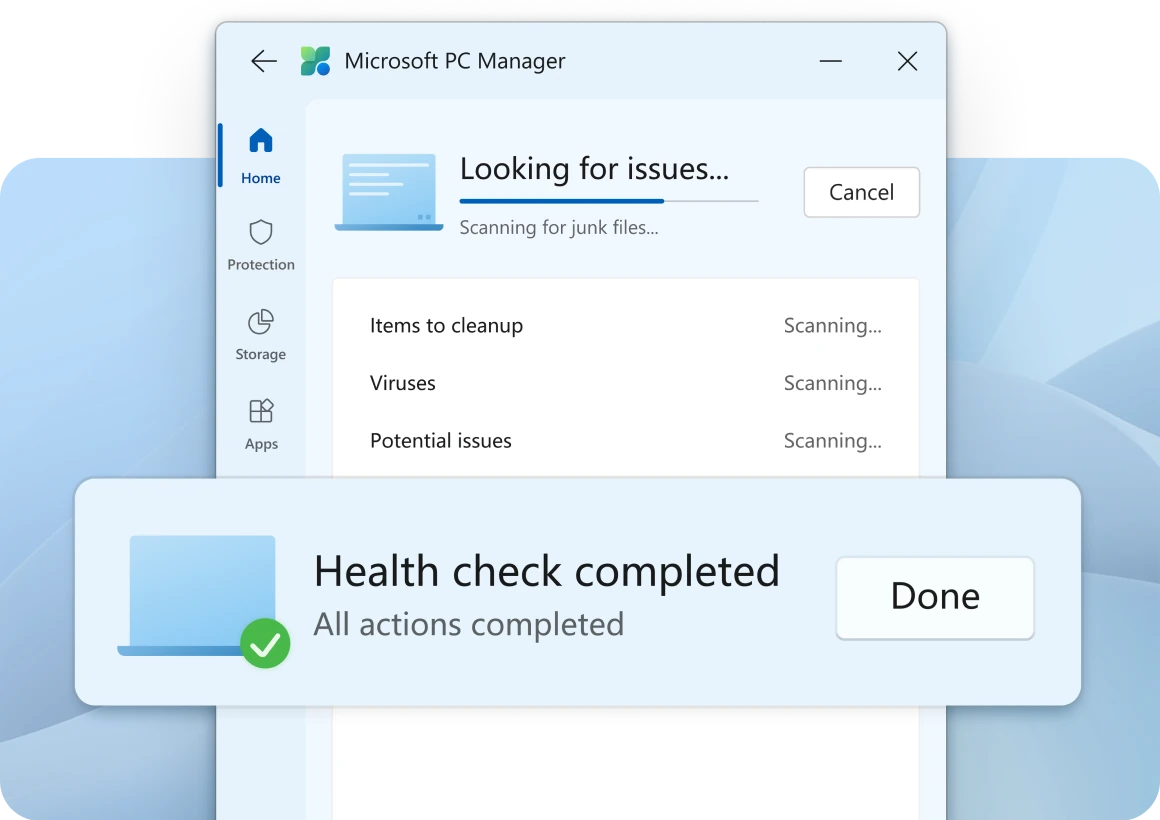
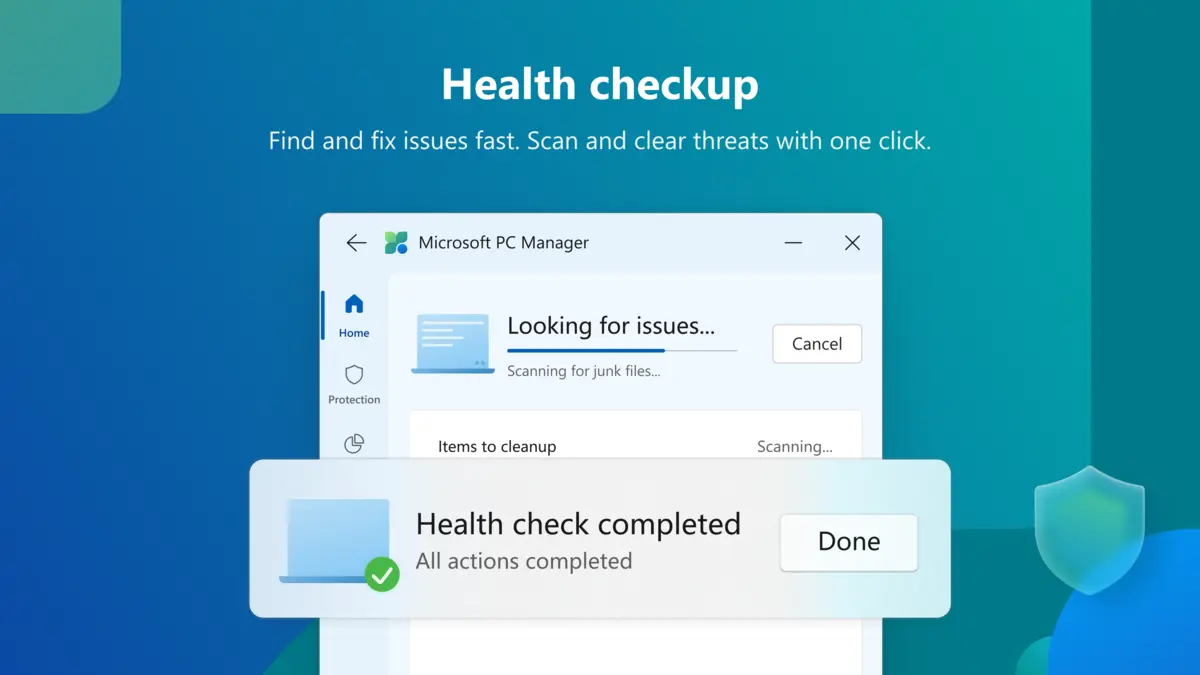
Health Check is a single scan that looks for files to clean up, viruses and potential problems, then offers to fix what it finds.
It is the best button to press the first time you open the app, because it shows you everything at once.
Deep Cleanup, Large Files and Storage Sense
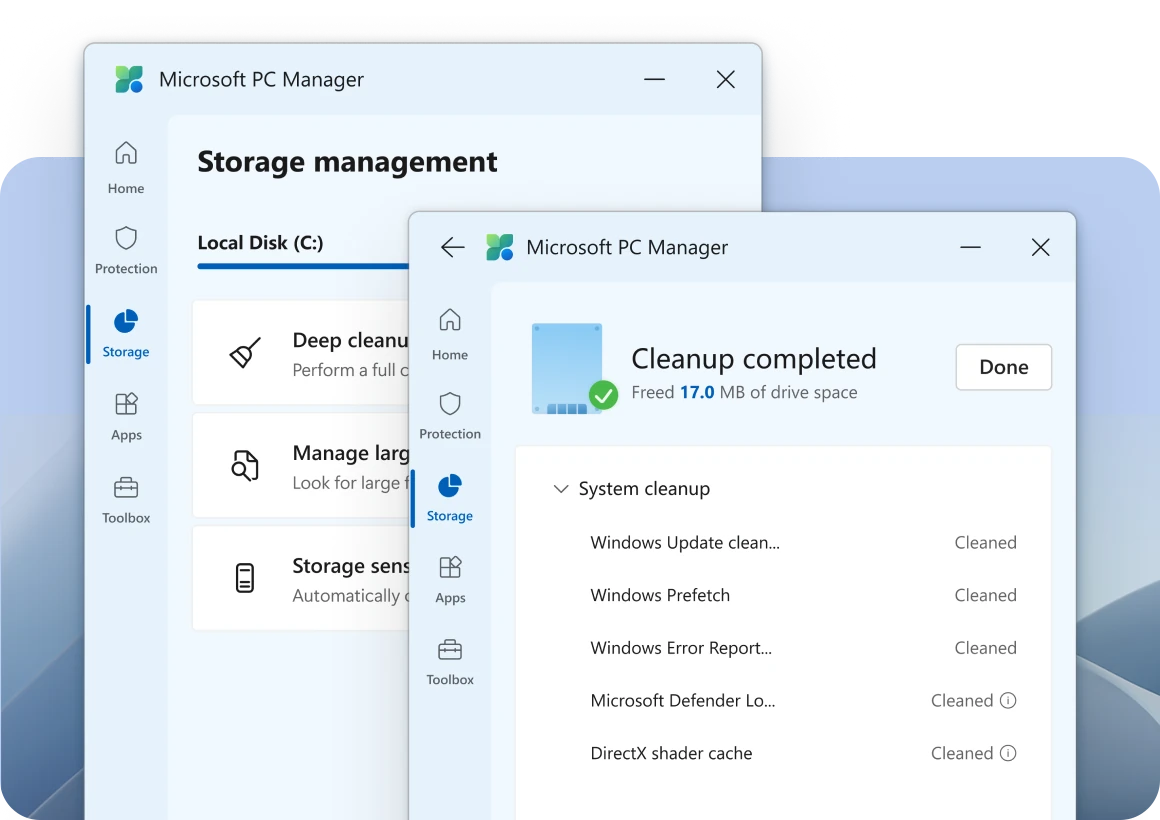
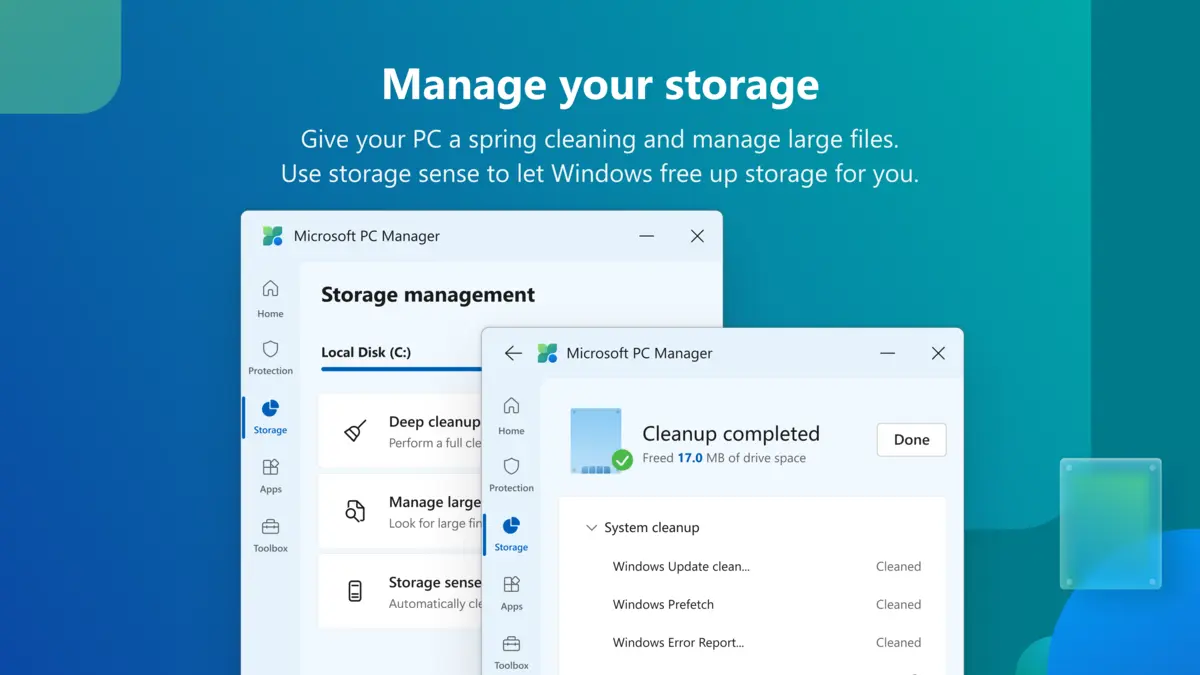
Deep Cleanup goes further than Boost. It removes leftovers Windows piles up over time, such as old Windows Update files, error reports and the DirectX shader cache (saved graphics data games rebuild when needed).
Manage large files finds the biggest files on your drive so you can decide what to delete or move. Storage Sense is Windows’ own automatic cleanup, and PC Manager gives you a shortcut to turn it on.
Pop-up Management
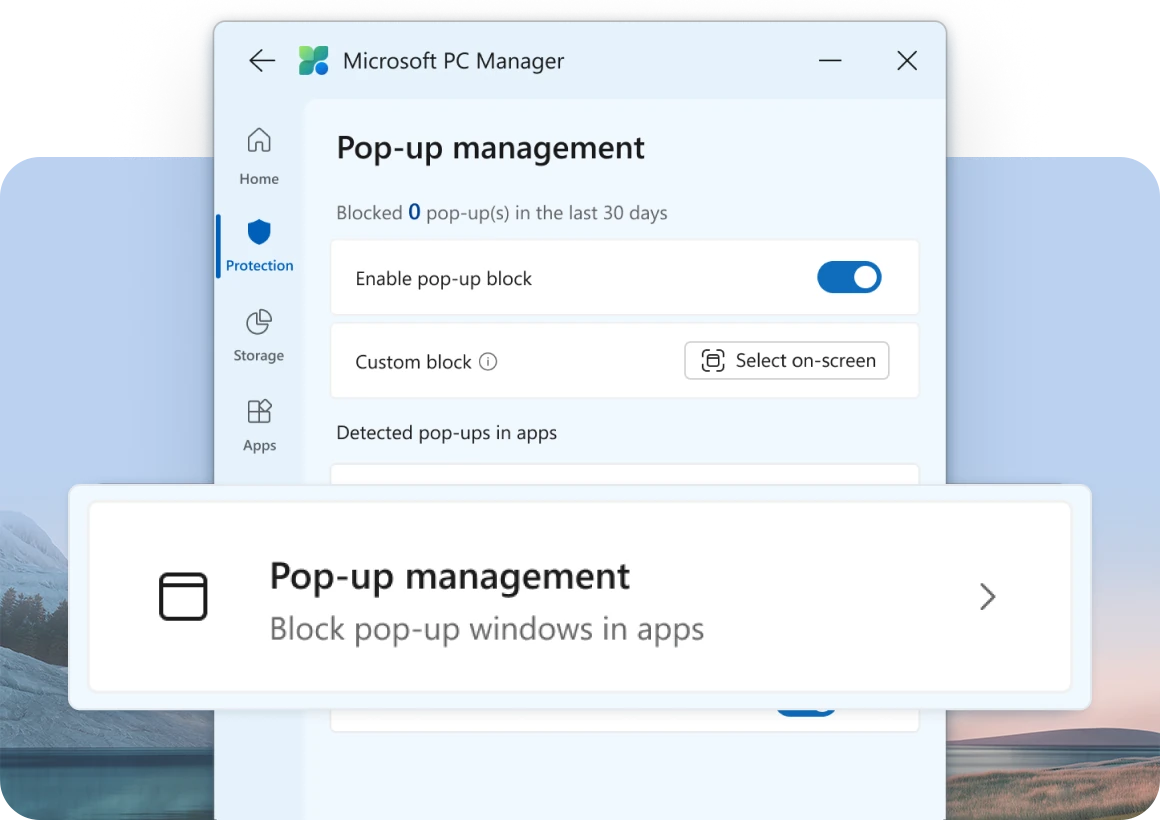
Some free apps open ad windows and pop-ups on your desktop. Pop-up management blocks them, and counts how many it stopped in the last 30 days.
If one pop-up keeps getting through, Custom block lets you click it on screen to block it. The Protection tab also watches your default apps, such as your browser, and offers to restore them if another program changes them.
Process and Startup
The Process page lists the apps running right now and lets you close the ones you do not need. It is a simpler view than Task Manager.
The Startup page shows which apps launch when Windows starts and how long startup takes. Turning off apps you never use straight after login is one of the quickest ways to make a PC start faster.
Toolbox and Mini Toolbar
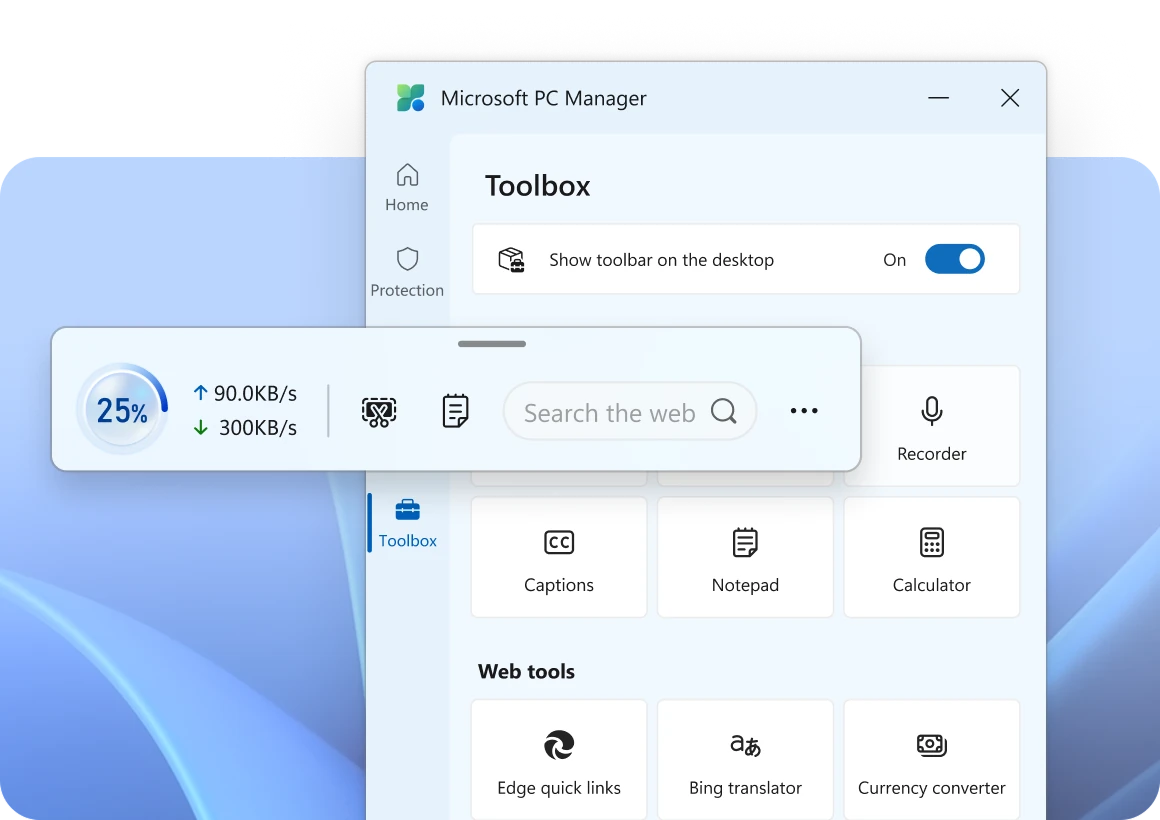
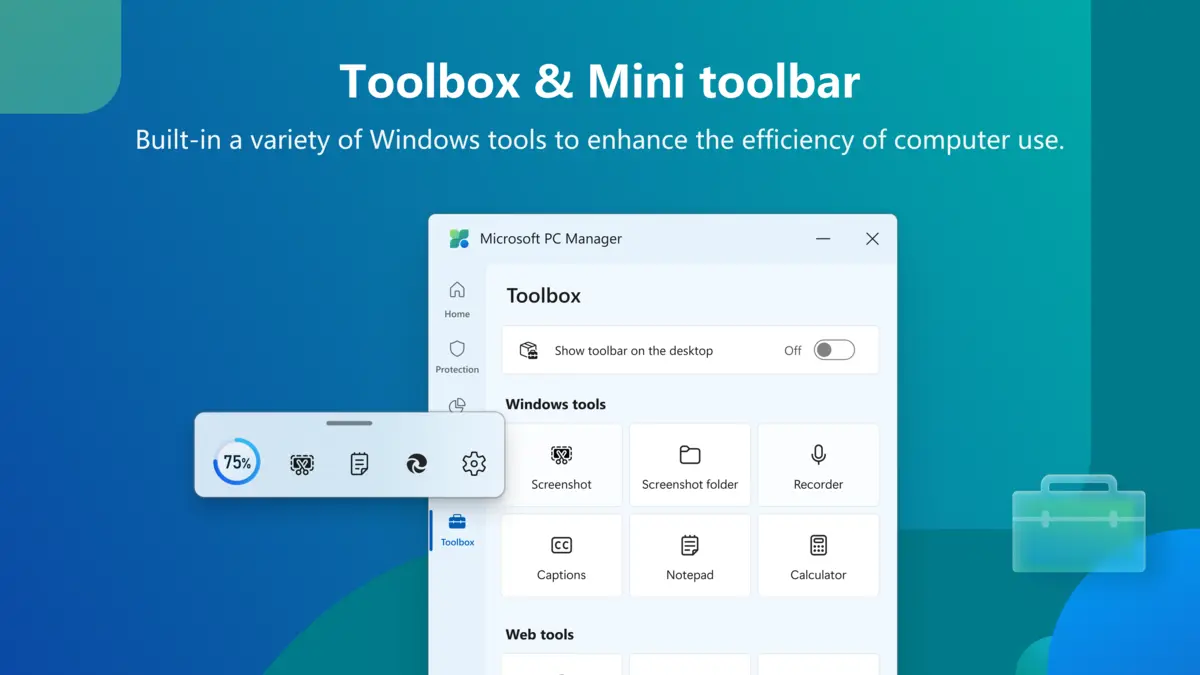
The Toolbox collects shortcuts to Windows tools you might forget exist: Screenshot, Recorder, Captions, Notepad and Calculator. Below them sit web tools such as Edge quick links, Bing translator and a currency converter.
Switch on Show toolbar on the desktop and a small floating bar appears with your memory use, your upload and download speed, a screenshot button and a web search box.
How to Get Microsoft PC Manager on Windows
Microsoft hands out PC Manager through the Microsoft Store. It is free, and the install takes a minute or two.
1 Open the PC Manager page on the Microsoft Store.
2 Click Get or Install. The Store app opens and downloads it.
3 Open PC Manager from the Start menu once the install finishes.
4 Run a Health Check to see what the app finds on your PC before you change anything.
Only install it from the Microsoft Store. Download sites offer their own “PC Manager” installers, and some of those are repackaged copies you cannot check. The Store version updates itself.
Who Should Use PC Manager?
PC Manager vs the Tools Already in Windows
Most of what PC Manager does, Windows can already do on its own. The difference is that PC Manager puts it all in one window, with one button for each job. Here is where to find the built-in version of each feature.
Our take
PC Manager is worth installing for the convenience and for the two features Windows lacks: the pop-up blocker and the mini toolbar. It will not make an old PC new. If your drive is nearly full or too many apps start with Windows, it helps. If your PC is simply short on RAM, no cleanup app fixes that.
Is Microsoft PC Manager Safe?
Yes. PC Manager is made by Microsoft and listed in the Store under Microsoft Corporation. Its cleanup removes temporary files, caches and leftovers that Windows can rebuild, not your documents, photos or downloads you chose to keep.
Two things are worth knowing. First, clearing old Windows Update files can remove the option to roll back a recent update, so skip that item if an update has just caused you trouble. Second, the app has a habit of steering you toward Microsoft’s own services. In 2024, The Register reported that it flagged a non-Bing search engine in Edge as something to repair.
Treat any suggestion to restore Edge, Bing or other default apps as optional. Read what it wants to change before you click, and ignore it if you picked those settings on purpose.
Tips for Getting Started
1 Set Smart Boost once and forget it. Click Set Smart Boost on the Home tab so the cleanup runs on its own instead of waiting for you.
2 Open the list before you clean. Deep Cleanup groups what it found. Expand each group and untick anything you want to keep.
3 Check Startup after installing new software. Many apps add themselves to startup without asking. Turning them off there is safe, and they still open normally when you need them.
4 Use Custom block for one stubborn pop-up. In Pop-up management, click Select on-screen, then click the window you want gone.
5 Turn on the mini toolbar if you game or stream. Seeing memory use and network speed on screen tells you at a glance whether the slowdown is your PC or your connection.
For more ways to speed things up without any app at all, see our guide on how to speed up Windows 10.
Official Video
Watch Microsoft’s own introduction to PC Manager to see the Boost button, the health check and the storage tools in action.
More Microsoft PC Manager Screenshots
These are Microsoft’s Store screenshots of the Home, Storage, Health Check and Toolbox screens. Click any image to see it full size.
Frequently Asked Questions
How do I uninstall Microsoft PC Manager?
Does Microsoft PC Manager work on Windows 10?
Does PC Manager work on Arm laptops?
Is PC Manager the same as the PC Health Check app?
Will Boost delete my files?
Can I download PC Manager without the Microsoft Store?
Support and Community
PC Manager has no help desk of its own, but these places cover most questions.
- pcmanager.microsoft.com, Microsoft’s own page for the app, with its feature overview.
- The PC Manager Discord, the official community server linked from Microsoft’s page, for questions and bug reports.
- Microsoft Support, for problems with Windows itself or the Microsoft Store.
- r/Windows11 on Reddit, for tips and troubleshooting from other Windows users.
More Windows software guides: PC Health Check App · AdwCleaner for Windows · Malwarebytes for Windows · Windows 11 Upgrade Assistant · Google Drive for Windows
Discover more from Windows Mode
Subscribe to get the latest posts sent to your email.












Thanks, didn’t know Microsoft China actually developed this, I used to work there for a few months. Used to love working with Que and Lin!!
Wow! That’s great to know Chen! I am sure they miss you over there.