Microsoft Cost Management, the free tool in Azure for tracking what you spend. Screenshot from azure.microsoft.com.
You can reduce Azure costs by seeing where the money goes in Microsoft Cost Management, setting budget alerts, following Azure Advisor’s suggestions, and paying less for the resources you keep. All of these tools are built into the Azure portal and free to use.
Most surprise bills come from a few things: machines left running, oversized machines, and data nobody needs. Microsoft says reservations save up to 72% and savings plans up to 65% compared with pay-as-you-go prices. Spot virtual machines go up to 90% off, if your work can handle interruptions. AWS and Google Cloud have their own versions of these discounts; our Azure vs AWS vs Google Cloud comparison lines them up.
The tips below work for a single developer with a free account and for a company with many subscriptions.
Below: where costs come from, the free tools with screenshots, the discount options compared, quick wins, and a 30-minute cost review. Questions? Reach out to us directly.
Where Your Azure Bill Comes From
Azure charges for what you use, by the second, hour or gigabyte. That is great for flexibility, and it is also why a forgotten test machine can quietly cost money every day.
The usual big items are virtual machines and other compute, storage, databases, data sent out of Azure to the internet, and software licenses such as Windows Server and SQL Server.
So the plan is simple: find the biggest costs first, remove what you do not need, then get a discount on what you keep.
New to Azure pricing? Our guide to Azure pricing explained covers the meters, what changes a price and how to read your bill, and our guide to Microsoft Azure explains subscriptions and the free account.
Step 1: See Where the Money Goes
Microsoft Cost Management
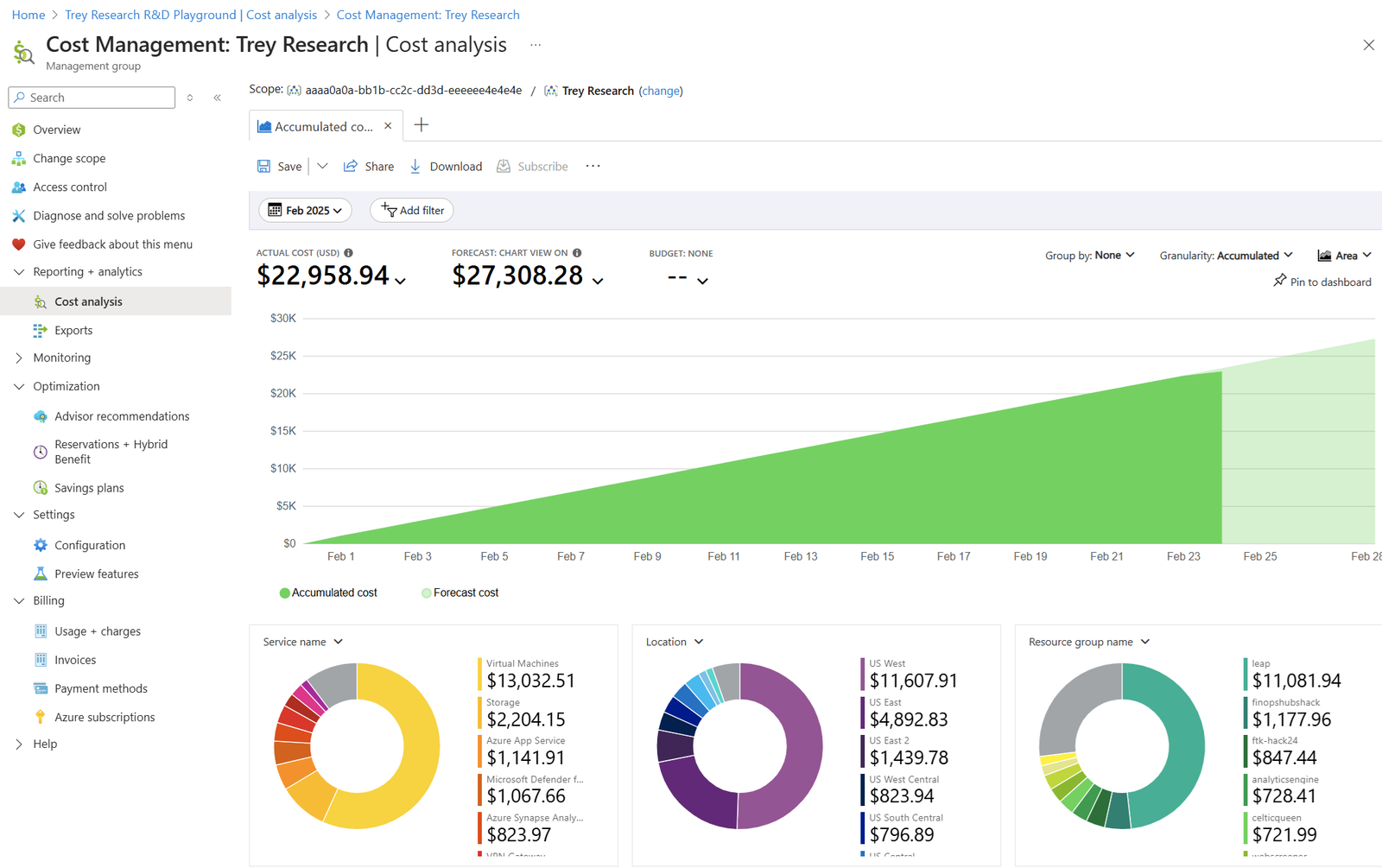
Cost analysis shows what you have spent this month, a forecast for the month, and breakdowns by service, location and resource group.
Open it from Cost Management in the Azure portal. It is free and works on every subscription and resource group. Group by resource to find the single most expensive item.
Tag your resources. Labels such as project or owner let cost analysis split the bill by team, so everyone sees what they spend.
Step 2: Set a Budget and Alerts
Create a monthly budget
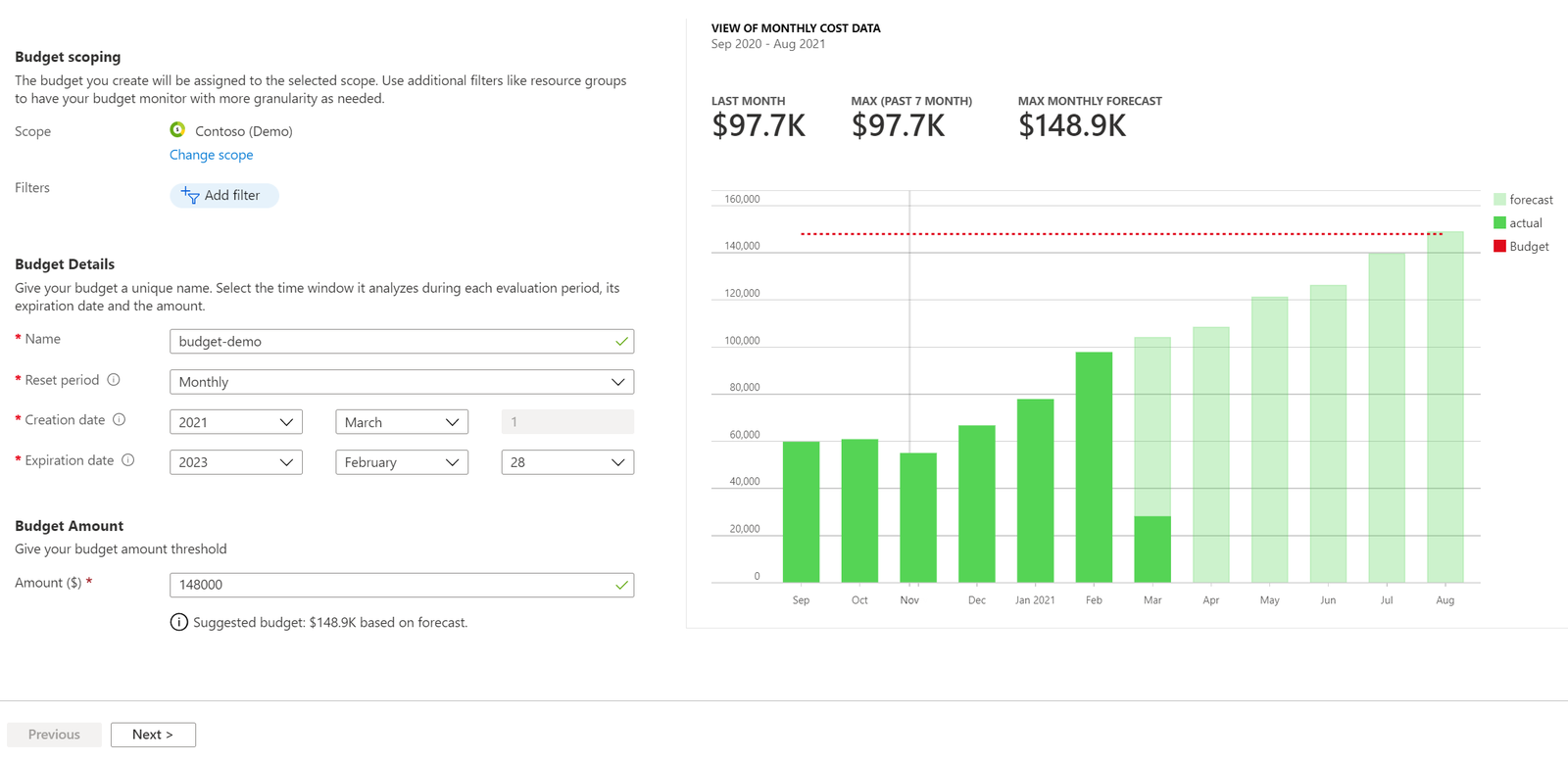
Under Cost Management, select Budgets, then Add. Pick monthly, enter an amount and Azure shows your past spending beside it.
A budget is the cheapest insurance in Azure: it takes two minutes and catches runaway costs early.
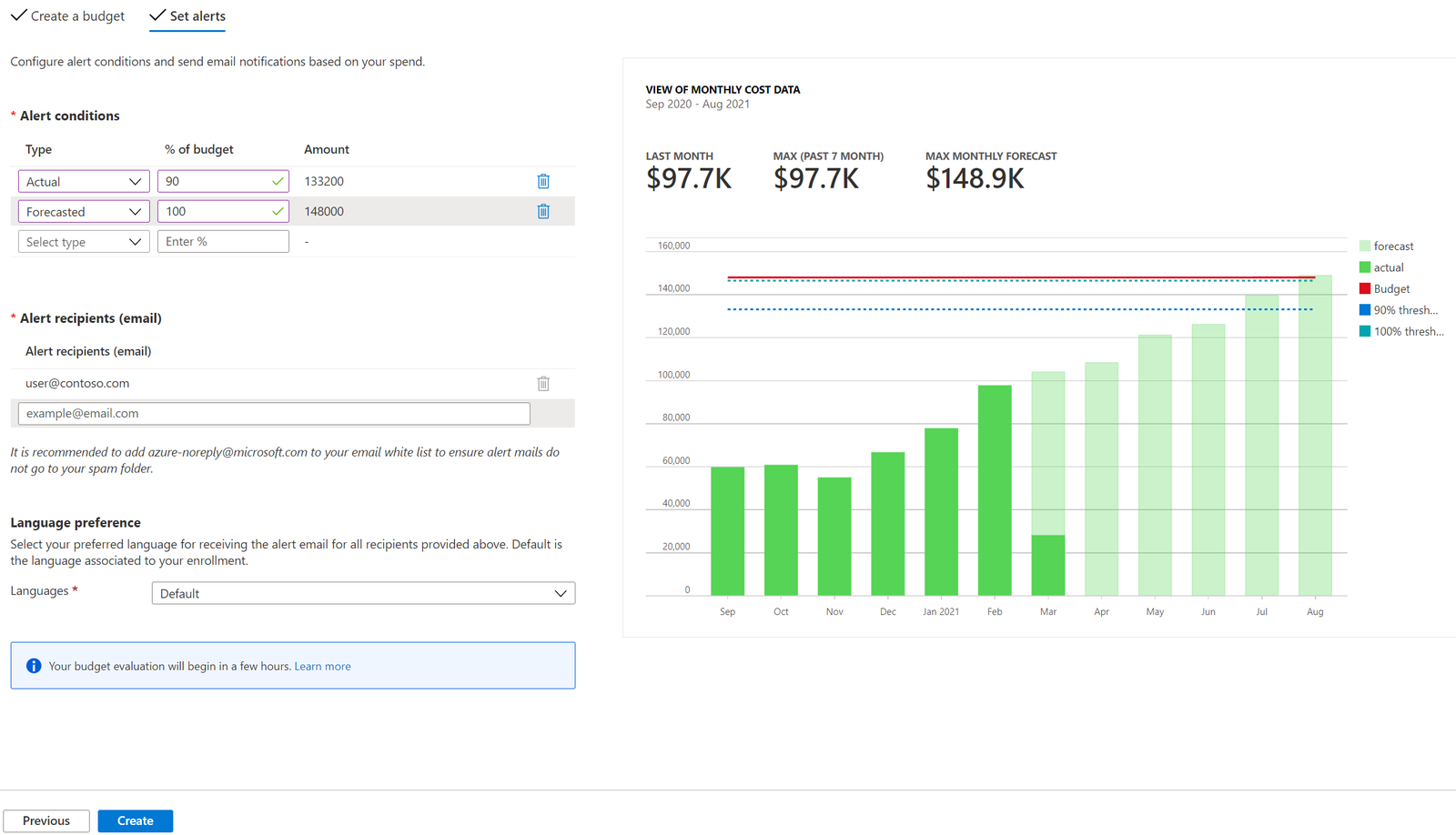
Get an email before it is too late
Set alerts at, for example, 50%, 80% and 100% of the budget, based on actual or forecasted spending.
A budget does not stop spending on its own. To act automatically, connect the alert to an action group that can run automation, such as shutting down machines.
Turn on anomaly alerts too. Cost Management can email you when daily spending suddenly jumps or drops, which catches problems a monthly budget would only show weeks later.
Step 3: Follow Azure Advisor
Free, personal cost recommendations
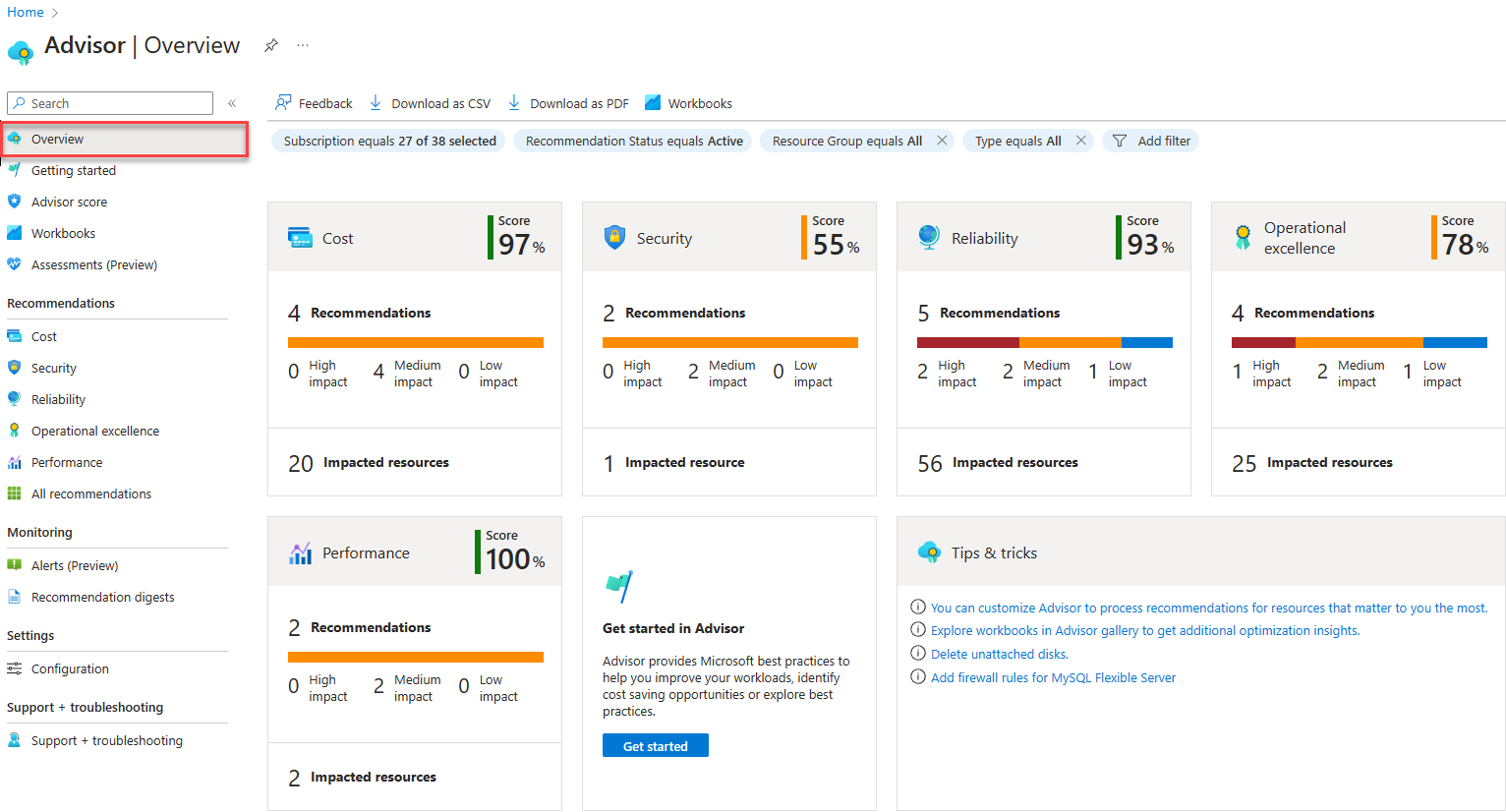
Azure Advisor checks your resources every day and suggests changes, such as shrinking a virtual machine that barely uses its processor, or buying a reservation for one that runs all the time.
Open Advisor, select Cost, and work through the high-impact items first. Each recommendation shows the estimated savings.
Ways to Pay Less for What You Keep
Once you know what you need, these options lower the price. Pick based on how steady and how flexible your usage is.
Microsoft’s figures are maximums. Your saving depends on the service, size, region and term. Advisor’s recommendations show the estimate for your own usage before you buy.
Quick Wins You Can Do Today
Stop machines you are not using
A stopped (deallocated) virtual machine stops paying for compute. Turn on auto-shutdown for test and lab machines so they switch off every evening.
Right-size oversized machines
If a machine sits at low processor use, move it to a smaller size. Advisor lists the candidates.
Delete leftovers
Unattached disks, old snapshots and unused public IP addresses keep billing after the machine they belonged to is gone.
Use cheaper storage tiers
Move files you rarely open to the Cool, Cold or Archive tiers, which cost less to store but more to read.
Watch log volume
Logs sent to Azure Monitor are billed by the gigabyte. Collect only what you use. Our Azure Monitor guide explains the free parts.
Check free services
Many Azure services have free monthly amounts. Some are free for 12 months on a new account, others always free up to a limit.
Estimate Costs Before You Deploy
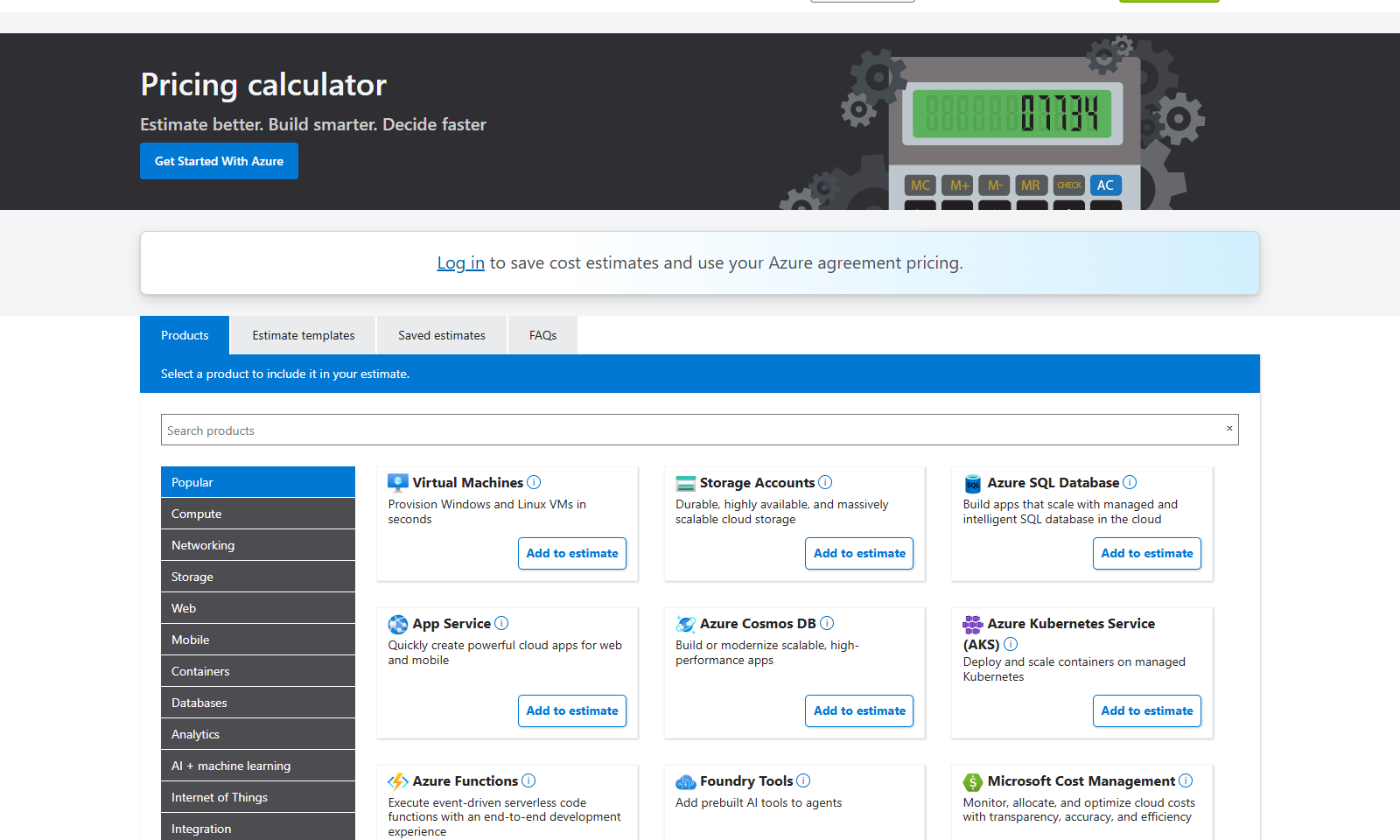
The free Azure pricing calculator lets you add services, pick sizes and regions, and see a monthly estimate without signing in. Price a project before you build it, then compare the estimate with Cost Management once it runs.
Your 30-Minute Monthly Cost Review
1 Open Cost analysis and compare this month with last month. Note anything that jumped.
2 Group by resource and check the top five. Does each one still need to exist, and at that size?
3 Open Advisor, then Cost, and act on the high-impact recommendations.
4 Look for leftovers: unattached disks, idle public IP addresses and stopped but not deallocated machines.
5 Check your budget alerts still match your plans for next month.
Frequently Asked Questions
Is Microsoft Cost Management free?
Does stopping a virtual machine stop all charges?
What is the difference between a reservation and a savings plan?
Can a budget stop my Azure spending automatically?
How do I avoid charges on a free Azure account?
Support and Community
- Microsoft Cost Management, Microsoft’s own product page.
- Cost Management and Billing documentation on Microsoft Learn.
- Microsoft Q&A for Cost Management, where Microsoft engineers and users answer questions.
- r/AZURE on Reddit, a large community for Azure questions and tips.
More Windows software guides: What Is Microsoft Azure? · Azure Migration Tools · Azure Monitor · Azure Mandatory MFA
Discover more from Windows Mode
Subscribe to get the latest posts sent to your email.
















Add your first comment to this post