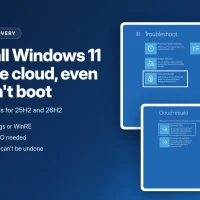
What is Windows 11 Cloud rebuild? It’s a new recovery option that wipes your PC and reinstalls Windows 11 using a fresh copy of Windows and drivers downloaded from Windows Update. It runs from the Windows Recovery Environment (WinRE), so it works even when Windows won’t start, and you don’t need a USB drive or ISO. Microsoft added it in the October 28 preview update, KB5127936, for Windows 11 versions 25H2 and 26H2.
The catch is in the name of the job it does: Cloud rebuild always removes everything stored on the PC, including your files, accounts, apps and settings. It also has an optional sanitize step that securely erases the drive, and Microsoft is clear that this part can’t be undone.
Read this before you click anything
- Cloud rebuild deletes all local files. Only files already in OneDrive or another cloud service survive.
- Remove & sanitize is permanent. There is no way to get the data back afterward.
- If you just want to fix a problem and keep your files, try the gentler options first (see the comparison below).
Who gets Cloud rebuild?
Cloud rebuild is a Windows 11-only feature. Windows 10 doesn’t get it. On Windows 11, you need:
- Windows 11, version 25H2 or 26H2 with the October 2026 non-security update (KB5127936) or later. Microsoft’s Cloud rebuild support page says this update is required for both Cloud rebuild and data sanitization.
- A PC that meets the Windows 11 minimum hardware requirements, including TPM. If TPM is turned off in the firmware, the rebuild fails with error
0xc1900200. - A working WinRE. You can check it by running
reagentc /infoin an administrator Command Prompt. - Internet access from WinRE: an Ethernet cable, or a Wi-Fi network your PC maker’s WinRE network driver supports. Microsoft’s IT documentation says only WPA2-Personal Wi-Fi works in WinRE for now, so a home network is fine but many office networks are not.
KB5127936 lists Cloud rebuild under its gradual rollout features, so it may not appear on every PC as soon as the update is installed. To get features like this sooner, turn on Get the latest updates as soon as they’re available in Settings > Windows Update, then select Check for updates. Windows 11 version 24H2 doesn’t get this preview update, which is one more reason to move to Windows 11 26H2.
How to start Cloud rebuild from Settings
Use this route if Windows still starts. Back up anything you need first, plug in the PC and connect it to the internet.
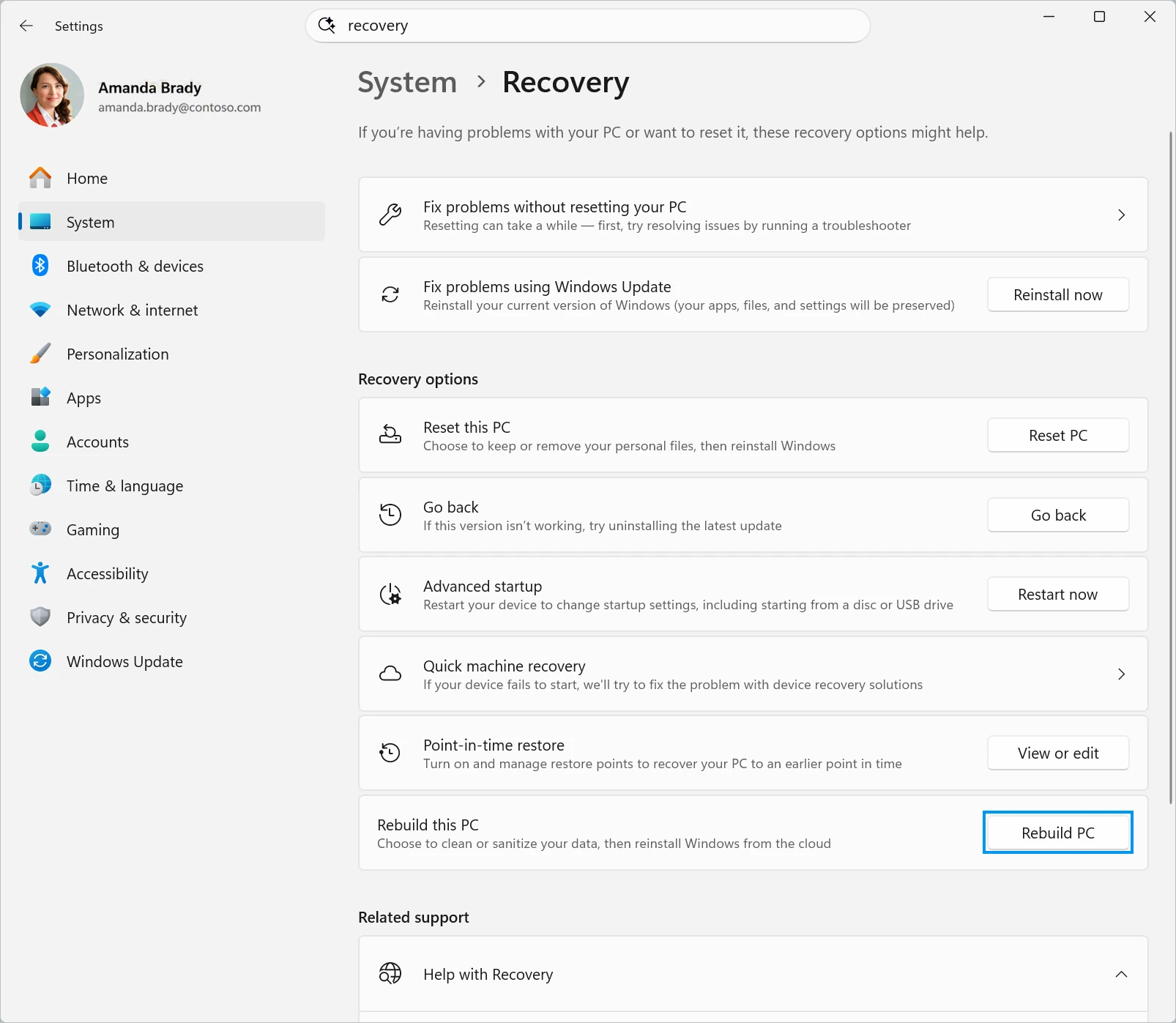
- Open Settings > System > Recovery.
- Next to Rebuild this PC, select Rebuild PC. The PC restarts into WinRE and Cloud rebuild begins.
- Continue with the steps in Choose how your files are removed below.
How to use Cloud rebuild when Windows won’t boot
This is where Cloud rebuild earns its place. Because it downloads everything it needs, Microsoft says it works even if the Windows files on the PC are badly damaged.
- Get into WinRE. If Windows fails to start several times in a row, the PC opens WinRE on its own. If Windows still loads but is unstable, you can also go to Settings > System > Recovery and select Restart now next to Advanced startup.
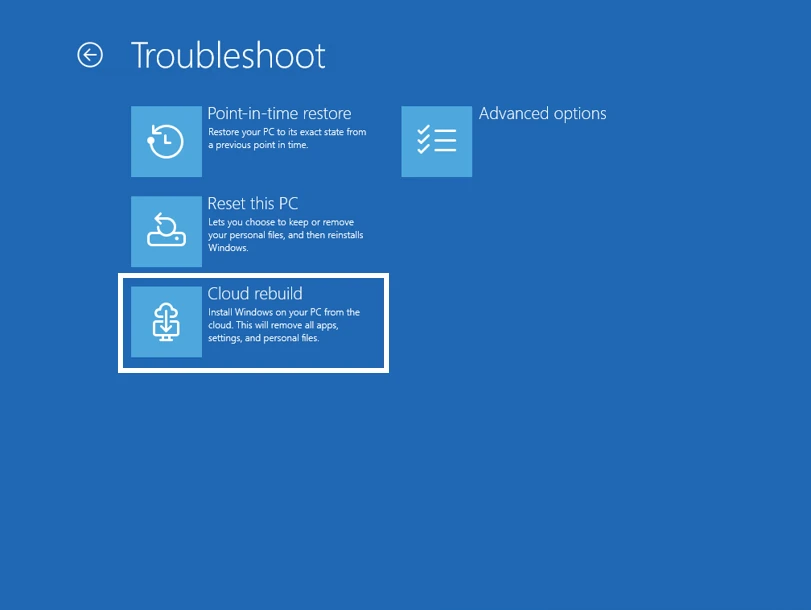
- On the Choose an option screen, select Troubleshoot, then Cloud rebuild. Microsoft’s KB5127936 notes give the path as Troubleshoot > Recovery and uninstall > Cloud rebuild, so look there if you don’t see the tile right away.
- Connect to the network. Ethernet connects automatically. For Wi-Fi, pick your network and enter its password.
Choose how your files are removed
After Cloud rebuild connects and checks Windows Update for the right build and drivers, it asks how thoroughly to remove your data. This is the most important choice in the whole process.
| Option | What it does | Use it when |
|---|---|---|
| Remove files | Reformats the drive and reinstalls Windows. Faster, but files might still be recoverable with specialized tools. | You’re keeping the PC. |
| Remove & sanitize | Asks the drive itself to securely erase the data before Windows is reinstalled. Takes longer and can’t be undone. | You’re selling, recycling, returning or handing the PC to someone else. |
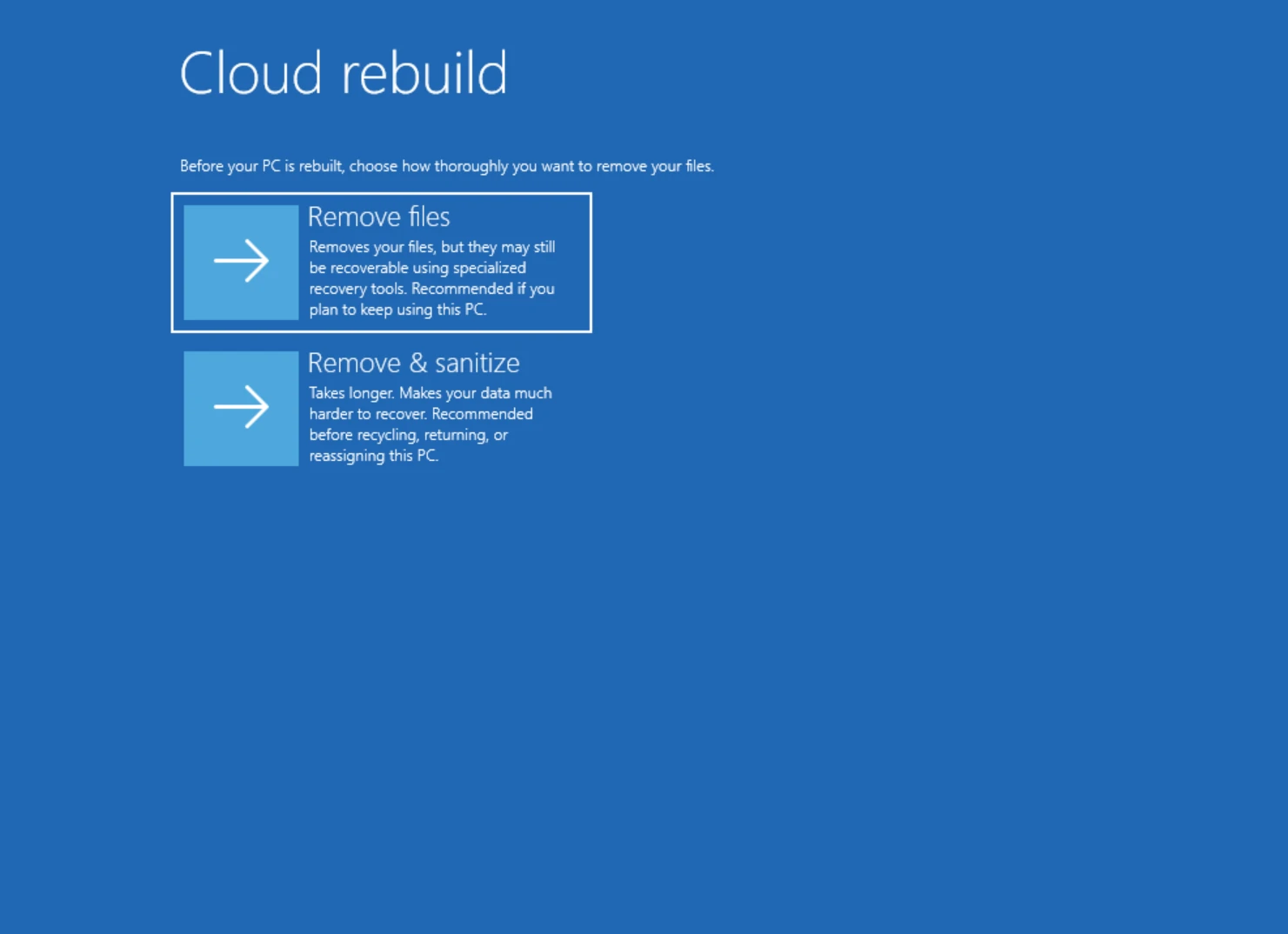
If you chose Remove files: check that the Windows build, edition and language shown are the ones you want, read the data loss warning, then select Continue.
If you chose Remove & sanitize: on a PC with more than one drive, choose Windows disk only (other drives are kept) or All disks (every drive is erased, which can take much longer). Read the summary, then select Sanitize and install.
From here, leave the PC alone. It may look idle for a long time while it sanitizes, then it downloads and installs Windows and may restart several times. When it finishes, you get the normal Windows setup screens, just like a new PC. Sign in with your Microsoft account to get OneDrive files back, restore apps and settings if you used Windows Backup, then run Windows Update.
Don’t interrupt it
Keep the PC plugged in and don’t turn it off or restart it while Cloud rebuild is running. Microsoft warns that an interrupted rebuild can leave Windows unable to start, and then you’d need a recovery drive, installation media or your PC maker’s recovery tools.
When not to use Cloud rebuild
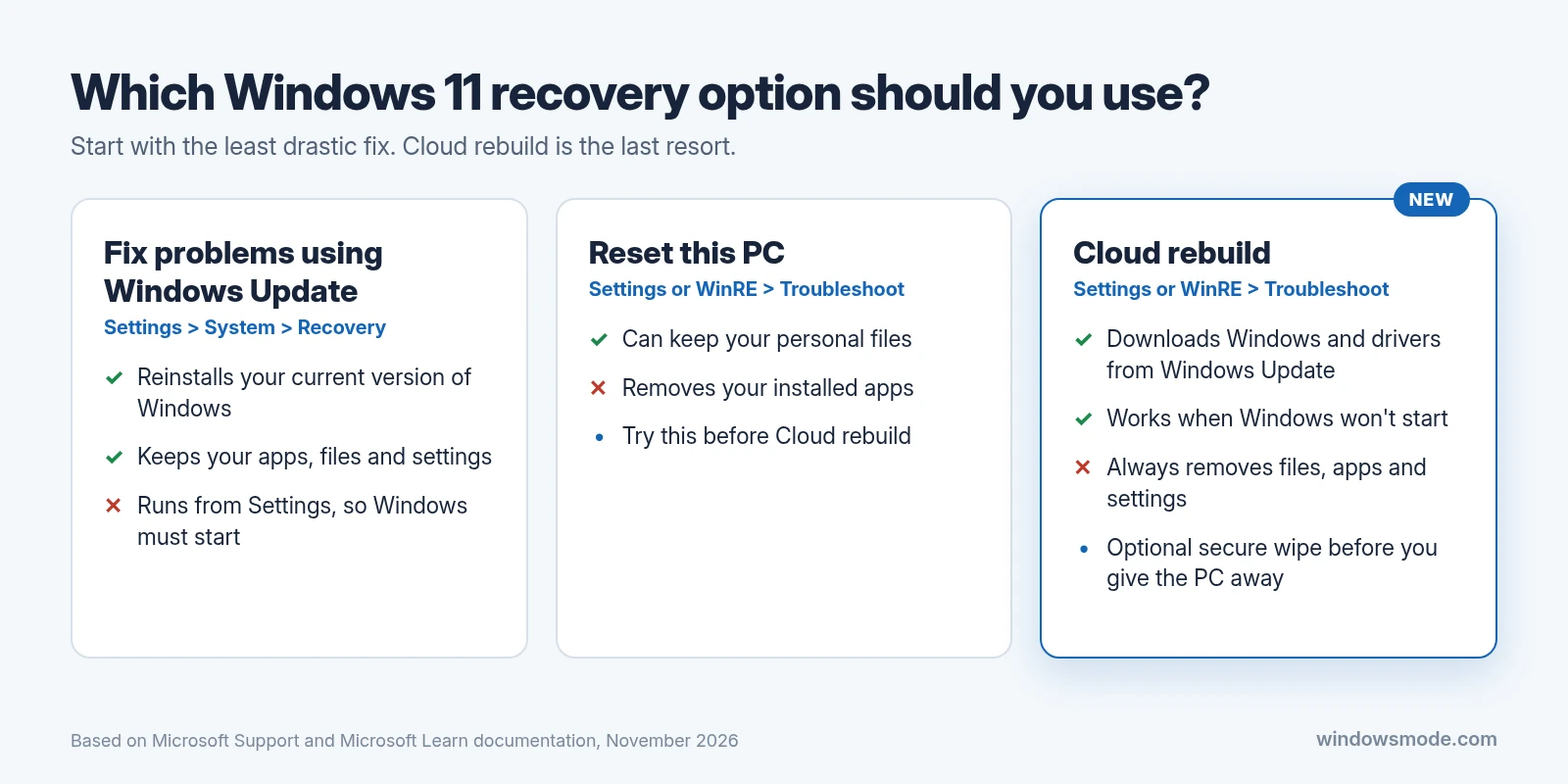
Microsoft’s own advice is to treat Cloud rebuild as the option for problems other recovery tools can’t fix, or for a completely fresh start. Skip it, at least for now, if:
- You haven’t backed up. Anything not in OneDrive or another backup is gone once the rebuild starts.
- You want to keep your files. Reset this PC can keep personal files. Fix problems using Windows Update reinstalls your current version of Windows and keeps your apps, files and settings.
- A recent update caused the problem. Try uninstalling it or using a restore point first.
- You need a certified wipe. Sanitizing relies on the drive’s own erase feature, and Microsoft says Windows can’t independently confirm what the drive did. If a company or legal policy applies, check with the PC maker and use its tool if needed.
- Your PC maker’s drivers aren’t on Windows Update. The rebuild fails with error
0xc1900224if a required driver is missing there.
If Cloud rebuild fails
Cloud rebuild shows an error code when it can’t finish. Microsoft lists three common ones:
0x800704C6: no internet. Plug in Ethernet or join Wi-Fi, select Cancel, then go to Troubleshoot > Cloud rebuild again.0xc1900200: the PC doesn’t meet Windows 11 requirements, most often because TPM is off. Turn on TPM (sometimes called PTT, fTPM or Security Device) in UEFI/BIOS.0xc1900224: a driver the PC needs isn’t on Windows Update. Contact the PC maker or reinstall with installation media.
If sanitizing fails, you can retry, copy the log to a USB drive, or skip sanitizing. Don’t skip it if the PC is leaving your hands.
IT admins get more: Cloud rebuild can be started remotely through the Recovery CSP in Intune, either with the build already on the device or a specific target build, and managed devices can re-enroll through Windows Autopilot afterward. The details are in Microsoft’s Cloud rebuild documentation for IT pros. We first covered the feature when it reached Insiders in our September preview builds roundup, and the same KB5127936 update also fixes the Smart App Control bug from KB5127648.
Frequently Asked Questions
Will Cloud rebuild delete my files?
Is Cloud rebuild available on Windows 10?
What is the difference between Cloud rebuild and Reset this PC?
Discover more from Windows Mode
Subscribe to get the latest posts sent to your email.















Add your first comment to this post