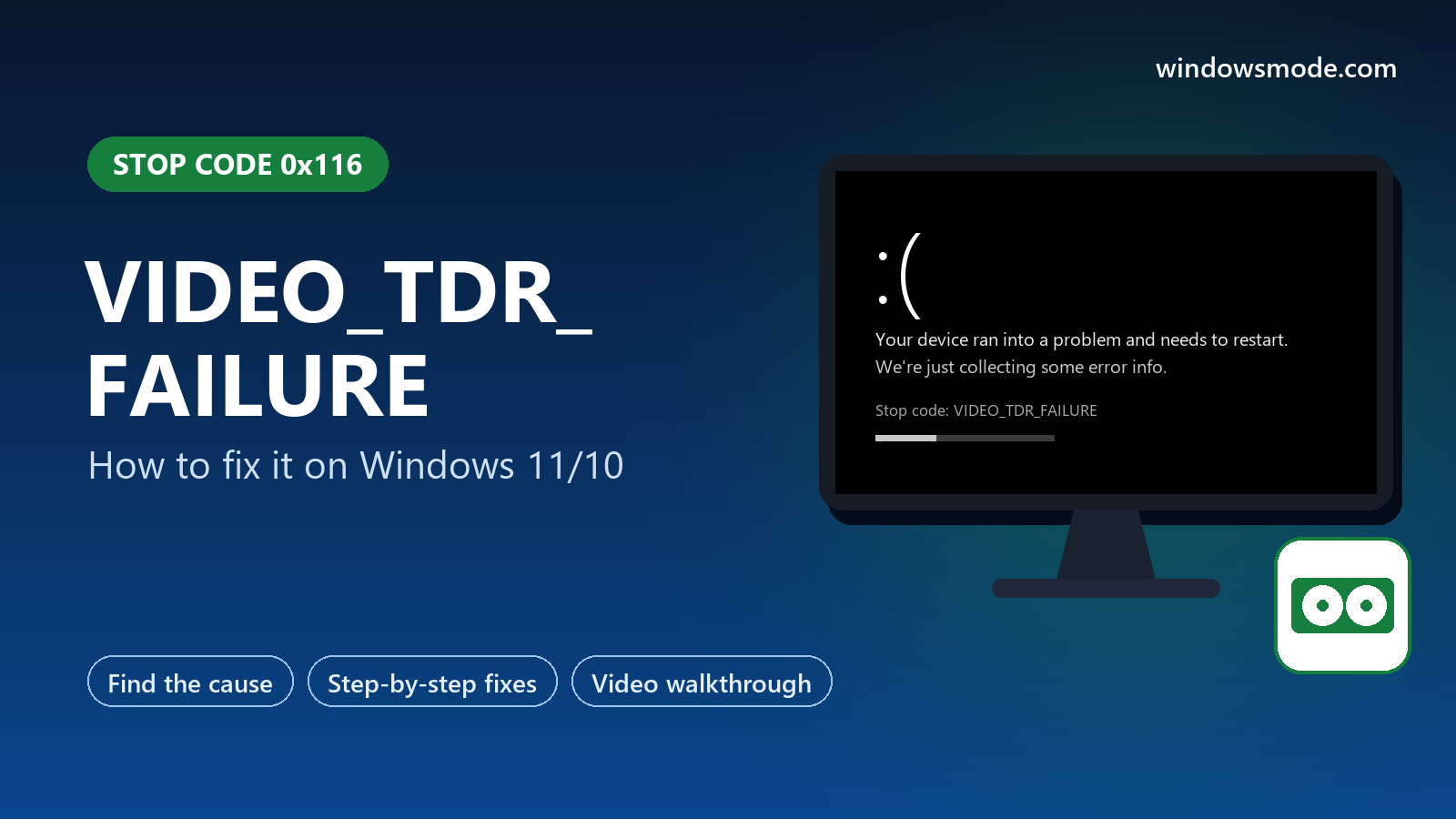
Stop code 0x116: your graphics card stopped responding and Windows could not bring it back.
VIDEO_TDR_FAILURE is a Windows stop code (0x116) that appears when your graphics card stops responding and Windows fails to restart its driver in time. It hits mostly during games, video editing or anything else that works the graphics card hard, on Windows 10 and Windows 11.
The crash screen usually names the graphics driver file, such as nvlddmkm.sys for NVIDIA. That makes the starting point clear: the graphics driver first, then heat, power and overclocks. Microsoft lists all four as causes.
Below: what TDR means, a table to match your symptom to a fix, eight fixes in order, and a video that shows the driver and power settings involved. Still stuck after trying them? Reach out to us directly.
What Does VIDEO_TDR_FAILURE Mean?
TDR stands for Timeout Detection and Recovery. Windows watches your graphics card, and if it takes longer than 2 seconds to finish a task, Windows assumes it froze and resets the graphics driver, instead of letting the whole PC lock up.
When that reset works, the screen flickers or goes black for a moment and you see a small message: Display driver stopped responding and has recovered. Many people see that message a few times before the blue screen ever appears.
VIDEO_TDR_FAILURE means the reset itself failed, or the graphics card froze too often: Microsoft sets the default limit at more than five times in one minute. At that point Windows gives up and restarts.
Which Driver File Did the Crash Name?
The crash screen’s What failed line tells you which graphics driver gave up. Reliability Monitor shows it too, as a BlueScreen event with code 116.
Start Here: Which Fix Matches Your Symptom?
Find the row that sounds like your PC and jump to that fix. If nothing matches, go in order from Fix 1.
Can’t reach the desktop? Use Safe Mode first
If the crash hits before you can do anything, start Windows in Safe Mode. It loads only the basic drivers, so the crash usually stays away long enough to work through the fixes below.
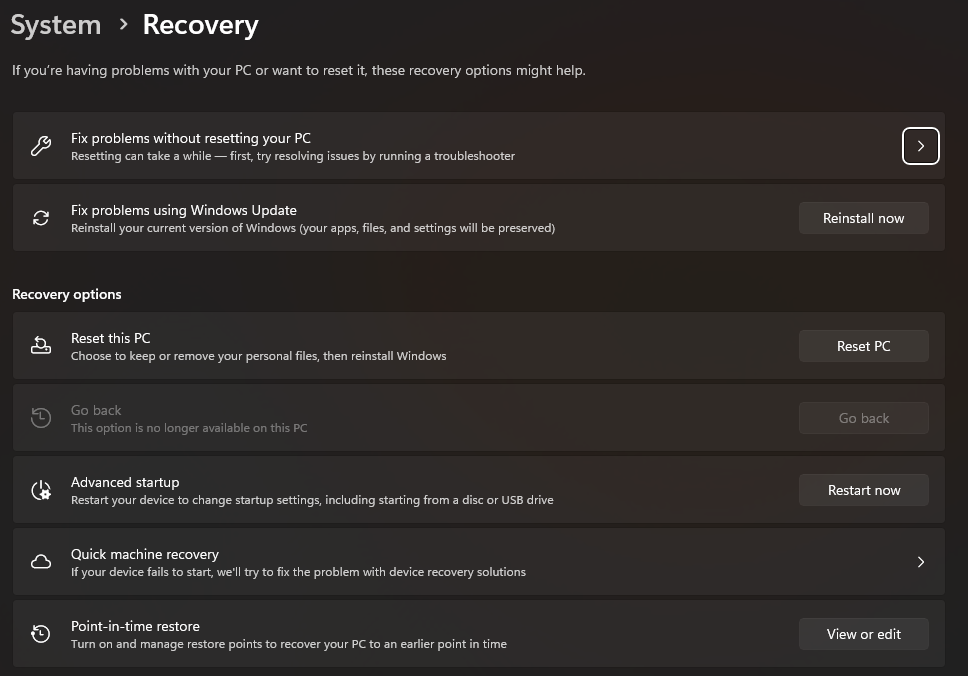
- From the desktop: open Settings > System > Recovery and select Restart now next to Advanced startup. On Windows 10 it is Settings > Update & Security > Recovery.
- From the sign-in screen: hold Shift while you select Power > Restart.
- If Windows won’t start at all: turn the PC on and hold the power button as soon as the logo appears, twice in a row. On the third start, Windows opens the recovery screen by itself.
- Then: select Troubleshoot > Advanced options > Startup Settings > Restart, and press 5 for Safe Mode with Networking.
How to Fix VIDEO_TDR_FAILURE on Windows 10/11
Restart after each fix and test with the game or app that crashed before.
Clean-install the graphics driver
Microsoft’s first advice for this stop code is the latest display driver. A clean install removes leftovers from older versions, which a normal update leaves behind.
- Download the driver for your exact graphics card from NVIDIA or AMD, or from Intel. On a laptop, start with the laptop maker’s support page.
- Run the installer and choose the clean option: NVIDIA calls it Perform a clean installation (under Custom), AMD calls it Factory Reset.
- Crashes began right after a driver update? Roll back instead: in Device Manager, open Display adapters, right-click your graphics card, choose Properties > Driver > Roll Back Driver. The video below shows this. Or install the previous version from the maker’s site.
Two graphics chips in a laptop? Update both: the built-in Intel or AMD one and the separate NVIDIA or AMD one. Our NVIDIA driver guide covers the NVIDIA side.
Remove every overclock
Microsoft lists overclocked components and memory settings among the causes. A graphics card that runs fine for months can become unstable after a driver update, a hot summer or simply age.
- Graphics card: reset MSI Afterburner, AMD Adrenalin tuning, or whatever tool you used, to default. Factory-overclocked cards can be turned down a little in the same tools.
- CPU and RAM: enter the BIOS and load the default settings, or turn off XMP or EXPO.
- Test for a few days. If the crashes stop, bring back one change at a time, smaller than before.
Check temperatures and clean out the dust
Insufficient cooling is another cause Microsoft names. A hot graphics card slows down and stalls, which is exactly what trips the 2-second timer.
- Watch the temperature: open Task Manager (Ctrl + Shift + Esc), go to Performance and select your GPU. Dedicated graphics cards show their temperature there. Play the game in a window and keep an eye on it.
- Clean the dust: shut down, unplug, and blow out the graphics card, case fans and filters with compressed air. Hold the fans still while you do it.
- Give it air: make sure the case fans spin, nothing blocks the vents, and a laptop sits on a hard surface, not a bed or a lap.
How hot is too hot? Each card has its own limit, listed on the maker’s spec page. As a rough guide, if your card regularly sits near its listed maximum while gaming, cooling is a likely cause.
Check power and reseat the graphics card
Insufficient system power is on Microsoft’s list too. A graphics card that briefly does not get enough power stalls in the middle of a frame.
- Check the power supply’s wattage against the graphics card maker’s recommended power supply size, listed on the card’s spec page.
- Use separate cables: if the card has two or three power sockets, connect each one with its own cable from the power supply rather than one split cable, where possible.
- Reseat the card: shut down, unplug, remove the card, then push it back into its slot until it clicks and reconnect the power cables firmly.
Turn off PCI Express power saving
Windows can lower the power to the graphics card’s connection when it thinks the card is idle. On some PCs the card does not wake up fast enough. Turning this saving off is a commonly reported fix, and it is the second part of the video below.
- Open Control Panel > Hardware and Sound > Power Options, then Change plan settings next to your plan, and Change advanced power settings.
- Expand PCI Express > Link State Power Management and set it to Off (on a laptop, for both On battery and Plugged in). Select OK.
Update the game, close overlays and background apps
Microsoft also mentions games that need patches, and too many programs running in the background. If only one game crashes, start there.
- Update the game and verify its files in Steam, the Epic Games launcher or the Xbox app.
- Turn off overlays: Discord, Steam, NVIDIA and Xbox Game Bar overlays, plus FPS counters and screen recorders. Turn them back on one at a time later.
- Close background apps you do not need, especially browser tabs playing video and RGB or monitoring tools.
Test your memory
Microsoft lists memory problems and wrong memory timings among the causes, and suggests the Windows Memory Diagnostic.
- Press Windows + R, type mdsched and press Enter, then choose Restart now and check for problems.
- Errors found? Reset XMP or EXPO, then test one memory stick at a time to find the faulty one.
Test the graphics card, or reinstall Windows
If nothing above helps, find out whether the card itself is failing. Microsoft suggests running the maker’s hardware diagnostics.
- Run your PC maker’s diagnostics (Dell SupportAssist, HP PC Hardware Diagnostics, Lenovo Vantage and similar) and test the graphics.
- Desktop with built-in graphics? Remove the graphics card and plug the monitor into the motherboard. If the crashes stop, the card is the likely cause. Testing the card in another PC confirms it.
- Rule out Windows: on Windows 11, Settings > System > Recovery > Fix problems using Windows Update > Reinstall now replaces Windows files but keeps your apps and files. Reset this PC with Keep my files is the last software step.
Card still under warranty? A graphics card that crashes at default settings, with good cooling, enough power and a clean driver, is a fair warranty claim. Note what you tried; the maker will ask.
Video Walkthrough
This walkthrough from MDTechVideos shows rolling back the graphics driver in Device Manager (Fix 1) and turning off PCI Express power saving (Fix 5). It was recorded on Windows 10, and the same settings exist on Windows 11.
Don’t change the TdrDelay registry setting
Many guides suggest raising the TDR timeout in the registry. Microsoft’s own documentation says those TDR registry keys are for driver developers and that end users should not change them. A longer timeout only gives a frozen card more time to freeze, and can lock the PC up instead of crashing it. Fix the cause instead.
How to Stop It Coming Back
Clean-install new drivers
Use the clean or factory reset option every time you update the graphics driver, and wait a few days before installing a brand new release on a PC you rely on.
Clean the dust twice a year
Graphics card fans clog faster than you think, and heat is one of the main causes of this crash.
Overclock gently, or not at all
If you tune your graphics card, leave a margin. A setting that passes a 10 minute test can still crash after two hours of gaming.
Size the power supply for upgrades
When you buy a bigger graphics card, check that the power supply matches the maker’s recommendation.
Frequently Asked Questions
What is the difference between VIDEO_TDR_FAILURE and Display driver stopped responding and has recovered?
Should I increase TdrDelay in the registry?
Is VIDEO_TDR_FAILURE a sign my graphics card is dying?
Why does VIDEO_TDR_FAILURE happen when my PC wakes from sleep?
Can VIDEO_TDR_FAILURE damage my PC?
Support and Community
- Bug Check 0x116 VIDEO_TDR_FAILURE on Microsoft Learn, Microsoft’s technical reference for this stop code.
- Timeout Detection and Recovery (TDR) on Microsoft Learn, explaining the 2-second timer and the recovery process.
- NVIDIA drivers and AMD drivers, the official download pages for graphics drivers.
- r/techsupport on Reddit, where you can post your graphics card, temperatures and crash details for help.
More Blue Screen Fixes
- How to fix DPC_WATCHDOG_VIOLATION
- How to fix KERNEL_SECURITY_CHECK_FAILURE
- How to fix SYSTEM_SERVICE_EXCEPTION
- How to fix MEMORY_MANAGEMENT
- How to fix INACCESSIBLE_BOOT_DEVICE
- How to fix DRIVER_IRQL_NOT_LESS_OR_EQUAL
- How to fix WHEA_UNCORRECTABLE_ERROR
- How to fix CRITICAL_PROCESS_DIED
- How to fix PAGE_FAULT_IN_NONPAGED_AREA
- How to fix error 0xc0000005
- How to fix Code 43
- All Windows error code guides
Discover more from Windows Mode
Subscribe to get the latest posts sent to your email.










Add your first comment to this post